Filmora App Edit Thumbnail
Filmora's Edit Thumbnail feature lets you customize video thumbnails directly within the app for a more eye-catching first impression. You can select a key frame from the video or upload a custom image. It's ideal for YouTube and social media creators who want professional-looking thumbnails without using extra design tools.
Step-by-Step Guide to Edit a Thumbnail With Filmora App
With the Filmora app, users get the ability to add a part of the video as a thumbnail or even an image from their device. The section below covers both the methods of editing thumbnails using the Filmora App:
Index
Filmora for Mobile
Edit Videos on Your Mobile Phone with 1-Click!
- • Powerful Brand New AI Features.
- • User-friendly video editing for beginners.
- • Full-featured video editing for professional.


Editing Thumbnail from Video
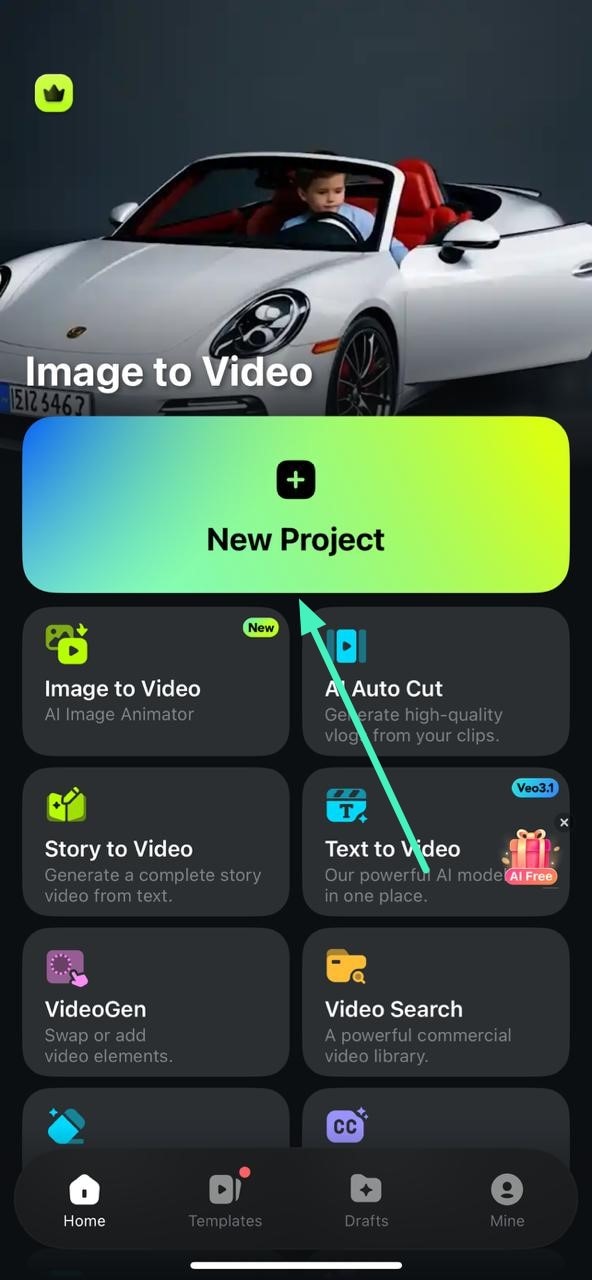
Step 1. Create New Project on App
To initiate, launch the application and press the New Project option located on the homepage to import the video for which you want to edit the thumbnail.
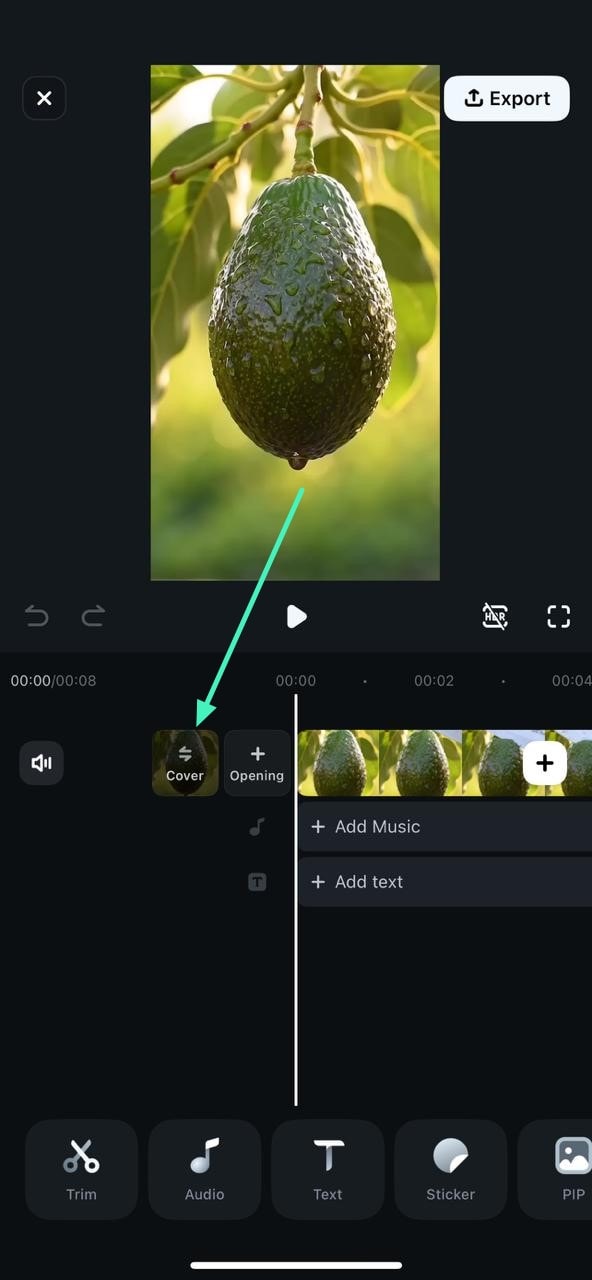
Step 2. Access the Thumbnail (Cover) Editing Menu
Once your video loads in Filmora's editing workspace, locate the clip on the Timeline. Tap the Cover icon positioned on the left side of the video track.
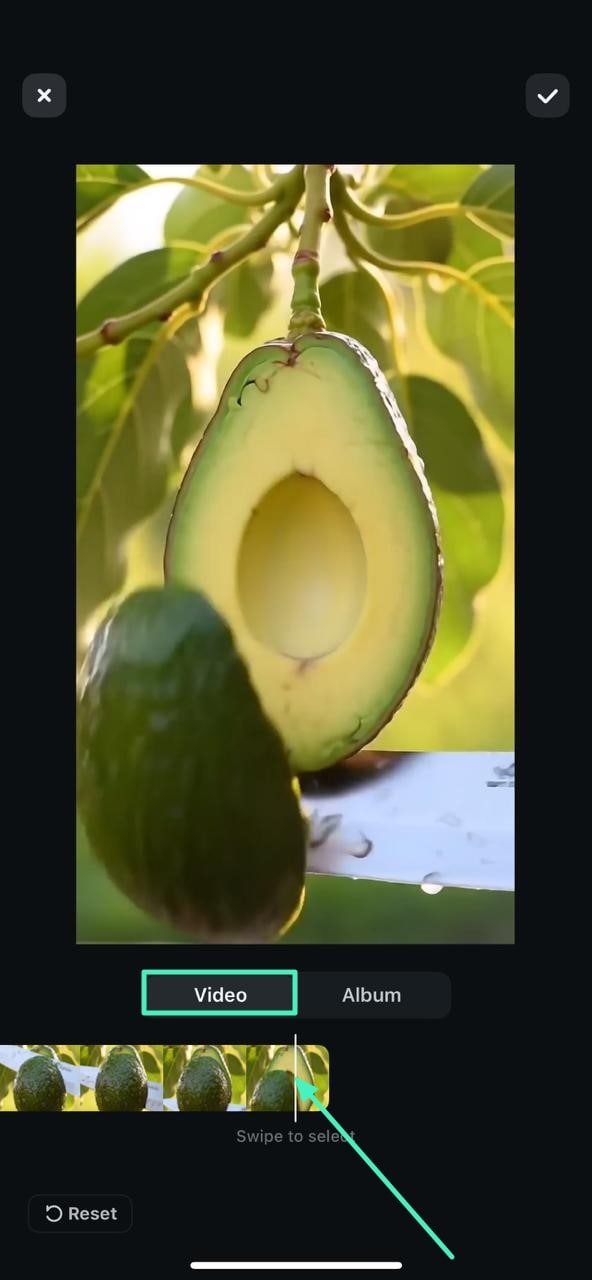
Step 3. Select a Frame From the Video as the Thumbnail
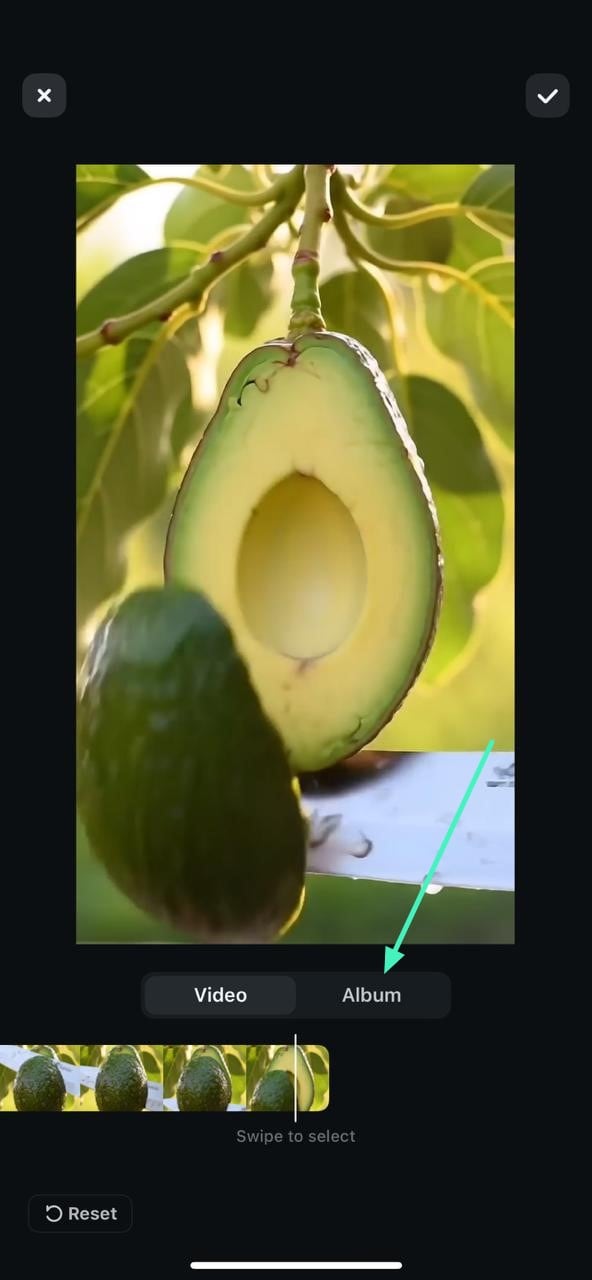
Under the Video section, drag through the video timeline to preview different frames. Stop at the moment you want to use as the thumbnail and select it as the project cover. After reviewing the selected frame, tap the Tick icon in the top-right corner to save and apply the thumbnail to your video.
Add Image as Thumbnail
Step 1. Open the Import Menu for Thumbnails
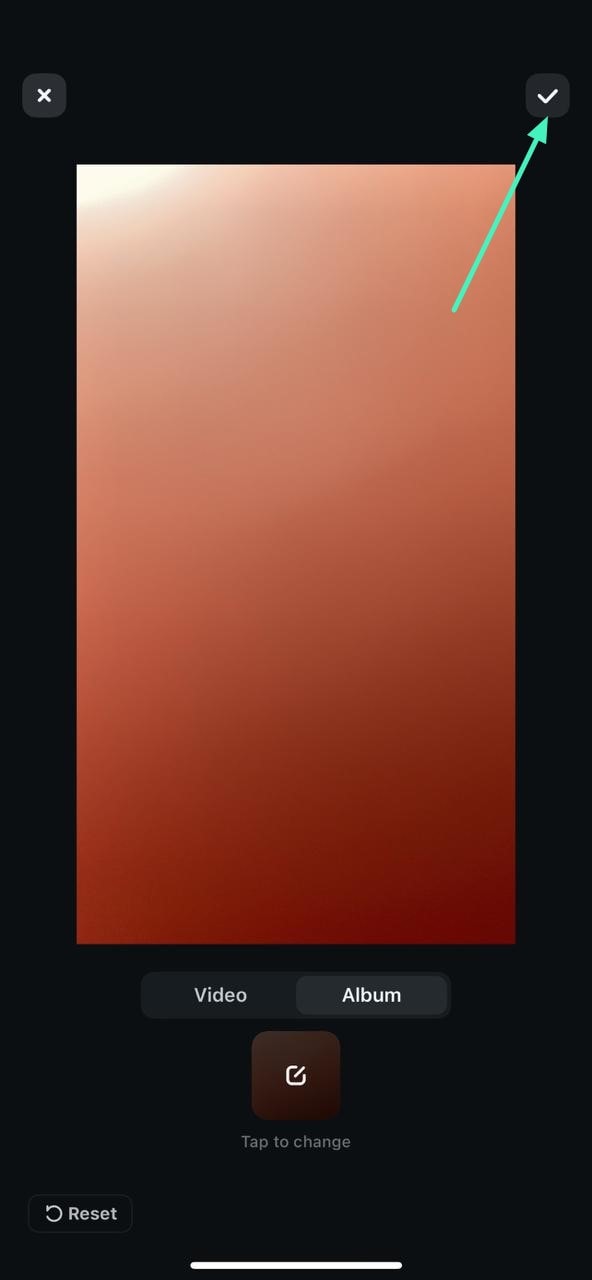
Within the thumbnail editing screen, tap the Album option to access your device gallery and Filmora's stock media. Select the media you want to use as the thumbnail, then tap Import to load it into the editor.
Step 2. Adjust and Crop the Thumbnail
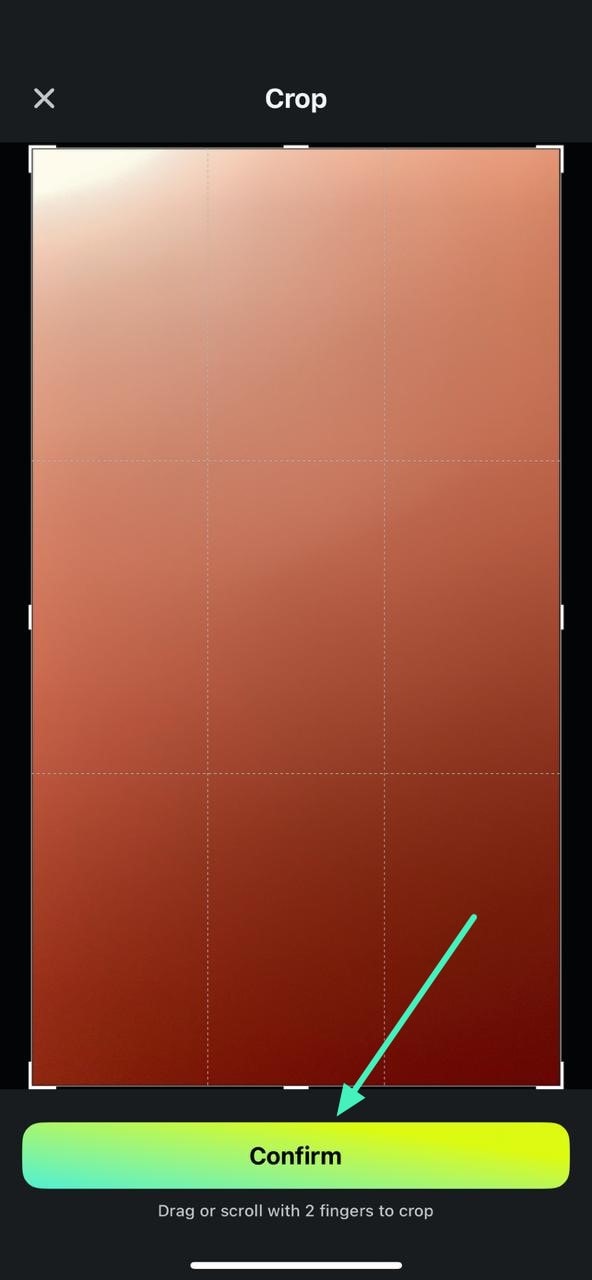
Resize or crop the image to fit your preferred layout and press the Confirm button located at the bottom.
Step 3. Apply the Custom Thumbnail
Finally, tap the Tick button in the top-right corner to set the adjusted image as your video's thumbnail.