AI Image:
Turn Your Words Into Stunning Images Instantly
Filmora's AI Image Generator lets you create images simply by typing what you imagine. No design skills needed, just enter a text prompt and let our prompt-to-image AI bring your ideas to life, choose a style, and generate a custom image you can use instantly in your video projects or content.
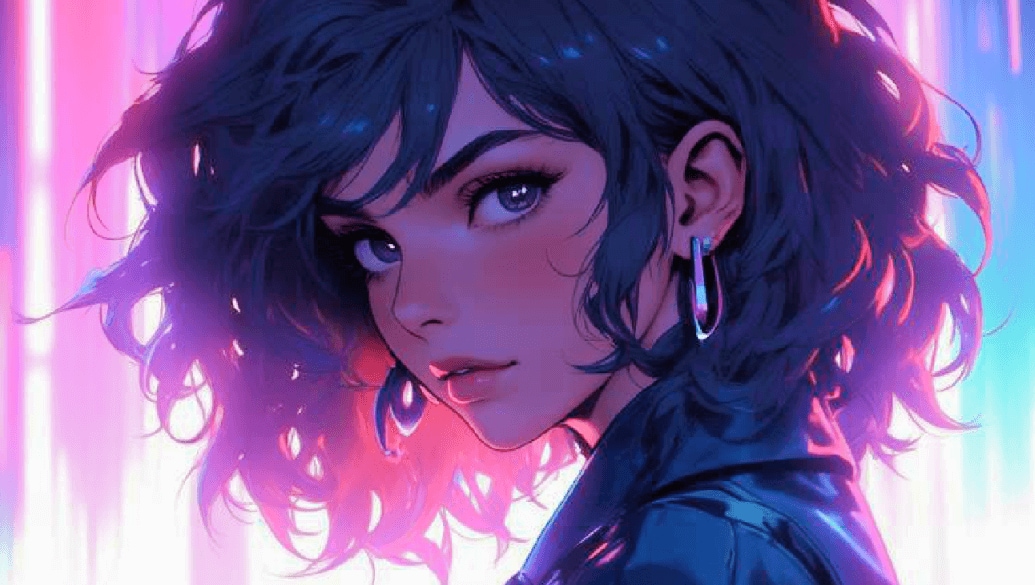
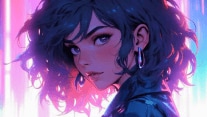
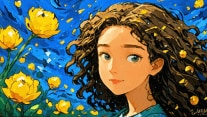
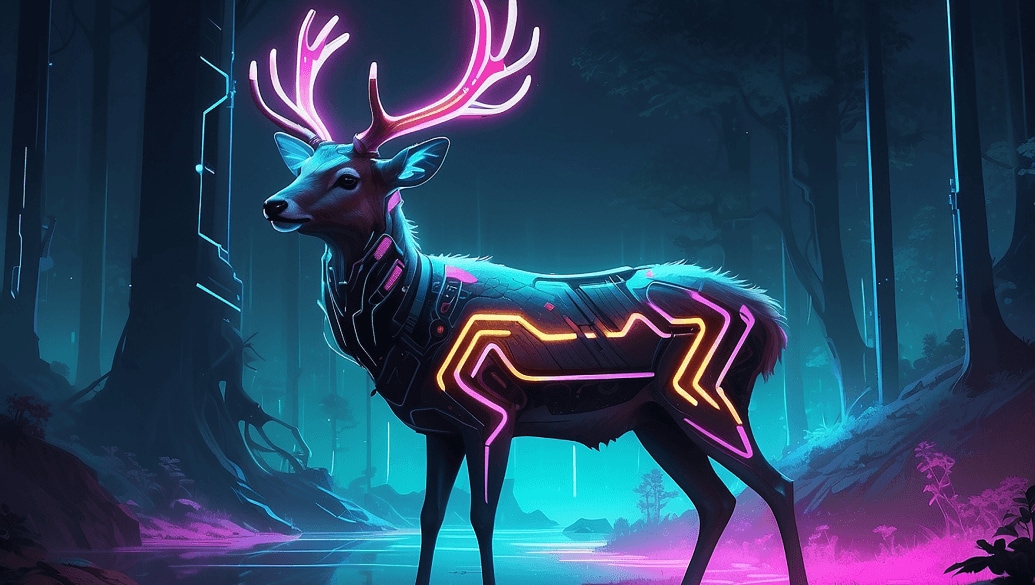
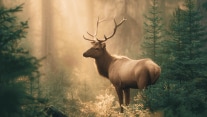
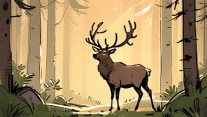
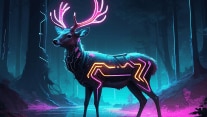
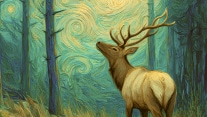
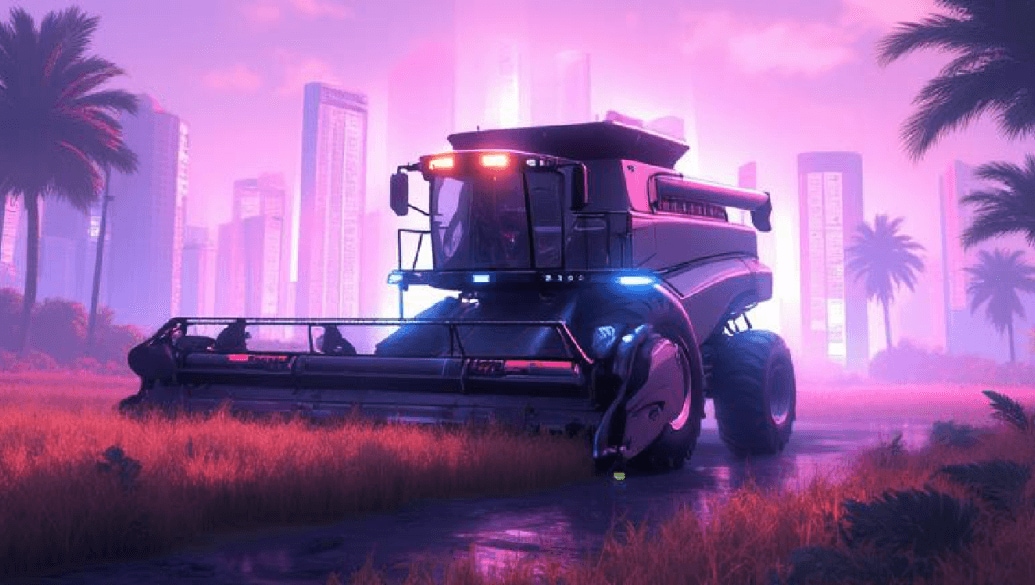
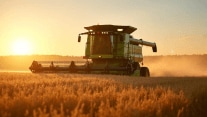
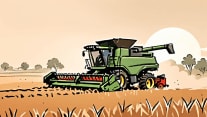
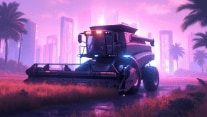
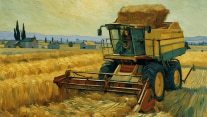
View Amazing AI Art Generator from Text
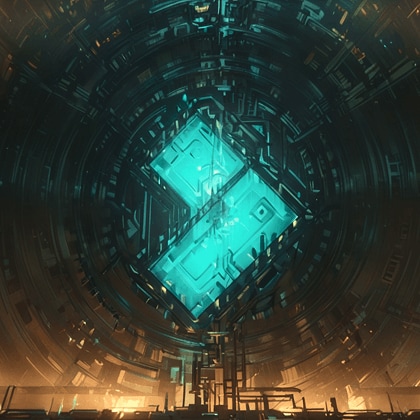
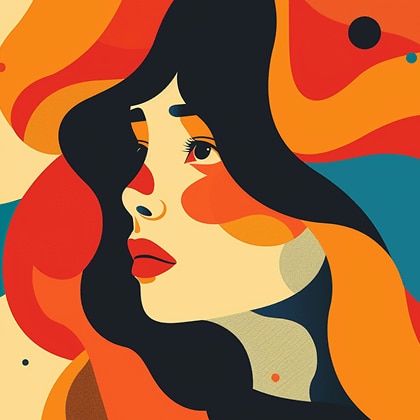
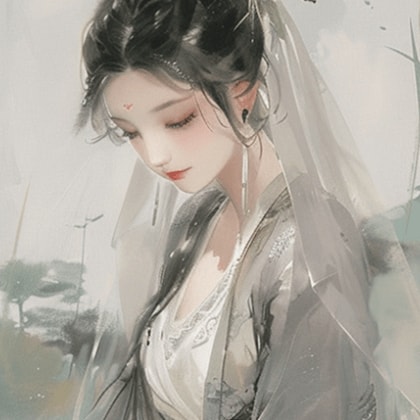
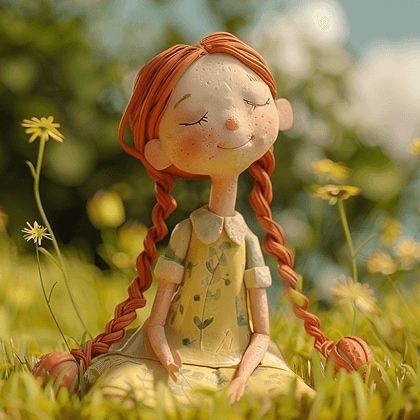
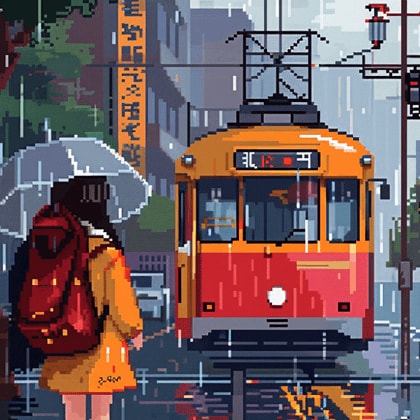
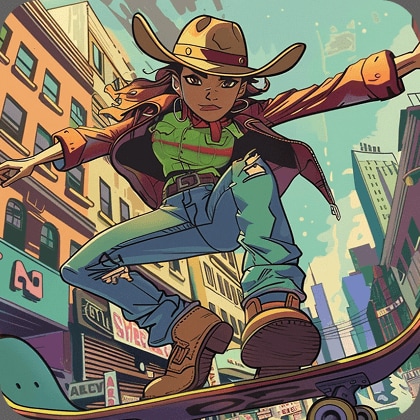
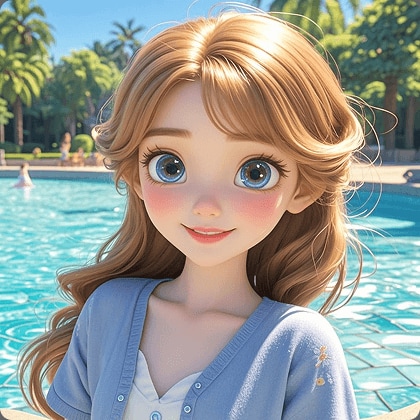
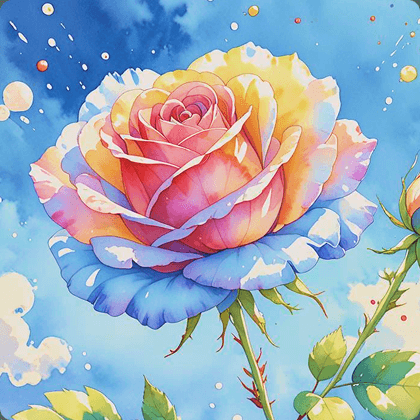
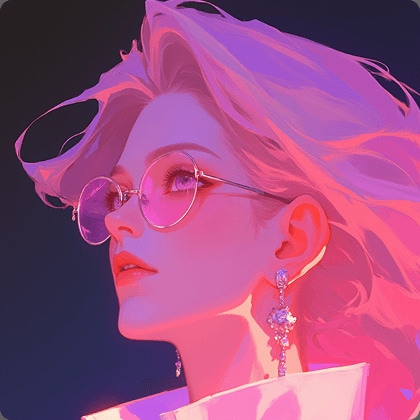
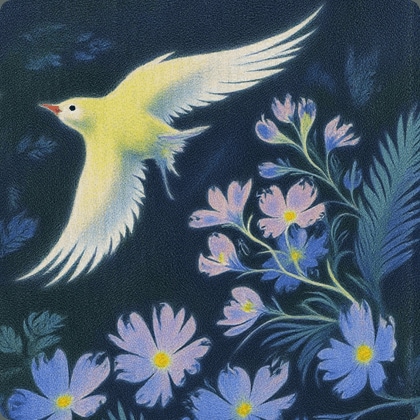
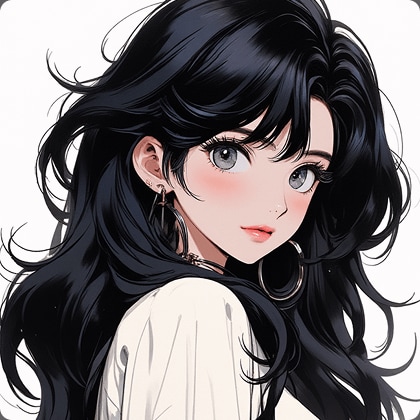
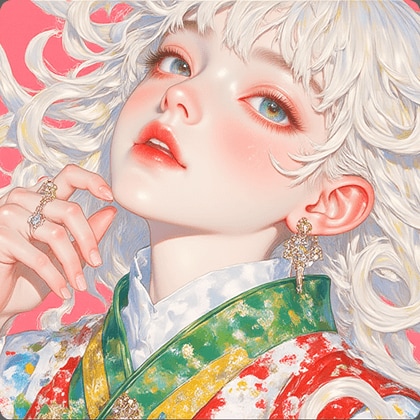
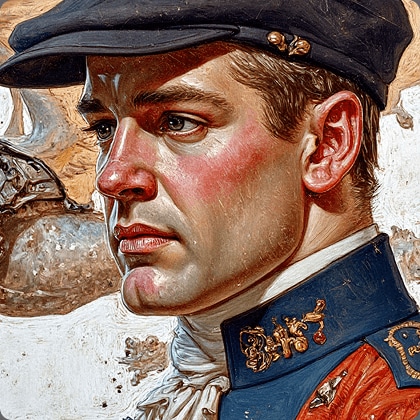
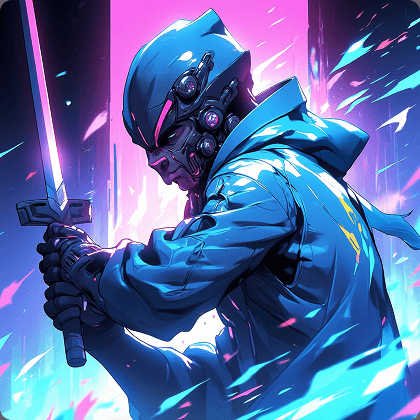
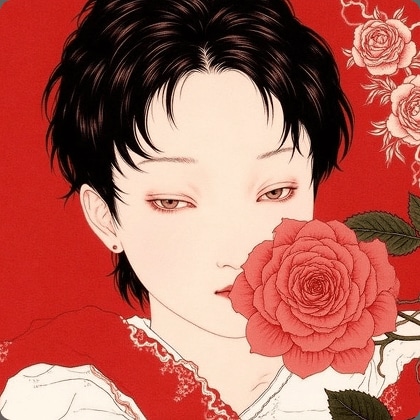
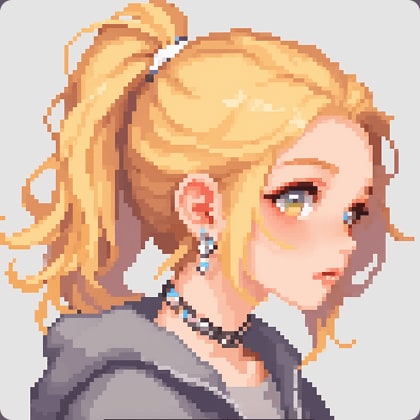
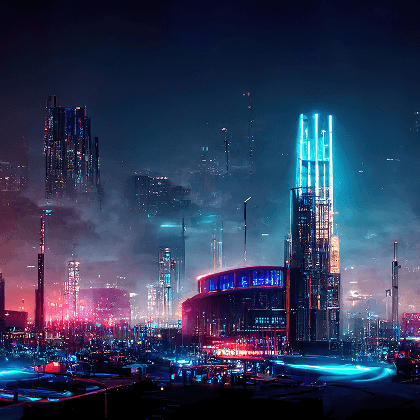
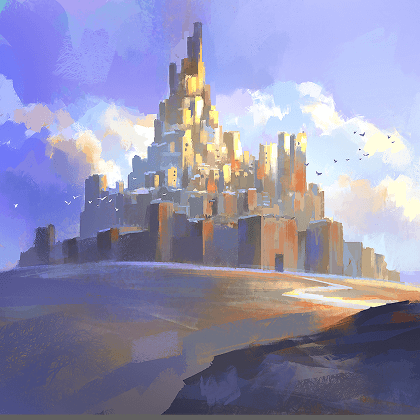
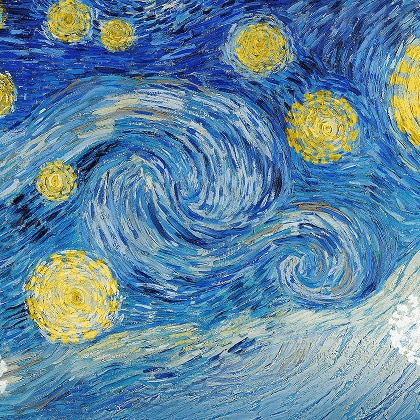
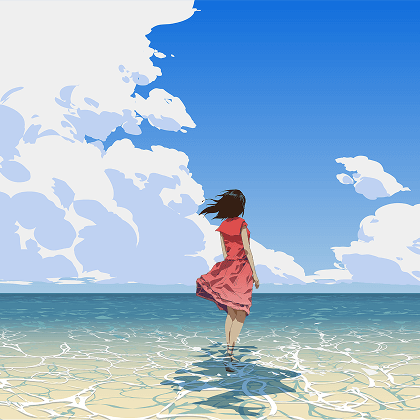
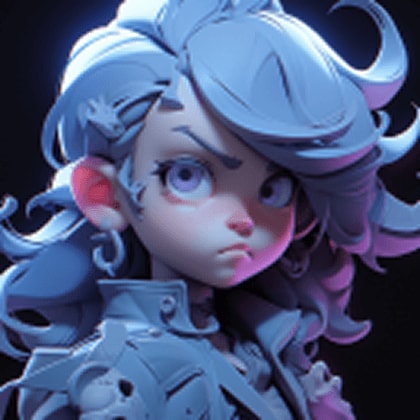
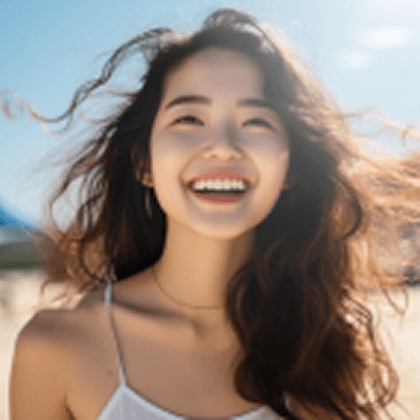
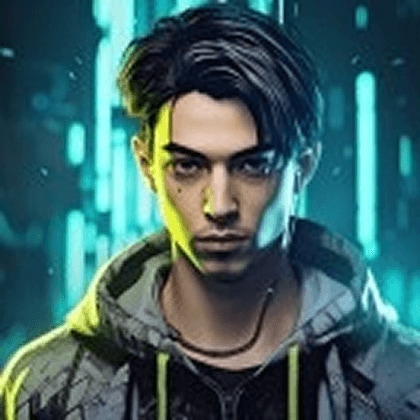
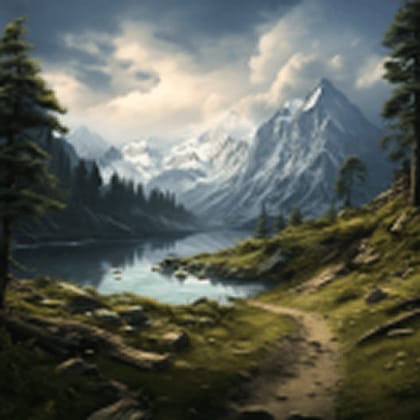
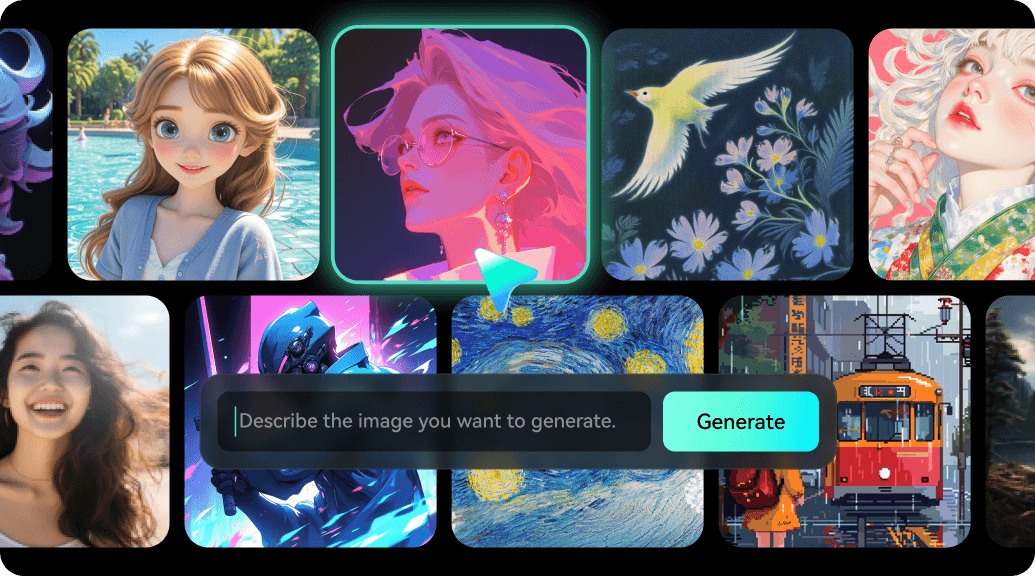
Filmora’s AI Image Generator creates eye-catching visuals in a wide range of styles, including anime, 3D art, cyberpunk, pixel, sketch, realistic, and more. Just enter your idea, choose a style, and watch AI bring it to life in seconds.
The Best AI Image Generator
Helps You Stay Ahead of Trends
Whether you need eye-catching graphics for videos, ads, or presentations, Filmora will generate AI images that help you save time
and boost creativity, letting you focus on storytelling while staying ahead of the curve.
and boost creativity, letting you focus on storytelling while staying ahead of the curve.
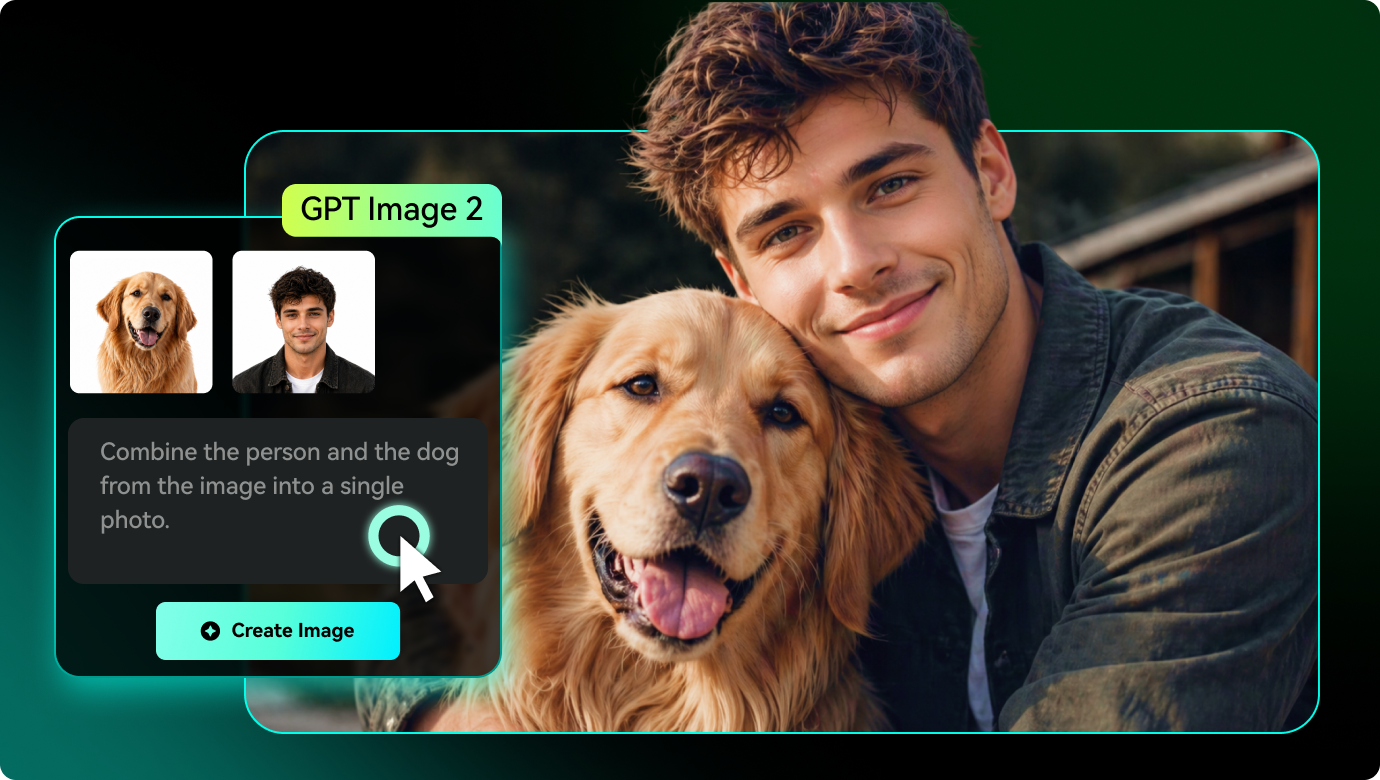
High-Quality AI Image Creation with GPT Image 2
Filmora now integrates GPT Image 2 to help you create sharper, more accurate AI images from simple text prompts. Turn ideas into polished visuals for videos, thumbnails, ads, and social content.
- Generate high-quality images from text prompts.
- Improve prompt accuracy and visual details.
- Create sharper textures and realistic lighting.
- Produce clearer text and stable compositions.
- Use generated images directly in your video projects.
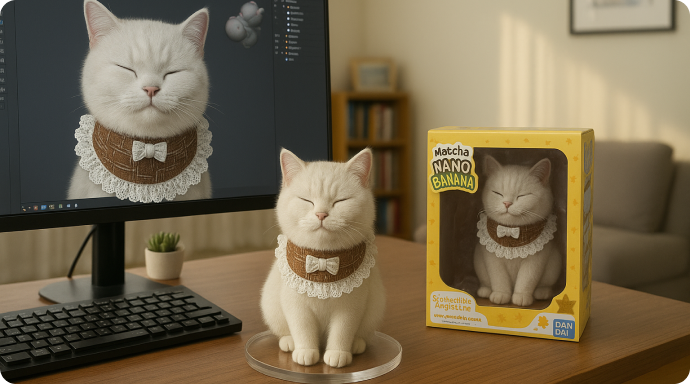
Smarter AI Image Creation with Nano Banana 2 & Pro 🍌
Nano Banana 2 helps you generate images faster, while Nano Banana Pro offers more refined control for detailed, style-rich creations. Available in Filmora's Nano Banana image generator, Nano Banana Pro helps turn complex prompts into polished visuals with greater consistency.
- Generate quick visual ideas with Nano Banana 2.
- Create refined artwork with Nano Banana Pro.
- Keep characters, objects, and scenes more consistent.
- Explore richer styles for complex prompts.
- Create visuals for videos, ads, and branded content.
Top Text-to-Image Generators: Create Images with Just Words
Your imagination is now your brush. Describe anything, "a neon skyline above a flooded city," "a panda astronaut on Mars", and watch Filmora turn it into a one-of-a-kind visual in seconds. No stock photo search. No design tools. Just your creativity and a few words.
- Perfect for thumbnails, title cards, scene design, AI headshot generation, and storytelling visuals.
- Including image stitching, centering subjects, and cropping.
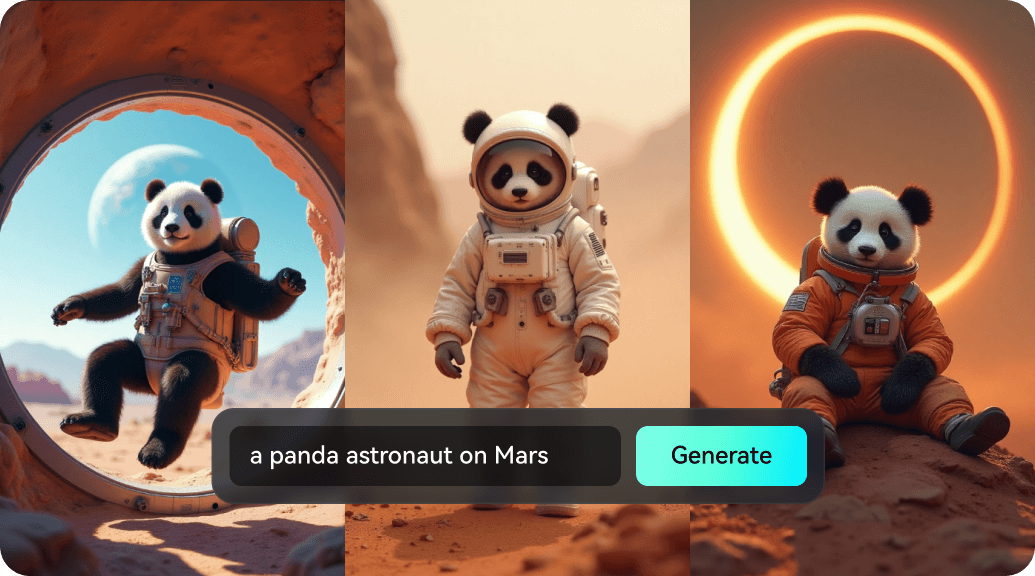
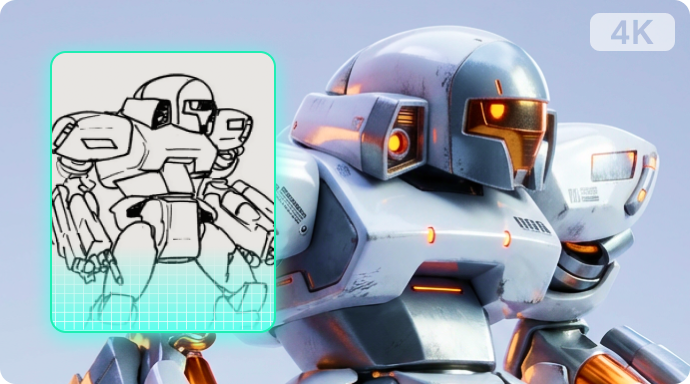
Image-to-Image Generator: Transform Visuals into Art
Stop hunting for stock photos and start creating them. Filmora’s AI Image-to-Image generator allows you to upload sketches or photos and instantly reimagine them into entirely new styles, bridging the gap between concept and final asset.
- Apply Cyberpunk, 3D, or Minimalist filters instantly.
- Upgrade 1K visuals into professional 4K clarity.
- Change mood and cinematic tone with one click.
- Redesign or remove backgrounds automatically.
- Redesign or remove backgrounds automatically.
Choose from 10+ Stunning Art Styles For Every Creation Need
Every idea deserves its own vibe. Bring your vision to life in the style that fits best, dreamy watercolor, cinematic realism, cyberpunk, comic book, and beyond. Explore limitless moods with just one prompt.
- Instantly switch styles like realistic, anime, vaporwave, and more, no extra input needed
- All aspect ratios for you to choose: 16:9, 9:16, 1:1, 4:3, 4:5, etc., presets tailored for YouTube thumbnails, Instagram posts, and ads.
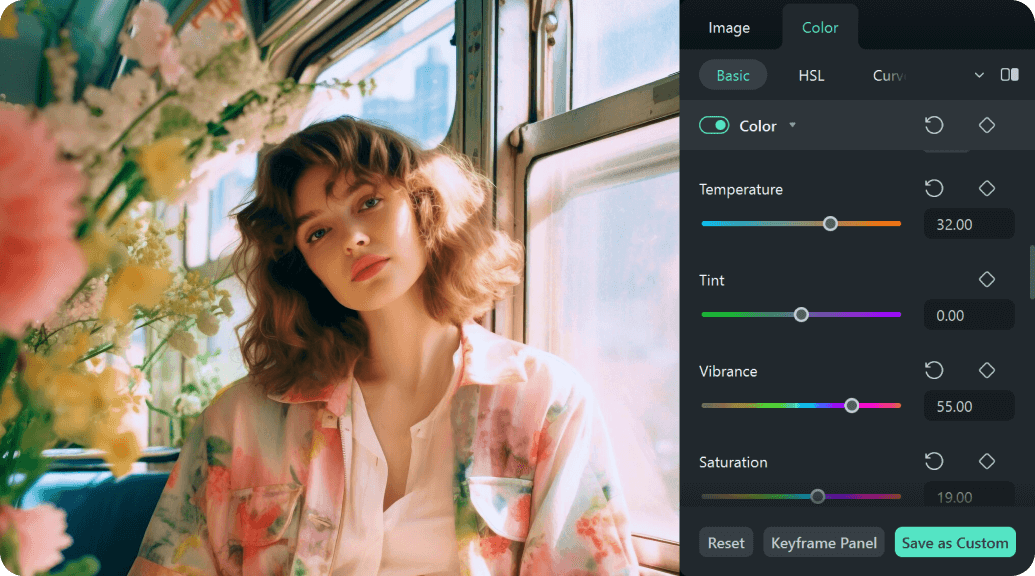
Filters, Texts, and More for Fine-Tuning Your AI-Generated Image
Once your image is generated, Filmora lets you take it further with built-in tools:
- Make them more eye-catching and memorable. Fix the details of your AI-generated character using Filmora's Image Enhancer. Adjust their brightness and saturation levels so their colors pop on the screen.
- Use color grading, vignette, and blur effects for polish. Add motion graphics, overlays, and text to enhance storytelling
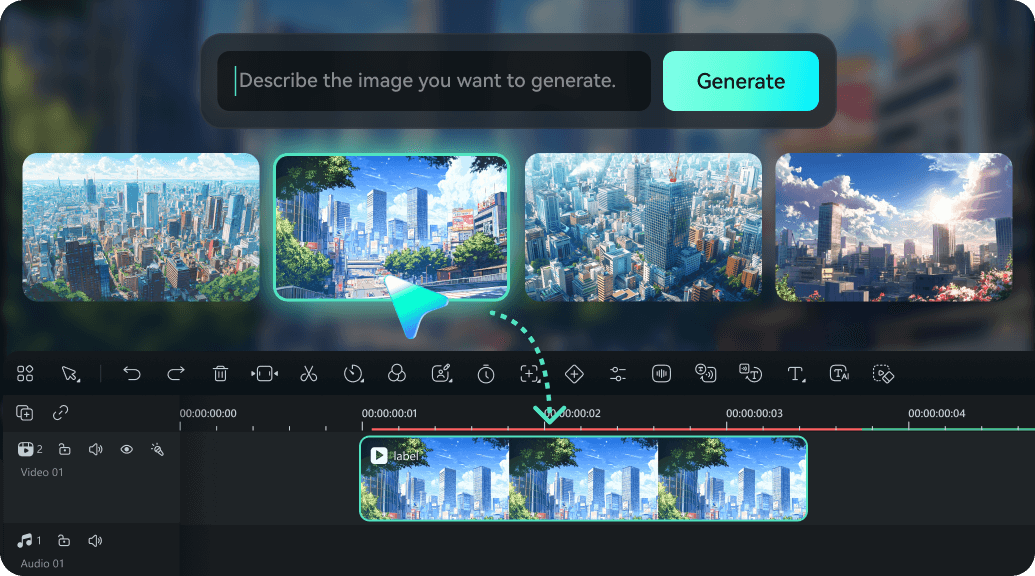
Seamless Integration With All-in-One Video Editing
No exporting. No app-hopping. No friction. Filmora‘s AI Image Generator is built directly into your editing timeline. That means you can generate and drop images straight into your project, ready to animate, overlay, or enhance. Use your images as backgrounds, transitions, mood boards, or visual storytelling assets.
- Supercharge your visuals with AI effects. Don’t stop at the image, make it move. Once you’ve generated your art, take it to the next level with Filmora's AI Image to Video, which animates, stylizes, and remixes your image in creative ways with trendy AI video effects.
- No switching apps or extra exporting, your workflow stays fast and fluid.
How to Make AI-Generated Images
Skip the manual work. Describe your vision, and let AI transform ideas into images.
Step 1. Open AI Image Generator in Filmora
Launch the latest version of Filmora, create a project, and click "Stock Media", choose "AI Image" from the Media panel.
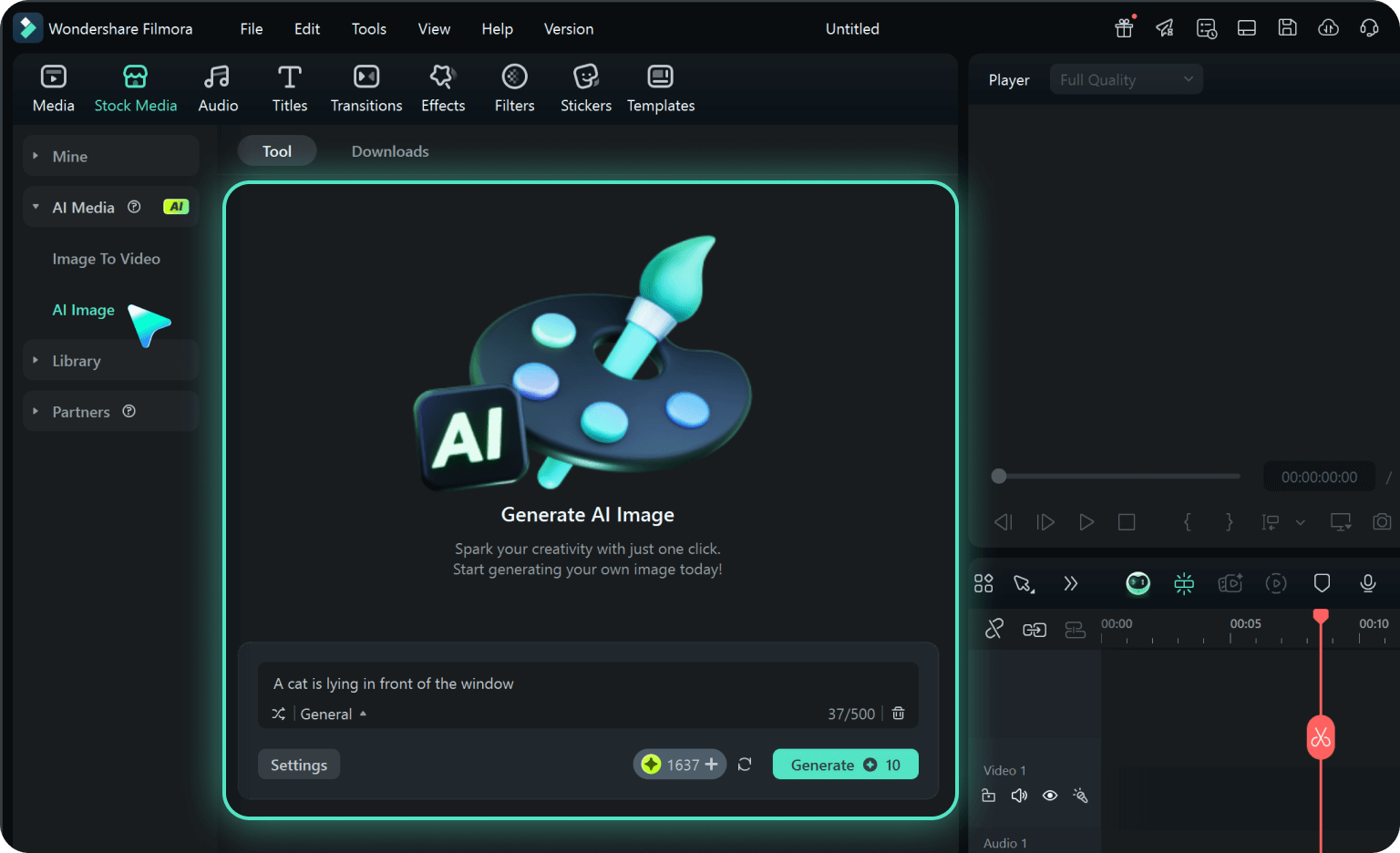
Step 2. Generate Images From Text or Image
Enter your prompt or upload an image. Choose a model: Nano Banana 2 (fast), Nano Banana Pro (artistic), or GPT Image 2 (creative). Set resolution and click "Generate".
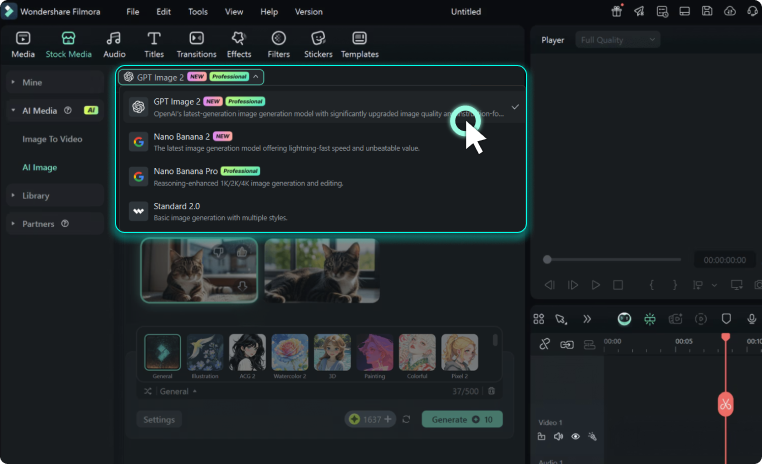
Step 3. Adjust and Export Your AI-Generated Images
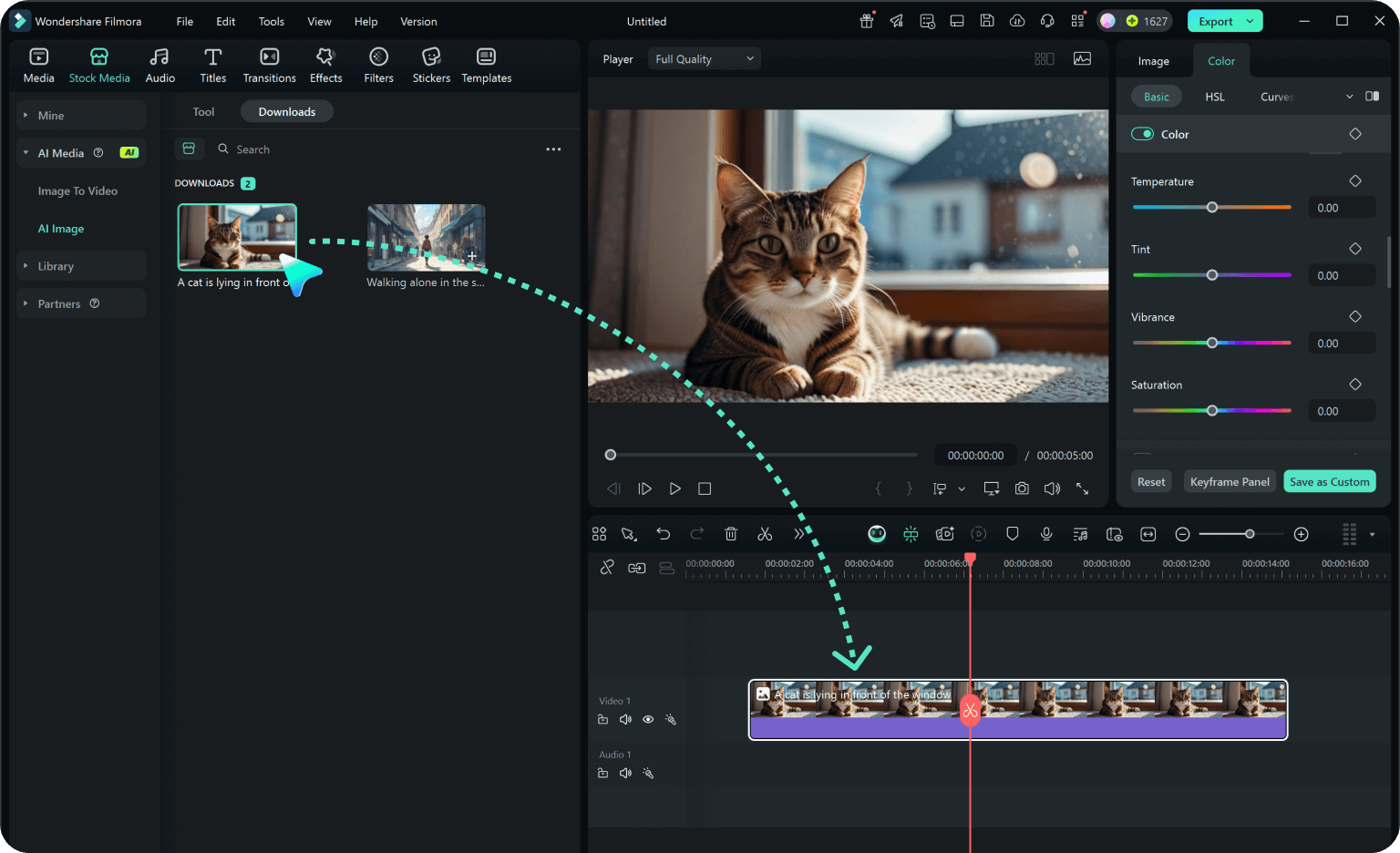
Adjust settings like art style, lighting, and composition until satisfied. You can drag your AI image straight into your video timeline or directly export it.
-
Step 1. Open AI Image Generator in Filmora
Launch the latest version of Filmora, create a project, and click "Stock Media", choose "AI Image" from the Media panel. -
Step 2. Generate Images From Text or Image
Enter your prompt or upload an image. Choose a model: Nano Banana 2 (fast), Nano Banana Pro (artistic), or GPT Image 2 (creative). Set resolution and click "Generate". -
Step 3. Adjust and Export Your AI-Generated Images
Adjust settings like art style, lighting, and composition until satisfied. You can drag your AI image straight into your video timeline or directly export it.
More Awesome Photo Editing and Design Tools
FAQs on Filmora's AI Image Generator
What is an AI image generator?
An AI image generator creates images from a text prompt. Filmora’s AI Image Generator is built into your editing workflow, so you can generate visuals and use them in your timeline immediately.
What is the difference between Nano Banana 2 and Nano Banana Pro?
Nano Banana 2 is optimized for flash speed and efficiency, while Nano Banana Pro is designed for advanced creators, offering deeper stylistic control and maximum refinement.
Can I customize the image after it’s generated?
Yes. After generating an image, you can adjust brightness, contrast, saturation, add filters, text overlays, or even animate it using Filmora’s built-in tools.
What kind of prompts work best with the AI Image Generator?
The best prompts are specific, descriptive, and include a subject + setting + mood or style.
Examples:
- ✅ "A girl in a red hoodie walking through a neon-lit city, cyberpunk style"
- ✅ "An astronaut floating in space, watercolor painting, calm atmosphere"
How fast is the image generation process?
With Nano Banana 2, images are generated at flash speed, keeping your creative flow uninterrupted and 15–31% faster than previous models.
Are the AI-generated images copyright-free?
Yes. Images generated with Filmora’s AI are safe to use in your personal and commercial projects, including YouTube videos and social media content.*
*Subject to Filmora’s terms of use.
Can I generate multiple variations of the same idea?
Absolutely. You can regenerate the same prompt to get different visual interpretations or tweak your input to explore new versions.
Is the AI Image Generator available on mobile and desktop?
Yes! Filmora’s AI Image Generator is fully integrated across both desktop and mobile platforms. Whether you are editing on Windows, macOS, iOS, or Android, you can generate high-quality AI visuals and drag them directly into your project timeline for a seamless creative experience.
Can I use AI-generated images in my YouTube Shorts or videos?
Yes! You can directly drag and drop AI-generated images into your video timeline. They’re perfect for intros, overlays, or storytelling scenes.
Is there a limit to how many images I can generate?
Depending on your Filmora plan, there may be a daily or monthly quota on AI generations. Free users may receive a limited number of image credits, while premium users get more frequent and higher-resolution generation access.
Can I collect image prompts and style references before generating visuals?
Yes. Visit Filmora.TV to keep prompts, styles, and reference assets organized in one place.
What Our Customers Say About Us

Emma R.
Freelance Illustrator
I was blown away by how easily Filmora’s AI turned my prompt into something visually striking. The anime and sketch styles are a great starting point for storyboard concepts!

Jason T.
YouTube Shorts Creator
The AI image tool is a game-changer. I use it to create eye-catching visuals for intros and cutaways in my Shorts, it makes my content stand out without spending hours in Photoshop.

Linda M.
Social Media Manager
I use the AI image generator to quickly match visuals with trending content. It saves me so much time, especially when I need unique visuals for Reels or TikTok-style edits.

Nina P.
Online Course Instructor
I needed unique background images for my course videos, Filmora’s AI delivered beautiful results in seconds. The 3D and watercolor options are especially great for educational content.
Discover More Powerful Editing Features in Filmora

A video editor for all creators.