

 TL;DR:
Wondershare Filmora permits direct merging of MP4 and MPEG files on macOS and Windows without prior conversion, while VLC, iMovie, and web-based editors require converting older MPEG codecs to MP4 first to prevent playback failures.
● Windows users utilizing VLC Media Player must first convert all disparate clips into matching MP4 files within the software interface before merging them together using a specific Command Prompt execution.
● The built-in iMovie application for macOS natively supports MP4 and MPEG-4 encoded media, but it will fail to import older MPEG-1 or MPEG-2 files unless they are externally converted first.
● Audio desynchronization and jittery playback occur when combining clips with differing frame rates or audio formats; resolving this requires converting all source files to an identical frame rate and codec prior to merging.
Ask AI for a summary
 ChatGPT
 Perplexity
 Gemini
 Claude
 Grok
Grok
Do you need to join multiple MP4 files into one video, or combine clips with different formats like MPEG? Learning how to join MP MP4 files together is a fundamental skill for any editor. This ultimate guide will walk you through 4 simple, fast ways to join MP4 and MPEG videos together, with a focus on using Wondershare Filmora to merge MP4 files into one. You'll also learn the key differences between the formats, how to open MPEG files without issues, and essential troubleshooting tips to ensure your combined video is high-quality and free from sync problems. Start combining your clips effortlessly today!
Part 1. Understanding MP4 vs. MPEG: Compatibility for Merging
Before learning how to join MP4 files and MPEG videos, let's understand the difference between them. These names look similar, but each one handles video differently. Once you know the difference, you can join clips with fewer problems and open them on more devices.

What is MP4?
MP4 is a media container that uses the .mp4 extension. It can hold video, audio, subtitles, and other data in one file. Phones, cameras, and most video editing tools support MP4 because it works with modern compression methods.
Inside the container, MP4 often uses MPEG-4 or H.264 compression to keep the file size small without reducing the video quality. This combination makes MP4 great when you learn how to join MP4 files for simple merging and editing.
What is MPEG?
MPEG refers to a group of video compression standards, such as MPEG-1, MPEG-2, and MPEG-4. It is not a container by itself, but a family of codecs that shape how the video gets compressed. You often see MPEG videos on older devices, DVDs, or early digital cameras.
Many people run into playback issues with these clips, which leads them to search for how to open MPEG files. Some users even convert MPEG to MP4 to avoid these problems on newer players and editors.

MP4 vs MPEG
MP4 and MPEG connect in some cases, but they don’t serve the same purpose. Many MP4 files use MPEG compression, which leads some people to mix the two. MP4 works well across modern devices, but MPEG clips often need conversion before you merge or edit them.
Here is the comparison between them:
| Feature | MP4 | MPEG |
| Type | Media container | Codec family |
| File Extension | .mp4 | .mpg or .mpeg |
| What It Stores | Video, audio, subtitles, and metadata. | Video and audio (codec-based) |
| Compression Method | MPEG-4, H.264, or HEVC. | MPEG-1, MPEG-2, or MPEG-4. |
| Compatibility | Works well on modern devices and tools. | Works better on older devices and cameras. |
| Video Quality | Balanced size and quality. | Quality depends on the MPEG version used. |
| Best for | Editing, sharing, mobile, and web playback. | DVDs and older cameras. |
|
Show More
Show Less
|
||
Part 2. 4 Simple Ways to Join MP4 and MPEG Video Files
When you record videos, you often end up with several short clips to save memory and battery. In this guide, you will learning how to join files together with a few programs and online tools. Let’s see which option fits your editing workflow.
1. Wondershare Filmora: The Best Tool to Merge MP4 and MPEG Easily
Wondershare Filmora is a powerful yet easy-to-use video editor that allows you to join multiple MP4 files into one video seamlessly. It fully supports both MP4 and all common MPEG files. This means you can directly merge MP4 and MPEG videos without needing any prior file conversion, saving time and complexity. It is the best solution for both beginners and experienced users looking how to join mp4 files free of charge on a trial basis, while retaining high video quality. You can easily join two MP4 files together on Mac or Windows with its intuitive interface.

 Secure Download
Why You Should Use Filmora
- It supports MP4, MPEG, MOV, AVI, WMV, and many other common formats.
- It offers basic editing tools, such as trimming, splitting, and rearranging clips.
- It includes advanced features like color correction, motion tracking, and keyframing for smoother control.
- It provides helpful AI tools that improve your workflow, such as AI Audio Denoise, AI Smart Cutout, and AI Music Generator.
- It is available on both Windows and Mac, so you can edit on any device you use.
How to Combine MP4 Files on Mac and Windows Using Filmora
Follow these steps to learn how to join files together in Filmora:
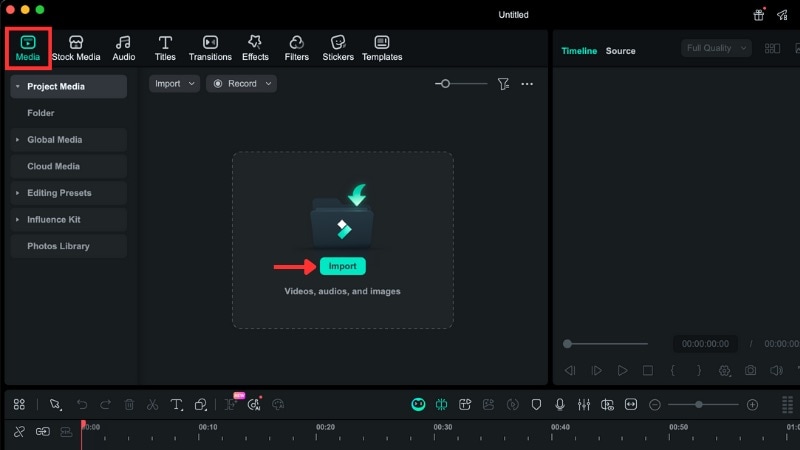 Secure Download
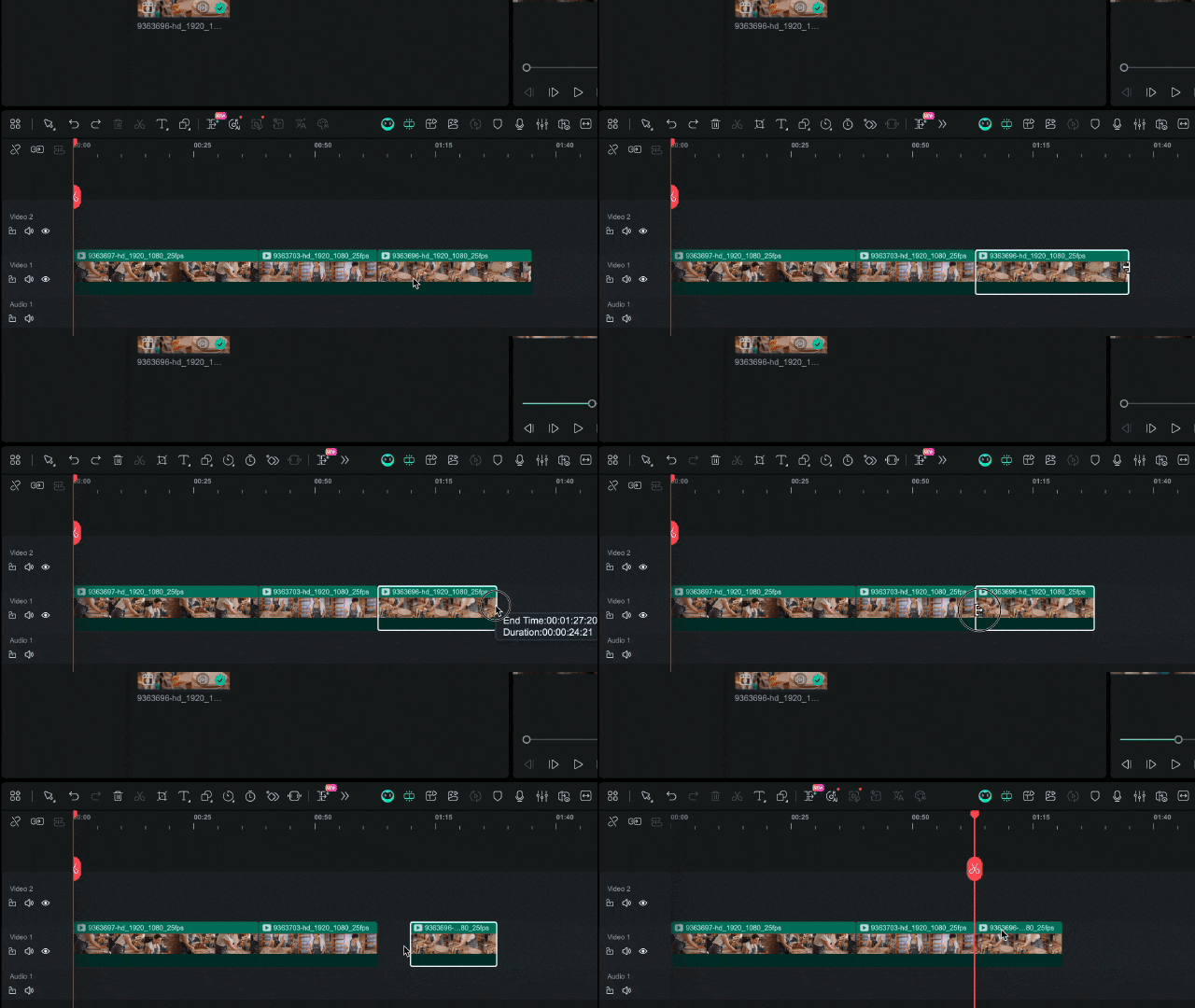
- Move a clip: Drag the clip to a new position on the timeline.
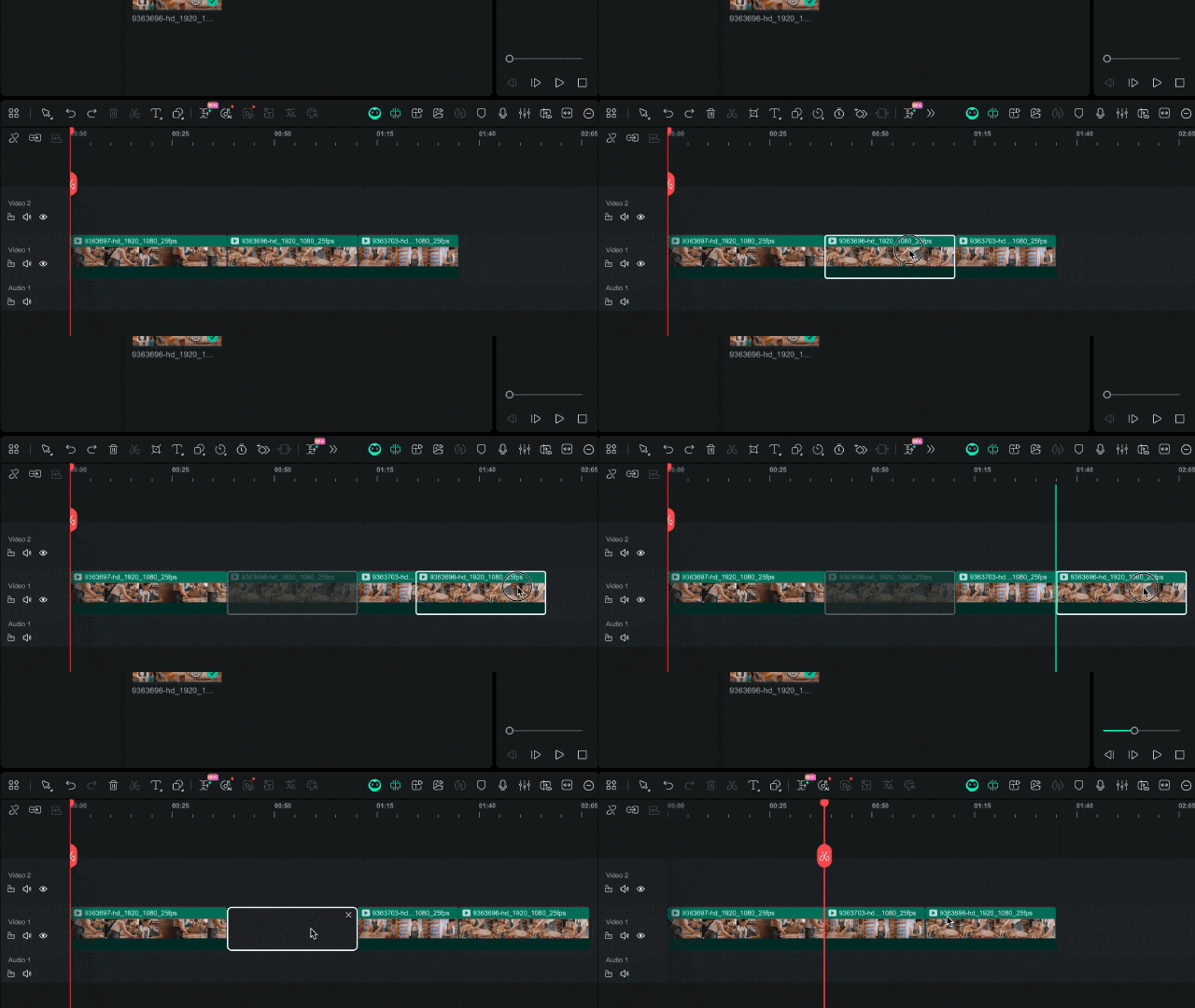
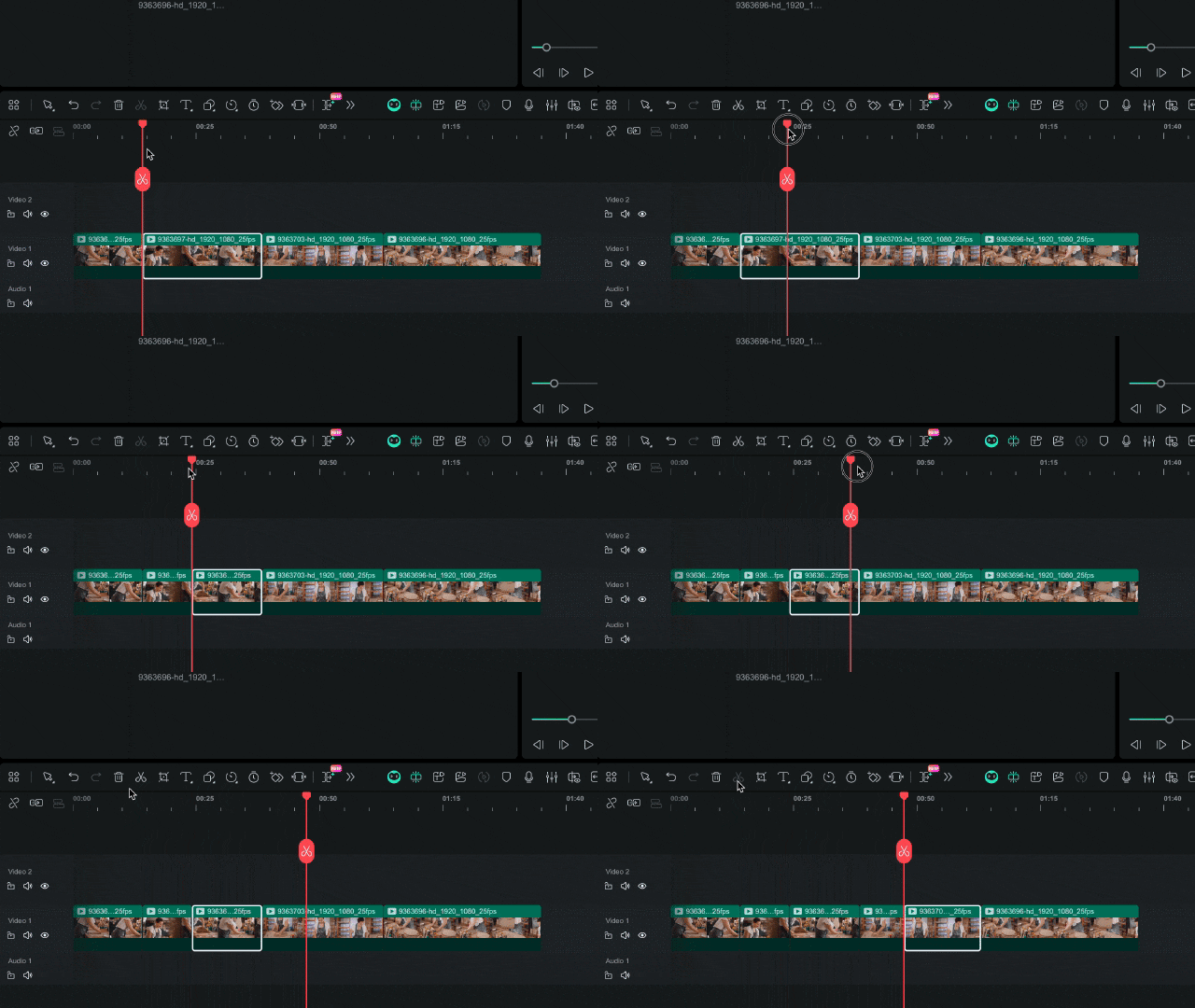
- Split a clip: Place the Playhead at the point you want to cut and click the Scissors icon.
- Trim a clip: Drag the left or right edge inward or outward to remove unwanted parts.


2. VLC Media Player: A Free Video Converter You Can Use on Windows
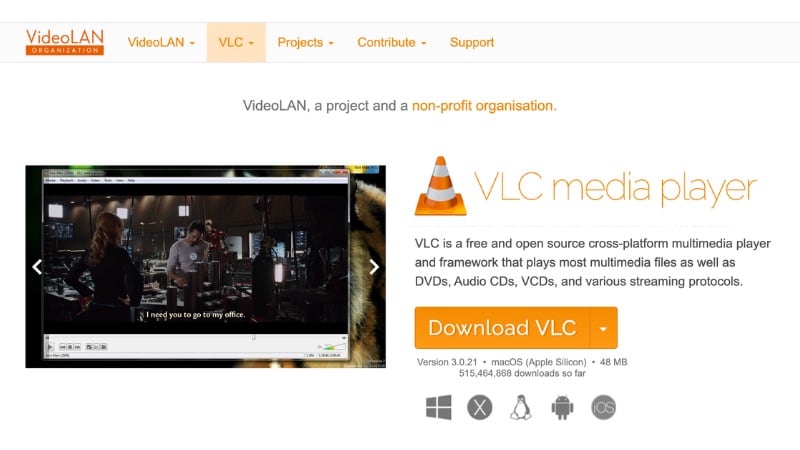
VLC is a popular, free media player that opens almost any video format. Many users search how to join MP4 files with VLC because of its robust, free functionality. It helps you prepare MPEG clips for merging by converting them into a matching format. If you want to join two MP4 files (after conversion) on Windows, you can use the command-line method explained below. This is an effective way to join multiple MP4 files into one without purchasing extra software.
Key Features of VLC Media Player
- Plays MP4, MPEG, MKV, MOV, AVI, and many other common video formats.
- Includes a built-in converter for simple format changes.
- Gives basic tools to adjust codec settings before conversion.
- Lightweight and free, with no watermark or registration needed
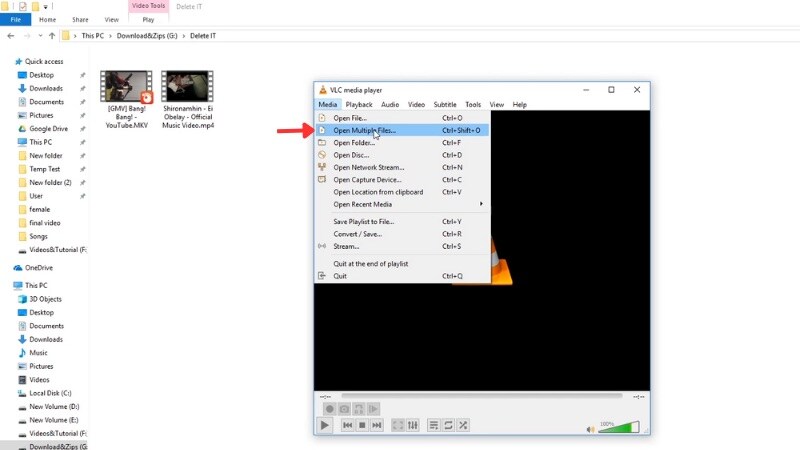
How to Prepare MPEG Files in VLC Before Merging
Before learning how to join files in Windows, you need to convert them into the same format first. Follow these steps to prepare your clips in VLC:
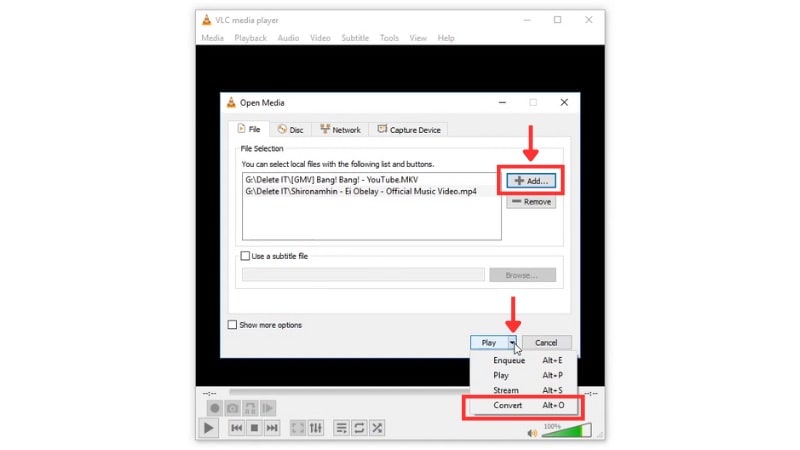
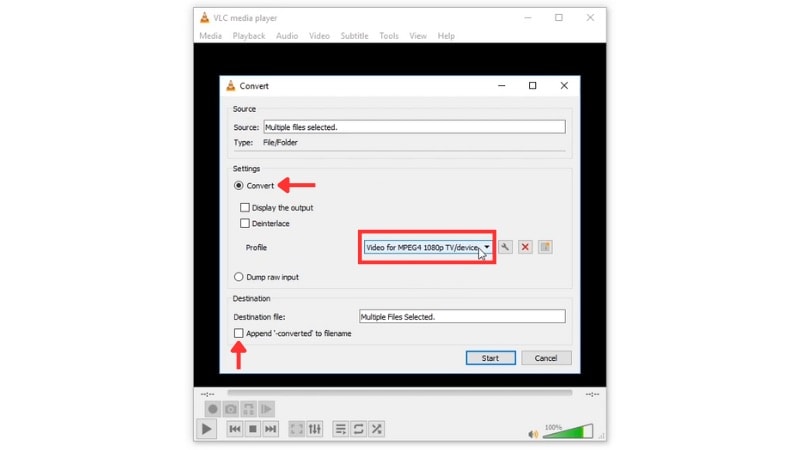
How to Join the Converted Files on Windows
After you convert all clips into one format, follow the steps below:
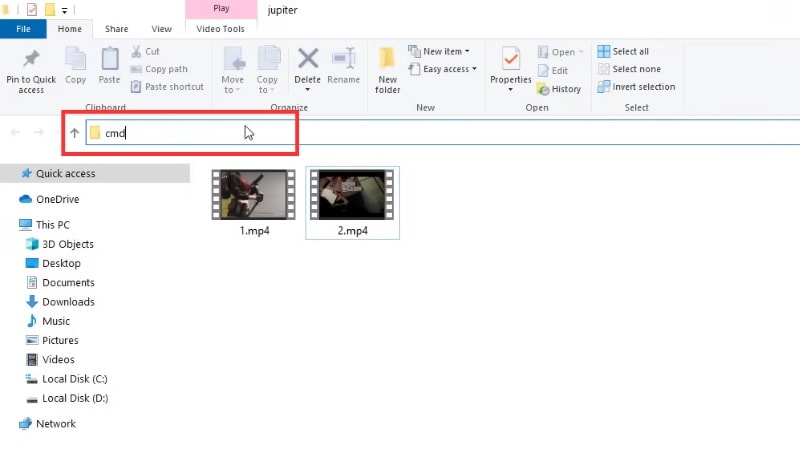
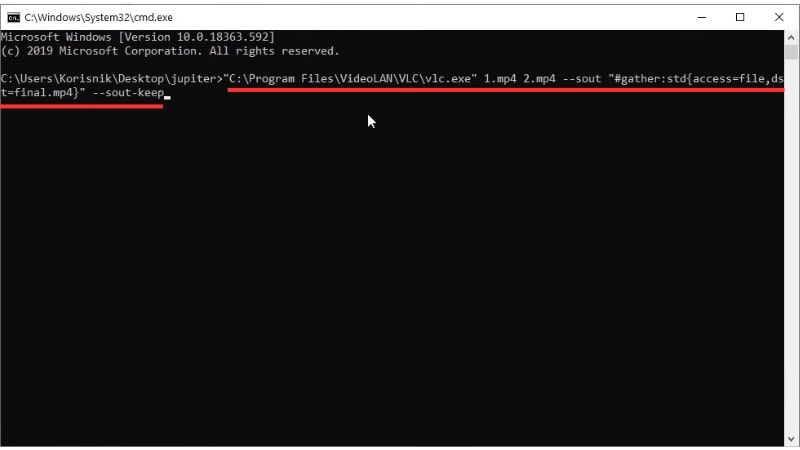
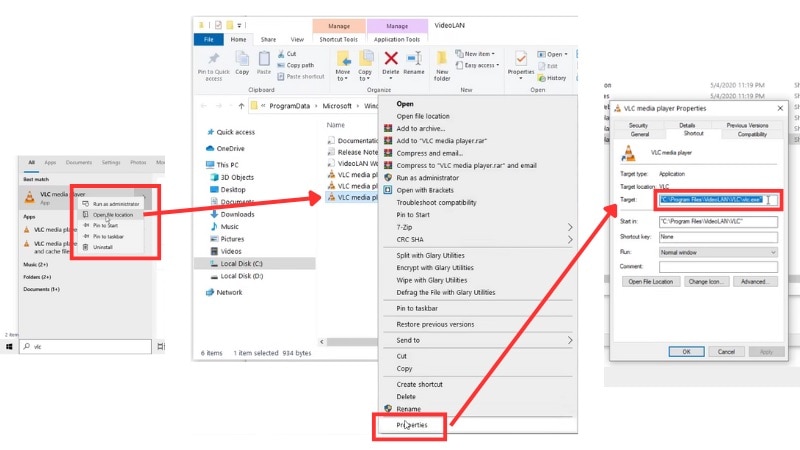
vlc_location video1.mp4 video2.mp4 --sout "#gather:std{access=file,dst=final_file_name.mp4}" --sout-keep Replace:
- [vlc_location] with the file path of your VLC Media Player.
- [video1.mp4], [video2.mp4], etc., with your converted file names.
- [final_file_name.mp4] with the name you want for the merged video.
3. iMovie: Built-in Video Editor on Mac
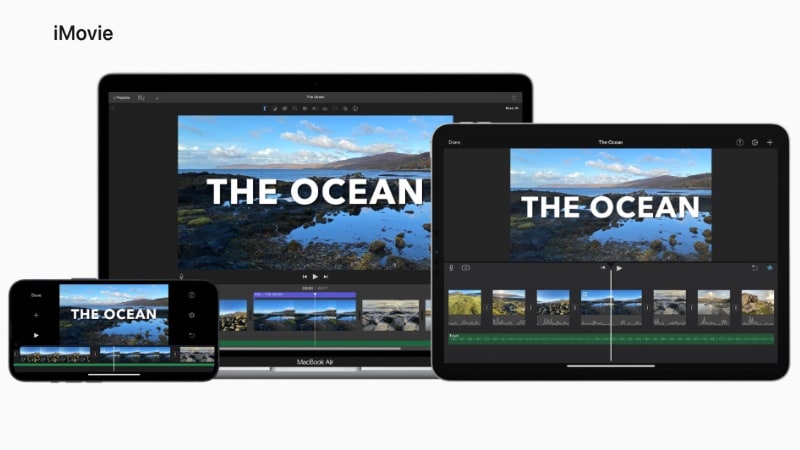
When learning how to join files together, you can also use iMovie on Mac devices. It works well for merging MP4 files and MPEG videos that use MPEG-4 encoding. But older MPEG formats (like MPEG-1 or MPEG-2) may fail to import.
Key Features of iMovie
- iMovie supports MP4 and MPEG-4 encoded files.
- It comes built into macOS, thus you can edit videos right away without extra setup.
- Basic video editing tools for trimming, cutting, splitting, and arranging clips.
- iMovie lets you add transitions, adjust audio levels, and control how each clip flows.
- You can export your merged video in many resolutions, including full 4K quality.
How to Join MP4 or MPEG-4 Clips in iMovie
Follow these steps to combine your clips into one video:
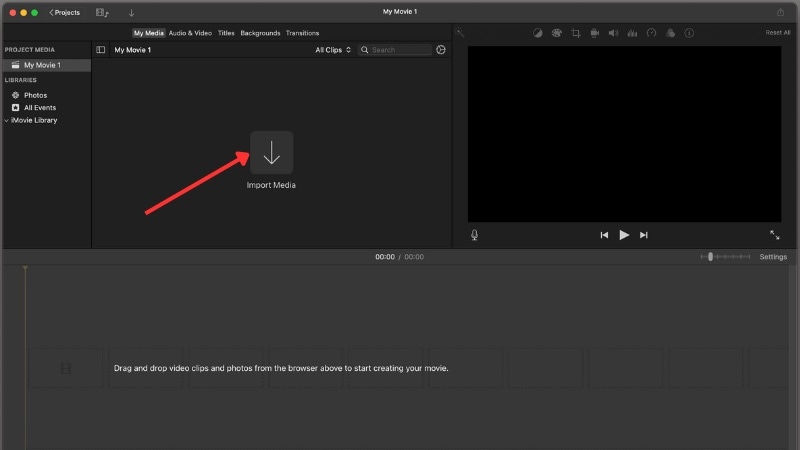
Click Import Media and select every clip you want to merge. Or, you can drag files directly from Finder into the Media panel.
Press Command + A to select all clips, then drag them into the timeline.
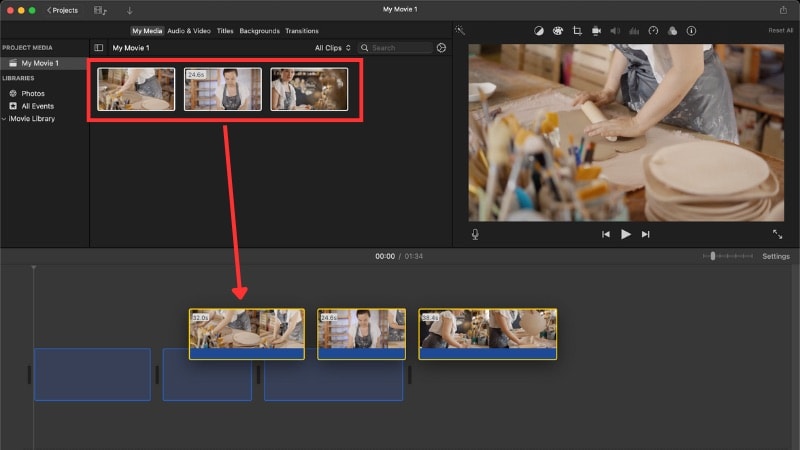
Trim by dragging the edges of any clip in the timeline.
To split a clip, move the playhead to your cut point and press Command + B.
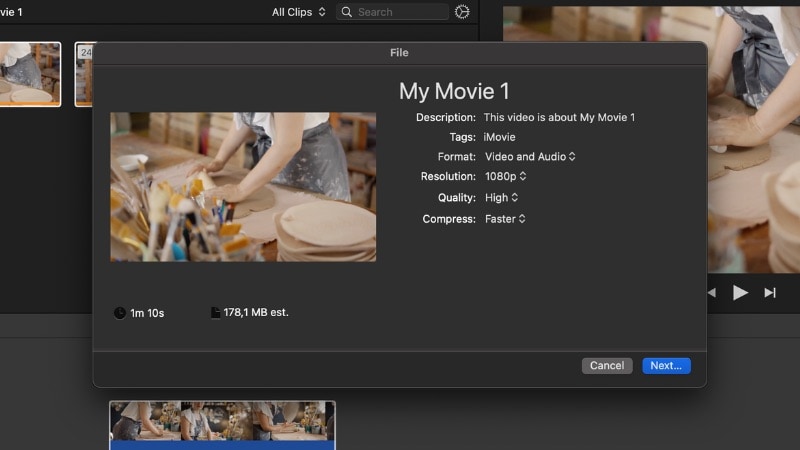
Set the format, resolution, quality, and compression options as needed, then click Next.
Name your merged video and click Save to export it to your device.
Note: If you select Video and Audio format, iMovie saves your merged project as an MP4 file using H.264 compression.
4. Adobe Express
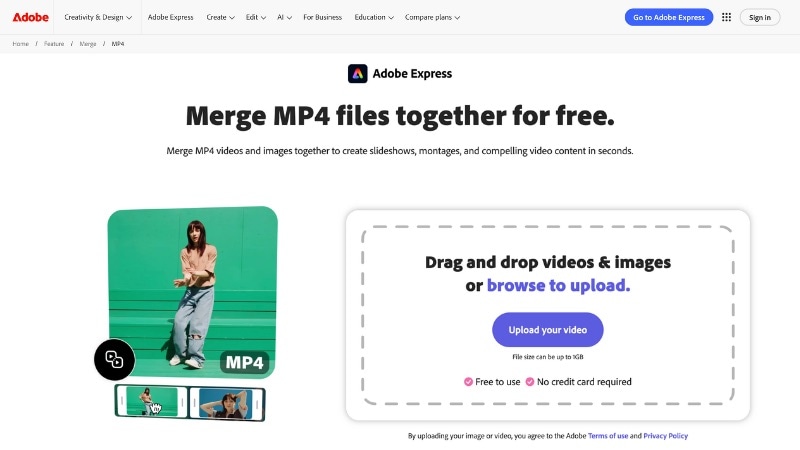
Adobe Express offers a simple online video joiner that supports the MP4 format. It lets you upload clips, arrange the order, and merge them in just a few clicks. Unfortunately, it doesn’t accept MPEG files, so you’ll need to convert them to MP4 first.
Key Features
- Works online with no installation needed.
- Drag-and-drop interface for easy clip arrangement.
- Supports MP4 only, with options to trim before merging.
5. Online Video Cutter by 123apps
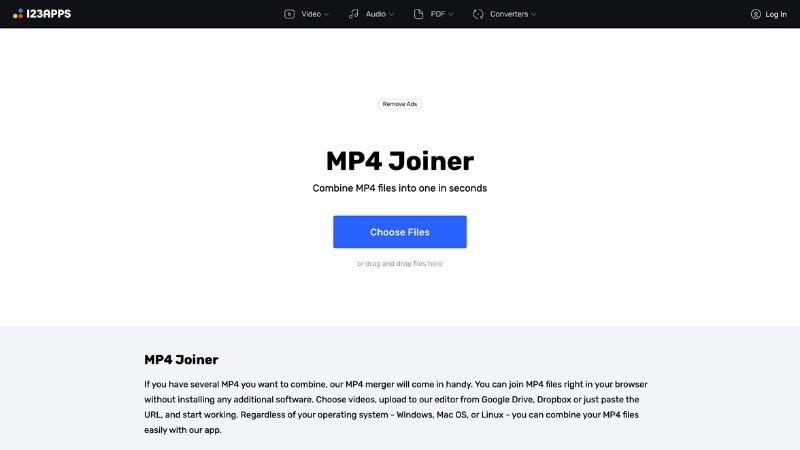
Online Video Cutter works better if you want to upload and merge MPEG or MP4 files. It supports both .mpeg and .mpg extensions, but older MPEG formats might still need conversion before merging.
Key Features
- Accepts MP4, MPEG, MOV, and other common formats.
- Lets you trim, cut, and rearrange clips before combining.
- Exports merged clips in MP4 for easier sharing and playback.
Part 3. Troubleshooting: Tips for Smoother MP4/MPEG Merging and Avoiding Sync Issues
Even after learning how to join MP4 or MPEG files, you may notice some clips don’t line up or play correctly. Some videos won’t open, and some clips won’t sync. These issues usually come from mismatched formats, framerates, or codec differences.

Here are the most common problems and how you can fix them before merging your files:
1. Compatibility Issues
MP4 and MPEG files often use different codecs or resolutions. When they don’t match, your editor may refuse to load them. Convert every clip into one shared format, preferably MP4 with H.264, before merging.
2. Audio Not Syncing
Some MPEG clips shift their audio when combined with MP4 files. This happens when the audio formats differ. Convert all audio tracks to the same format during conversion or re-export with a consistent audio codec.
3. Mixed Framerates
When your MPEG and MP4 clips come from different cameras, their frame rates can vary. This difference causes jitter or uneven playback. Convert all files to one frame rate, such as 30 fps or 60 fps, before merging.
4. Output File Too Large
Merged videos can grow in size when exported at full quality. Use a moderate bitrate, a compressed codec like H.264, or trim unwanted parts to keep the file smaller.
5. Unsupported or Corrupted MPEG Files
Old MPEG-1 or MPEG-2 clips may fail to merge or play. Converting them to MP4 using VLC or Filmora before editing helps you avoid errors during export.
Conclusion
Now you know how to join mp4 video files in a few different ways, using tools that fit simple or advanced editing needs. Whether you need to combine MP4 files into one video using a powerful editor like Filmora or use a simple free tool like VLC, you have the methods. Understanding the differences between formats, and knowing how to join mp4 files together will make your video projects much smoother. Filmora works best for everyday editing and guaranteed quality, while VLC, iMovie, and online tools help with quick fixes.

FAQs
-
Can I merge different formats like MP4 and older MPEG files in the same project?
Yes, but you need to convert them first. Older MPEG files (like MPEG-1 or MPEG-2) rarely match the codec, frame rate, or resolution of MP4 clips. Convert everything to MP4 before merging to avoid playback errors or missing audio.
-
Does merging or joining video files reduce their original video quality?
It depends on the tool and export settings. If the editor re-encodes your clips, you may see slight quality loss. To keep the video clear, use MP4 with H.264 and choose a high bitrate during export.
-
My joined MP4/MPEG video file doesn't play or has audio sync issues. What should I do?
This happens when your clips use different codecs or frame rates. Convert all files to MP4 with matching settings, then merge them again. Fixing the audio by using one consistent audio codec (like AAC) also prevents sync problems.
