


How to Use the Instagram Green Screen Effect

Oct 29, 2026• Proven solutions
 TL;DR:
You can apply Instagram's official Green Screen effect to Stories and Reels by searching for it in the Browse Effects gallery and selecting Add Media to insert custom backgrounds, or use Filmora to remove backgrounds from standard videos.
● The Instagram effect is not pre-installed in the Reels or Stories camera; users must manually swipe to Browse Effects, search for Green Screen, save the official filter, and then drag their subject onto the newly uploaded media.
● Desktop users on Windows 7 64-bit or macOS 10.14 and later can isolate subjects without a green screen using Filmora's Human Segmentation, but this AI Portrait module requires a separate purchase or free trial activation.
● Mobile creators can bypass green screens directly on their phones by importing videos into the Filmora mobile app and navigating to Smart Cutout followed by the Remove Background tool.
Ask AI for a summary
 ChatGPT
 Perplexity
 Gemini
 Claude
 Grok
Grok
Green screen IG is a unique effect that can be used to add special effects to your videos. With a few touches, you may virtually fly to exotic places or appear on the scene of a great film. However, a lot of people are unaware of how to use the green screen Instagram effect. And the same can be said for the Instagram Reels function, which enables you to make short clips of yourself and then share or post them in the app. Therefore, in this article, we will discover how you can utilize the Instagram Green Screen effect and Instagram Reels to your advantage!
- Part 1: How to Use Green Screen Effects in IG
- Part 2: How to Use the Green Screen on Instagram Reel
- Part 3: How to Remove Background from Instagram Video without Green Effect Effects
Part 1: How to Use Green Screen Effects in IG
Instagram green screen is one of the most talked-about things about Instagram since last year. It enables a Hollywood-style effect for backgrounds while you're sitting at your home. You can now virtually travel to different destinations by using the green screen effect. You can also import other stickers and classic posters in your background with the help of the green-screen product.
The green background can be replaced with various sceneries or any kind of background imaginable. Now, if you want to make a snap or an Instagram video at an adventurous destination, you don't have to go there. You can do it by using a virtual background with the help of the Instagram green-screen effect.
If you have not heard of the green screen effect of Instagram yet, then don't worry. This is the perfect time to know how to use this effect on Instagram, and for this, we have got you covered. In this part, we will discuss a stepwise method to use the green screen Instagram effect. So, let's get started:
Step 1: Launch Instagram
First things first, launch the Instagram app on your phone to get started. Now click on the little + icon on your profile picture to start an Instagram story.
Step 2: Browse Effect Option
You'll see an effect prompt, and then you need to swipe to the right until you get the Browse Effects option.
Step 3: Search Green Screen
Now tap on the search option and type Green Screen. Several effects will come after the search, but we need the Instagram green-screen effect, i.e., the one offered by Instagram. Bookmark that effect to save it for use.
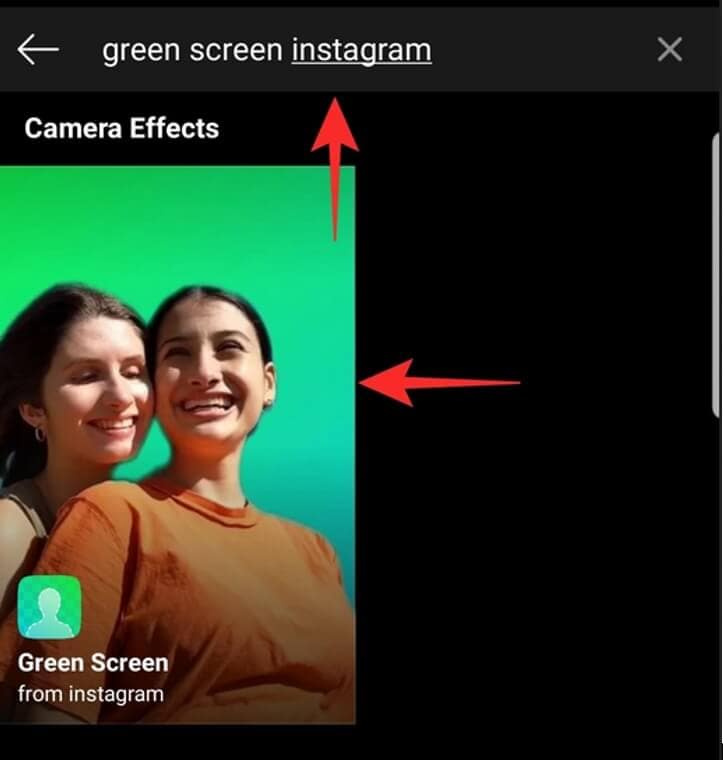
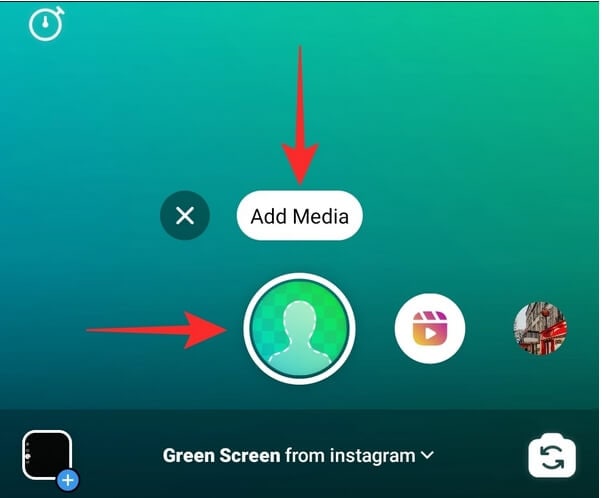
Step 4: Tap on Add Media
Tap on the Add Media option to add the background. Upload a video or an image for the background. After that, drag yourself to the area where you wish to see yourself.
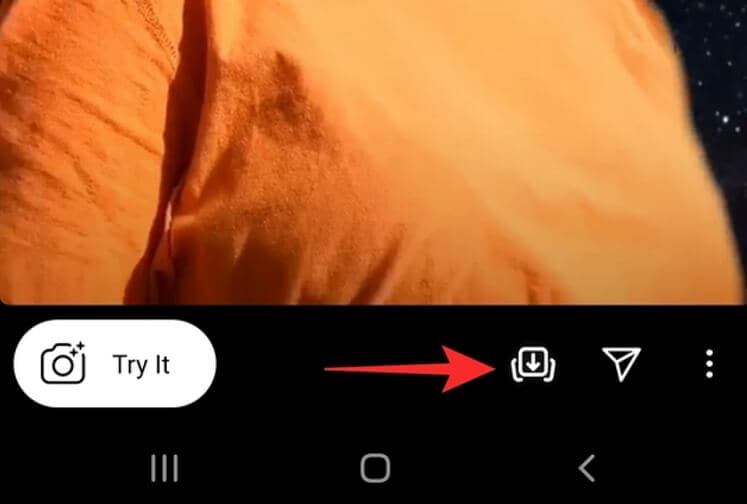
Step 6: Add to the Story or Download it
Now either add it to your Instagram story by tapping on the bottom left option or download it to your phone's library by clicking on the Download option.
Part 2: How to Use the Green Screen on Instagram Reel
Instagram has launched the Instagram Reel, and since then, people are going crazy about it. But it being a new feature, not much of it is known about. Instagram has added several new features to the Reels function that lets the user capture his videos and upload them right away using the Instagram app. One of the prime features is the Green Screen Instagram effect.
The green screen feature on Instagram Reels allows you to add virtual background to your videos and images. You could be sitting in your room, but it can make it look like you're somewhere vacationing. It allows you to import your media as your background. You can also use filters as your background to make it more entertaining.
Several creators have uploaded their green screen filters for Instagram Reels. Moreover, Instagram has also officially made a green screen effect for its users. But you need to know how to use the green screen on Instagram Reel before you get started with it. The following steps can assist you in that:
Step 1: Launch the app
You have to launch the Instagram app on your phone to use the green screen Instagram effect.
Step 2: Tap on the Story
Click on Profile Picture on the top left, named as your story, to start it. Now, swipe right until you see the Reels option.
Step 3: Select Reels
Now select the Reels option. A panel will appear on the right side, and then you need to choose Effects from it. Remember that the green screen effect is not already provided, so you have to search for it. Swipe all the way to the right until you get to the Browse Effects option.
Step 4: Search Green Screen
Now, search Green Screen in the search menu and click the first option to see the official green screen ig effect. Now download the effect using the download the option.
Step 5: Add Media
Now upload your media using Add Media option. Now drag yourself where you want to see yourself. You can also add stickers or GIFs as a background. After that, you're all set for your Reels video.
The video below shares some of the interesting green screen tricks, don't miss it.
 Secure Download

Part 3: How to Remove Background from Instagram Video without Green Effect Effects
Instagram has updated the app to support a longer video format named IGTV for content creators. Thanks to IGTV, it supports videos longer than 60 seconds on the main feed. IGTV only supports limited dimensional video, i.e., 4:5 a minimum and 9:16 maximum ratio.
However, Instagram also supports landscape videos, portrait videos, and square videos. As a content creator, you need a good video editor to edit and remove the background of your Instagram videos. Well, we will recommend Filmora to edit your Instagram videos. It has the following benefits for editing an IGTV video via Filmora:
- You can customize your video or portrait to any ratio besides the common ratios. This can be done by opening File-project Settings and entering the ratio you want to customize your project.
- It supports several video and audio formats and allows you to alter the frame rate, video speed, etc. You can upload the video on Instagram directly and many other social media websites once you are done editing.
- It also has built-in filters that are specially designed for IGTV videos. It also provides numerous special effects for you to make your videos look professional.
- You can even customize the video and add catchy text and subtitles to make it more engaging.
- The final video can be directly exported to social media platforms.
Al Portrait in Filmora is the best way to remove the background of an Instagram video without Green Screen Instagram effects. It can remove the background of IGTV video without affecting its movement and lighting. The following steps can assist you in learning how to use it to remove the background.
Step 1: Import Media
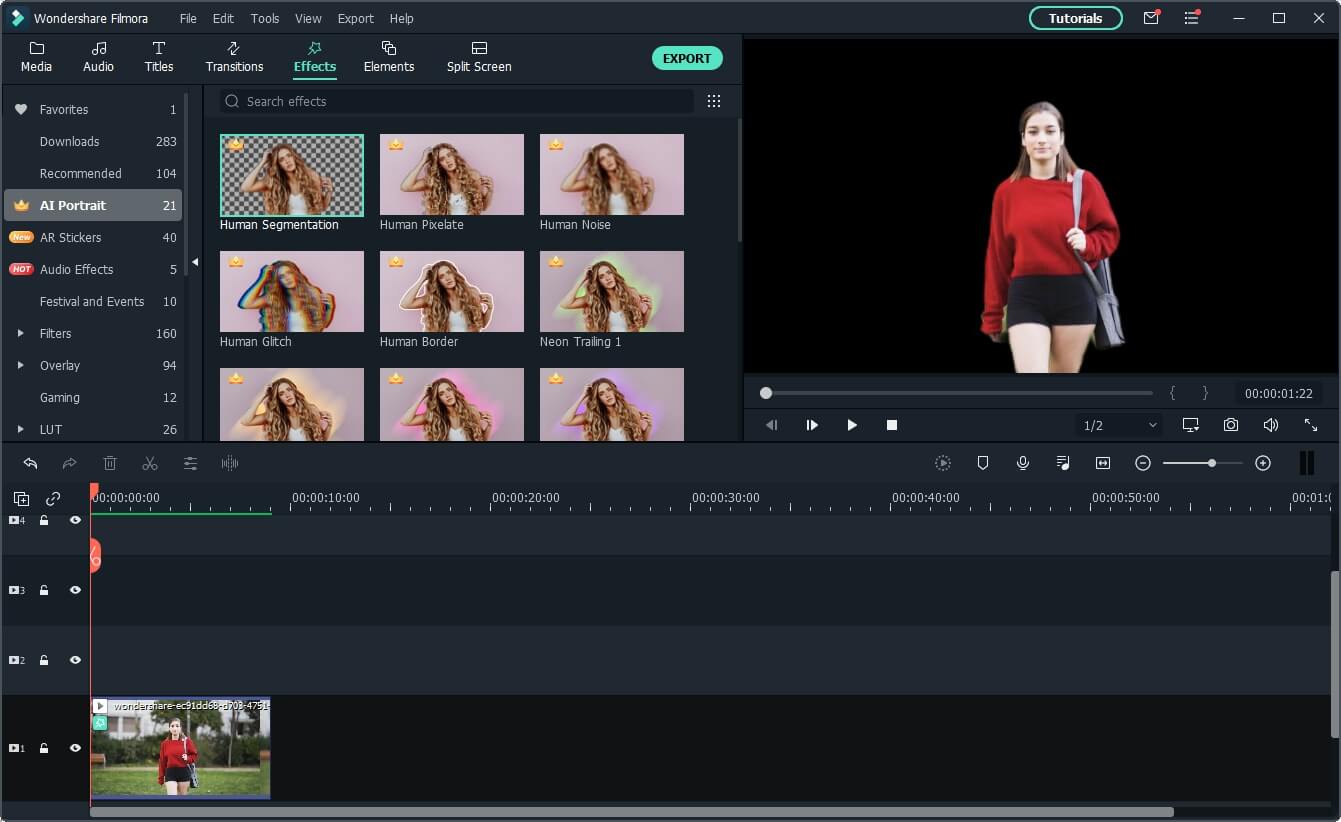
Import the media you want to upload on Instagram to Filmora. Then select AI Portrait from Effects in the menu.
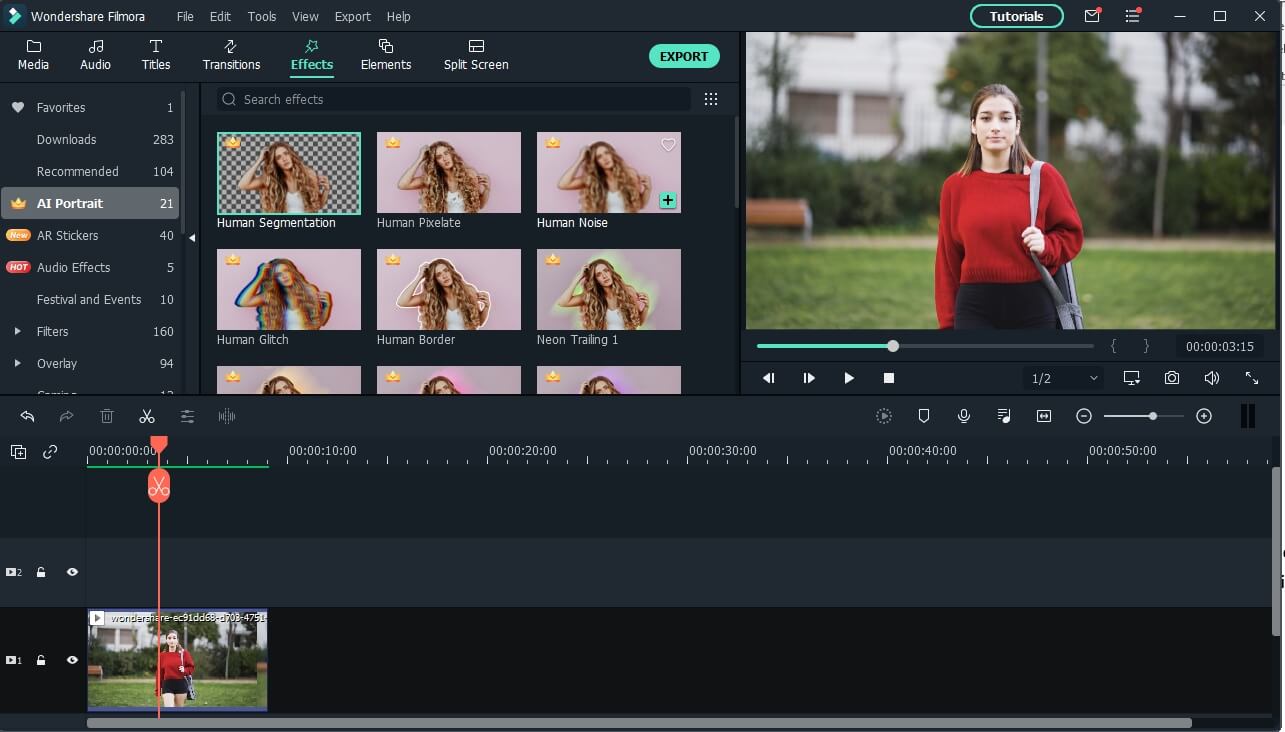
Step 2: Add the AI Portrait Effect to Remove Video Background
Al Portrait is not a free module, so either you have to Purchase it or Try it for free. There are various assets under AI Portrait, to remove the video background and isolate the human, you need to add Human Segmentation to the timeline. Play the video once to check the segmentation of the effects that you have applied to your video.
Step 3: Adjust Effects
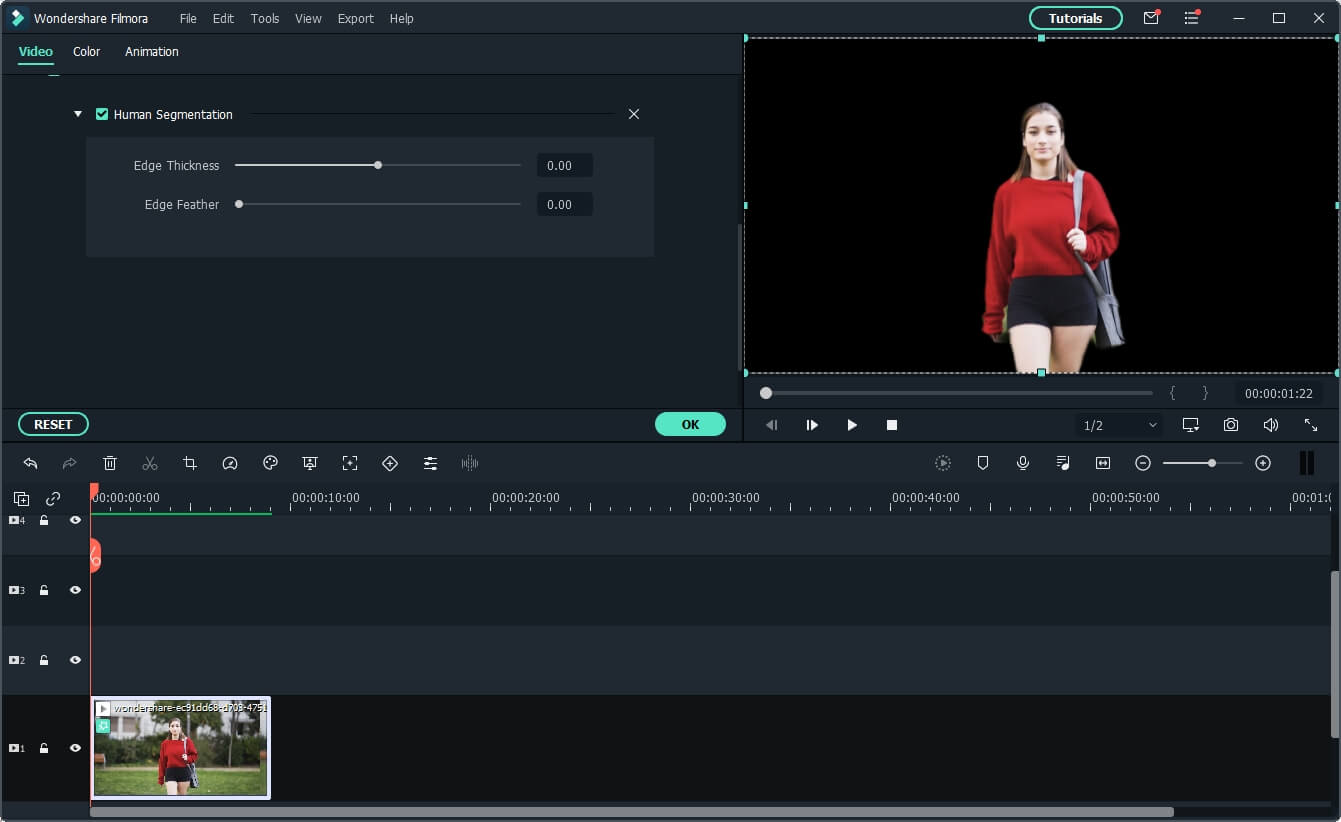
Different effects have different settings so that you can adjust the effects according to your convenience. You have to double click the video in the timeline and then go to the Video Effects to adjust the Percentage, Edge thickness, Edge Feature, and Alpha setting of the effect. You can also restore the changes you've made by selecting the Restore button.
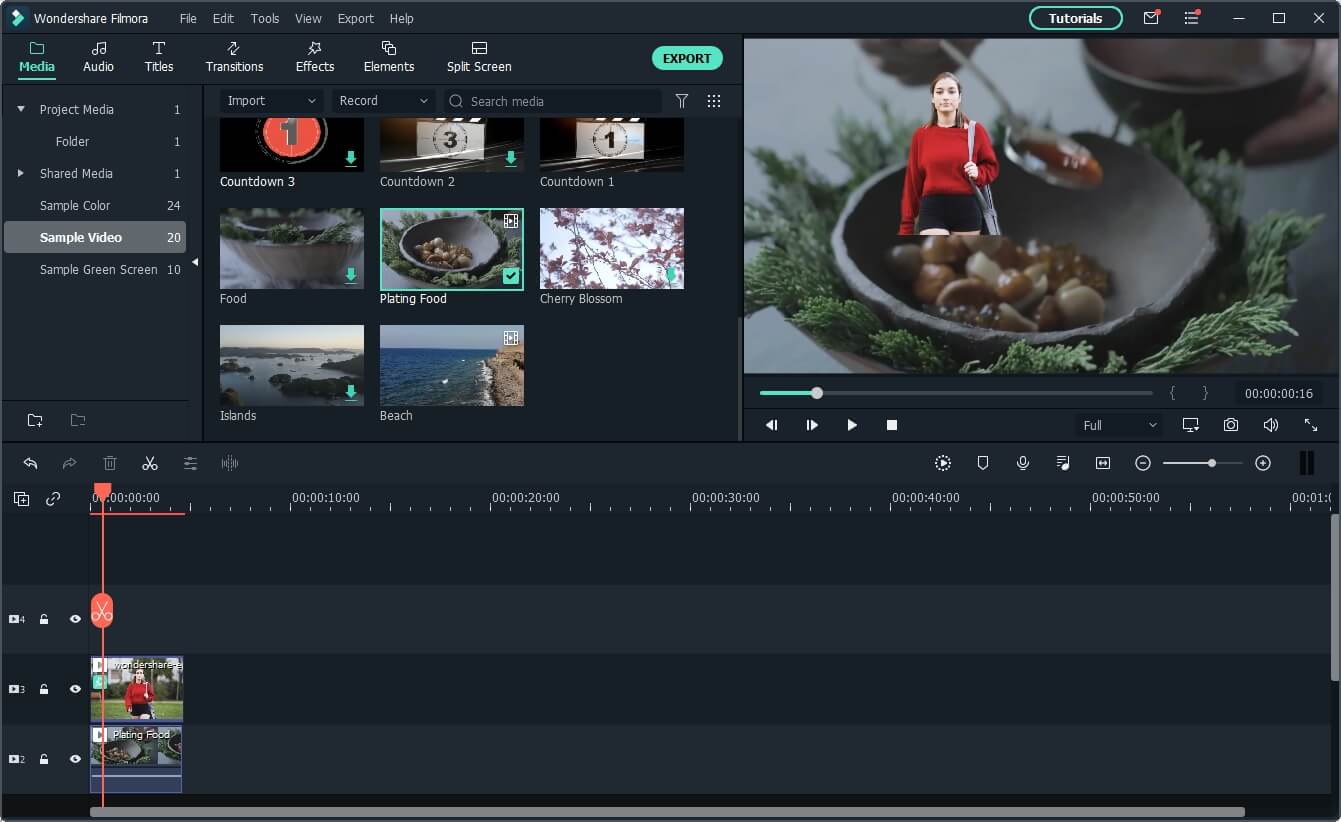
Now you have gotten a video without a background, you can now add your own background to compose them together.
Step 4: Export the video
Once you are done with all that, you need to export the video to the desktop first and then upload it to Instagram from the desktop. Watch the video tutorial below and find out more creative usage of Filmora AI Portrait.
Pro Tip: If you're working with green screen footage, try Filmora AI Chroma Key for more precise background removal. Powered by AI, it automatically detects and removes green backgrounds while preserving fine edge details for cleaner, more natural composites. It's a great choice for creating professional-quality Instagram Reels, tutorials, gaming videos, and other creative content.
How to Remove Background from Instagram Video Without Green Effects on Mobile Phone
When you need to perform a background removal function with a video you want to add to your stories, Filmora can help you. Since Instagram is a popular mobile app, having a reliable mobile editor for video editing is important. You've already explored the desktop version in the previous section, so it's worthwhile to check out Filmora's mobile app.
To remove backgrounds from Instagram videos without a green screen, follow the steps below:
Step 1: Go to New Project > Import from the homepage.
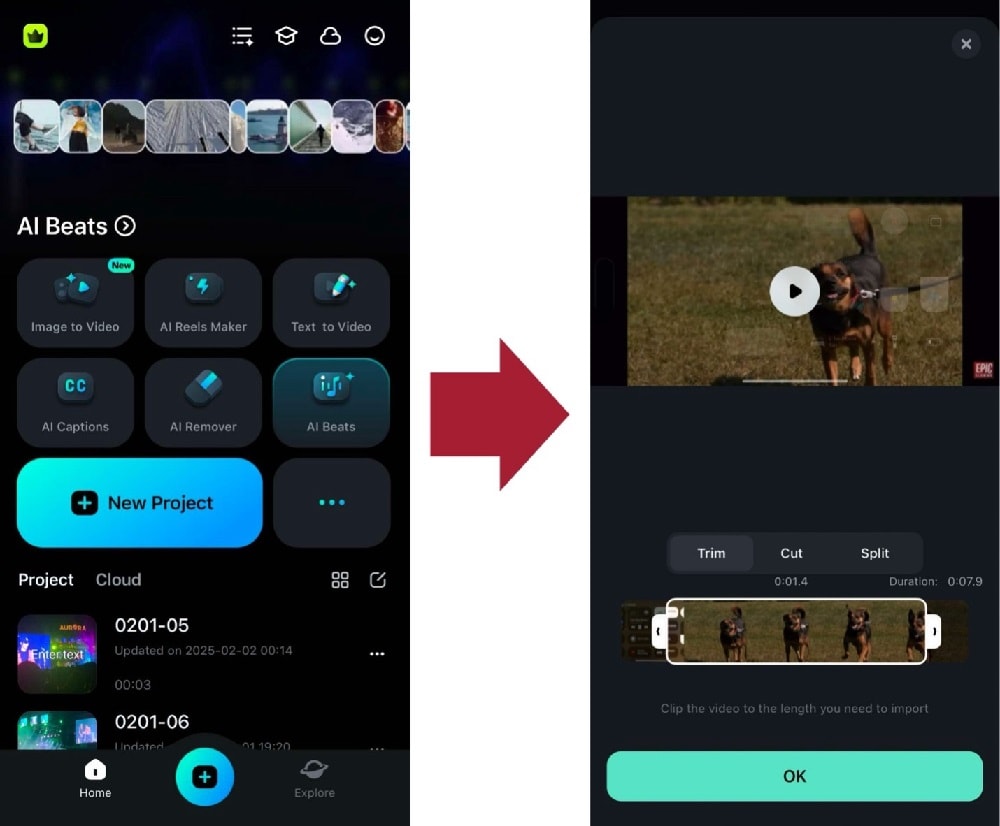
Step 2: From the bottom toolbar, go to Smart Cutout > Remove Background.
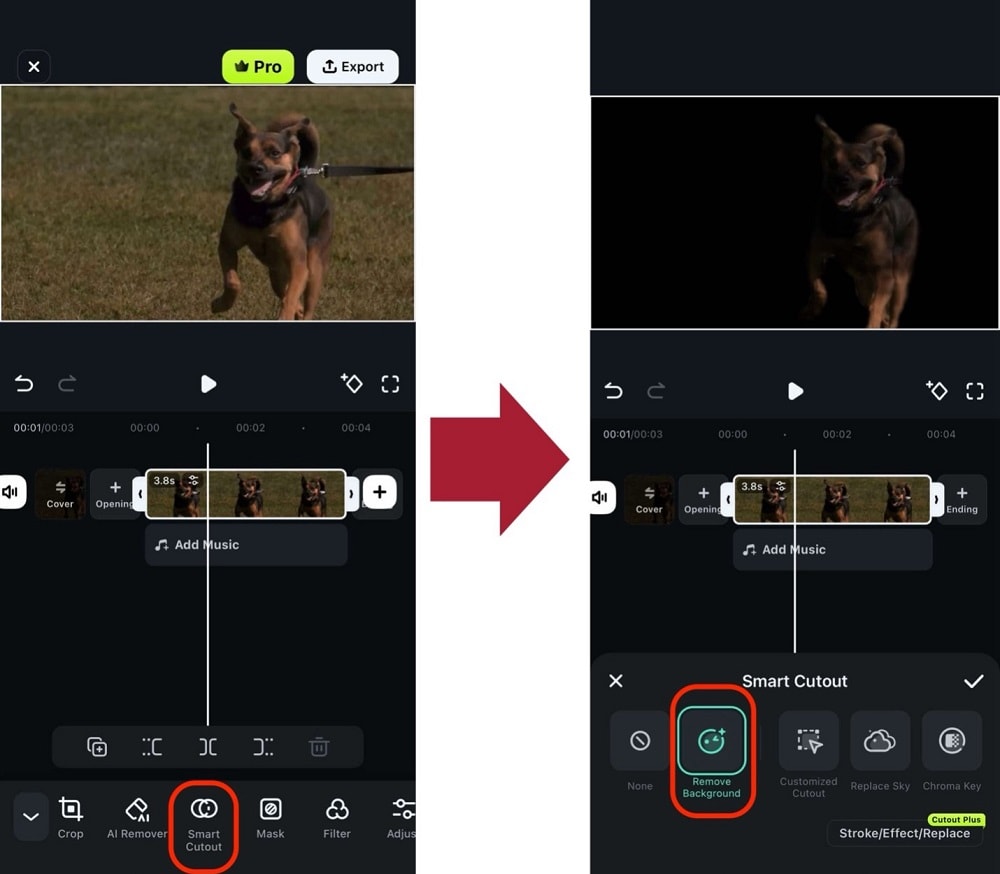
After doing these steps, the background of your video should now be removed. This will work even if you don't have a green screen. If you're looking for a powerful video editor, look no further than Filmora.
🤩 Post You Might Be Interested In:
Conclusion
Instagram has opened up a gateway by launching the green screen Instagram effect for people to have fun while sitting at home. But only a few people know how to use the green screen effect on Instagram or on Instagram Reels.
To solve this problem, we have covered a step-by-step guide for using the green screen effect on Instagram. We highly recommend Al Portrait of Filmora to remove the background seamlessly and quickly to achieve a high-quality final video. AI Chroma Key is also a good choice for precise green screen editing with cleaner, more natural composites. Choose the tool that best fits your workflow and create high-quality videos with ease.
Explore the latest TikTok comedy trends and follow top TikTok comedians in 2026. Discover popular humor trends like 'Good Soup' and funny TikTokers such as Khaby Lame to enhance your feed.
by Shanoon Cox Oct 29, 2026 07:44 AM
Can you see who viewed your Instagram post? Discover the only 3 ways to track views, story insights, and why third-party apps are a risk.
by Shanoon Cox Oct 29, 2026 07:44 AM
Learn how to turn on autoplay on Facebook for Android, iPhone, and Desktop in 2026. Follow our step-by-step guide to manage Facebook video autoplay settings and optimize your browsing experience.
by Shanoon Cox Oct 29, 2026 07:44 AM
Shanoon Cox
staff Editor
