

 TL;DR:
For generating a free Santa AI voice, TopMedia AI and Make Film AI offer the best realism and character limits for multilingual or custom scripts, while TTS Vibes is the most efficient choice for rapid, 300-character English-only social media greetings.
● FineVoice and Vondy permit free voice generation, but both strictly require paid subscriptions starting at $8.99/month and $9/month respectively to download the final audio files.
● TopMedia AI grants a 1,000-character free quota without a login and supports extensive tone adjustments across 190+ languages, whereas Make Film AI provides 100 free starter credits for natural-sounding WAV exports up to 1,500 characters.
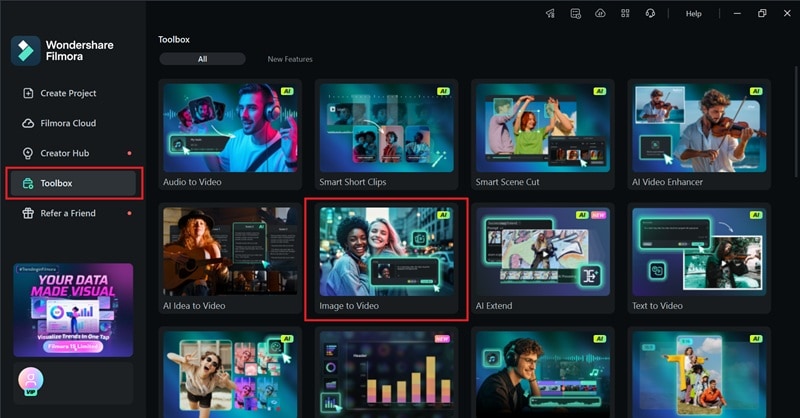
● To assemble the generated audio into a complete video using Wondershare Filmora, navigate to the Image to Video feature in the Toolbox to process a photo with Christmas templates before importing the Santa voiceover and applying auto-captions.
Ask AI for a summary
 ChatGPT
 Perplexity
 Gemini
 Claude
 Grok
Grok
The holiday season is here! Effortlessly bring the magic of Christmas to life with a free Santa AI voice generator. This text to speech tool transforms your message into a warm, jolly Santa Claus voice for videos, reels, or greetings. We've rounded up the best free tools and provide a complete guide on how to create a stunning Christmas video with Filmora.
To make sure you can deliver your messages well, we have rounded up the best free Santa AI voice generators you can use right away, along with a quick guide on how to turn your Santa voice into a complete video.
Let's start with the quick picks!
Our Top 3 Santa Voice Generator Picks


1. Comparing the Top AI Santa Voice Generators (Chart Summary)
Before getting into more details, you can check a quick overview of our recommendations to help you choose the right Santa voice generator for your needs.
| Santa Voice Customization | Free Plan Limits & Pricing | Naturalness / Realism | Key Limitations | |
| TTS Vibes | No pitch or speed controls | Free with 300 characters per generation; premium from $6.99/mo | ⭐⭐⭐⭐ | Santa voice English-only, standard audio, short character limit |
| Fine Share | Pitch, speed, and temperature controls | Free for 2,000 characters/month and 250 characters per request; Paid download from $8.99/mo | ⭐⭐⭐ | Require sign up for the free-tier, short character limit, must upgrade to download |
| Vondy | Prompt-based tone control; no direct sliders | Free to generate; Paid download from $9/mo | ⭐⭐ | Must upgrade to download, tone may miss if instructions are unclear |
| TopMedia AI | Speed, pitch, volume, tone, stability, and pronunciation controls | Free for 1,000 characters; paid plans from $4.99/wk or $8.99/mo | ⭐⭐⭐⭐ | Limited free quota, weak with catchphrases |
| Make Film AI | No pitch, speed, or tone controls | 100 free credits (10 credits/generation); paid plan from $9.9/mo | ⭐⭐⭐ | Credit-based, lacks voice adjustments |
|
Show More
Show Less
|
||||
Part 2. Top 5 Free Santa Voice Generator Tools: Detailed AI TTS Review
Below is a detailed introduction of each product that provides a clear and comprehensive overview of its unique features and benefits. So you can understand how each tool can meet your specific content creation needs effectively.

1. TTS Vibes: Free Santa Claus Voice Generator Features
If you want a free AI Santa voice generator that lets you "open the site, paste some text, download, done," TTS Vibes is the one. It's not the most realistic-sounding voice generator out there, but it gets the job done for casual use, especially if you only want to convey some quick message in an old-man style voice like Santa Claus.
When you select the "Santa" voice, it will always end the line with a classic "Ho! Ho! Ho!" Meanwhile, the "Caroler" voice will make it sound sing-songy, like Santa is happily singing your message, complete with a Christmas tune.
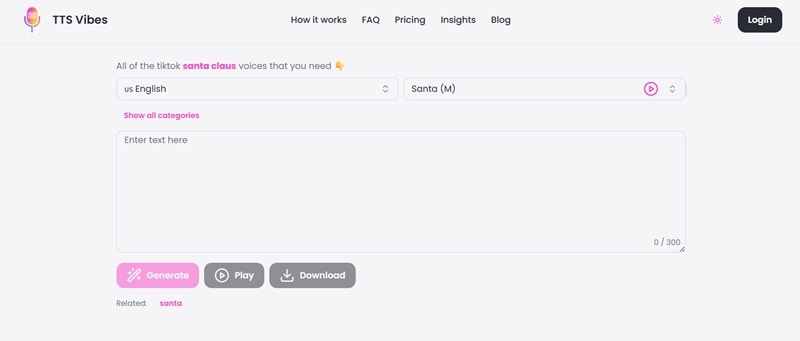
- Choose between the "Santa" voice or the "Caroler" that gives your message a more musical tone.
- Preview your result before downloading.
- Explore more voice categories for different occasions, moods, and characters.
- Very fast; perfect for short Christmas greetings, TikToks, Reels, and Shorts.
- The free plan allows unlimited generations with non-premium voices.
- No need to log in before using.
- 300 character limit per generate.
- Standard audio quality.
- The Santa Claus voice only supports English.
Free users get unlimited generations, with a limit of 300 characters per request. You can upgrade your plan to remove the character limit and unlock premium voices, starting at $6.99/month.
2. FineVoice by Fineshare
Fineshare is a good choice if you only need an AI Santa voice for quick messages or greetings. You can adjust the pitch, speed, and temperature settings to make the voice sound closer to your preference. You can generate and preview the voice for free, but downloading it requires a paid subscription.
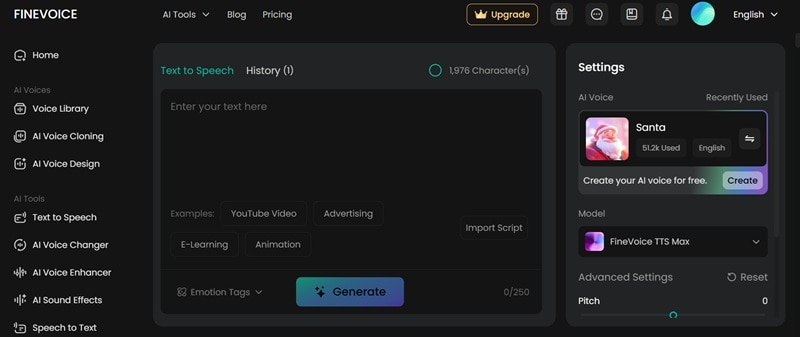
- Import your script (TXT, DOCX, SRT) or type manually
- Advanced controls for pitch, speed, and temperature
- Emotional tags for certain voice models to make them sound warm, excited, or calm
- Delivers a fairly natural Santa voice with adjustable settings
- Integrated with other AI tools that you can explore for your content creation
- Only ideal for short and quick messages, since it only allows up to 250 characters per generation
- Emotional tags are not available for the Santa voice
- Requires a paid subscription to download the audio
Free for around 2,000 text-to-speech characters/month, with a limit of 250 characters per conversion. The paid subscriptions start from $8.99/month.
3. Vondy
Vondy is ideal if your priority is: "I need an AI Santa voice to say this exact line, in a jolly tone, MP3 format." The tool works based on your instructions. It asks a few quick questions, like what message you want, the tone, and the format, so everything is generated through prompts instead of preset options.
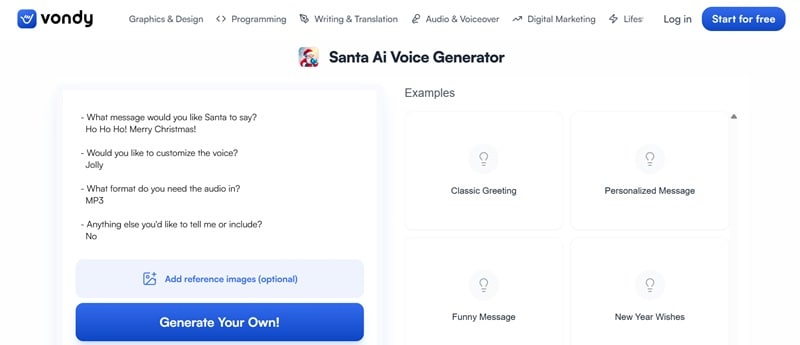
- Simple prompt form and integrated AI to assist the generating process.
- Examples library for classic greetings, personalized messages, funny lines, and New Year wishes.
- Built into Vondy's ecosystem with many additional AI tools
- Works through instructions, so you're not limited to fixed templates
- Supports MP3 and WAV audio exports
- Since it relies on instructions, the output can miss the intended tone or direction at times
- You can't download the final audio unless you upgrade your plan
You can try the tool for free, but downloading the audio requires an upgrade. Subscription plans start at $9 per month.
4. TopMediaAI
TopMediaAI is a pretty good choice if you want a flexible AI Santa voice generator that works in more languages, not just English. You can import your script if you're on a premium plan, use the built-in AI writer, or type your own text within the 100-character limit per generation.
The default Santa voice leans more toward a cheerful style than an old, wise tone, though you can adjust the speed, pitch, and volume, and the pronunciation tool to make the voice sound more natural.
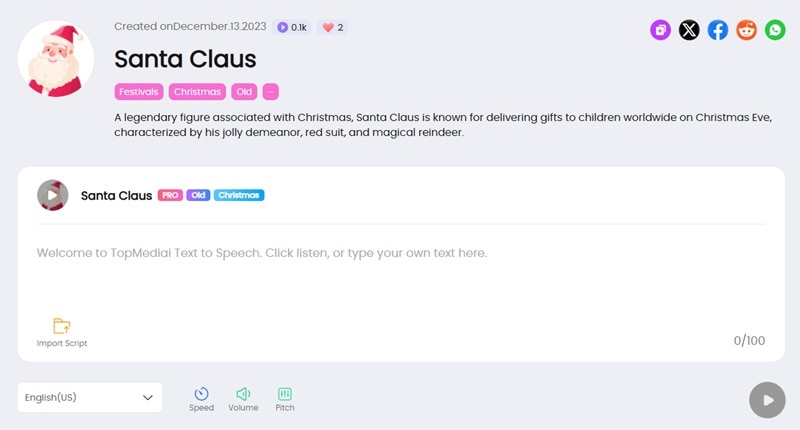
- Cloud-based platform with more than 3,200 voices across 190+ languages
- Mood and tone controls, including stability, similarity, and exaggeration settings
- Speed control (gradual or swift) and pitch options (deep, dull, consistent, bright, crisp)
- Adjustable pauses and sensitive word detection
- Integration with video editors
- The voices are generally clean and versatile enough for different kinds of content
- Huge language coverage for global use
- Supports multi-person voice projects
- Free plan quotas are limited
- Best quality and commercial features are available on paid tiers only
- Not very good with jargon or catchphrases
You can use it for free without signing in for conversions up to 1,000 characters. Subscription plans start at $4.99/week or $8.99/month, giving you access to higher-quality voices and a larger character limit.
5. Make Film AI
Make Film AI is a creative tool that includes AI text-to-speech as one of its features, with a Santa Claus voice available. Just like other Santa voice generators, you just need to type the message, and the tool generates the audio for you.
Although there aren't any pitch, speed, or tone controls, the Santa voice sounds fairly natural and has that older, warm Santa character you'd expect. Each output costs 10 credits, and new users receive 100 free credits to get started. It saves the audio in WAV format.
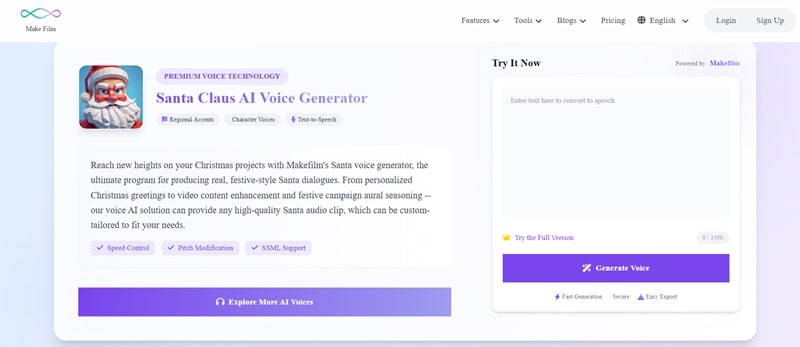
- Emphasis on an authentic, consistent Santa voice for repeat use.
- Allows up to 1,500 characters per generation.
- Supports more than 20 languages for voice generation
- Comes with free starter credits
- The Santa voice sounds more natural than other alternatives
- Uses a credit system for each generation, so credits can run out quickly
- Limited controls with no pitch, speed, or tone adjustments
You can try for free with an initial credit grant (100 credits). The paid subscriptions start from $9.9/month (for 200 credits).
Part 3. Create a Santa Claus Video: Complete Christmas Content Workflow with Filmora
Once you've generated your AI Santa voice, don't just stop there. Creating a stunning Christmas video with your Santa AI voice is easy with Wondershare Filmora. You can choose whether to edit it fast on mobile or edit it like an expert on a desktop.
 Secure Download
Make a Santa Claus Video with Filmora
A Santa voice alone isn't enough to carry the whole experience. Since short videos are what everyone's watching now, the next step is bringing that audio into Filmora and turning it into a Christmas clip you can send, share, and post anywhere.
Filmora gives you plenty of tools to pull everything together, like:
- Built-in text-to-speech: Filmora's Text-to-Speech feature supports multiple natural-sounding voices, including warm, older tones like Santa. You can also adjust the pitch and speed to match the voice you're going for.
- Christmas Stickers & Effects: Add festive elements like snowflakes, Santa hats, twinkling lights, and cinematic transitions to enrich your Santa video.
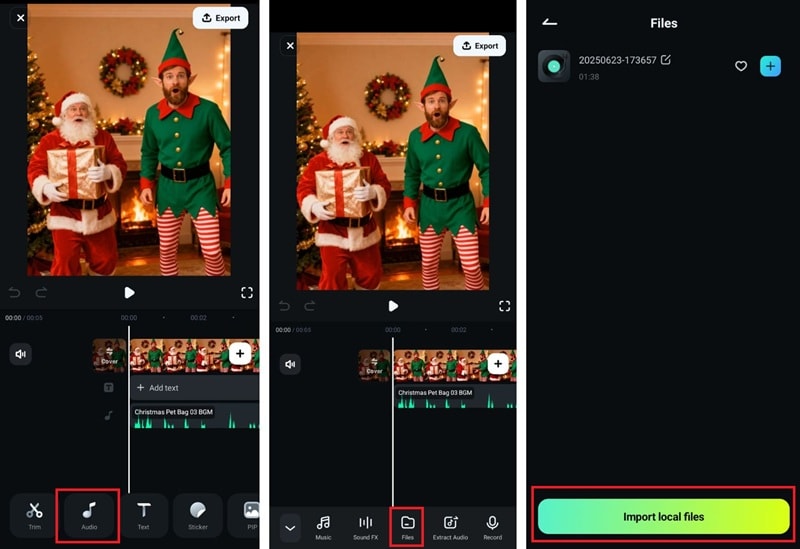
- Christmas Music and Sound Effects: Drop in background tracks like gentle bells, soft holiday piano, or classic Christmas jingles. You can also add fun sound effects like sleigh bells.
- AI Captions: Use Filmora's Auto Captions tool to automatically generate subtitles for your Santa message.
On top of that, you can also generate fun video content for Christmas using Filmora's AI Image to Video templates. You can turn your regular images into inviting videos featuring Santa Claus for your loved ones. Thus, it'll make your holiday greetings feel even more special.
3.1. Desktop Workflow: Santa Voice to Christmas Video

 Secure Download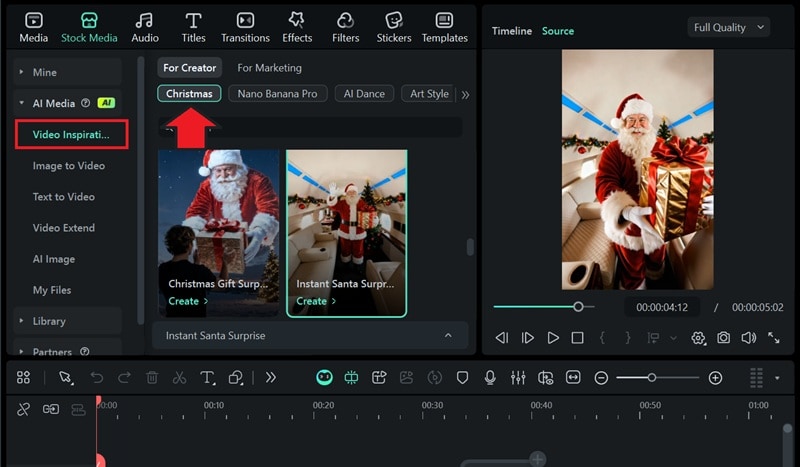
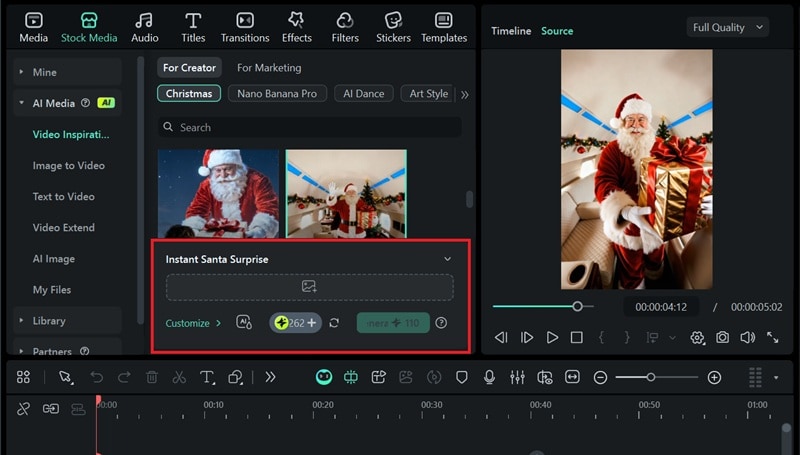
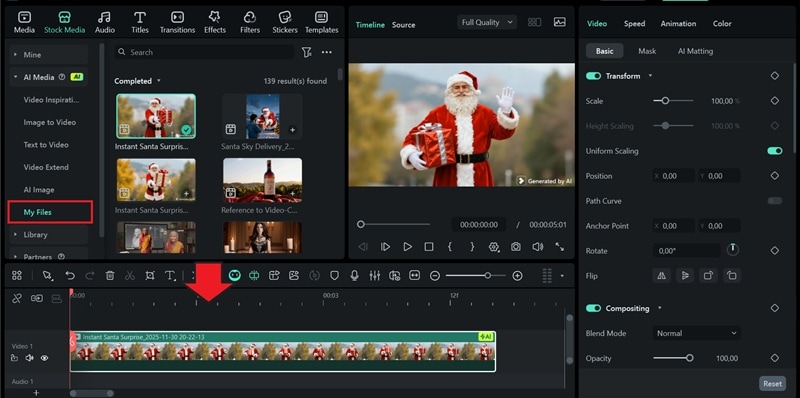
Add the Santa Voiceover
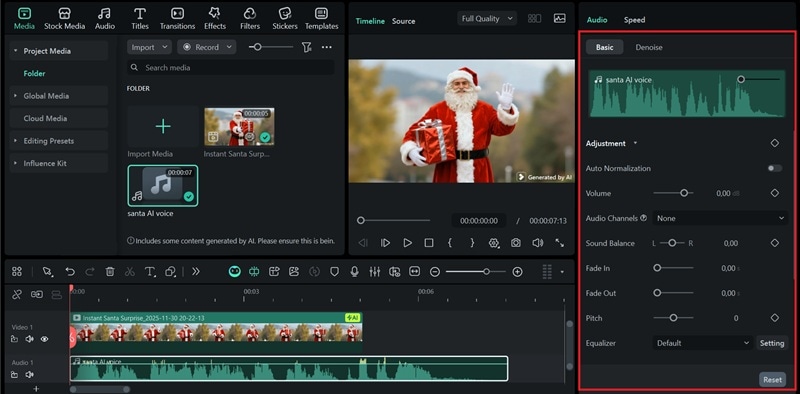
Go to the Media tab and import the AI Santa voice you generated.
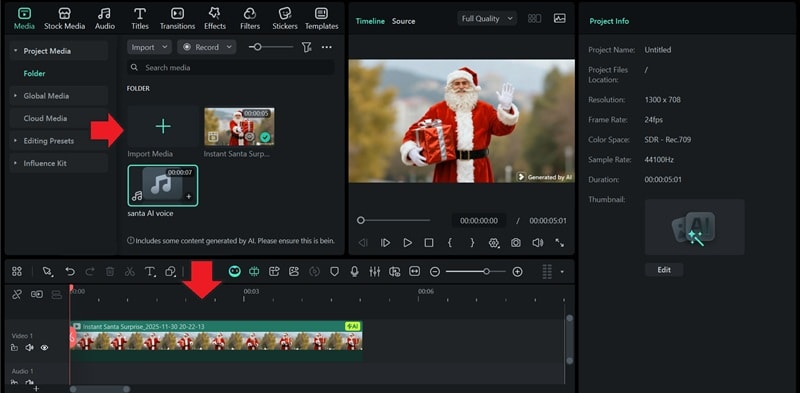
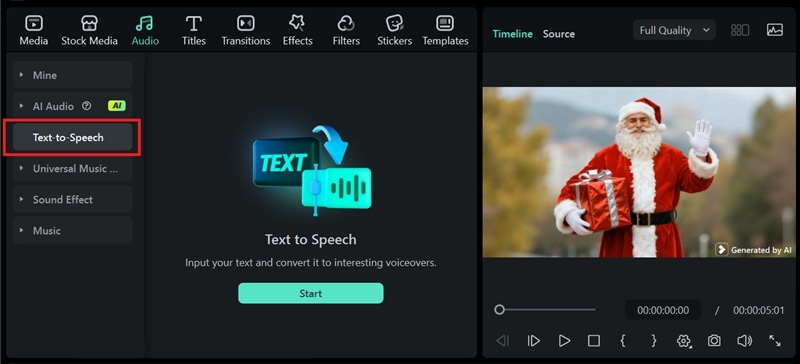
You can also generate a voice from text using Filmora's Text to Speech by heading to Audio > Text to Speech. Then, click Start, type your message, choose a voice, and adjust settings like pitch, speed, and emotion.
After adding the voiceover, you can edit the voice by selecting it. The audio setting will appear on the properties panel on the right.
Generate Capton
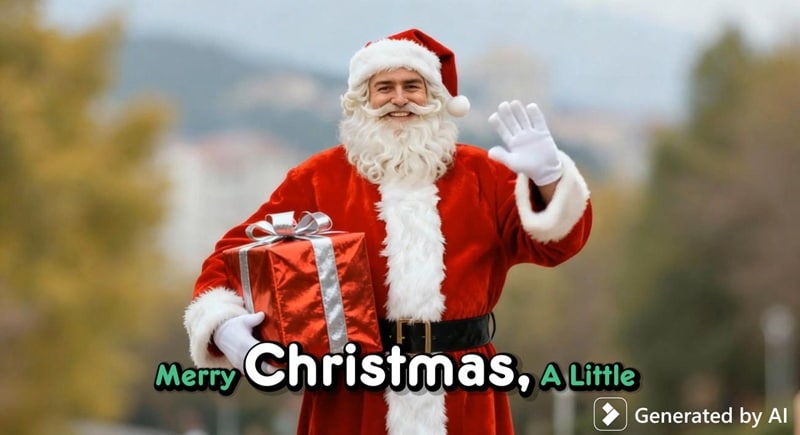
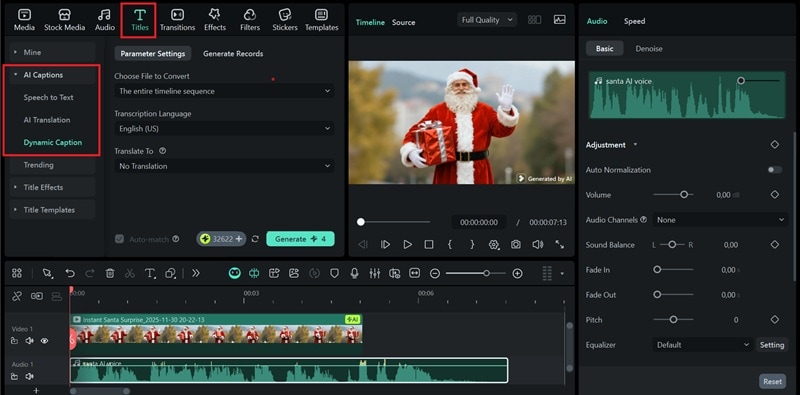
If you want to create a caption, open Titles and choose either Speech to Text for a standard subtitle or Dynamic Captions for text that follows and highlights each word as it's spoken.
You can also browse the Titles tab to add regular text. Use the search bar to find styles that match Christmas themes.
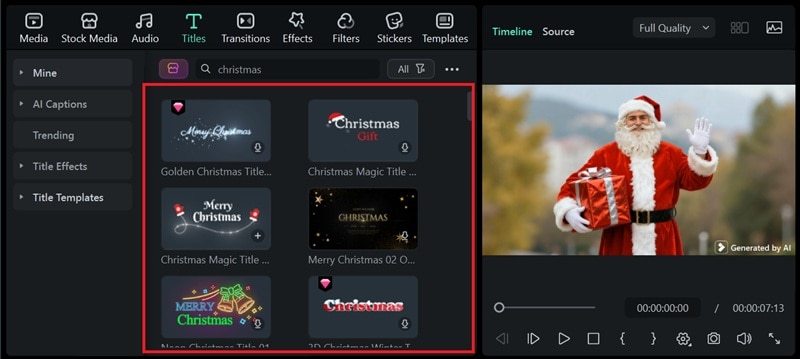
To finish things off, add any extra clips if needed, then customize your project with text, music, stickers, effects, and transitions until your video feels complete.
3.2. Mobile Workflow: Fast Santa Shorts with Filmora Mobile
Wondershare Filmora for mobile can help you create text-to-speech videos right on your phone. An ideal way for last-minute festive posts!
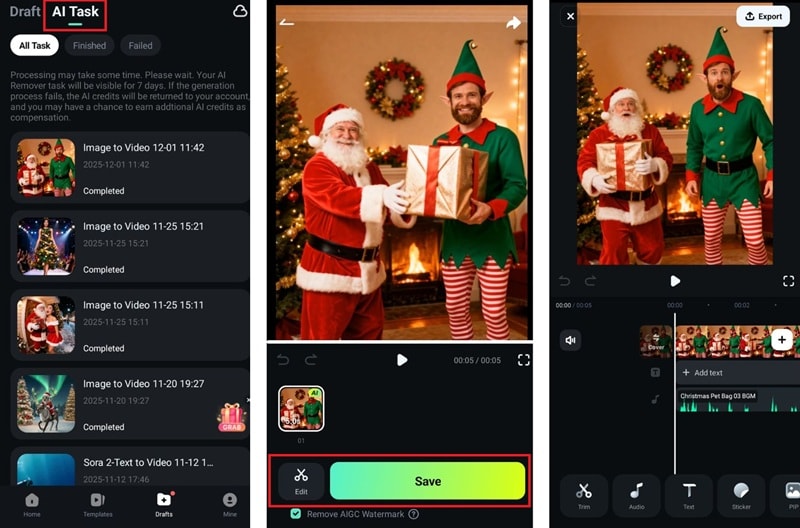
Secure Download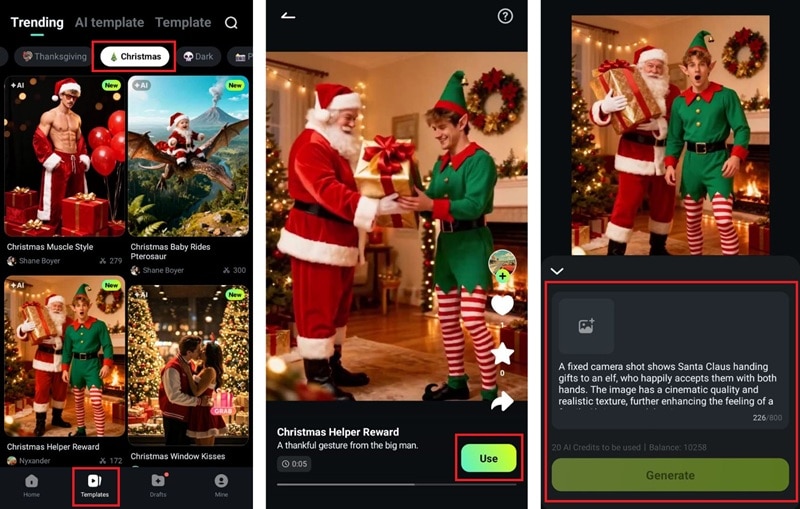 Secure Download
- Edit – refine the video in the timeline, or
- Download – save it immediately.
Or use Filmora’s Text to Speech tool to generate a warm Santa-style voice.
Conclusion
With today's tools, you don't need a recording studio to bring Santa into your Christmas content. Any of the Santa voice generators we've listed can create a realistic AI Santa voice in just a few seconds.
Many offer a Santa AI voice generator online for free, so you can experiment before upgrading. Then, drop that audio into Filmora on desktop or mobile to build full Christmas videos with AI Image to Video, TTS, and other Christmas-themed assets. The result is a personalized, magical holiday content that feels straight from the North Pole.

