

 TL;DR:
To create AI storytelling videos without switching platforms, use Wondershare Filmora's integration with the Veo 3.1 AI model to generate visual scenes from text prompts and arrange them directly on a unified professional timeline.
● Filmora's AI video generation tools currently output only short video clips, requiring creators to generate and combine multiple clips sequentially to construct a full-length story.
● For narratives demanding consistent character appearances or stable environmental designs across multiple scenes, use the Image-to-Video generator with a reference image rather than relying strictly on text-to-video prompts.
● The initial AI-generated outputs serve strictly as visual drafts, making manual timeline refinement essential to correct uneven scene timing, emotional pacing errors, and clip-to-clip visual inconsistencies.
Ask AI for a summary
 ChatGPT
 Perplexity
 Gemini
 Claude
 Grok
Grok
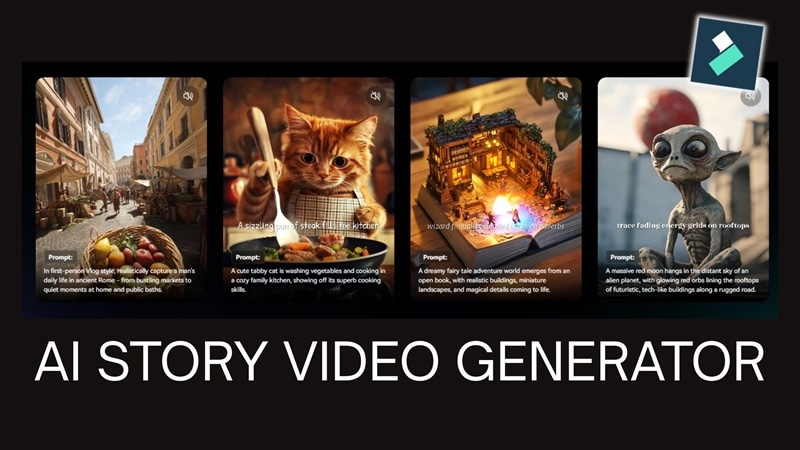
Looking for the most efficient AI storytelling generator? Transforming your ideas into cinematic narratives for YouTube, TikTok, and short films is now easier than ever. With the integration of advanced models like Google's Veo 3.1, an AI storytelling video generator can now shape characters and scenes from a single prompt. In this guide, we'll show you how to leverage Wondershare Filmora to master AI-driven visual storytelling.
Part 1. What is an AI Storytelling Video Generator and How Does It Work?
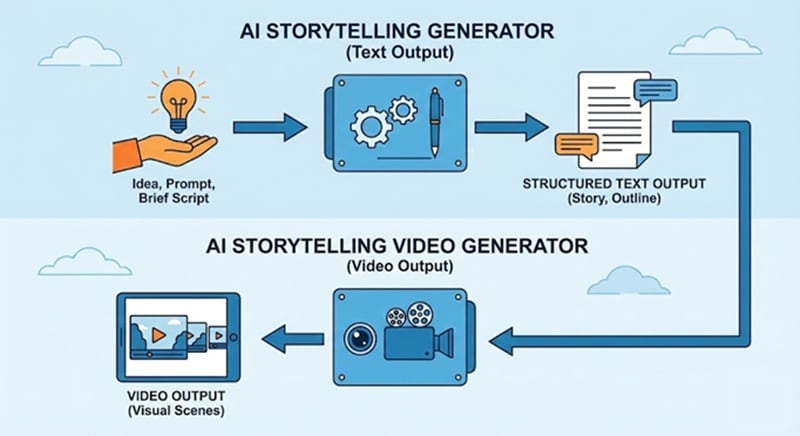
To create a visual story with AI, there are two key parts that go hand in hand to make a complete storytelling video. One focuses on shaping the story itself, while the other turns that story into visuals that can be edited into a video.
- AI Storytelling Generator (with Text Output) is a tool that can transform text as input into structured text as output. Input may be an idea, a prompt, or even a brief script.
- AI Storytelling Video Generator (with Video Output) is a tool that turns prompts or structured story text into video content. Instead of stopping at written output, it generates visual scenes based on the story.
 Secure Download
Where AI Storytelling is Commonly Used
AI storytelling tools are now widely used across creative fields:
- In education, they help explain complex ideas through simple narratives.
- In social media, they support short storytelling videos for fast engagement.
- In explainer videos, they help structure information clearly.
- In entertainment, they assist with fiction, animation, and short films.
These broad use cases show why AI storytelling video generators are becoming essential tools for modern creators.
Part 2. Types of AI Storytelling Video Generators
The kind of AI storytelling videos you can create is not limited to just one format. There are also different methods to achieve specific storytelling styles. Some turn text into scenes, others animate images or narrate stories using avatars.
Text-to-Video Generator (e.g., Veo 3.1, Sora 2)
Secure DownloadThe text-to-video method is the most "hands-off" option. You describe the story or use any AI storyteller generator to do it for you, and the tool turns that text into moving scenes based on your direction. Google's Veo 3.1 is an example of a powerful AI storytelling video model that converts text prompts into detailed video scenes.
There's almost no limit to the kind of stories you can create with this approach. You can use it to produce short films, social media stories, or even concept trailers without a full production setup.
Image-to-Video Generator
Unlike text-to-video models that start from written prompts alone, image-to-video generators use a still image as the foundation. The AI animates that image by adding motion, depth, and subtle visual changes, based on your prompt description, and turns it into a short storytelling scene.
Presentation-Style
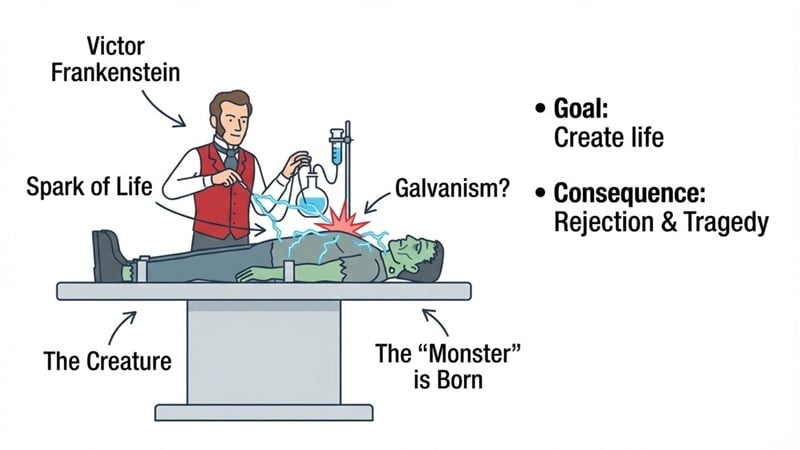
Presentation-style AI storyteller generators focus more on structure than cinematic visuals. They combine text, images, and simple animations to make slide-based videos. Creative depth is limited, but clarity is strong. They are usually paired with a spoken narration or voiceover that guides viewers through the story.
Talking-Avatar–Based Storytelling
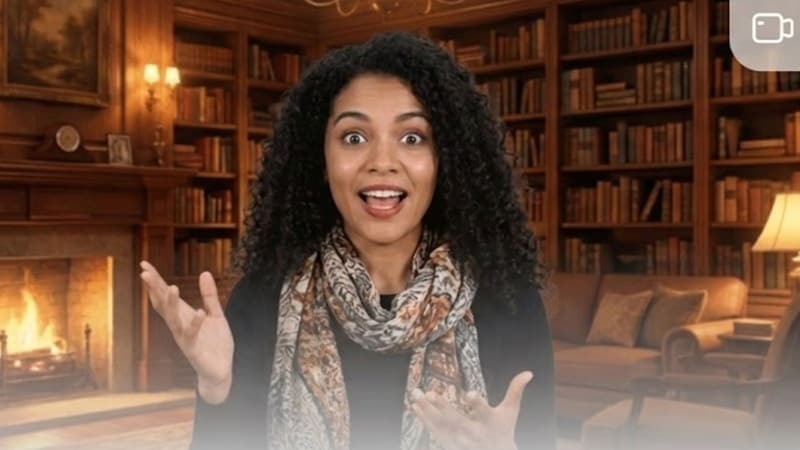
Talking-avatar tools tell stories through a digital character that speaks the script, often using AI voice and lip-sync technology. This type of AI storyteller generator's highlight lies in the narration rather than visual scenes, so scene variety is limited.
Part 3. How AI Storytelling Works: From Text to Story Video
The process starts with a clear input. This input can be a story idea, a short prompt, or a written script. An AI storytelling generator reads this text and analyses meaning, structure, and intent. During this stage, there are many things you can control, including:
- Characters: who they are, how they look, what they do
- Scenes and locations: indoor, outdoor, futuristic, historical, fantasy, realistic
- Mood and tone: emotional, cinematic, playful, dramatic, calm
- Pacing: fast action scenes or slow moments
- Story structure: beginning, conflict, climax, and ending
- Visual style: realistic, animated, illustrated, or stylized looks
AI Builds Story Structure
After understanding the input, AI organizes the content into a usable story framework. This step is critical for video creation. The AI generates:
- Narrative flow that defines how the story progresses
- Scene breakdown that splits the story into visual moments
- Shot suggestions that hint at framing or action
- Character visuals and moods based on context and tone
This structured output makes the story ready for visual translation.
Video AI Turns Stories Into Visual Drafts
Once the story structure is ready, video-focused AI tools take over. These tools convert scenes and descriptions into visual content. They usually generate:
- Clips representing each scene
- Transitions to connect story moments
- Background or atmospheric audio that matches the environment and emotion of the scene
- Camera movement and framing based on the prompt
This output forms the first version of an AI storytelling video. It is meant for review, not final release. Usually, the video already includes a voiceover. Even if it doesn't, or you are not satisfied with how it sounds, you can still add one later by recording your own narration or using an AI text-to-speech tool.
Why Manual Refinement is Still Needed
AI-generated videos are fast, but they lack judgment. Scene timing can feel uneven. Emotional beats may not land correctly. Visual consistency can change between clips. That's why you may need to refine the output by fixing the pacing, adjusting transitions, and strengthening story impact. Editing restores human intent and emotional control.
This step remains essential in any AI storytelling video generator workflow.
Part 4. How to Generate AI Stories with Veo 3.1 in Wondershare Filmora (Step-by-Step)
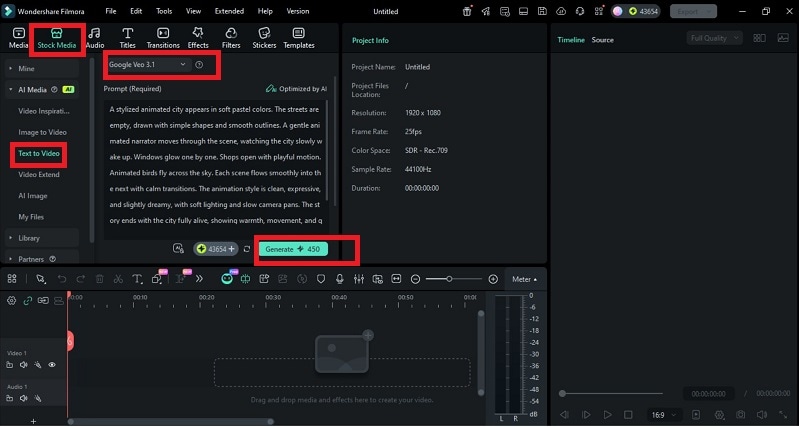
Now is the time to put your knowledge into practice. We'll walk through AI storytelling video generation using Wondershare Filmora, one of the best AI video editors available. Filmora includes built-in AI Text-to-Video and Image to Video tools that let you turn story ideas, prompts, or visuals into an editable video in just a few steps.
Secure DownloadWhy We Recommend Filmora
Wondershare Filmora stands out as a top-tier AI storytelling video generator. By integrating the powerful Veo 3.1 AI model, Filmora allows you to move seamlessly from a text-to-video concept to a professional timeline. This eliminates the need for switching between multiple AI video tools, providing a unified workflow for visual storytellers.
- It can generate high-quality AI visuals, powered by advanced AI models like Veo 3.1.
- It gives you full control to organize and refine them on a video timeline, since the AI-generated clips can be rearranged, trimmed, extended, and combined just like regular footage.
This balance keeps storytelling flexible and controlled. It's one of the few AI video storytelling tools that lets you move from idea to a fully edited video without switching between different platforms.
Secure DownloadSteps to Generate Story Clips Using Text-to-Video (Desktop)
Use Image-to-Video for Character or World Animation
Secure DownloadIf you already have a specific character or world in mind and want to keep the visual style consistent, you can upload an image as a reference and use an AI Image-to-Video generator instead.
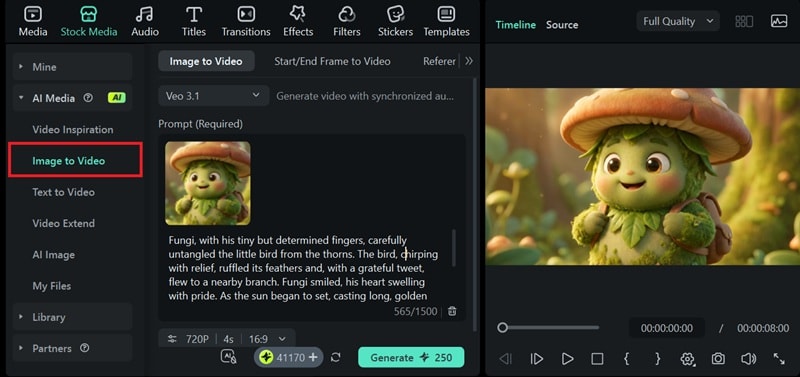
This method is useful when you need to build animated scenes around the same character or environment while maintaining continuity across your video.
Part 5. Best Prompts for AI Storytelling (Beginner to Advanced)
Well-written prompts are the backbone of any AI storytelling video. Below are prompt examples designed specifically for storytelling videos, not plain text stories, you can try next:
- "A young traveler describes their first night in a city that never sleeps."
- "A child narrates how a small village changes over one year."
- "A scientist records daily notes while living alone on a distant planet."
- "Two strangers cross paths every morning without speaking, until one day everything changes."
- "A retired robot reflects on humanity through fading memories, told across five cinematic scenes."
- "A city is shown through the eyes of time, moving from silence to chaos and back again."
Conclusion
AI storytelling has clarified how ideas move from text into structured, visual narratives. This article explained how stories are shaped through prompts, scenes, and drafts, and why editing remains a necessary final step. While an AI storytelling generator provides the framework, the final touch of pacing and emotion requires a human editor. Wondershare Filmora bridges this gap, combining the intelligence of Veo 3.1 with professional editing tools. Start your journey into AI visual storytelling by downloading Filmora today.

