
AI Media Analysis: Understand Videos and Images Before You Start Editing
Analyze videos and images with Filmora AI to identify subjects, scenes, locations, actions, and other useful visual context. Turn the results into keywords, descriptions, ratings, and editing suggestions—so you can spend less time reviewing media and get to the edit faster.
 4.7
(15746 reviews)
4.7
(15746 reviews)
Win 11/Win 10/Win 8/Win7 (64 bit OS) | System Requirements
macOS 10.15 or later (Using macOS 10.14 or earlier? Click here) | Compatible with Apple silicon
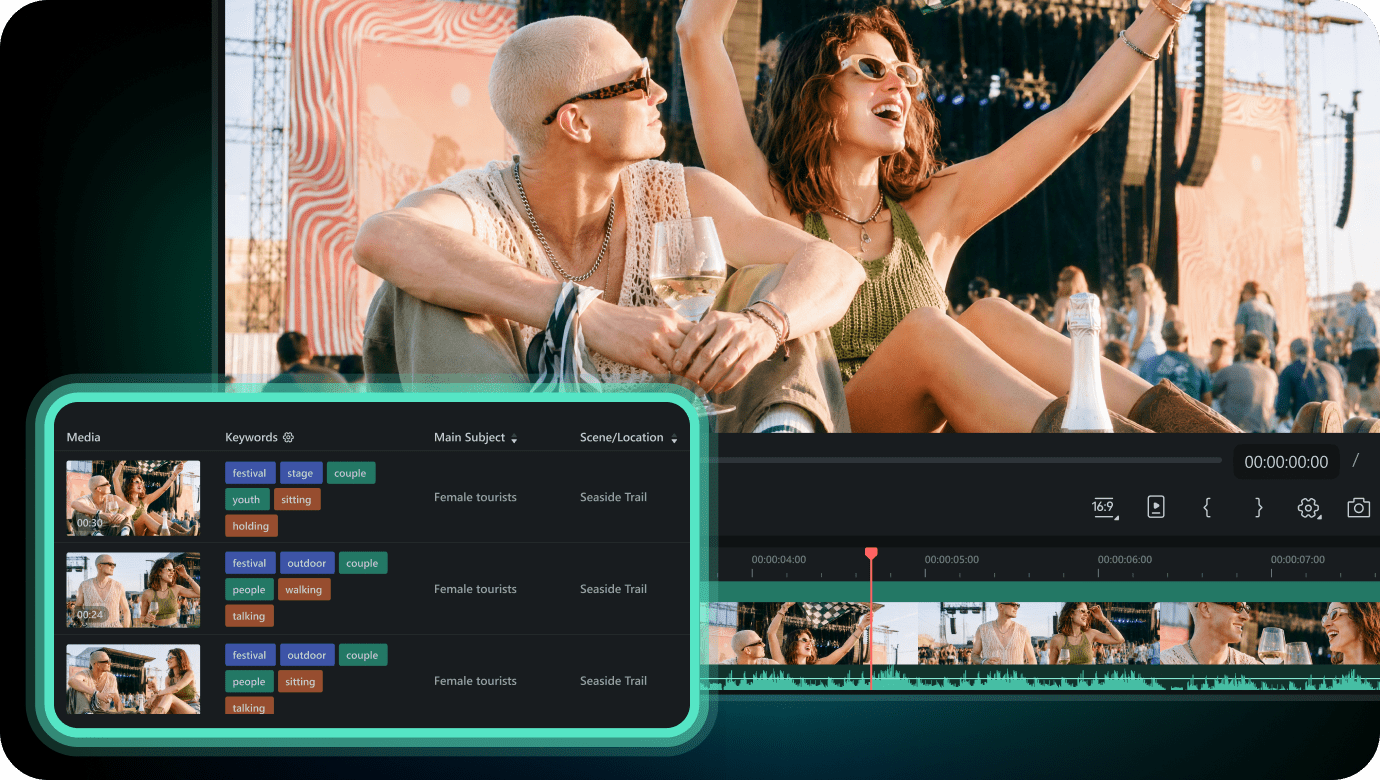
Analyze videos and images with Filmora AI to identify subjects, scenes, locations, actions, and other useful visual context. Turn the results into keywords, descriptions, ratings, and editing suggestions—so you can spend less time reviewing media and get to the edit faster.
Too Much Media. Too Little Time to Review It All.
From travel shoots to multi-camera events, the more media you capture, the harder it becomes to know what is worth reviewing. Filmora AI Media Analysis helps you understand what is inside before you open every file.
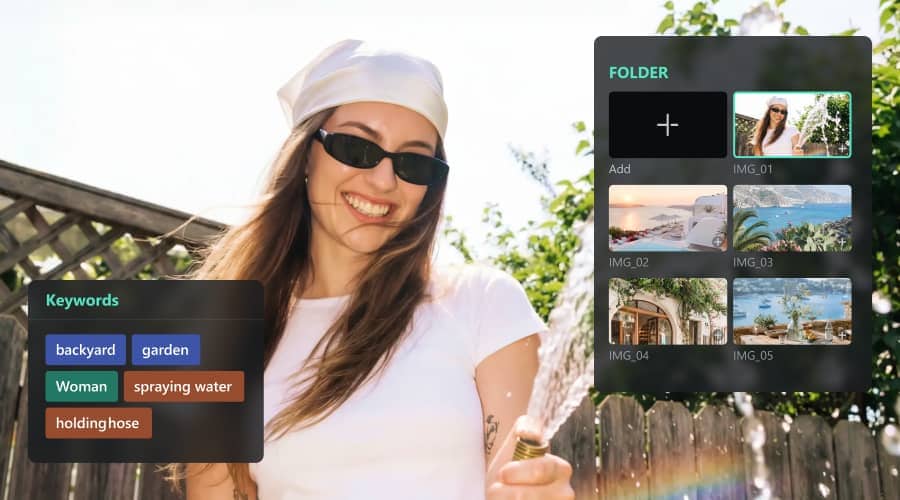

“I shot hundreds of clips. Now I have to watch them all again.”
Phone clips, drone shots, action-camera footage, and photos pile up fast after a trip—and similar-looking thumbnails rarely tell you what happened where. Filmora AI Media Analysis identifies scenes, locations, subjects, and actions, helping you understand your media before replaying every file.
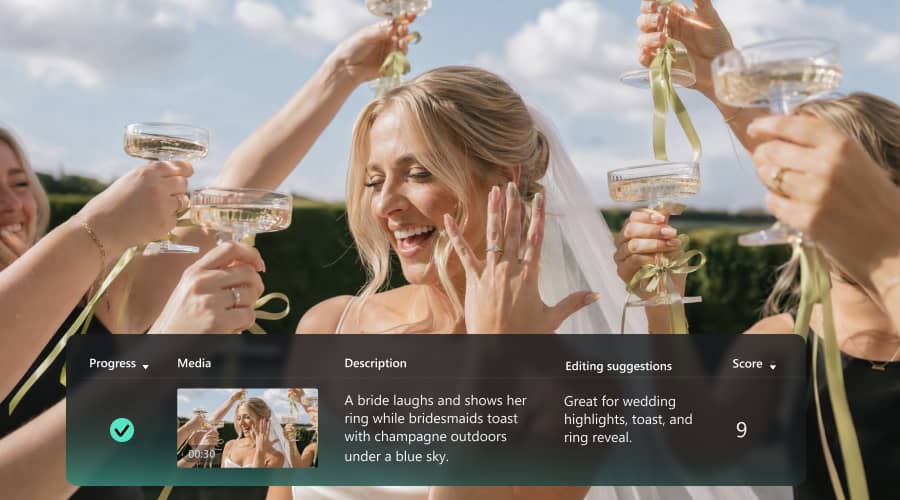

“I know the moment is in here. I just don’t know which file.”
Speeches, ceremonies, reactions, dances, and multiple camera angles can turn one event into hundreds of files. AI-generated descriptions, ratings, and editing suggestions give you more context before you start opening clips one by one.
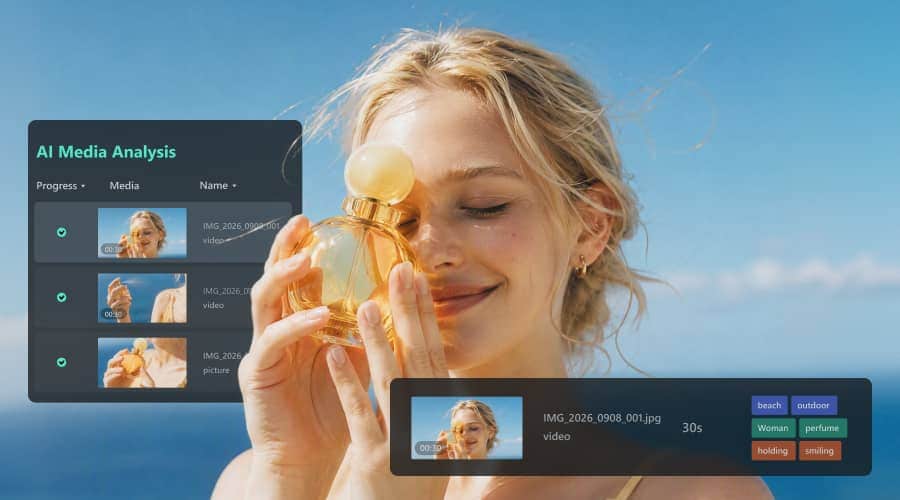

“Which one is the close-up? They all have the same filename.”
Product close-ups, packaging shots, demos, and lifestyle images often look nearly identical in a crowded media bin. Filmora analyzes what actually appears in each video or image, turning generic filenames into useful context for faster review and reuse.
AI Video Analysis for Faster Media Review and Editing
Filmora AI Media Analysis helps you understand, review, and prioritize videos and images faster—so you spend less time sorting footage and more time editing.
Analyze Videos and Images With AI at a Glance
Use AI Media Analysis to understand what’s inside your media before opening every file. Filmora turns visual context into structured insights for faster footage review.
- Multi-Dimensional Analysis: Recognize subjects, scenes, locations, actions, mood, and other useful context.
- Tags & Descriptions: Generate keywords, descriptions, ratings, and confidence information to reduce manual video logging and AI video tagging.
- Video & Image Support: Analyze visual content across both video footage and still images, keeping different media types easier to review and organize in one workflow.
- Faster Media Review: Cut manual review time by up to 80%. A 20-minute video can be analyzed in under 2 minutes.
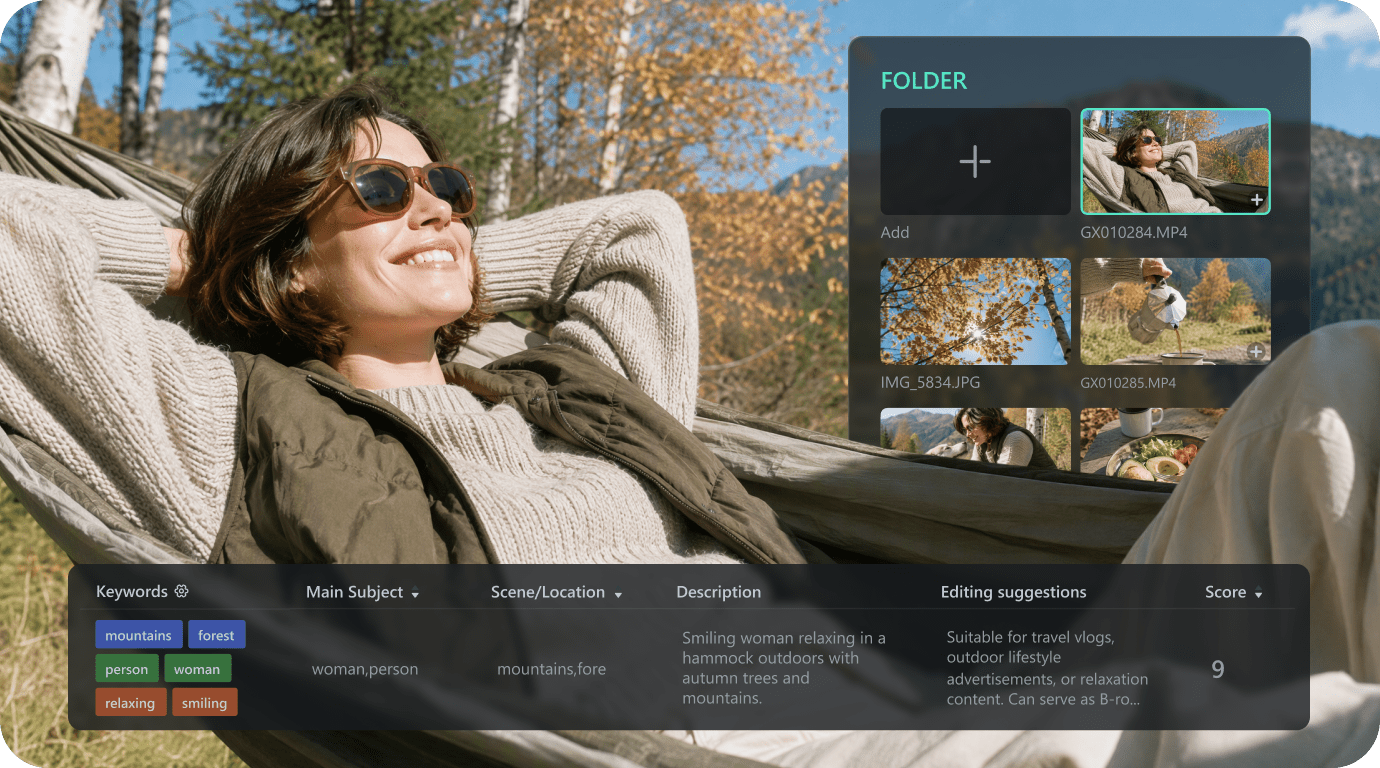
Find Highlights and Prioritize Footage With AI
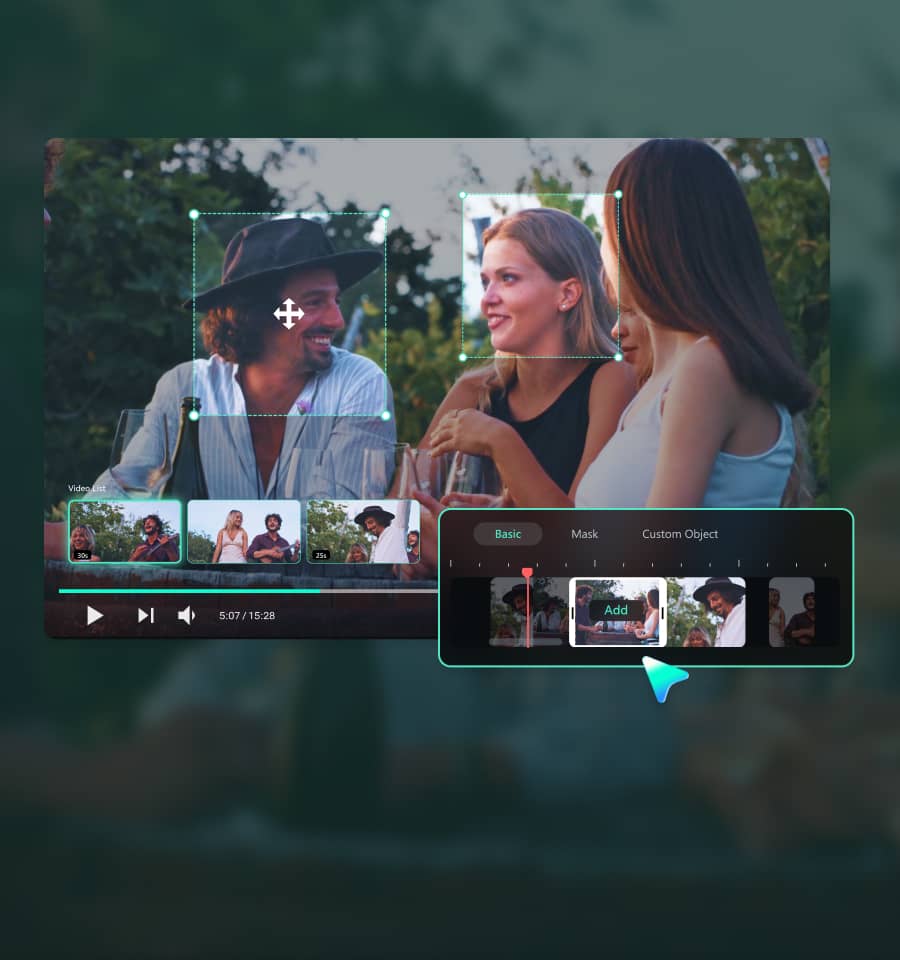
Filmora helps surface useful moments and flag lower-priority sections, so you can focus your first review where it matters most.
- Highlight Useful Moments: Surface highlights, supporting shots, and potential B-roll.
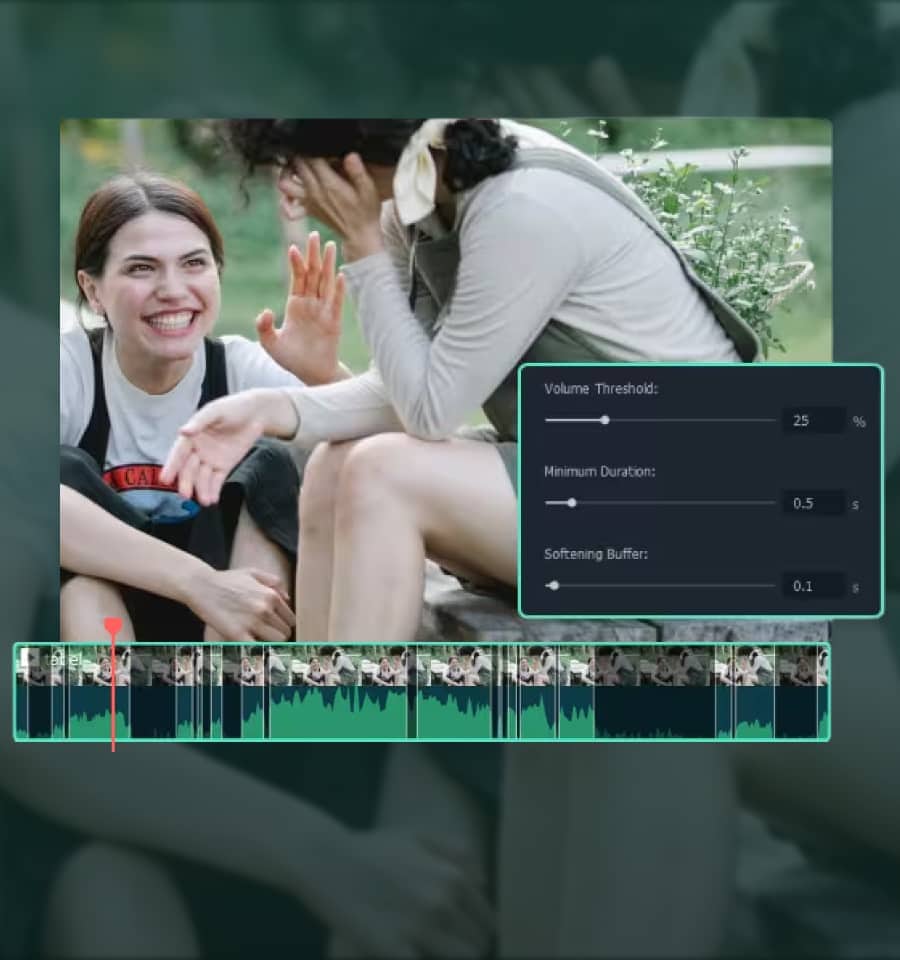
- Flag Less Useful Sections: Identify potentially invalid or lower-value parts of your footage.
- Timestamped Suggestions: View AI editing suggestions at relevant points in preview and on the timeline.
- Stay in Control: Review, adjust, or remove supported suggestion markers as you refine your edit.
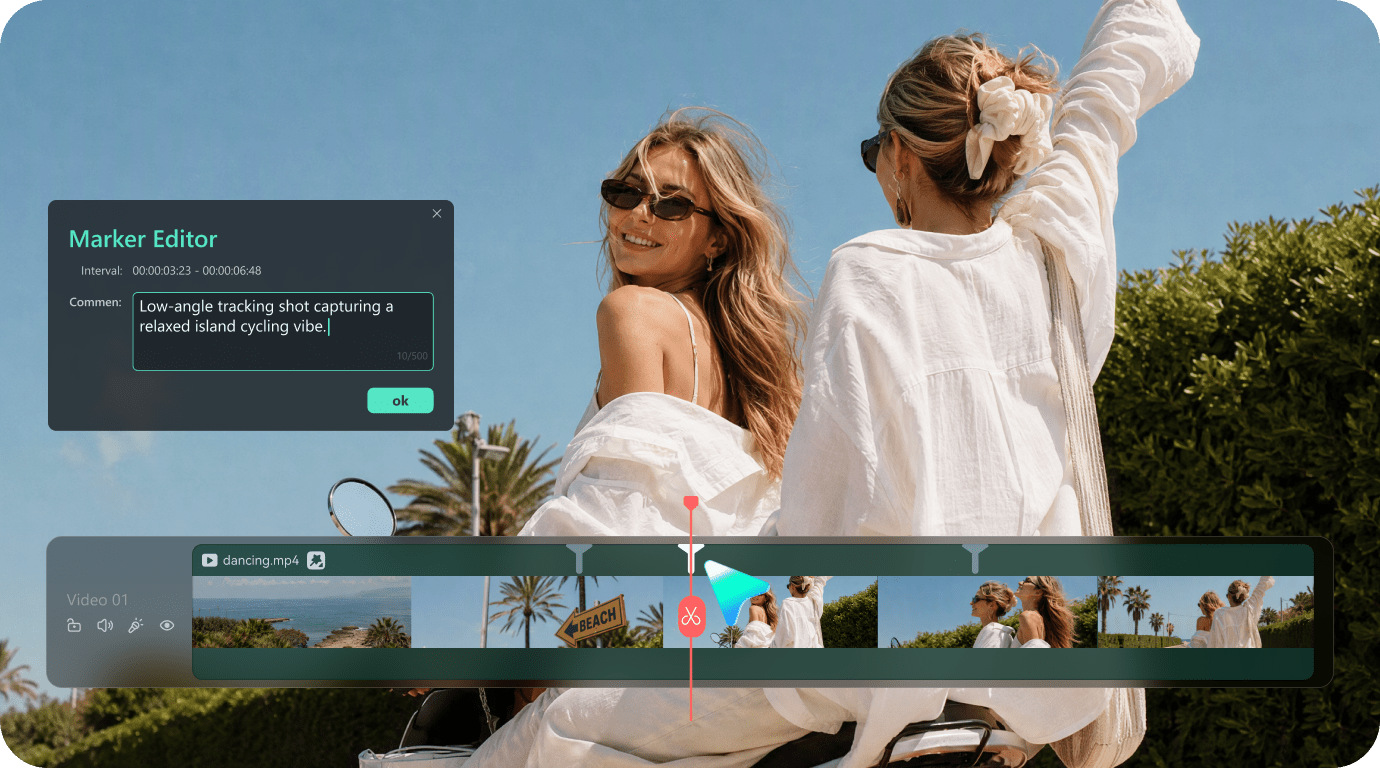
Batch Video Analysis for Large Media Libraries
Built for footage-heavy projects, Filmora makes batch video analysis easier by processing multiple videos and images while keeping results available as they arrive.
- Batch Analysis: Analyze multiple videos and images together instead of processing files one by one.
- Progressive Results: Review completed results while the rest of the batch continues processing.
- Cross-Project Reuse: Reuse existing analysis when the same media appears in another project on the same device.
- Built for Large Libraries: Reduce repetitive review work across large, poorly named, or frequently reused media collections.
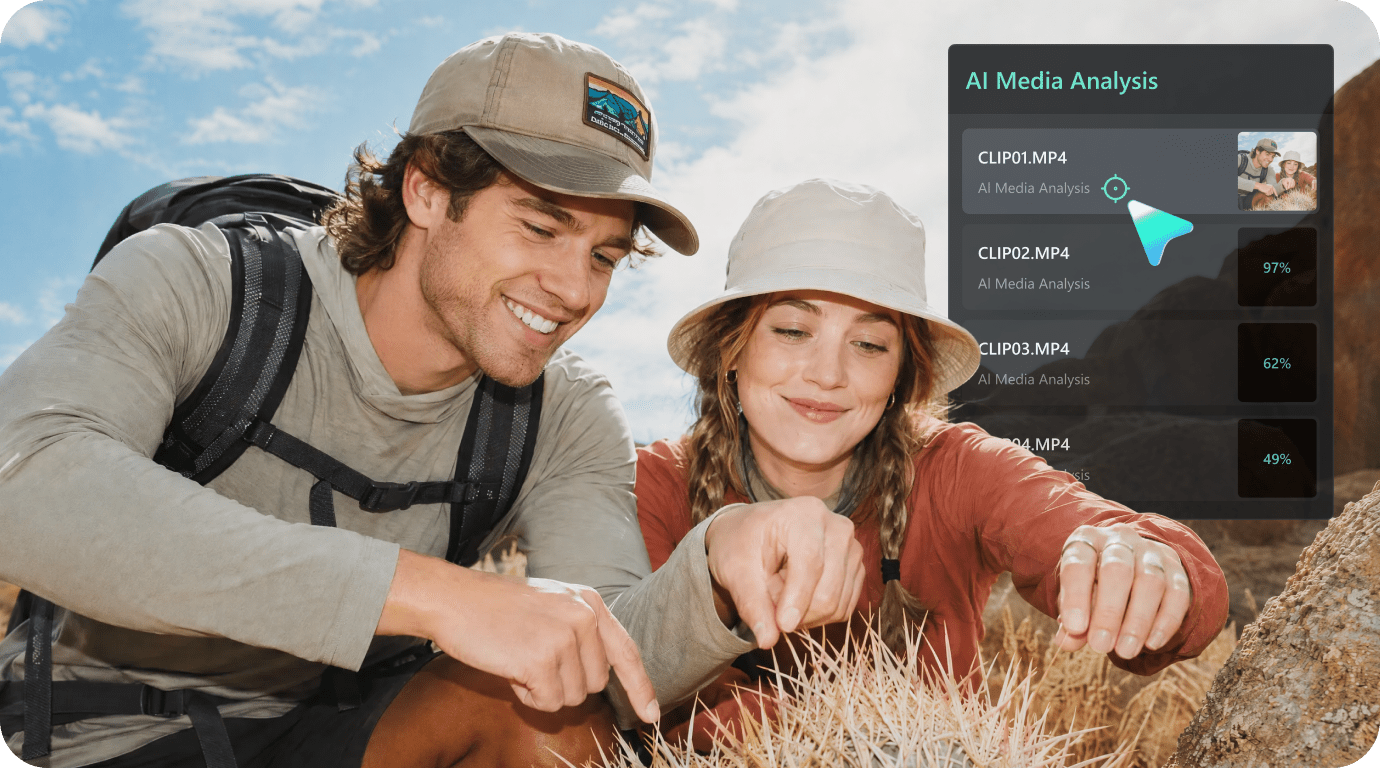
Turn AI Video Analysis Into a Smarter Editing Workflow
Use AI analysis beyond the first review—see insights alongside your media, find relevant footage faster, organize analyzed media, and move directly to the moments you want to edit.
- Review in Media Info: See AI-generated keywords, descriptions, score, and suggestions alongside other media information.
- Find Media Faster: Use AI-generated visual keywords with Filmora Smart Search to find relevant footage by content.
- Organize With Smart Media Bins: Use AI analysis fields to automatically group media that matches your selected criteria.
- Jump Into Editing: Use suggestion timestamps to move directly to relevant moments in preview or on the timeline, then continue editing in Filmora.
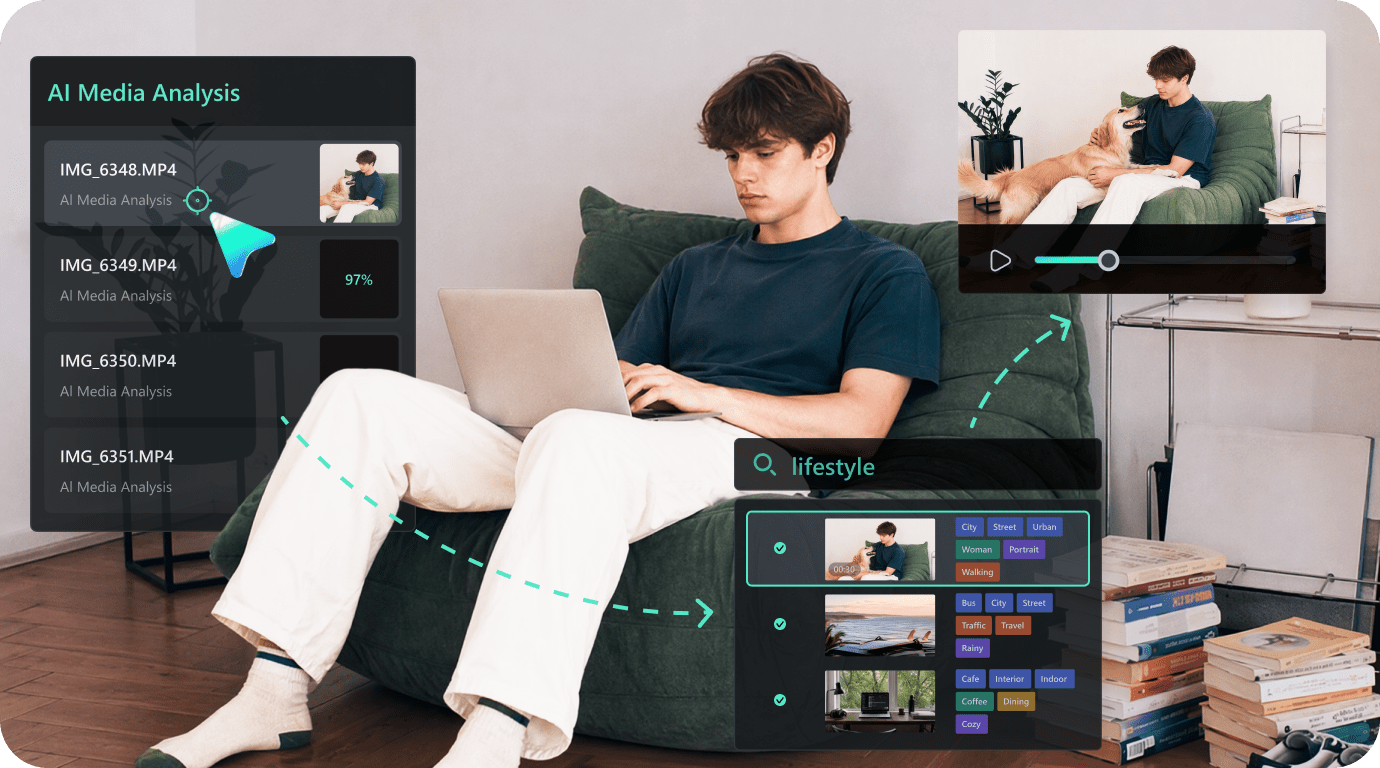
How to Analyze Videos and Images With AI in Filmora
Turn a crowded media bin into media you can understand, prioritize, and edit in three simple steps.
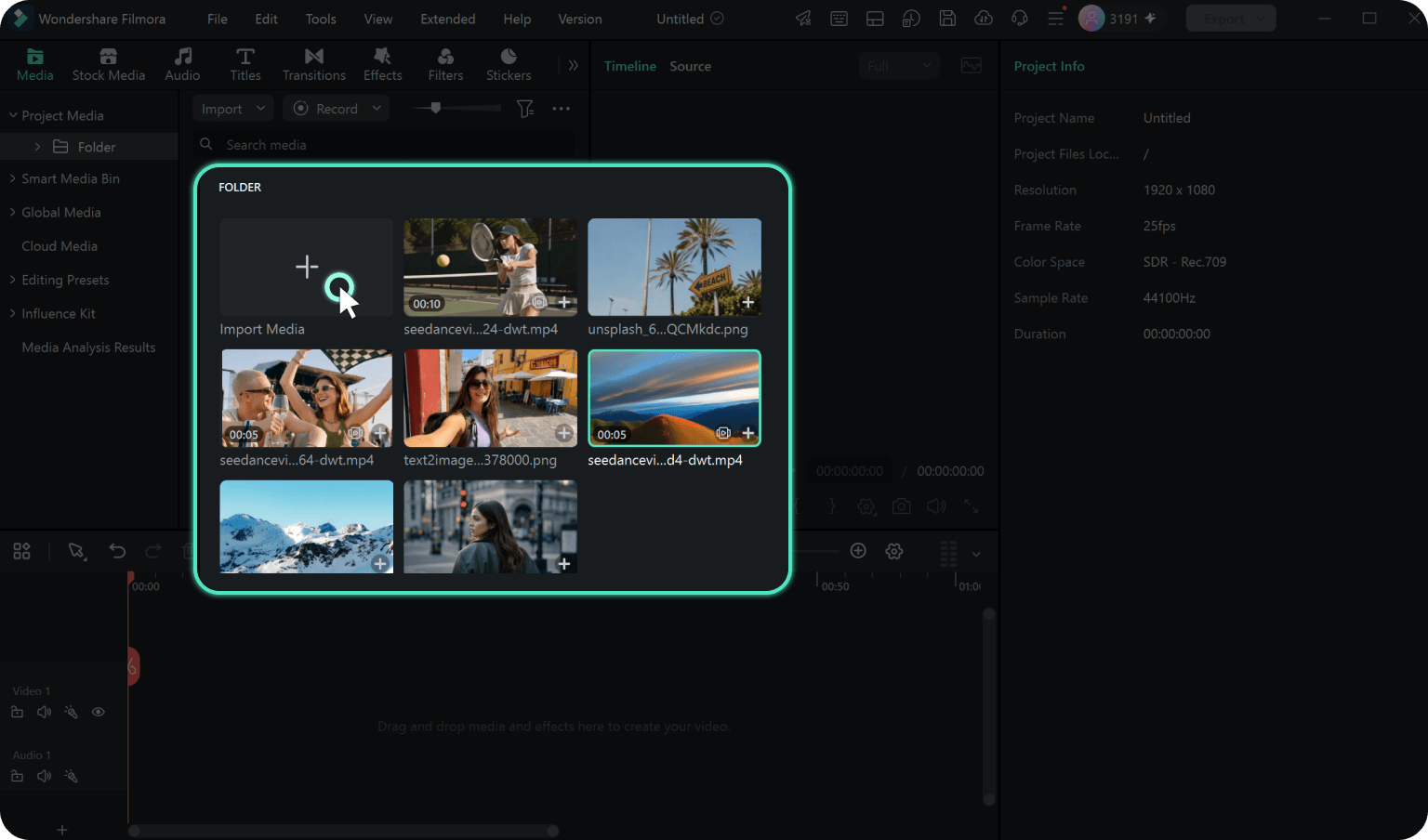
Step 1. Import Your Videos and Images
Open Filmora, create or open a project, and import the supported videos and images you want to analyze.
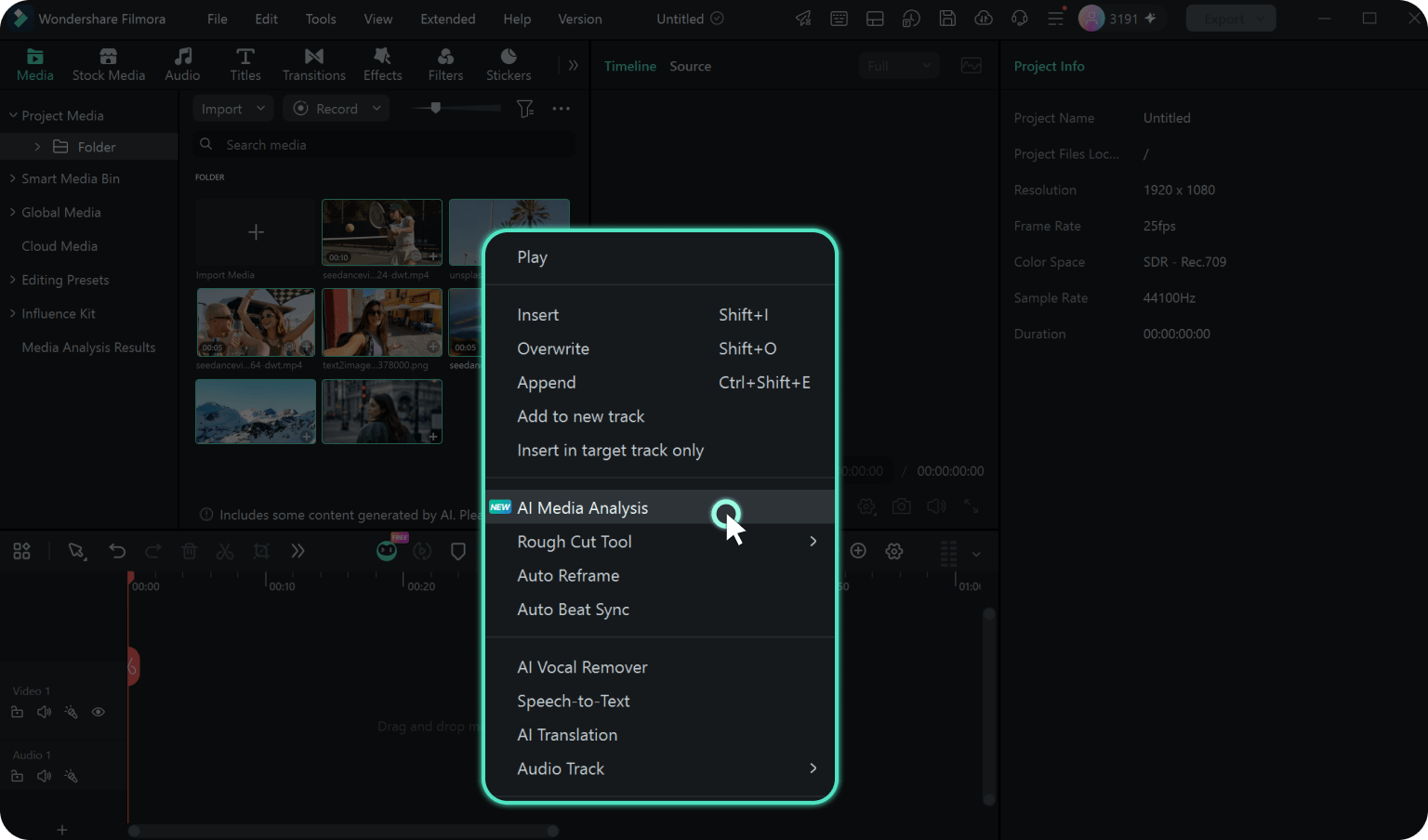
Step 2. Start AI Media Analysis
Select one or multiple media files in Project Media and start AI Media Analysis. Filmora analyzes the content and progressively generates useful information such as keywords, subjects, scenes or locations, descriptions, scores, and editing suggestions.
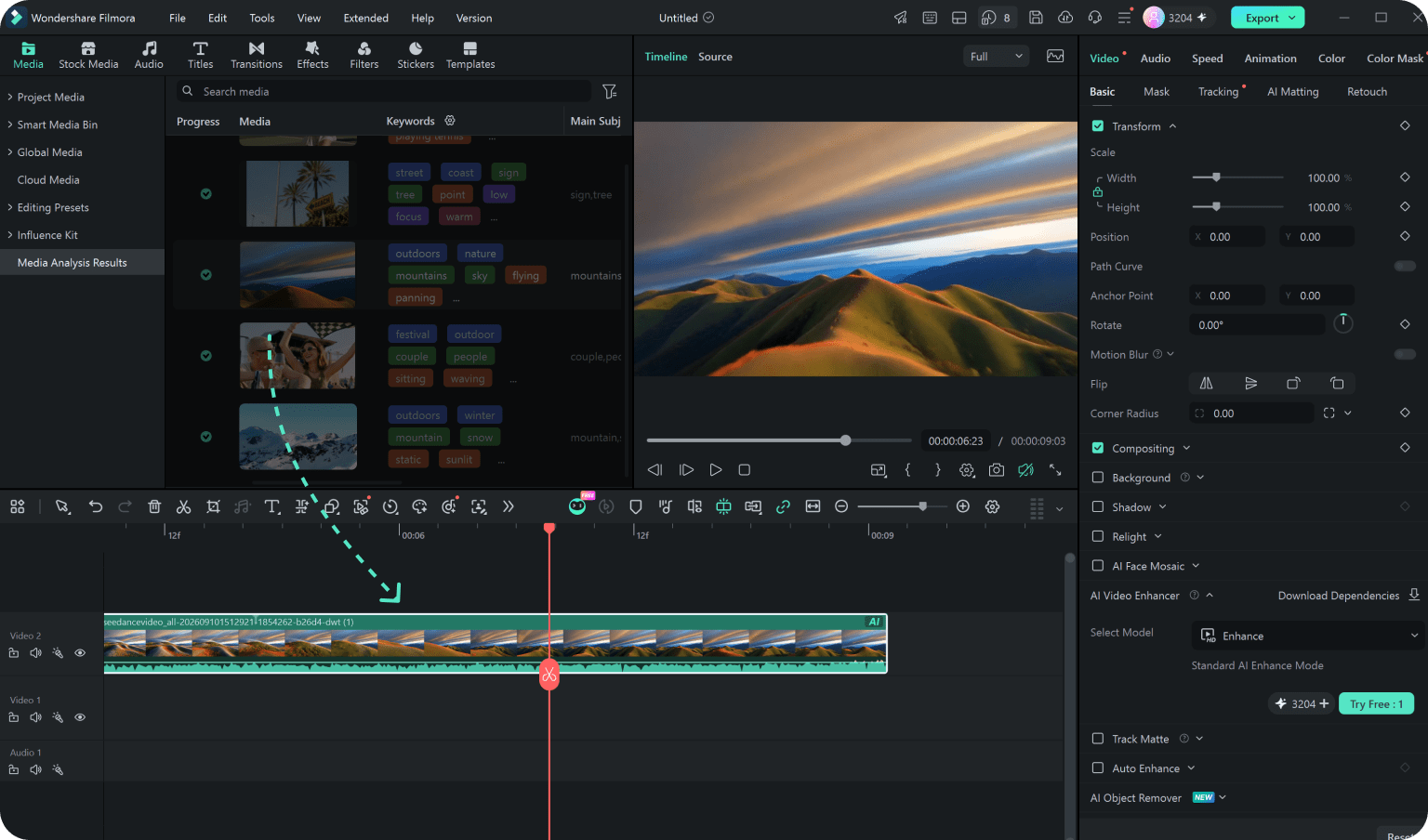
Step 3. Review Insights and Start Editing
Review the AI-generated insights to understand your media and decide what deserves attention first. Use suggestion timestamps to jump to relevant moments, then move the footage you want into the timeline and continue editing in Filmora.
-
Step 1. Import Your Videos and Images
Open Filmora, create or open a project, and import the supported videos and images you want to analyze.
-
Step 2. Start AI Media Analysis
Select one or multiple media files in Project Media and start AI Media Analysis. Filmora analyzes the content and progressively generates useful information such as keywords, subjects, scenes or locations, descriptions, scores, and editing suggestions.
-
Step 3. Review Insights and Start Editing
Review the AI-generated insights to understand your media and decide what deserves attention first. Use suggestion timestamps to jump to relevant moments, then move the footage you want into the timeline and continue editing in Filmora.
AI Media Analysis for Creators, Editors, and Teams
Whether you create travel videos, edit multi-camera events, manage product content, or work across multiple projects, Filmora AI Media Analysis helps you spend less time reviewing and organizing media—and more time editing what matters.
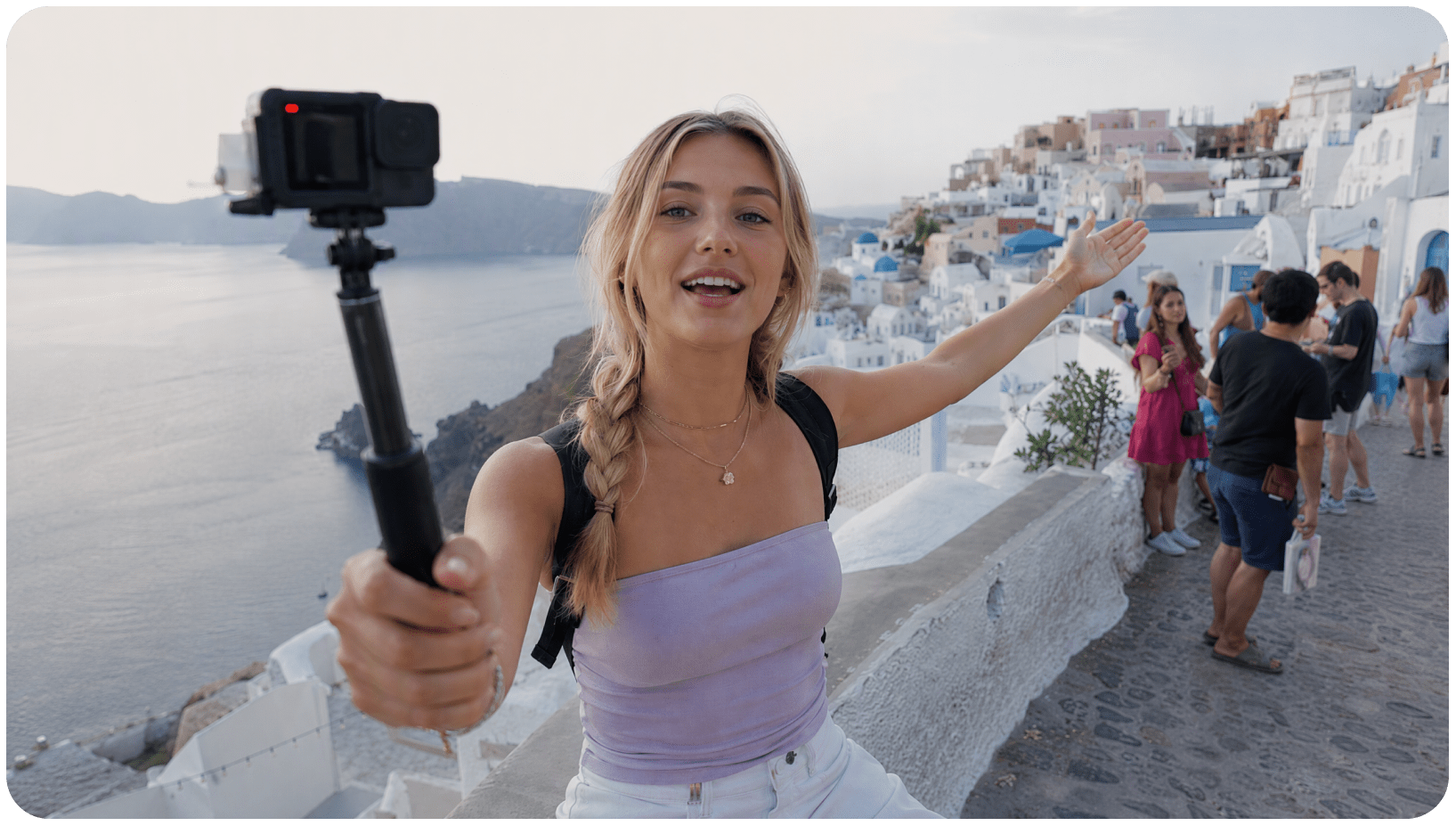
Spend Less Time Reviewing Every Shot
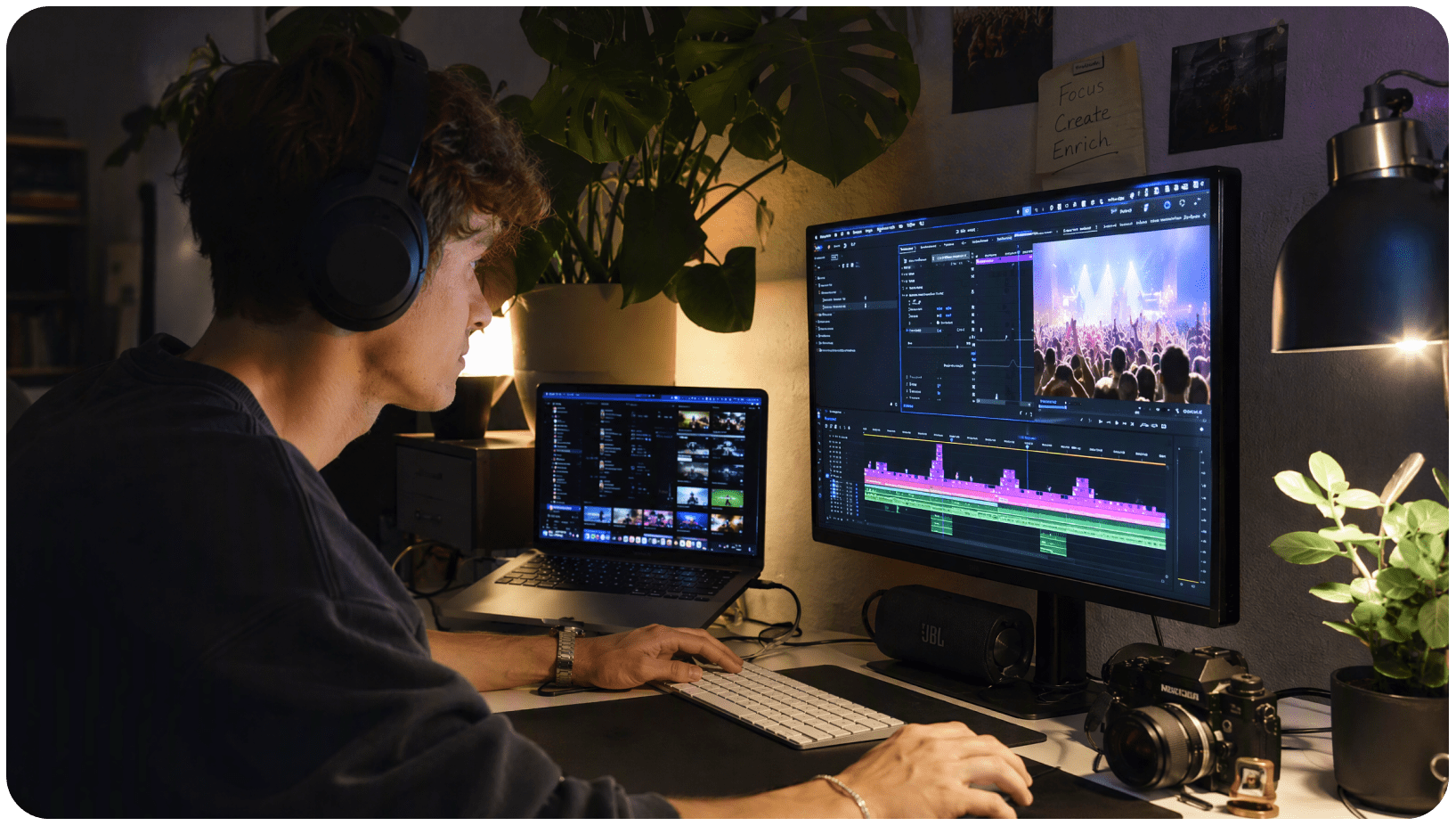
Come back from a trip with footage from your phone, camera, drone, and action cam? AI Media Analysis helps you understand large, mixed-media libraries faster, so you can spend less time replaying similar clips and more time shaping the moments that tell your story.
Get Through Multi-Camera Footage Faster
When ceremonies, speeches, performances, reactions, and multiple camera angles all land in one project, AI Media Analysis gives you more context before the first cut. Review large event libraries more efficiently and focus faster on the people, scenes, and moments worth a closer look.

Make Product Media Easier to Manage and Reuse
Keep product close-ups, demos, packaging shots, and lifestyle content easier to understand—even when filenames and thumbnails look almost identical. AI-generated context helps your team review and organize product videos and images more efficiently for ongoing campaigns and content projects.
Review Long-Form Video Footage Faster
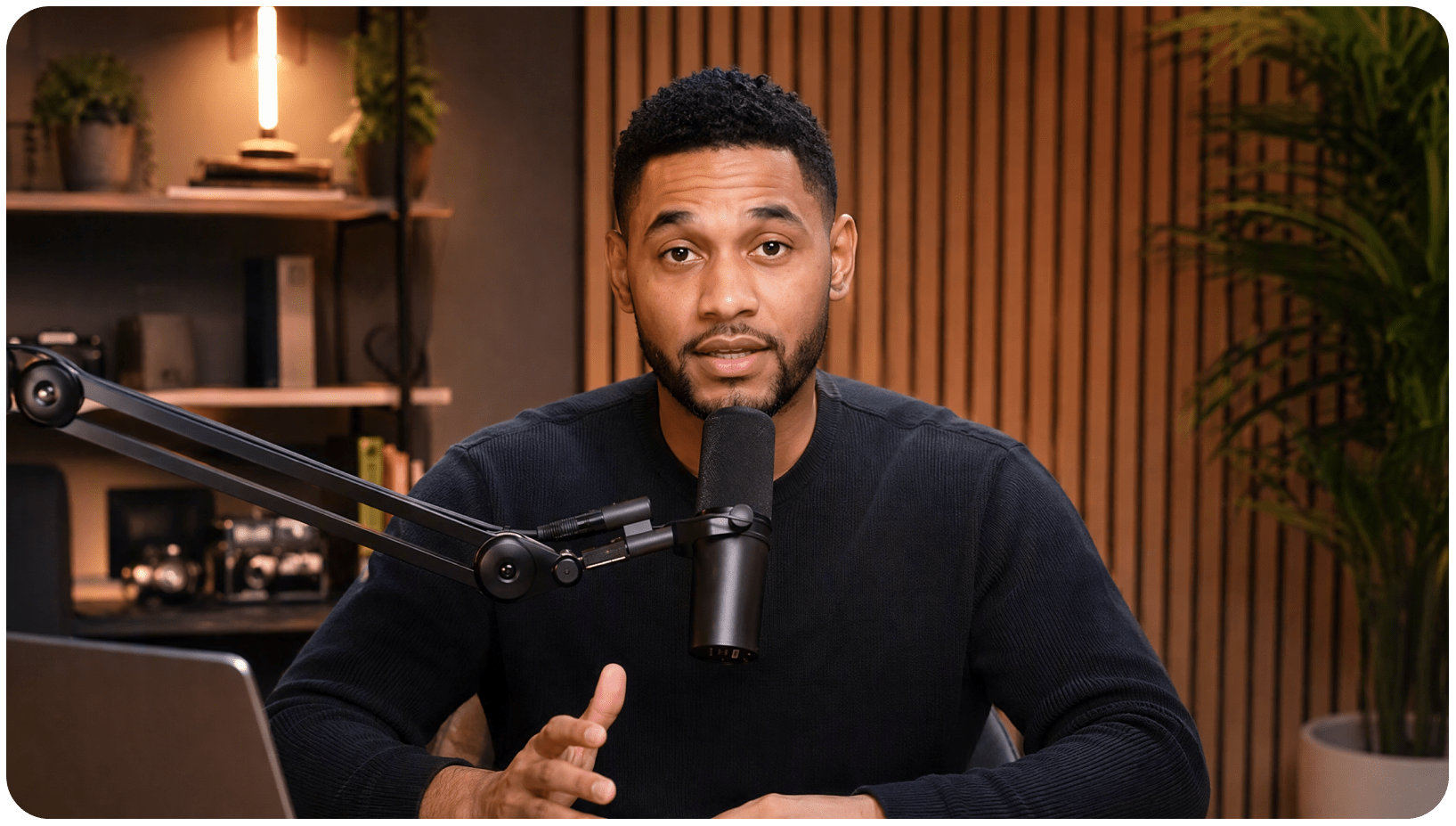
Long recordings for YouTube, tutorials, courses, and talking-head videos can take almost as long to review as they do to shoot. AI Media Analysis helps you understand the visual content, surface potentially useful moments, and focus your first review on the footage that may be worth editing.

Stay Organized Across Growing Media Libraries
From brand events and customer stories to training videos and multi-client projects, growing media libraries can quickly turn into repetitive review work. AI Media Analysis helps teams and independent editors understand footage faster, reduce repeated organization, and keep useful media insights available as projects evolve.
Frequently Asked Questions About AI Media Analysis
- What is Filmora AI Media Analysis?
-
Filmora AI Media Analysis is an AI-powered media understanding feature that analyzes videos and images to identify subjects, scenes, locations, actions, and other useful visual context. The AI video analyzer then turns those insights into keywords, descriptions, ratings, confidence information, and editing suggestions to help you review and organize media faster before editing.
- How is AI Media Analysis different from general AI video analysis?
-
AI video analyzer usually refers broadly to using AI to understand video content. Filmora AI Media Analysis applies that idea directly to an editing workflow by analyzing visual content across videos and images, generating structured media insights, and helping creators review, prioritize, and continue editing their footage more efficiently.
- Can Filmora analyze both videos and images?
-
Yes. Filmora AI video analysis software supports both videos and images. After you manually start the analysis, Filmora analyzes visual content across supported media types and generates structured insights such as keywords, descriptions, ratings, and editing suggestions. Audio-only files are not currently supported.
- Can Filmora use AI to tag and log video footage?
-
Yes. After you manually start AI Media Analysis, Filmora can generate structured keywords, media descriptions, ratings, confidence information, and other useful visual context. This automates much of the first-pass video logging and tagging work, reducing the need to manually watch and label every clip from scratch.
- Can Filmora identify highlights or less useful parts of a video?
-
Yes. Filmora can generate editing suggestions that surface potentially useful moments and flag sections that may deserve less attention during your first review. Suggestion timestamps appear in the preview area and on the timeline, helping you jump directly to relevant moments while keeping the final editing decision in your hands.
- Can I search footage using AI Media Analysis results?
-
Yes. Keywords generated by AI Media Analysis can work with Filmora Smart Search, helping you narrow down relevant footage by visual content and related terms instead of relying only on filenames.
- Can I edit or reuse AI Media Analysis results?
-
Core analysis fields are not currently designed for direct manual editing. However, supported editing-suggestion markers can be adjusted or removed in the preview or timeline workflow. If the same analyzed media is imported into another project on the same device, Filmora can reuse the existing analysis results instead of analyzing the media again.
What Creators Say About Filmora AI Media Analysis
Discover More Powerful Features in Filmora


Vlog Creator
Wedding & Event Editor
E-commerce Content Producer
Freelance Video Editor