Filmora 15 makes keyframing easy—so you can add a touch of magic
to any video
effect.
No matter your skill level, keyframes can take your videos to the next level. Let me
show you the magic
they unlock.
Cool video speed adjustment
Cool video speed adjustment
Seamless speed ramping via keyframes ensures smooth shifts between fast and slow motion in videos.
eye-catching subtitle movement
eye-catching subtitle movement
Keyframe-driven animations make titles eye-catching with scale, fade, and bounce effects.
Cool video speed adjustment
Cool video speed adjustment
Keyframe audio automation balances vocals and music for clean, crisp sound throughout the timeline.
Beginner-Friendly Keyframe
Tricks to Bring Your Videos to Life
With Filmora 15, keyframes can let you animate, transform, and add that spark that
makes every scene feel alive.

Subtitle animation

Smooth visual transition effect
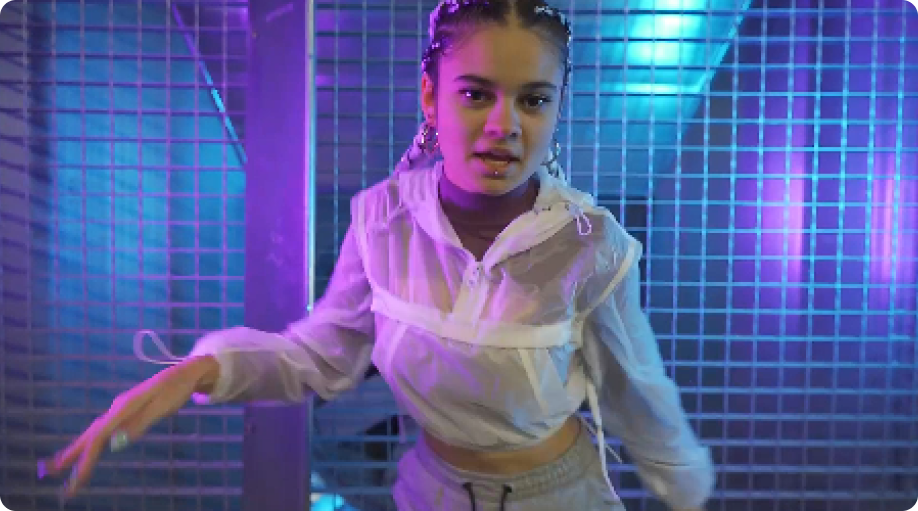
Camera angle shift


Advanced Techniques: Perfectly Timed Effects with Keyframe
Precision
Keyframes are one of the most creative tools in video editing, bringing a touch of
magic that turns ideas into motion and imagination into reality.
How To Use Keyframes in Filmora
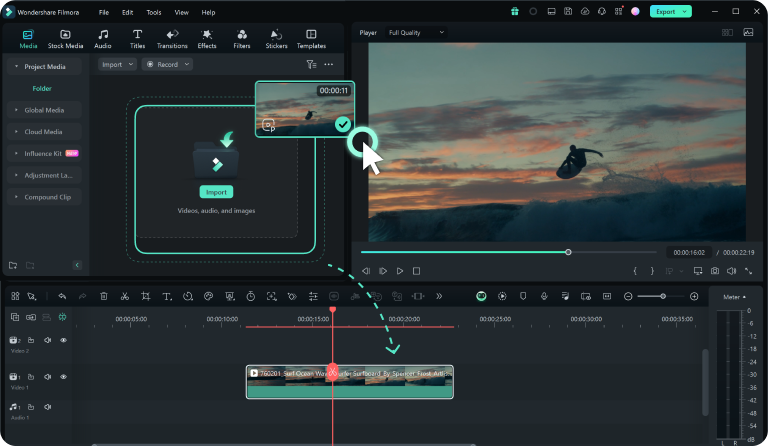
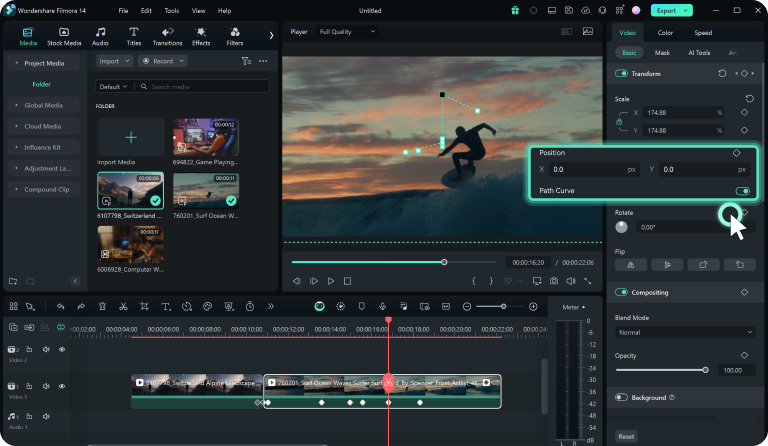
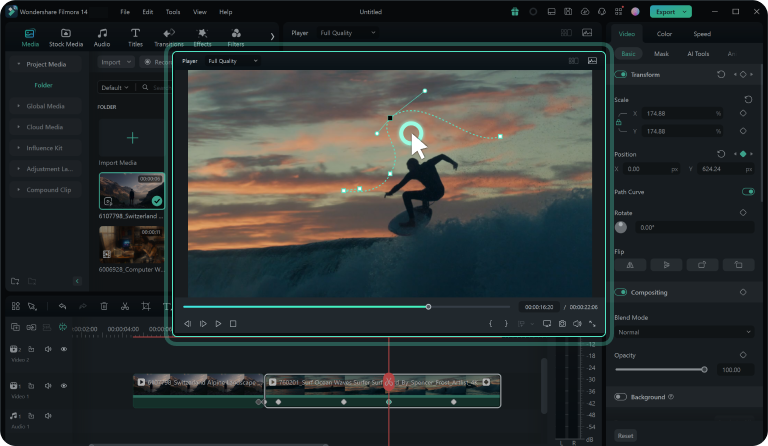
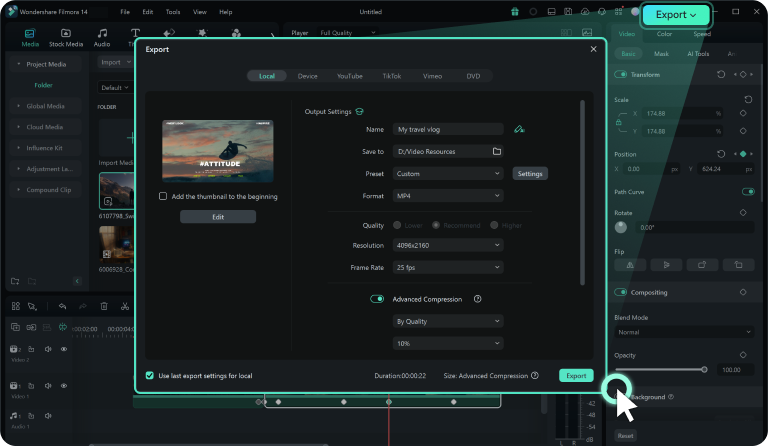
Follow the steps below to add Path Curve keyframes in Filmora on PC. For full steps, view the full guide for Keyframing >>
Learn more Filmora
tips & tricks for
keyframing

Filmora 15 Complete Guide to Keyframes
Ensure clarity in presentation recordings, Zoom captures, or
training videos filmed under harsh office fluorescent lights.

Filmora 15 Complete Guide to Keyframes
Remove rolling bands from high-speed footage captured in indoor
stadiums or gymnasiums.

Filmora 15 Complete Guide to Keyframes
For creators shooting unboxing videos or beauty tutorials where
ring lights or indoor lamps cause annoying pulsating effects.
Filmora 15 Complete Guide to Keyframes
Save footage shot in reception halls, hotels, or churches where
you cannot control the venue's lighting frequency.
Check Out Our Previous Volumes