
Camera Tracking: Keep Subjects Centered in the Frame Automatically
Track a head, body, or custom target in your footage, keep the tracked subject centered in the frame, and create smoother follow shots—without manual keyframes or extra tools.
 4.7
(15746 reviews)
4.7
(15746 reviews)
Win 11/Win 10/Win 8/Win7 (64 bit OS) | System Requirements
macOS 10.15 or later (Using macOS 10.14 or earlier? Click here) | Compatible with Apple silicon
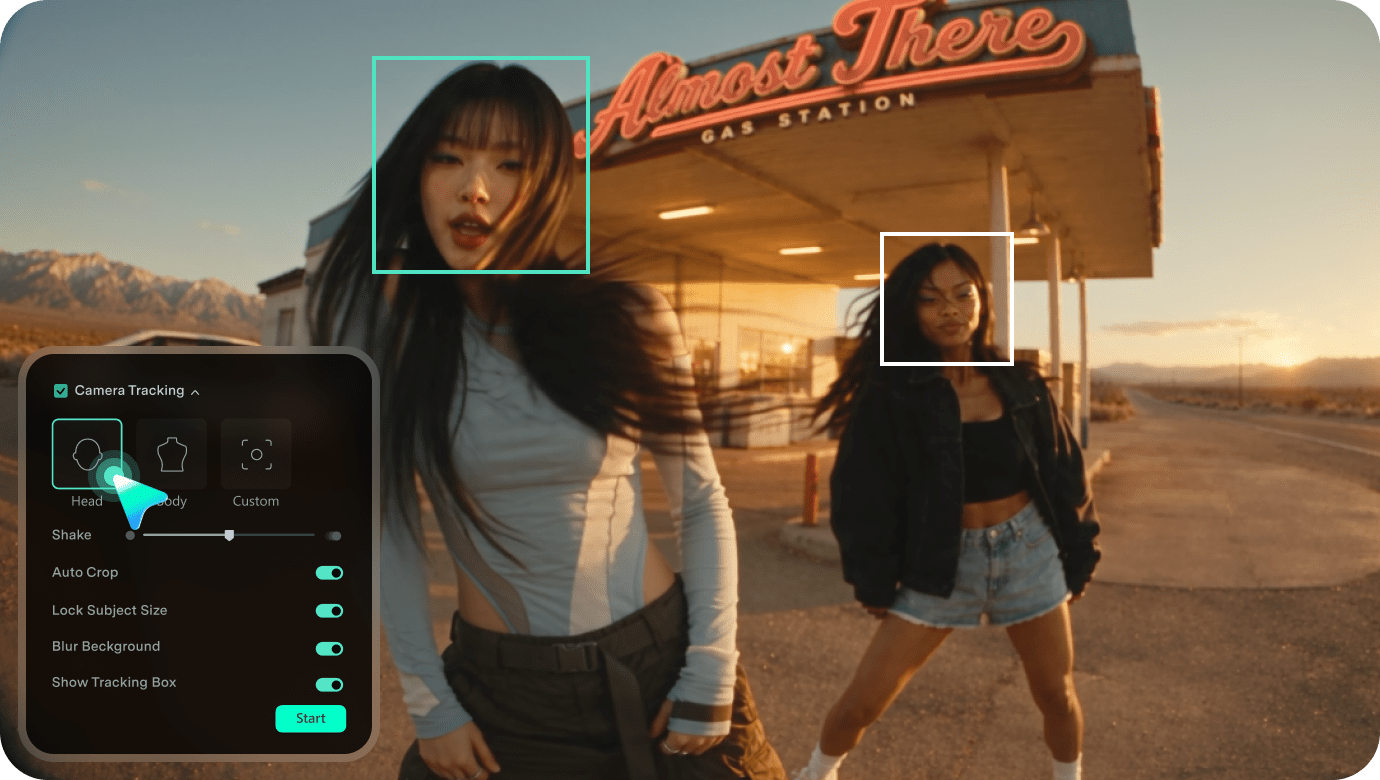
Track a head, body, or custom target in your footage, keep the tracked subject centered in the frame, and create smoother follow shots—without manual keyframes or extra tools.
What is Camera Tracking in Video Editing?
Camera tracking in video editing automatically follows a selected subject as it moves through the frame. Instead of manually adjusting the crop or adding keyframes shot by shot, Filmora keeps the subject better framed for you. Track a person’s head or body, or choose a custom target such as a pet, product, or object.
See How Camera Tracking Keeps Subjects Better Framed
See how Camera Tracking follows subjects through subtle shifts, side-to-side movement, fast full-body action, and custom target motion to maintain more consistent framing.
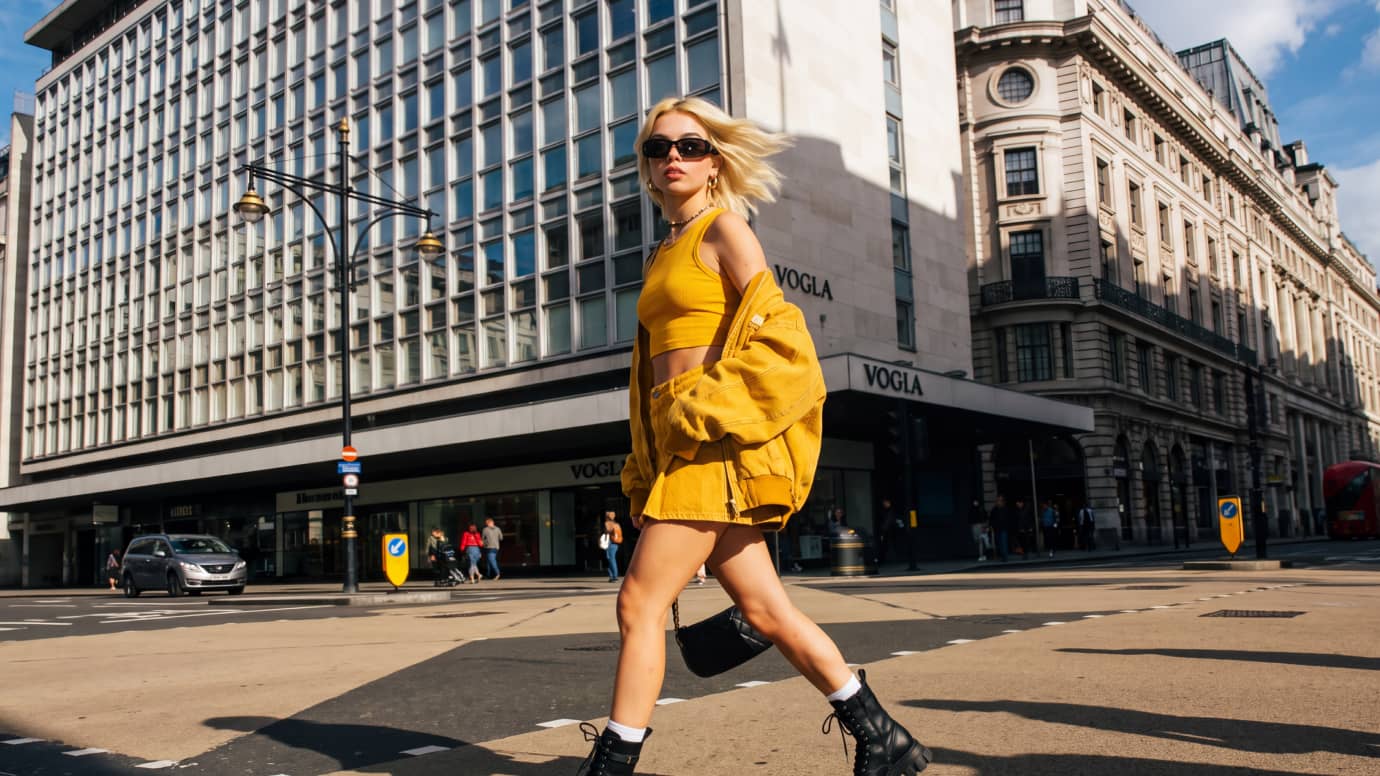
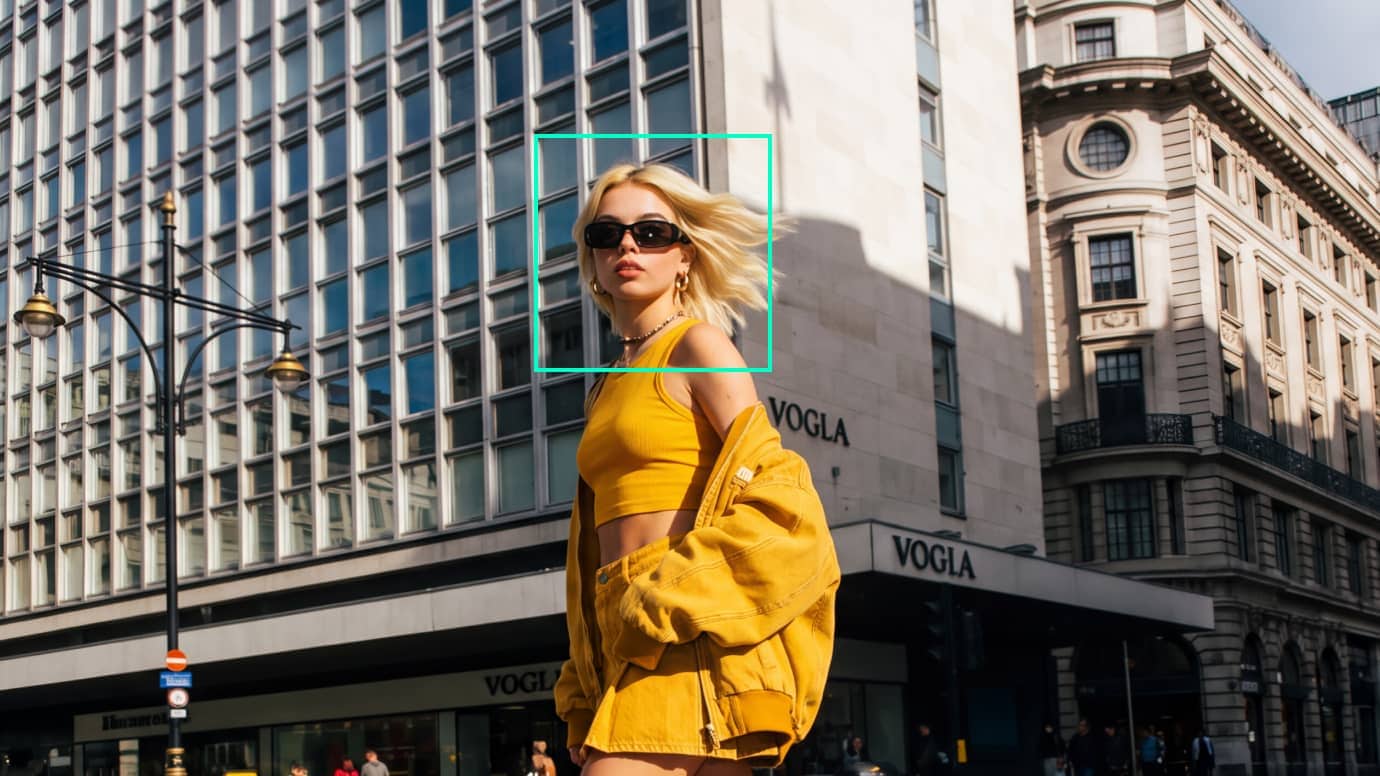
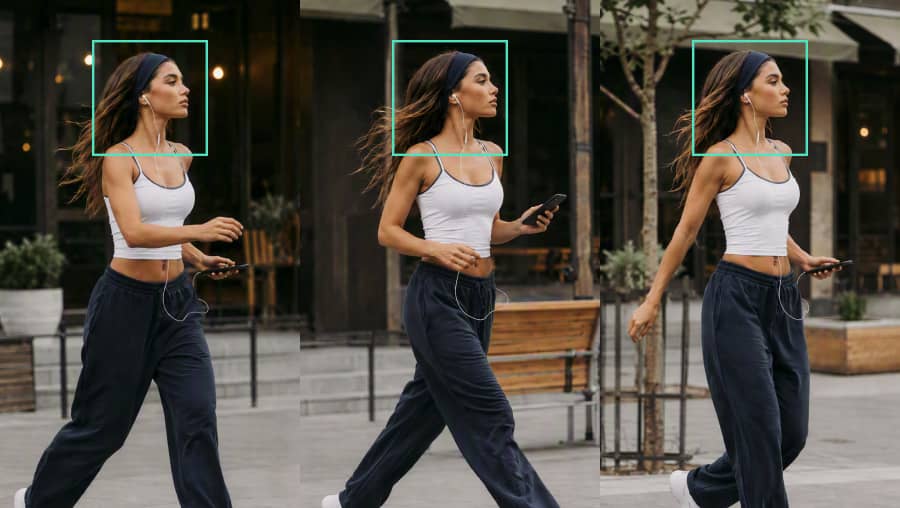
Keep Subjects Better Framed Through Side-to-Side Movement
Walking vlogs, travel clips, and on-the-go videos can quickly lose focus when the subject moves across the frame. Camera Tracking follows the subject’s movement and helps maintain more consistent framing, reducing the need to repeatedly reposition the shot by hand.
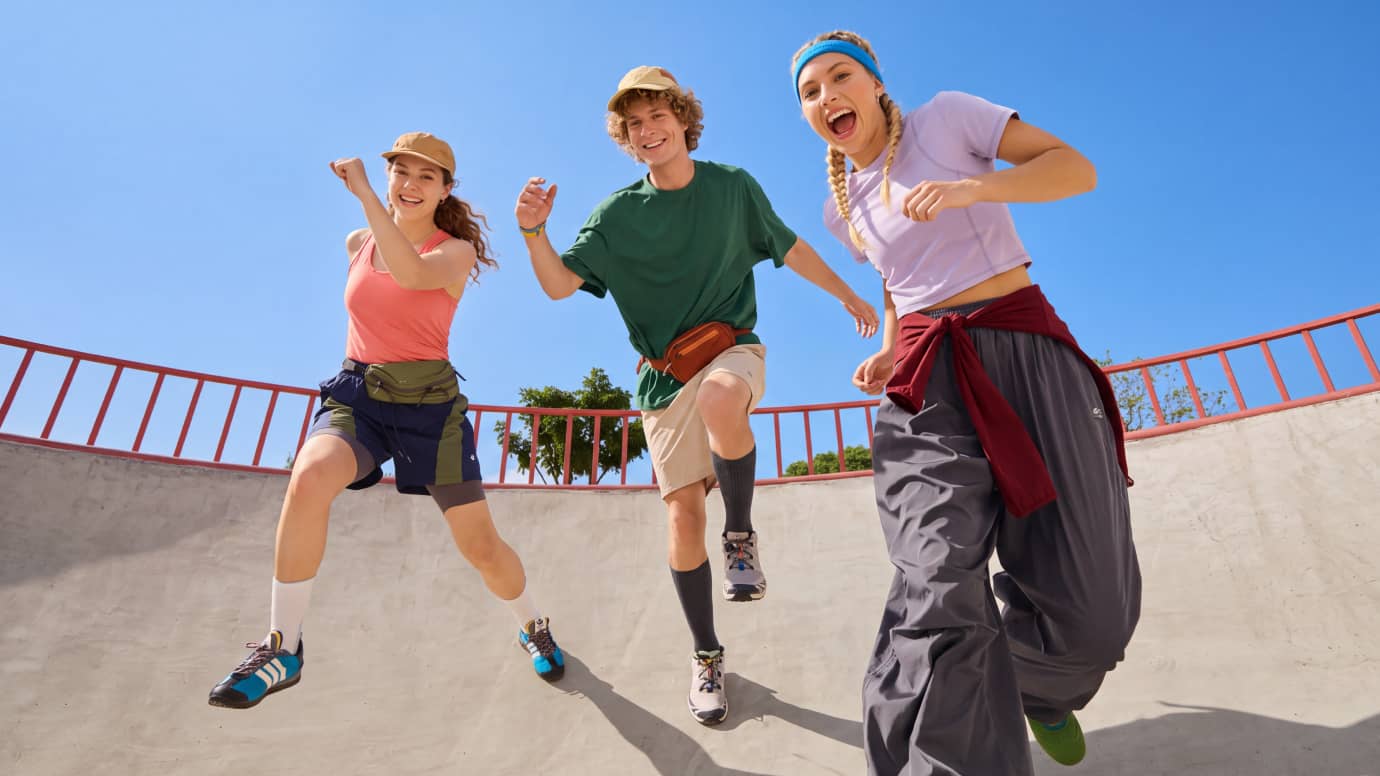
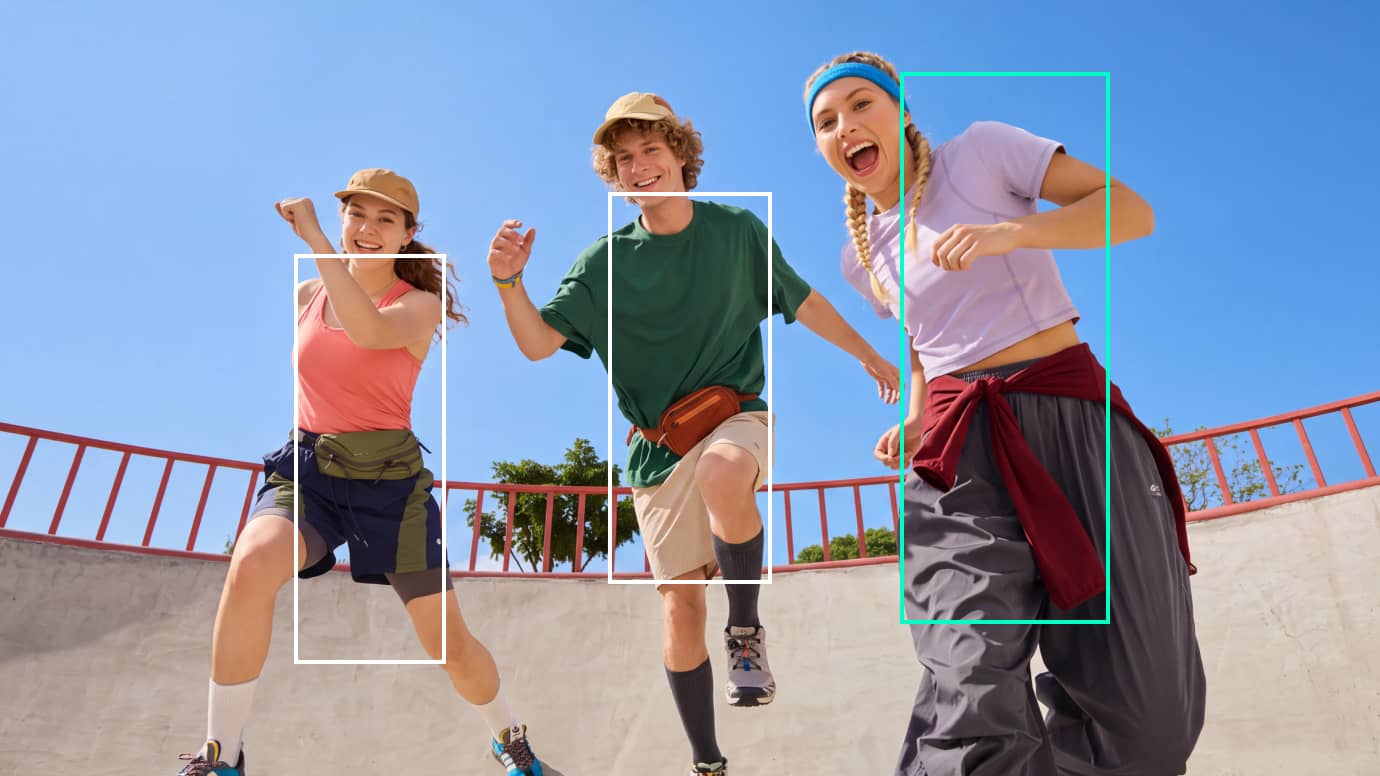
Track Dynamic Movement and Keep Subjects in Frame
Dance routines, workouts, and sports clips often involve faster, wider movement that can push the subject toward the edge of the frame. Camera Tracking follows full-body movement to keep the action easier to follow and create smoother, more consistent subject-following shots.
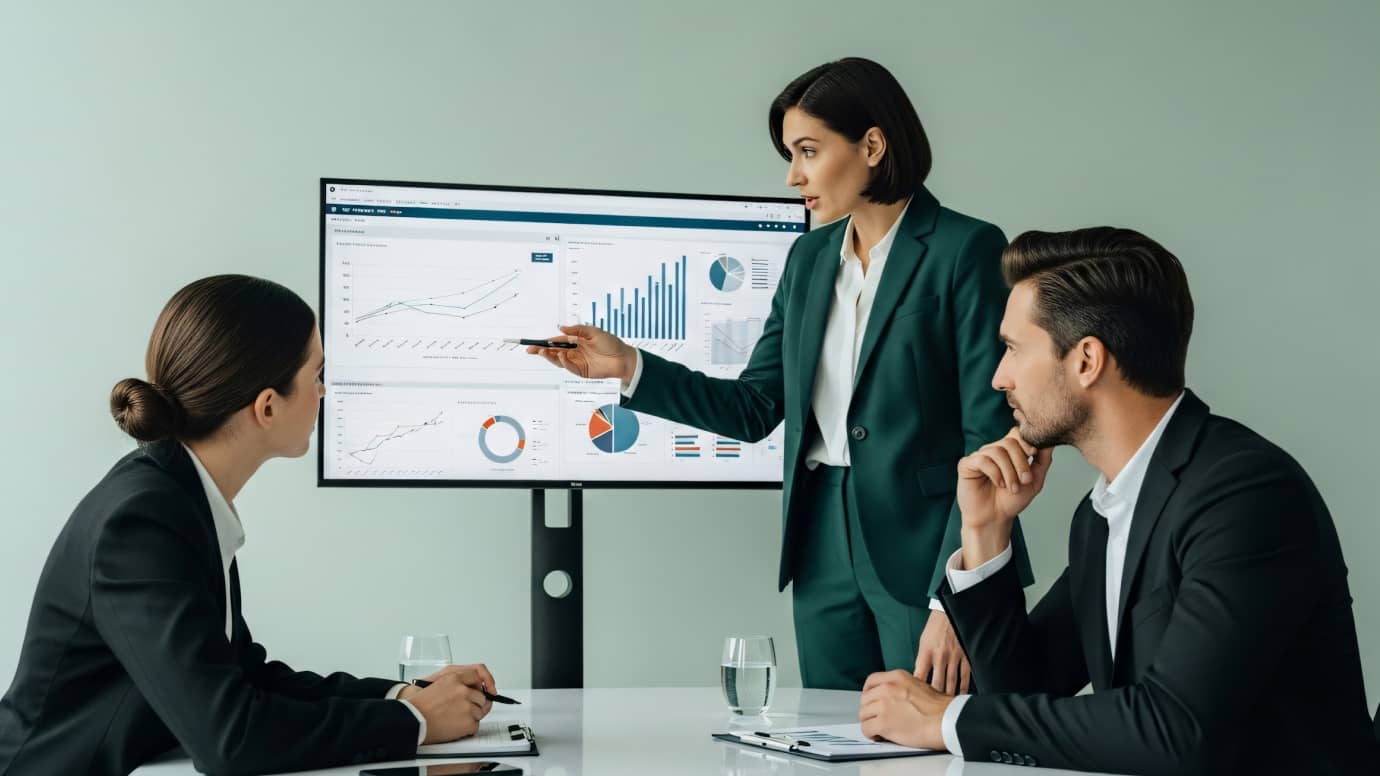
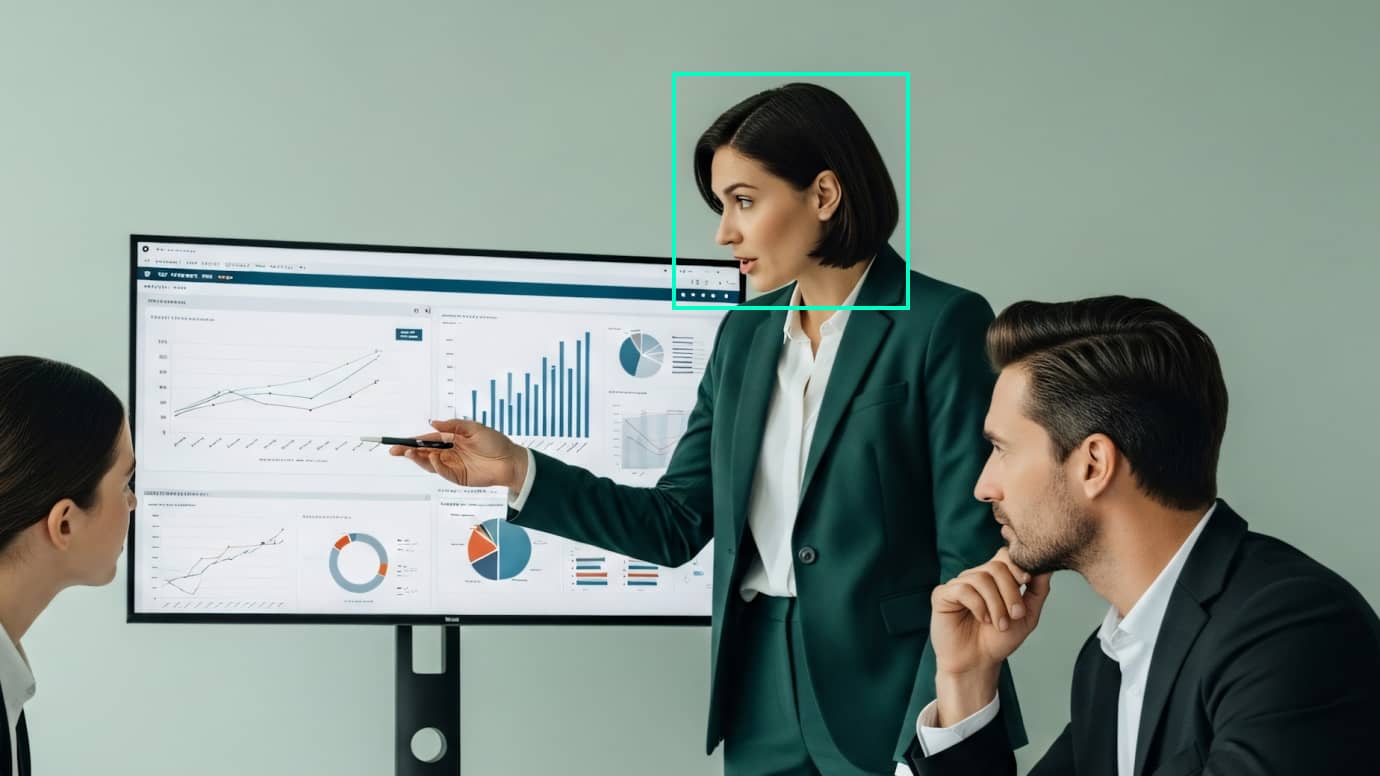
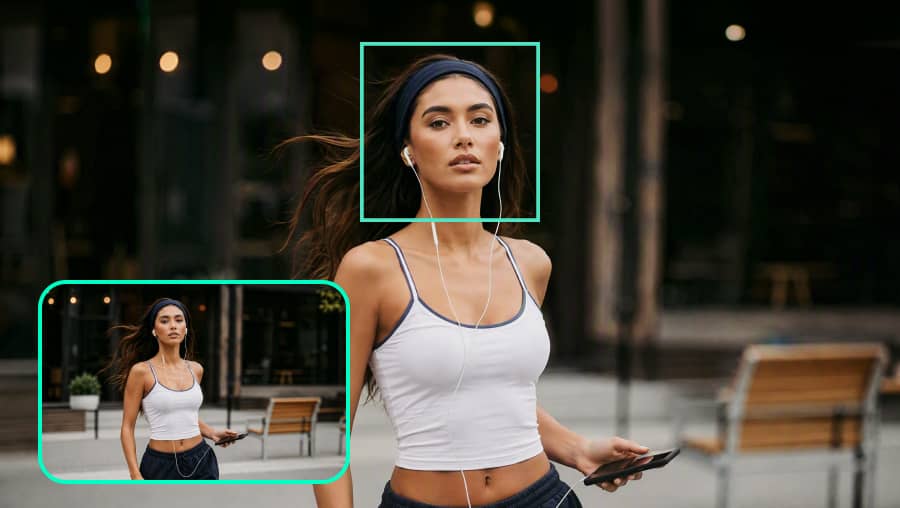
Keep Speakers Better Framed Through Subtle Movement
Speakers naturally lean, turn, stand, or shift position during interviews, presentations, lessons, and talking-head videos. Camera Tracking follows these smaller movements to maintain more consistent framing, helping the shot feel steadier without repeated manual adjustments.
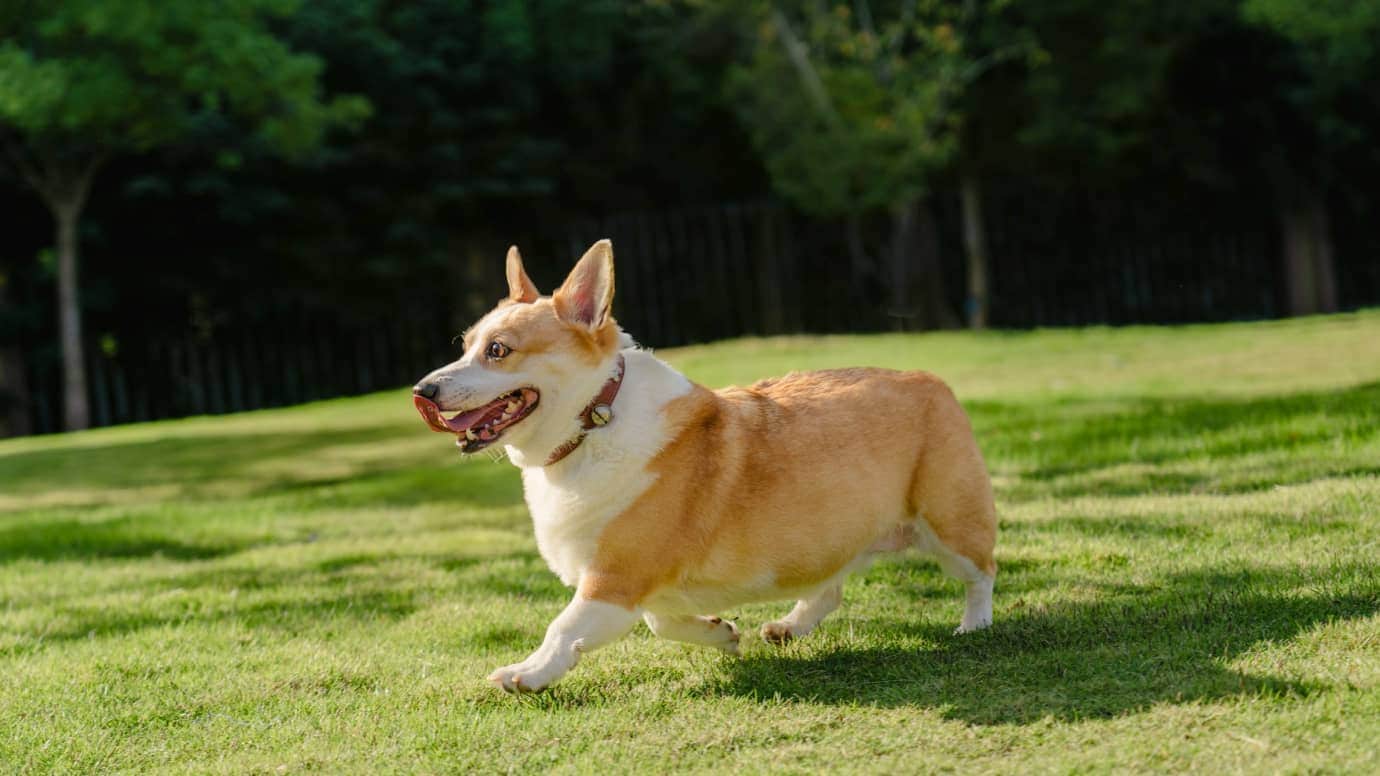
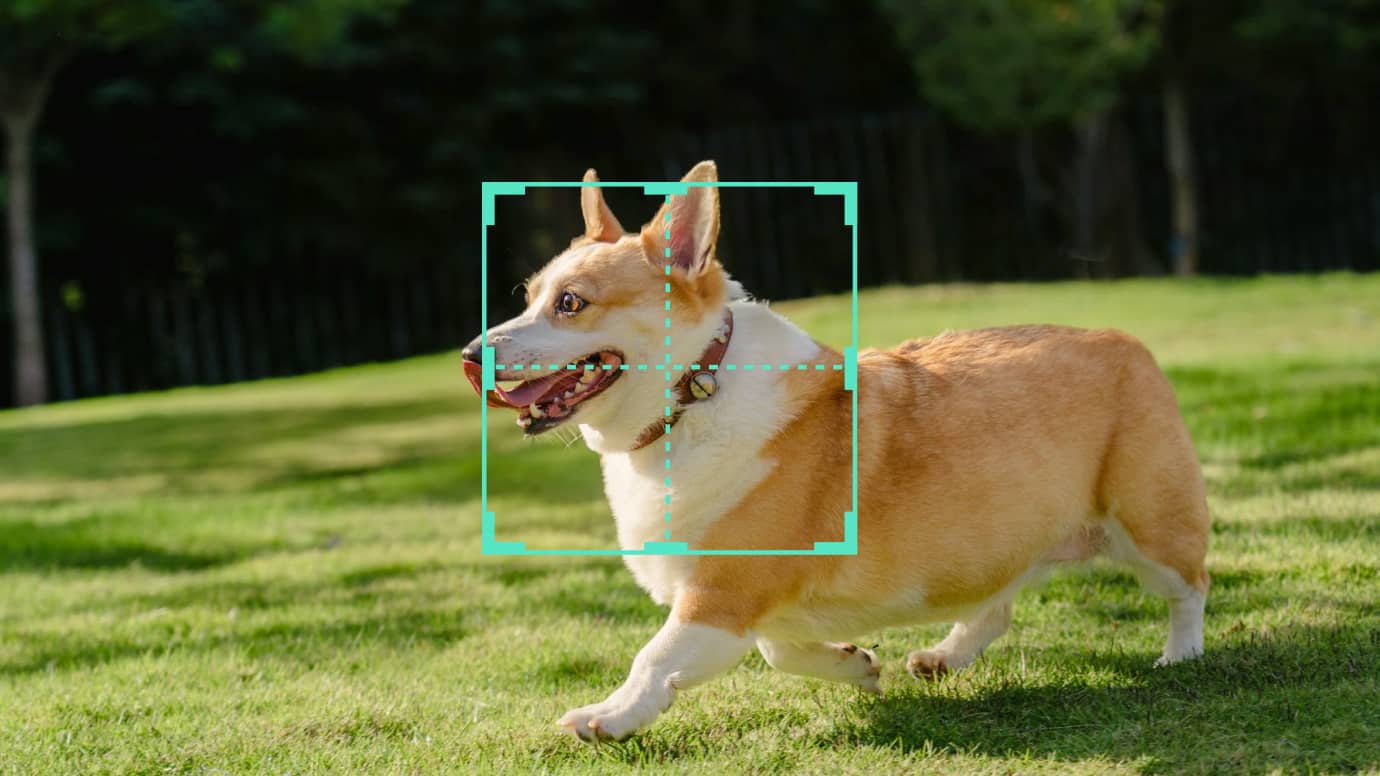
Follow Custom Moving Subjects Beyond People
Pets, products, props, and other non-human subjects can move unpredictably or shift away from the intended framing. With a custom tracking target, Camera Tracking lets you follow the subject you choose and helps keep moving objects better framed throughout the shot.
Camera Tracking for Smoother Subject-Following Shots
Track heads, bodies, and custom targets more intuitively, refine how the camera follows your subject, and keep tracking flexible throughout the editing workflow.
Choose What You Want to Track
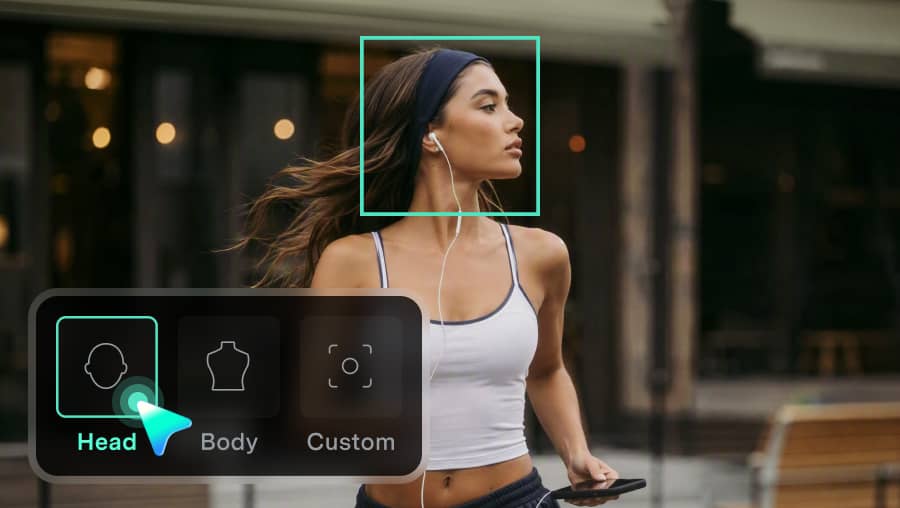
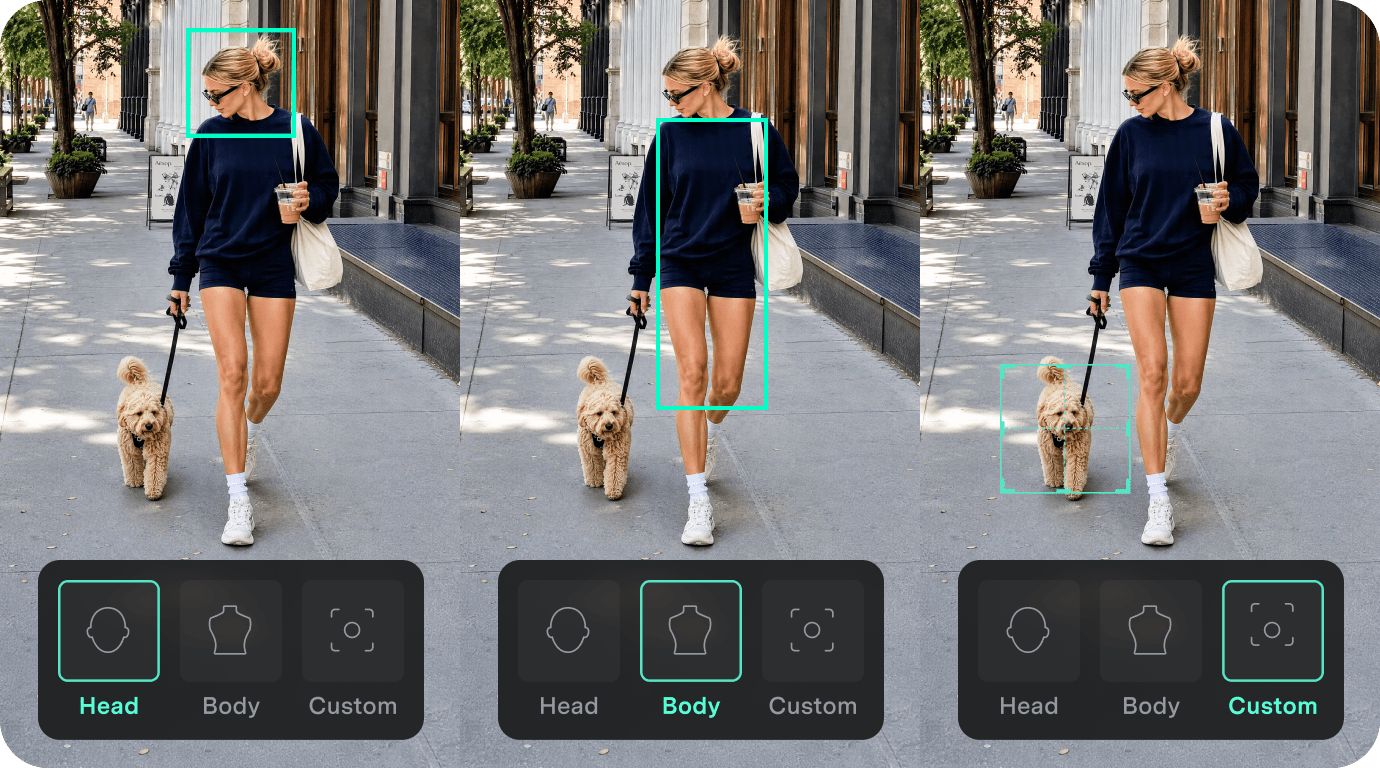
Choose head, body, or a custom target based on what matters most in your footage, so Camera Tracking can follow the right subject for each shot.
- Head Tracking: Automatically detect and lock onto the subject's head for interviews, lessons, talking-head videos, and other people-focused footage.
- Body Tracking: Automatically detect and follow the subject's body as they walk, dance, exercise, or move across the frame.
- Custom Target: Manually define a pet, product, prop, detail, or other custom area when you want to follow something beyond a person's head or body.
Keep Editing After Tracking
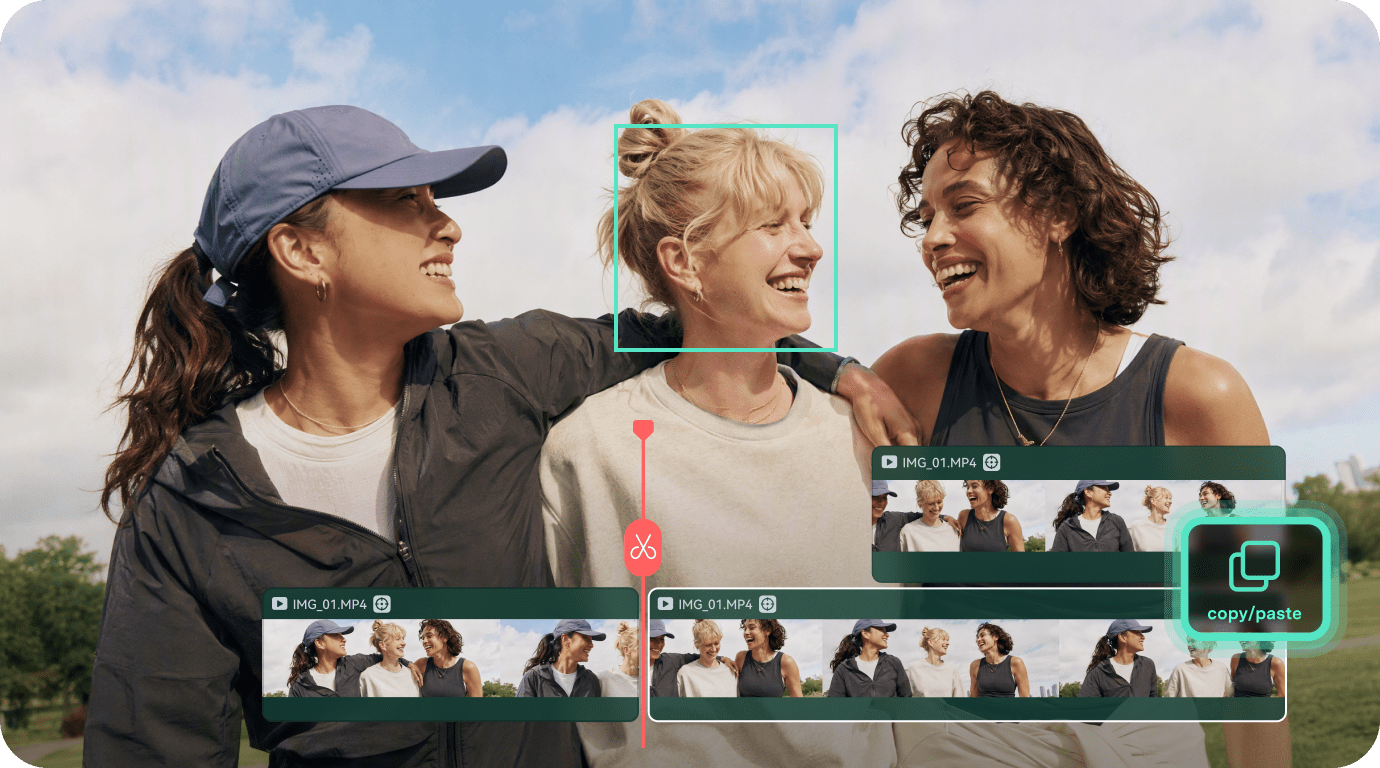
Keep working on your clip after Camera Tracking is complete. Filmora supports common editing actions after tracking, including split, trim, common transform edits, and supported copy-and-paste workflows.
- Split & Trim Adaptation: When a tracked clip is split or trimmed, Filmora adapts the tracking task to the updated clip range.
- Transform Compatible: Camera Tracking supports common Transform edits as part of the continued clip workflow.
- Copy & Paste Support: Copy and paste tracked clips while preserving supported tracking results across the duplicated footage.
Preview, Adjust, or Retrack Anytime
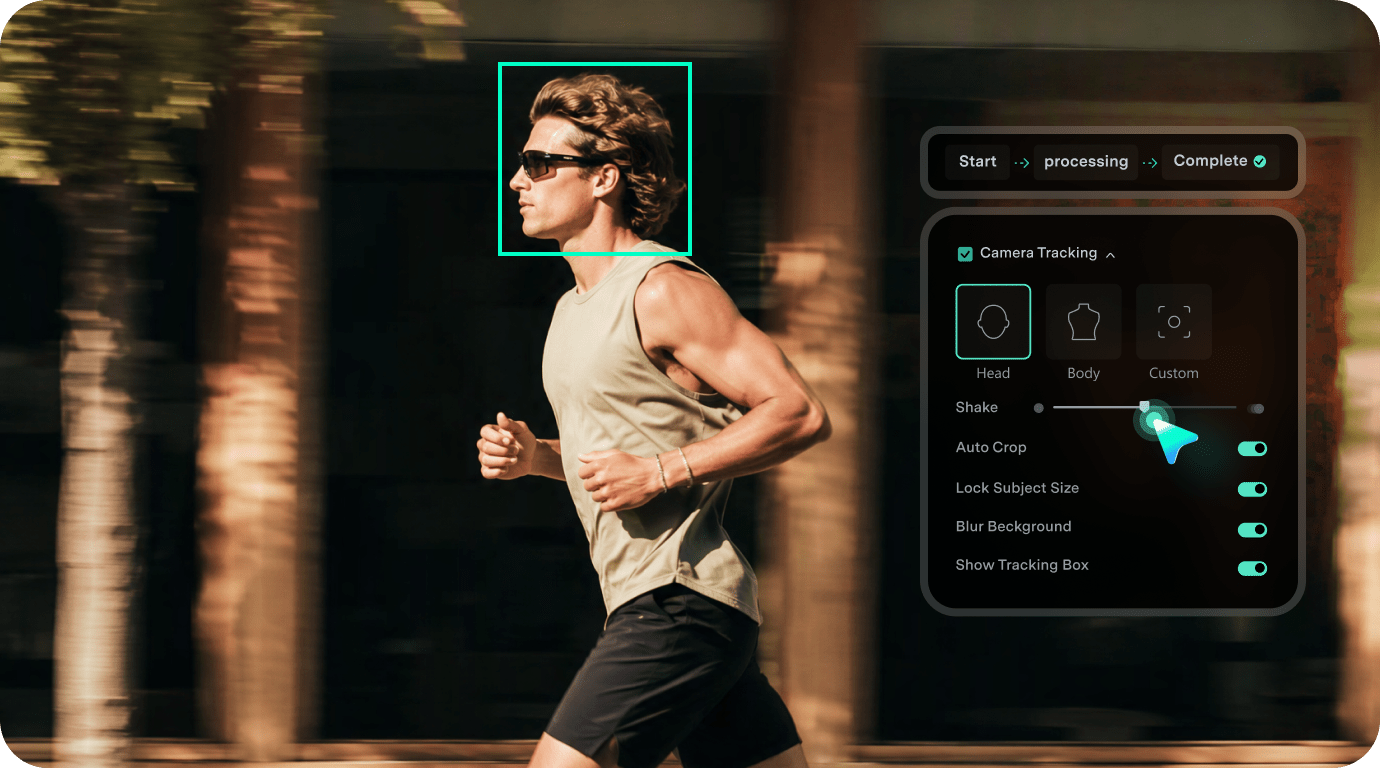
Check the tracking progress, preview the result when it’s ready, and fine-tune the framing if needed. If the result isn’t right, you can clear it and retrack with a different target or setup.
- Clear Tracking Stages: See whether tracking has not started, is in progress, or has already been completed.
- Real-Time Result Adjustment: Preview the tracked result and refine supported parameters after analysis with real-time feedback.
- Retrack When Needed: Cancel an active task, clear the current result, or retrack when you want to choose another target or adjust the tracking setup.
How to Use Camera Tracking in Filmora
Follow these simple steps to use Camera Tracking in Filmora to follow a moving subject, refine the framing, and create smoother follow shots without manual keyframes.
Step 1. Import Your Video and Add It to the Timeline
Launch Filmora, create a new project, and import the video you want to track. Drag the clip to the timeline and select it to begin editing.
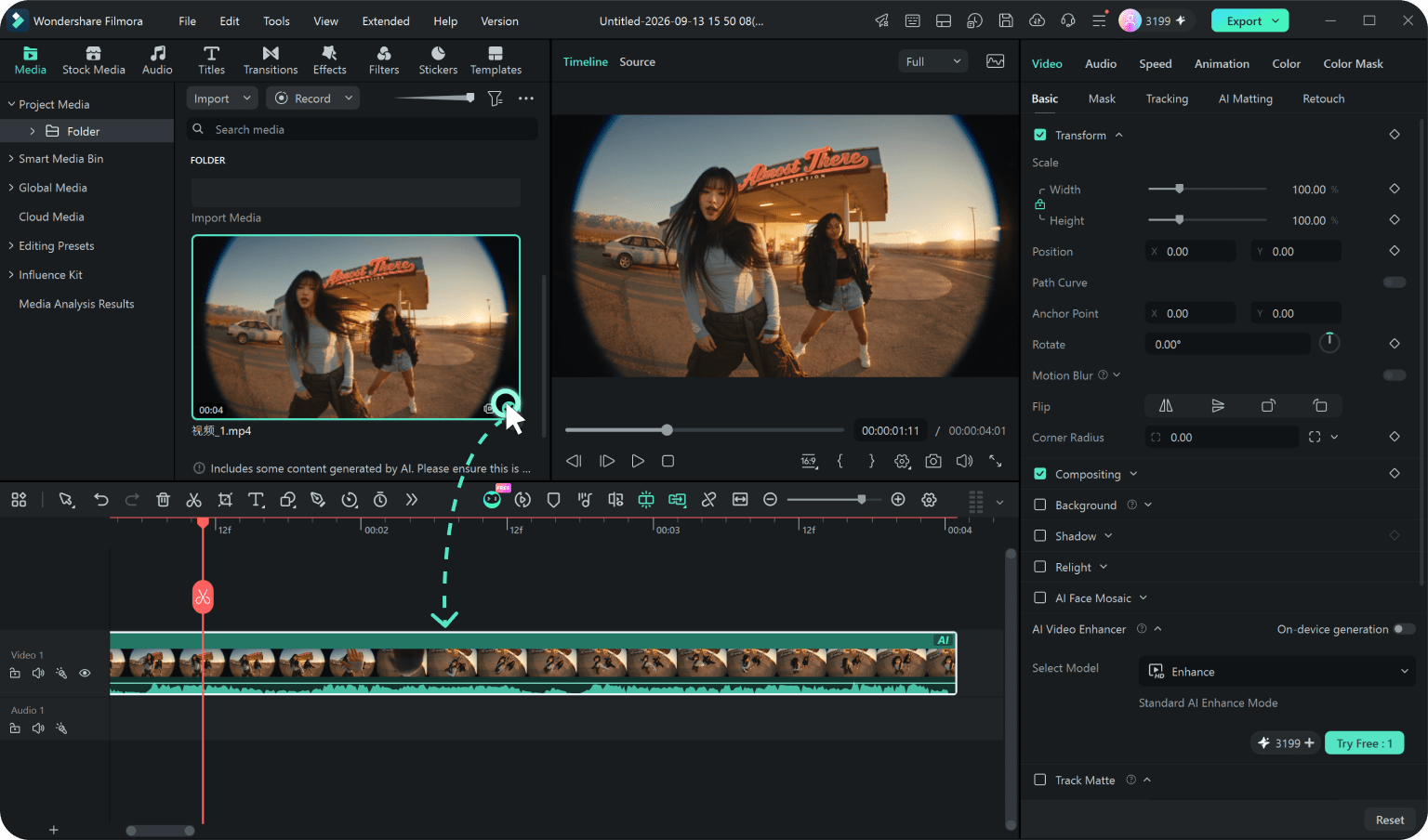
Step 2. Choose a Tracking Target and Start Tracking
Go to Video > Tracking > Camera Tracking. Choose Head, Body, or Custom depending on the subject you want to follow. Adjust the available tracking and framing controls as needed, then click Start Tracking to analyze the subject's movement.
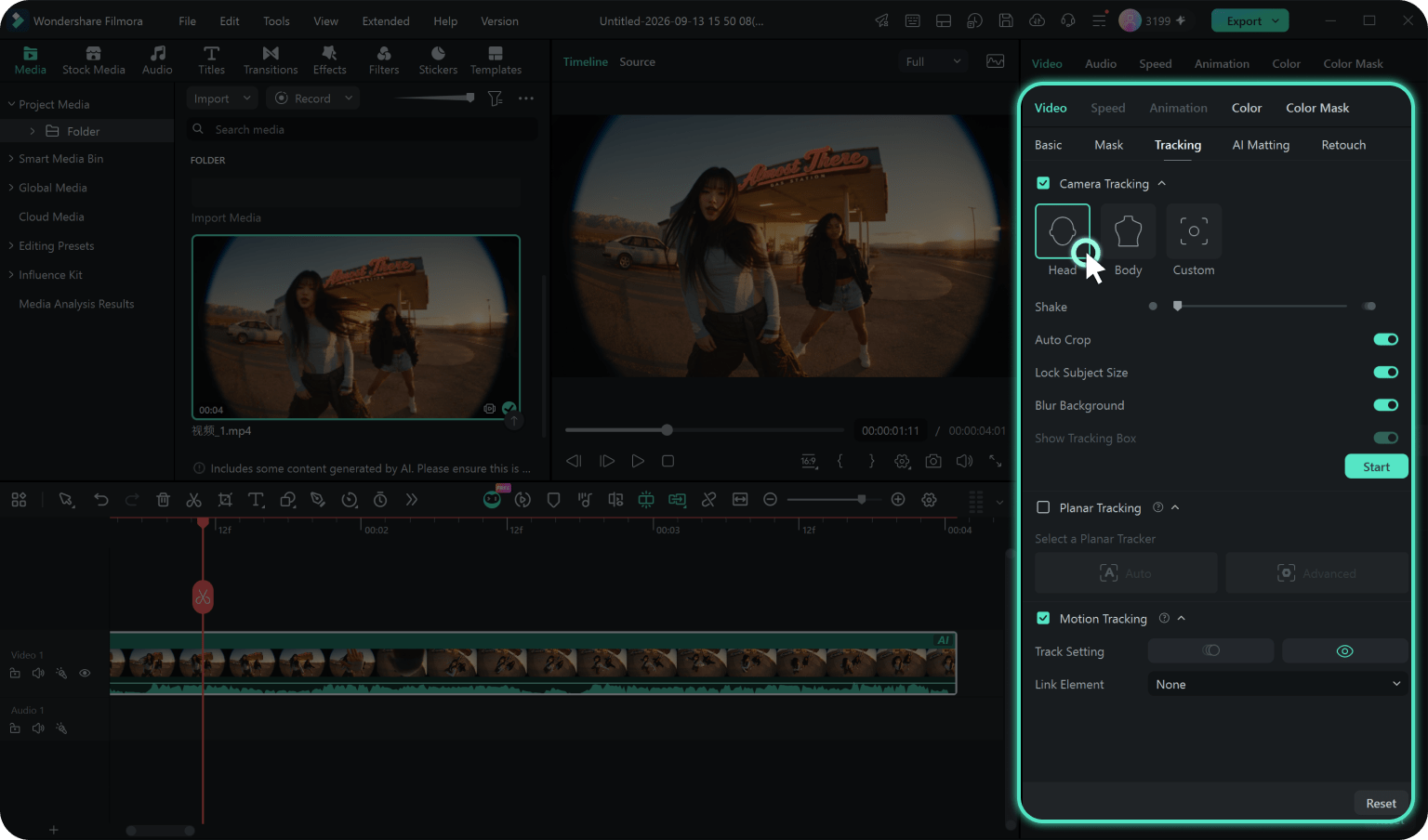
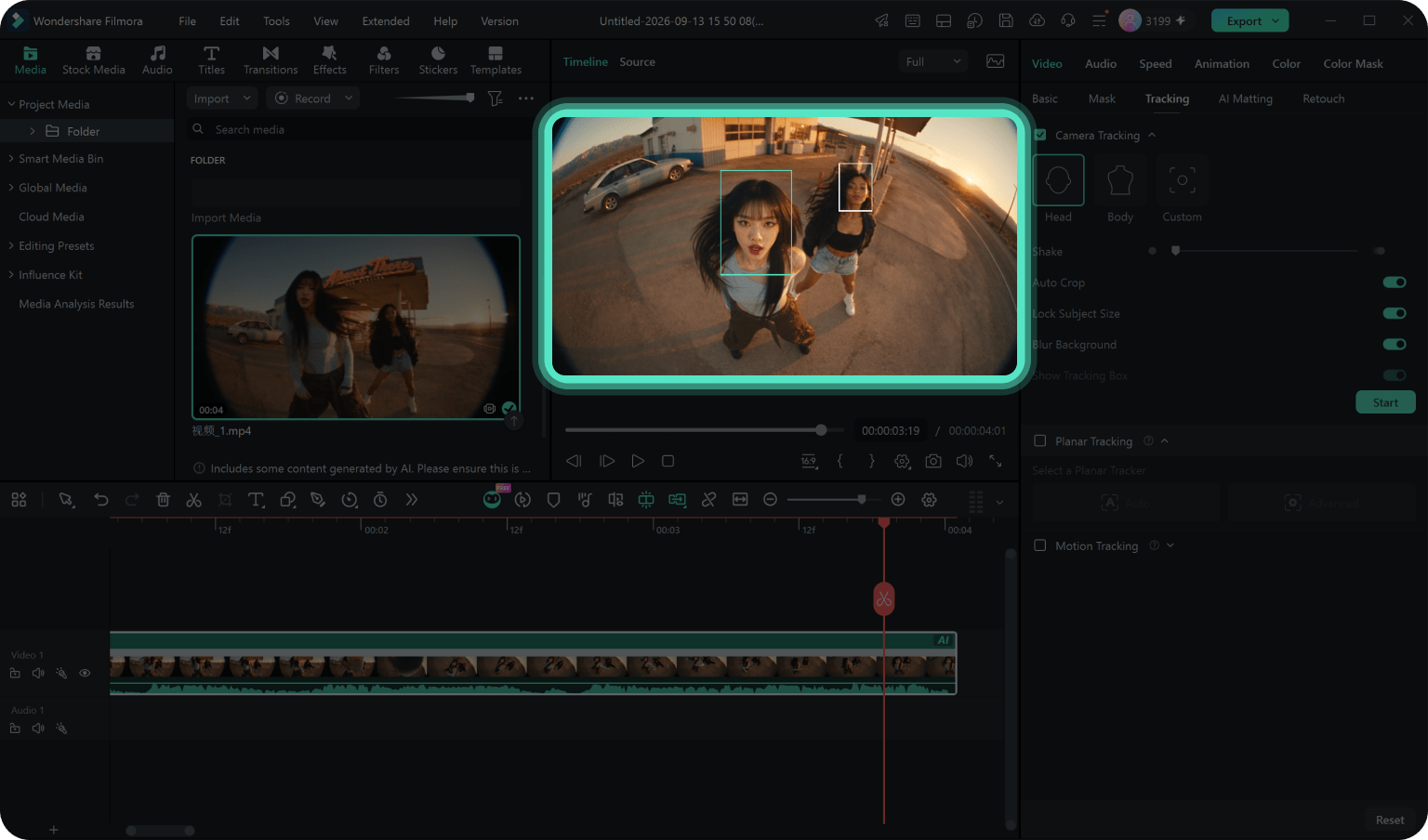
Step 3. Preview and Fine-Tune the Result
Preview the tracking result and fine-tune the framing if needed. You can adjust supported parameters after tracking or retrack the subject for a different result. Once you're satisfied with the result, export your finished video.
-
Step 1. Import Your Video and Add It to the Timeline
Launch Filmora, create a new project, and import the video you want to track. Drag the clip to the timeline and select it to begin editing.
-
Step 2. Choose a Tracking Target and Start Tracking
Go to Video > Tracking > Camera Tracking. Choose Head, Body, or Custom depending on the subject you want to follow. Adjust the available tracking and framing controls as needed, then click Start Tracking to analyze the subject's movement.
-
Step 3. Preview and Fine-Tune the Result
Preview the tracking result and fine-tune the framing if needed. You can adjust supported parameters after tracking or retrack the subject for a different result. Once you're satisfied with the result, export your finished video.
Choose the Right Tracking Tool:
Camera Tracking vs Motion Tracking vs Planar Tracking
Camera Tracking, Motion Tracking, and Planar Tracking are built for different editing tasks. Choose the right one based on what you want to follow in your video.
| Comparison | Camera Tracking | Motion Tracking | Planar Tracking |
|---|---|---|---|

|
You want the video frame to follow a selected subject and keep it better framed throughout the shot | You want text, images, stickers, mosaics, or effects to follow a moving target | You want inserted content to stay attached to a moving flat surface |
| What Follows What? | Frame follows subject | Element follows target | Content follows surface |
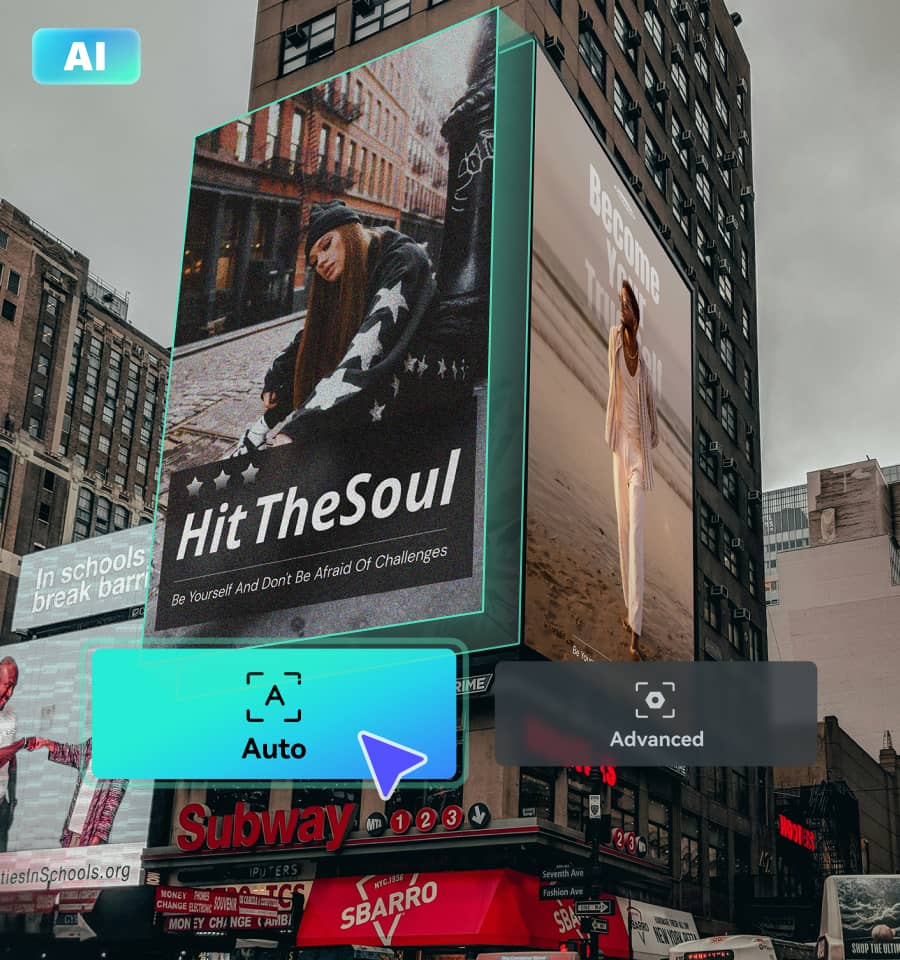
| Tracking Target | Head, body, or a custom target | A person, object, or selected area | Flat surfaces such as screens, signs, walls, vehicles, or other planar areas |
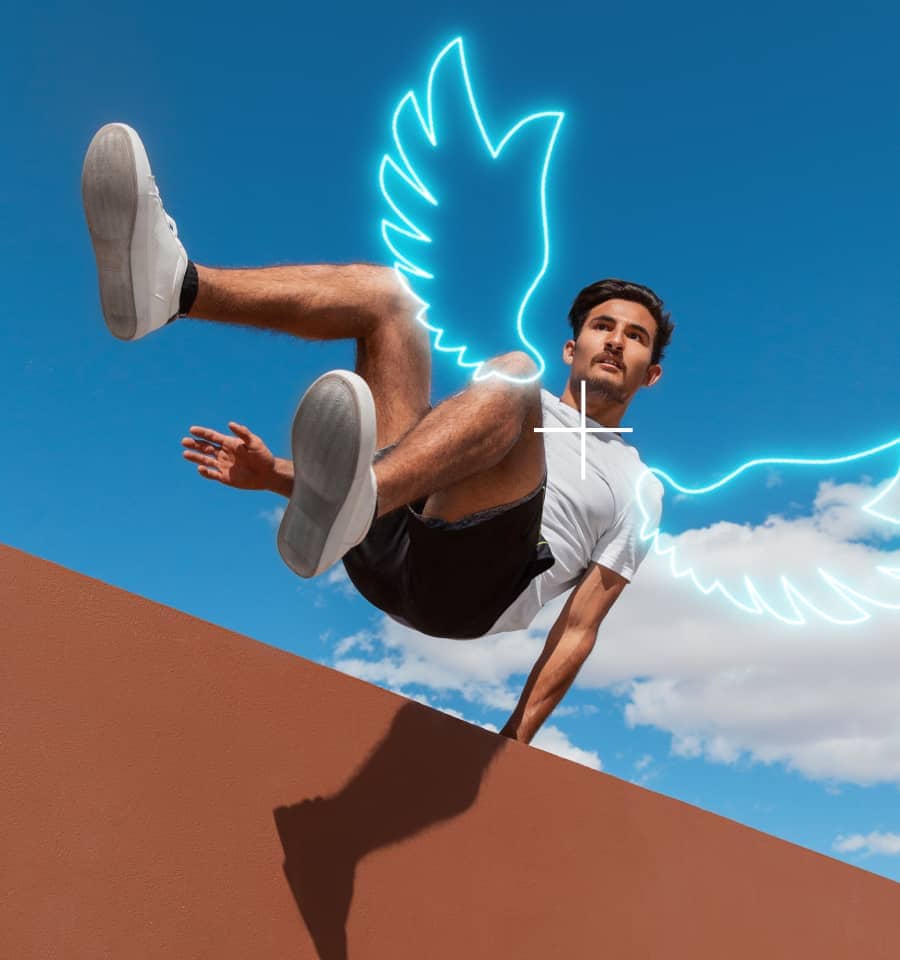
| Best For | Vlogs, dance, talking-head videos, product demos, pets, and other shots that need more consistent subject framing | Labels, callouts, stickers, mosaics, and effects | Screen replacement, signs, billboards, and other planar surfaces |
Frequently Asked Questions About Camera Tracking
- How is Camera Tracking different from motion tracking?
-
Camera Tracking makes the video frame follow a selected subject. Motion Tracking keeps the original framing while making another element—such as text, a sticker, image, or mosaic—follow a moving target.
- Can Filmora track a head, body, pet, or other object?
-
Yes. Filmora Camera Tracking offers Head and Body modes for people, plus a Custom mode that lets you manually define another target such as a pet, product, prop, detail, or other selected area.
- Can I keep a person better framed without manual keyframes?
-
Yes. Camera Tracking analyzes the selected subject's movement and adjusts the framing automatically, reducing the need to reposition or crop the shot manually with repeated keyframes. You can also refine supported framing controls before or after tracking.
- Can I adjust Camera Tracking after the analysis is complete?
-
Yes. After tracking, you can preview the result and refine supported parameters with real-time feedback. You can also clear the current result or retrack when you want to change the target or tracking setup.
- Will Camera Tracking still work after I split, trim, or transform a clip?
-
Filmora is designed to adapt Camera Tracking to common editing changes such as split, trim, and transform. Supported copy-and-paste workflows can also carry tracking results across duplicated clips, helping tracking stay integrated with the rest of your edit.
- Is Filmora Camera Tracking the same as 3D camera tracking?
-
No. 3D camera tracking is typically used in VFX and matchmoving to reconstruct camera movement in 3D space. Filmora Camera Tracking focuses on following a selected subject in existing footage and adjusting the framing around that subject.
- What’s the difference between Camera Tracking and Auto Reframe?
-
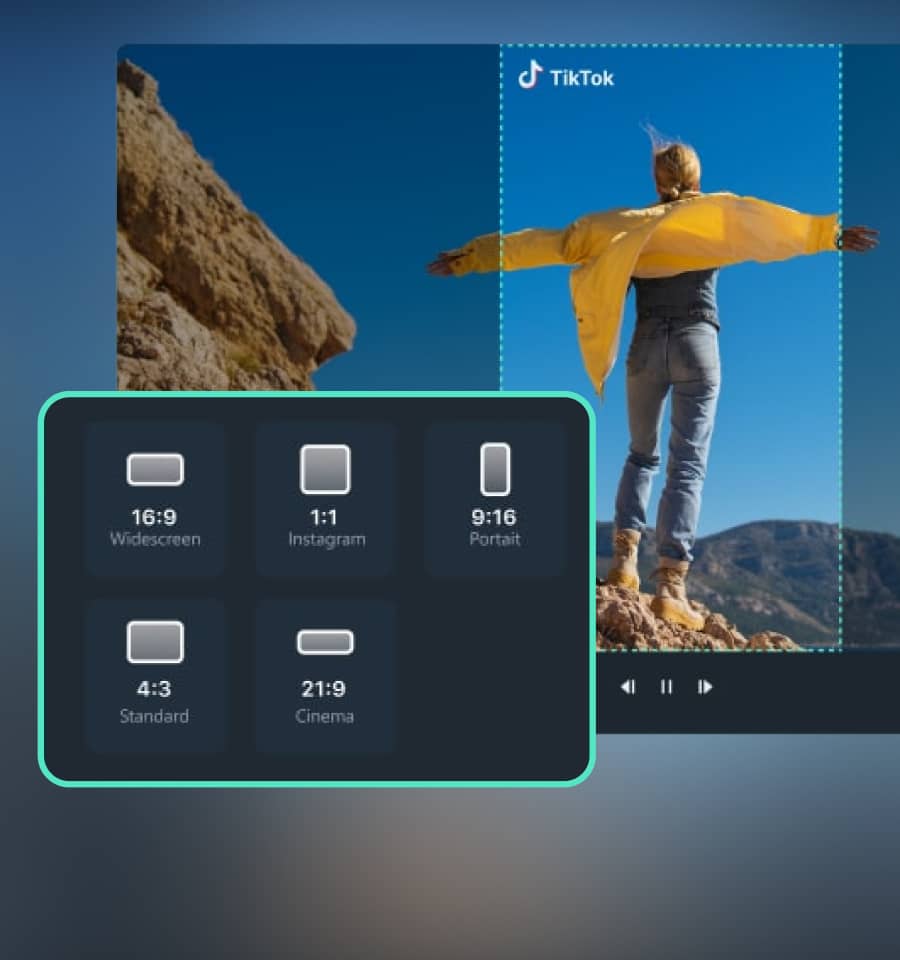
Camera Tracking follows a selected subject within the shot, while Auto Reframe is designed to adapt a video to a different aspect ratio while keeping important content in view.
What Creators Say About Filmora Camera Tracking
Discover More Powerful Features in Filmora


Short-Form Video Creator
E-commerce Video Editor
Education Content Creator
Video Editor