GPT IMAGE 2 in Filmora:
What It Is & How to Use It
GPT Image 2 is OpenAI's image generation model (ChatGPT Images 2.0), known for accurate in-image text and instruction-based editing. Use it inside Filmora's AI Image Generator — no separate subscription, no API setup, and results drop straight onto your timeline.


What is GPT Image 2?
What it is
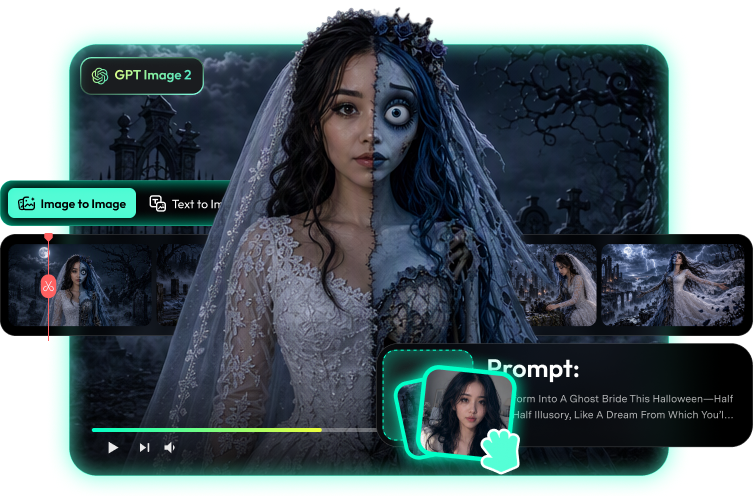
GPT Image 2 is OpenAI's text-to-image model that renders posters, stickers, and layouts with accurate in-image text. Give it a description — exact copy in quotes, style, and layout — or a reference image to edit by instruction. In Filmora, it's built into AI Image Generator: generate, upscale, remove backgrounds, and place the result on the timeline.
How it stands out
Compared with other image models, GPT Image 2 stands out for legible in-image text and instruction-based edits — the pairing that makes banners, stickers, and mockups feasible in one pass. Filmora adds the same-timeline polish on top.
[Highlight 1] Accurate text rendering
Headlines, price tags, and labels render as real, legible type — quote the exact copy and it lands in the image.
[Highlight 2] Instruction-based editing
Say what to change — the background, the color, one element — and keep the rest of the image intact.
[Highlight 3] Layout-aware compositions
Posters, banners, and sticker sheets that follow the structure you describe, not just the mood.
Key features & specs

Best use cases for GPT Image 2
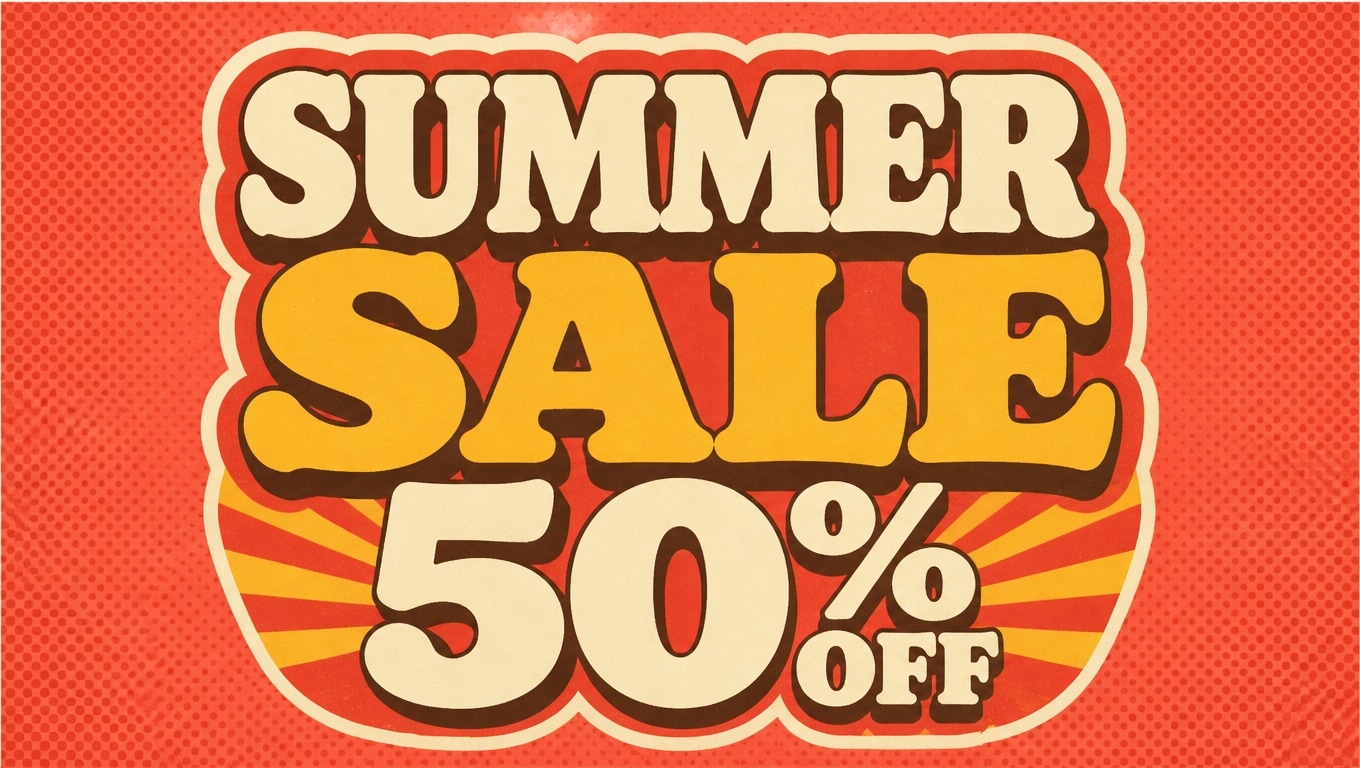
Stickers & text graphics
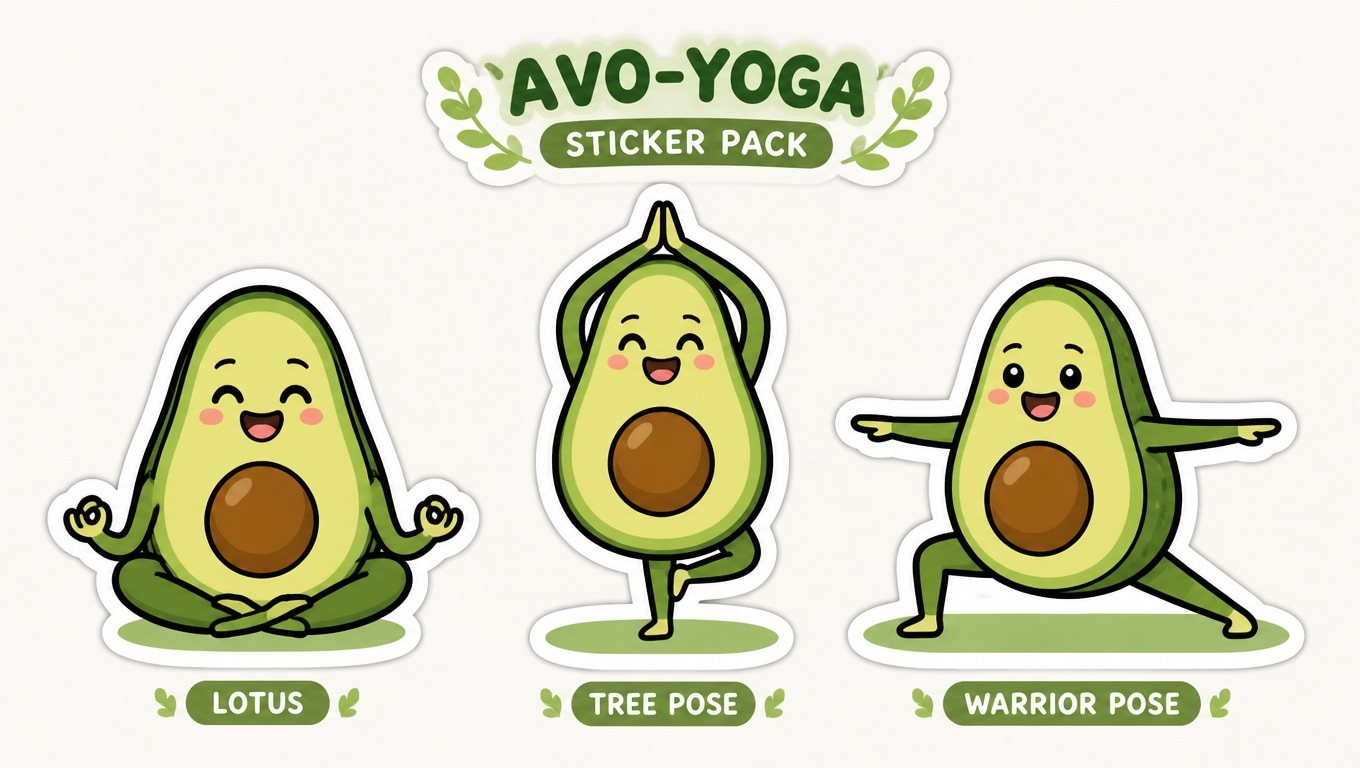
Sticker sheets, badges, and social graphics with real, readable words in them. Quote the exact text and set the style — letters stay clean instead of melting into the art.

Ad banners & posters
Layout-heavy creatives where the copy matters as much as the art. Describe the headline, subline, and layout, then export sizes ready for feeds, stories, and display ads.
Product mockups & edits
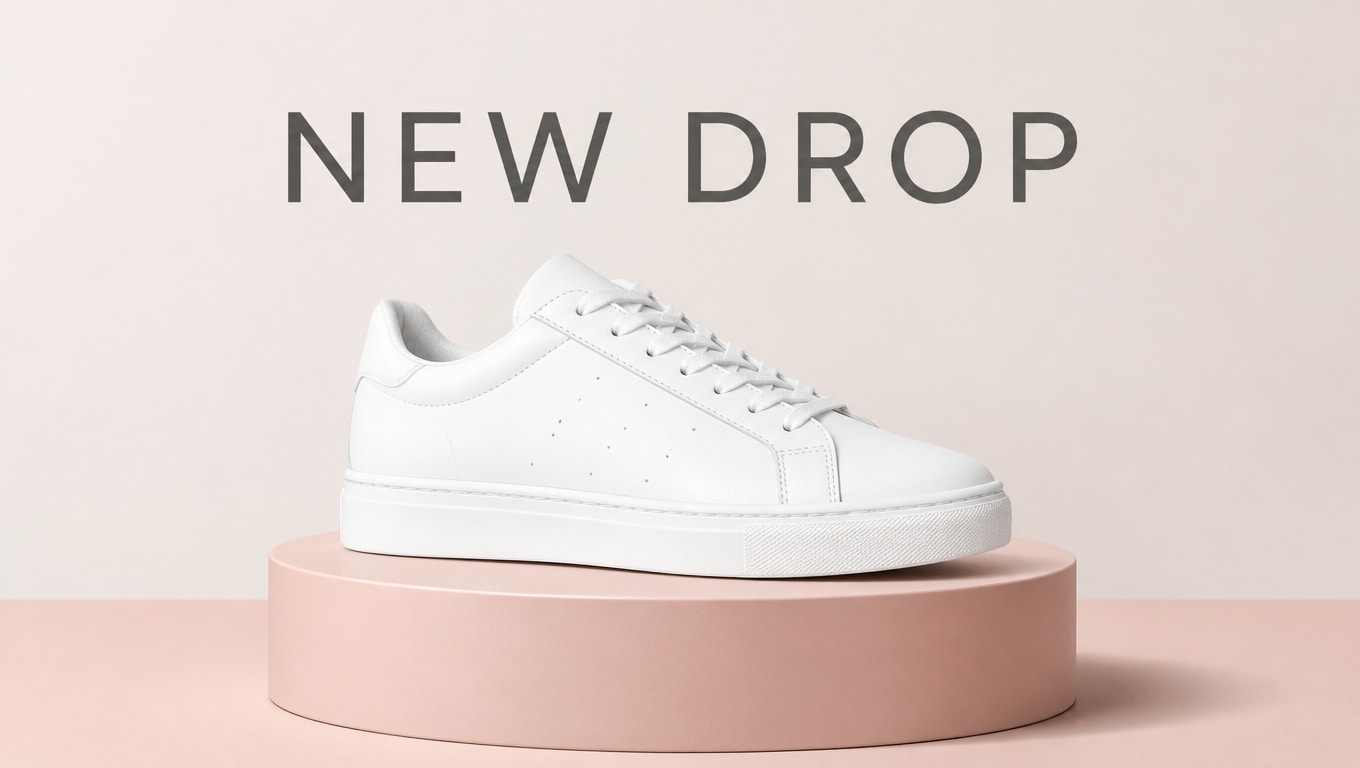
Drop a product into new scenes or restyle a shot by instruction — change the backdrop, keep the product. Useful for store listings, ads, and thumbnail art.
Writing prompts for GPT Image 2

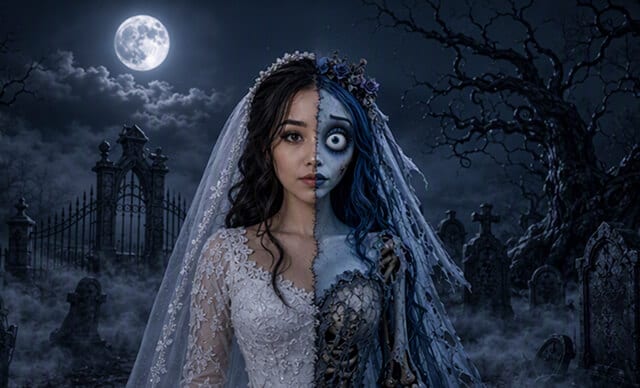
Template 1 · Scene-plus-copy poster
Text to Image
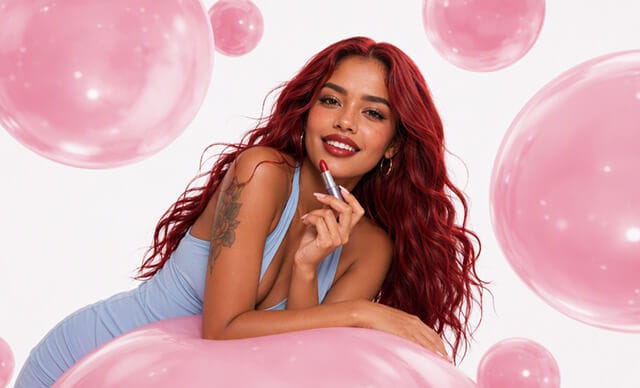
Template 2 · Quoted-text sale graphic
Image to Image
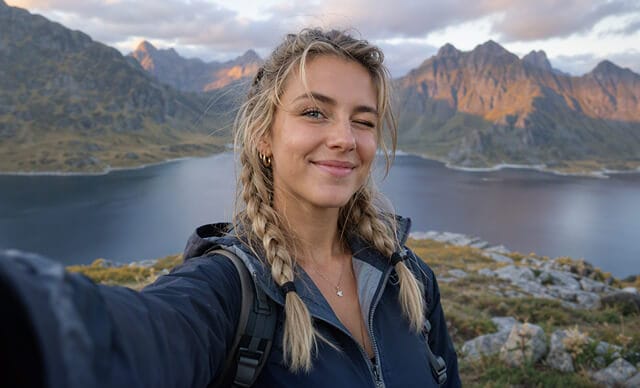
Template 3 · Keep-it-identical edit
Text to Image
How to use GPT Image 2 in Filmora
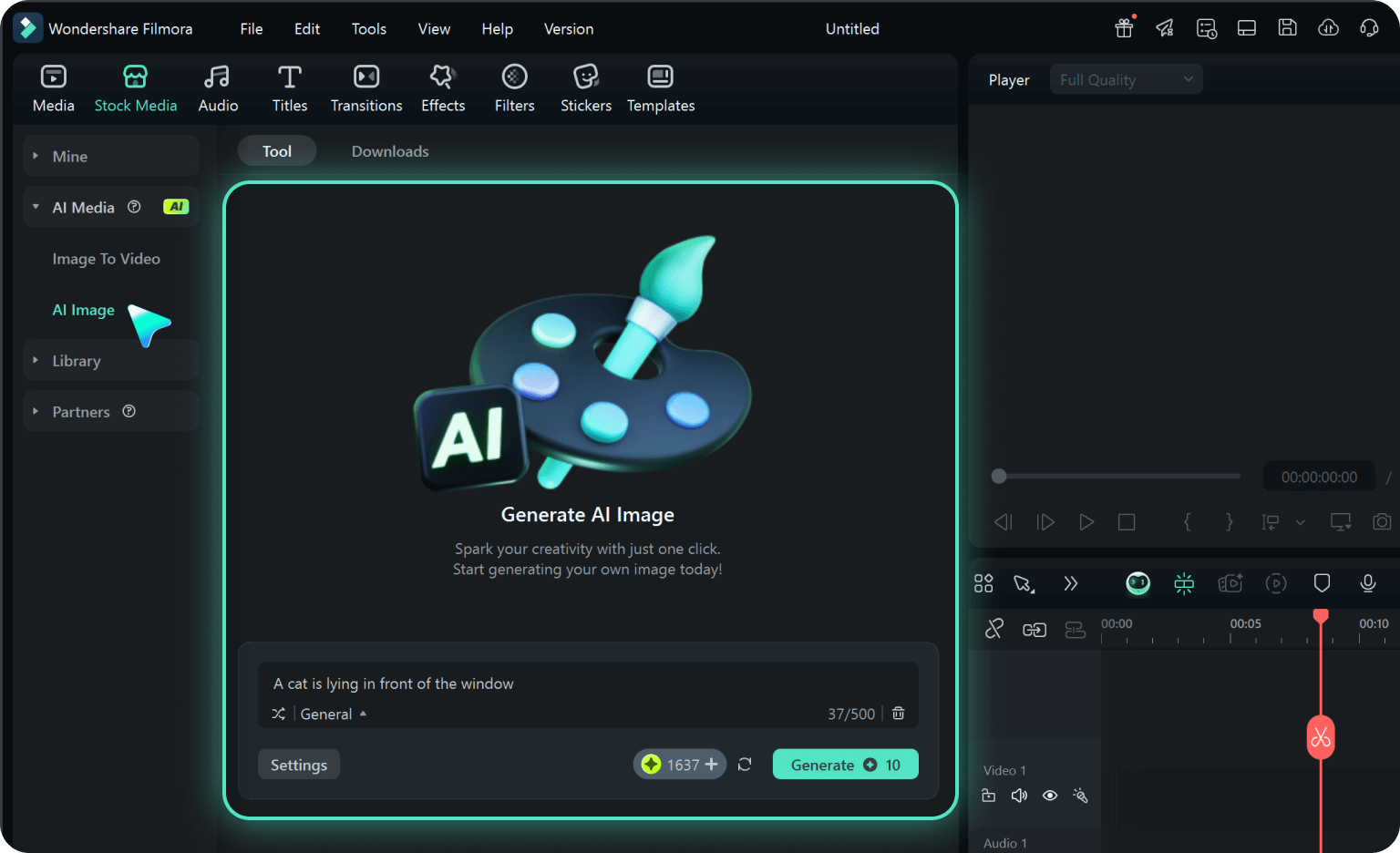
Step 1. Open AI Image Generator in Filmora
Launch the latest version of Filmora, create a project, and click "Stock Media", choose "AI Image" from the Media panel.
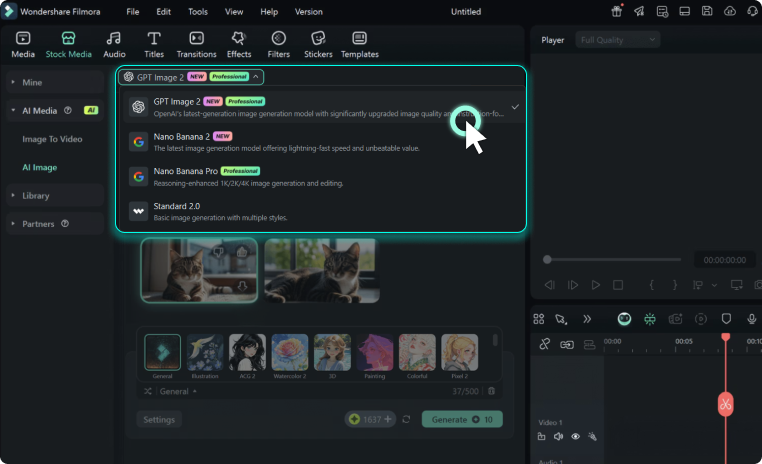
Step 2.Generate Images From Text or Image
Enter your prompt or upload an image. Choose a model: Nano Banana 2 (fast), Nano Banana Pro (artistic), or GPT Image 2 (creative). Set resolution and click "Generate".
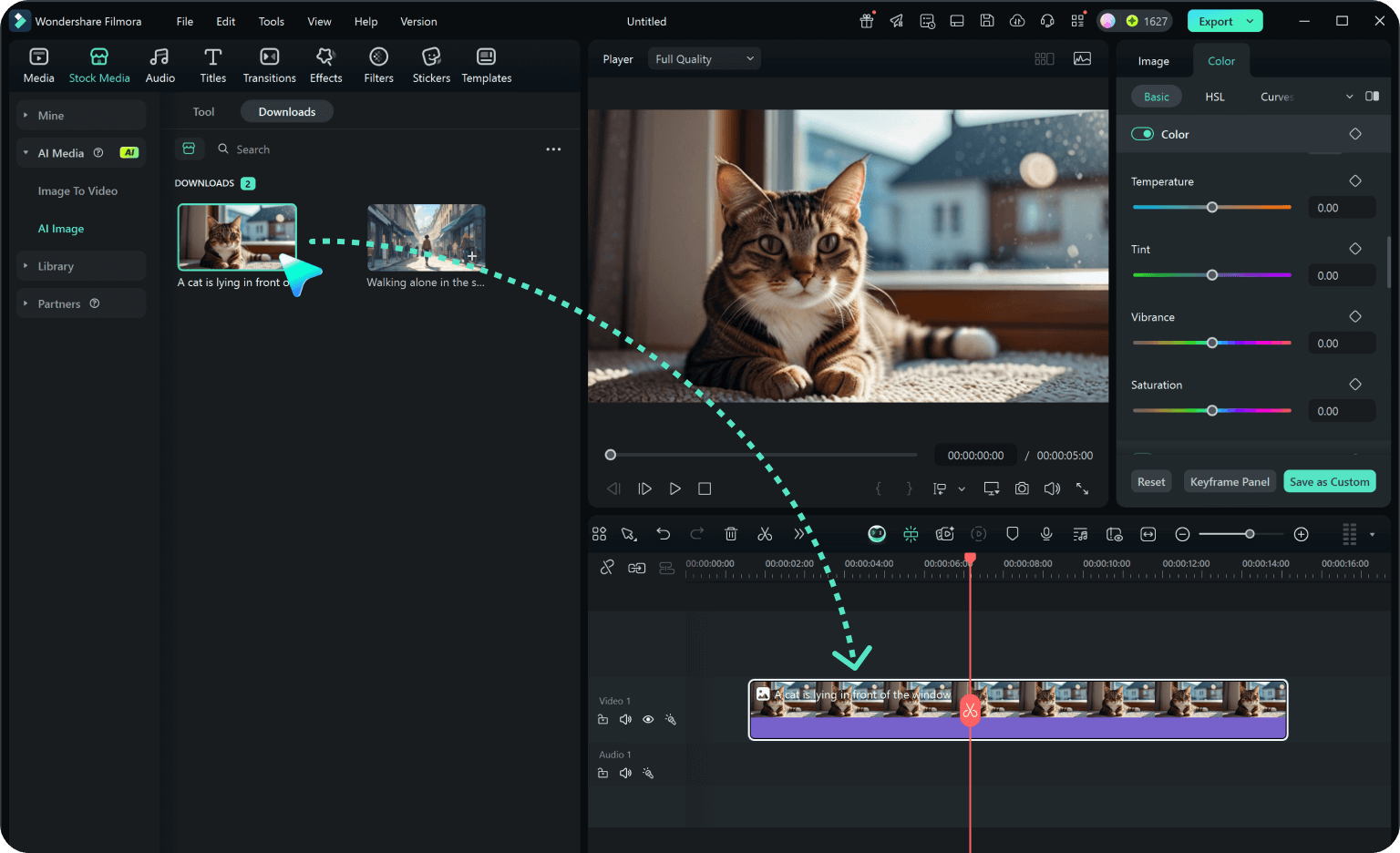
Step 3. Adjust and Export Your AI-Generated Images
Adjust settings like art style, lighting, and composition until satisfied. You can drag your AI image straight into your video timeline or directly export it.
-
Step 1. Open AI Image Generator in Filmora
Launch the latest version of Filmora, create a project, and click "Stock Media", choose "AI Image" from the Media panel.
-
Step 2.Generate Images From Text or Imageo
Enter your prompt or upload an image. Choose a model: Nano Banana 2 (fast), Nano Banana Pro (artistic), or GPT Image 2 (creative). Set resolution and click "Generate".
-
Step 3. Adjust and Export Your AI-Generated Images
Adjust settings like art style, lighting, and composition until satisfied. You can drag your AI image straight into your video timeline or directly export it.
More AI models to explore
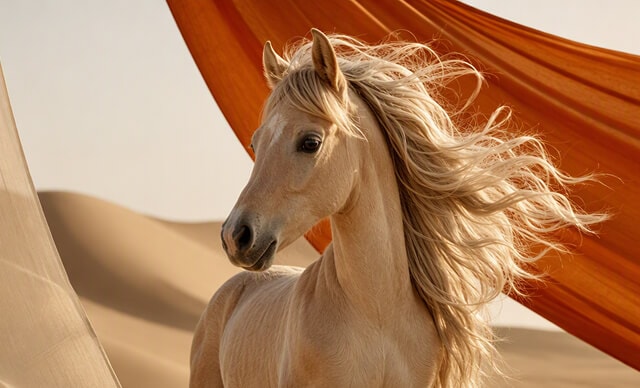

 Text-to-Video
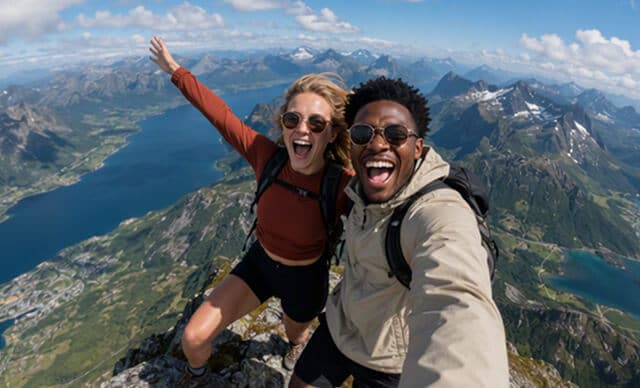

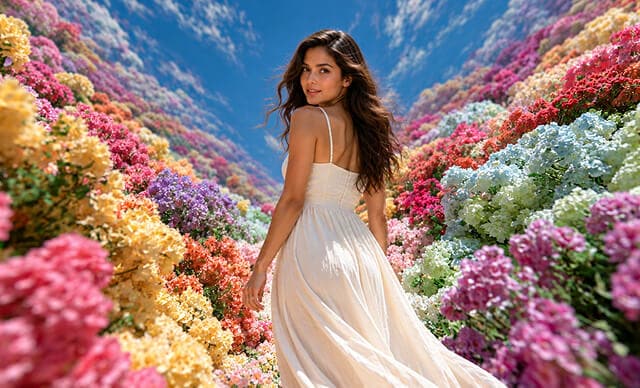


 Text-to-Image


FAQs on GPT Image 2 in Filmora

Edit as an Expert
with Filmora & AI.
Bring precise editing and AI-assisted tools together in a workflow optimized for Mac.