SEEDANCE 2.0 in Filmora:
What It Is & How to Use It
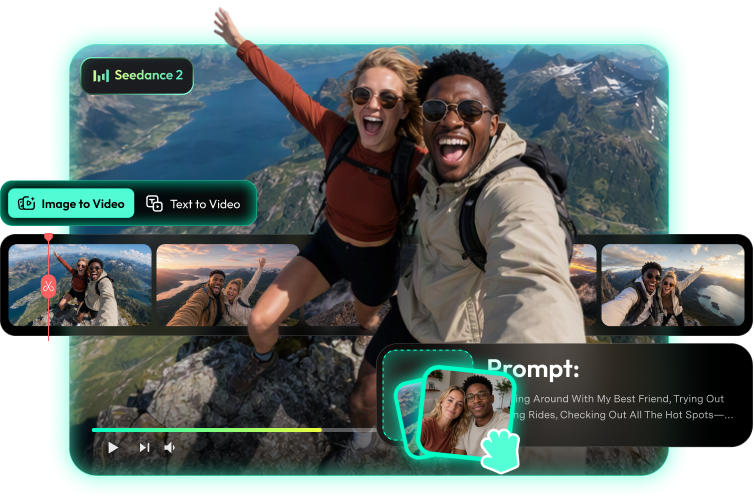
Seedance 2.0 is ByteDance's text- and image-to-video model known for dynamic camera work and long, continuous takes. Use it inside Filmora's AI Text to Video and Image to Video — no separate subscription, edit on the same timeline.


What is Seedance 2.0?
What it is
Seedance 2.0 is ByteDance's video generation model built for high-energy shots — it holds fast camera moves and subjects steady across a full 15-second take. Reference images keep characters consistent scene to scene, and motion stays smooth at speed. In Filmora, it's built into AI Text to Video and AI Image to Video — generate, then edit on the same timeline.
How it stands out
Compared with other video models, Seedance 2.0 stands out for camera language that stays stable at high energy — 15-second continuous takes without the wobble or drift. Filmora adds the same-timeline polish on top.
[Highlight 1] Dynamic camera work
Chases, orbits, and rack focus come back composed and stable — complex moves without the smear.
[Highlight 2] 15s continuous takes
One prompt can run a full 15-second shot — action unfolds in a single take instead of stitched fragments.
[Highlight 3] Reference-image consistency
Reference images hold characters and outfits across scenes — episodic clips stay coherent.
Key features & specs

Best use cases for Seedance 2.0
Sports & action shorts
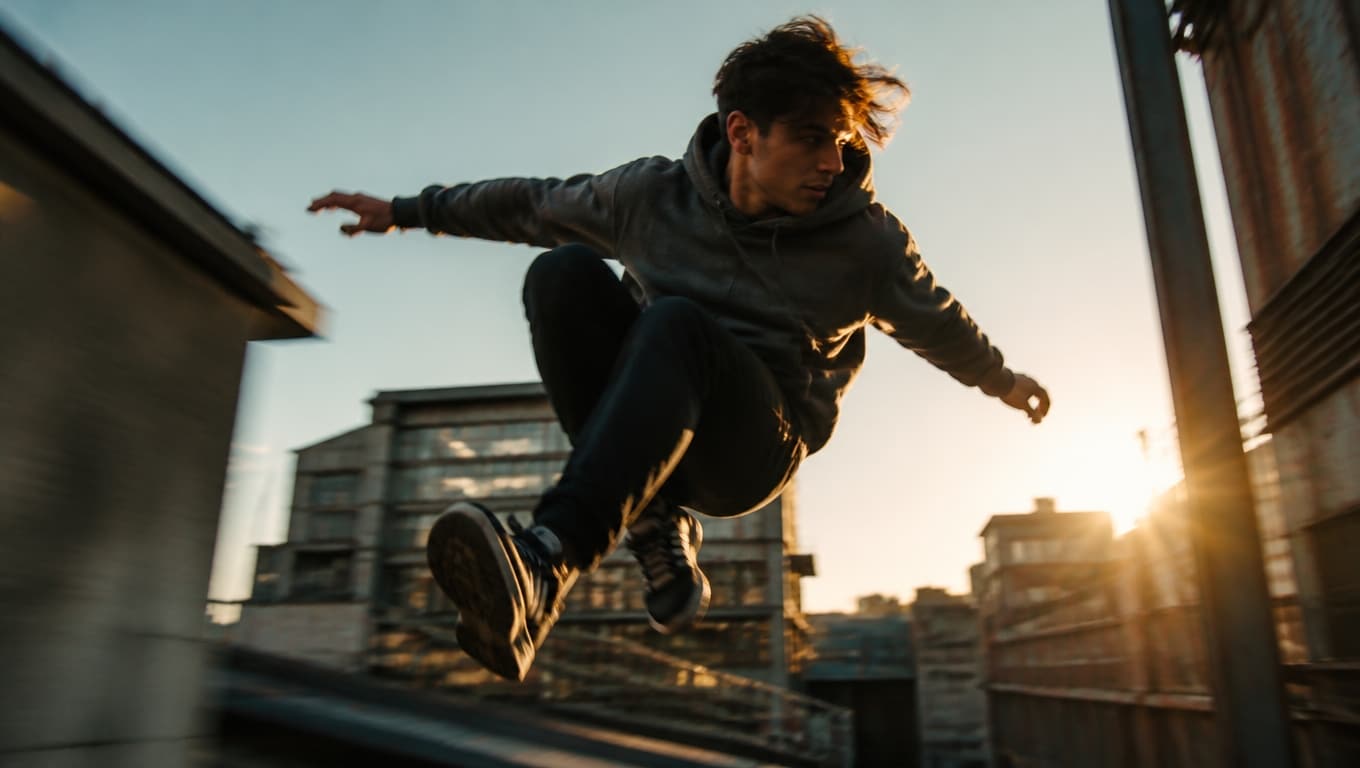
Chases, spins, and fast footwork hold together at full speed — Seedance 2.0 keeps bodies and motion believable when the camera pushes hard. One prompt can run the whole sequence as a 15-second take, ready to drop on the timeline.

Long-take b-roll
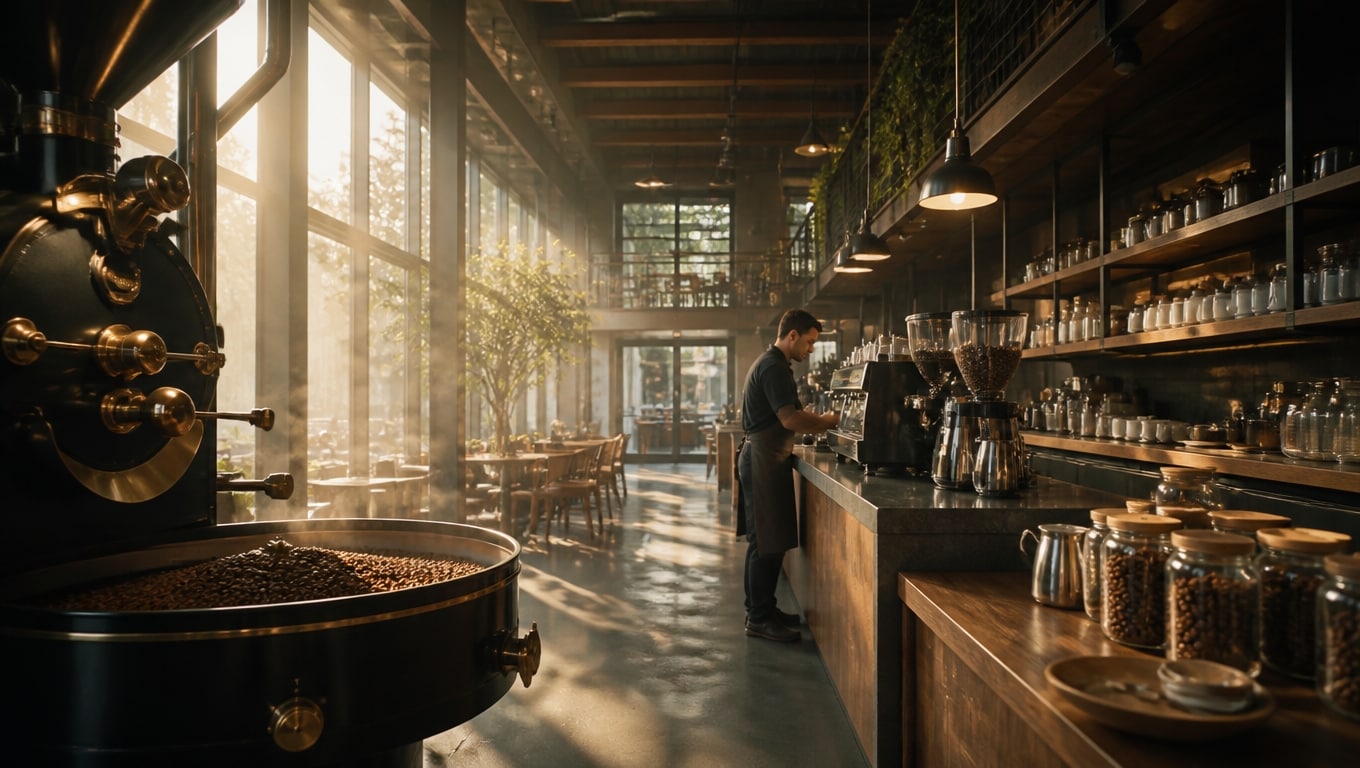
From a slow orbit to a full walk-through, Seedance 2.0 sustains camera language across one continuous shot. Use the takes as transitions, backdrops, or title beds — no stitching required.
Multi-scene series
Reference images lock characters and outfits across scenes, so episodic clips stay coherent — same cast, new scenario each time. Perfect for recurring hooks, mascots, and story arcs.
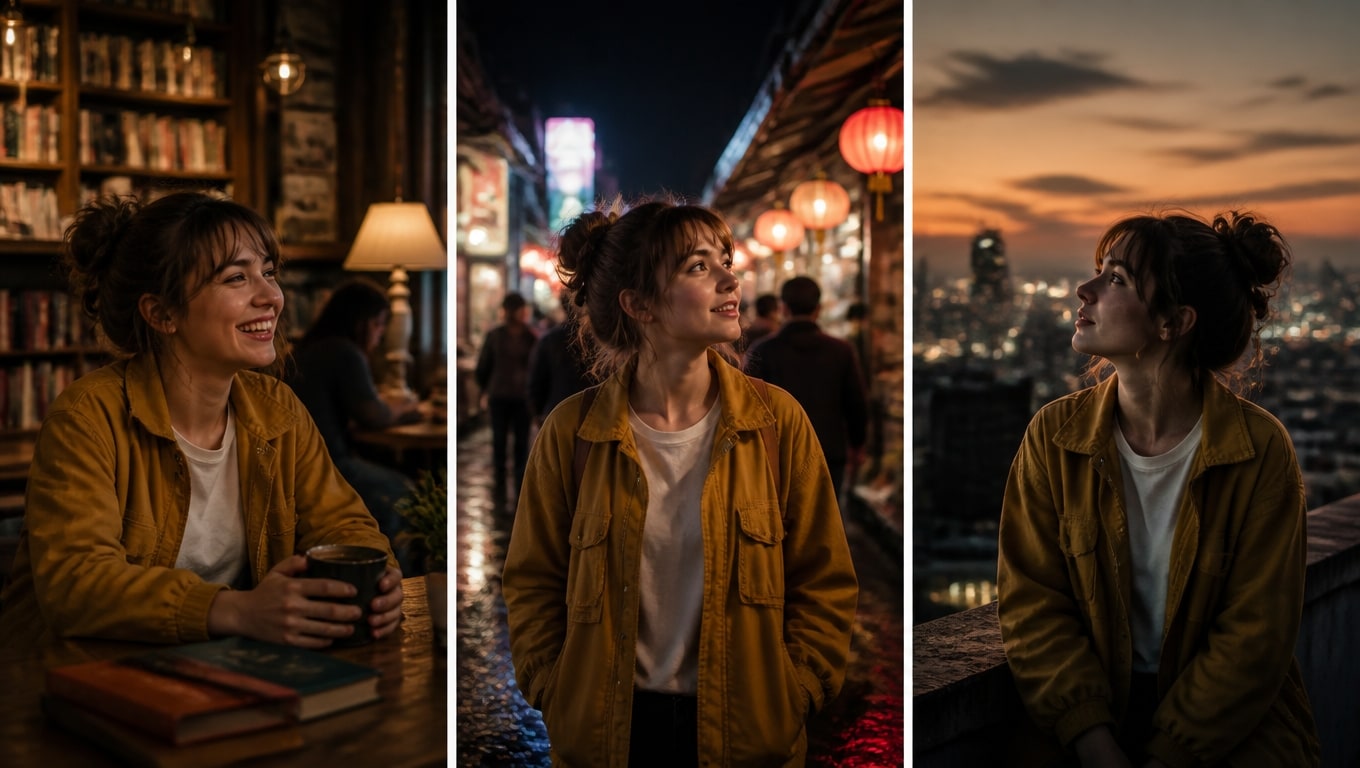
Writing prompts for Seedance 2.0

Template 1 · Basic structure
Text to Video
Template 2 · Cinematic camera-led
Image to Video
Template 3 · Long-take (continuous action)
Text to Video
How to use Seedance 2.0 in Filmora
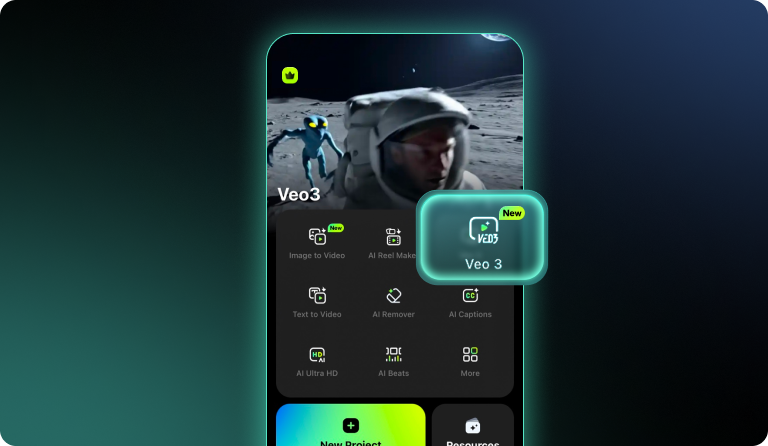
Step 1. Enter or Create a Prompt
Describe the scene you want to bring to life. If you need ideas, click "Generate with AI" to get an AI-crafted video prompt instantly.
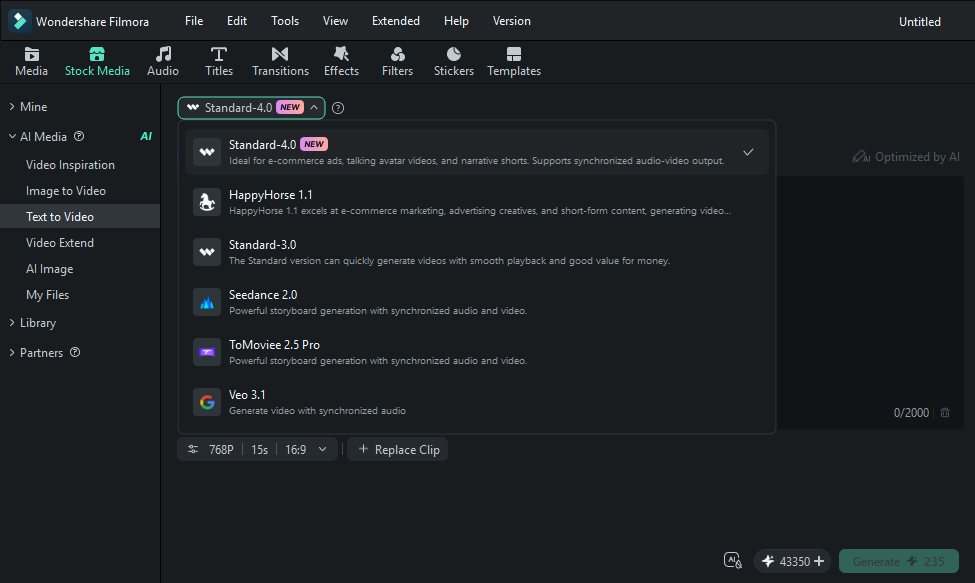
Step 2.Generate the Video
Select your desired AI Model, then hit "Generate". Filmora will turn your prompt into a cinematic video automatically, with no additional settings required.
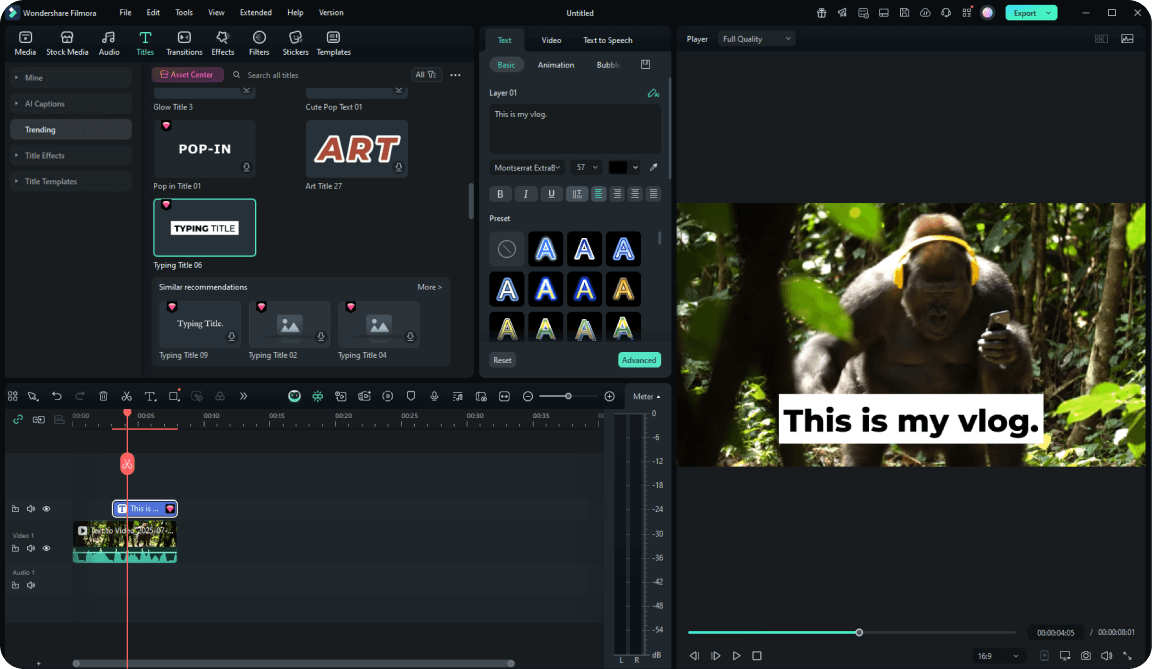
Step 3. Edit and Enhance Your Video
Preview your generated video and polish it in Filmora's built-in editor. Trim clips, add text, apply effects, include music, and customize your video to make it your own.
-
Step 1. Enter or generate a prompt
Describe the scene you want to bring to life. If you need ideas, click "Generate with AI" to get an AI-crafted video prompt instantly.
-
Step 2.Generate the Video
Select your desired AI Model, then hit "Generate". Filmora will turn your prompt into a cinematic video automatically, with no additional settings required.
-
Step 3. Edit and Enhance Your Video
Preview your generated video and polish it in Filmora's built-in editor. Trim clips, add text, apply effects, include music, and customize your video to make it your own.
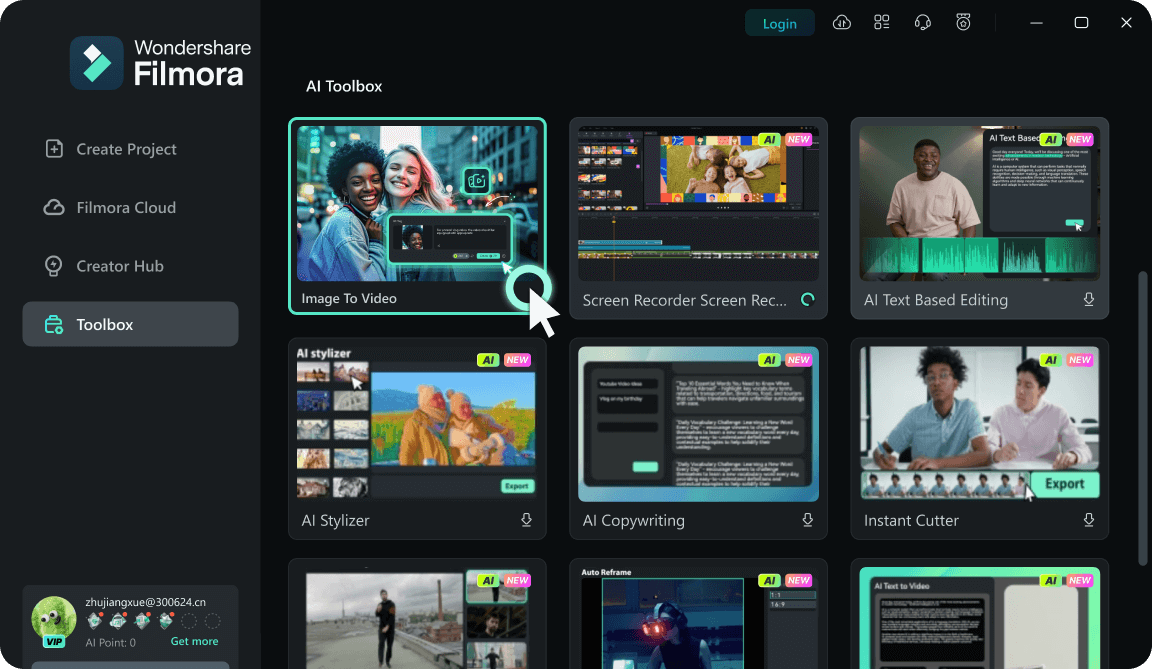
Step 1. Upload Your Images
Open the Image to Video feature in Filmora's short video editing mode. Upload one or more images to get started.
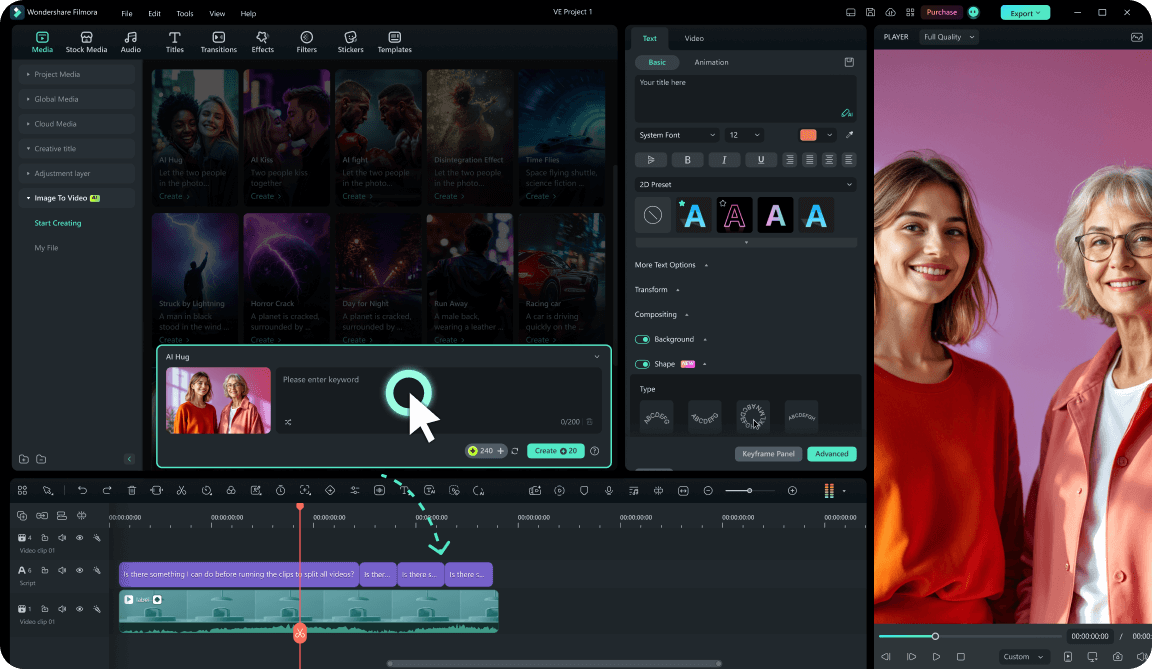
Step 2.Choose an AI Model and Effect
Select your desired AI Model. Then choose a preset effect like AI Kiss, AI Hug, or AI Fight, or enter your own prompt for a personalized result.
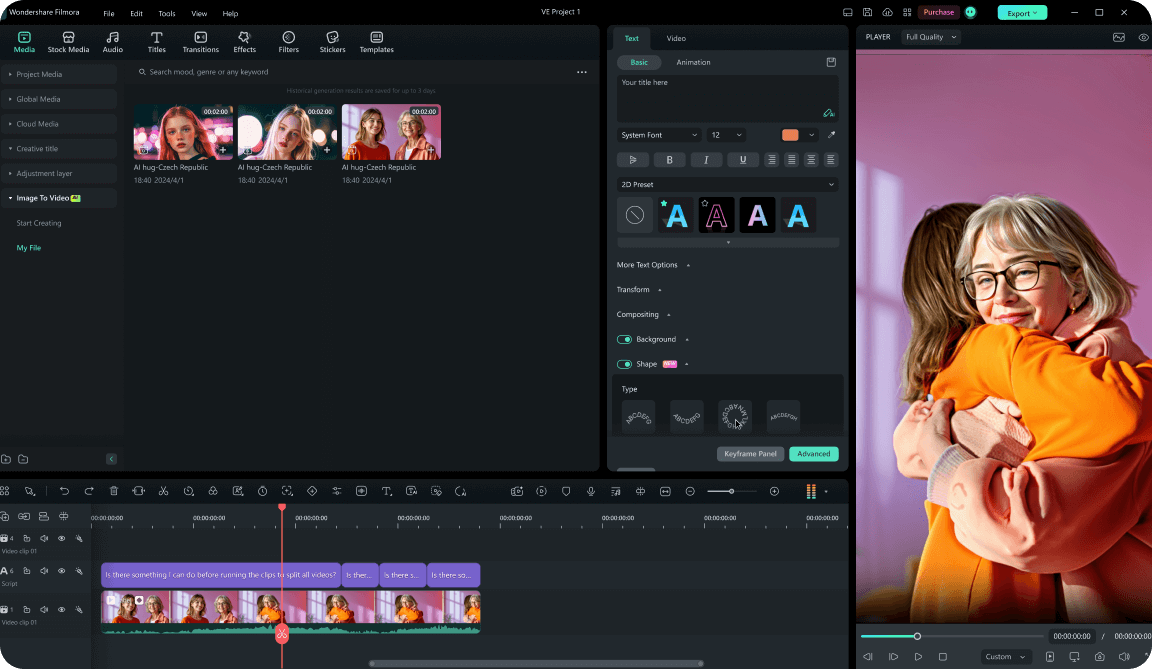
Step 3. Edit or Export Your Video
Let Filmora turn your images into an animated AI video. Preview the result, make further edits on the timeline, or export your video directly.
-
Step 1. Upload Your Images
Open the Image to Video feature in Filmora's short video editing mode. Upload one or more images to get started.
-
Step 2.Choose an AI Model and Effect
Select your desired AI Model. Then choose a preset effect like AI Kiss, AI Hug, or AI Fight, or enter your own prompt for a personalized result.
-
Step 3. Edit or Export Your Video
Let Filmora turn your images into an animated AI video. Preview the result, make further edits on the timeline, or export your video directly.
More AI models to explore
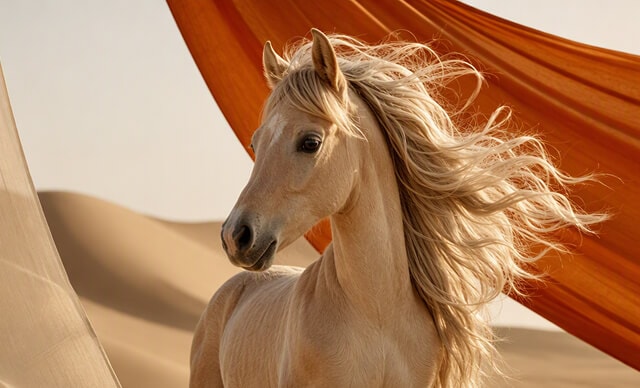

 Text-to-Video
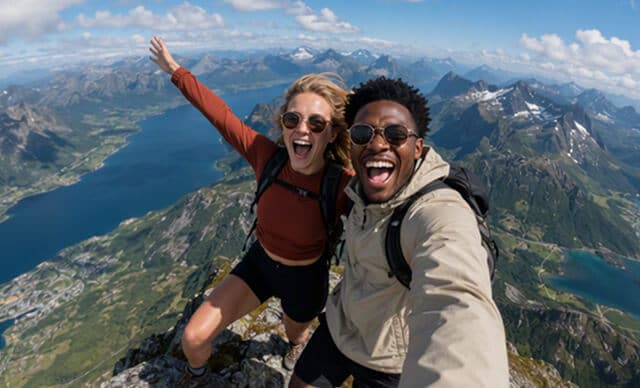

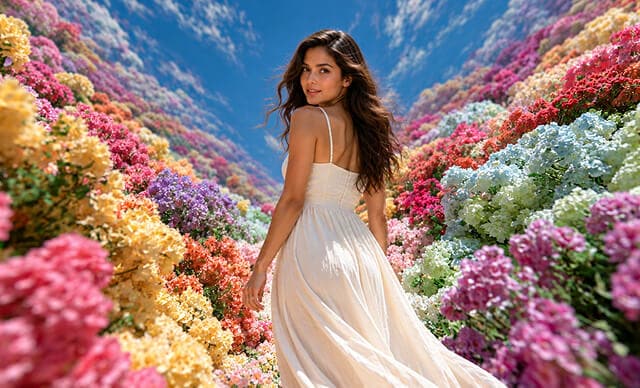

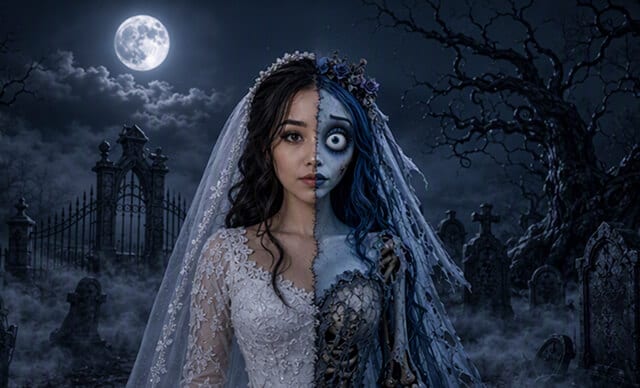

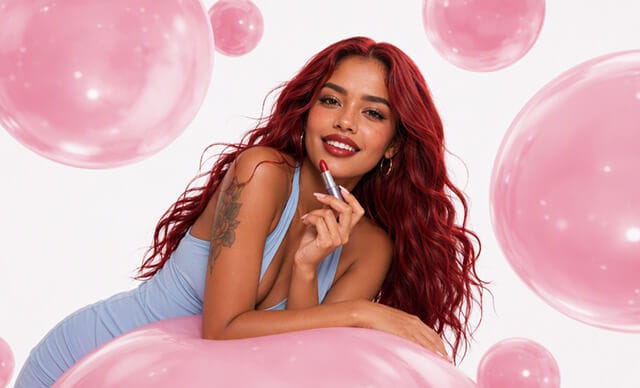
 Text-to-Image


FAQs on Seedance 2.0 in Filmora

Edit as an Expert
with Filmora & AI.
Bring precise editing and AI-assisted tools together in a workflow optimized for Mac.