NANO BANANA 2 in Filmora:
What It Is & How to Use It
Nano Banana 2 is Google's fast image generation model from the Gemini family, known for quick iterations and character consistency across takes. Use it inside Filmora's AI Image Generator — no separate subscription, and results drop straight onto your timeline.
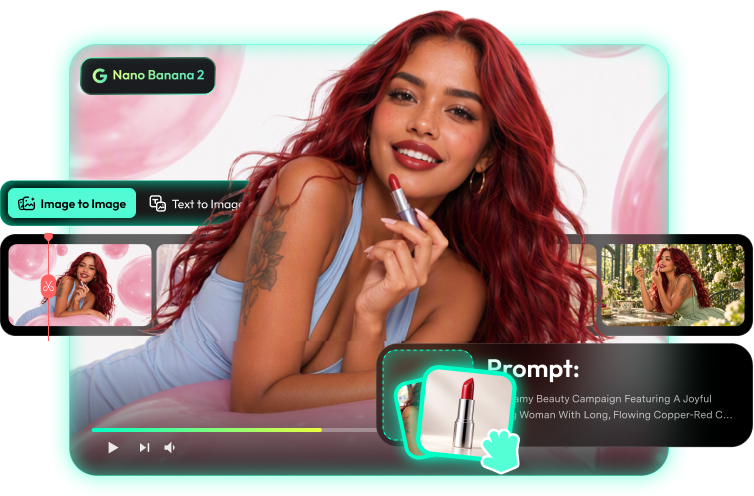


What is Nano Banana 2?
What it is
Nano Banana 2 is Google's Gemini-family image model built for speed and consistency. Describe a scene or attach a reference image, generate several takes in seconds, and keep the same character or style across them. In Filmora, it's built into AI Image Generator: iterate fast, pick the best take, and place it on the timeline.
How it stands out
Compared with other image models, Nano Banana 2 stands out for fast multi-take iteration and character consistency — the pairing that makes character sheets and A/B thumbnail sets feasible in minutes. Filmora adds the same-timeline polish on top.
[Highlight 1] Fast iteration
Drafts come back in seconds, so you can explore a dozen directions in one sitting and keep the two that work.
[Highlight 2] Character consistency
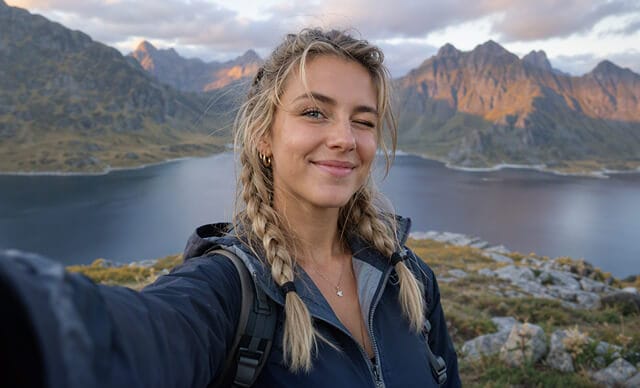
The same face, outfit, and style hold across takes — describe the character once, then re-run the scene.
[Highlight 3] Reference-image refinement
Start from your own image and refine it across rounds instead of re-rolling from scratch.
Key features & specs

Best use cases for Nano Banana 2
Character sheets
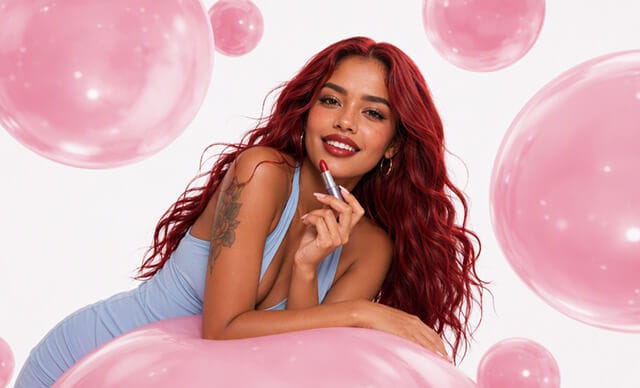
Same character, many poses and expressions. Lock the description, generate a set, and cast the same face across a whole video, series, or campaign.


Social visuals
Fast daily output for feeds and stories: explore directions in seconds and keep the winners, with style that stays consistent from post to post.

Thumbnail variants
A/B-ready sets: one layout, several hooks. Generate variants of the same composition and let the click-through data pick the winner.

Writing prompts for Nano Banana 2

Template 1 · Multi-take character draft
Text to Image
Template 2 · Same-face new-scene lock
Image to Image
Template 3 · Keep-and-change remix
Text to Image
How to use Nano Banana 2 in Filmora
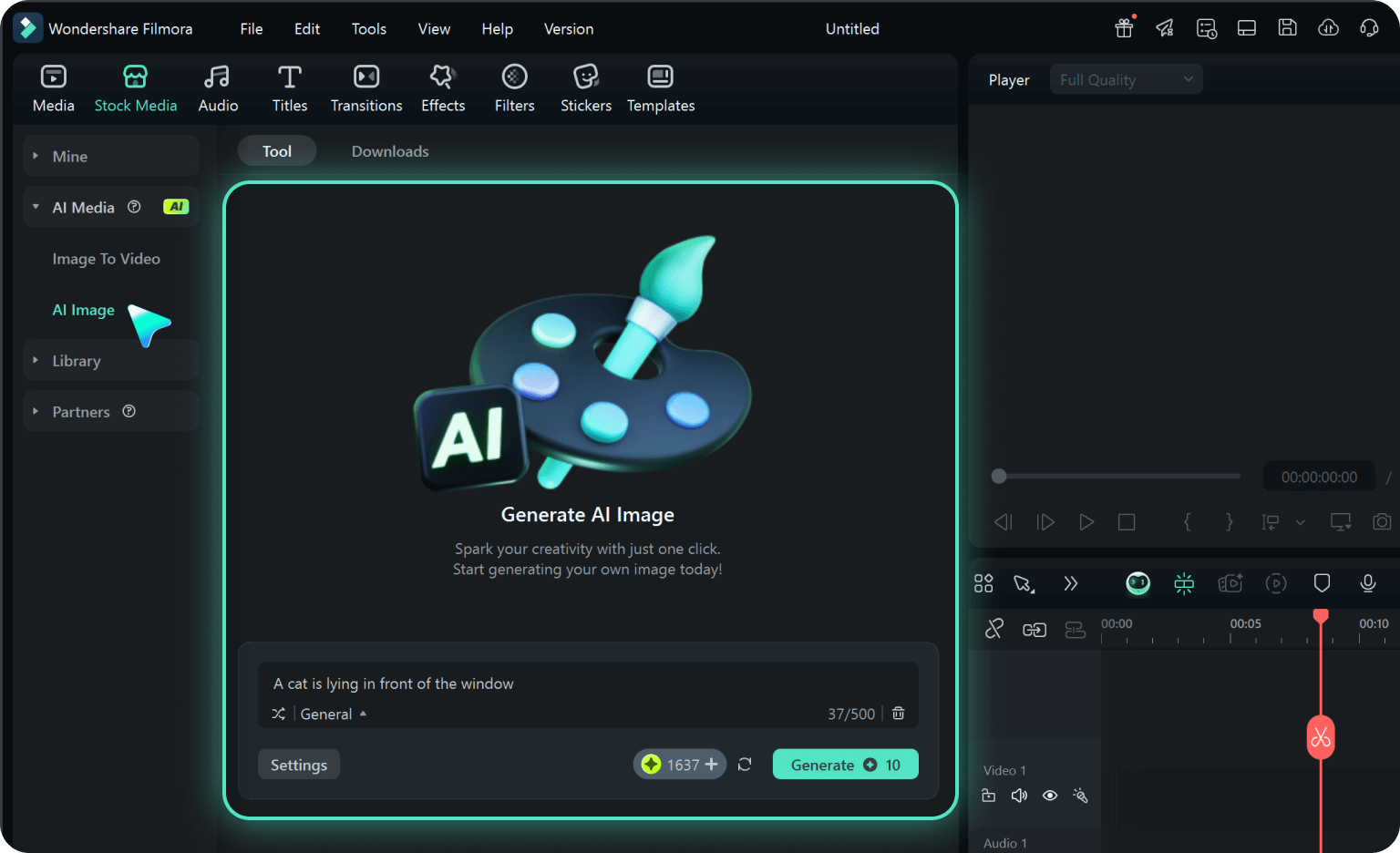
Step 1. Open AI Image Generator in Filmora
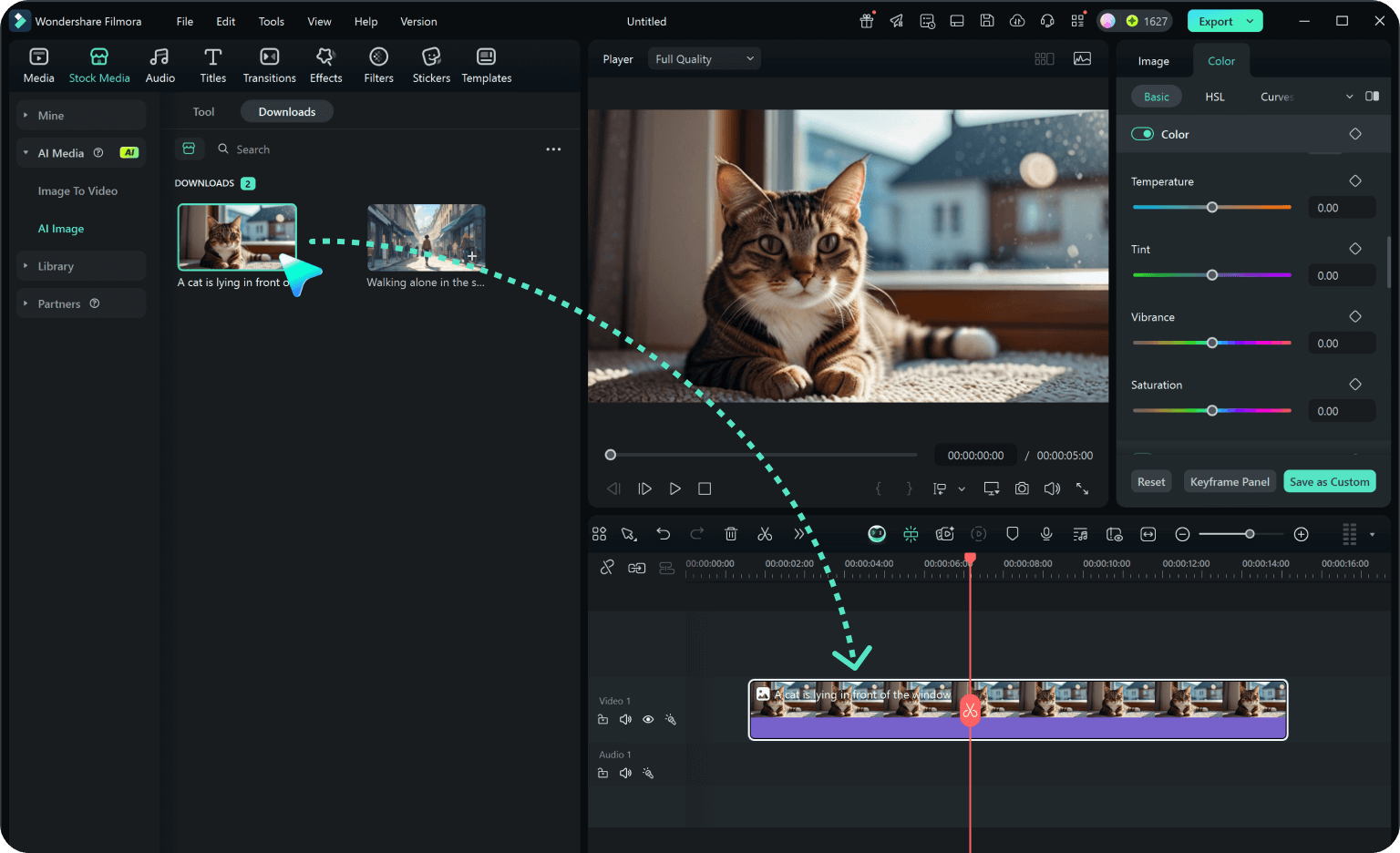
Launch the latest version of Filmora, create a project, and click "Stock Media", choose "AI Image" from the Media panel.
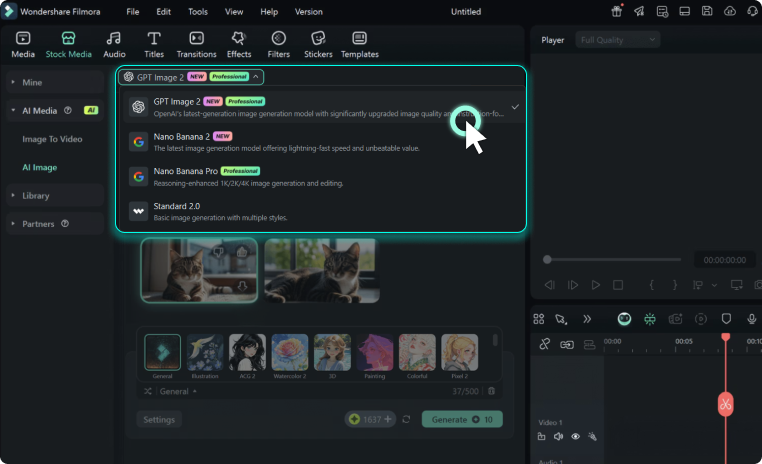
Step 2.Generate Images From Text or Image
Enter your prompt or upload an image. Choose a model: Nano Banana 2 (fast), Nano Banana Pro (artistic), or GPT Image 2 (creative). Set resolution and click "Generate".
Step 3. Adjust and Export Your AI-Generated Images
Adjust settings like art style, lighting, and composition until satisfied. You can drag your AI image straight into your video timeline or directly export it.
-
Step 1. Open AI Image Generator in Filmora
Launch the latest version of Filmora, create a project, and click "Stock Media", choose "AI Image" from the Media panel.
-
Step 2.Generate Images From Text or Imageo
Enter your prompt or upload an image. Choose a model: Nano Banana 2 (fast), Nano Banana Pro (artistic), or GPT Image 2 (creative). Set resolution and click "Generate".
-
Step 3. Adjust and Export Your AI-Generated Images
Adjust settings like art style, lighting, and composition until satisfied. You can drag your AI image straight into your video timeline or directly export it.
More AI models to explore
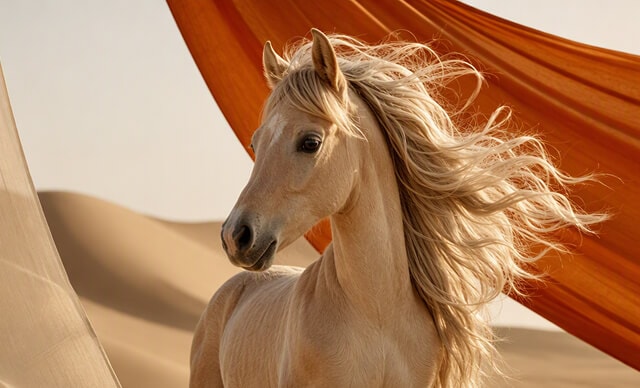

 Text-to-Video


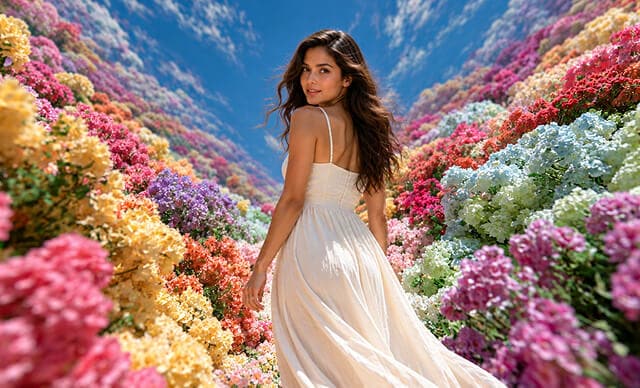

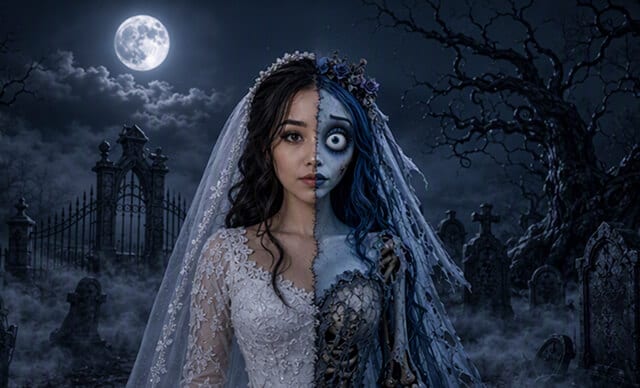

 Text-to-Image


FAQs on Nano Banana 2 in Filmora

Edit as an Expert
with Filmora & AI.
Bring precise editing and AI-assisted tools together in a workflow optimized for Mac.