NANO BANANA PRO in Filmora:
What It Is & How to Use It
Nano Banana Pro is Google's precision image model (Gemini 3 Pro Image), built for final-quality renders up to 4K with style that stays locked across a set. Use it inside Filmora's AI Image Generator — no separate subscription, and results drop straight onto your timeline.
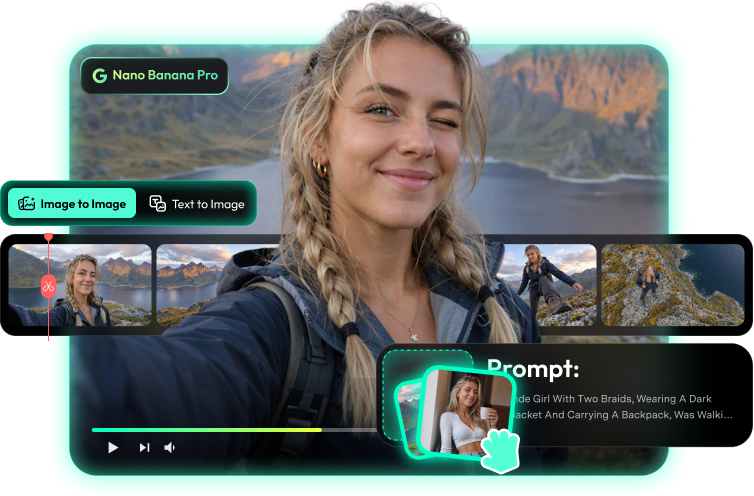


What is Nano Banana Pro?
What it is
Nano Banana Pro is Google's Gemini 3 Pro Image model, made for precision: 4K output, style-locked sets, and text that holds up at print sizes. Draft the composition, then render the final at full resolution. In Filmora, it's built into AI Image Generator — generate, retouch, and export or drop it on the timeline.
How it stands out
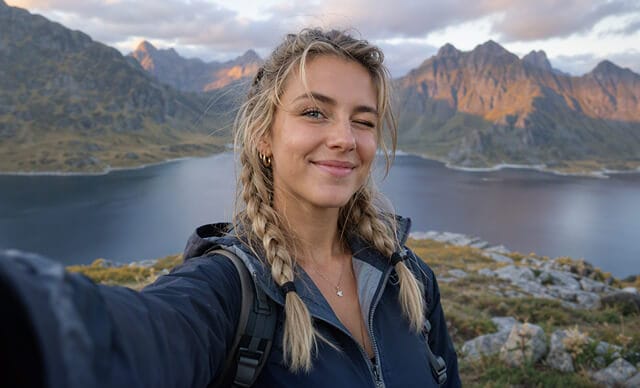
Compared with other image models, Nano Banana Pro stands out for precision-grade consistency and 4K output — the pairing that makes key visuals, posters, and brand systems feasible end to end. Filmora adds the same-timeline polish on top.
[Highlight 1] 4K final output
Render finished art up to 4K — sharp enough for posters, print layouts, and full-screen key visuals.
[Highlight 2] Style-locked sets
Fix a style once and reuse it across a whole campaign — palette and rendering stay consistent image to image.
[Highlight 3] Text-safe layouts
Headlines and labels render cleanly at large sizes, so posters and covers ship without a redesign pass.
Key features & specs

Best use cases for Nano Banana Pro
Key visuals & 4K finals
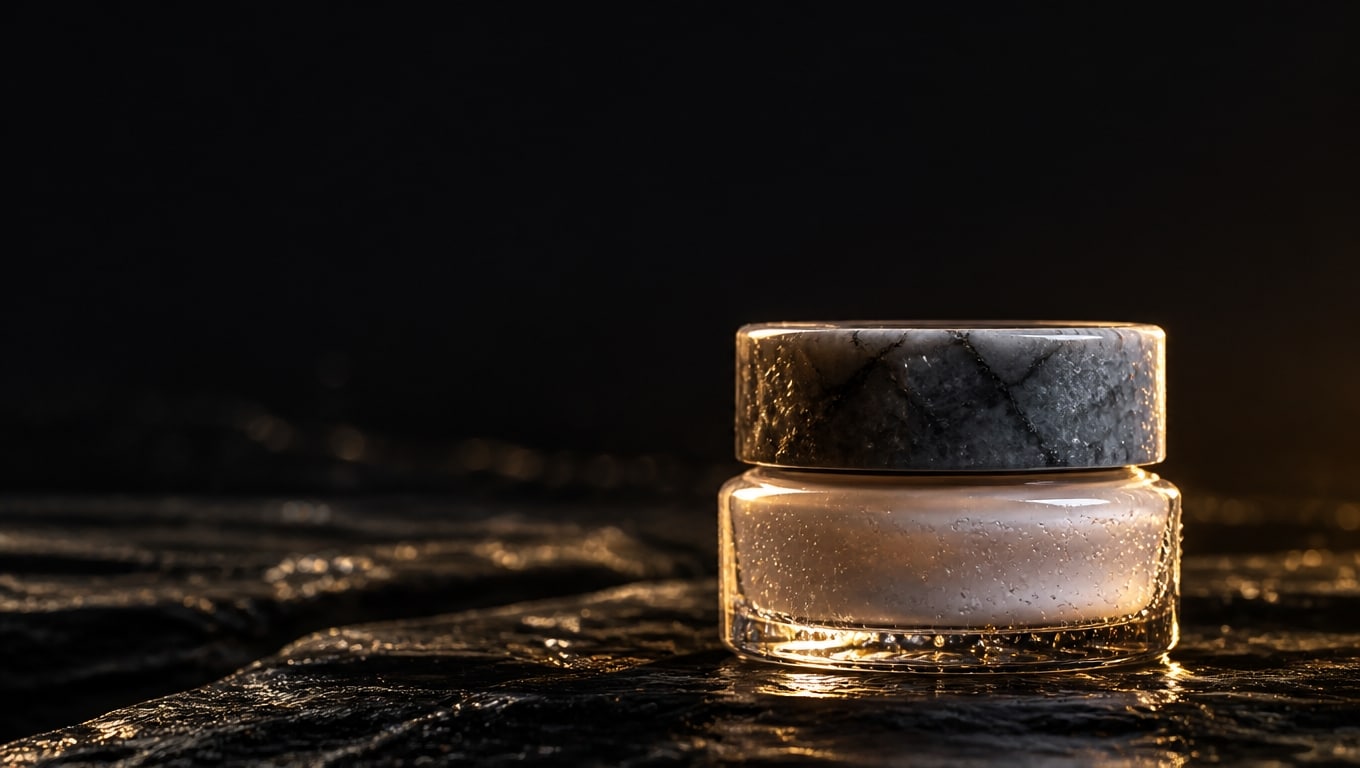
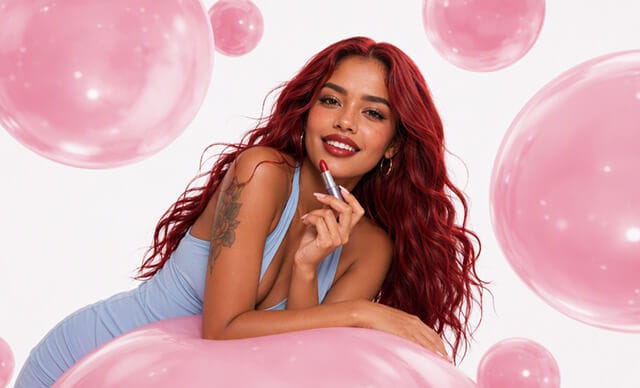
Campaign hero images rendered at full resolution — product shots, hero art, and end cards that stay sharp on large screens.

Poster & print layouts
Posters and covers with text that survives print size — quote the headline, set the layout, and render the final at 4K.
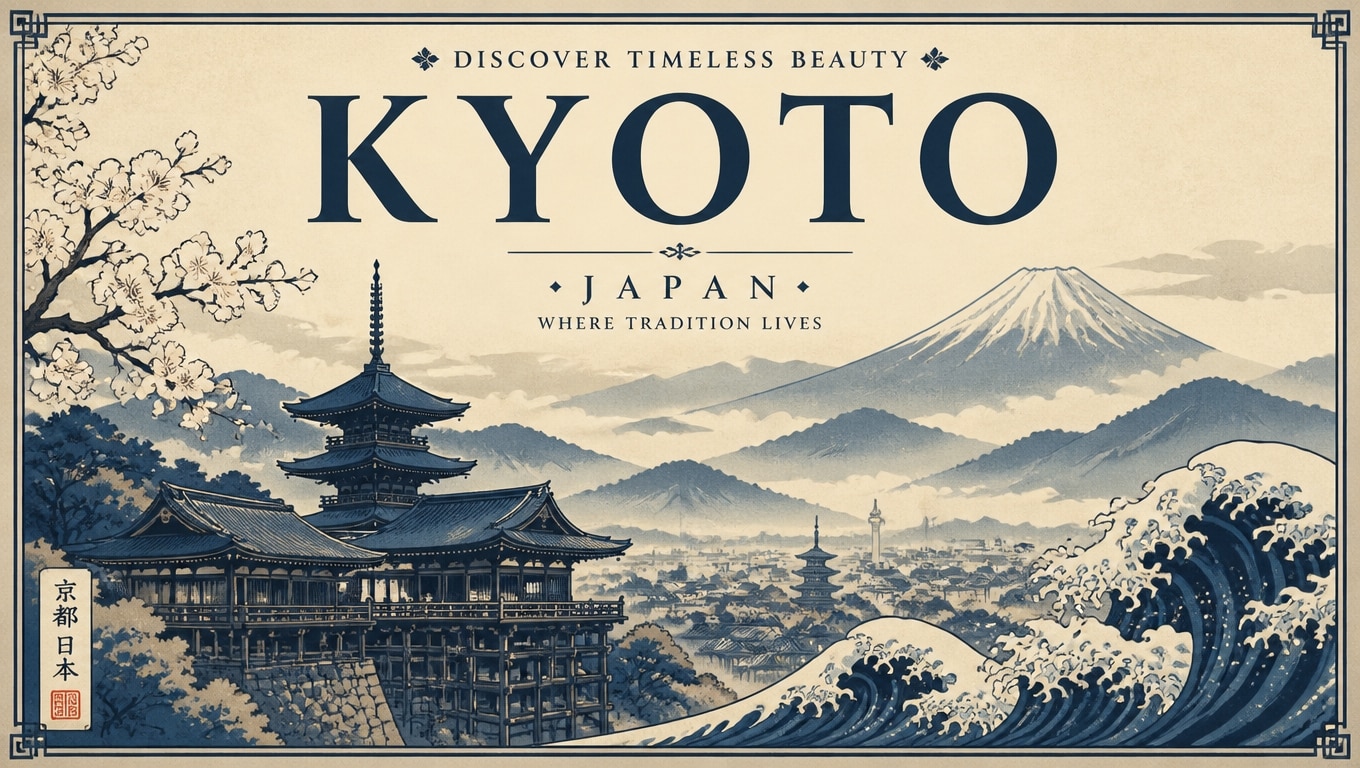
Brand systems
Lock a style once, then generate a whole set — social tiles, thumbnails, banners — that reads as one campaign from image to image.
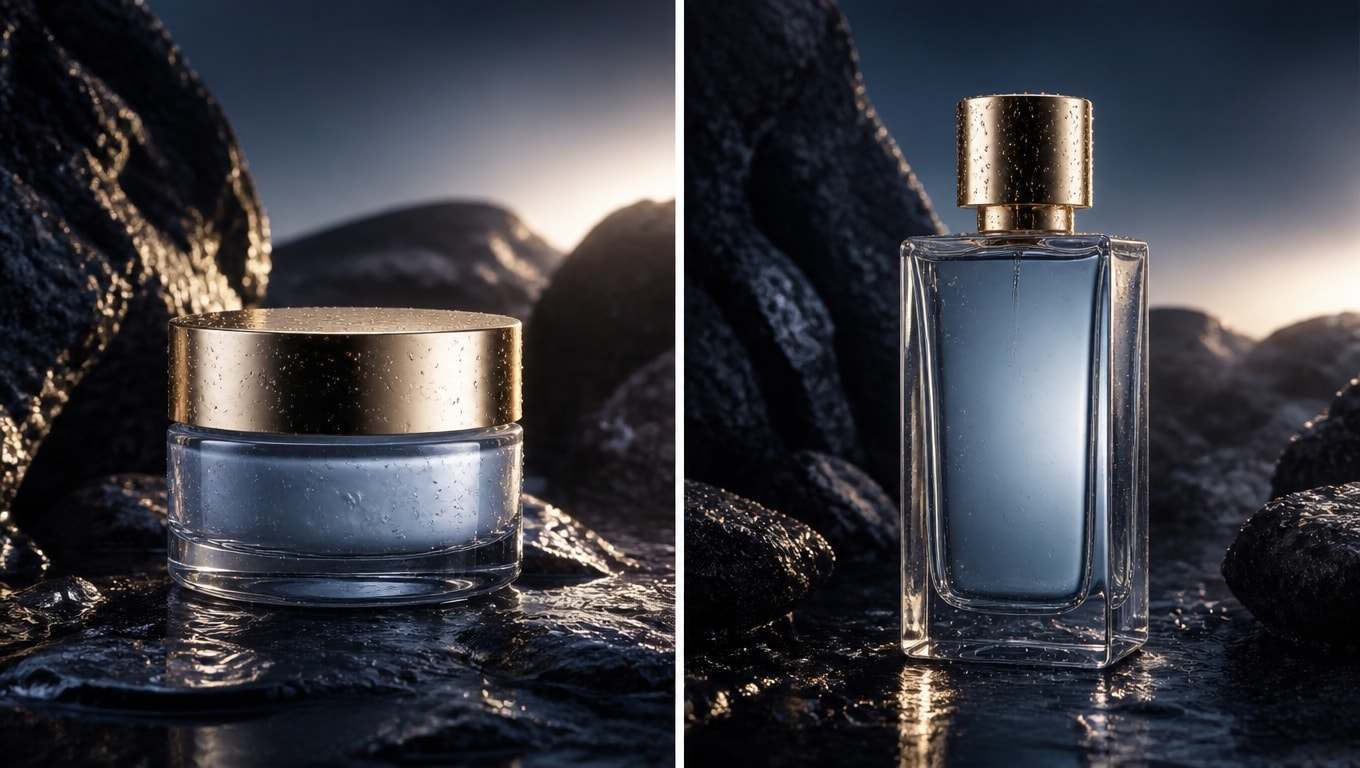
Writing prompts for Nano Banana Pro

Template 1 · 4K product hero
Text to Image
Template 2 · Print-poster typography
Image to Image
Template 3 · Style-transfer set starter
Text to Image
How to use Nano Banana Pro in Filmora
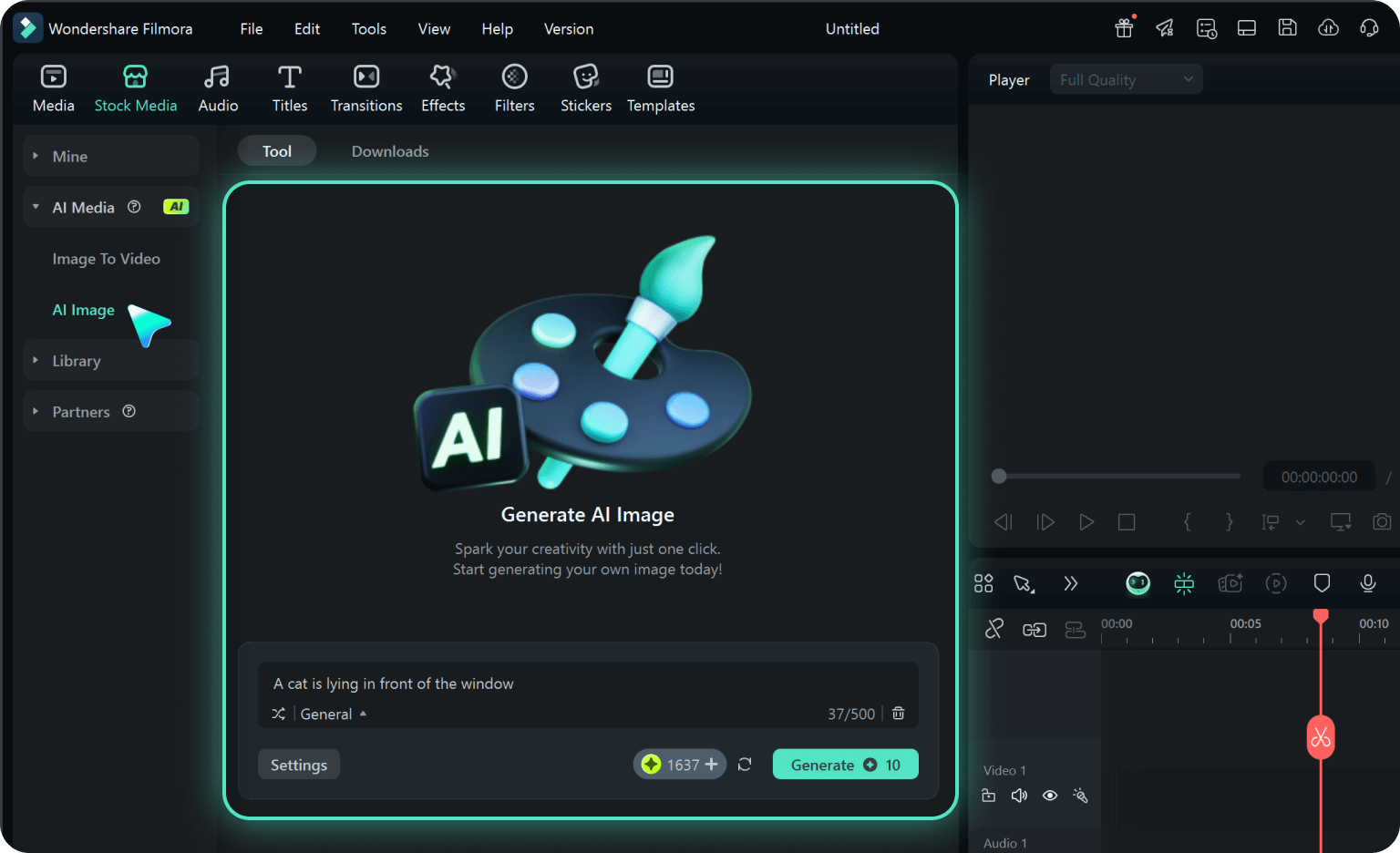
Step 1. Open AI Image Generator in Filmora
Launch the latest version of Filmora, create a project, and click "Stock Media", choose "AI Image" from the Media panel.
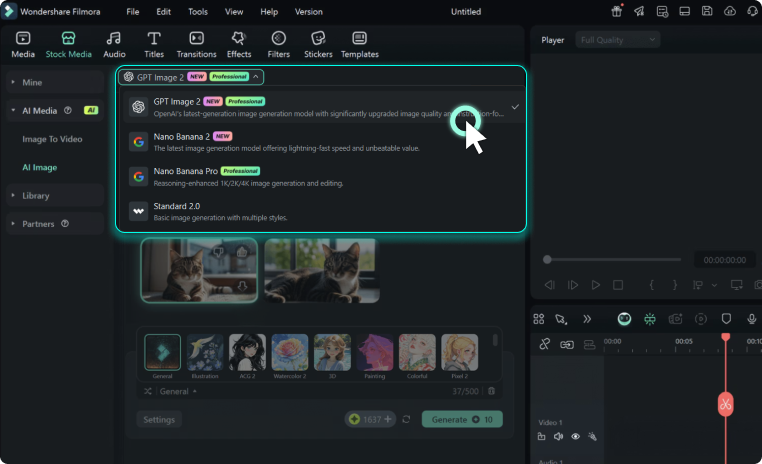
Step 2.Generate Images From Text or Image
Enter your prompt or upload an image. Choose a model: Nano Banana 2 (fast), Nano Banana Pro (artistic), or GPT Image 2 (creative). Set resolution and click "Generate".
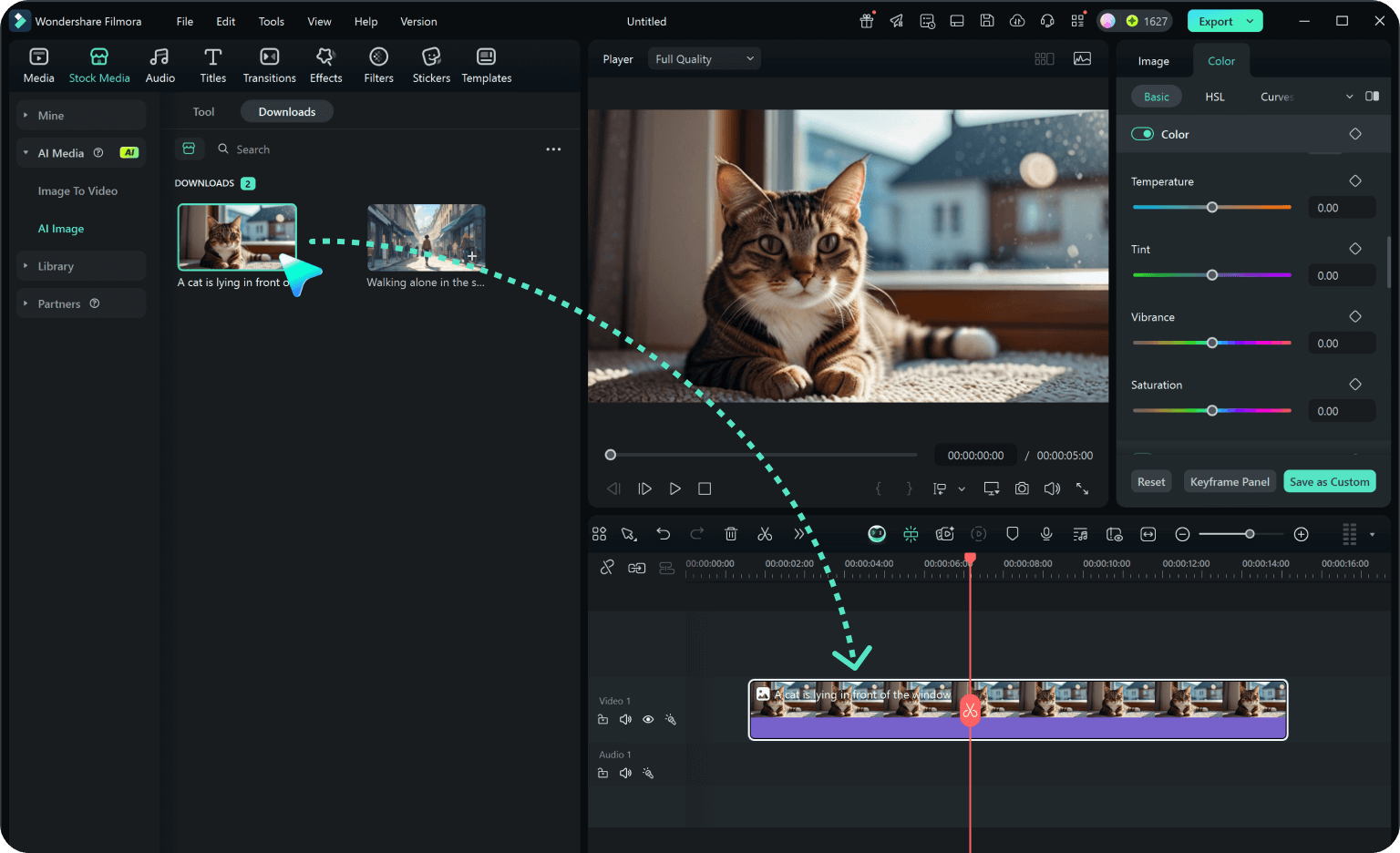
Step 3. Adjust and Export Your AI-Generated Images
Adjust settings like art style, lighting, and composition until satisfied. You can drag your AI image straight into your video timeline or directly export it.
-
Step 1. Open AI Image Generator in Filmora
Launch the latest version of Filmora, create a project, and click "Stock Media", choose "AI Image" from the Media panel.
-
Step 2.Generate Images From Text or Imageo
Enter your prompt or upload an image. Choose a model: Nano Banana 2 (fast), Nano Banana Pro (artistic), or GPT Image 2 (creative). Set resolution and click "Generate".
-
Step 3. Adjust and Export Your AI-Generated Images
Adjust settings like art style, lighting, and composition until satisfied. You can drag your AI image straight into your video timeline or directly export it.
More AI models to explore
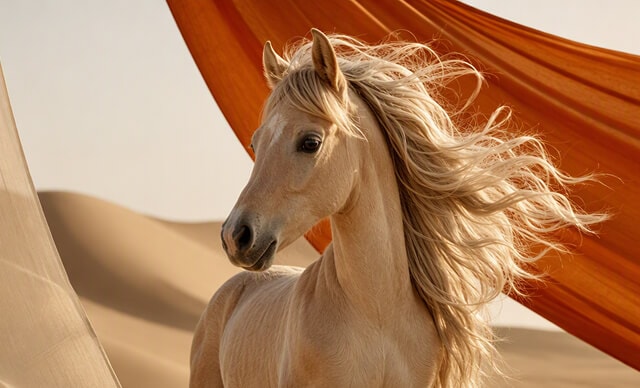

 Text-to-Video


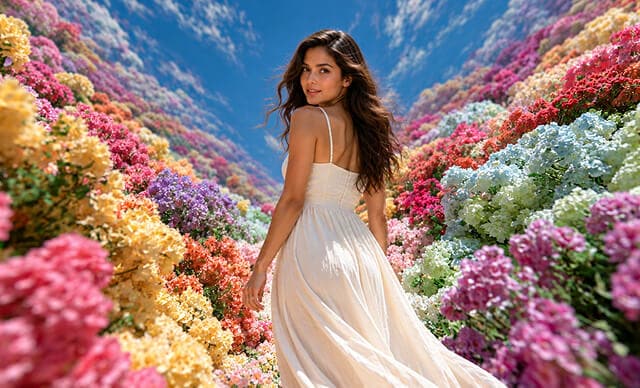

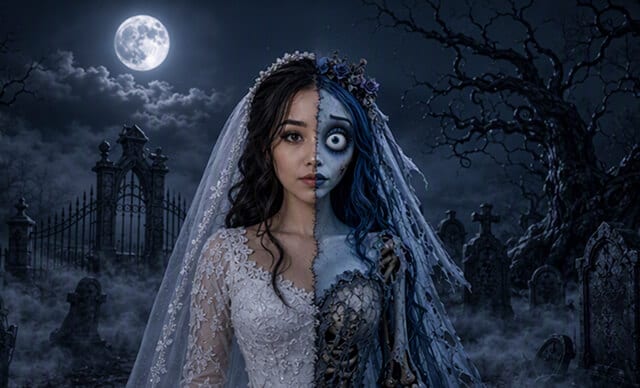

 Text-to-Image


FAQs on Nano Banana Pro in Filmora

Edit as an Expert
with Filmora & AI.
Bring precise editing and AI-assisted tools together in a workflow optimized for Mac.