TOMOVIEE 2.5 PRO in Filmora:
What It Is & How to Use It
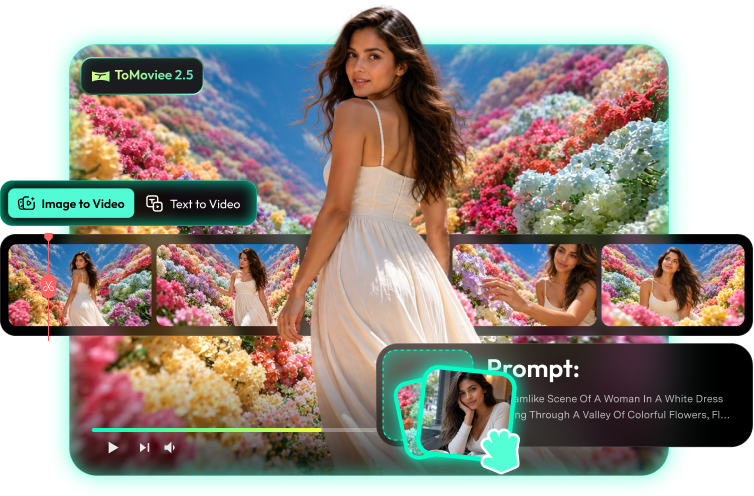
ToMoviee 2.5 Pro is an all-in-one creative model that turns text and images into short clips in seconds — with template editing, clip extension, and Auto BGM built in. Use it inside Filmora's AI Text to Video and Image to Video — no separate subscription, edit on the same timeline.


What is ToMoviee 2.5 Pro?
What it is
ToMoviee 2.5 Pro is an all-in-one creative model that turns text or images into short video clips in seconds. Start and end frames steer the motion, clips can be extended frame by frame without reshooting, and background music is generated from the footage itself. In Filmora, it's built into AI Text to Video and AI Image to Video — generate, then edit on the same timeline.
How it stands out
Compared with other video models, ToMoviee 2.5 Pro stands out for speed and flexibility — fast template-driven generation, frame-by-frame clip extension, and Auto BGM that reads the footage. Filmora adds the same-timeline polish on top.
[Highlight 1] Fast, template-driven output
Short prompts and preset templates turn everyday ideas into posts in minutes — intros, unboxings, recaps — without babysitting settings.
[Highlight 2] Clip extension without reshoots
Feed a clip back in and the model continues it frame by frame — motion and lighting stay matched, so scenes run longer naturally.
[Highlight 3] Auto BGM from the footage
Drop in footage and get a soundtrack that fits — the model reads pacing and mood, then lays down matching music.
Key features & specs

Best use cases for ToMoviee 2.5 Pro
Quick social cuts
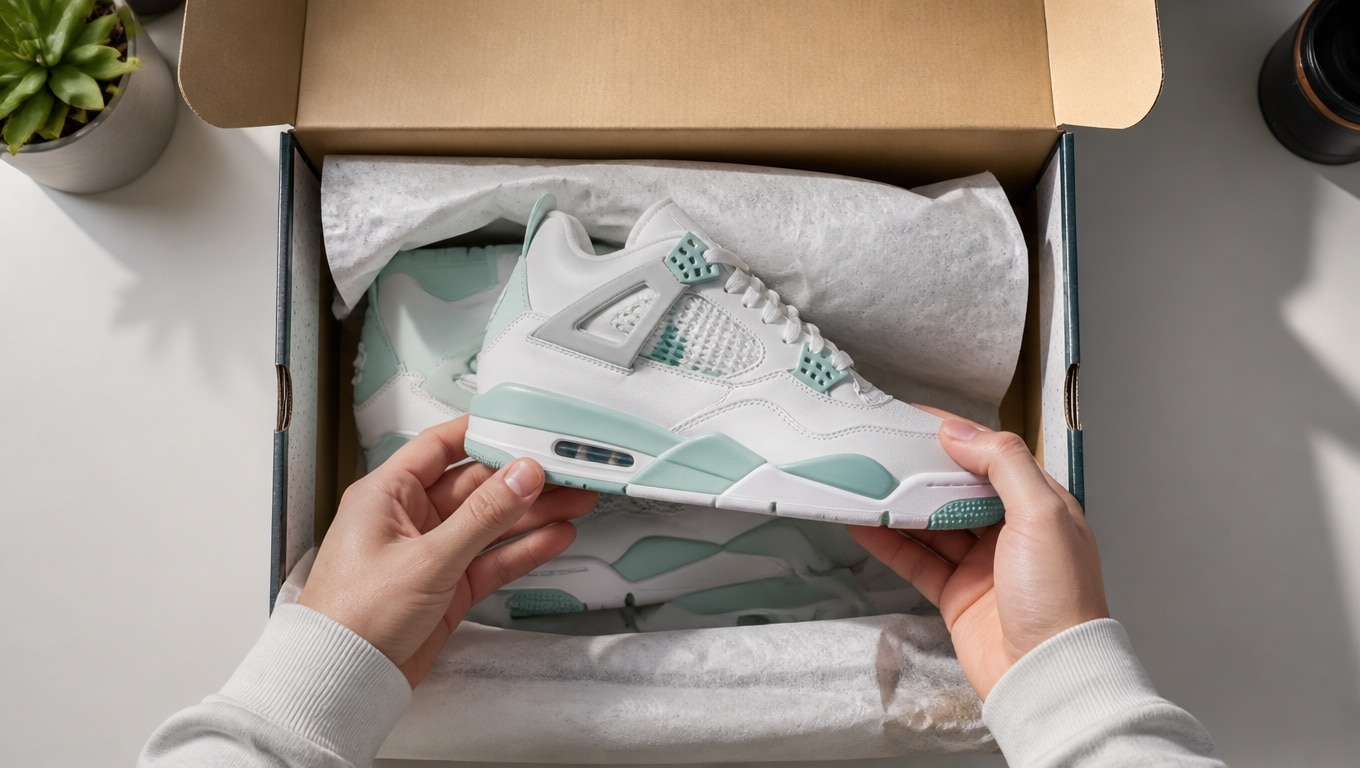
Short prompts and preset templates turn daily ideas into posts in minutes — unboxings, event teasers, storefront clips. Generate fast, iterate faster, and drop the take straight onto the Filmora timeline.

Video extension
Have a clip that ends too soon? Feed it back in and the model continues it frame by frame — motion and light stay matched. Extend b-roll, intros, or product spins without reshooting anything.
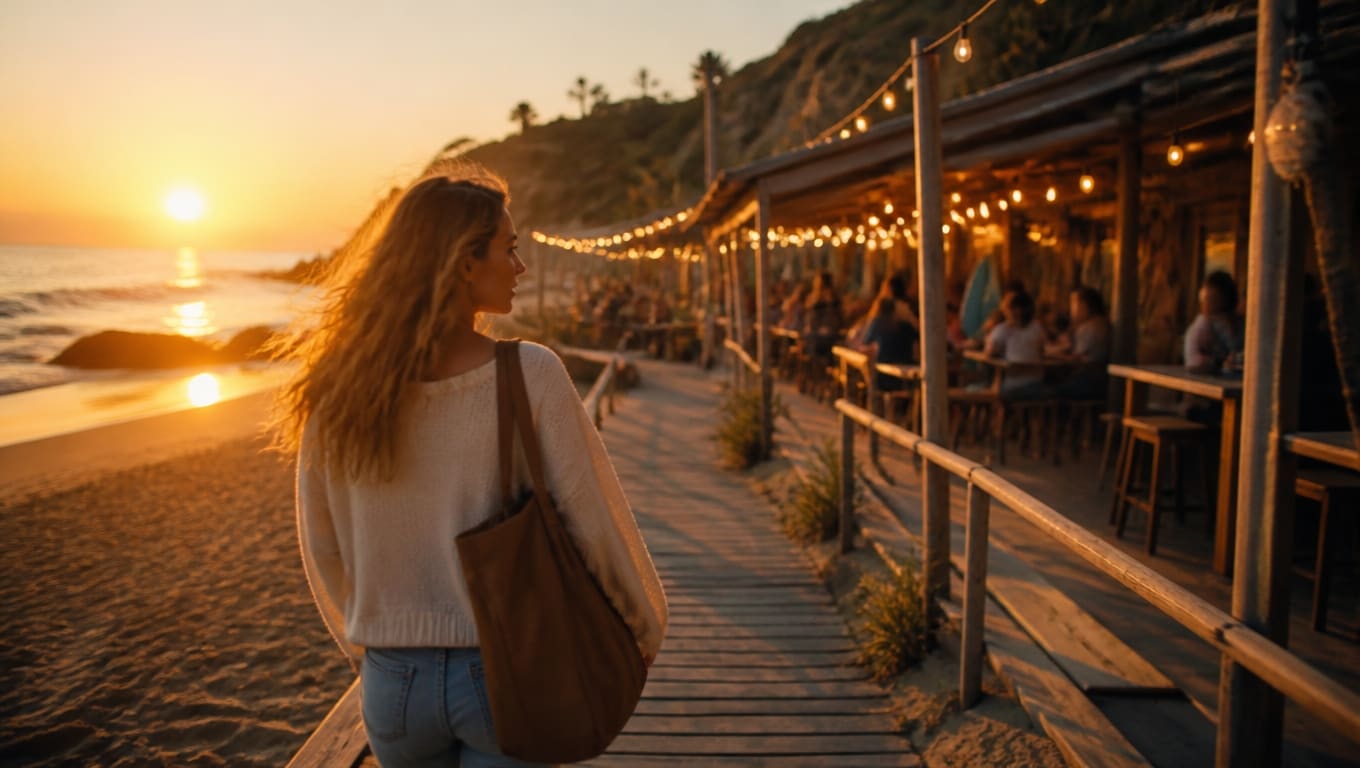
Auto-BGM promos
Drop in footage and the model scores it — Auto BGM reads pacing and mood and lays down music that fits. Event recaps, promos, and montage reels come out with a soundtrack already on.
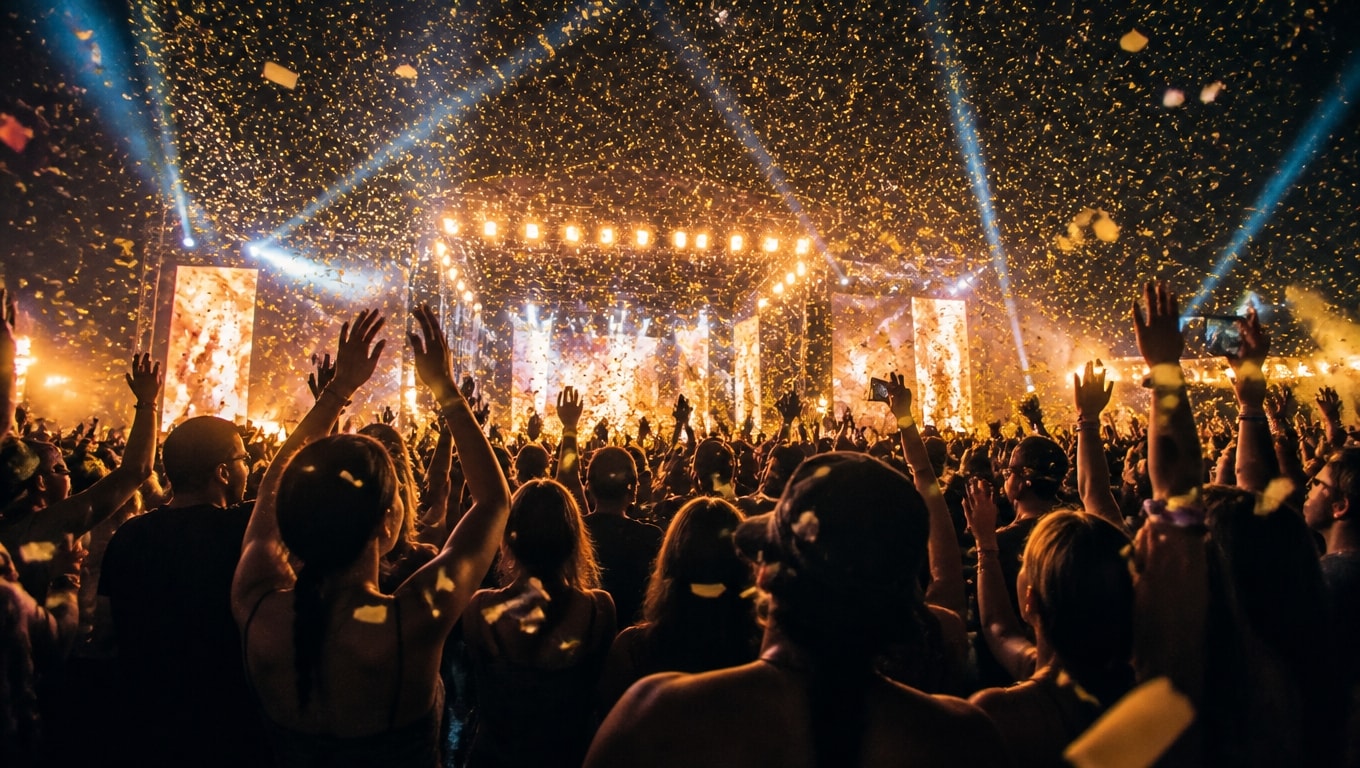
Writing prompts for ToMoviee 2.5 Pro

Template 1 · Basic structure
Text to Video
Template 2 · Cinematic camera-led
Image to Video
Template 3 · Music-led (Auto BGM)
Text to Video
How to use ToMoviee 2.5 Pro in Filmora
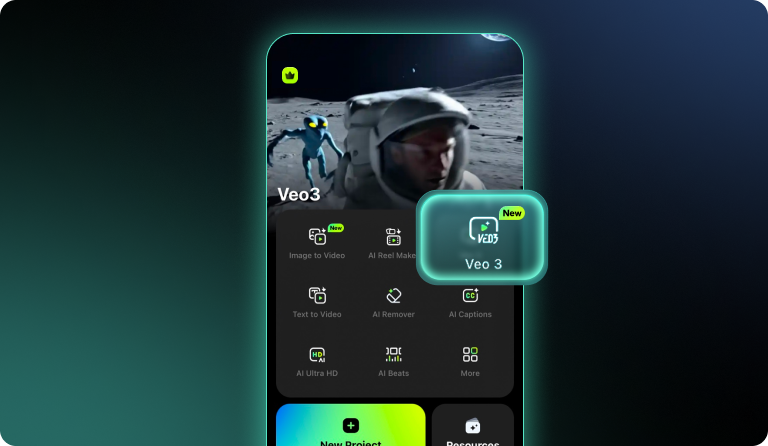
Step 1. Enter or Create a Prompt
Describe the scene you want to bring to life. If you need ideas, click "Generate with AI" to get an AI-crafted video prompt instantly.
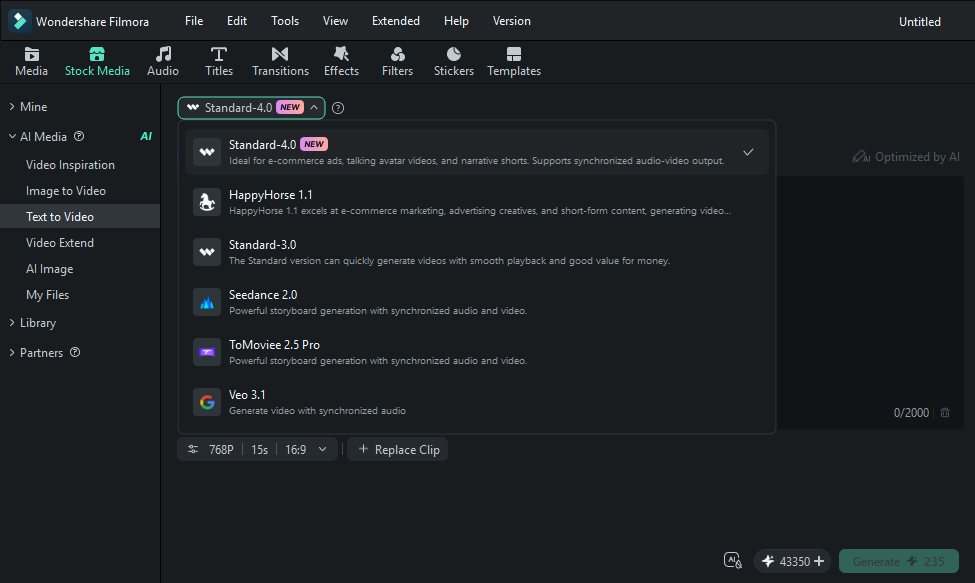
Step 2.Generate the Video
Select your desired AI Model, then hit "Generate". Filmora will turn your prompt into a cinematic video automatically, with no additional settings required.
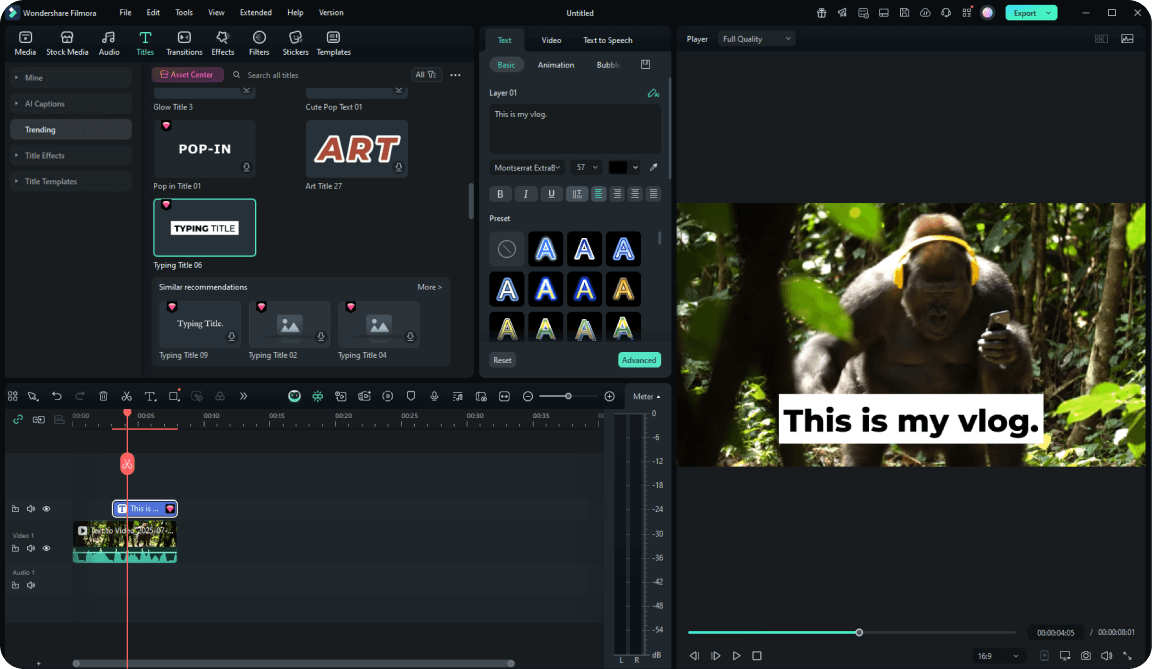
Step 3. Edit and Enhance Your Video
Preview your generated video and polish it in Filmora's built-in editor. Trim clips, add text, apply effects, include music, and customize your video to make it your own.
-
Step 1. Enter or generate a prompt
Describe the scene you want to bring to life. If you need ideas, click "Generate with AI" to get an AI-crafted video prompt instantly.
-
Step 2.Generate the Video
Select your desired AI Model, then hit "Generate". Filmora will turn your prompt into a cinematic video automatically, with no additional settings required.
-
Step 3. Edit and Enhance Your Video
Preview your generated video and polish it in Filmora's built-in editor. Trim clips, add text, apply effects, include music, and customize your video to make it your own.
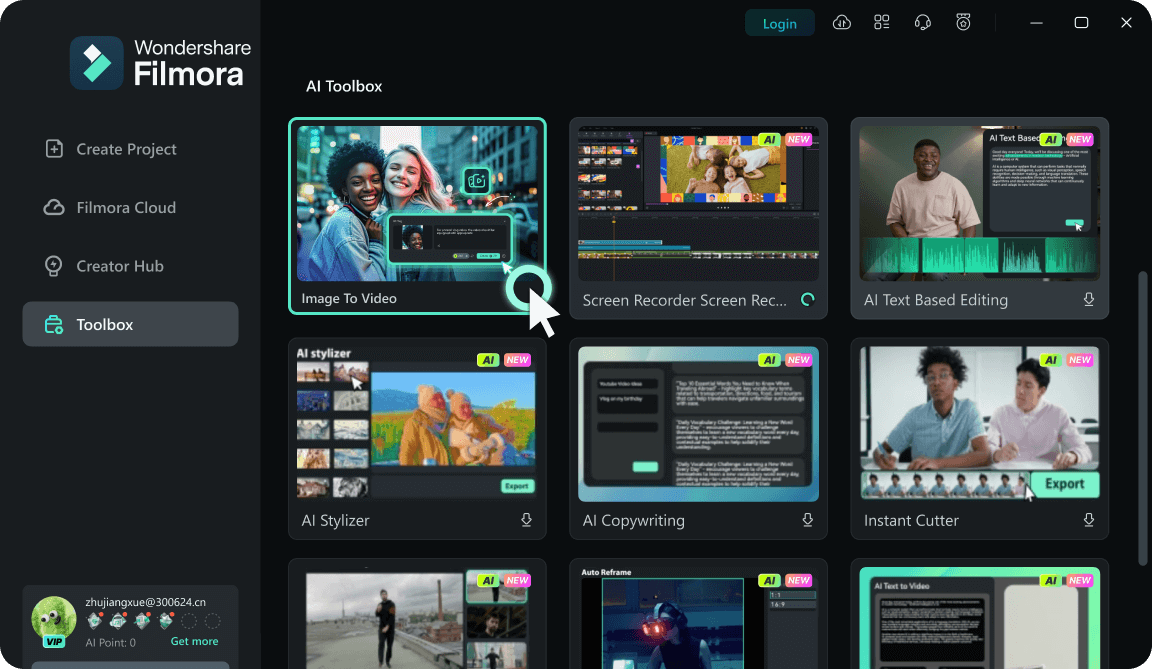
Step 1. Upload Your Images
Open the Image to Video feature in Filmora's short video editing mode. Upload one or more images to get started.
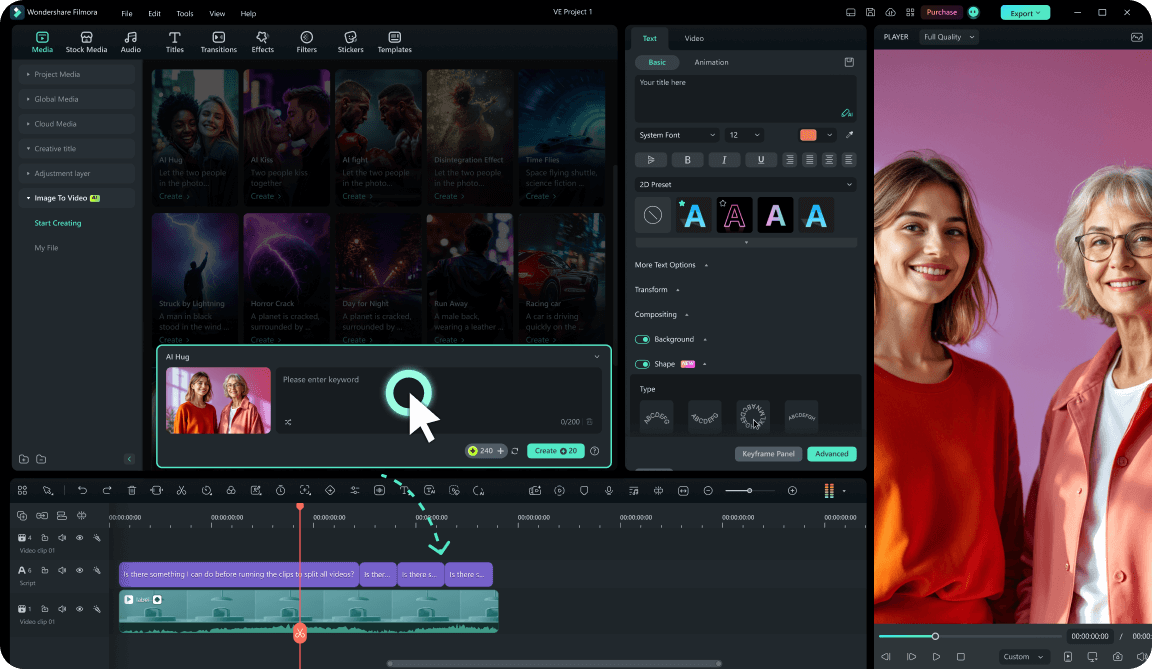
Step 2.Choose an AI Model and Effect
Select your desired AI Model. Then choose a preset effect like AI Kiss, AI Hug, or AI Fight, or enter your own prompt for a personalized result.
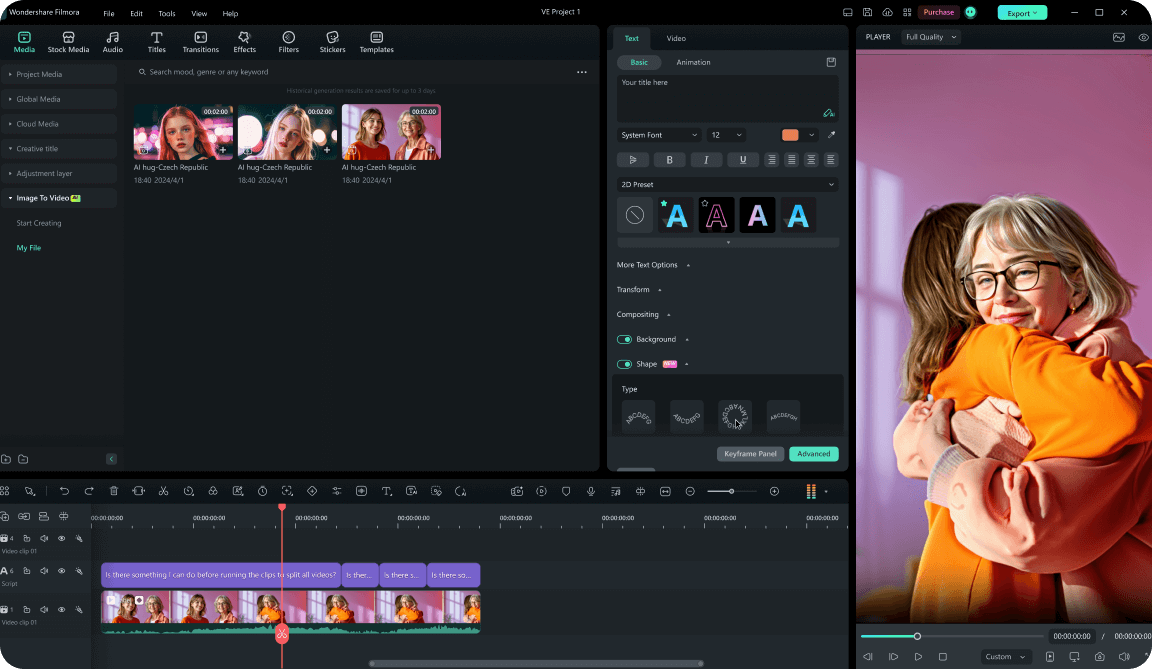
Step 3. Edit or Export Your Video
Let Filmora turn your images into an animated AI video. Preview the result, make further edits on the timeline, or export your video directly.
-
Step 1. Upload Your Images
Open the Image to Video feature in Filmora's short video editing mode. Upload one or more images to get started.
-
Step 2.Choose an AI Model and Effect
Select your desired AI Model. Then choose a preset effect like AI Kiss, AI Hug, or AI Fight, or enter your own prompt for a personalized result.
-
Step 3. Edit or Export Your Video
Let Filmora turn your images into an animated AI video. Preview the result, make further edits on the timeline, or export your video directly.
More AI models to explore
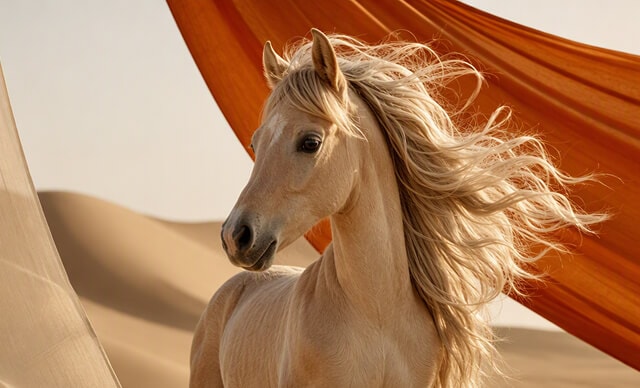

 Text-to-Video
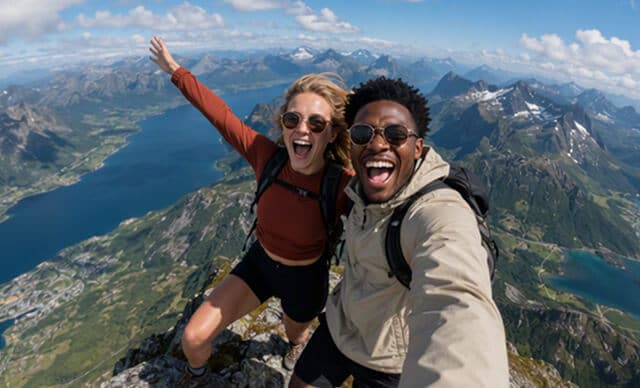

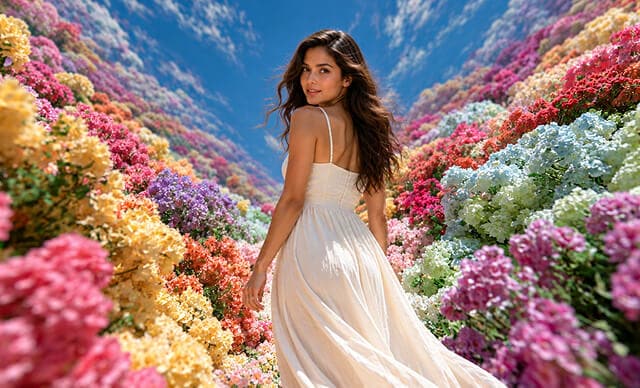

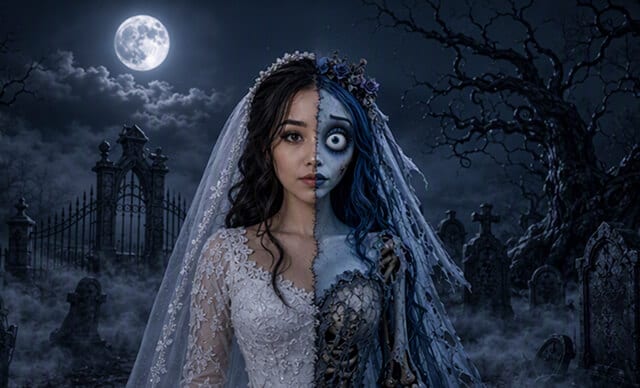

 Text-to-Image


FAQs on ToMoviee 2.5 Pro in Filmora

Edit as an Expert
with Filmora & AI.
Bring precise editing and AI-assisted tools together in a workflow optimized for Mac.