Why Use the Pen Tool for Your 2026 Videos
The Pen Tool combines Motion Paths and Line Reveals, making it easy to create dynamic New Year videos with curved line reveals, outline animations, glowing light trails, and smooth follow-path motion.


Light Trail Path
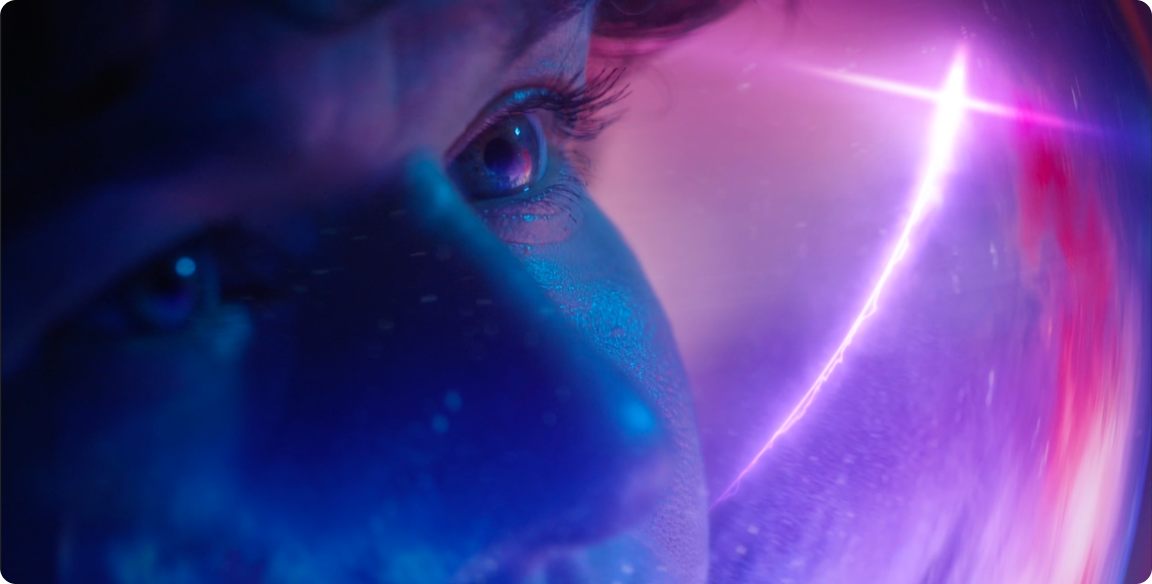
Light Trail Path
glowing curved path that brings movement, rhythm, and energy to your visuals.
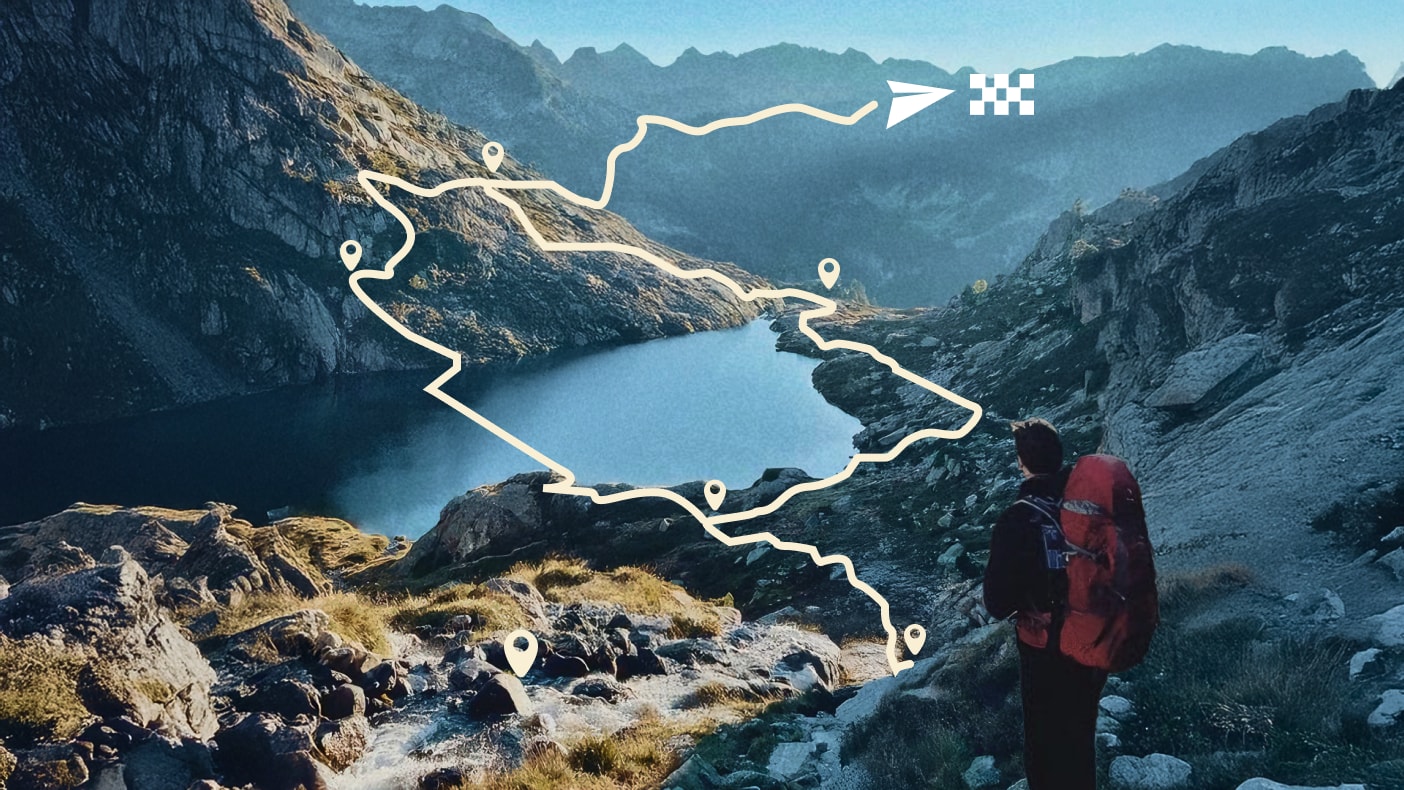
New Year Effects You Can Create Instantly
From glowing lines to dynamic paths — bring your 2026 ideas to life instantly.
Draw your 2026
How To Use Pen Tool To Create Animations
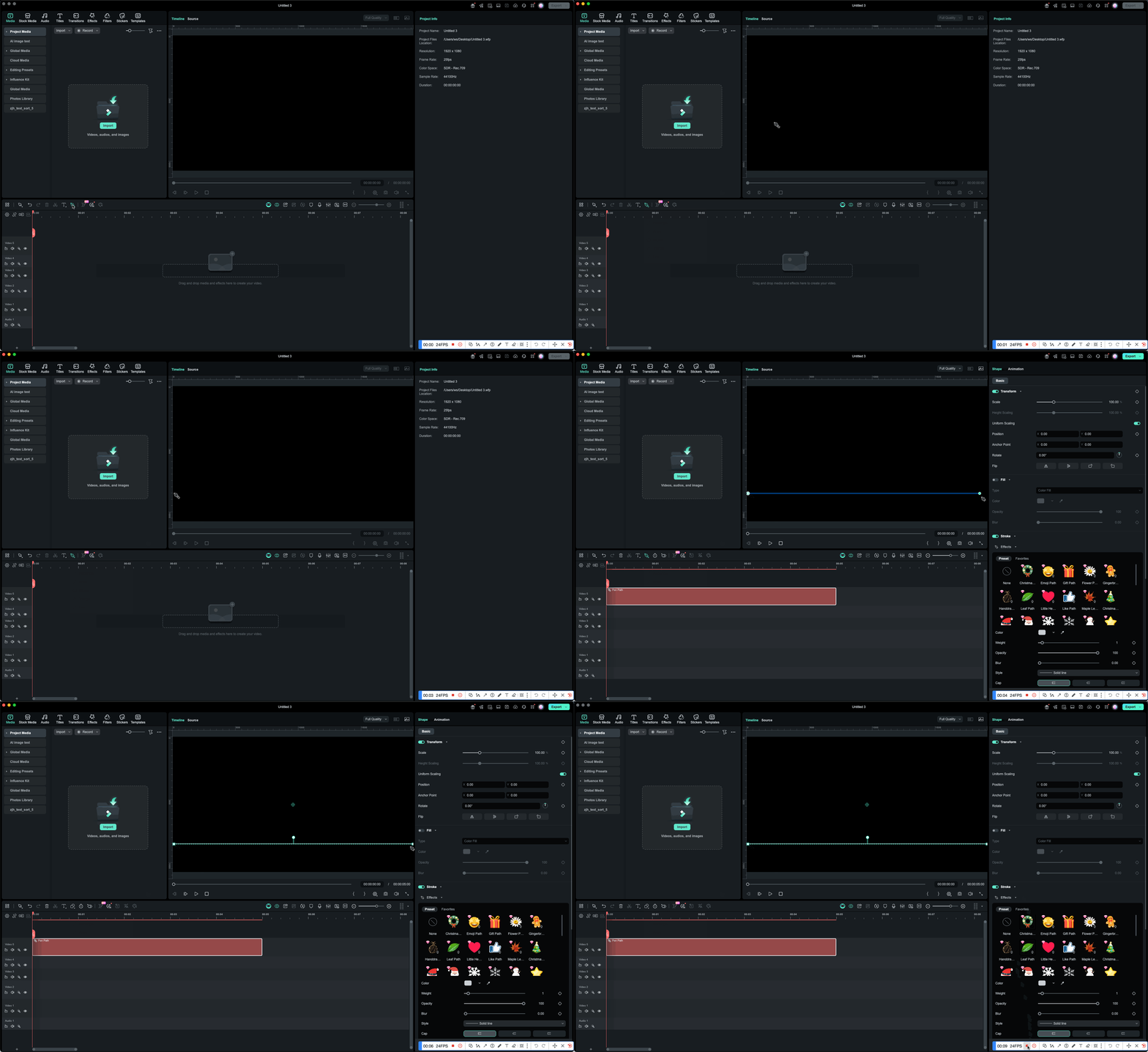
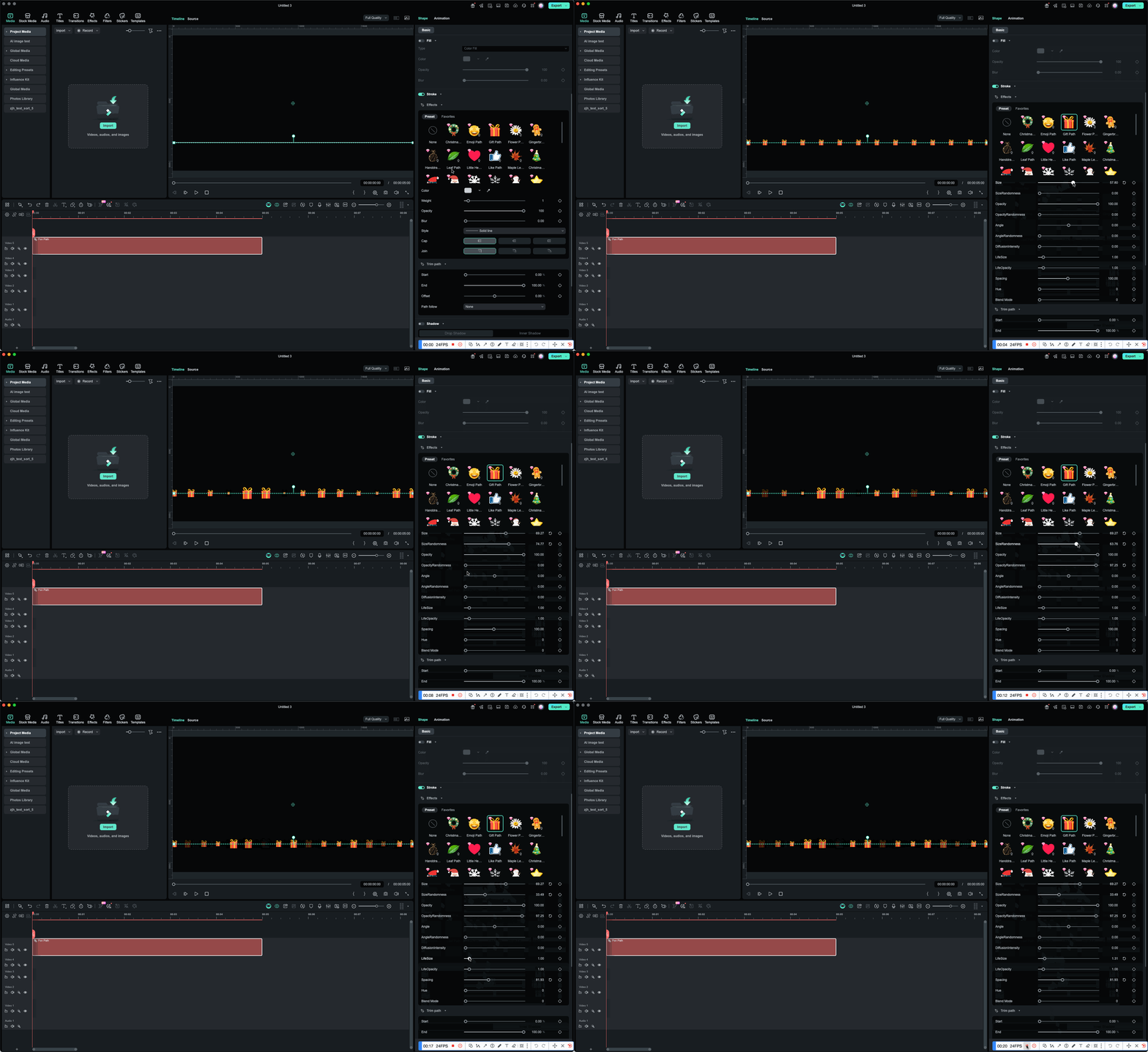
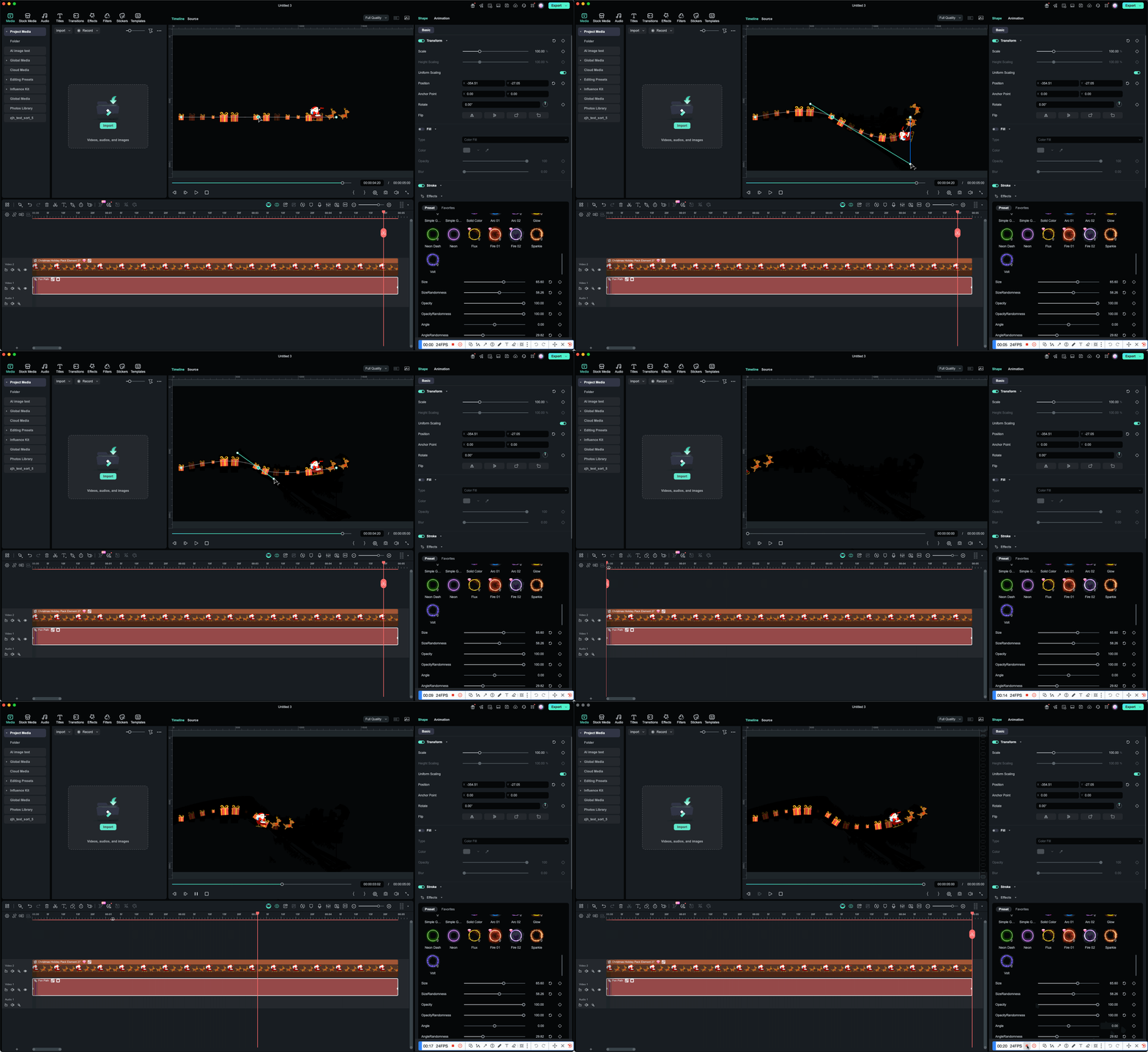
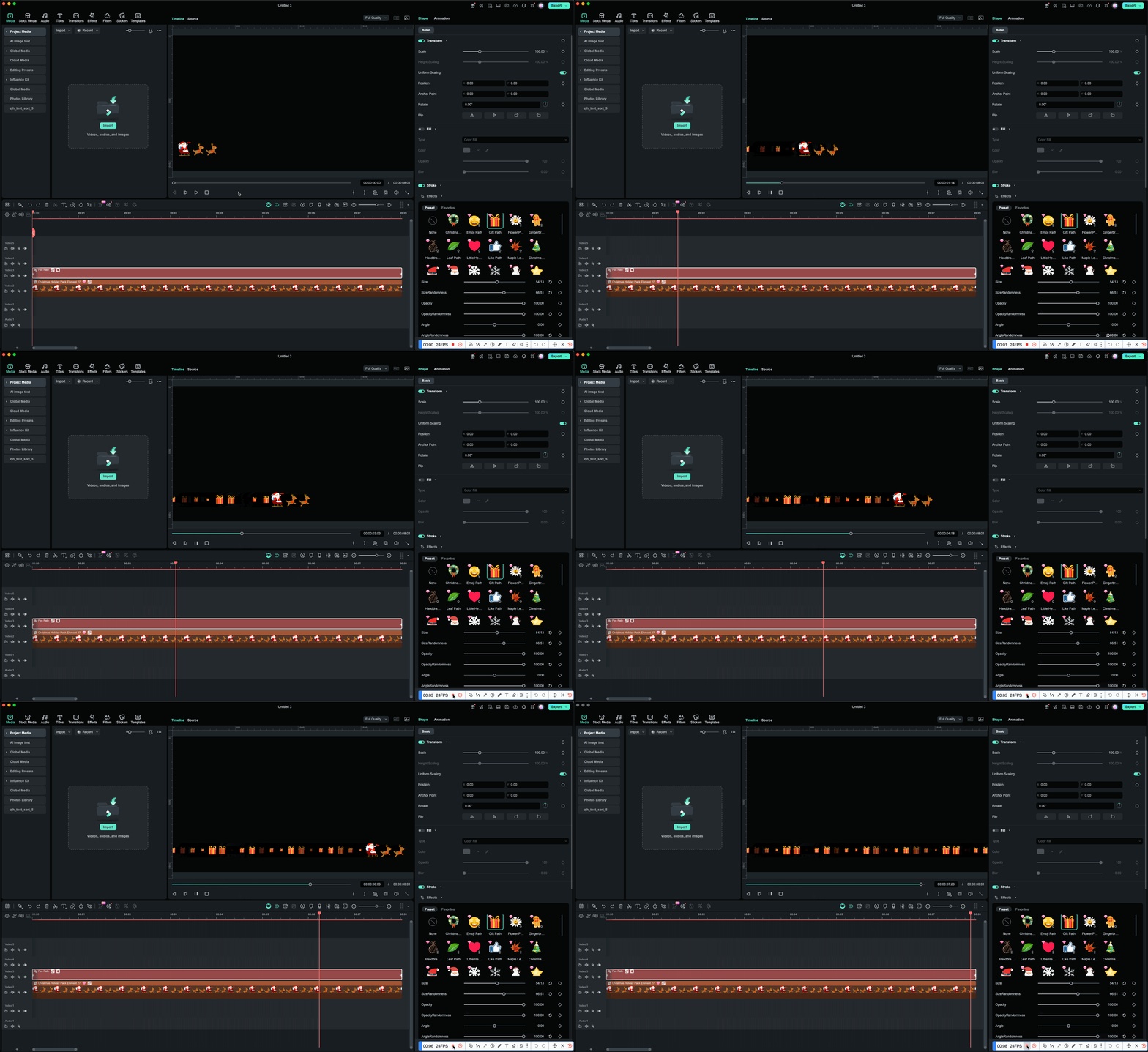
Simply draw a path and turn it into smooth motion and glowing reveals for your 2026 wishes—completed in four steps.
Step 1. Connect Your Monitors
Connect your second monitor to your computer and configure it in your system display settings. Ensure both monitors are detected and arranged correctly.
Step 2. Launch Filmora
Open Filmora and navigate to Preferences → Display Settings. Filmora will automatically detect your dual monitor configuration and suggest optimal layouts.
Step 3. Choose Your Layout
Select from preset dual monitor layouts or create your own. Drag panels between monitors to customize. Popular setup: Timeline + Tools on primary, Preview + Media on secondary.
Step 4. Start Editing
Your dual monitor video editing setup is now ready! Start editing with maximum efficiency and screen space.
-
Step 1: Select Pen Tool
Access the built-in pen tool from Filmora's toolbar. No installation or plugin required. -
Step 2: Draw Your Path
Click to create anchor points and draw your custom path. Use keyboard shortcuts for faster workflow. -
Step 3: Apply Effects
Customize stroke properties, add effects, or set up path follow animations for your elements. -
Step 4: Fine-tune with Keyframes
Use keyframes to control timing, add path trimming effects, and perfect your animation.
Get Inspired. Start Drawing Your 2026
Bring your New Year story to life with motion paths, glowing lines, and hand-drawn animations.
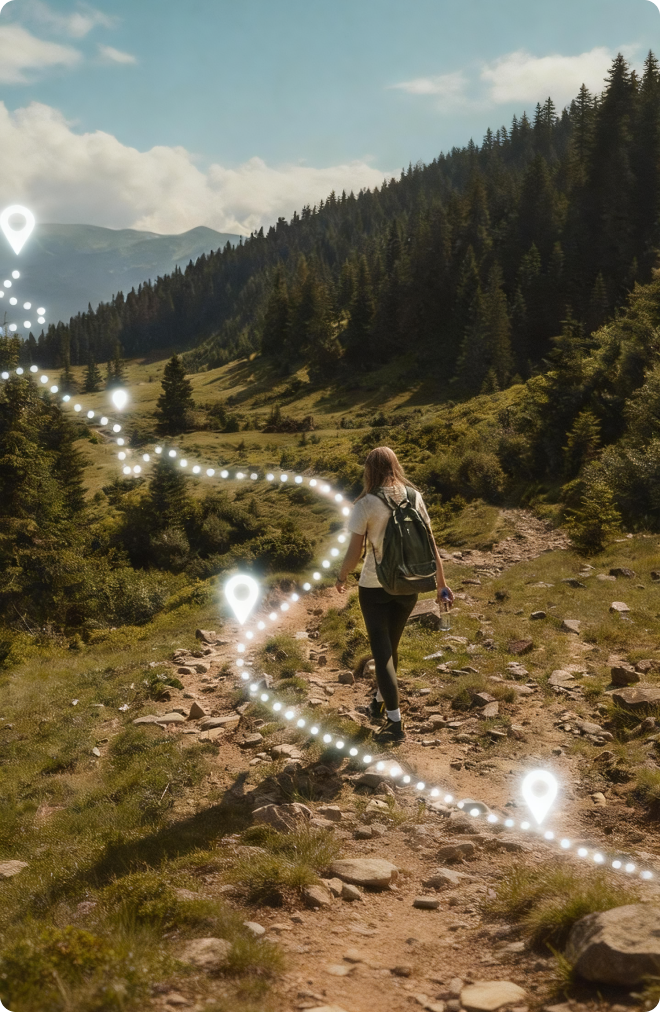
Travel 2026
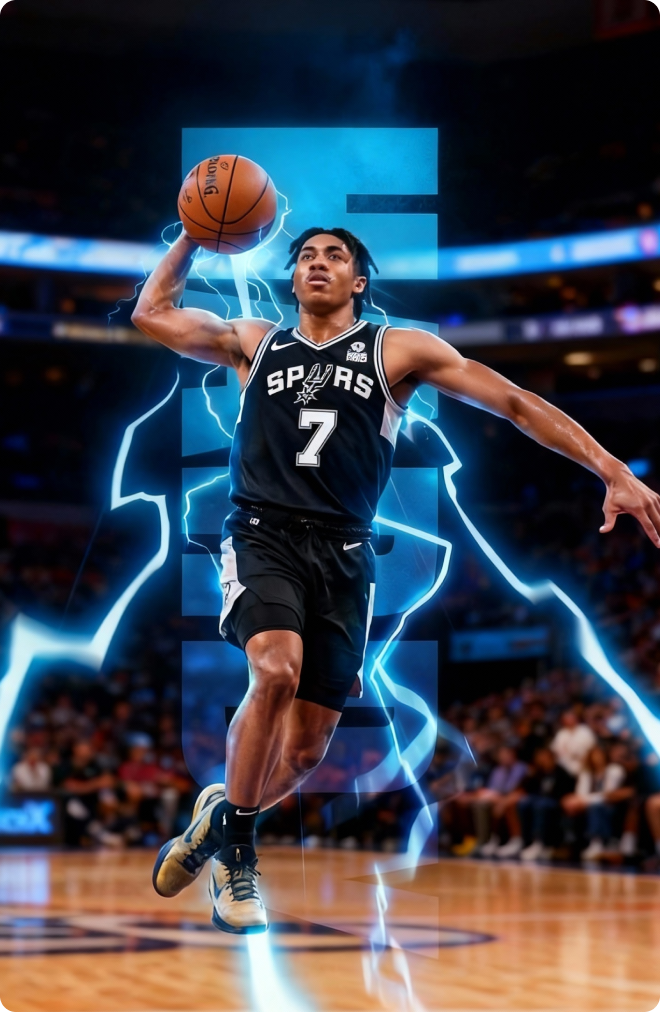
Fitness Goals
Create Glowing Paths

Happiness Moments
FAQs on Filmora's Pen Tool
What is the pen tool in Filmora?
The pen tool in Filmora is a built-in feature that allows you to draw custom paths, create stroke effects, and animate elements along paths. It's specifically designed for video editing, making it easy to create professional path follow animations, annotations, and visual effects without any external plugins.
Do I need to install any plugins to use the pen tool for video?
No! The pen tool is built into Filmora —no plugins, no external downloads, no additional costs. Everything you need for creating path animations is already integrated into the software, which means zero compatibility issues and instant access.
Is the pen tool difficult to learn for beginners?
Not at all. The pen tool Filmora offers an intuitive interface designed for creators of all skill levels. Most users create their first path animation within 5 minutes. The tool includes helpful keyboard shortcuts, real-time preview, and step-by-step guidance to make the learning process smooth and enjoyable.
What types of animations can I create with path follow?
You can create a wide variety of animations: animated text and titles following custom paths, travel routes on maps, product showcase effects with light trails, educational annotations and emphasis, character or object motion along paths, logo reveals, and complex kinetic typography. The possibilities are endless!
Can I use keyboard shortcuts with the pen tool?
Yes! The pen tool supports comprehensive keyboard shortcuts for all major functions including tool selection, anchor point creation, path editing, and preview controls. These shortcuts can save you up to 40% of editing time once you master them.