
- • VR/360 video user guide
- 1. What's VR
- 1.1 360 degree video user guide
- 2. How to create 360 video
- 2.1 How to shoot 360 degree video
- 2.2 Choose 360 degree camera
- 2.3 Create 360 degree video with GoPro
- 2.4 360 video rigs for GoPro
- 2.5 Stitchig software for 360 degree view
- 3. VR Players and headsets
- See more
- 4. VR resources
- See more
Things you must know before using gopro to create 360 degree videos

Nov 03, 2026• Proven solutions
 TL;DR:
Creating 360-degree videos with a multi-camera GoPro rig requires synchronizing multiple recordings and managing specific physical and technical limitations to prevent post-production stitching errors.
● Keep subjects at a sufficient distance and away from lens overlap boundaries to prevent visible stitching flaws like broken objects or mismatched edges.
● Verify battery levels, available storage, and synchronization across every mounted camera before shooting, as a single camera failure will leave missing parts in the spherical scene.
● Export the successfully stitched footage as an interactive 360 video where viewers control the perspective, or reframe it into a standard flat video with a fixed viewpoint.
Ask AI for a summary
 ChatGPT
 Perplexity
 Gemini
 Claude
 Grok
Grok
GoPro cameras have played an important role in the development of action and immersive video. Before compact dual-lens 360 cameras became widely available, one common way to create spherical footage was to mount multiple GoPro cameras on a 360 rig, synchronize the recordings, and stitch the individual views together in post-production.
This multi-camera approach can capture an entire environment, but it also introduces challenges such as visible stitching seams, camera spacing, synchronization, battery management, and post-production complexity. If you plan to create 360-degree video with multiple GoPro cameras, understanding these limitations can help you get better results.
3 Important Things to Know Before Using GoPro Cameras to Create 360 Video
A conventional GoPro captures only part of the surrounding scene, so traditional GoPro-based 360 workflows use multiple cameras mounted in different directions. The individual recordings are then stitched together to create spherical footage.
When working with this type of multi-camera setup, keep the following factors in mind.
1. Watch for Stitching Gaps and Seams
When several GoPro cameras are mounted on a 360 rig, each camera records the scene from a slightly different position. The individual views must then be stitched together to create the complete spherical image.
If the cameras are positioned too far apart or subjects move through the overlap between lenses, visible stitching errors can appear. These may include broken objects, duplicated details, mismatched edges, or noticeable seams between different camera views.
Choosing a well-designed 360 rig and keeping important subjects away from stitching boundaries can help reduce these problems. Stitching software can correct some issues, but it cannot always completely compensate for poorly positioned cameras or difficult shooting conditions.
2. Keep Enough Distance Between the Camera and Your Subject
Very close subjects can be particularly difficult in a multi-camera 360 setup. Because each GoPro records the scene from a slightly different physical position, nearby objects may appear very different between adjacent cameras, making accurate stitching more difficult.
Whenever possible, leave enough distance between the camera rig and important subjects. The ideal distance depends on the rig, lens coverage, camera placement, and stitching workflow, so test your setup before recording important footage.
3. Monitor Battery, Storage, and Camera Synchronization
A multi-camera 360 rig requires every camera to keep recording correctly. If one GoPro stops because of a depleted battery, full storage, overheating, or another interruption, part of the spherical scene may be missing.
Before shooting, check the battery level, available storage, recording settings, and synchronization across all cameras. For longer sessions, plan how you will manage batteries and media without disrupting the recording.
Multi-camera GoPro setups can produce interesting immersive footage, but they require more preparation than recording with a single conventional camera. Testing the complete rig before the actual shoot can help identify stitching, exposure, synchronization, and battery problems in advance.
About 360 Video and GoPro
What Is 360-Degree Video?
360-degree video captures the surrounding scene across multiple directions instead of limiting the viewer to one fixed camera angle. When played as an interactive 360 video on a compatible platform, viewers can look around the spherical scene and choose where they want to look.
360 footage can be captured with dedicated dual-lens 360 cameras or created from multiple synchronized cameras positioned around a rig. In a multi-camera workflow, the individual recordings need to be stitched together to form the complete spherical image.
360 video can be used for travel and action content, virtual tours, events, training, education, simulations, immersive storytelling, and other situations where showing the surrounding environment provides additional context.
Using GoPro Cameras for 360 Video
GoPro cameras are widely associated with action and outdoor recording because of their compact form factor and wide-angle capture. Multiple GoPro cameras have also been used in specialized rigs to create 360-degree footage.
In this workflow, cameras are positioned to capture overlapping views around the rig. After recording, those views are synchronized and stitched into spherical footage using compatible software.
However, capturing the complete 360 scene is only one part of the workflow. Once the spherical footage has been created, you still need to decide how viewers will experience it.
What Can You Do After Creating a 360 Video?
After your GoPro recordings have been stitched into compatible 360 footage, you generally have two ways to use the result.
- Keep it as an interactive 360 video: Viewers can look around the spherical scene themselves on a compatible player or platform.
- Reframe it into a standard video: You choose which part of the 360 scene viewers see and control how that viewpoint changes throughout the video.
Reframing is particularly useful when you want to turn immersive footage into conventional content for YouTube, TikTok, Instagram Reels, Shorts, or other platforms where you want to control the audience's attention.
How to Reframe 360 Footage with Filmora
With Filmora's 360° Video Reframing tools, you can import compatible stitched 360 footage and choose the final camera angle after recording. Instead of treating the entire spherical view as the final output, you can use it as a source for creating conventional shots.
Choose Your Viewing Angle After Shooting
Filmora lets you navigate around the 360 scene and adjust the viewpoint directly during editing. Controls such as field of view, horizontal angle, vertical angle, camera distance, frame zoom, and roll help determine exactly which part of the spherical recording appears in the final frame.
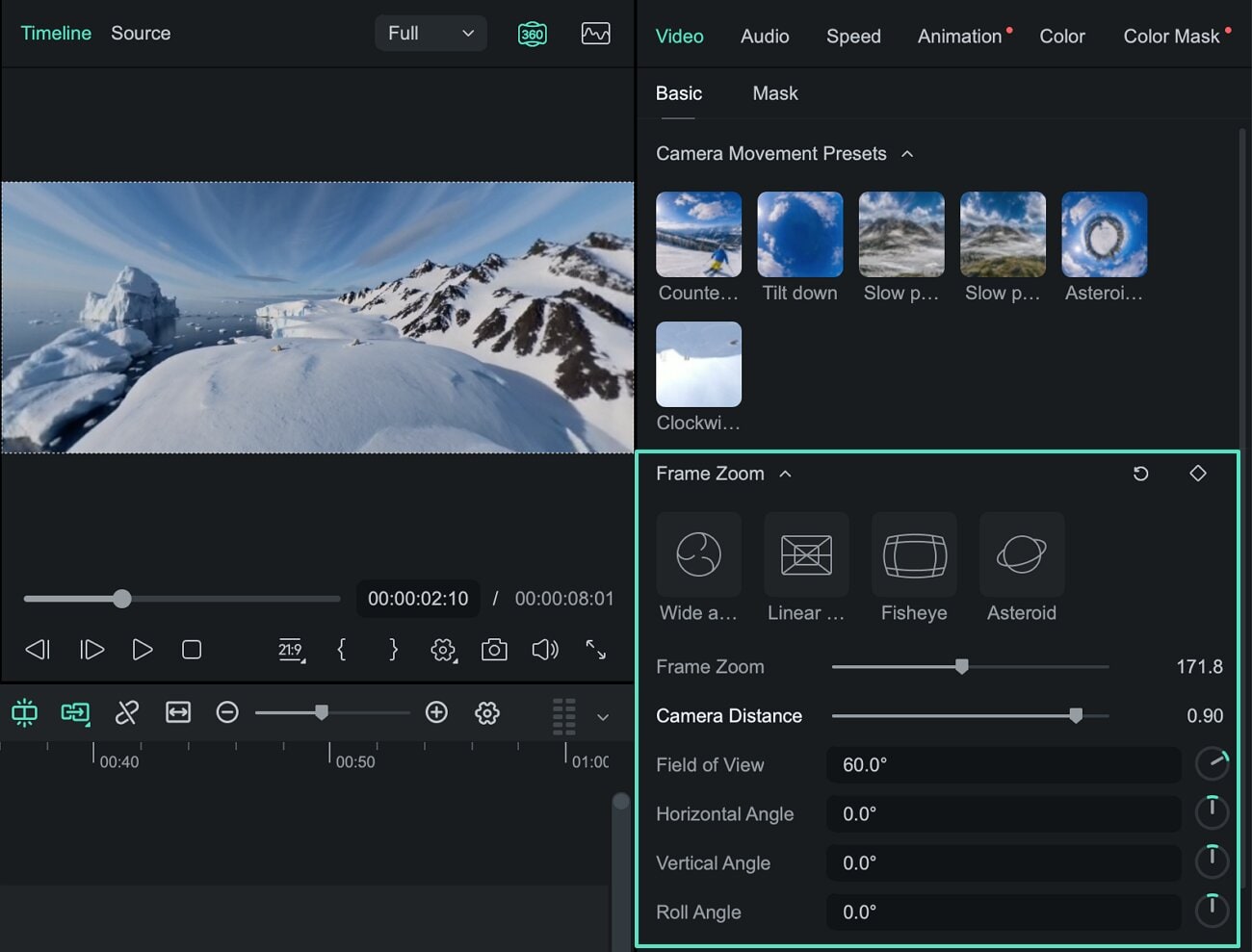
This gives you more flexibility when editing action footage. For example, if your 360 recording captured a rider and the surrounding environment, you could begin by looking forward, turn the virtual camera toward the rider, follow action happening to the side, and then return to the forward view—all from the same spherical recording.
Change the Look of Your 360 Footage
Filmora also provides different display modes for 360 footage, including Wide Angle, Linear, Fisheye, and Tiny Planet. These projection styles let you create different visual interpretations from the same recording.
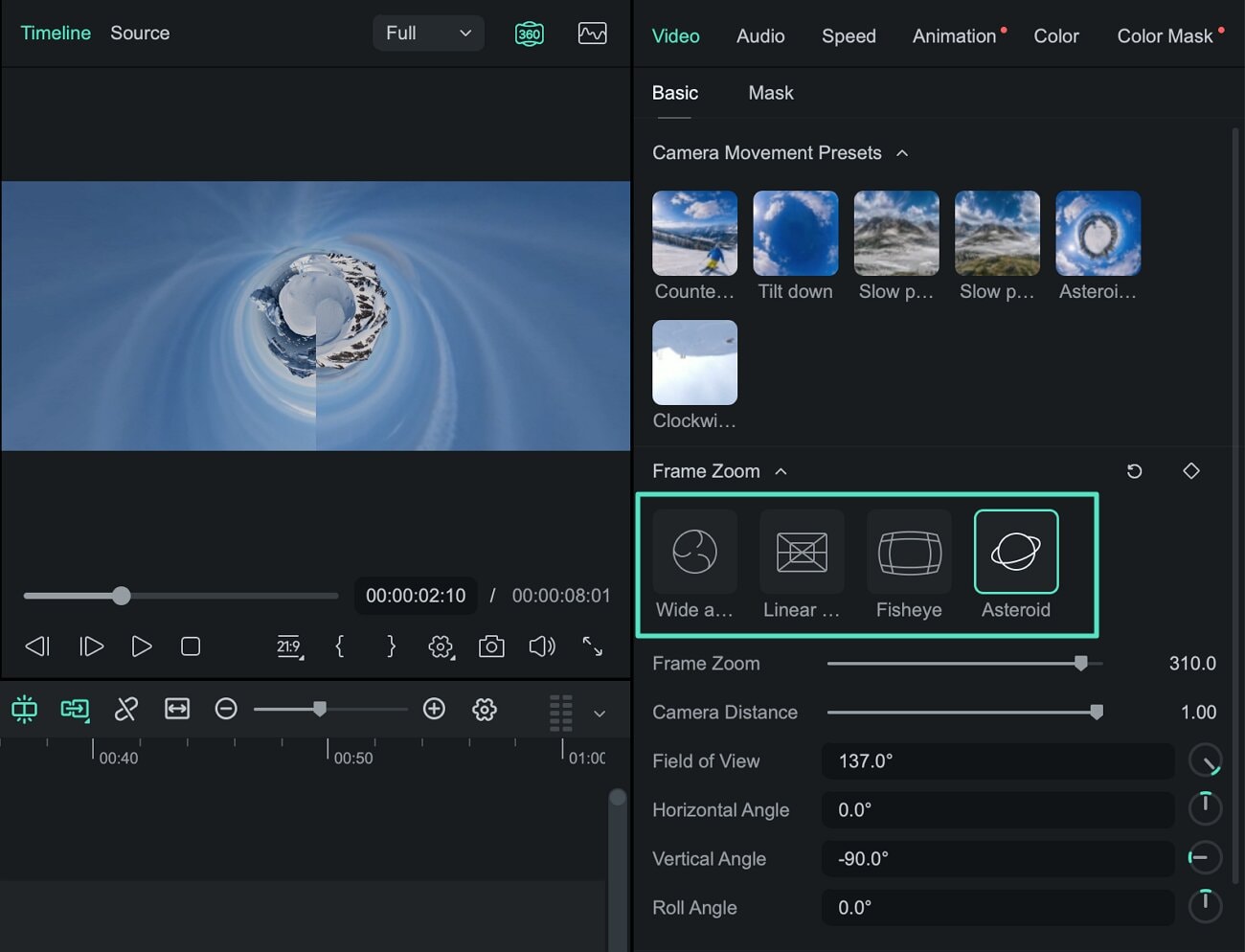
Create Virtual Camera Movement
You do not have to keep the virtual camera fixed on one viewpoint. Filmora lets you use motion presets or keyframes to animate the viewpoint over time, creating pans, zooms, rotations, and other virtual camera movements.
- Choose angles after recording: Select the best viewpoint from the spherical scene during editing.
- Adjust the field of view: Create wider or tighter shots from the same 360 footage.
- Change perspectives: Use Wide Angle, Linear, Fisheye, or Tiny Planet views.
- Create virtual camera moves: Add pans, zooms, rotations, and viewpoint changes with presets or keyframes.
- Continue editing: Trim clips, adjust speed, add titles, audio, effects, and other edits on the Filmora timeline.
- Export a standard video: Turn the reframed footage into conventional content for mainstream video and social platforms.
Explore Filmora's 360 Video Editing Tools →
For step-by-step instructions, see the 360° Video Reframing Guide for Windows or the 360° Video Reframing Guide for Mac.
Frequently Asked Questions About GoPro and 360 Video
Can you create 360-degree video with GoPro cameras?
Yes. One traditional approach is to mount multiple GoPro cameras in a specialized 360 rig, record overlapping views in different directions, and stitch those recordings together into spherical footage. Dedicated 360 cameras provide another approach by integrating multiple lenses into a single camera system.
Why do stitching lines appear in 360 video?
Stitching lines can appear where footage from different lenses or cameras overlaps. They are more noticeable when subjects are very close to the camera, move across a stitching boundary, or when adjacent cameras capture significantly different lighting, exposure, or perspectives.
Can I edit stitched GoPro 360 footage?
Yes. Once the individual recordings have been stitched into a compatible 360 video, the spherical footage can be used in supported editing workflows. You can keep it as an interactive 360 video or reframe selected viewpoints into a standard video.
Can I turn GoPro 360 footage into a normal video?
Yes. 360° video reframing lets you choose specific viewpoints from spherical footage and convert them into a standard flat video. You can also animate the viewpoint over time to create virtual camera movement.
Can Filmora reframe GoPro 360 footage?
Filmora can reframe compatible stitched 360 footage. You can change the viewing direction, field of view, and perspective, create camera movement with presets or keyframes, and continue editing the result on the Filmora timeline.
Does Filmora stitch footage from multiple GoPro cameras?
Filmora's 360° Video Reframing workflow is designed for compatible 360 footage that has already been prepared for editing. If you record a 360 scene using multiple separate GoPro cameras, the individual camera views should first be stitched into compatible spherical footage using an appropriate stitching workflow before reframing it in Filmora.
In this article, we are going to explain the detailed steps for editing a video with GoPro Studio.
by Liza Brown Jul 28, 2026 10:42 AM
The article below includes complete details about all entry level, mid range and high end alternatives to GoPro series action cameras.
by Liza Brown Nov 06, 2026 07:21 AM
Liza Brown
chief Editor
