

 TL;DR:
Creating liquid text animations in After Effects requires combining complex distortion tools, but utilizing pre-made .aep templates or Wondershare Filmora's built-in presets provides a significantly faster workflow for dynamic title reveals.
● After Effects delivers highly customizable fluid motion using external templates from platforms like Motion Array or Envato Elements, but this method requires powerful hardware, manual .aep file adjustments, and often paid subscriptions.
● Wondershare Filmora serves as a lighter alternative for users needing immediate results, featuring built-in fluid text presets that bypass the need for third-party downloads or heavy software processing.
● For optimal After Effects renders, keep the animation duration between 3 to 6 seconds and export using the QuickTime format with RGB + Alpha settings to retain a transparent background for use in Premiere Pro or Photoshop.
Ask AI for a summary
 ChatGPT
 Perplexity
 Gemini
 Claude
 Grok
Grok
Have you seen those smooth, flowing text animations that look like melting ink or moving water? That's the magic of After Effects liquid text, one of the trendiest styles in motion graphics right now. It's often used to make titles and logo reveals feel more dynamic and fluid.
But creating liquid text animation in After Effects from scratch can take time. From adjusting masks to animating distortions, there are plenty of steps before you achieve that perfect ripple effect.
That's why this After Effects liquid text tutorial breaks down how the effect works. It also shares the best liquid text After Effects templates (free and paid) to help you create these fluid animations faster. Let's get started!
Part 1. The Breakdown: How After Effects Creates Liquid Text Animation?
The After Effects liquid text effect makes letters look like melting ink, dripping paint, or flowing water. Instead of simple fades or slides, the text bends, ripples, and morphs. It feels more organic compared to standard text animations.
What makes this style popular is its smooth, natural flow. The letters don't just appear; they move as if they're part of a living surface. It works well for:
- Brand logos that need a creative reveal.
- Music videos or lyric visuals with motion-driven design.
- Title sequences in short films or ads.
To create liquid text animation in After Effects, you combine different distortion tools. The most common ones are:
- Turbulent Displace: adds smooth waves or ripples that make the text look fluid.
- Liquify: lets you push, pull, and stretch the text surface to form drips or melting edges.
- Displacement Map: adds motion by using another layer to distort the text.
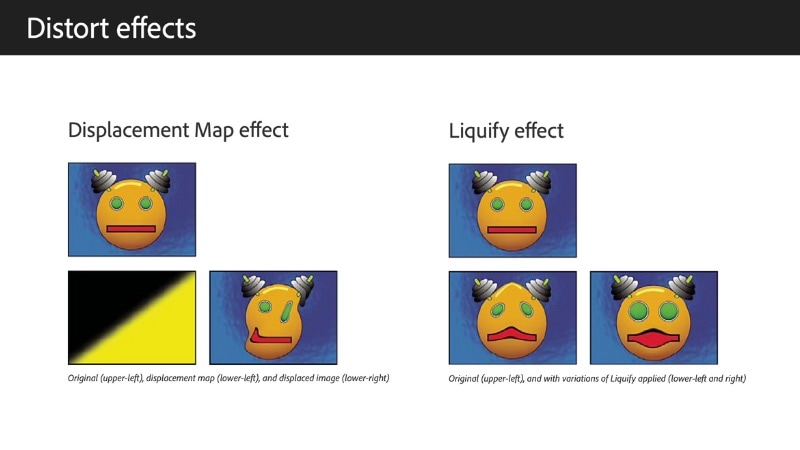
You control each effect with keyframes, adjusting how strong or soft the movement looks over time. Some projects need to combine multiple layers to simulate waves or drops, blending motion and opacity for more depth.
While these tools give you a lot of flexibility, it takes patience to balance every distortion and timing. For a faster workflow, you can use the liquid text After Effects template free and paid options. They already include the settings you need, so you can skip setup and start customizing right away.
Part 2. Faster Results: Best After Effects Liquid Text Templates [Free & Paid]
You can find plenty of template options on third-party sites like Motion Array and Envato Elements. Most of them include both free and premium options, while some creators also share free project files on YouTube.
Here are some of the best liquid text effects for After Effects worth trying:
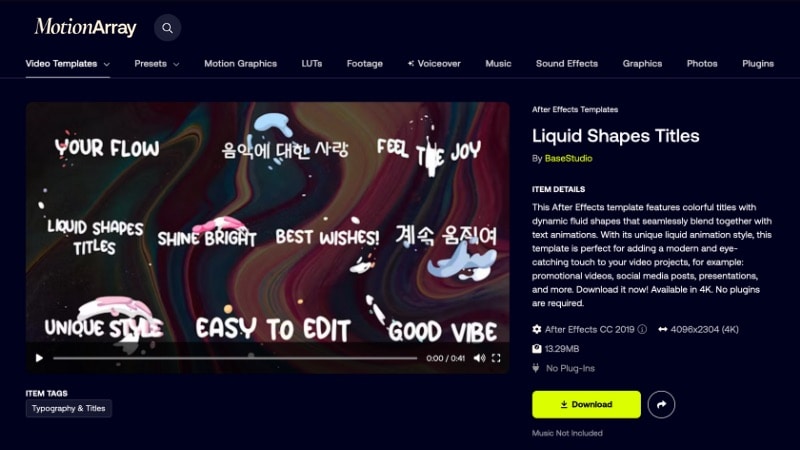
1. Liquid Shapes Titles By BaseStudio – Motion Array
This template includes bright, fluid-style titles that merge smoothly with animated text. Its liquid motion design fits openers, promos, social videos, and presentations. Supports 4K output and works without plugins.
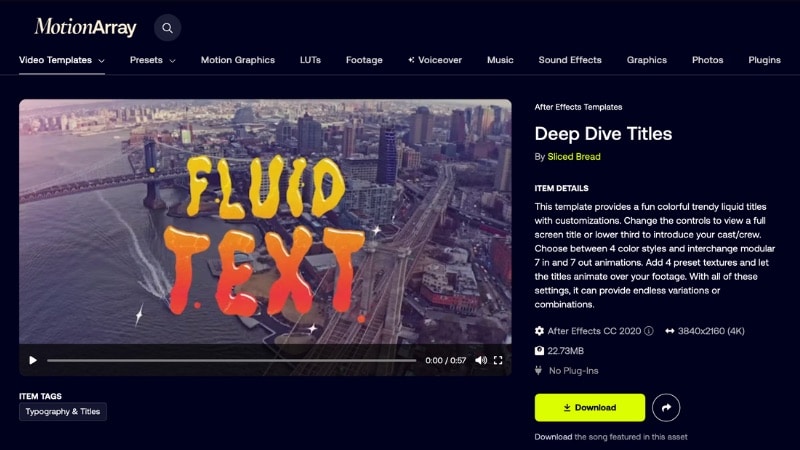
2. Deep Dive Titles By Sliced Bread – Motion Array
This After Effects liquid text pack offers vibrant liquid-style titles you can customize for full-screen or lower-third use. Pick from four color themes, mix modular animations, add preset textures, and create countless title variations.
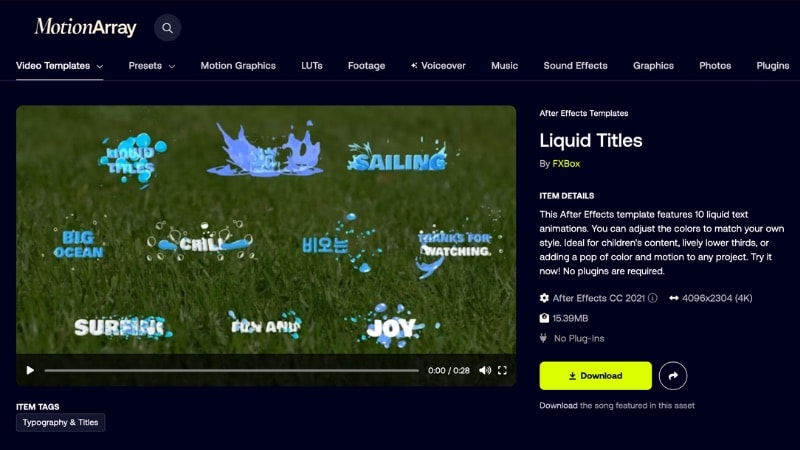
3. Liquid Titles By FXBox – Motion Array
This liquid text animation for After Effects offers ten preset animations with adjustable colors. It works well for kids' videos, playful lower thirds, or any project that needs bright motion effects. No plugins required.
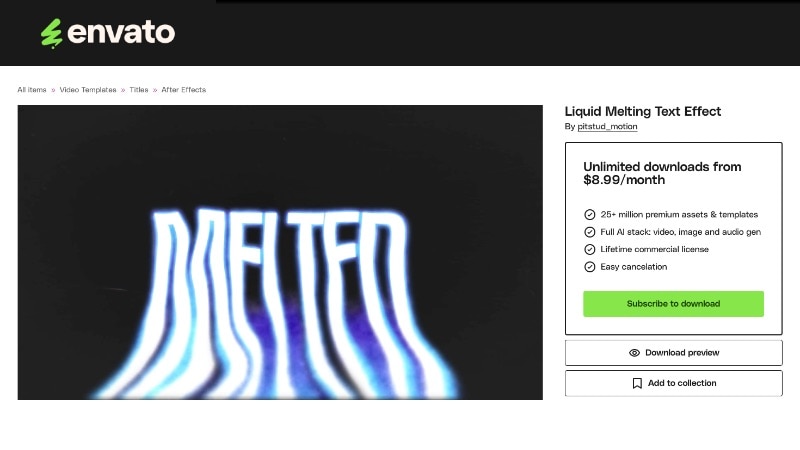
4. Liquid Melting Text Effect By pitstud_motion – Envato Elements
Create melting text animations with this liquid text effect for After Effects. It works well for titles, logos, and visuals in films, posters, social media, or music projects, all easy to customize.
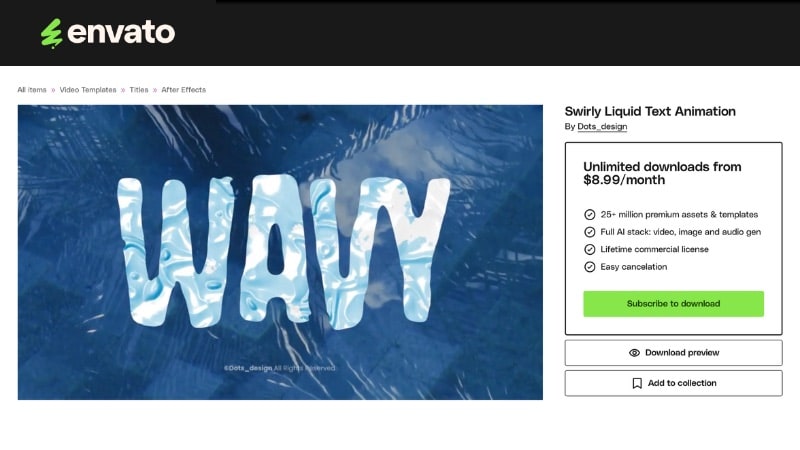
5. Swirly Liquid Text Animation By Dots_design – Envato Elements
Add smooth motion to your titles with this swirly liquid text animation for After Effects. It blends fluid transitions and modern design, ideal for music videos, fashion edits, and creative social media visuals.
These liquid text After Effects templates free and paid options help you achieve fluid motion without starting from scratch. In the next part, you'll learn how to open them, edit, and render your own version step by step inside After Effects.
Part 3. Step-by-Step: How to Use Templates to Create Fluid Text in After Effects
To shorten the process when creating a liquid text animation in After Effects, you can use a pre-made template. They already include the elements and keyframes you need; all you need to do is customize the text.
Follow these steps to start using your template for creating a liquid text effect in After Effects:
- Pick a liquid text After Effects template free or paid, from Motion Array, Envato Elements, or YouTube.
- Once downloaded, unzip the folder and keep all files together to avoid missing assets later.
- Launch After Effects and open the downloaded .aep file.
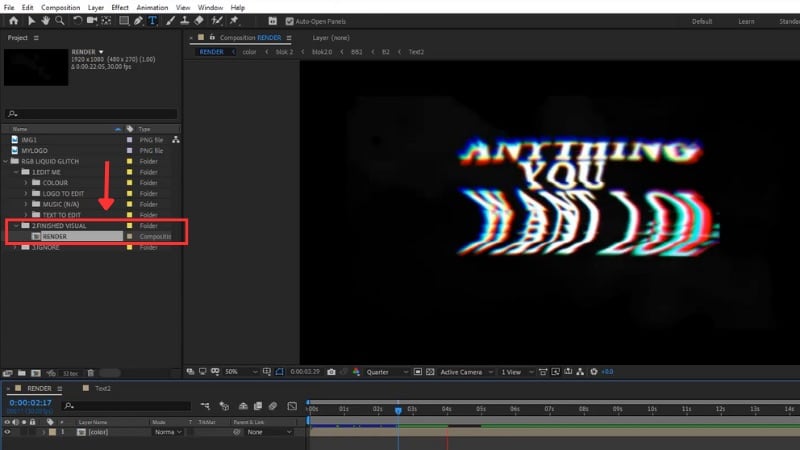
- You'll see three main folders: Edit Me, Finished Visual, and Ignore.
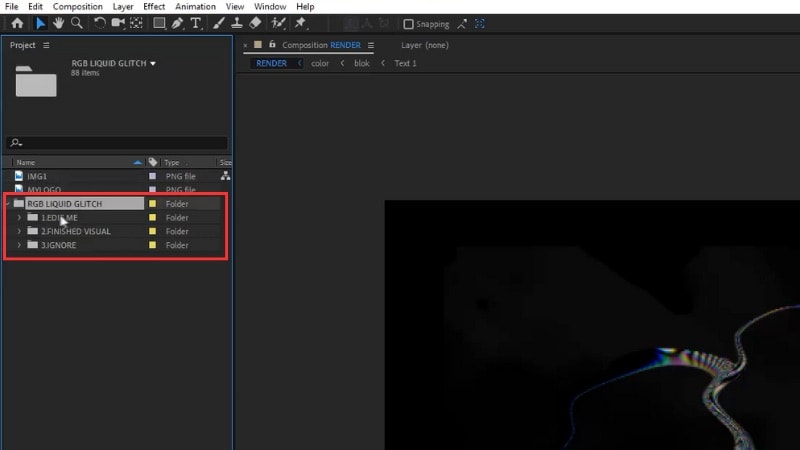
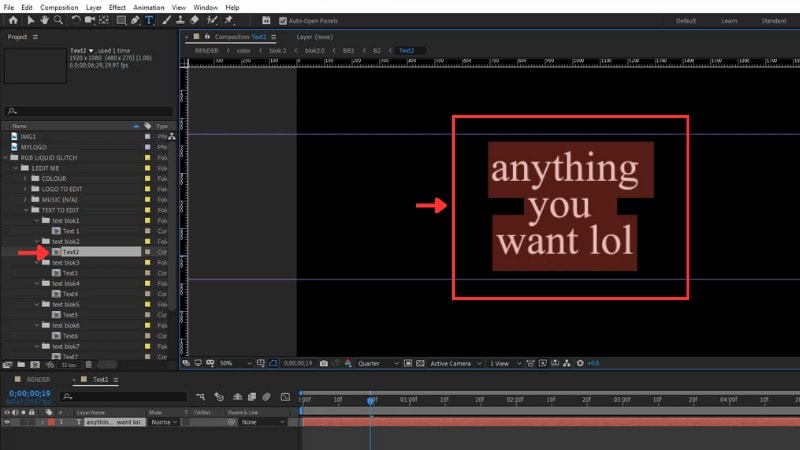
- Open the Edit Me folder. You'll find many text comps named Text 1, Text 2, Text 3, and so on.
- Double-click any text layer (for example, Text 2) and replace the existing text with your own.
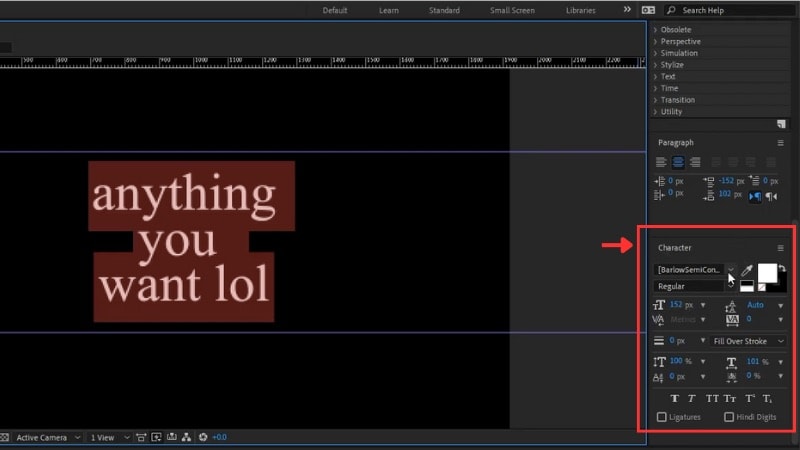
- You can also change the font from the Character panel, experiment until you find one that fits your design.
- Once you edit a text comp, go back to the Finished Visual > Render composition. Here, you can see how your new text looks with the liquid animation.
- The animation updates automatically when you modify text inside the “Edit Me” folder.
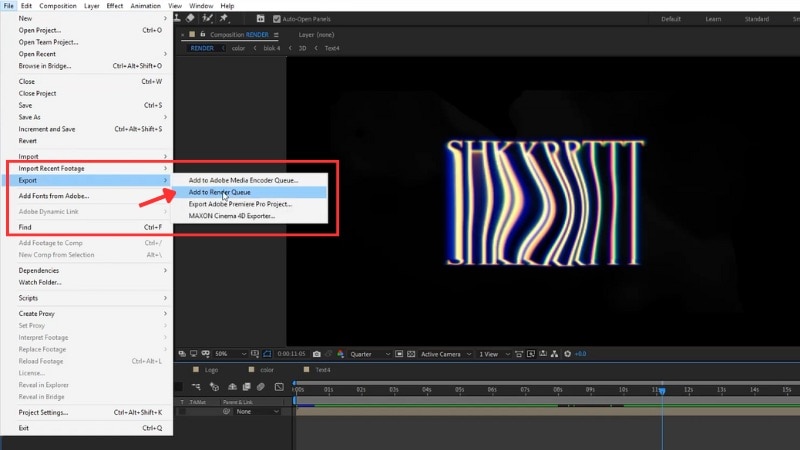
- When everything looks good, open the Render composition again.
- Go to File > Export > Add to Render Queue. Choose your save location, rename the output, and click Render.
Part 4. Pros and Cons of Using After Effects for Liquid Text Animation
Creating a liquid text animation in After Effects with templates can give your titles a stylish look without much editing work. The process itself is simple, but it also has its ups and downs.

- You can achieve a high-quality liquid motion that looks professional with minimal manual setup.
- Templates offer flexible customization for text, color, and animation timing.
- A wide range of liquid styles allows you to match different video themes.
- Works seamlessly with other effects and compositions inside After Effects.
- It can take time to search for a good template since you need to browse across multiple sites.
- Many high-quality options require a paid subscription or license.
- After Effects can feel heavy for users who only need a quick liquid title animation.
- The software runs best on strong hardware, which might slow down simple editing tasks.
Filmora Alternative: Create Liquid Text Animation Faster & Easier
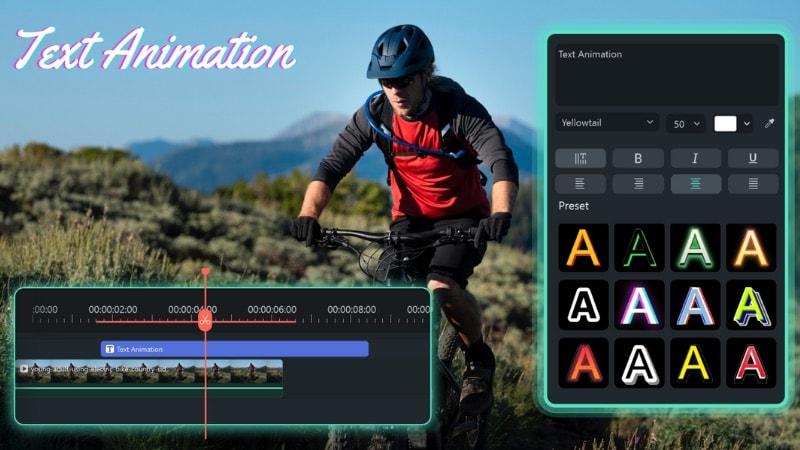
If searching for templates for After Effects liquid text across many resources slows you down, try creating the video in Wondershare Filmora. Filmora includes a large set of built-in animated titles for a faster workflow. You can simply adjust the font, color, size, spacing, and duration.
 Secure Download
Here is the step-by-step guide on how to create liquid text animation in Filmora:
- Go to the Titles tab and use the search bar. Try keywords like liquid, wave, fluid, or ink to find animated text that mimics flowing motion.
- Drag your chosen preset onto the timeline. Place it above your background clip or color layer so it appears clearly in the frame.
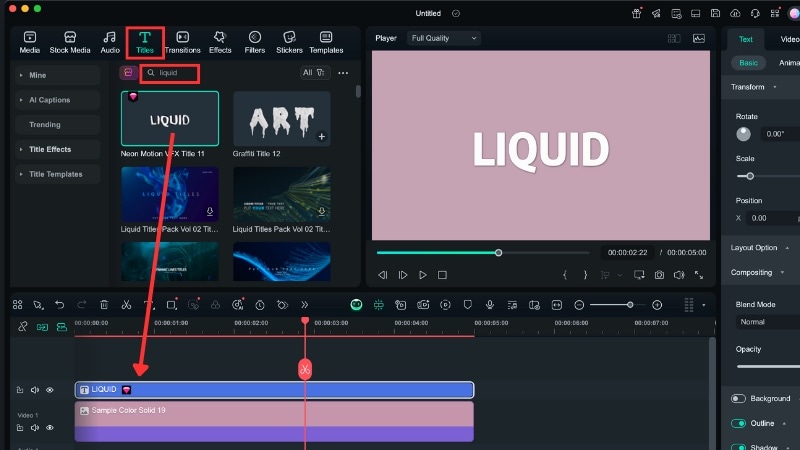
- Click the title track on the timeline to open the editing panel on the right side of your screen.
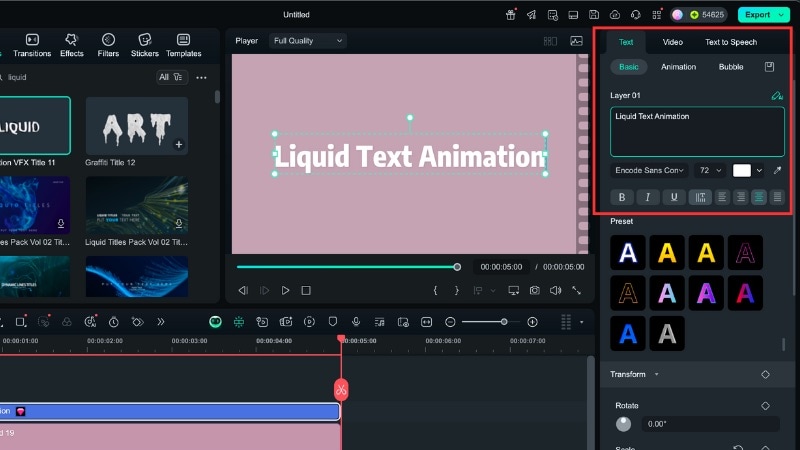
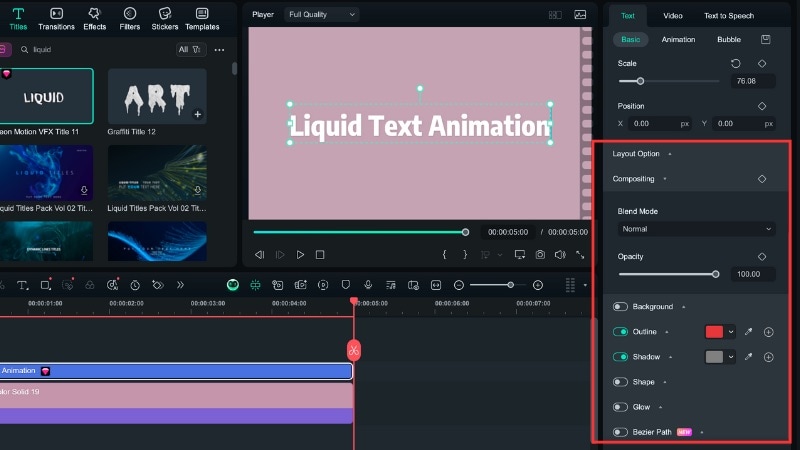
- Head to Text > Basic, where you can change the sample text, font, and adjust color to fit your design.
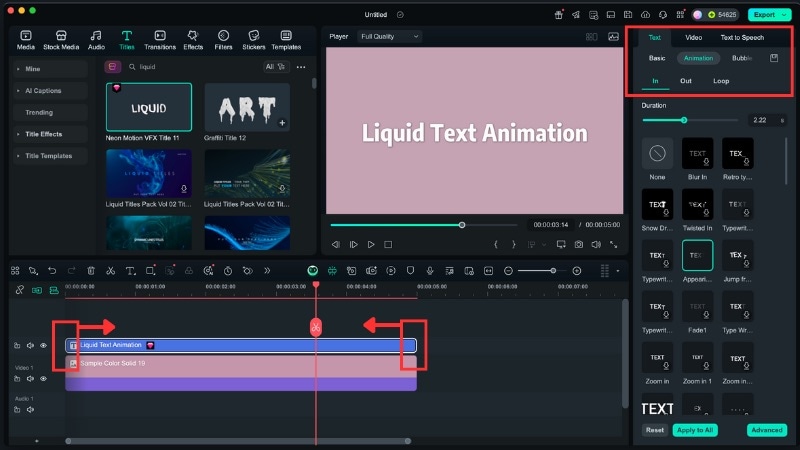
- Shorten or extend the edge of the title track to control the motion speed.
- You can also use the Text > Animation tab to tweak movement and fluidity.
Watch this video to learn more about Filmora's Text Animation tool:
Secure DownloadConclusion
Creating After Effects liquid text can give your titles, intros, or logo reveals a smooth, flowing style. You can use distortion tools to shape every ripple from scratch or choose ready-made templates to save time.
Using a liquid text animation in After Effects can save hours of setup. Pick one that fits your project, replace the text, adjust colors, and render your animation.
For an even faster option, try making it in Filmora. It offers built-in templates that mimic the same liquid motion without searching through third-party sites. Try it today and see how easily your text can flow on screen.

Frequently Asked Questions
-
Can I use liquid text effects in other Adobe apps like Premiere Pro or Photoshop?
You can't create the full liquid motion directly in Premiere Pro or Photoshop. But you can import clips made in After Effects. Render your liquid text animation in After Effects first, then drop it into your Premiere Pro timeline or use it as an overlay in Photoshop. -
Can I apply the liquid effect to shapes or logos, not just text?
Yes. The same distortion tools like Liquify and Turbulent Displace, work with any layer. You can apply the same workflow from your text to a logo or vector shape to make it melt, bend, or flow with motion. -
What's the ideal duration for a smooth liquid text reveal animation?
Most creators keep it between 3 and 6 seconds. Shorter durations work better for intros or logo reveals, while longer ones suit full titles or music visuals. -
Can I export liquid text animation with a transparent background?
Yes. In After Effects, use the QuickTime format and select RGB + Alpha in the Output Module settings. This keeps your liquid text transparent so you can place it over any background in other editing software.
