

 100% Security Verified | No Subscription Required | No Malware


 ChatGPT
 Perplexity
 Gemini
 Claude
 Grok
Grok

Clear audio is not always guaranteed in TikTok, YouTube, interview, or social videos. Background noise, music, fast speech, and quiet dialogue can all make spoken content harder to understand.
Captions help viewers follow the dialogue even when the audio is unclear or turned off. Instead of transcribing every line manually, editors can now use speech-to-text tools to generate captions automatically.
In this guide, we'll explain how to use Final Cut Pro auto captions, what you can customize after transcription, and how Filmora Auto Caption provides an alternative workflow with automatic transcription, multilingual captions, and animated Dynamic Captions.
In this article
Part 1. What Are the Benefits of Adding Automatic Subtitles in Final Cut Pro?
Automatic captions convert spoken dialogue into synchronized on-screen text, reducing the amount of manual transcription required. Whether you use Final Cut Pro or another caption generator, there are several practical reasons to add captions to a video.
- Improve accessibility: Captions make spoken information available as text, helping viewers who are deaf or hard of hearing follow the content.
- Make dialogue easier to understand: Captions can help when speakers talk quickly or when the recording contains accents, background noise, or unfamiliar terminology.
- Support sound-off viewing: Viewers can still follow the message when watching videos without audio in public spaces, at work, or in other quiet environments.
- Reach multilingual audiences: When translation is available, subtitles can help creators adapt video content for viewers who speak other languages.
Automatic transcription makes the process considerably faster, but AI-generated captions should still be reviewed before publishing because names, specialist terms, unclear speech, and background noise can affect recognition.
Part 2. How to Use Final Cut Pro Auto Captions
Final Cut Pro includes a Transcribe to Captions workflow that can generate captions from spoken audio. After transcription, you can review the generated text, make corrections, adjust available caption formatting, and choose how captions are included when sharing the video.
Step 1: Open Final Cut Pro and go to File > Import > Media. Select the video you want to caption and add it to your project timeline.
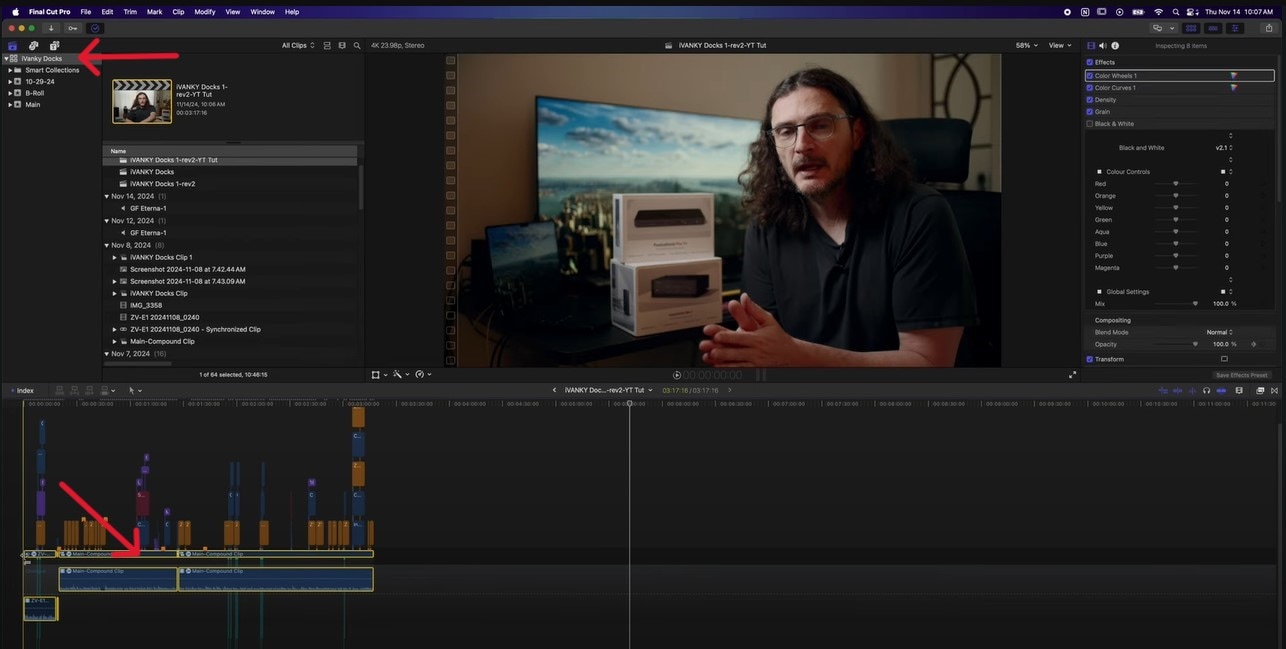
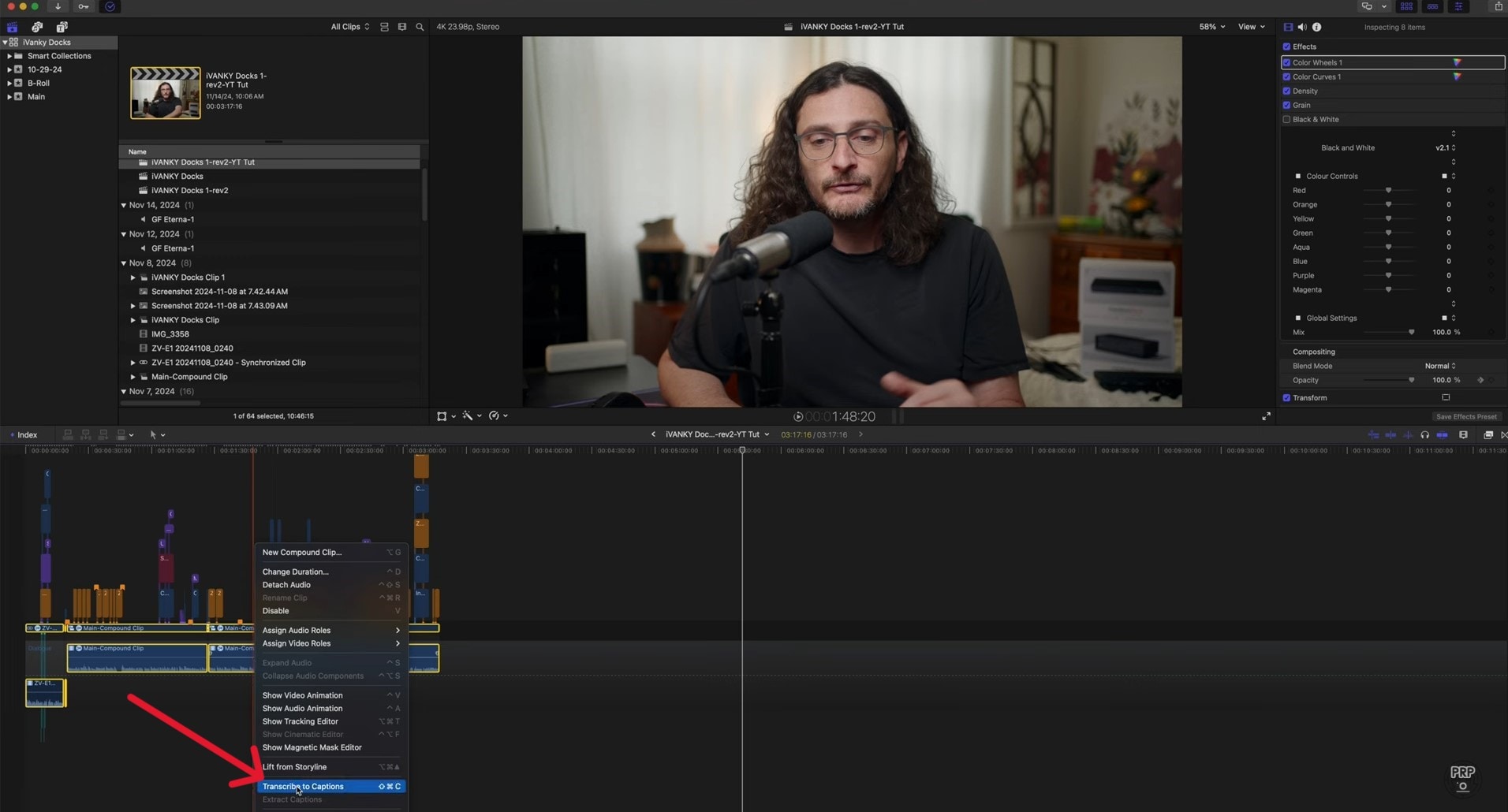
Step 2: Select the video on the timeline and choose the available Transcribe to Captions command to begin generating captions from the spoken dialogue.
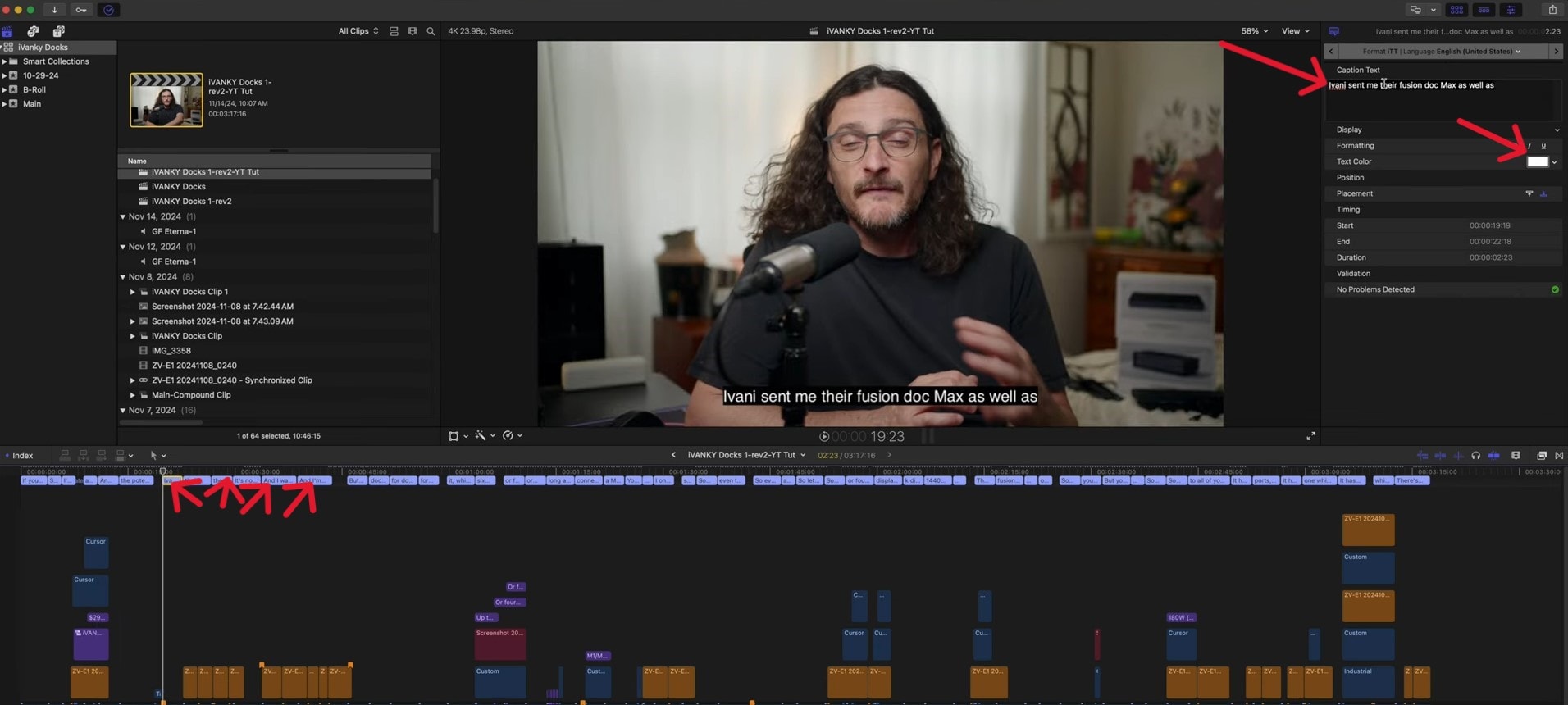
Step 3: After transcription is complete, review the generated caption segments on the timeline.
Step 4: Select a caption segment to review and edit its text and available formatting options.
Step 5: If you need to make consistent changes across multiple captions, select the relevant caption segments and apply the available formatting adjustments.
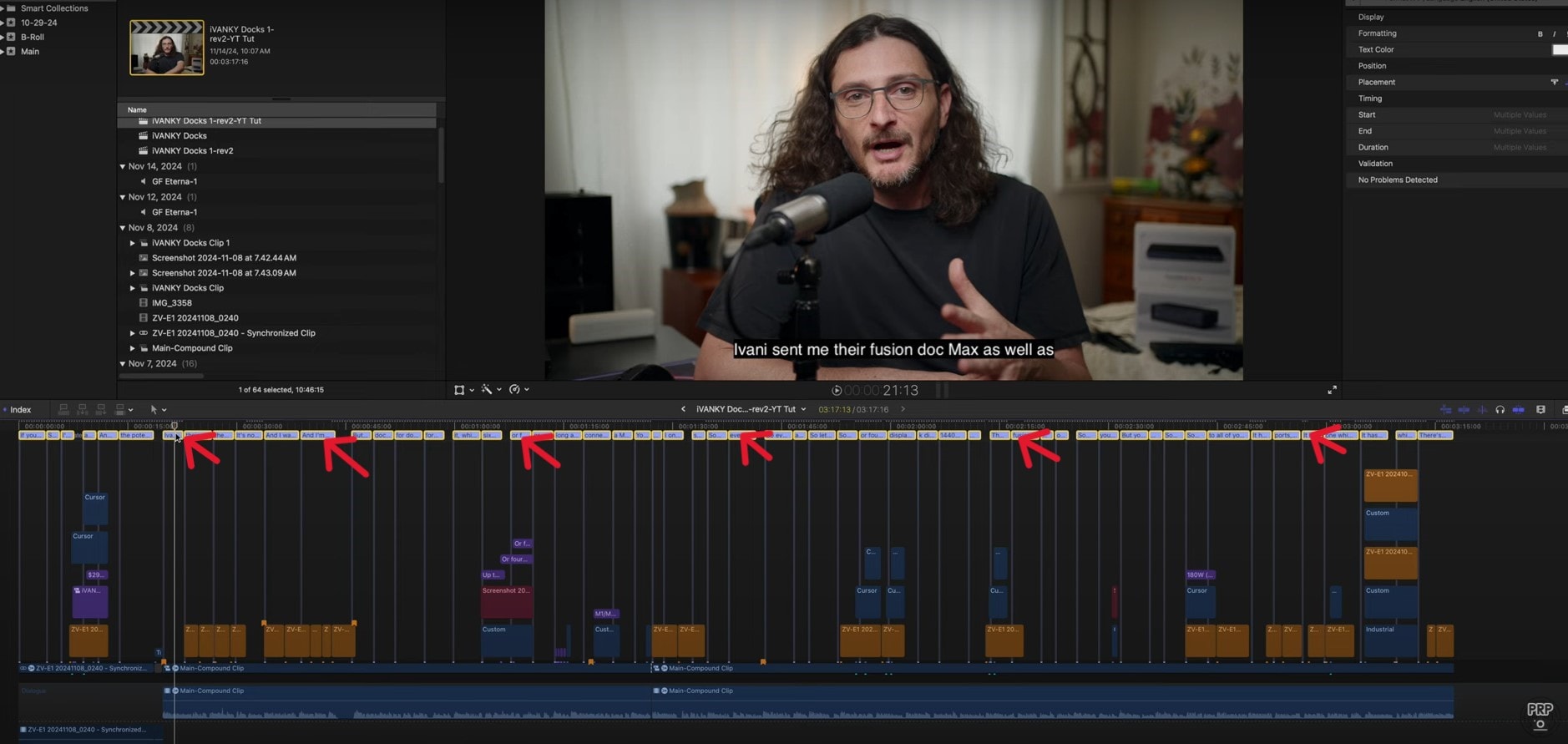
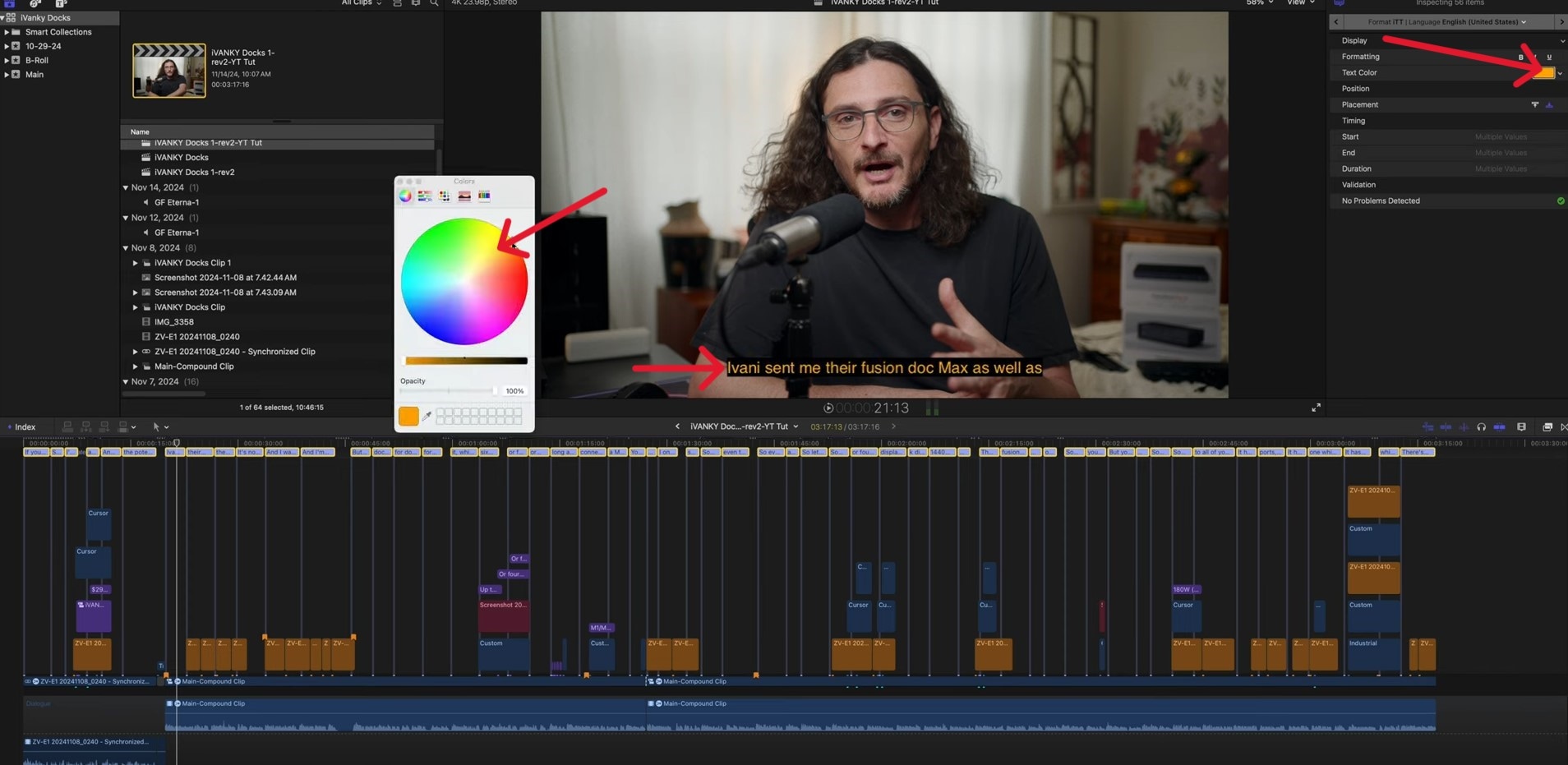
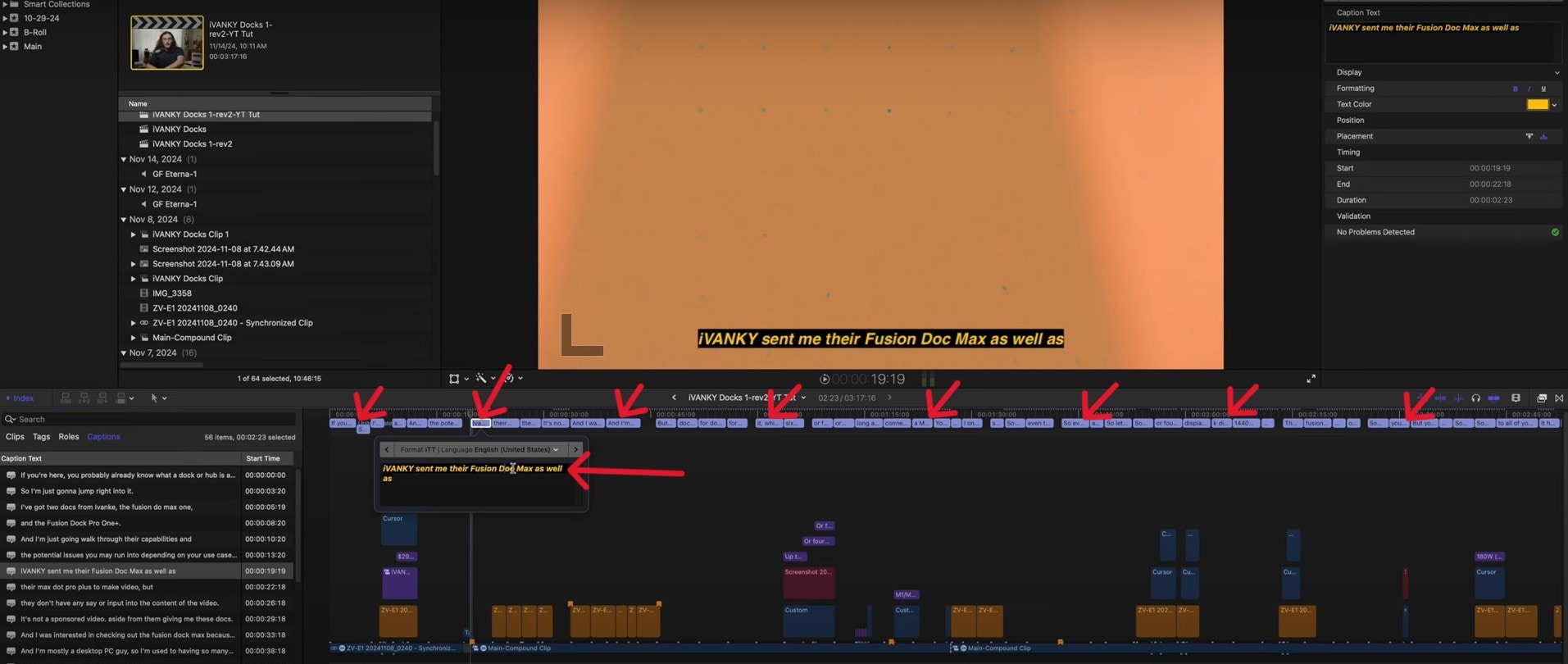
Step 6: Review the automatically generated transcript carefully. Correct names, product names, technical terminology, punctuation, or other words that were not recognized correctly.
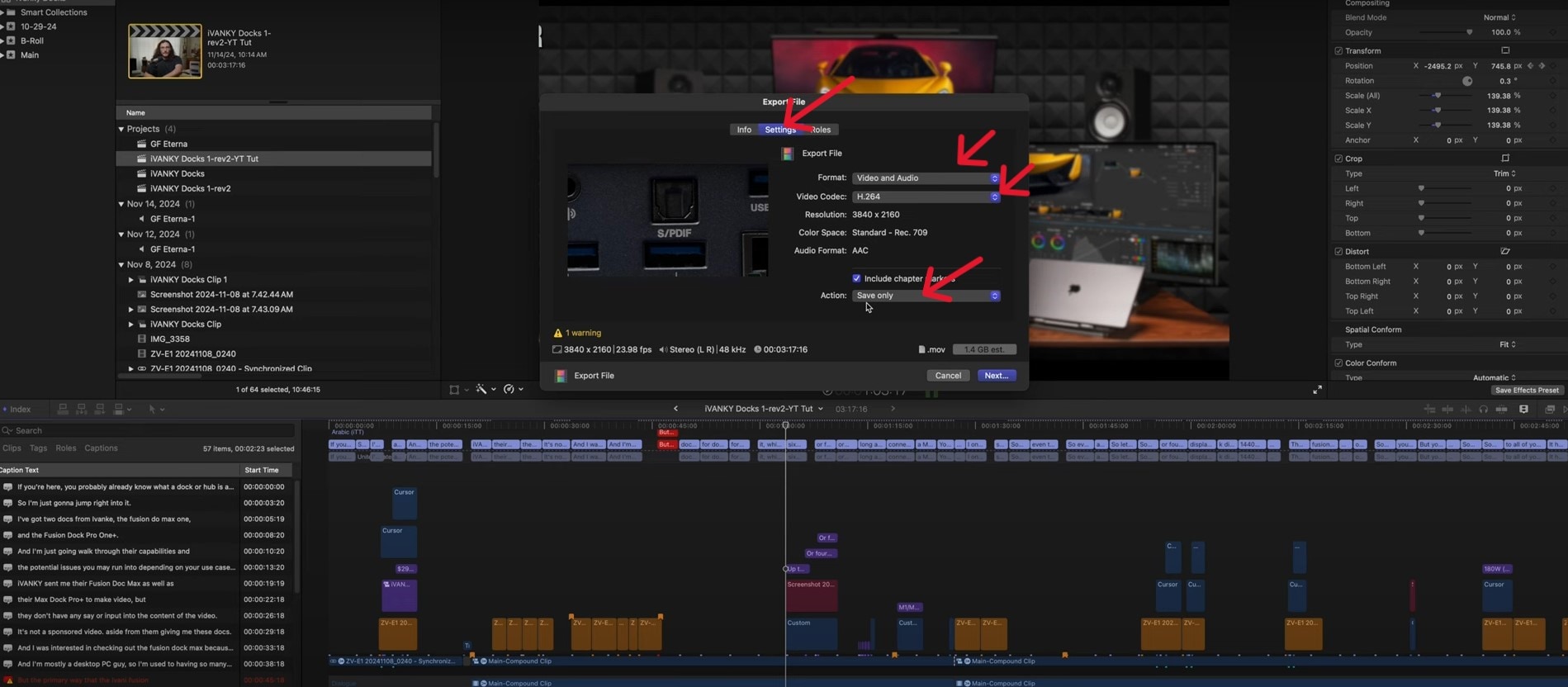
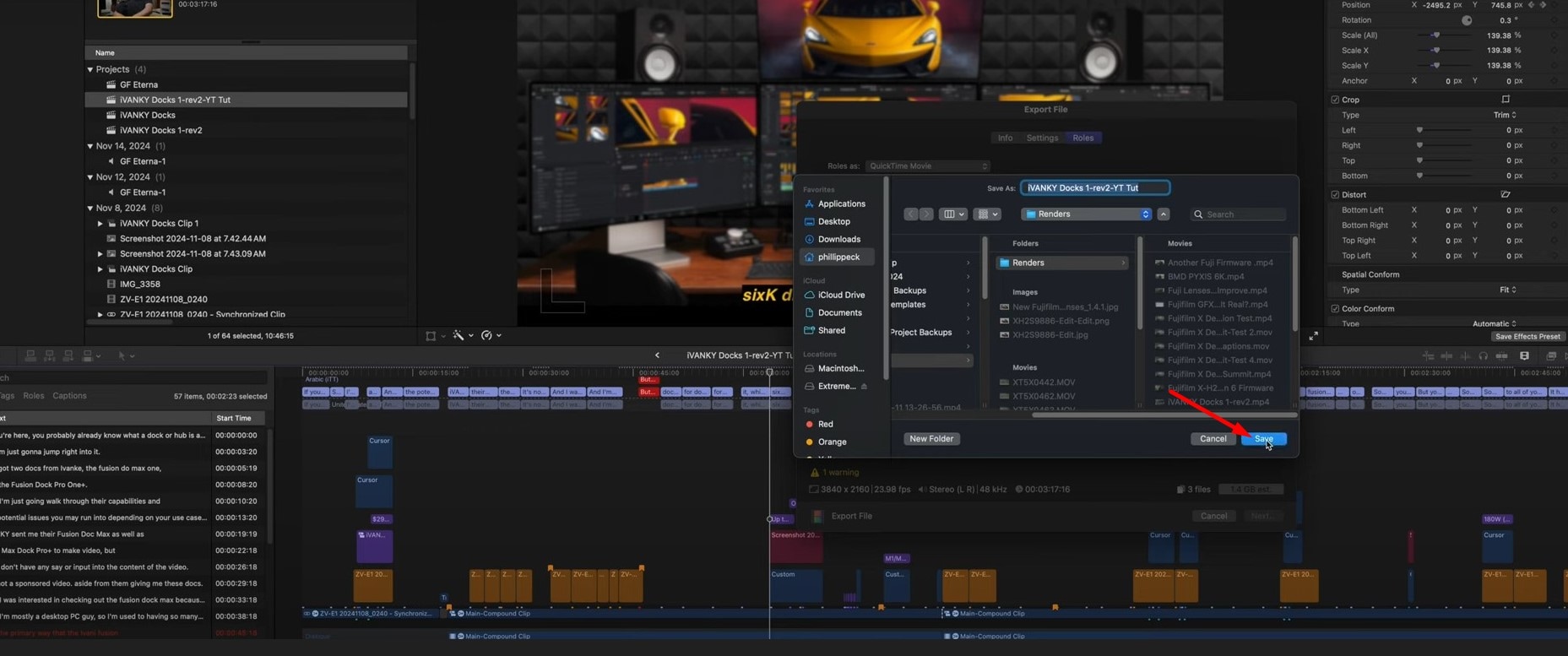
Step 7: When your captions are ready, open the sharing or export settings and select the appropriate output format.
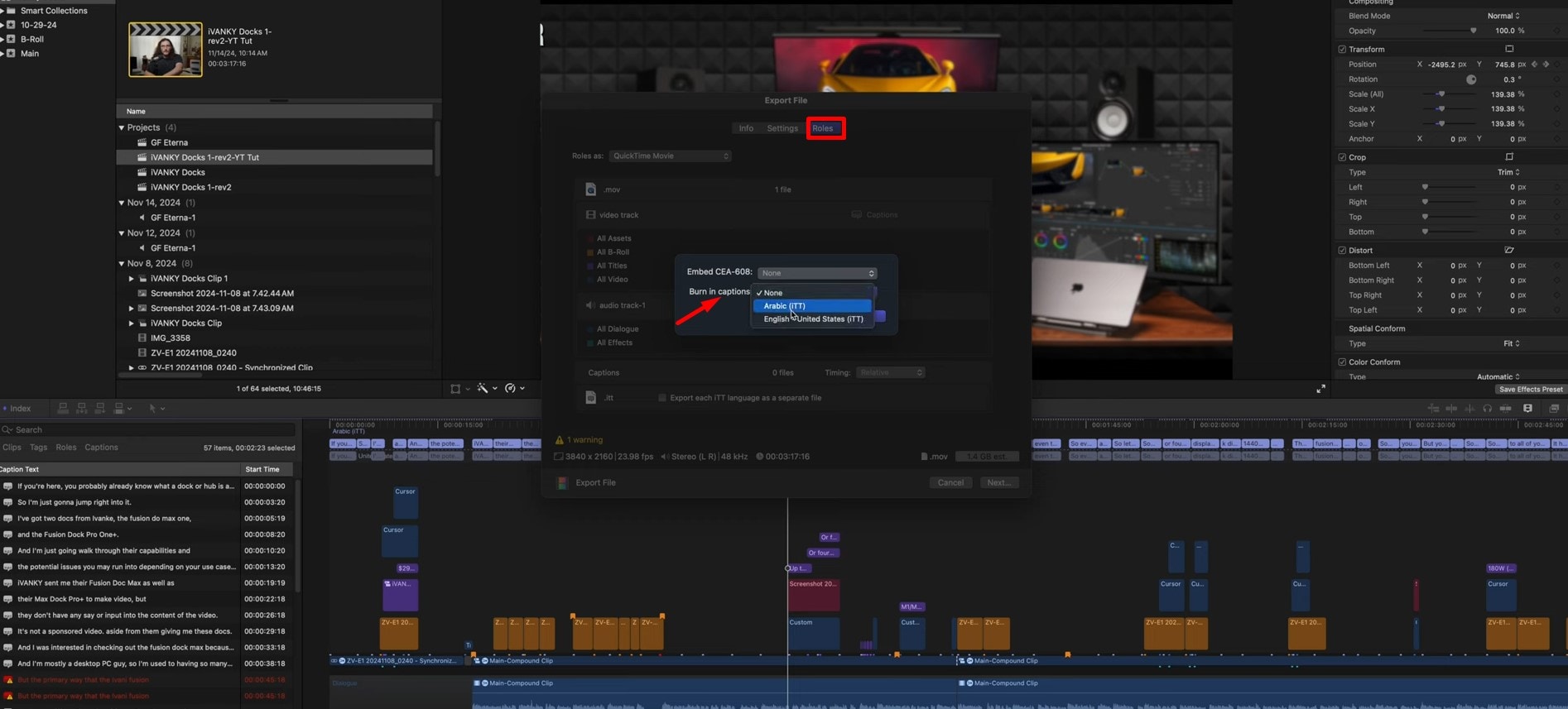
Step 8: Depending on your workflow and output settings, choose how the captions should be included with the exported video.
Step 9: Confirm the file name and destination, then save or share the completed video.
Part 3. An Alternative to Final Cut Pro Auto Captions
If you want automatic transcription together with more visual control over captions, Wondershare Filmora Auto Caption provides both standard speech-to-text subtitles and animated Dynamic Captions within the video editing workflow.
Filmora is available on both Windows and macOS. According to Filmora, its Auto Caption technology can reach up to 99% transcription accuracy with clear audio, supports 50+ source languages for transcription, and can translate generated captions into 30+ languages.
Final Cut Pro Auto Captions vs. Filmora Auto Caption
| Feature | Final Cut Pro | Filmora |
|---|---|---|
| Automatic speech-to-text captions | Yes | Yes |
| Caption text editing | Yes | Yes |
| Windows support | No | Yes |
| macOS support | Yes | Yes |
| Animated Dynamic Captions | Standard caption workflow | Yes |
| Active Word highlighting | Not part of the standard auto-caption workflow | Yes |
| Key Word emphasis | Not part of the standard auto-caption workflow | Yes |
| Published transcription accuracy claim | No single universal percentage stated | Up to 99% with clear audio |
| Caption translation | Depends on the current Final Cut Pro workflow and version | 30+ target languages |
The main difference is the type of caption workflow. Final Cut Pro provides automatic transcription inside its professional editing environment, while Filmora combines speech-to-text subtitles with creator-focused Dynamic Captions and animated word emphasis.
 secure download

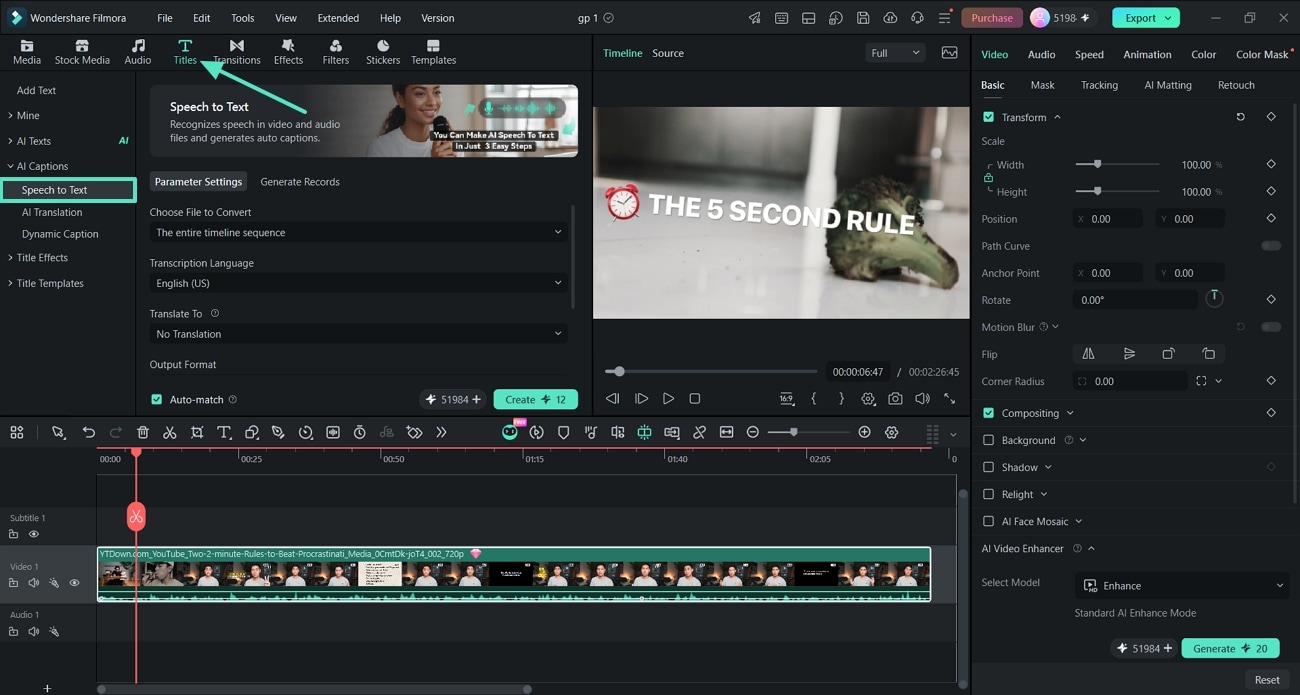
Generate Auto Captions in Filmora
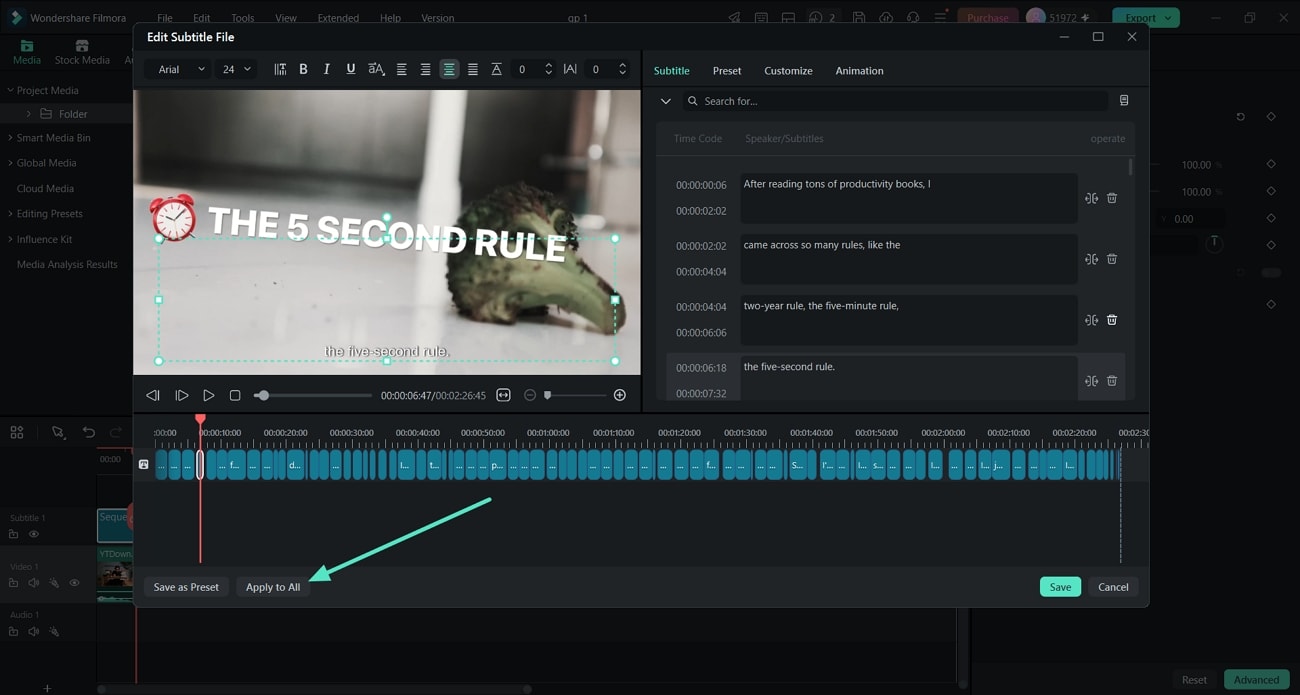
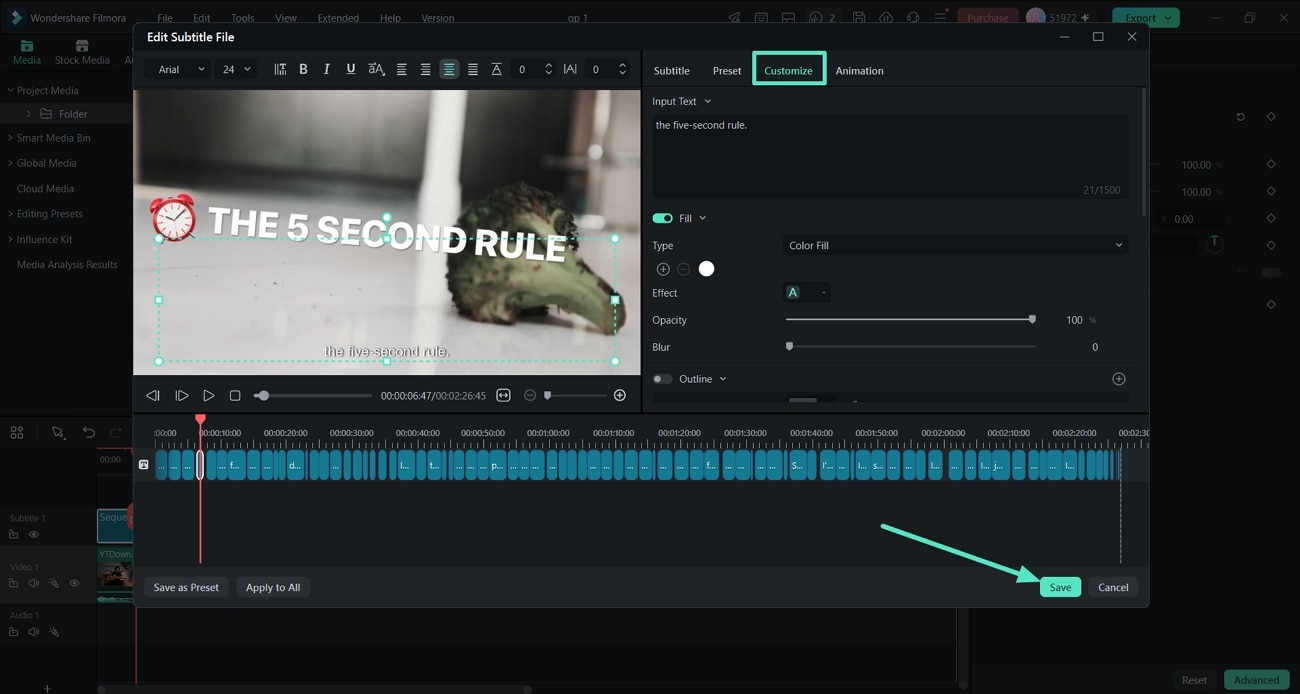
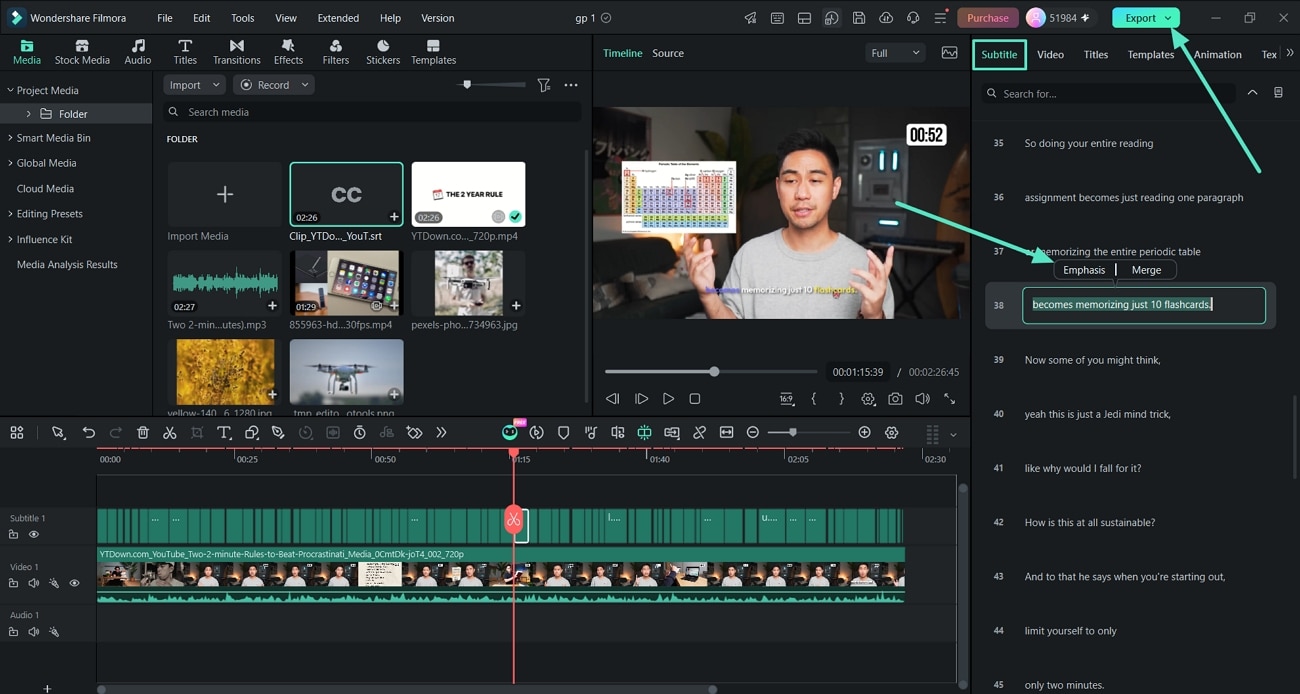
Filmora's Speech to Text workflow automatically converts spoken dialogue into synchronized, editable captions. You can then review the transcript and customize the subtitle appearance without leaving the editing project.
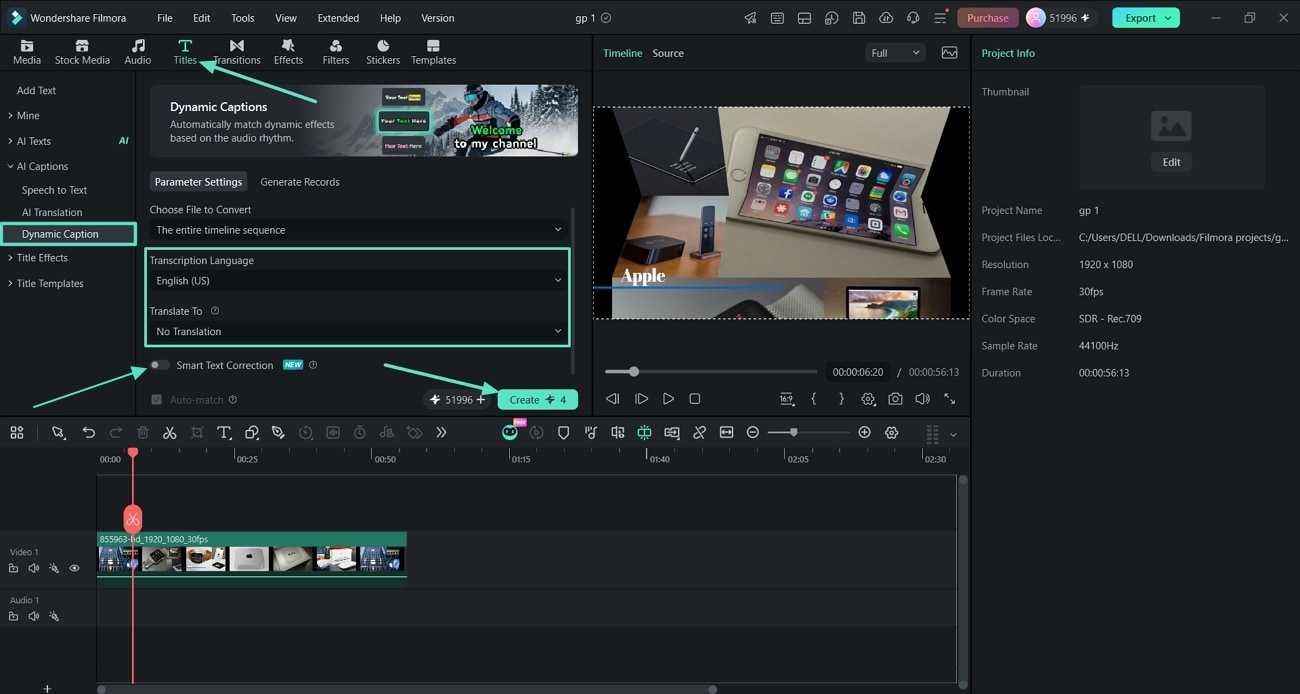
Create Animated Captions with Dynamic Captions
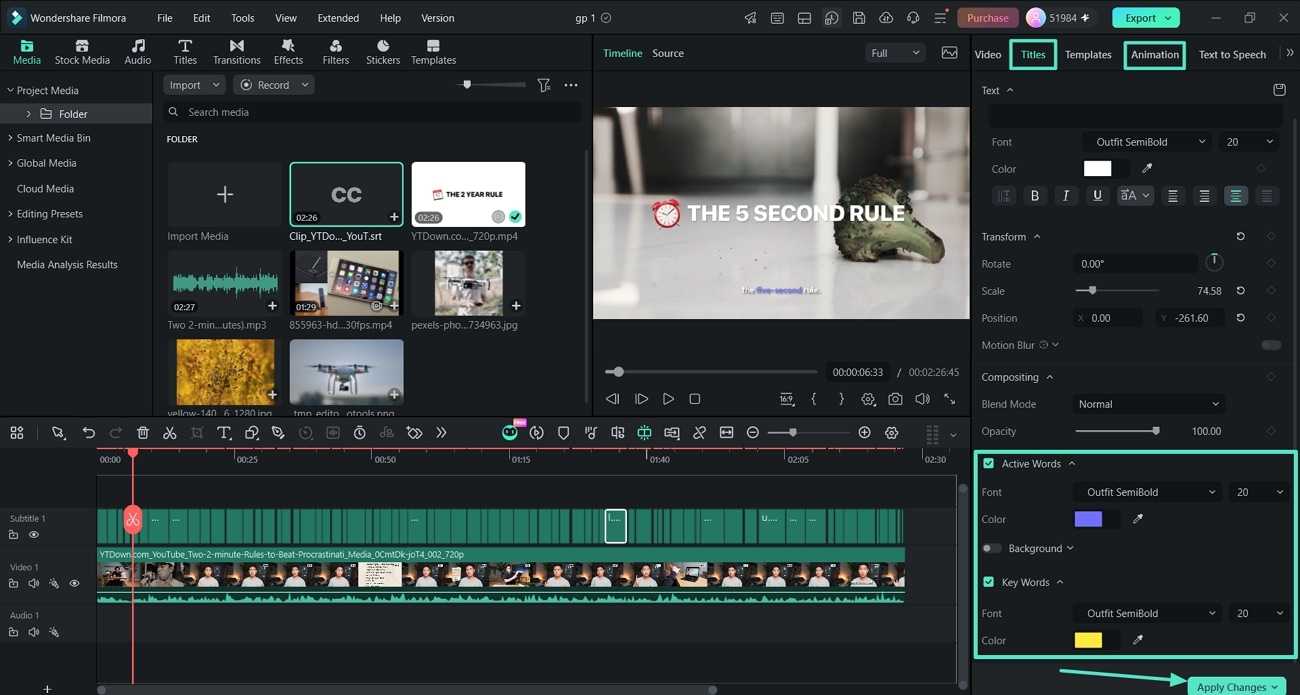
For social videos, podcasts, tutorials, interviews, Shorts, Reels, and other dialogue-heavy content, Filmora also provides Dynamic Captions. Instead of displaying only static subtitle lines, Dynamic Captions can visually highlight spoken words and emphasize important phrases.
More Filmora Auto Caption Features
Filmora's caption workflow also includes tools for creators who want more than basic speech-to-text subtitles.
- Multi-Speaker Detection: Identify different speakers and add speaker labels to make conversations easier to follow.
- Caption Translation: Translate generated captions into 30+ supported languages for multilingual videos.
- 100+ Caption Templates: Apply ready-made visual treatments for different video styles.
- 120+ Caption Animations: Add motion to captions without manually animating every text element.
- Active Words: Highlight individual words as they are spoken.
- Key Words: Draw attention to important words and phrases within the dialogue.
Explore Filmora Auto Caption →
For detailed instructions, see the Filmora Auto Caption Guide for Windows or the Auto Caption Guide for Mac.
secure download Part 4. How to Add AI Captions on Mobile
If you prefer to shoot, edit, and publish videos directly from your phone, the Filmora Mobile App also provides an AI Captions workflow for automatically turning spoken dialogue into on-screen text.
How to Add AI Captions in Filmora Mobile
The mobile workflow lets you generate captions without moving the project to a desktop editor.
Step 1: Open the Filmora App and choose AI Captions.
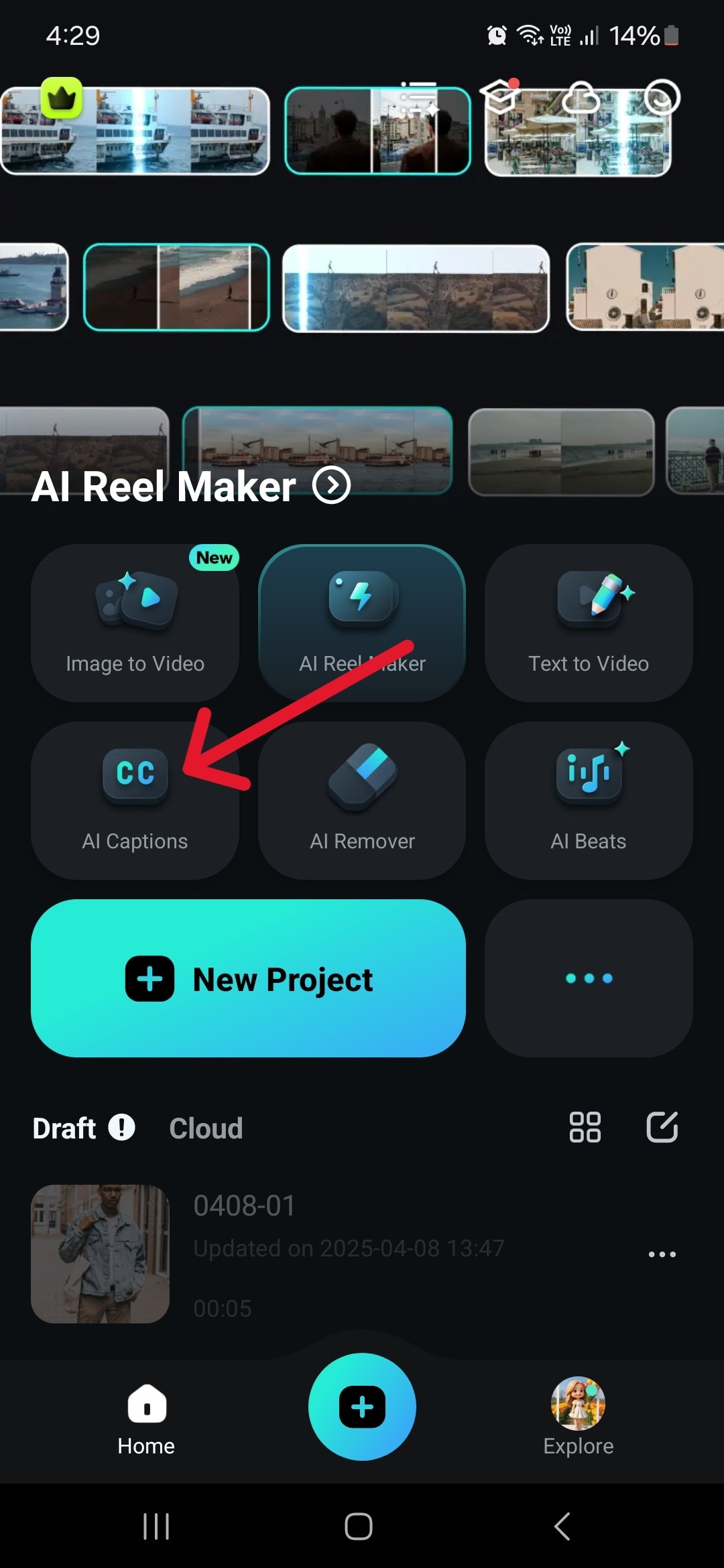
Step 2: Select the video you want to caption and choose the spoken language or the available automatic language identification option.
Depending on the available version and settings, you can also explore options such as bilingual captions and additional AI caption treatments.
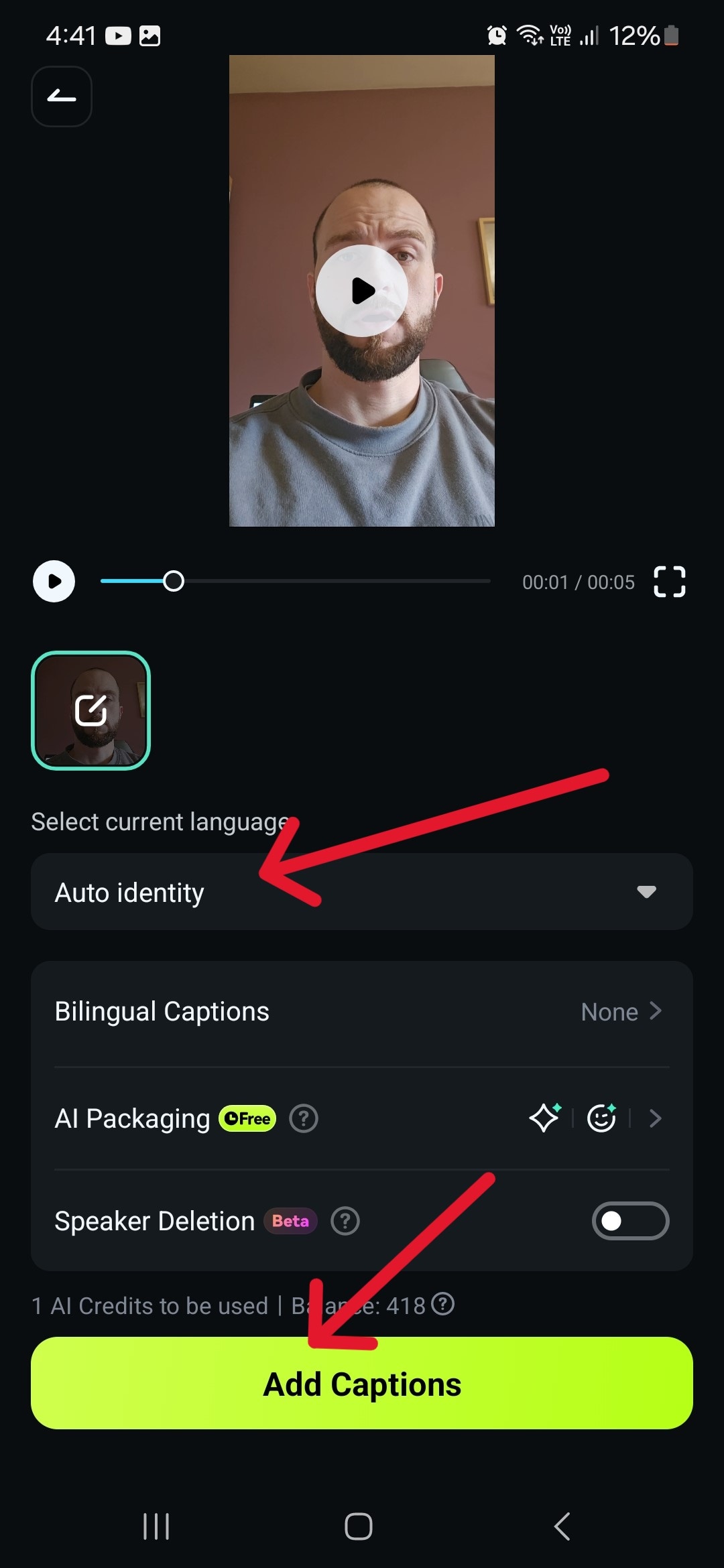
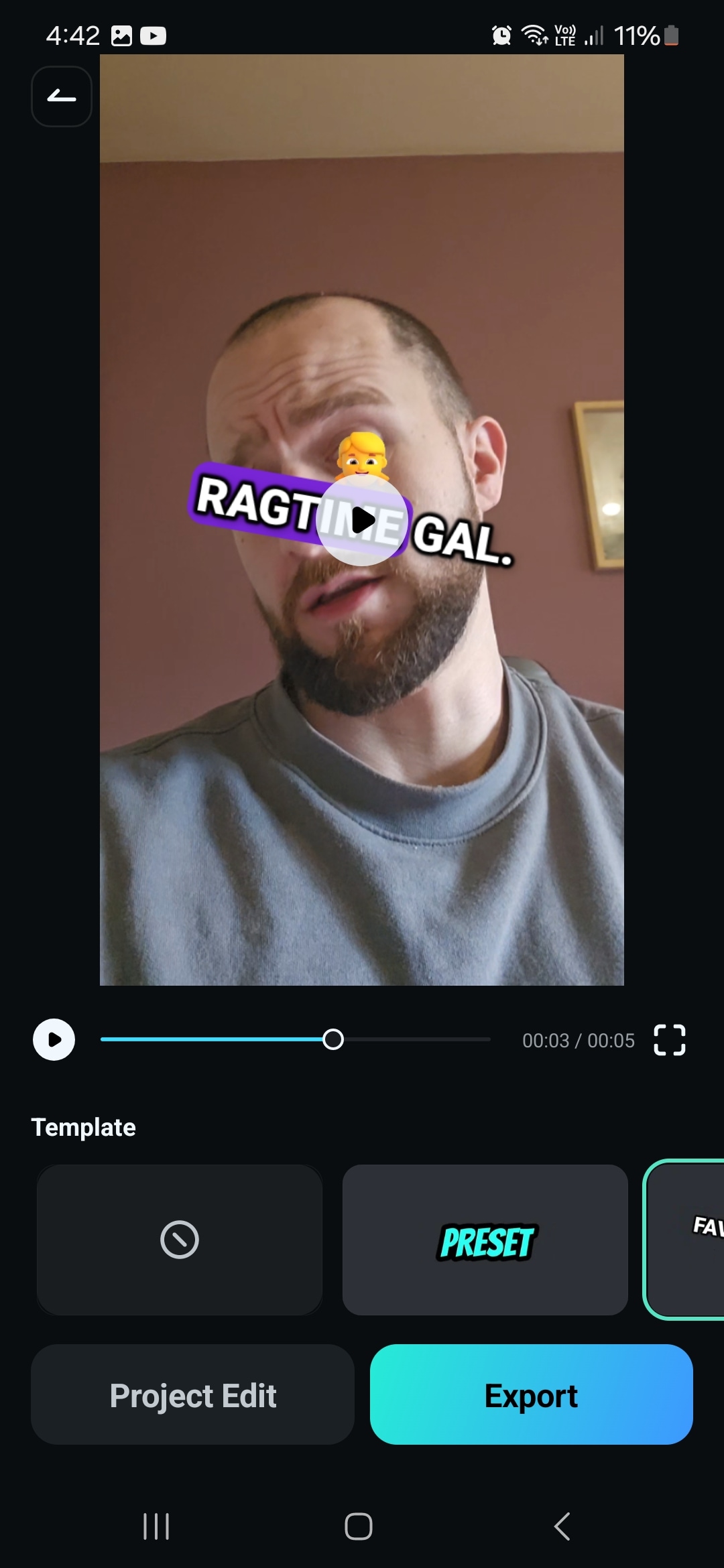
Step 3: Review the generated captions, choose an available caption template or style, and export the finished video when you're satisfied with the result.
 secure download
 Conclusion
Final Cut Pro's automatic caption workflow can save Mac editors from manually transcribing an entire video. You can generate captions from spoken dialogue, review the transcript, correct errors, and prepare the captions for your final output.
If you want additional creator-focused caption styling, Filmora Auto Caption combines Speech to Text with Dynamic Captions, Active Words, Key Words, caption animations, multilingual transcription, and translation. It is also available on both Windows and macOS, with a separate mobile caption workflow for creators who edit on their phones.
Frequently Asked Questions About Final Cut Pro Auto Captions
Can Final Cut Pro automatically generate captions?
Yes. Final Cut Pro provides a Transcribe to Captions workflow that can generate synchronized captions from spoken audio. Automatically generated captions should still be reviewed for transcription errors before publishing.
Do I need to edit automatically generated captions?
It is recommended. Names, technical terminology, accents, background noise, overlapping dialogue, and unclear speech can cause speech recognition errors in any automatic transcription workflow.
What is an alternative to Final Cut Pro for automatic captions?
Filmora is one option for creators who want automatic transcription together with caption styling and Dynamic Captions. It runs on both Windows and macOS and combines Speech to Text with Active Words, Key Words, animations, and caption translation.
Can Filmora create animated captions automatically?
Yes. Filmora Dynamic Captions can generate captions from spoken audio and visually highlight Active Words and Key Words. Creators can also apply caption templates, animations, and emphasis effects.
Does Filmora support multilingual captions?
Yes. Filmora supports transcription in more than 50 source languages and caption translation into more than 30 supported languages.
