


 TL;DR:
Because there is no official Splice desktop app for Windows or Mac, you must either run the mobile app through an Android emulator like BlueStacks or switch to a native desktop video editor.
● Using an emulator forces an awkward touch-based interface onto a desktop environment, resulting in a lack of keyboard shortcuts, higher system resource consumption, and significant lag on large projects.
● Wondershare Filmora serves as the strongest direct replacement, offering Splice-like simplicity alongside native Windows and macOS performance, longer timelines, and comprehensive mouse controls.
● If you prefer a completely free editing environment, open-source software like Kdenlive provides advanced multi-track editing without subscriptions, while web-based tools like Clipchamp bypass local installation entirely for fast social media clips.
Ask AI for a summary
 ChatGPT
 Perplexity
 Gemini
 Claude
 Grok
Grok
Splice is a video editor, prized for its editing tools and its large library of music and effects. That’s why many businesses are looking for a splice video editor Windows, or Splice video editor Mac to edit their work on a bigger screen.
But there’s a problem. There is no official Splice desktop app and no real Splice for Mac version. Splice only works as a mobile app on iOS and Android, which isn’t ideal if you want more control and screen space.
Still, you can still run the Splice app on PC or use Splice on Mac with an emulator, but it comes with limits. A better option is to switch to a solid Splice alternative made for desktop, and this article covers both choices and helps you pick the right one.
Part 1. How to Use Splice on Mac or PC Using an Emulator
Once again, there is no desktop version of Splice. So, to use the Splice video editor on a computer, you’ll need an Android emulator, which lets your PC or Mac run mobile apps on a bigger screen.
BlueStacks is one of the most stable options. Other emulators such as NoxPlayer also function. It is similar on both Windows and macOS, so the following guide works for both.
How to Use Splice on Windows/Mac Using a Simulator
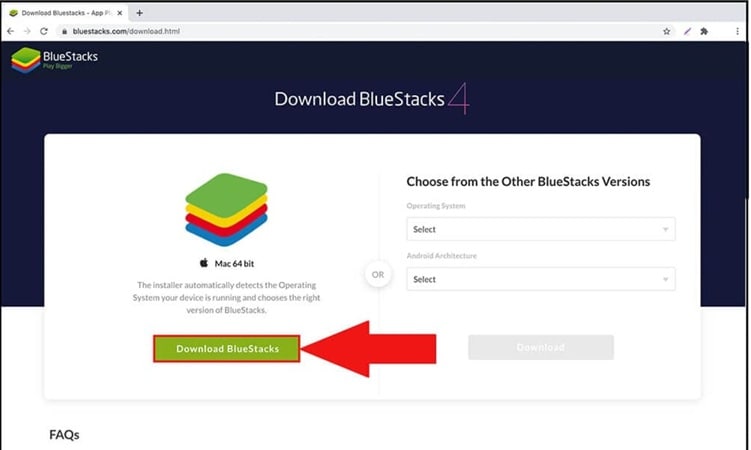
Step 1: Install an Android Emulator
Go to the official site for an emulator like BlueStacks or NoxPlayer, download it, and install it like any other desktop app.
Step 2: Sign in to Google Play
Open the emulator. Access Google Play inside it. Log in using your Google account.
Step 3: Install Splice
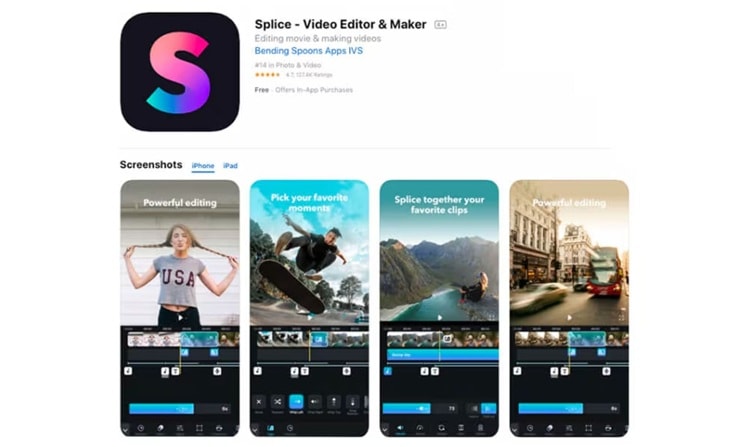
Search for Splice in the Play Store. Select the app and install it. The download usually finishes quickly.
Step 4: Launch the App
Open Splice from the emulator’s app drawer. It will load just like it does on a phone.
Step 5: Import Media Files
Move your videos and photos into the emulator’s shared folder. This allows the splice video editor for Windows or Mac environments to access your files during editing. For a more detailed walkthrough, take a look at the video below.
Limitations of Using an Emulator
This method allows desktop use, but it has its own troubles. Including:
- It only mirrors the mobile experience.
- Editing remains touch-based and limited, as evidenced by longer or more detailed projects.
- Poor performance on large projects
- No keyboard shortcuts or mouse-optimized workflow
- Higher system resource usage
- App crashes and lag
- No true desktop export controls
- Touch-based UI feels awkward on a desktop
Part 2. Top Splice Alternatives for Desktop to Try Instead
As you can see, using an emulator may satisfy curiosity, but it rarely meets real editing needs. On the other hand, desktop video editing applications are optimized for mouse and keyboard interaction, large timeline windows, high resolutions, and complicated workflows.
If you want an alternative to Splice, a proper desktop editor is the better bet. Many options deliver Splice-like simplicity while offering far more control.
How We Test
- Ease of use compared to Splice
- Music and effects support
- Performance on Windows and macOS
- Learning curve for beginners
- Pricing and long-term value
Comparison Chart of the Best Splice Alternatives for Desktop
| Software | OS Supported | Pricing | Best For | Rating |
| Wondershare Filmora | Windows, macOS | Free trial / Paid plans | Beginners to semi-pro creators | 4.6 / 5 |
| Media.io | Web | Subscription | Fast online edits | 4.4 / 5 |
| Clipchamp | Windows, Web | Free / Premium | Social & short videos | 4.3 / 5 |
| Kdenlive | Windows, macOS, Linux | Free (Open-source) | Advanced free editing | 4.2 / 5 |
| MiniTool MovieMaker | Windows | Free / $12/mo | Simple PC editing | 4.1 / 5 |
| OpenShot | Windows, macOS, Linux | Free (Open-source) | Lightweight projects | 4.0 / 5 |
| Adobe Premiere Pro | Windows, macOS | Free trial/US$22.99/mo | Professional workflows | 4.7 / 5 |
|
Show More
Show Less
|
||||
 Secure Download
1. Wondershare Filmora
Splice works well on mobile but has no desktop version. Filmora fills that gap. It is a desktop editor built for Windows and macOS. The interface feels clean and modern. Editing stays simple, yet the toolset is deep enough for serious projects and long videos.
- Clean three-panel layout for media, preview, and timeline.
- Core tools for trim, split, crop, rotate, merge, and speed control.
- Advanced titles, transitions, filters, and motion effects.
- Built-in music, sound effects, and text animation presets.
- AI tools for music generation, voiceovers, captions, and stickers.
- Screen recording with system audio and microphone support.
- Wide format support, including MP4, MOV, and MTS.
- One-click sharing to major social platforms.
- Easy to learn, even for first-time editors.
- Smooth performance during regular editing tasks.
- Large effects and template libraries stored in the cloud.
- Fair pricing compared to professional editors.
- Free exports include a watermark.
- Heavy projects may slow on low-end systems.
- Not designed for high-end color grading workflows.
Filmora offers the same ease that makes Splice popular, but without mobile limits. Unlike Splice, it works natively on desktop, can be controlled by keyboard and mouse and supports longer timelines.
Secure Download2. Media.io
Media. io is an online video and audio editor that is great for making quick videos. It offers fast editing, format conversion, compression and behavior powered by AI. The interface is clear and minimalist, which is great for people who don't mind that they'll have to navigate a web browser instead of using desktop software.
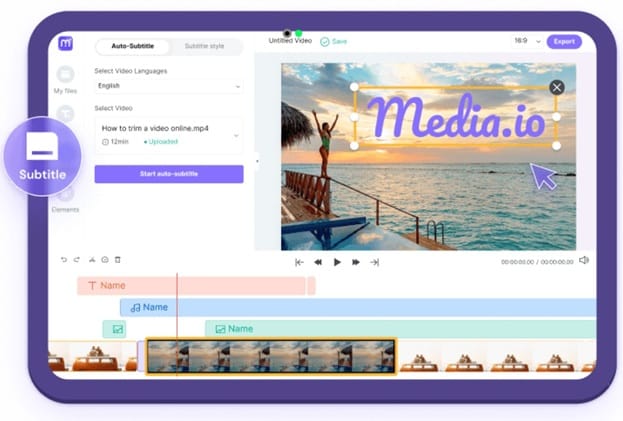
- Online editing for video and audio without local installation.
- AI captions, AI music, and AI-driven visual effects.
- Built-in AI media tools for image to video creation.
- Custom controls for output duration, resolution, and aspect ratio.
- Video and audio conversion, recording, and compression tools.
- Easy to use for beginners.
- Strong focus on AI-based editing features.
- Regular updates to AI models and effects.
- Free plan has heavy limitations.
- Limited control over AI-generated results.
- Occasional performance issues during processing.
Splice is designed for hands-on editing on mobile devices. Media.io takes a different approach by relying on AI automation instead of manual timelines. For users who want fast edits on a computer and prefer AI-assisted creation over detailed control, Media.io offers a flexible splice alternative that works directly in a web environment without emulators.
3. ClipChamp
Clipchamp is all about keeping things quick and easy, and since it’s an online editor, you don’t have to install anything heavy. It gives you guided templates and blank projects, so even if you’re new to editing, you can jump in without feeling lost.
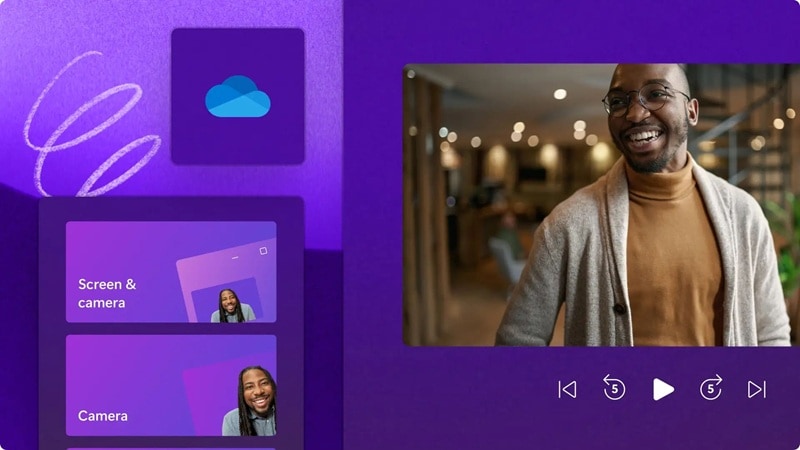
- Two editing modes: templates or empty projects.
- Preset aspect ratios for major social platforms.
- Built-in stock videos, music, sound effects, and green screen clips.
- Stickers and overlays from GIPHY or custom PNG files.
- AI tools that assist with basic editing tasks.
- Webcam and screen recording built into the editor.
- Direct export to YouTube, TikTok, Google Drive, and OneDrive.
- Clean text animations and modern graphic overlays.
- Large collection of stock media and templates.
- Extra tools like video conversion and webcam recording.
- Easy sharing through downloadable files or links.
- No watermark on exports in the free plan.
- No keyframe controls for advanced animation.
- Not suitable for demanding formats such as 4K or GoPro footage.
- Free plan limits HD and UHD exports.
- Slower performance compared to offline editors.
Clipchamp is great for basic YouTube and social media clips. It has a very short learning curve, feels natural while being used and you don’t have to be some sort of master with it in order to get great results.
4. KDenlive
Kdenlive is an open-source, cross-platform video editor for Windows, Mac and Linux. It provides a multi-track timeline, an easy-to-use interface, and many effects. The tool is meant to be simple enough for beginners, who are only learning the basics of editing, but deep enough for professionals who want more control over audio and color.
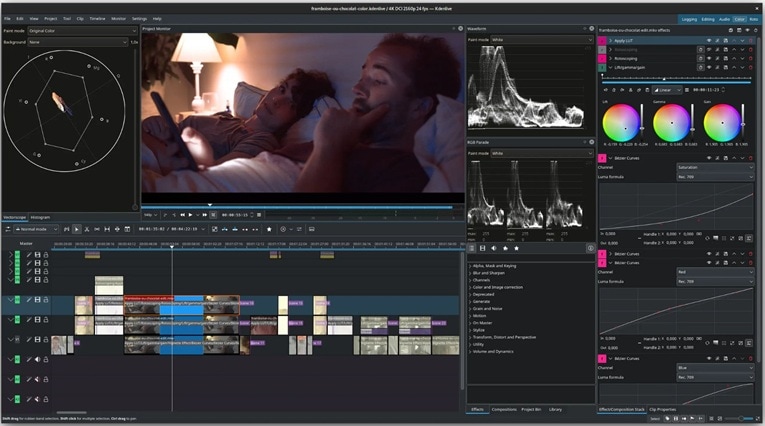
- Multiple video and audio tracks with lock and mute controls.
- Custom 2D title creation for intros, credits, and overlays.
- Wide range of effects for color correction and audio adjustment.
- Green screen tools for background removal and visual effects.
- Audio and video scopes, including waveform and vectorscope.
- Proxy editing for smoother handling of high-resolution footage.
- Large collection of free render profiles and title templates.
- Advanced tools such as keyframes, multicam editing, and audio mixing.
- Completely free with no watermark.
- Installation can be confusing for first-time Windows users.
- Performance may drop on low-end hardware.
- Limited output format options compared to commercial editors.
Splice is simple on mobile, but Kdenlive gives you full control on desktop. It’s a solid Splice alternative if you want powerful editing tools without paying for a subscription.
5. MiniTool MovieMaker
MiniTool MovieMaker is a Windows-only video editor built for users with little editing experience. It focuses on clarity and speed. The interface stays simple, yet it includes enough tools to turn photos and clips into clean videos without technical setup or complex workflows.
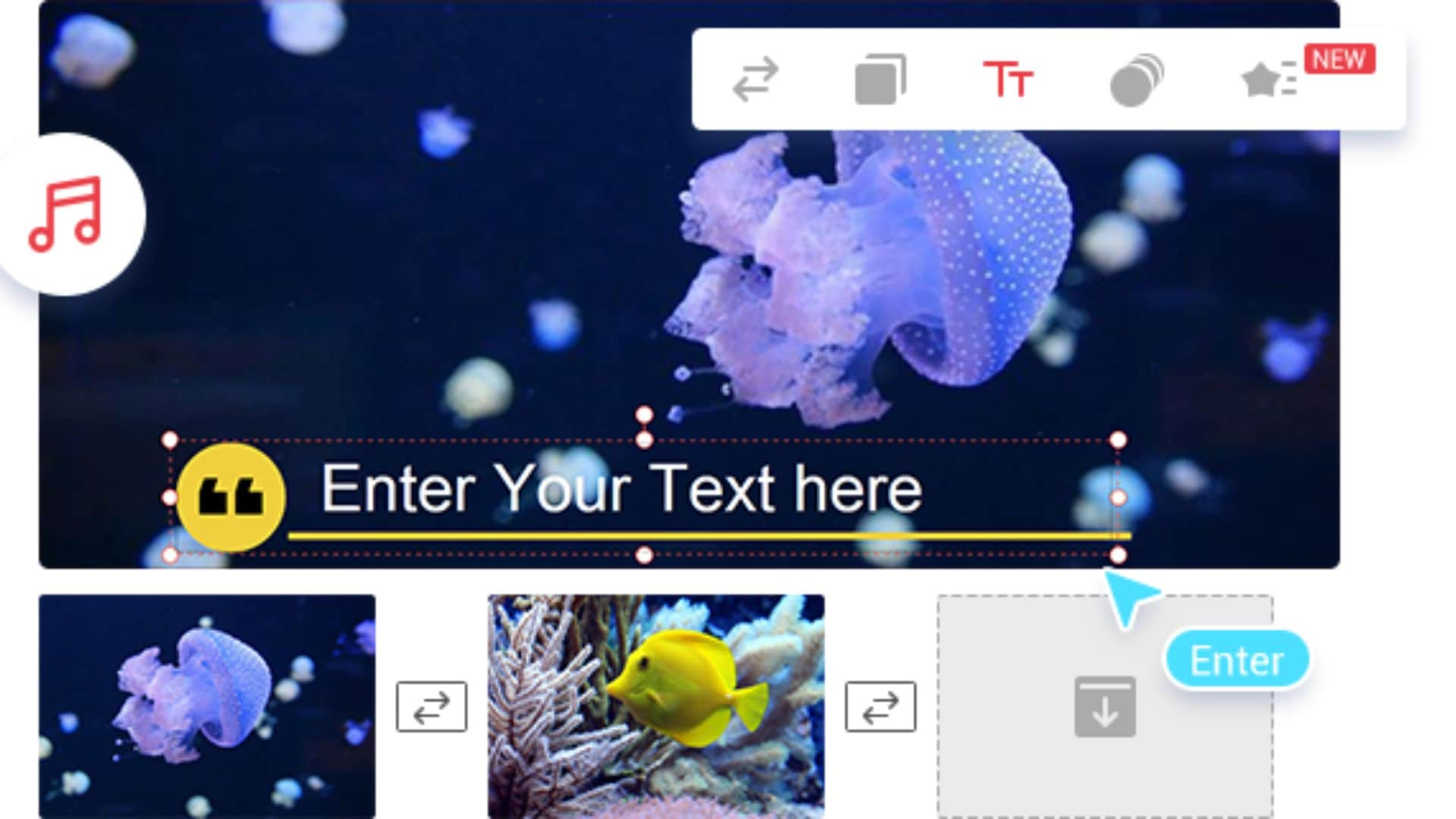
- Basic and advanced tools for trim, split, crop, rotate, flip, reverse, and speed control.
- Multi-track timeline for syncing video, audio, and images.
- Background compositing to replace or clean up video scenes.
- Dedicated title editor for captions, subtitles, and animated text.
- Audio tools for noise reduction, balance control, and track editing.
- Presets for filters, transitions, motion effects, and stickers.
- Clean and well-organized interface.
- Very easy to use for beginners.
- Low pricing compared to most desktop editors.
- Growing library of effects and templates.
- Limited customization during export.
- Effects and presets offer little manual control.
Splice is also a good app for making fast cuts on a phone. MiniTool’s Movie Maker brings that same ease of use to Windows, but with the added bonus of a real timeline and true multi-track control. For users who are looking for a splice video editor on Windows without all the hassle of emulators or complicated software it offers an easy and affordable way to edit your footage.
6. OpenShot
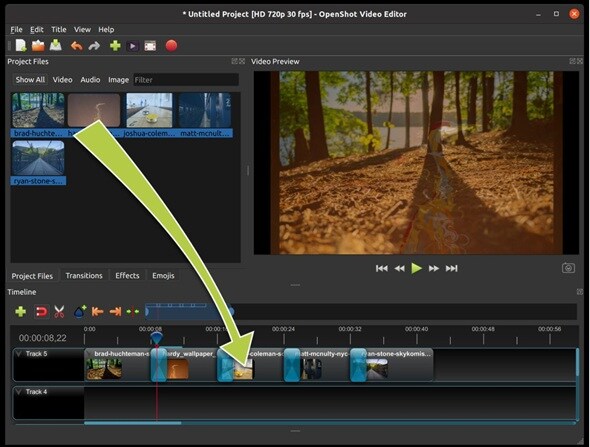
For users who want a splice for computer option that is free and flexible, OpenShot provides creative freedom without subscriptions or watermarks. It is a free, open-source video editor available on Windows, macOS, and Linux. It supports many media formats and allows users to combine video, audio, and images easily.
- Support for high-resolution exports, including Full HD, 4K, 8K, and 16K.
- Animated title editor for simple motion text.
- Audio mixing tools for music, effects, and dialogue balance.
- Background removal for basic compositing.
- Time-mapping and speed controls for slow motion and fast playback.
- Completely free and open-source.
- Works across multiple operating systems.
- Simple drag-and-drop workflow.
- Basic keyframe support for effects and motion.
- Wide range of export settings for different platforms.
- Some transitions and effects may behave inconsistently.
- The interface looks outdated and less refined.
- Fewer advanced features than paid editors.
- The macOS version can feel unstable.
- Performance may lag on larger projects.
Splice limits editing to mobile devices and short projects. OpenShot removes those limits by offering unlimited tracks, higher export resolutions, and desktop precision.
7. Adobe Premiere Pro
Adobe Premiere Pro is a professional desktop editor used across film, media, and content production. It supports everything from basic cuts to complex visual effects. The workflow, tools, and interface are far more advanced than entry-level editors, making it suitable for users who want full creative and technical control.
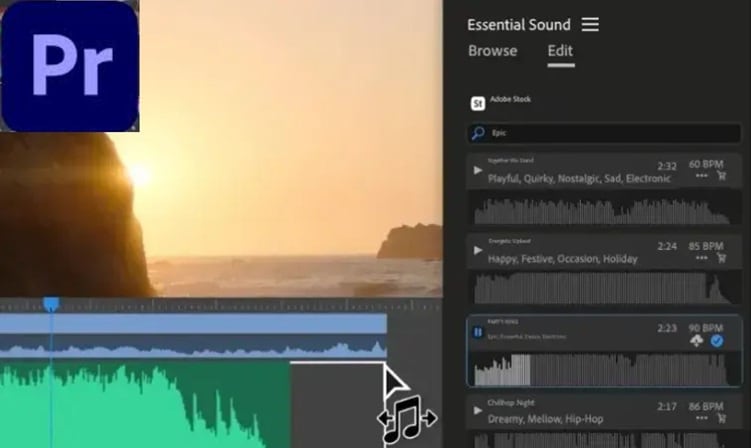
- Advanced trimming tools such as ripple, roll, slip, and slide edits.
- AI-powered text-based editing using automatic transcription.
- Speech enhancement to clean dialogue and reduce noise.
- Professional color grading with the Lumetri Color workspace.
- AI audio tagging for dialogue, music, and sound effects.
- Recovery mode with auto-save and project version rollback.
- Generative fill workflow with Photoshop integration.
- Auto reframe for quick aspect ratio changes.
- Audio Track Mixer for detailed sound control.
- Direct publishing to major social platforms.
- High-end audio and video editing tools.
- Proxy workflows for smooth 4K and 1080p editing.
- Large ecosystem of plugins and extensions.
- Heavy system requirements.
- Complex interface with a steep learning curve.
Splice is great for quick edits on your phone, but Adobe Premiere Pro is made for serious desktop editing. It gives you full timeline control, better audio and color tools, and a workflow that works well for bigger projects and team work.
Conclusion
Splice shows how effective mobile editing can be, but its design stops at the phone screen. Trying to use a splice video editor for Windows through emulators often leads to slow performance and awkward controls.
Desktop editors solve that problem by offering room to think, refine, and build longer projects. Each option covered here serves a different creative habit. Some favor speed, others reward patience.
Filmora attracts attention because its transitions feel natural. The layout is easy to read, edits stay responsive, and ideas are not constrained by mobile limitations. It suits creators ready to work comfortably on a computer without losing momentum.
Secure DownloadFAQs
-
Is the Splice video editor free?
Splice offers a free download on iOS and Android, but it is not fully free. Core editing tools are accessible at no cost, while premium features such as advanced music, effects, and exports require a paid subscription. Pricing and availability may vary by region and platform. -
Is Splice Video Editor available on PC?
No. Splice does not offer a native Splice desktop app, nor does it provide official versions for Windows or macOS. There is no supported splice video editor for PC or Mac. The app is available only on iOS and Android. Desktop use is possible only through Android emulators, which are unofficial and limited. -
What are the best desktop alternatives to the Splice mobile app?
Wondershare Filmora is the strongest desktop replacement for Splice. It keeps editing simple while adding full keyboard control, stable performance, longer timelines, and native support on Windows and macOS without emulators.
