


 TL;DR:
ChatGPT Images 2.0, powered by the gpt-image-2 model, reduces the need for repetitive prompting by introducing 99% accurate multilingual text rendering and a Thinking mode that self-verifies outputs and generates up to eight consistent images simultaneously.
● While basic generation is available to free users, the advanced Thinking mode—which unlocks real-time web searches and multi-image character consistency—strictly requires a ChatGPT Plus ($20/month), Pro, or Business subscription.
● For comparative workflows, ChatGPT Images 2.0 is better suited for precise multilingual typography and vibrant marketing visuals, whereas Nano Banana 2 is more reliable for accurate technical diagrams, infographics, and muted natural tones.
● Users must manually verify diagram labels and data, as the gpt-image-2 model still struggles with complex physical logic like origami, fails on dense textures like fabric weaves, and can take up to two minutes per generation when Thinking mode is active.
Ask AI for a summary
 ChatGPT
 Perplexity
 Gemini
 Claude
 Grok
Grok
OpenAI just dropped ChatGPT Images 2.0. If you've been waiting for AI image generation to actually work without you having to fight the prompt, tweak settings over and over, or regenerate the same image ten times just to get something right, this is the update you’ve been waiting for.
So, we tested Images 2.0, compared it against older GPT Image versions and Nano Banana 2, and put together everything you need in one place, including what actually changed, where it still falls short, and prompt tips to get better results.
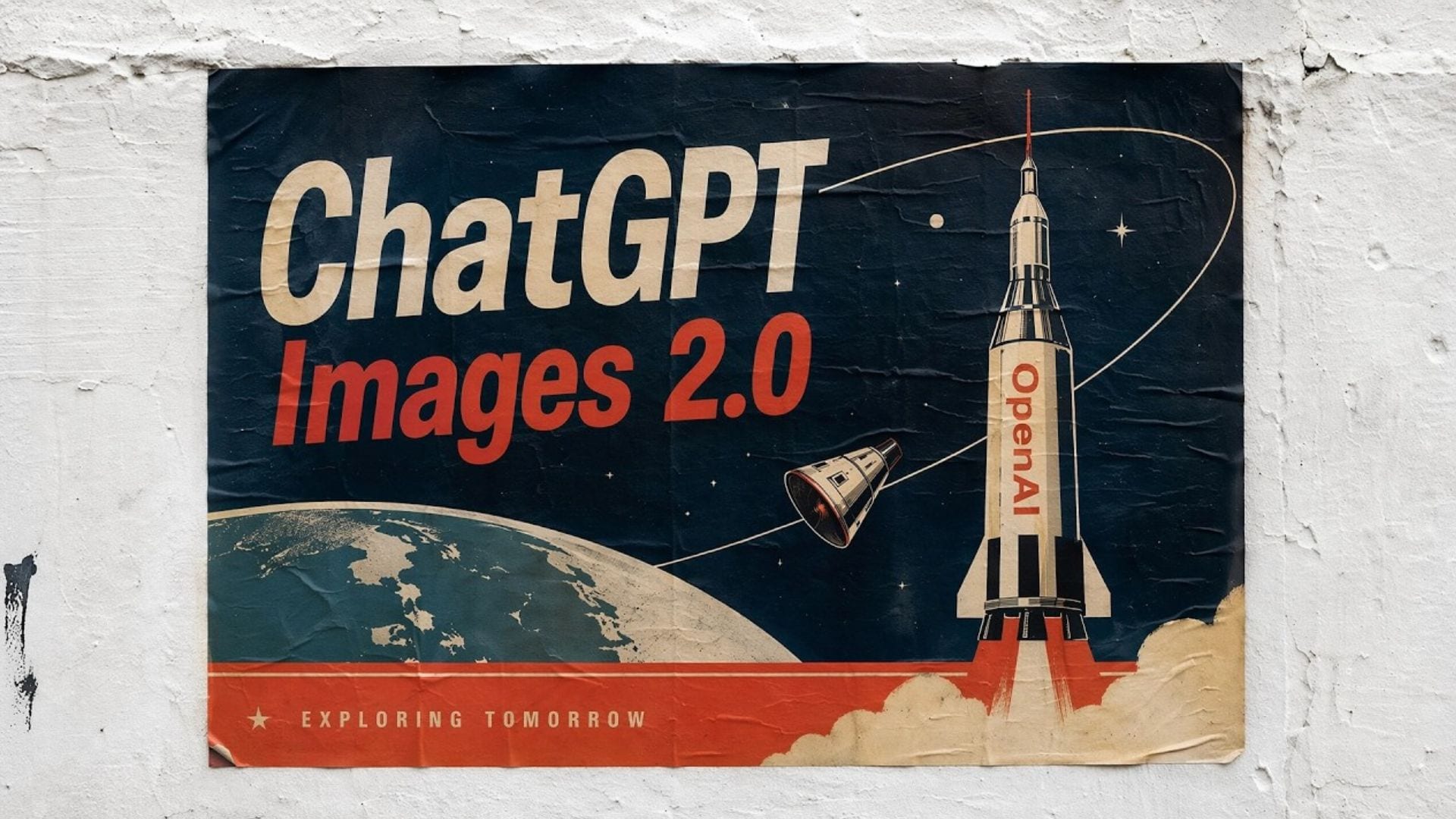
Part 1. What is ChatGPT Image 2.0?
OpenAI just rolled out a major upgrade to its image generation system inside ChatGPT, now called ChatGPT Images 2.0. At its core, it runs on a new model named gpt-image-2, which is also what developers access through the API (more about this later).
Images 2.0 is the first OpenAI image model with built-in thinking capabilities, near-perfect text rendering, and a rebuilt architecture. In practical terms, it’s built to reduce the usual back-and-forth. You spend less time rewriting prompts or regenerating outputs, and more time actually getting usable visuals from the first few tries.
What's New in GPT Image 2.0
The gpt-image-2 release date was on April 21, 2026. The rollout was available the same day to ChatGPT and Codex users globally. Some of the updates it brings include:
1. First image Model with Thinking Capabilities
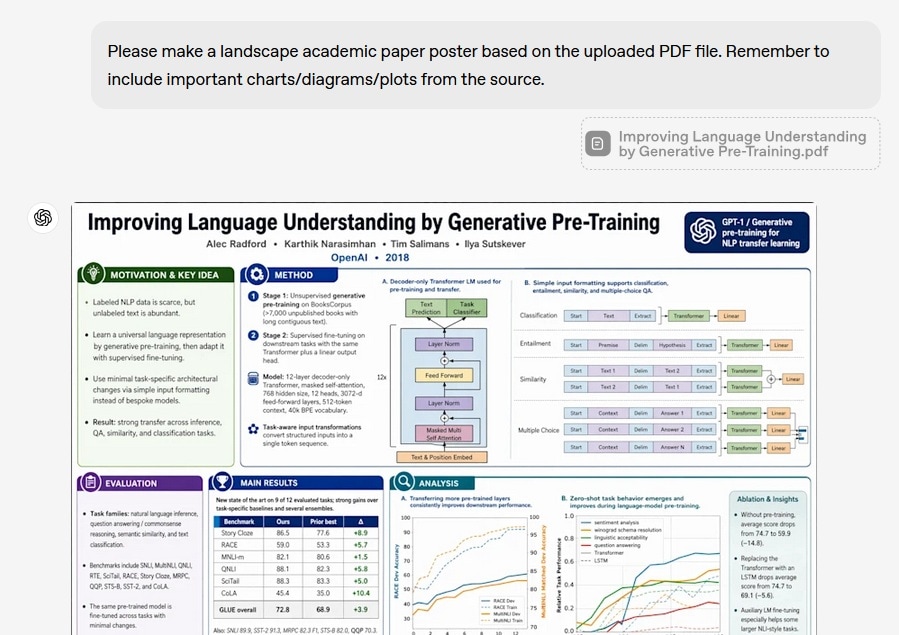
The gpt-image-2 is the first OpenAI image model that can search the web during generation and self-verify outputs via ‘Thinking’ mode. It can also produce up to 8 images from a single prompt with consistent characters and objects across all of them.
2. Better Text Rendering
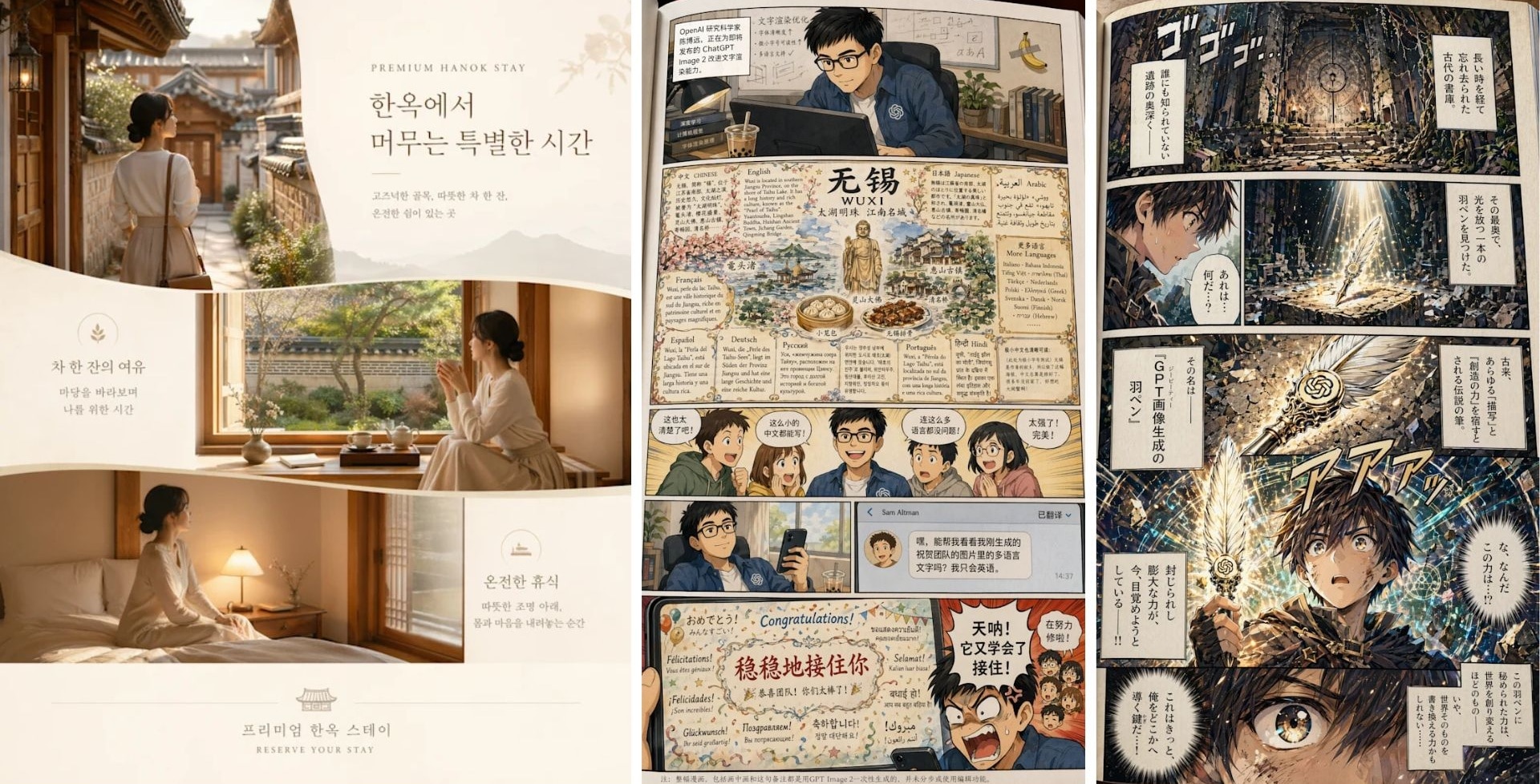
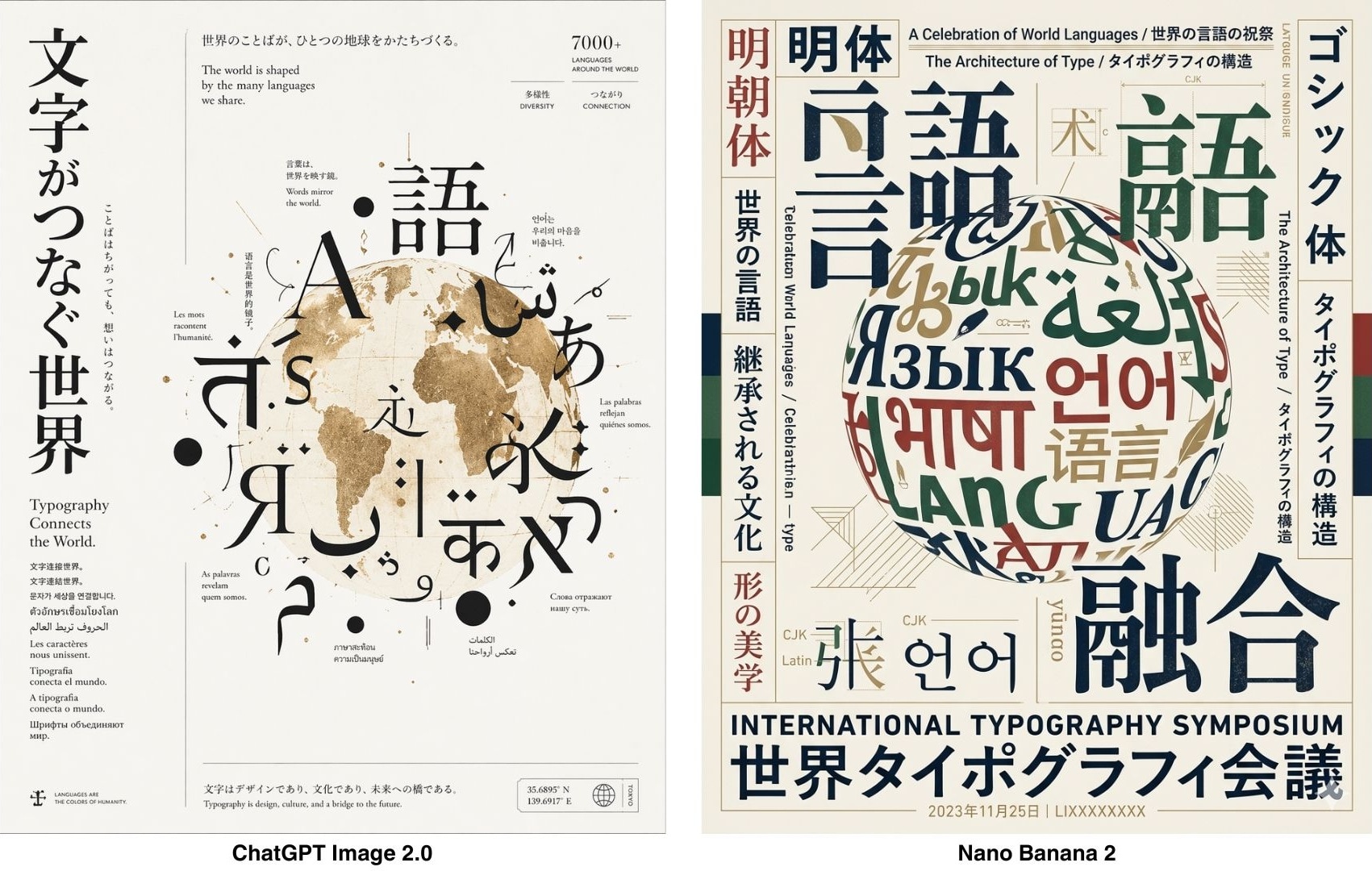
LM Arena early testers report 99% character-level accuracy. Text integrates into scenes instead of floating on top of them. Even in dense compositions, things like labels, menus, and interface elements hold up much better instead of breaking or turning into gibberish. This improvement also covers non-Latin characters, like Japanese, Chinese, Korean, Hindi, and Bengali.
3. Refined Styles with Lifelike Realism
Images 2.0 handles a much wider range of visual styles with better consistency. Realistic outputs now come much closer to real photos, with improvements like:
- The warm color cast that plagued GPT Image 1.5 is relatively gone
- Physics, lighting, and material properties are modeled more accurately
- Hands look natural, with better finger proportions and joint angles
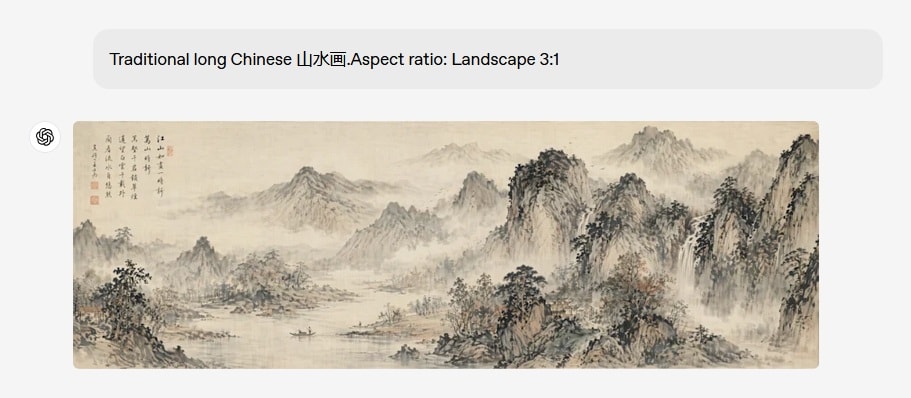
4. Faster Processing with Flexible Ratios
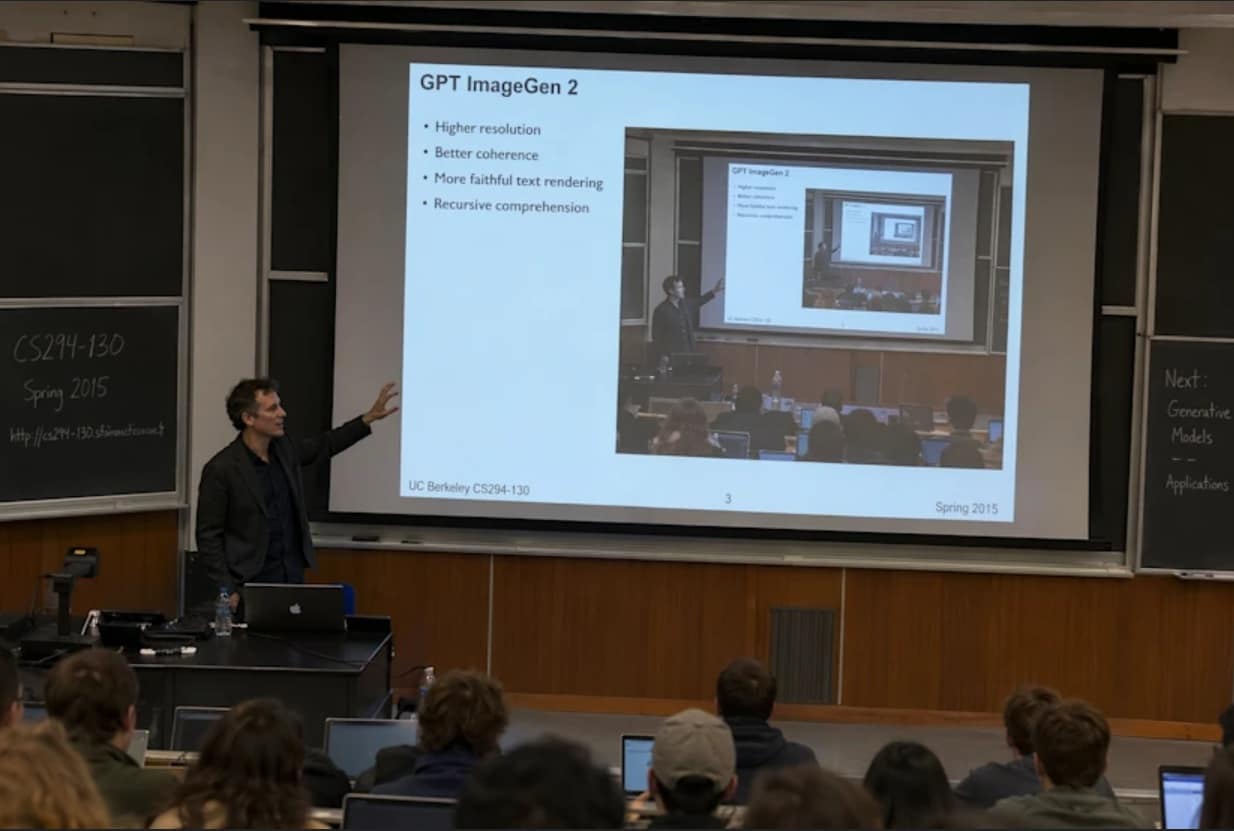
The new gpt-image-2 can run faster than the previous models. Aspect ratios range from 3:1 to 1:3, so outputs fit wide banners, presentation slides, posters, mobile screens, and social graphics without cropping or resizing.
5. Real-world Intelligence
Images 2.0 brings a more up-to-date understanding of the world into image creation, with a knowledge cutoff of December 2025. It already knows about recent events, products, and cultural context without you having to explain them.
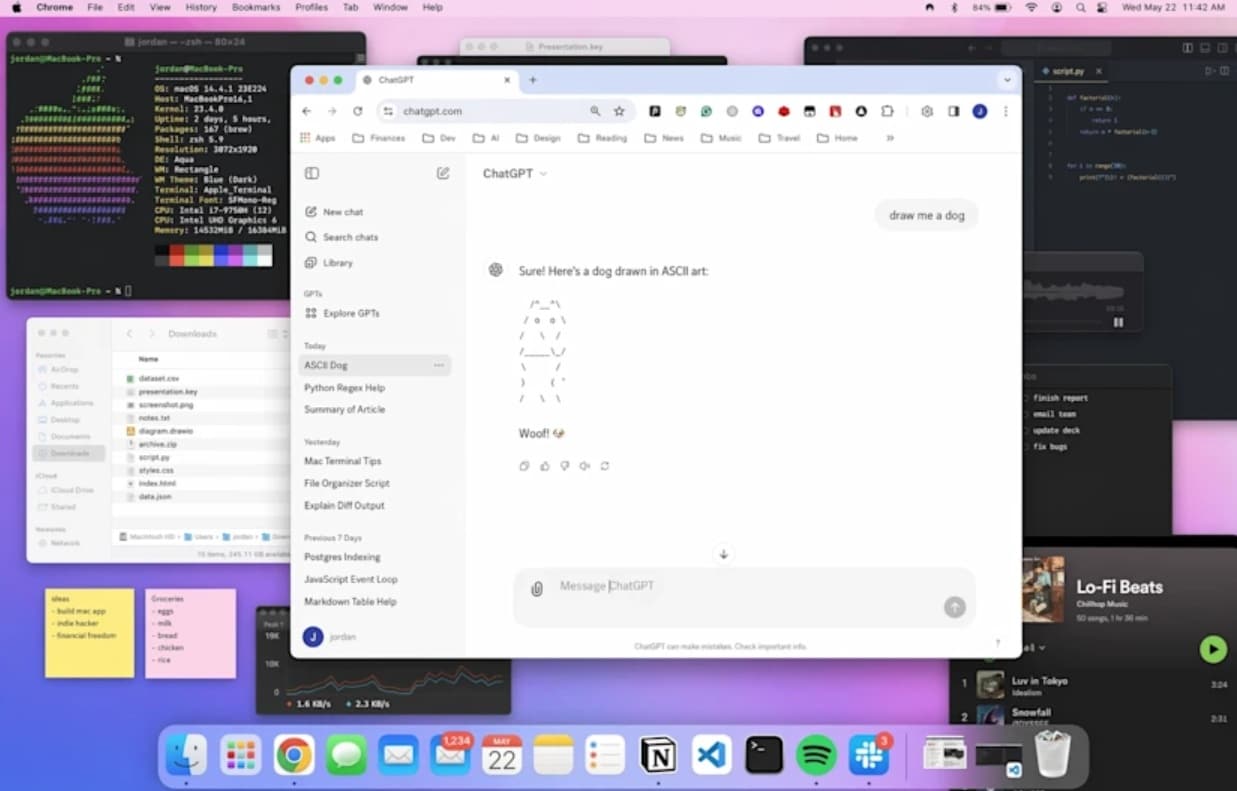
Part 2. gpt-image-1 vs gpt-image-1.5 vs gpt-image-2.0
The easiest way to understand the upgrade of ChatGPT Images 2.0 is to compare the three generations side-by-side. To make it fair, we'll use the same prompt across all three models so you can judge the difference easily.
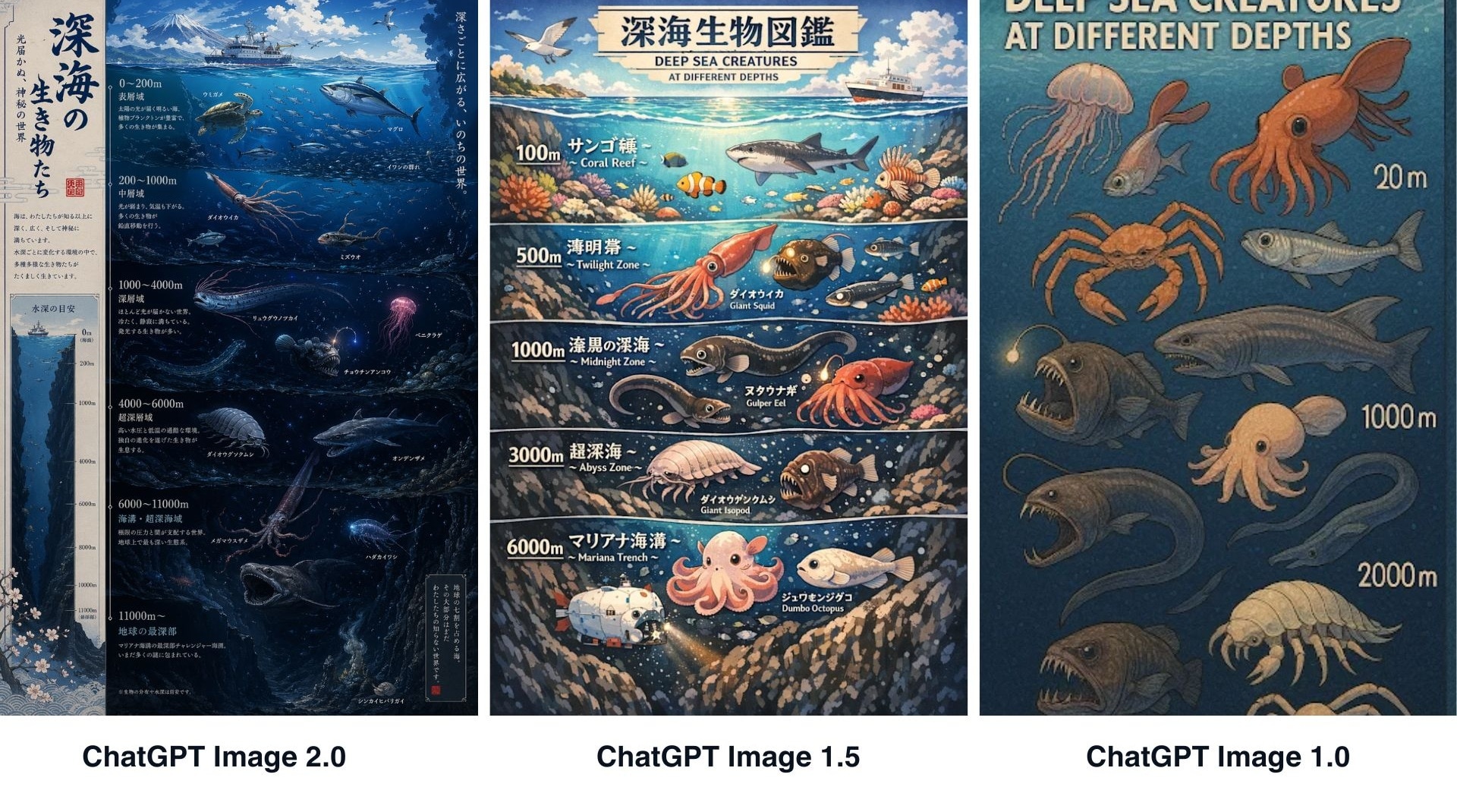
GPT Image 1.0 vs 1.5 vs 2.0 Comparison
| GPT Image 1.0 | GPT Image 1.5 | GPT Image 2.0 | |
| Launch | April 2025 | December 2025 | April 2026 |
| Text Rendering | Often weak, especially with longer text | Better, but still inconsistent in dense layouts | Major improvement, especially for signs, posters, labels, and UI-style images |
| Prompt Accuracy | Ignores complex details | Follows about 70% | Near-Perfect Adherence |
| Realism | Solid, but sometimes artificial | More polished and natural | Hyper-Realistic/Cinematic |
| Speed | Baseline | 4x faster than 1.0 (estimated) | 2x faster than 1.5 (estimated) |
| Resolution | Up to 1536x1024 | Up to 1536x1024 | Up to 2560x1440 (2K) |
API Cost Overview
| Model | Quality | 1024 × 1024 | 1024 x 1536 | 1536 × 1024 |
| GPT Image 2 | High | $0.211 | $0.165 | $0.165 |
| GPT Image 1.5 | High | $0.133 | $0.2 | $0.2 |
| GPT Image 1 | Moderate | $0.167 | $0.25 | $0.25 |
Note: Actual cost can also include text input tokens and image input tokens when editing or using reference images. For more detailed info on the listed costs, check out OpenAI's API image generation guide.
Part 3. How to Access and Use ChatGPT Image 2.0
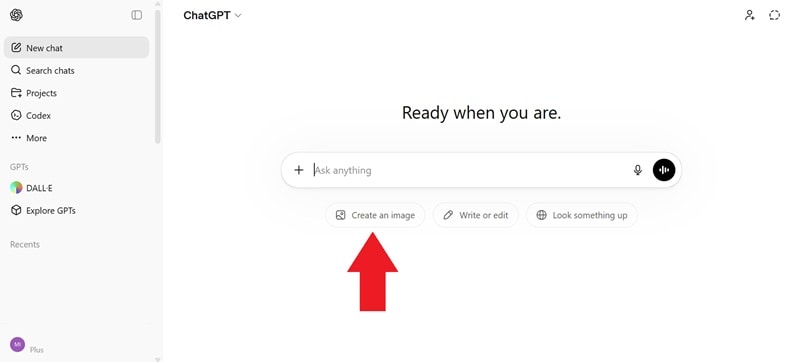
When you are generating images in ChatGPT, you are automatically using the latest ChatGPT Images 2.0 model. And it’s available across all tiers, including Free users. However, advanced outputs with ‘Thinking’ are only available to ChatGPT Plus, Pro, and Business users.
Check out the table below to see the pricing differences for each plan.
| Plus | Pro | Business | |
| Pricing (Monthly) | $20 | $100 | $25/user |
Step-by-Step: How to Use GPT Image 2 in ChatGPT
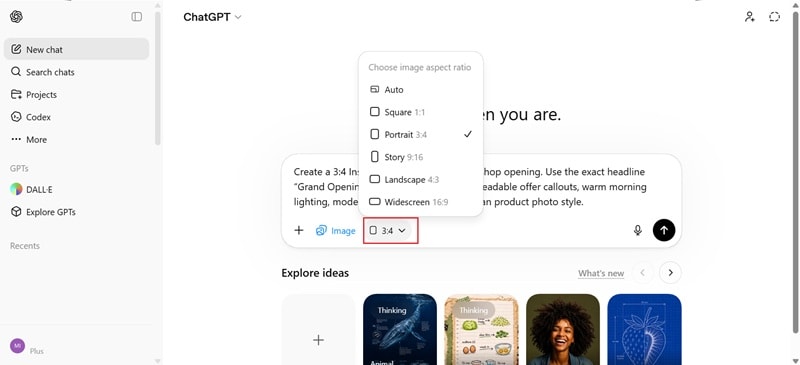
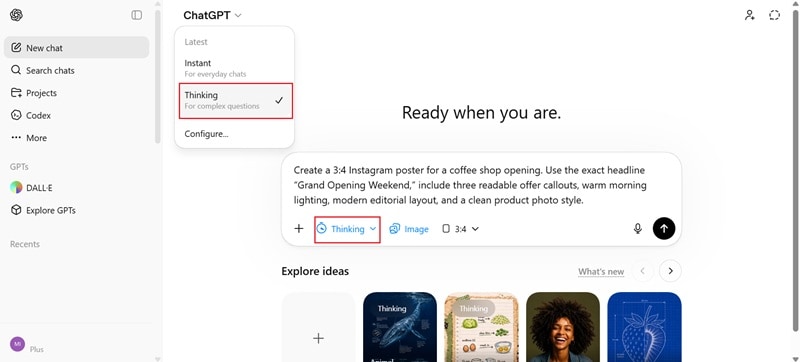
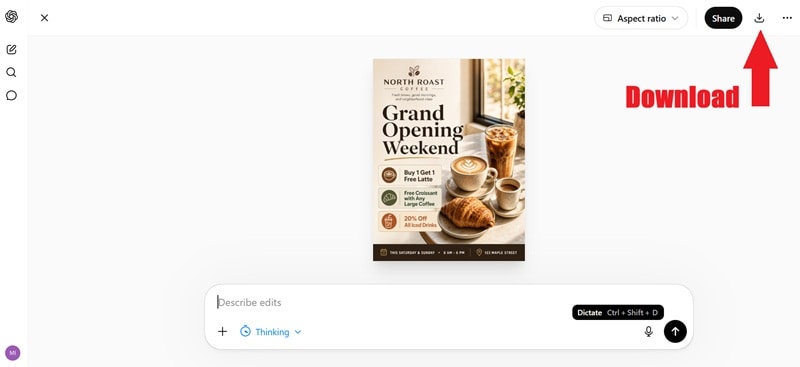
Best Use Cases for GPT Image 2
ChatGPT Images 2.0 is strongest when the image needs both creativity and structure. It is not just for making pretty images. It is more useful when you need to communicate through visuals.
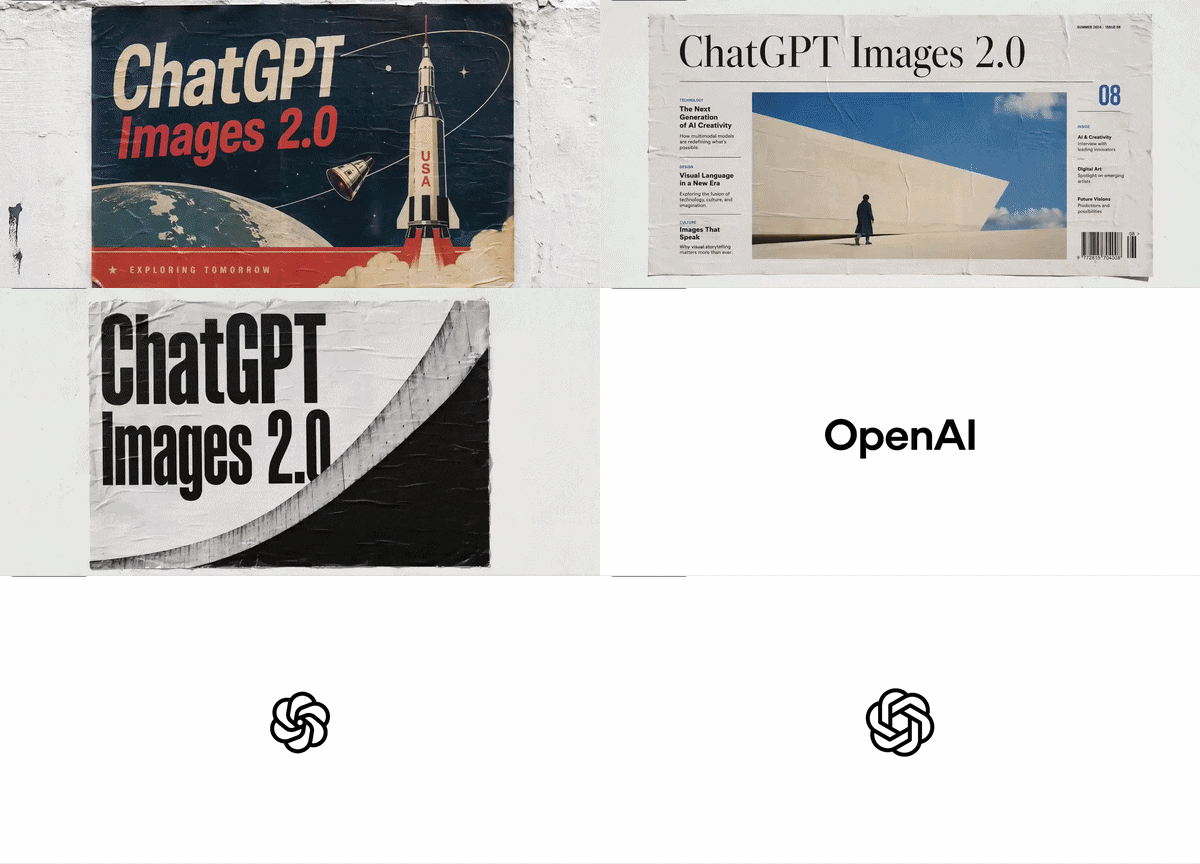
The best use cases for ChatGPT Images 2.0 include:
- UI/UX Mockups: Design entire app screens with readable buttons.
- Marketing Visuals: Create ads, posters, and banners that are ready for print.
- Diagrams & Education: Generate math proofs or flowcharts that actually make sense.
- Product Images: You can create product-style visuals, packaging concepts, promotional mockups, and lifestyle shots.
- Illustrations: Concept art for games or books with consistent characters.
For Developers & Business: Use gpt-image-2 in the API
Developers and businesses can bring these same capabilities into the products they’re developing to the API through gpt-image-2, the model's official name in the API documentation. By using the API, you get the same pinpoint text accuracy and stylistic depth that we’ve been raving about, but with the flexibility of a professional dev environment.
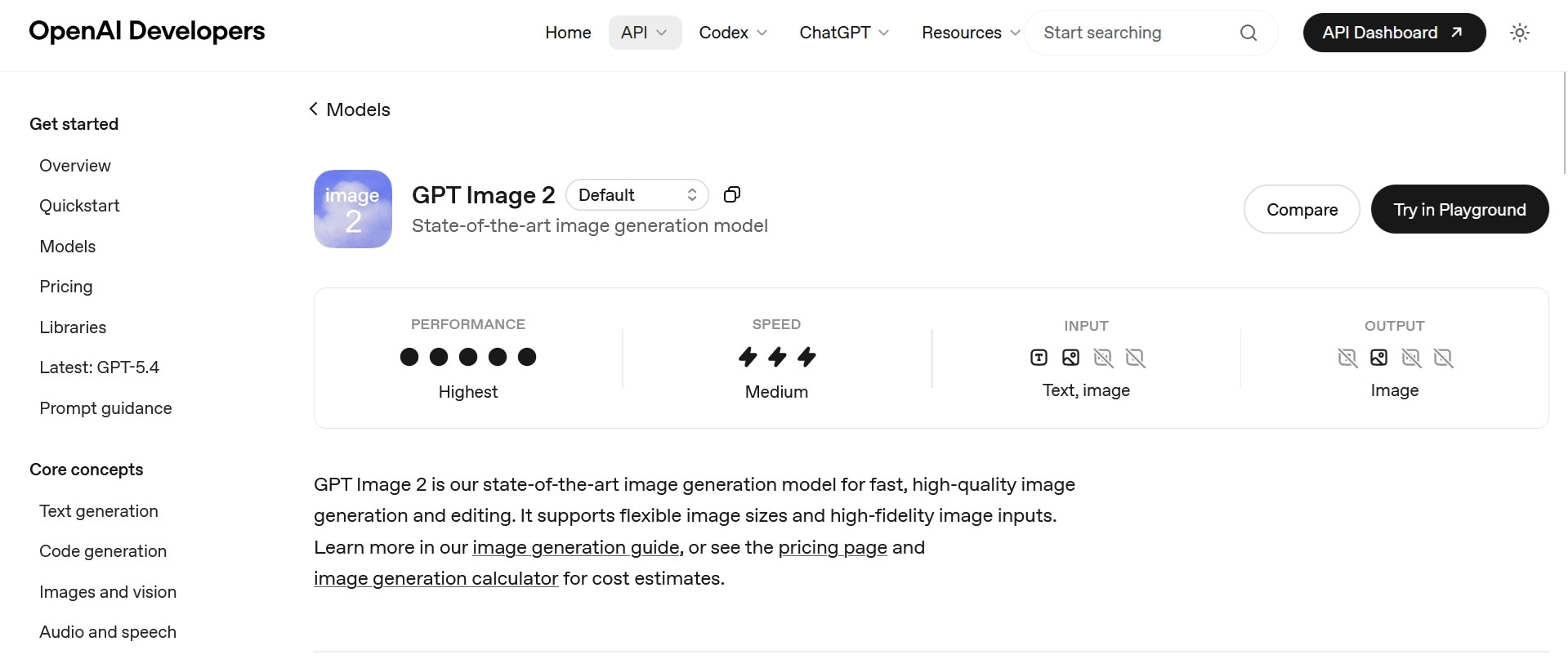
gpt-image-2 API Pricing
The pricing for gpt-image-2 is not a flat “per image” fee. Several factors decide the number of tokens you need. But in general:
- Lower quality + smaller size = cheaper and faster.
- Higher quality + larger resolution = more expensive but more detailed.
| Ratio | Quality | Tokens | Price |
| Square (1024×1024) | Low | 272 tokens | $0.006 |
| Square (1024×1024) | Medium | 1,056 tokens | $0.053 |
| Square (1024×1024) | High | 4,160 tokens | $0.211 |
| Portrait (1024×1536) | Low | 408 tokens | $0.005 |
| Portrait (1024×1536) | Medium | 1,584 tokens | $0.041 |
| Portrait (1024×1536) | High | 6,240 tokens | $0.165 |
| Landscape (1536×1024) | Low | 400 tokens | $0.005 |
| Landscape (1536×1024) | Medium | 1,568 tokens | $0.041 |
| Landscape (1536×1024) | High | 6,208 tokens | $0.165 |
Part 4. Image Quality Test: gpt-image-2 vs Nano Banana 2
GPT Image 2's closest competitor right now is Nano Banana 2, Google's current image generation flagship. After its launch, GPT Image 2 immediately jumped to #1 on the LM Arena leaderboard, with a 236-point gap over Nano Banana 2.
GPT-Image 2.0 vs Nano Banana 2
| GPT Image 2.0 | Nano Banana 2 | |
| LM Arena Score | 1,507 (preliminary) | 1,271 |
| Multi-image consistency | Up to 8 images per prompt | Up to 5 characters, 14 objects |
| Free Usage | 2-3 images/day | Max. 20 free image generations/day |
| API Input Price (per 1M tokens) | $8 | $0.50 |
| API Output Price (per 1M tokens) | $30 | $3 (text and thinking) / $60 (images) |
To see how they actually compare, we ran both models on the same prompts. Check out the results below.
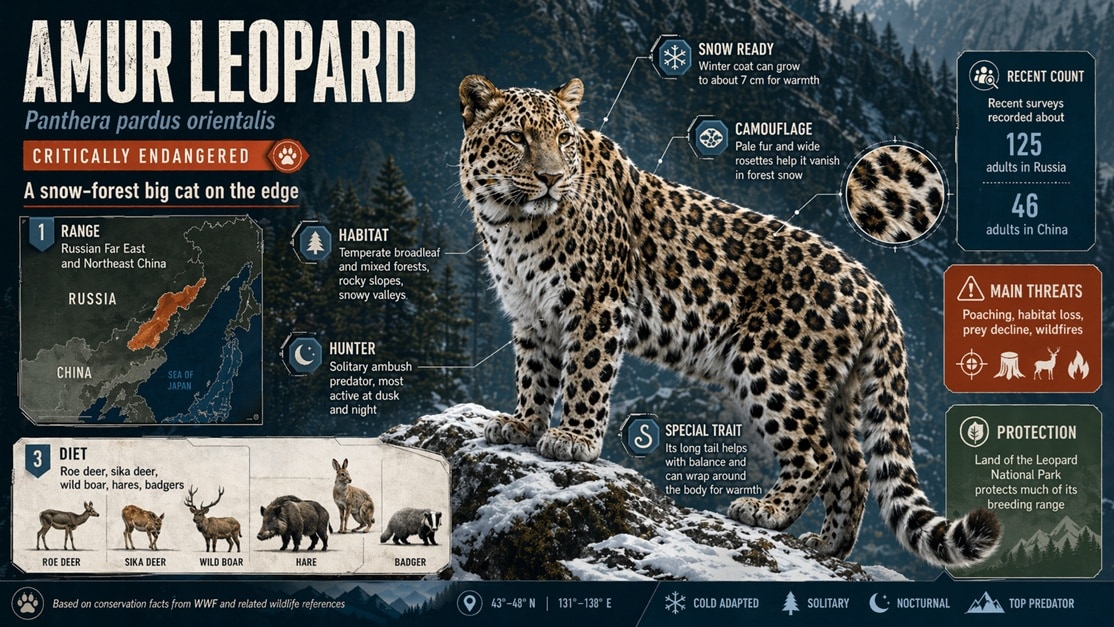
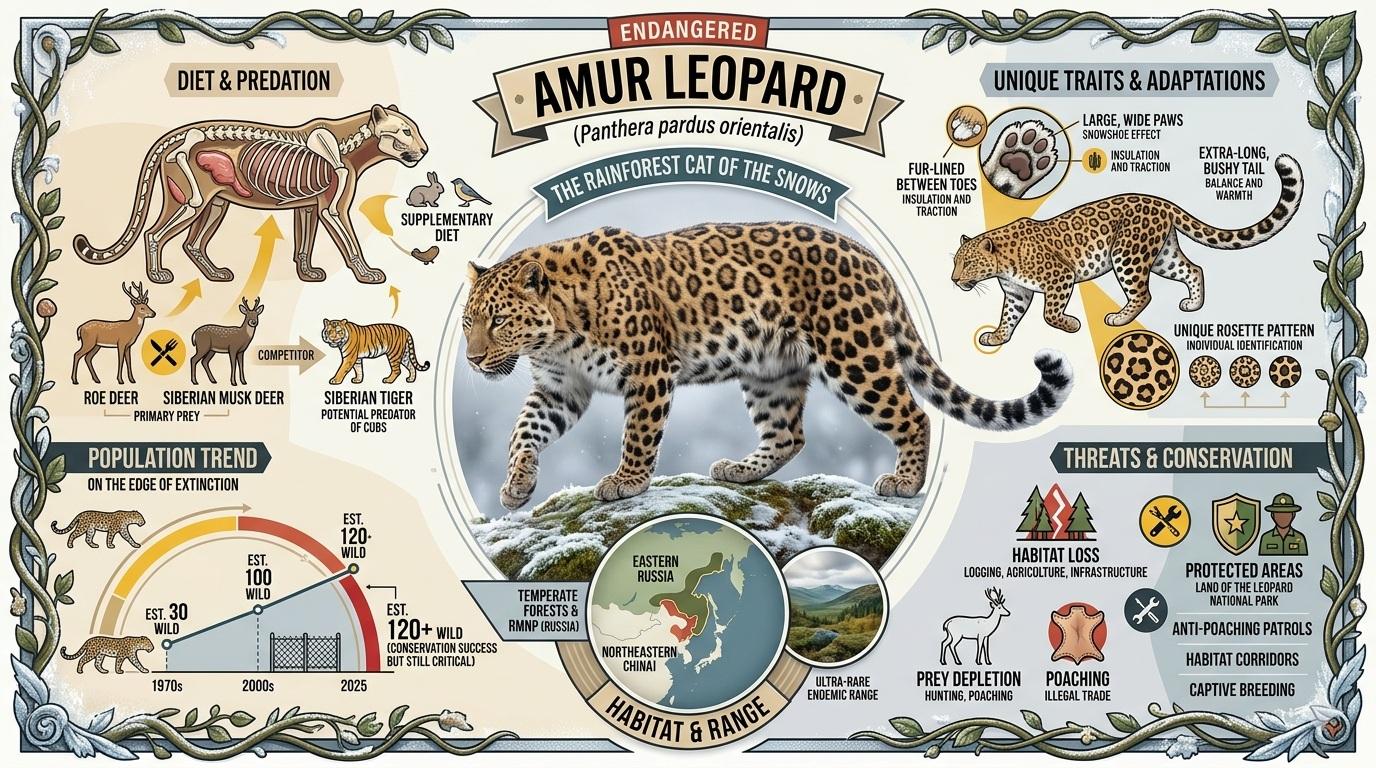
1. Infographic about an Endangered Animal
GPT Images 2.0:
Nano Banana 2:
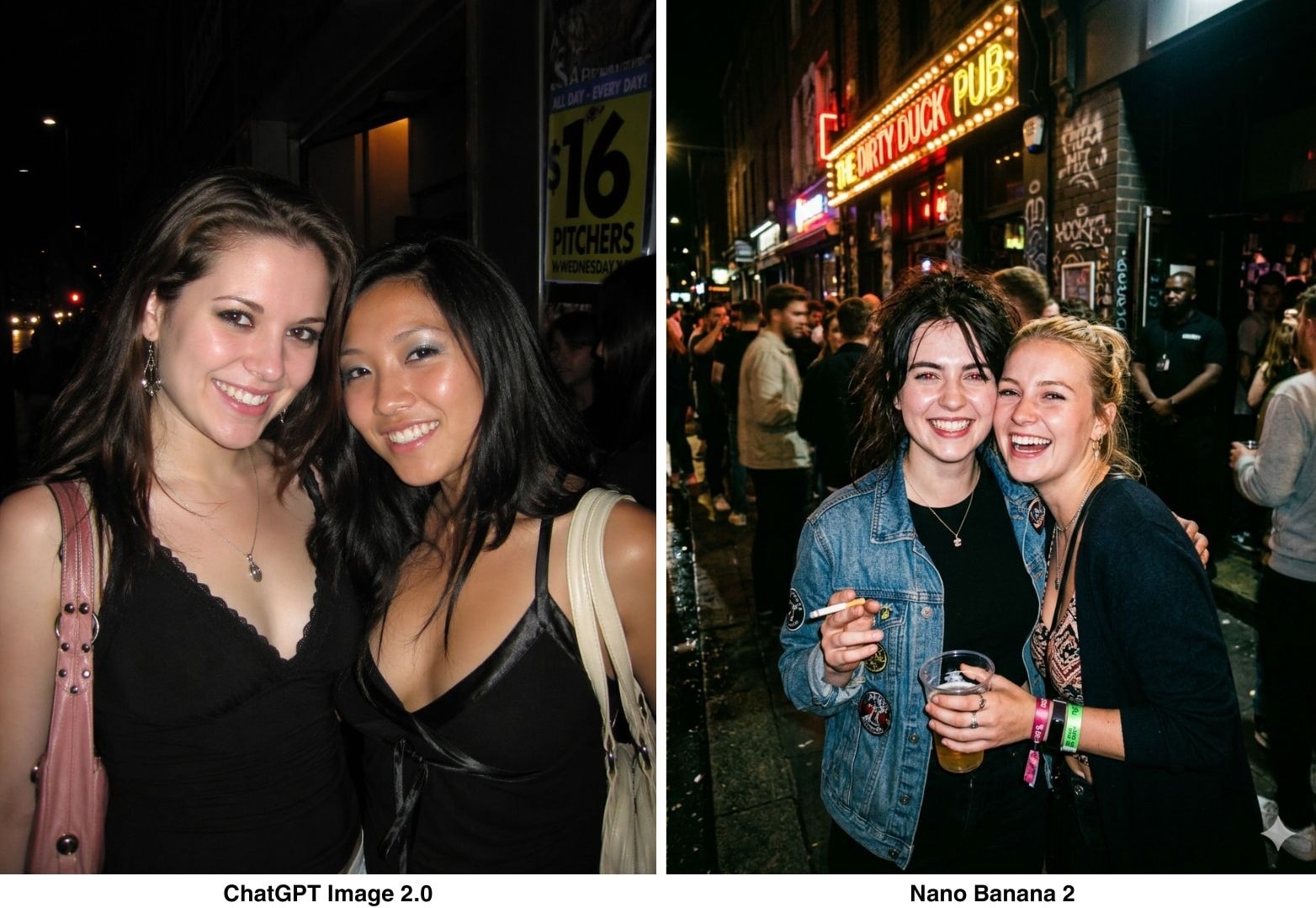
2. Realistic Photograph
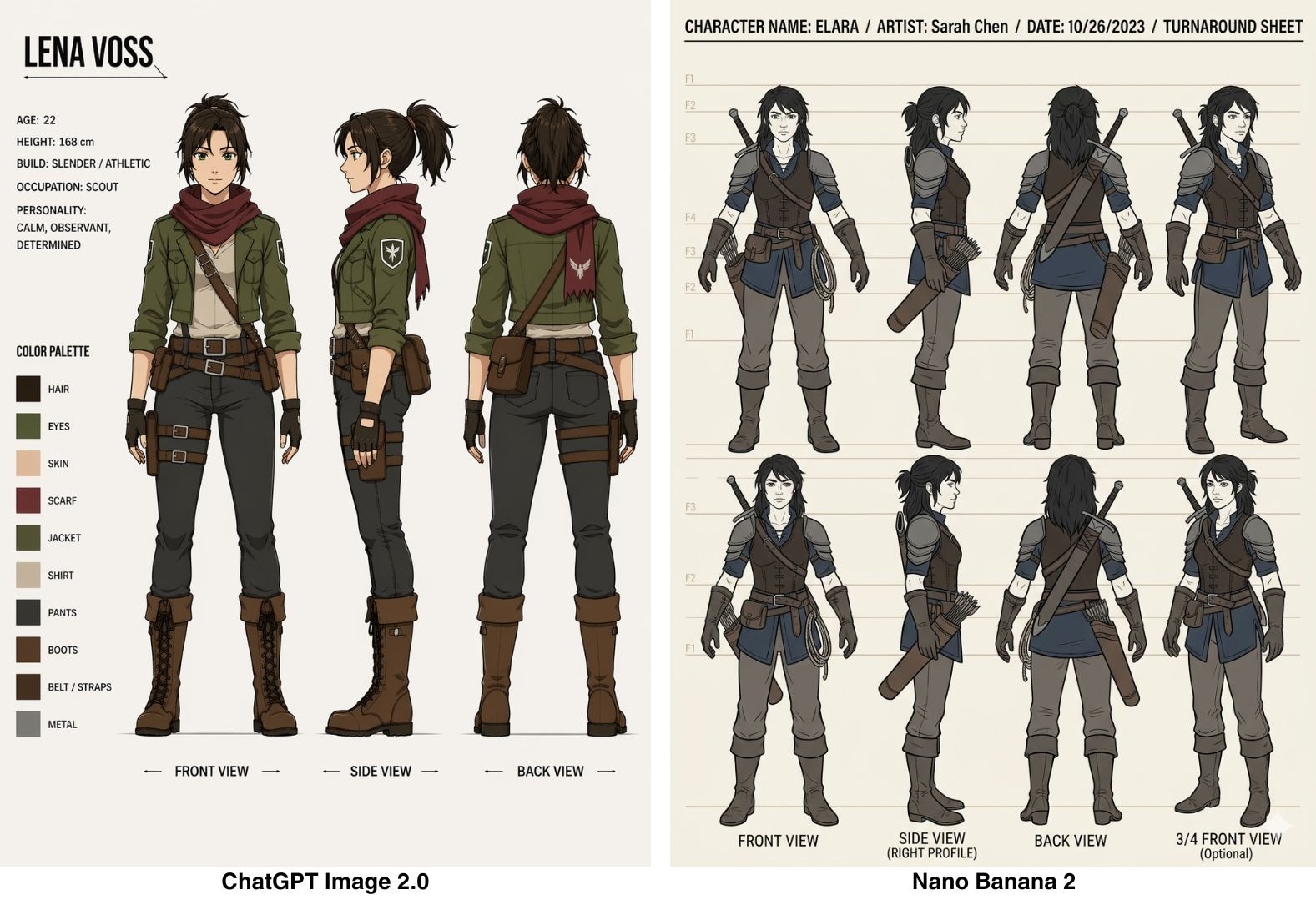
3. Animation Characters
4. Multilingual Poster
Verdict: GPT-Image 2 vs Nano Banana 2
- ChatGPT Image 2.0 handles multilingual text much more reliably, with a noticeable accuracy advantage over Nano Banana 2.
- ChatGPT Image 2.0 can still make mistakes in labeling and data accuracy, especially for infographics and technical diagrams, while Nano Banana 2 produces more reliable results in those cases.
- GPT Image 2 default colors are more vibrant and punchy; Nano Banana 2 tends toward more muted, natural tones.
- Character-generated faces and figures still look AI-generated on close inspection. Neither model has fully solved this.
Quick tip: If you want a more complete workflow when generating images, try using GPT Image 2 inside Filmora. You can generate visuals, then immediately refine them on a timeline, add motion, and turn them into video content within the same platform.
 Secure Download
Part 5. Pros and Cons ChatGPT Images 2.0
From what we covered, GPT Image 2.0 gets a lot right, but it’s not perfect yet.
- Follows complex, multi-part prompts well without losing details
- Text inside images is readable across Latin and non-Latin scripts
- Thinking mode generates up to 8 consistent images from one prompt, with object and character continuity
- Still struggles with tasks that require a complete physical world model (origami guides, puzzles, etc.)
- Arrows and part labels in technical diagrams may still need a manual accuracy check
- Thinking mode can take up to 2 minutes per generation
- Not reliable for very dense or repetitive visual details, like fine grains of sand, fabric weaves, or tightly packed textures
- Information can still be wrong; always verify facts, data, and labels before publishing
Part 6. GPT-Image 2.0 Prompt Tips for Image Generation
Although gpt-image-2 is not perfect, there are a few ways to improve your results. The biggest trick is to stop treating the gpt-image-2 prompts like a random idea and start treating them like a creative brief.
1. Be specific about text
Put any literal copy in quotes or ALL CAPS and describe where it goes.
- ❌Add a title.
- ✅ Headline reads "LAUNCH DAY" in bold condensed sans-serif, top-left, white on dark background.
For uncommon words or brand names, spell them out letter-by-letter. Use medium or high quality for anything with small or dense text.
2. Describe the shot, not just the subject
The model responds well to photography-style direction. Include lighting ("soft north-facing window light"), surface ("matte concrete"), camera feel ("35mm film grain"), and composition ("subject in the lower third, negative space above"). The more specific the scene setup, the less the model fills in on its own.
3. Use constraints to cut out what you don't want
End prompts with a constraints line: no watermark, no extra text, no background clutter, preserve layout, neutral color rendering. Making use of negative prompts like this saves you from having to regenerate the image too many times.
Bonus: Turn GPT Image 2.0 Results Into Engaging Video Content
After generating images with GPT Image 2.0, stopping at static visuals is honestly leaving value on the table. Bring them into Wondershare Filmora, and you can turn your creations into short videos in minutes.
To turn your ChatGPT Images 2.0 result into a video like the example above, use Filmora’s Image-to-Video feature under Stock Media > AI Media. Choose your model, set the aspect ratio, duration, and resolution, and you’ll be able to bring the image to life directly on the editing timeline.
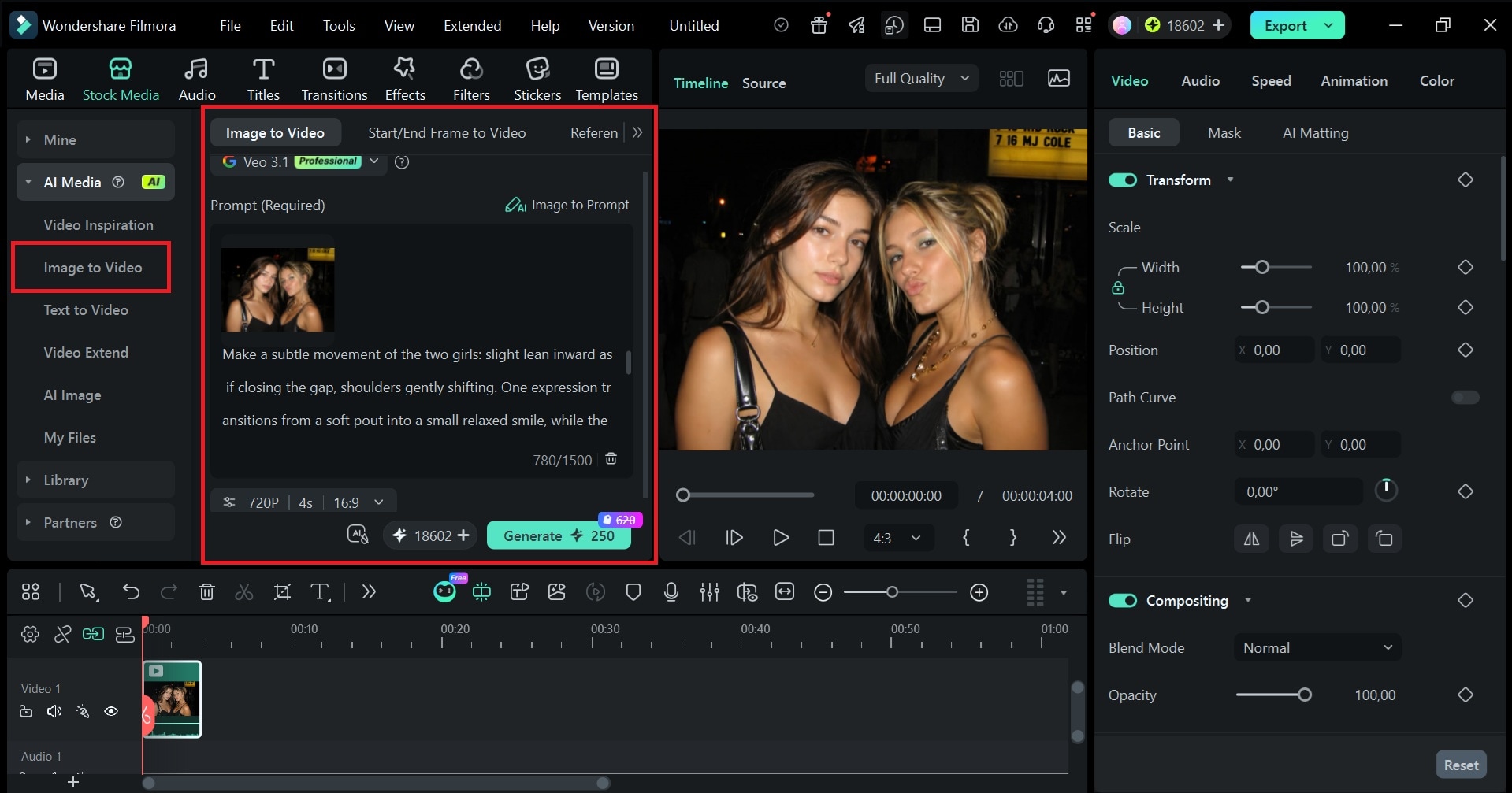
Filmora's Image-to-Video is powered by advanced models, like Veo 3.1, Seedance 2.0, and ToMoviee, so the output quality holds up without extra editing work on your end. With Filmora, you can:
- Turn static images into short videos with transitions, motion, and music
- Add animated captions and text overlays
- Combine multiple GPT Image 2.0 outputs into one cohesive visual story
- Export in vertical, square, or landscape formats for any platform
If you're already generating marketing visuals, product shots, or illustrated content with GPT Image 2.0, Filmora is a quick way to get more out of the image you make.
Secure DownloadConclusion
ChatGPT introduces the new gpt-images-2 model as a "visual thought partner." It fixes most of the problems that made AI image generation feel like a back-and-forth process that took too many regenerations to land on something usable.
The biggest upgrades are better text rendering with multilingual support, web search through Thinking mode, and multi-image consistency. But it also still struggles with technical diagrams and data-heavy visuals. And if you want to squeeze more out of what you generate, pulling your images into a video editor like Filmora is a low-effort way to turn your outputs into engaging video content.
FAQ
-
1. Can you use ChatGPT Images 2.0 for commercial projects?
Yes. Images generated through ChatGPT can be used for commercial purposes, including marketing materials, product visuals, and branded content. However, always review OpenAI's latest usage policies before publishing, as terms can change. -
2. Can ChatGPT Images 2.0 generate consistent characters or styles?
With Thinking mode enabled, gpt-image-2 can generate up to 8 images from a single prompt while keeping characters and objects consistent across all of them. -
3. Can you edit images after generating them in ChatGPT Images 2.0?
To revise specific parts of the image, you can type follow-up instructions in the description box. Note that this refers to prompt-based editing, not manual pixel-level adjustments. Developers using the API also have access to a dedicated image editing endpoint. -
4. Is ChatGPT Images 2.0 free to use?
Basic image generation is available for limited generations to free users. Thinking mode, which unlocks web search and multi-image generation, is limited to Plus, Pro, and Business plans starting at $20/month. -
5. Can I roll back to using the old Images models in ChatGPT?
Probably not through the main interface. The latest GPT Image model is automatically applied when generating images in ChatGPT, and OpenAI typically phases out older versions from the UI. Developers may still access previous models through the API.
