Explore AI Lipstick Image Prompts
Browse AI lipstick prompts for red lips, glossy finishes, matte looks, different skin tones, product flat lays, beauty headshots, and selfie try-on ideas. Use each prompt to create assets for video templates, makeup reels, ads, thumbnails, and beauty galleries.
Loading more AI lipstick image prompts...
 Category:
 Duration:
 Aspect Ratio:
Why Use AI Lipstick Image Prompts for Beauty Edits?
Lipstick visuals need precise color, lip shape, skin tone, gloss level, texture, and lighting. Strong prompts help beauty images feel realistic while leaving final branding and text under your control.
Control Lip Color and Finish
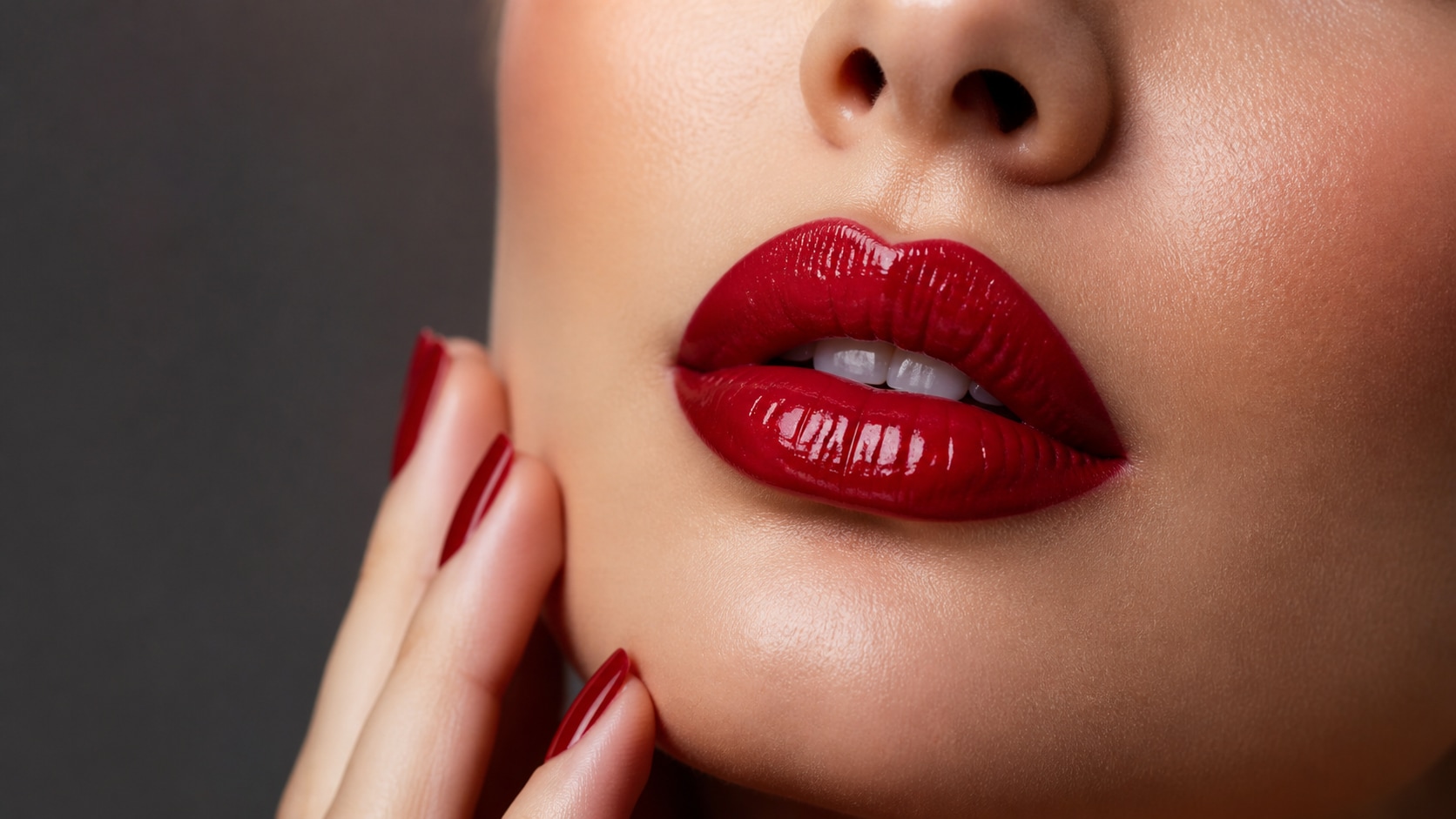
Control Lip Color and Finish
A useful lipstick prompt names the shade, finish, edge definition, skin detail, and lighting. This keeps the makeup result intentional instead of smeared or flat.
- Shade Detail - Use ruby red, rose nude, coral, berry, plum, or brown-pink undertones.
- Finish Choice - Specify glossy, satin, matte, balm-like, metallic, or sheer tint.
- Clean Edges - Ask for realistic lip line, natural skin texture, and balanced highlights.
Create Realistic Try-On Portraits
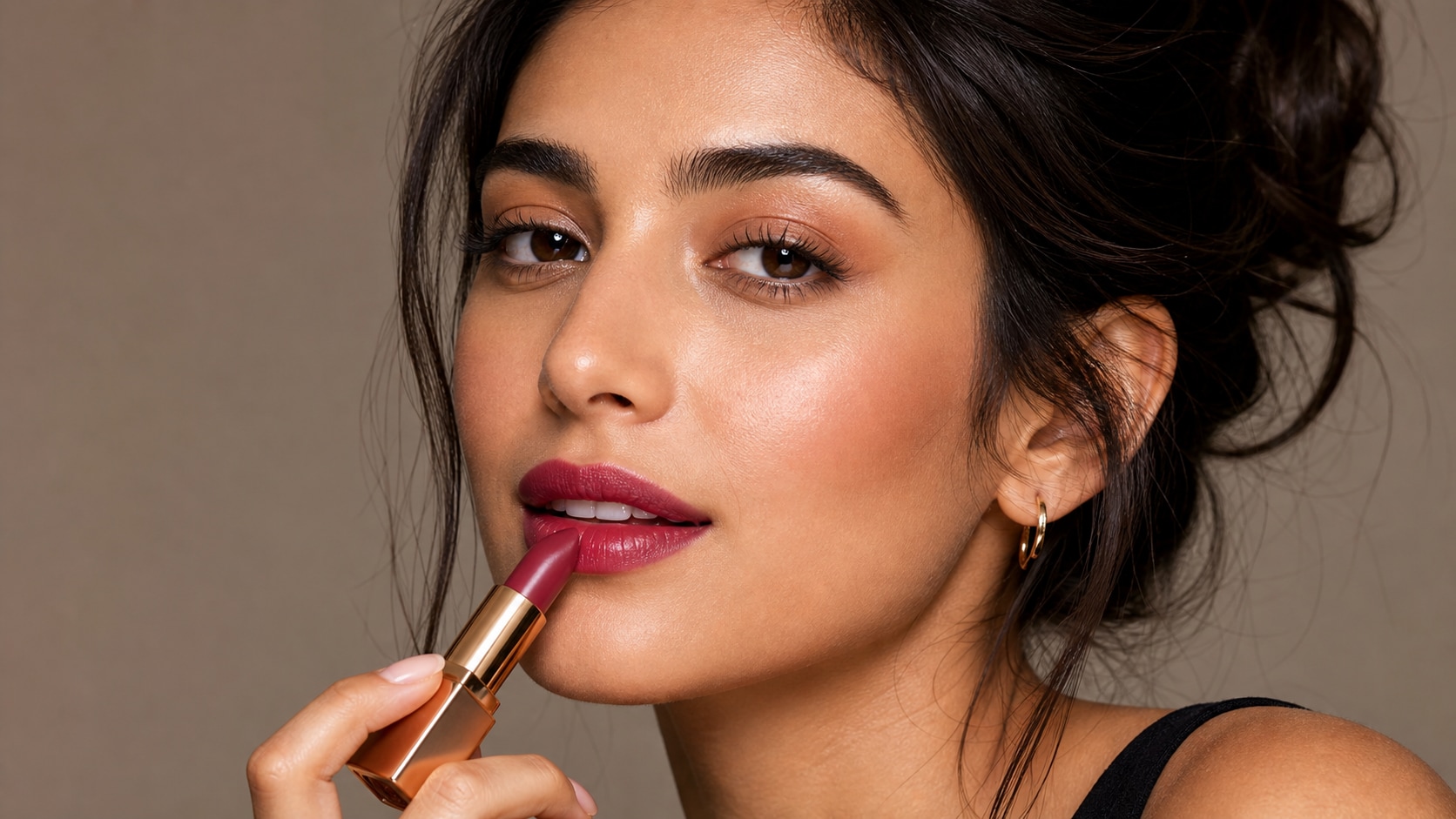
Create Realistic Try-On Portraits
For AI lipstick try-on prompts, describe the face angle, skin undertone, makeup balance, and exact finish. The final look should read like a beauty photo, not a filter.
- Skin Tone Range - Mention fair, tan, deep, olive, warm, cool, or neutral undertones.
- Face Framing - Use beauty headshot, three-quarter portrait, mirror selfie, or macro crop.
- Try-On Control - Keep the rest of the makeup natural so the lipstick change is clear.
Build Lipstick Product Shots
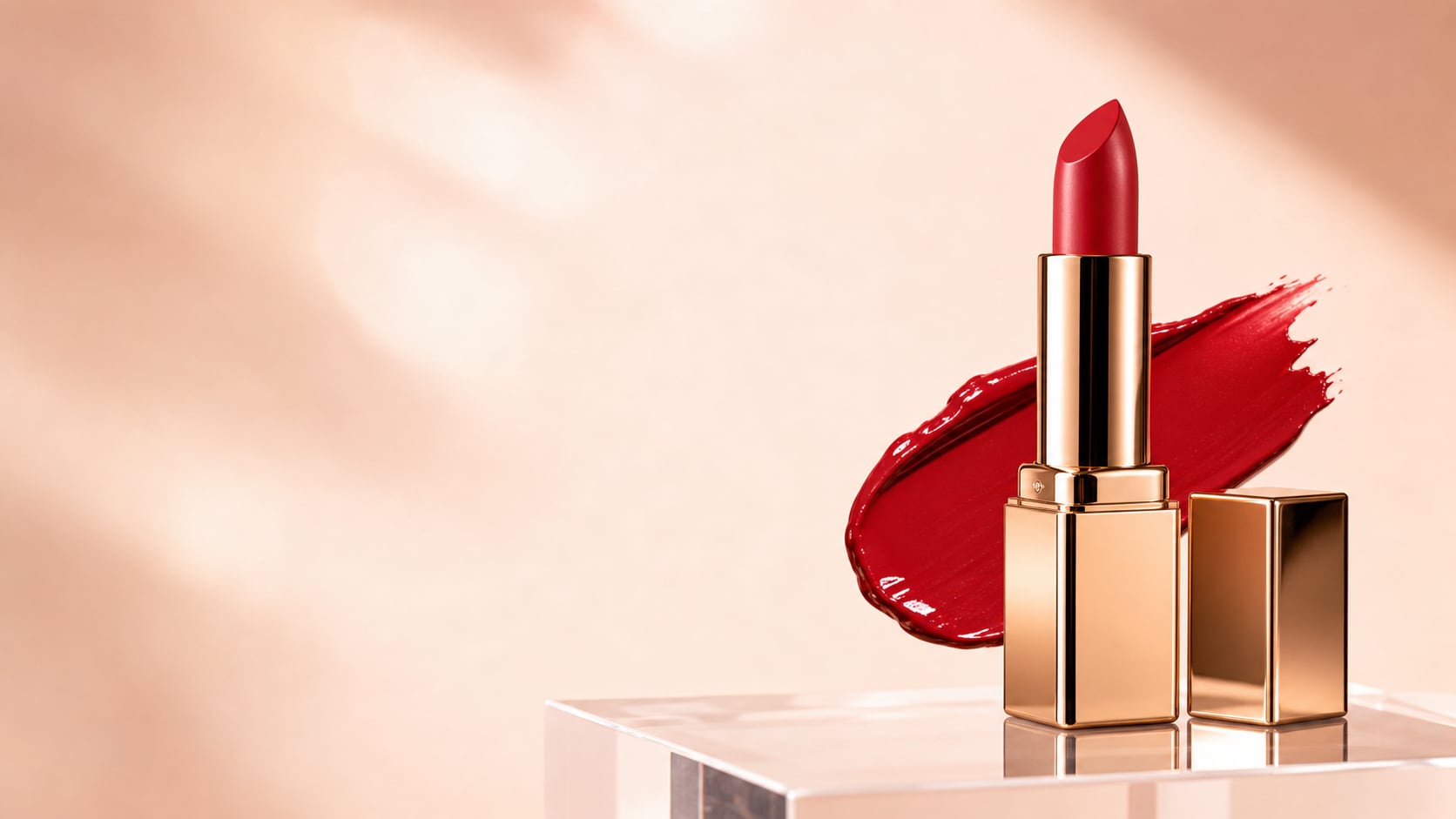
Build Lipstick Product Shots
Product prompts should describe tube shape, swatch texture, packaging surface, light reflection, and blank space for later campaign copy.
- Hero Product - Use lipstick tube, gloss wand, swatch smear, cap detail, or open bullet shape.
- Surface Detail - Try acrylic, marble, satin cloth, mirror, or clean studio tabletop.
- Ad Ready - Generate no readable labels, then add product names and claims in Filmora.
Turn Beauty Images Into Short Videos
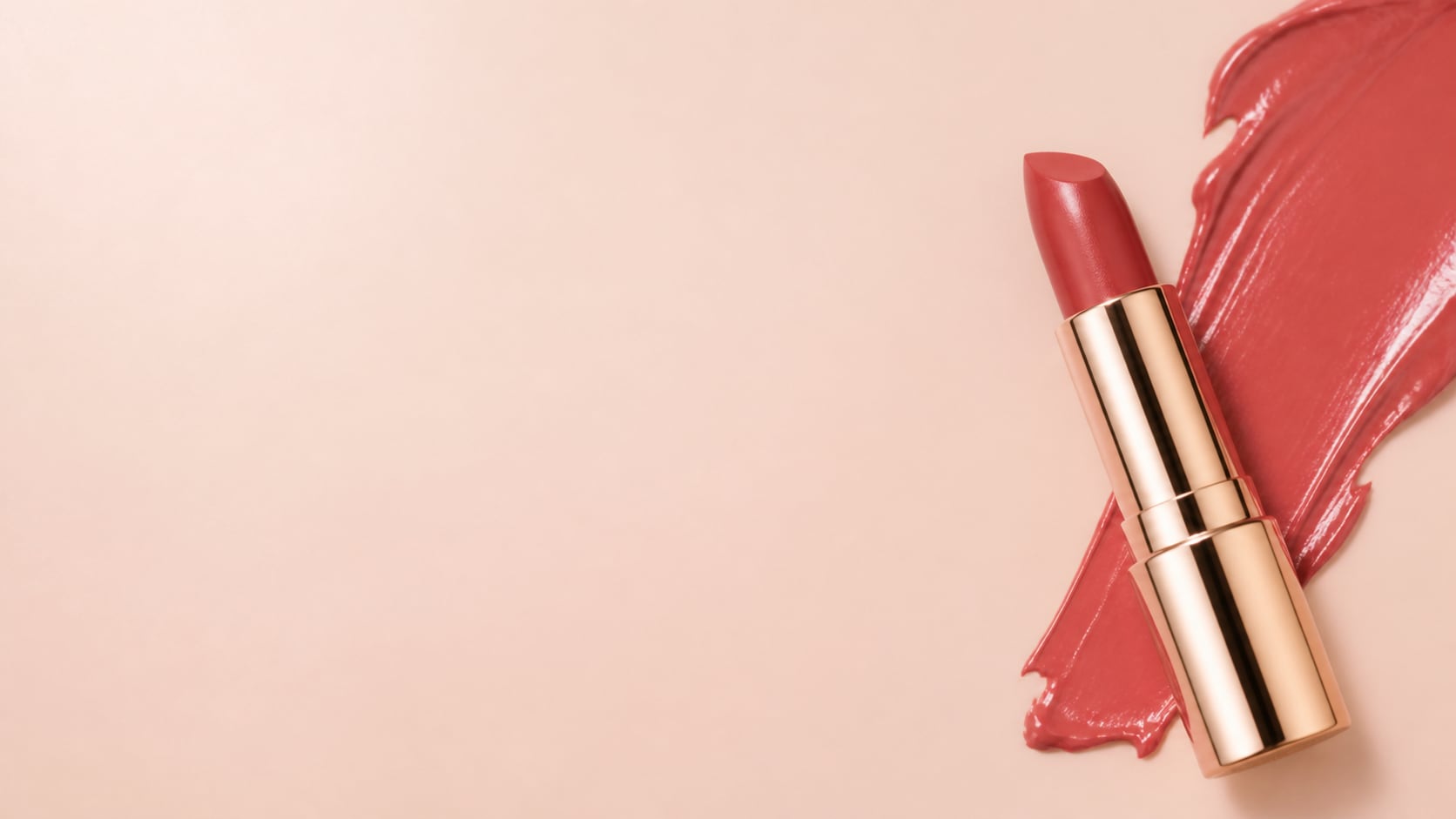
Turn Beauty Images Into Short Videos
After generating the image, bring it into Filmora to add color names, before-after cuts, zooms, sparkles, product callouts, and social exports.
- Motion Ideas - Animate gloss highlights, tube reveals, swatch wipes, and close-up zooms.
- Readable Copy - Place shade names, offers, and product labels after generation.
- Fast Variants - Crop the same visual into reels, product cards, and thumbnail layouts.
Frequently Asked Questions About AI Lipstick Prompts
How to Generate Lipstick Images With AI Prompts
Create a lipstick photo by choosing the shade, finish, subject crop, lighting, and ratio before refining it in Filmora.
Step 1 Choose a Lipstick Look
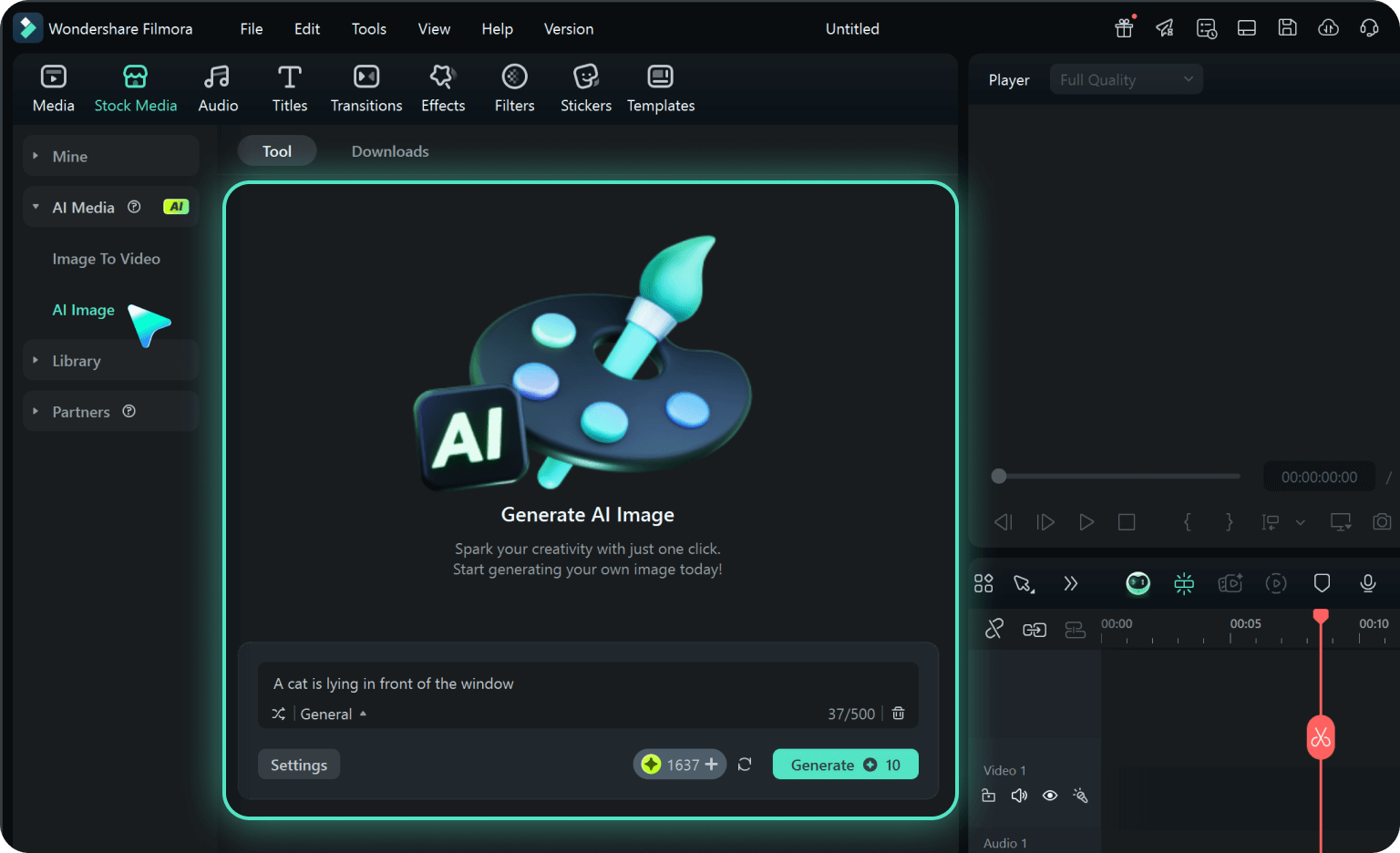
Step 2 Set Shade, Finish, and Ratio
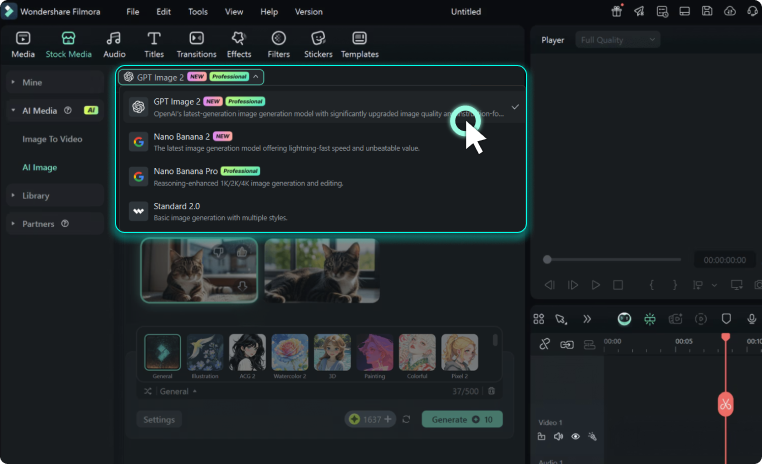
Step 3 Generate, Label, and Export
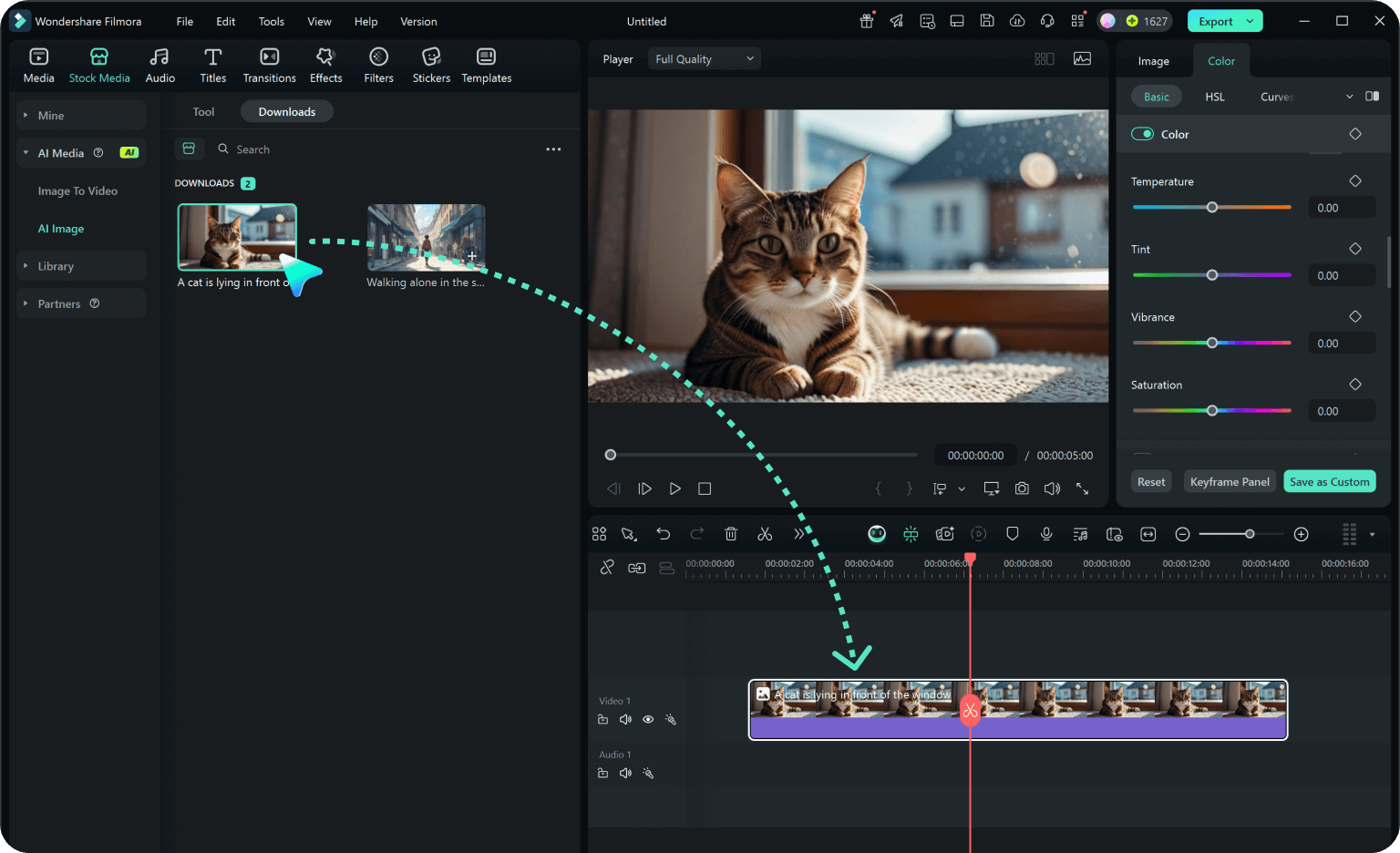
-
1: Choose a Lipstick Look
Pick glossy red lips, nude makeup, berry lipstick, color try-on, product flat lay, or macro beauty close-up. -
2: Set Shade, Finish, and Ratio
Paste the prompt into Filmora's AI Image tool, choose the ratio, and define color, skin tone, lighting, texture, and no readable text. -
3: Generate, Label, and Export
Generate the image, polish crop and color, add shade names or motion if needed, then export it for beauty content or product visuals.
AI Lipstick Image Prompts: Create Realistic Beauty Looks
Use AI lipstick image prompts to create glossy close-ups, beauty portraits, product shots, color try-ons, and short-form visuals ready for Filmora editing.