Explore AI Macro Close-Up Photo Prompts
Browse AI macro close-up photo prompts for photorealistic macro lens shots, product photography details, flowers, insects, droplets, textures, food, jewelry, and abstract surfaces. Use each idea to generate still images for video templates, social posts, product stories, thumbnails, and educational visuals.
Loading more AI macro close-up photo prompts...
 Category:
 Duration:
 Aspect Ratio:
Why Use AI Macro Close-Up Photo Prompts for Detailed Images?
Macro images depend on small details that general prompts often miss: focal plane, lens feel, scale, surface texture, light direction, and background blur. A strong macro prompt tells the AI exactly what should be sharp, what should fall away, and how the tiny subject should feel larger than life.
Control Macro Lens Detail and Focus
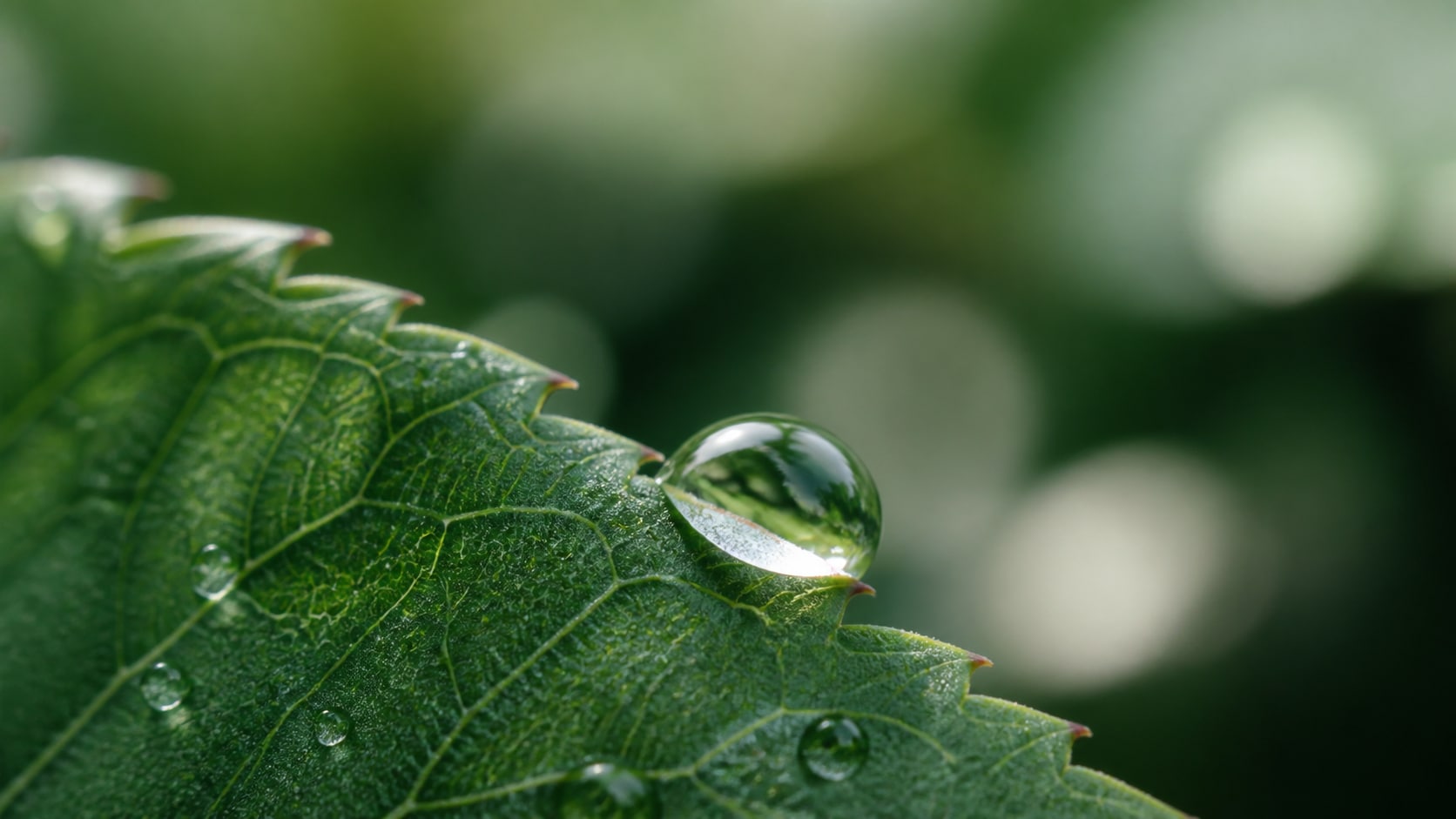
Control Macro Lens Detail and Focus
A useful AI macro close-up photo prompt starts with one clear subject and one clear focus point. Mention the focal plane, shallow depth of field, magnification, bokeh, and fine texture so the final image reads like a real macro lens shot.
- Sharp Anchor - Name the exact detail that should be crisp, such as a petal edge, droplet, eye, dial, or texture ridge.
- Lens Language - Use macro lens, shallow depth of field, high magnification, soft bokeh, and close-focus photography.
- Scale Clues - Add tiny fibers, pollen, dust, condensation, or surface grain to make the close-up feel believable.
Create Product Detail and Texture Shots
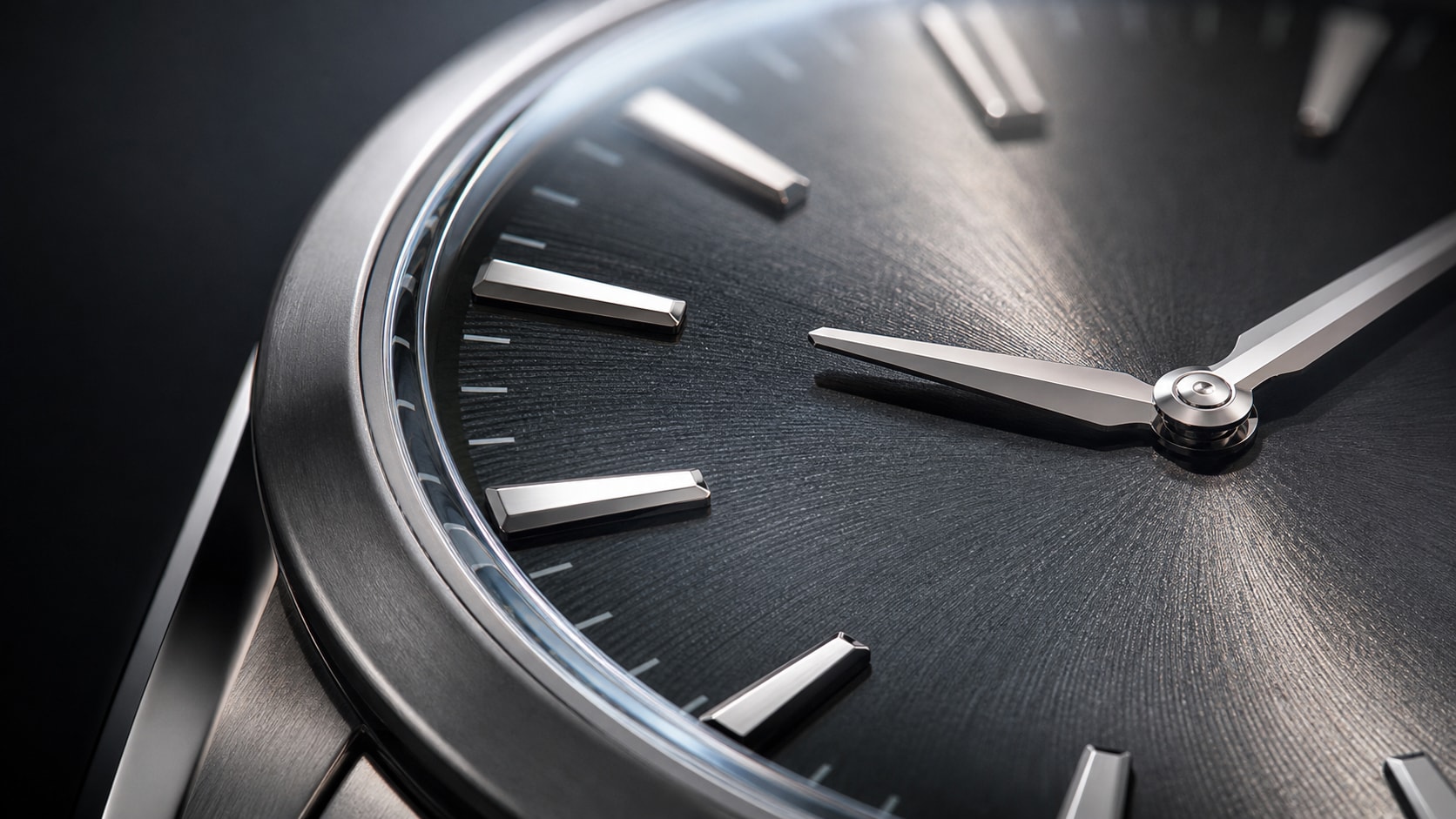
Create Product Detail and Texture Shots
For AI macro close-up product photography prompts, describe material, highlight shape, reflections, and background control. These details help watches, cosmetics, jewelry, electronics, fabric, and packaging look premium instead of flat.
- Material Detail - Mention brushed metal, glass edge, leather grain, powder texture, fabric weave, or glossy plastic.
- Lighting Control - Use softbox reflection, rim light, studio gradient, controlled highlights, or dark product backdrop.
- Commercial Framing - Keep the subject clean, cropped intentionally, and free of readable text or logos.
Turn Natural Surfaces into Tiny Worlds
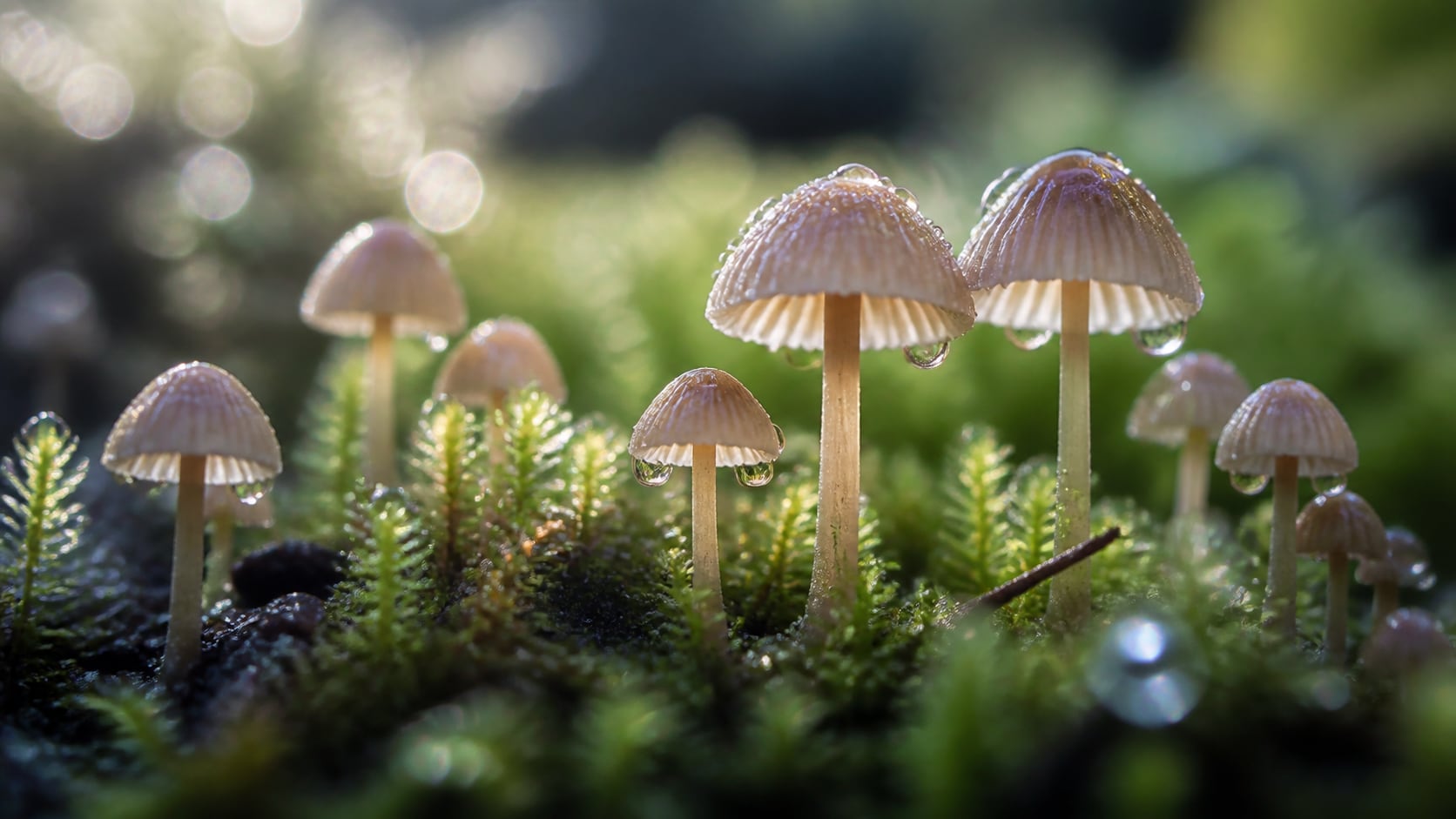
Turn Natural Surfaces into Tiny Worlds
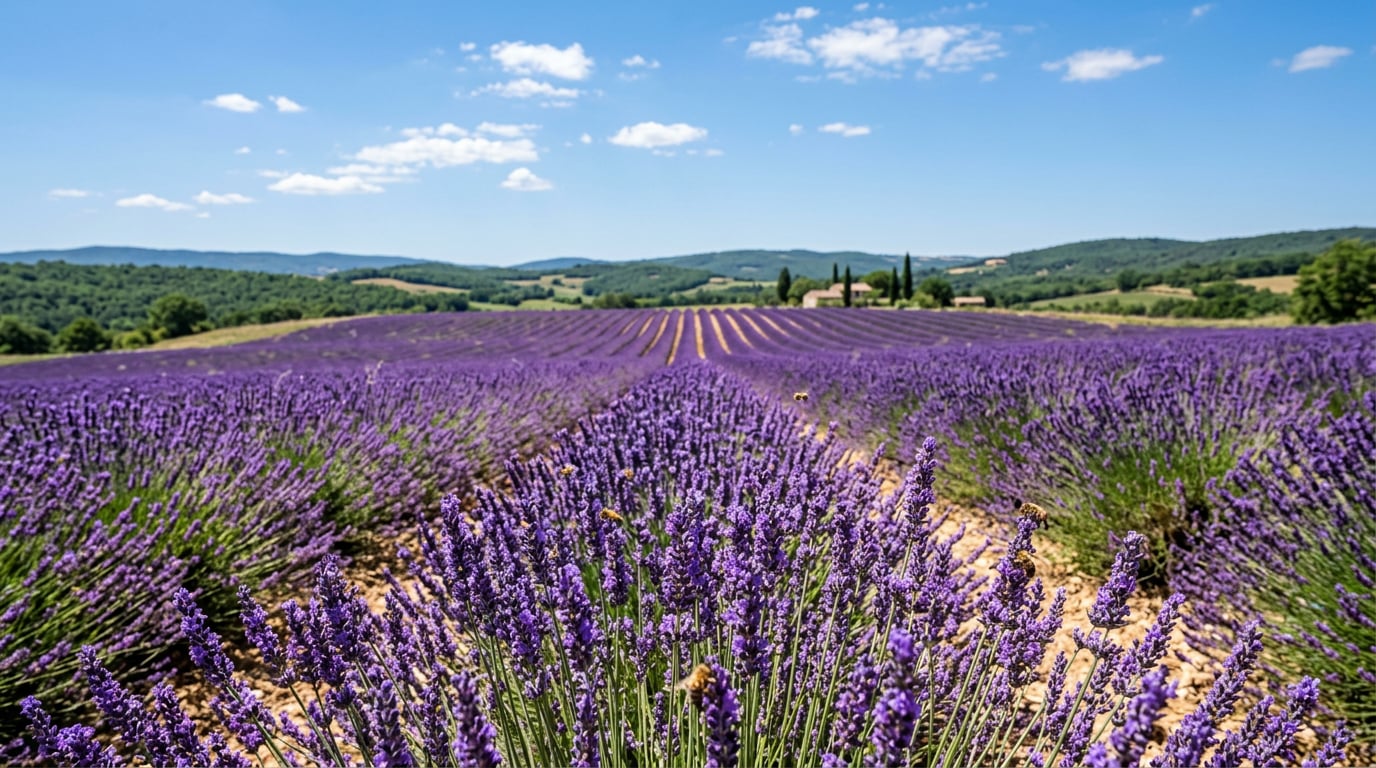
Nature macro prompts work best when they combine a small subject with atmosphere. Add pollen, dew, moss, frost crystals, tiny mushrooms, insect wings, or petal texture to turn a close-up into a miniature scene.
- Natural Texture - Use pollen grains, leaf veins, moss fibers, frost edges, shell ridges, or translucent petals.
- Atmosphere - Add morning light, mist, backlight, rain, golden hour, or soft forest shade.
- Subject Separation - Ask for a clean blurred background so the tiny subject remains readable.
Animate Macro Images Inside Filmora
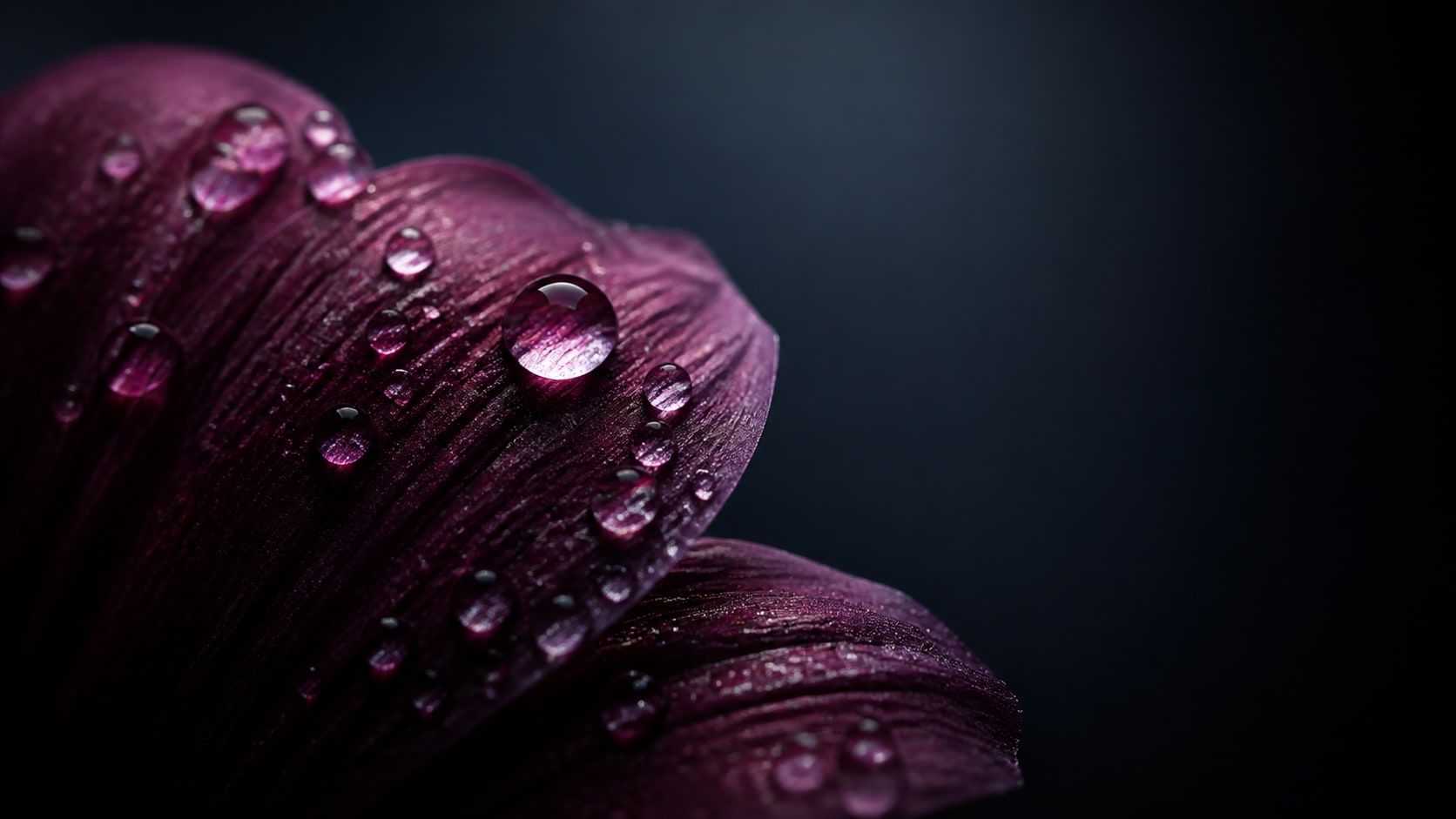
Animate Macro Images Inside Filmora
After generating a still macro image, bring it into Filmora to add a slow push-in, focus shift, light shimmer, captions, overlays, or product reveal motion. A detailed AI macro photo can quickly become a short-form visual asset.
- Motion Ideas - Use slow zooms, rack focus, drifting particles, droplet shimmer, or soft parallax.
- Video Uses - Create product teasers, science explainers, food close-ups, texture backgrounds, and social covers.
- Clean Titles - Generate the macro image without text, then add readable captions in Filmora.
Frequently Asked Questions About AI Macro Close-Up Photo Prompts
How to Generate AI Macro Close-Up Photos With Prompts
Turn a small subject into a detailed macro image by controlling focus, scale, texture, light, and ratio in Filmora's AI image workflow.
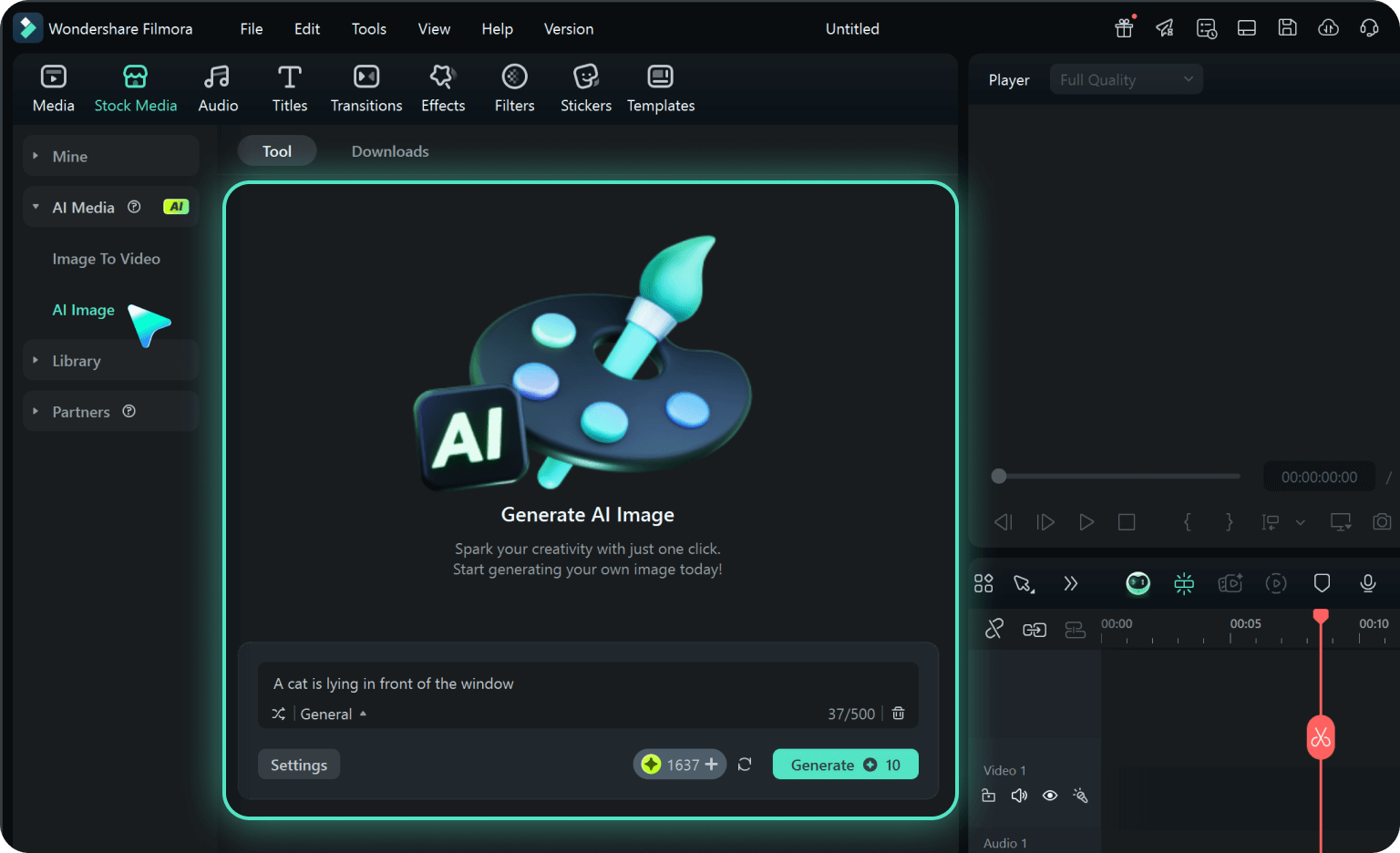
Step 1 Choose a Macro Subject
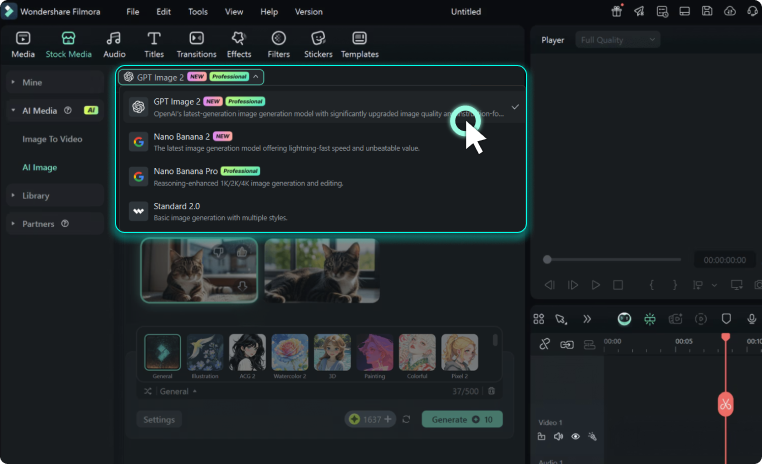
Step 2 Set Lens, Texture, and Ratio
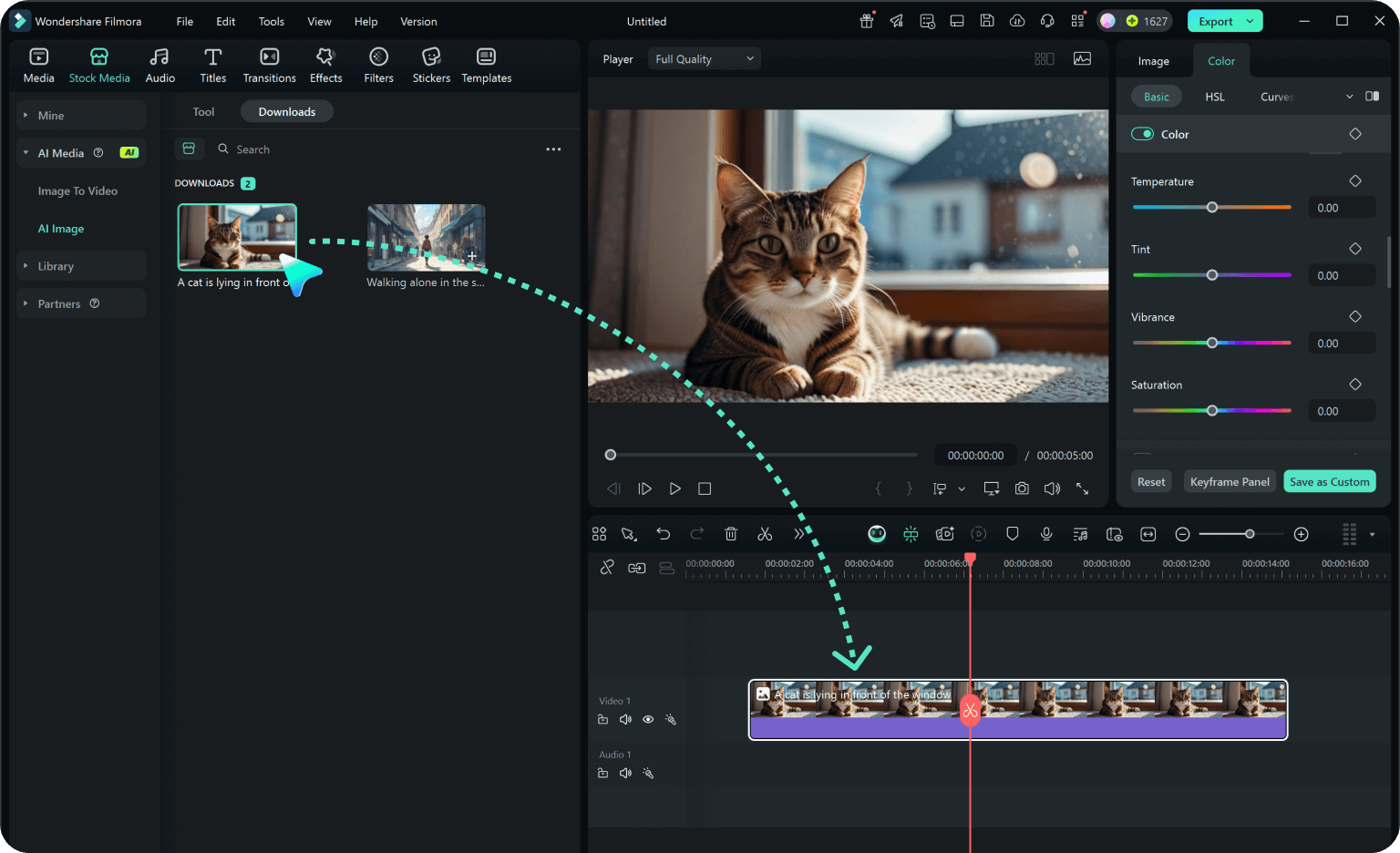
Step 3 Generate, Refine, and Export
-
1: Choose a Macro Subject
Pick one subject such as a flower petal, insect eye, watch dial, fabric texture, coffee bean, jewelry stone, droplet, or miniature natural scene. -
2: Set Lens, Texture, and Ratio
Paste the prompt into Filmora's AI Image tool, choose 16:9, 9:16, or 1:1, and add macro lens, shallow depth of field, sharp focal point, lighting, and no readable text details. -
3: Generate, Refine, and Export
Generate the macro photo, adjust color and crop in Filmora, add motion or captions if needed, then export it for product stories, thumbnails, social posts, or video backgrounds.
AI Macro Close-Up Photo Prompts: Create Detailed Images With AI
Looking for the perfect AI macro close-up photo prompt? From insects, flowers, droplets, jewelry, cosmetics, food, fabric, frost, and product surfaces to abstract texture backgrounds, Filmora helps you generate, refine, animate, and export detailed macro visuals in one workflow.