Explore Gemini AI Blue Hour Photo Prompts
Browse blue hour prompts for twilight portraits, city streets, neon reflections, rooftops, harbors, cafes, cars, and landscape scenes. Use each idea to create assets for video templates, thumbnails, travel reels, short films, and social covers.
Loading more Gemini AI blue hour photo prompts...
 Category:
 Duration:
 Aspect Ratio:
Why Use Blue Hour Prompts for Gemini AI Photos?
Blue hour scenes need controlled twilight color, practical lights, shadow detail, reflections, and clean exposure. Strong prompts help the image feel atmospheric without becoming too dark.
Balance Twilight Color and Detail
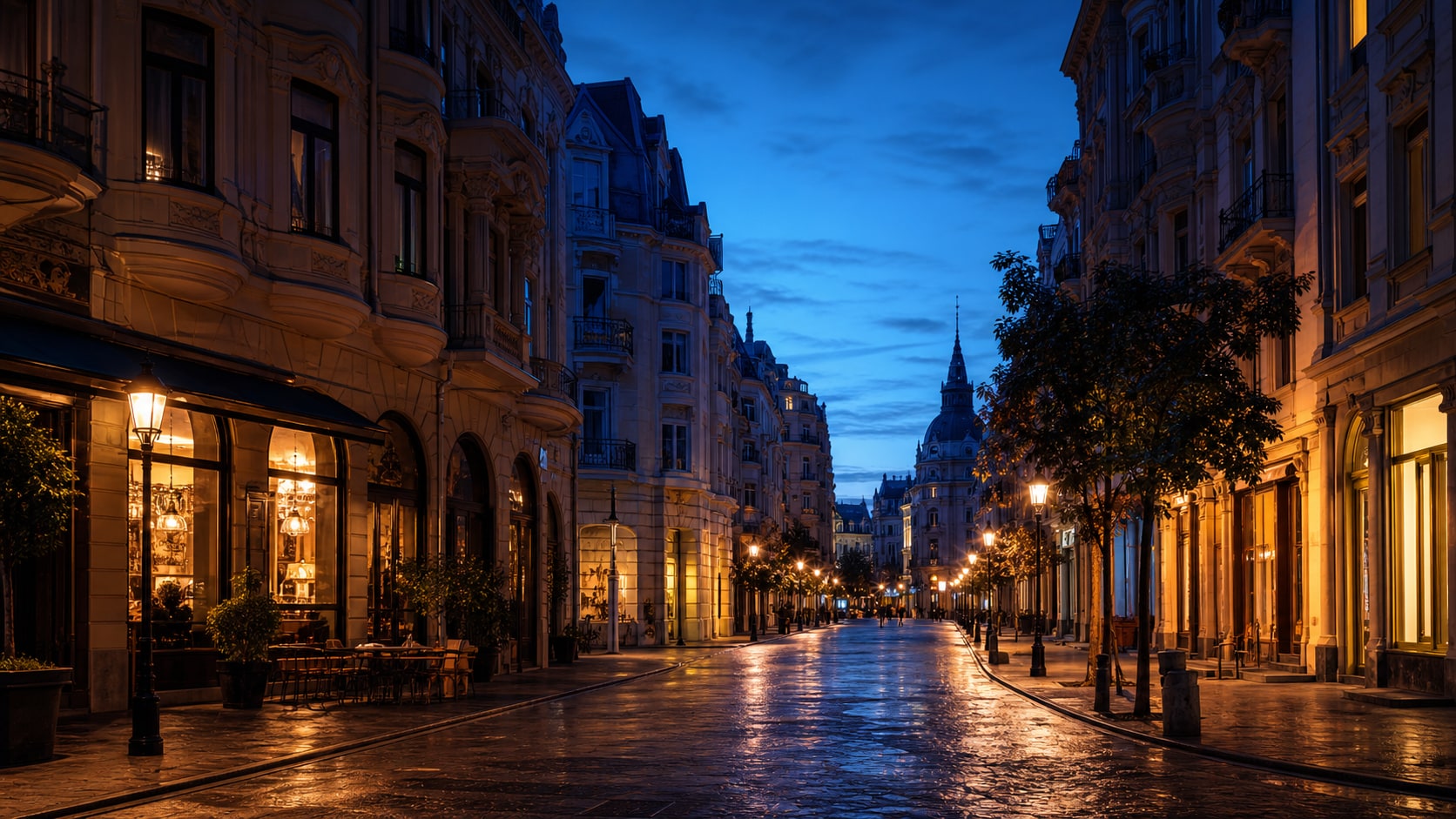
Balance Twilight Color and Detail
A useful blue hour prompt names the sky color, light source, exposure, shadow detail, and reflective surfaces. This keeps the image moody but readable.
- Sky Mood - Use cobalt blue, violet dusk, soft twilight, or last-light gradient.
- Light Sources - Add street lamps, windows, car headlights, cafe glow, or neon signs without readable text.
- Exposure Control - Keep faces, streets, and landscapes visible with balanced highlights.
Create Portraits in Evening Light
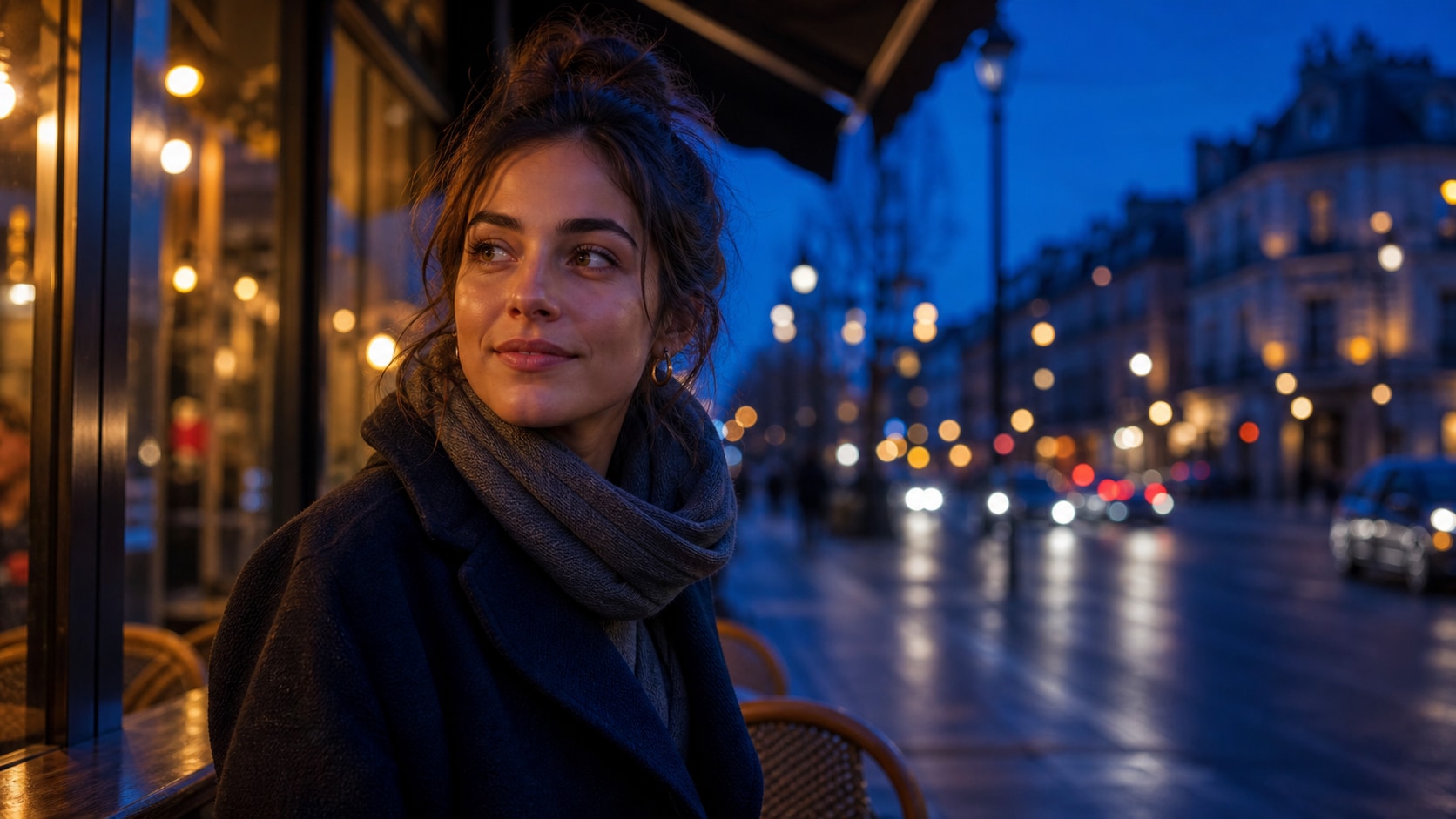
Create Portraits in Evening Light
For Gemini AI blue hour portraits, describe face lighting, rim light, background blur, and the relationship between cool sky and warm practical lights.
- Face Light - Use soft cafe window light, street-lamp glow, reflector feel, or gentle rim light.
- Background Depth - Add bokeh, rain reflections, skyline blur, or distant traffic trails.
- Natural Skin - Ask for realistic skin texture and balanced color instead of heavy blue cast.
Build Skyline and Travel Covers
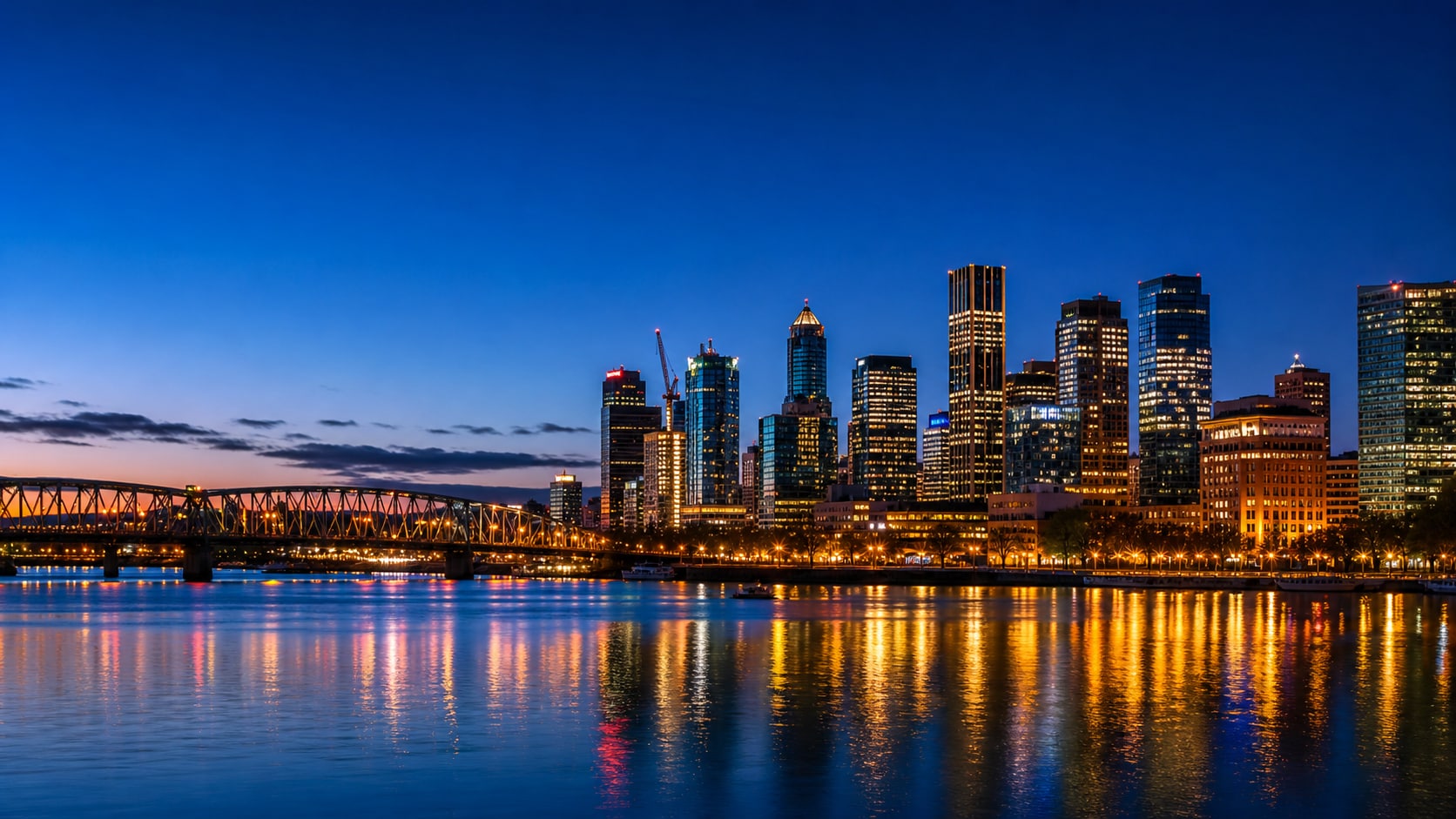
Build Skyline and Travel Covers
Travel prompts work best when they include a foreground anchor, skyline shape, reflections, and open sky. The result can become a video intro or destination cover.
- Foreground Anchor - Use a bridge, balcony, road, traveler silhouette, boat, or cafe table.
- Reflective Depth - Add wet pavement, river glow, harbor water, glass towers, or lake reflections.
- Title Space - Keep readable sky or water areas for later text overlays.
Animate Blue Hour Photos in Filmora
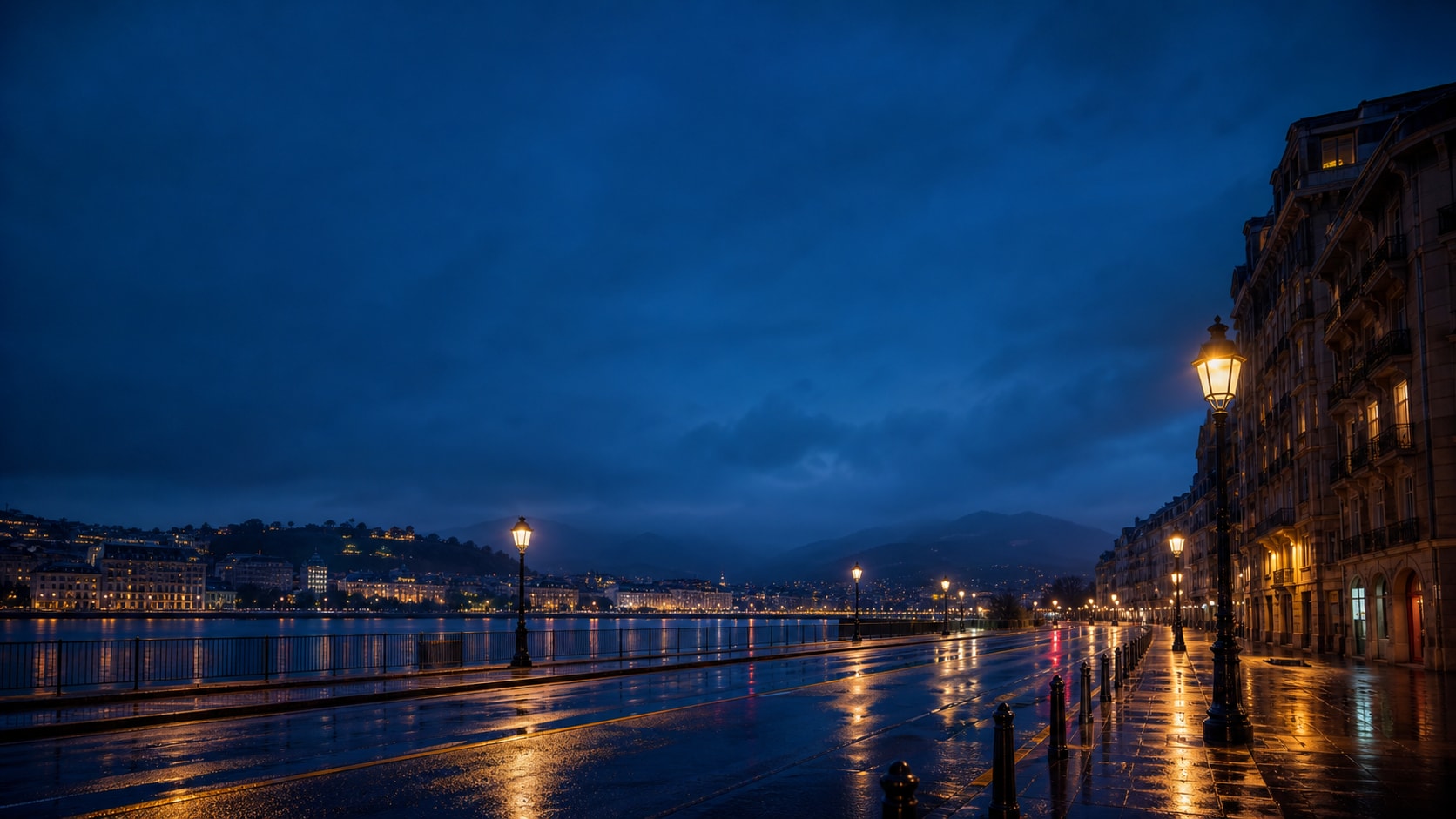
Animate Blue Hour Photos in Filmora
After generating the still, use Filmora to add slow zooms, light streaks, subtle rain, title overlays, transitions, or music-video style color grading.
- Motion Ideas - Animate reflections, car lights, mist, window glow, and gentle camera pushes.
- Video Uses - Create travel intros, night reels, moody thumbnails, and cinematic covers.
- Clean Text - Add exact location names and titles after generation for reliable spelling.
Frequently Asked Questions About Blue Hour Prompts
How to Generate Blue Hour Photos With Gemini AI
Build a twilight photo by choosing the scene, setting light sources, balancing exposure, and finishing the image in Filmora.
Step 1 Choose a Twilight Scene
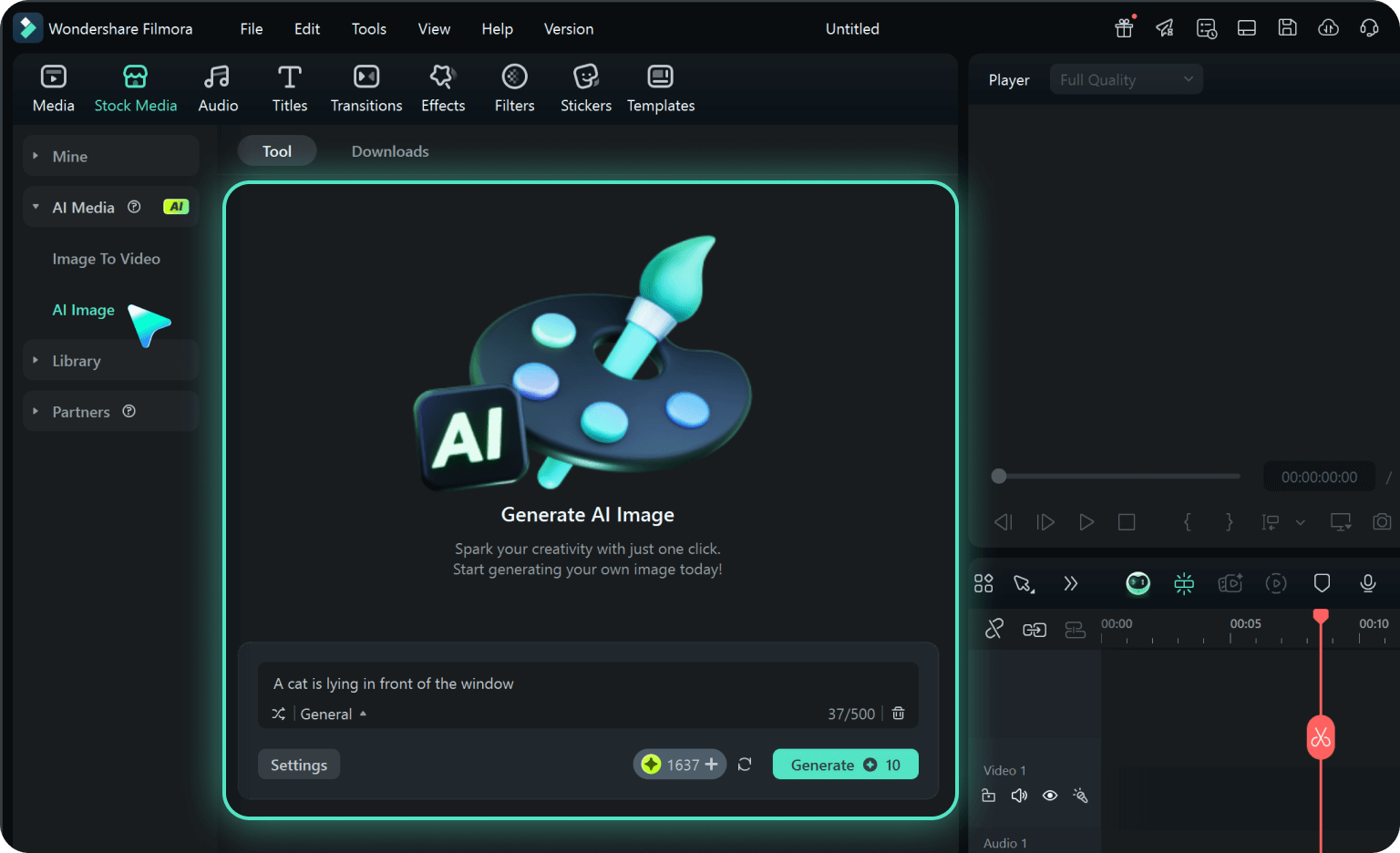
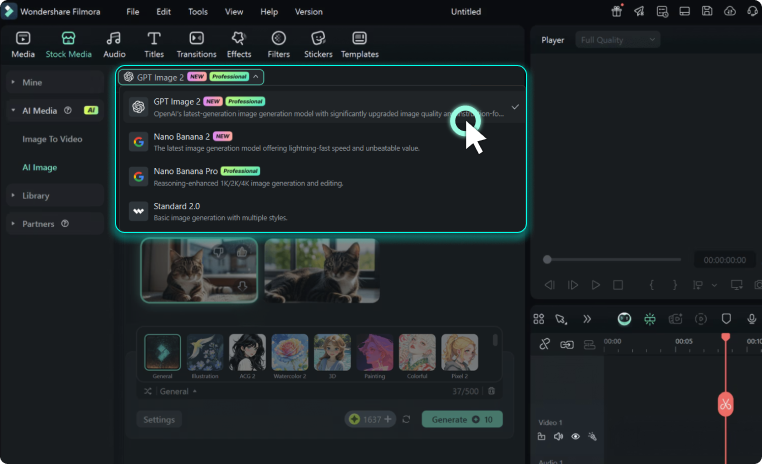
Step 2 Set Light, Reflection, and Ratio
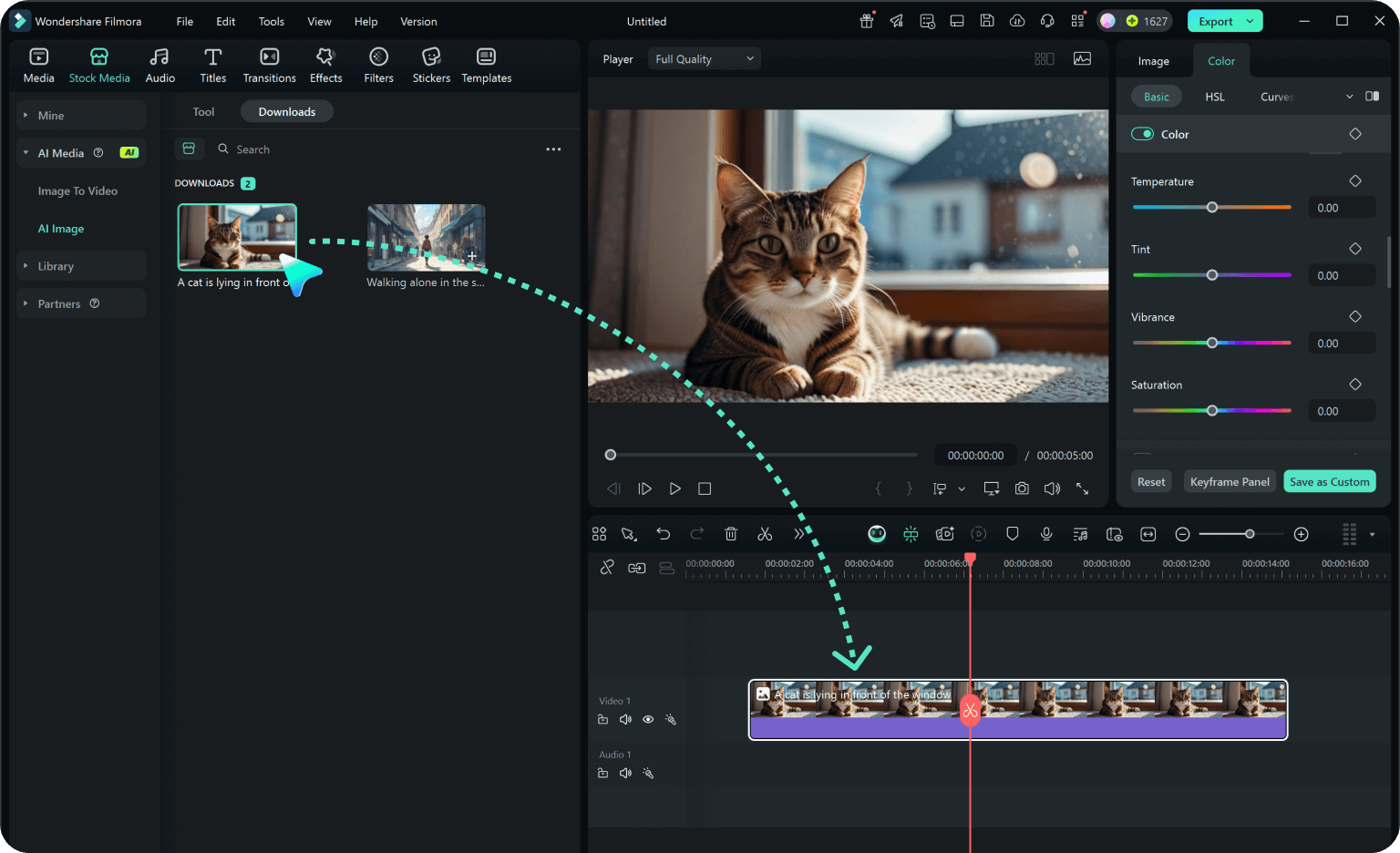
Step 3 Generate, Grade, and Export
-
1: Choose a Twilight Scene
Pick a city street, rooftop, bridge, harbor, cafe, car, portrait, mountain lake, or travel cover. -
2: Set Light, Reflection, and Ratio
Paste the prompt into Filmora's AI Image tool, choose the ratio, and define cobalt sky, practical lights, reflections, exposure, and no readable text. -
3: Generate, Grade, and Export
Generate the image, refine crop and color, add motion or titles if needed, then export it for reels, thumbnails, or travel visuals.
Gemini AI Blue Hour Prompts: Create Moody Twilight Photos
Use Gemini AI blue hour prompts to create cinematic streets, skyline covers, evening portraits, rainy reflections, and travel visuals ready for Filmora editing.