Explore Gemini AI Film Grain Photo Prompts
Browse Gemini AI film grain prompts for vintage portraits, travel frames, night flash photos, contact sheets, faded family-album looks, and 16mm cinematic stills. Use each idea to generate image assets for video templates, social posts, thumbnails, and retro edits.
Loading more Gemini AI film grain photo prompts...
 Category:
 Duration:
 Aspect Ratio:
Why Use Gemini AI Film Grain Prompts for Analog Photos?
Film grain looks convincing when the prompt controls camera era, lens softness, contrast, light leaks, color stock, and imperfections. Strong wording helps the image feel intentionally analog instead of simply noisy.
Control Grain, Color, and Camera Era
Control Grain, Color, and Camera Era
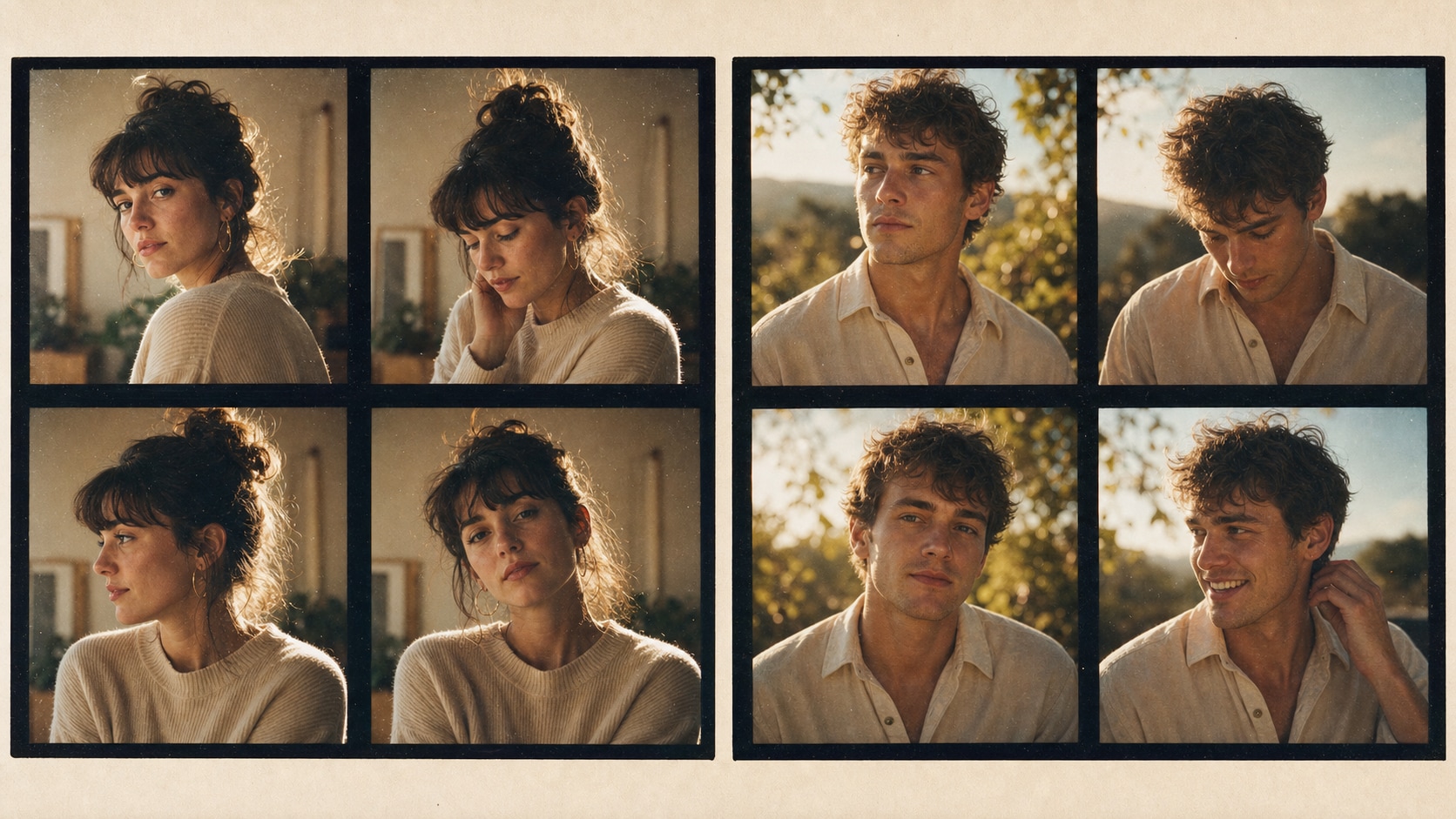
A useful film grain prompt names the camera mood first: 35mm still, disposable camera, 16mm frame, Polaroid-style photo, or black-and-white print. Then it adds color stock, lens softness, and natural texture.
- Camera Cue - Use 35mm film, 16mm still frame, disposable flash, or instant photo language.
- Color Stock - Mention warm Portra tones, faded consumer film, cool tungsten, or monochrome contrast.
- Texture Control - Ask for fine grain, slight dust, gentle halation, and realistic lens softness.
Build Retro Portraits Without Muddy Detail

Build Retro Portraits Without Muddy Detail
For Gemini AI film grain portraits, keep the subject, light direction, and background simple. Grain should add atmosphere while eyes, skin texture, wardrobe, and silhouette remain readable.
- Readable Face - Anchor sharpness on eyes, expression, and natural skin texture.
- Clean Background - Use cafe windows, street corners, curtains, or studio paper instead of clutter.
- Soft Contrast - Add gentle highlights, subdued shadows, and restrained color shifts.
Use Light Leaks, Flash, and Dust Carefully
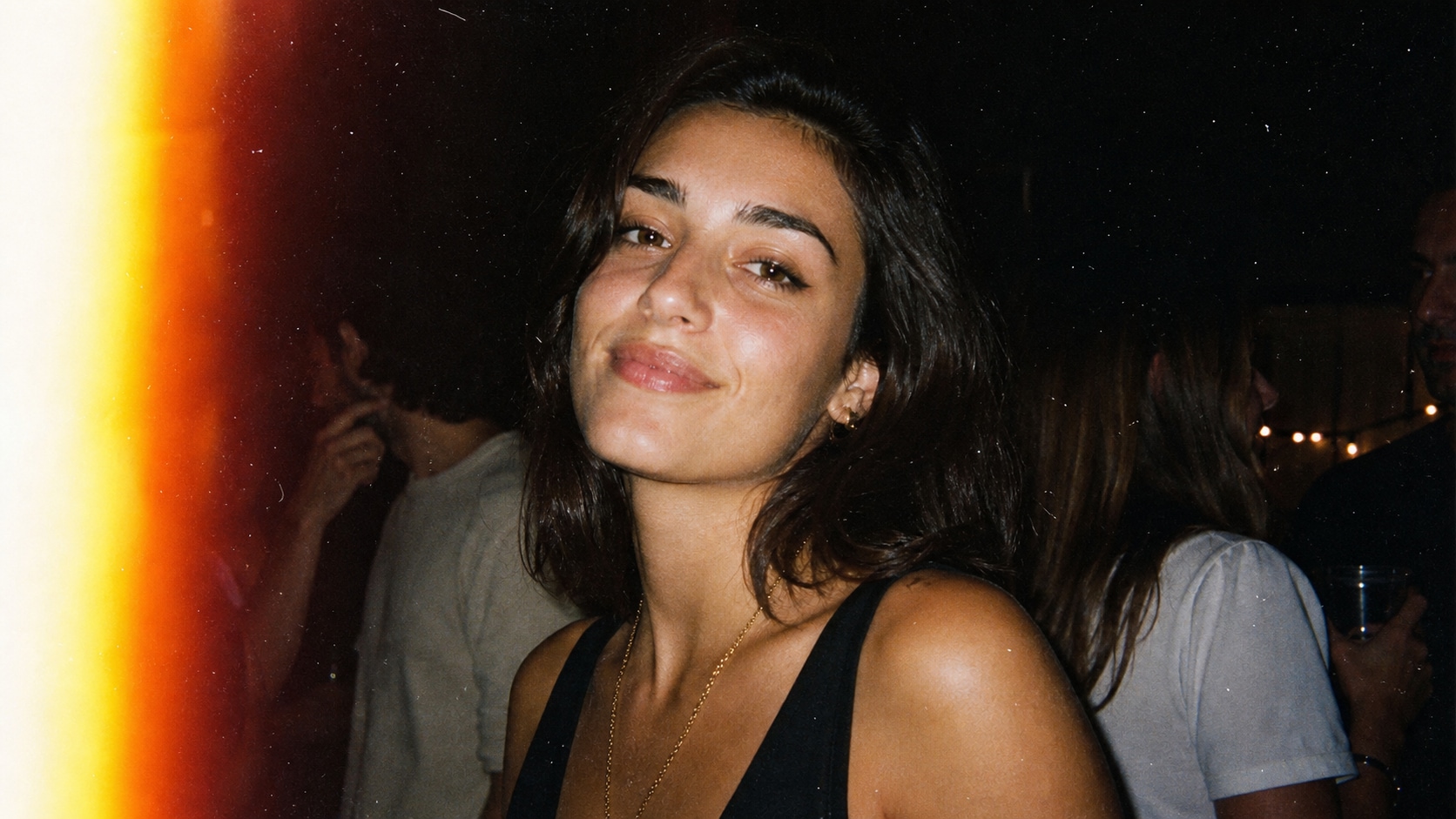
Use Light Leaks, Flash, and Dust Carefully
Analog imperfections work best as accents. Describe where the flash, red-orange light leak, lens bloom, dust, or overexposed edge should appear so the final image still feels composed.
- Flash Mood - Use direct flash, red-eye-free portrait light, or party snapshot highlights.
- Light Leaks - Place warm leaks near frame edges instead of across the face.
- Print Feel - Add dust, soft vignette, or scanned-photo texture in small amounts.
Turn Grainy Photos Into Filmora Video Looks
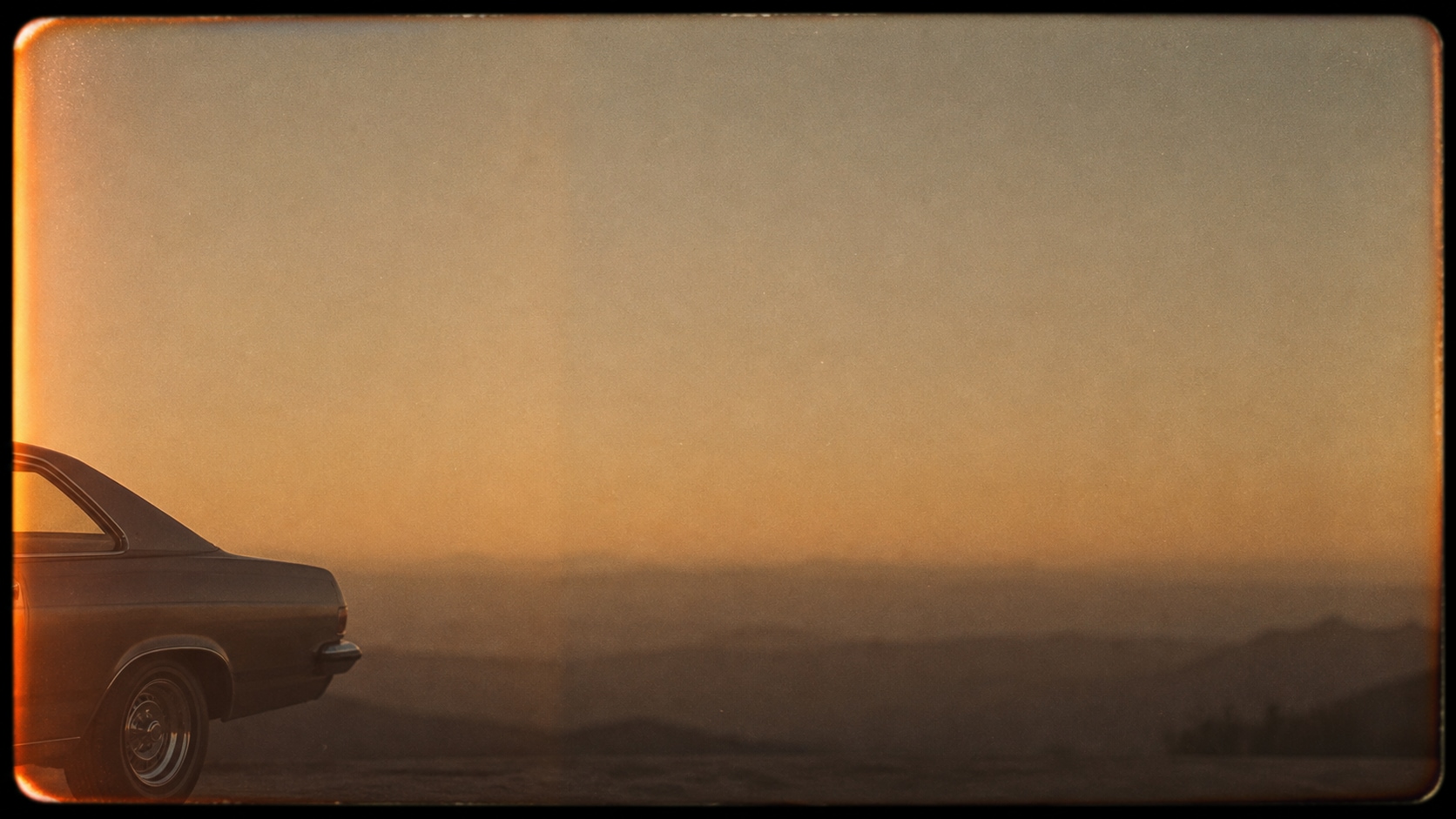
Turn Grainy Photos Into Filmora Video Looks
After generating a still analog image, bring it into Filmora to add subtle zooms, flicker, overlays, captions, or transitions. A clean grainy frame can become a retro intro, music clip, or social cover.
- Motion Ideas - Use slow push-ins, light flicker, scan texture, or gentle handheld movement.
- Edit Control - Generate images without readable text, then add titles in Filmora.
- Content Uses - Create retro reels, music visuals, travel montages, and nostalgic thumbnails.
Frequently Asked Questions About Gemini AI Film Grain Prompts
How to Generate Film Grain Photos With Gemini AI Prompts
Create a believable analog photo by choosing the subject, camera era, grain texture, light, and ratio before refining the image in Filmora.
Step 1 Choose an Analog Photo Mood
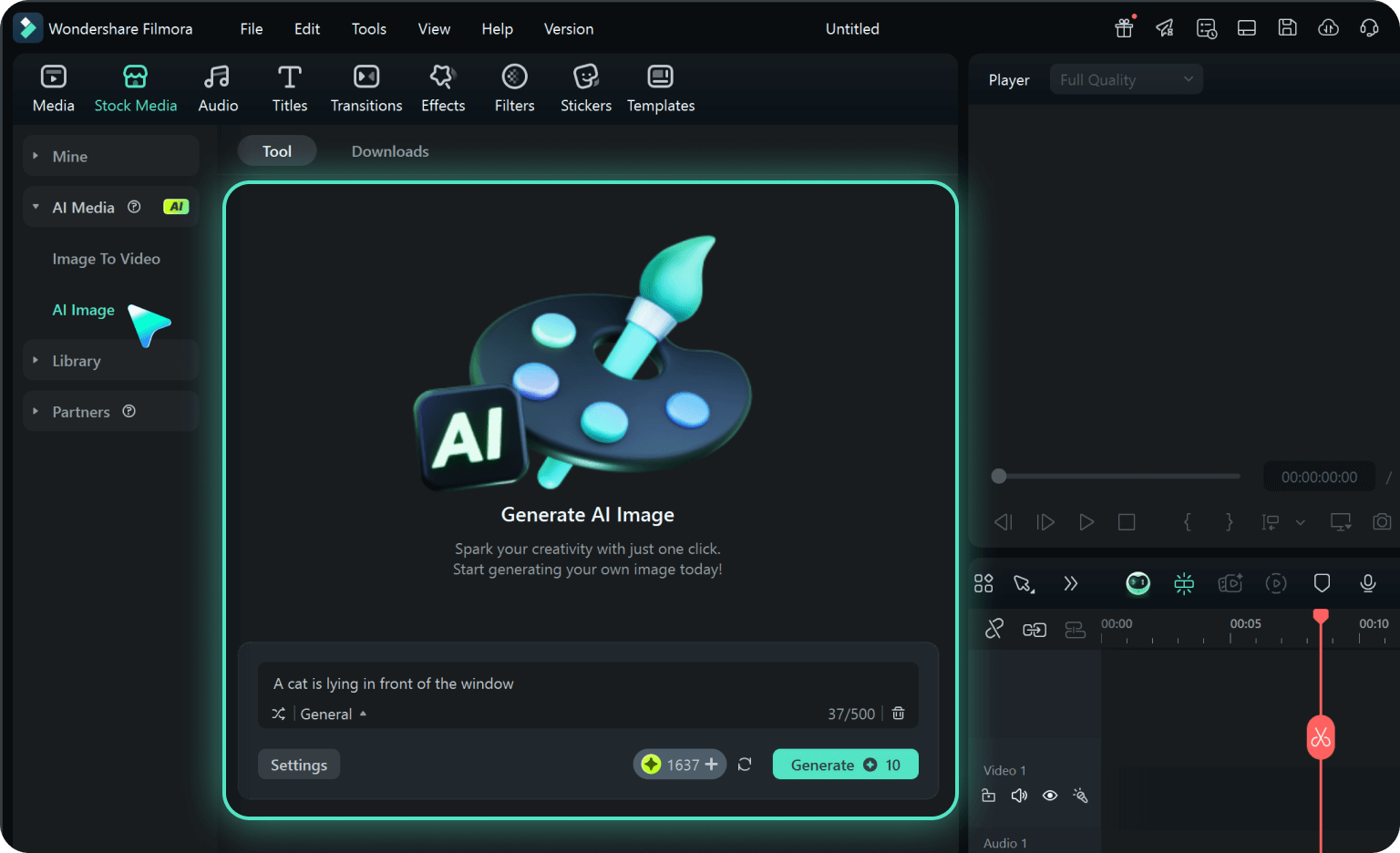
Step 2 Set Grain, Light, and Ratio
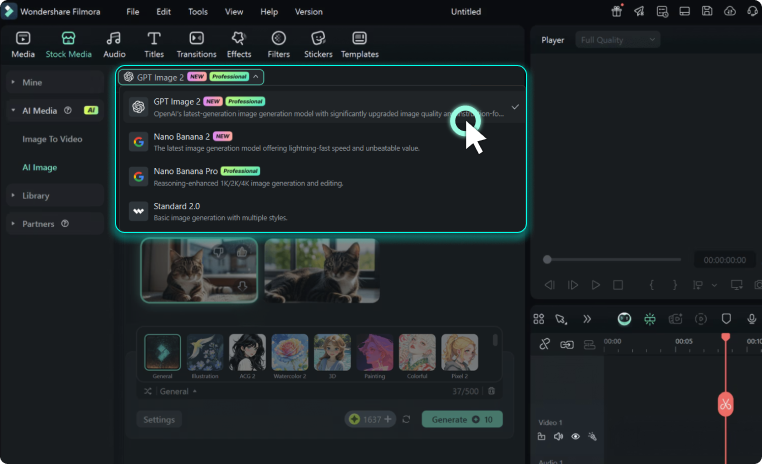
Step 3 Generate, Refine, and Export
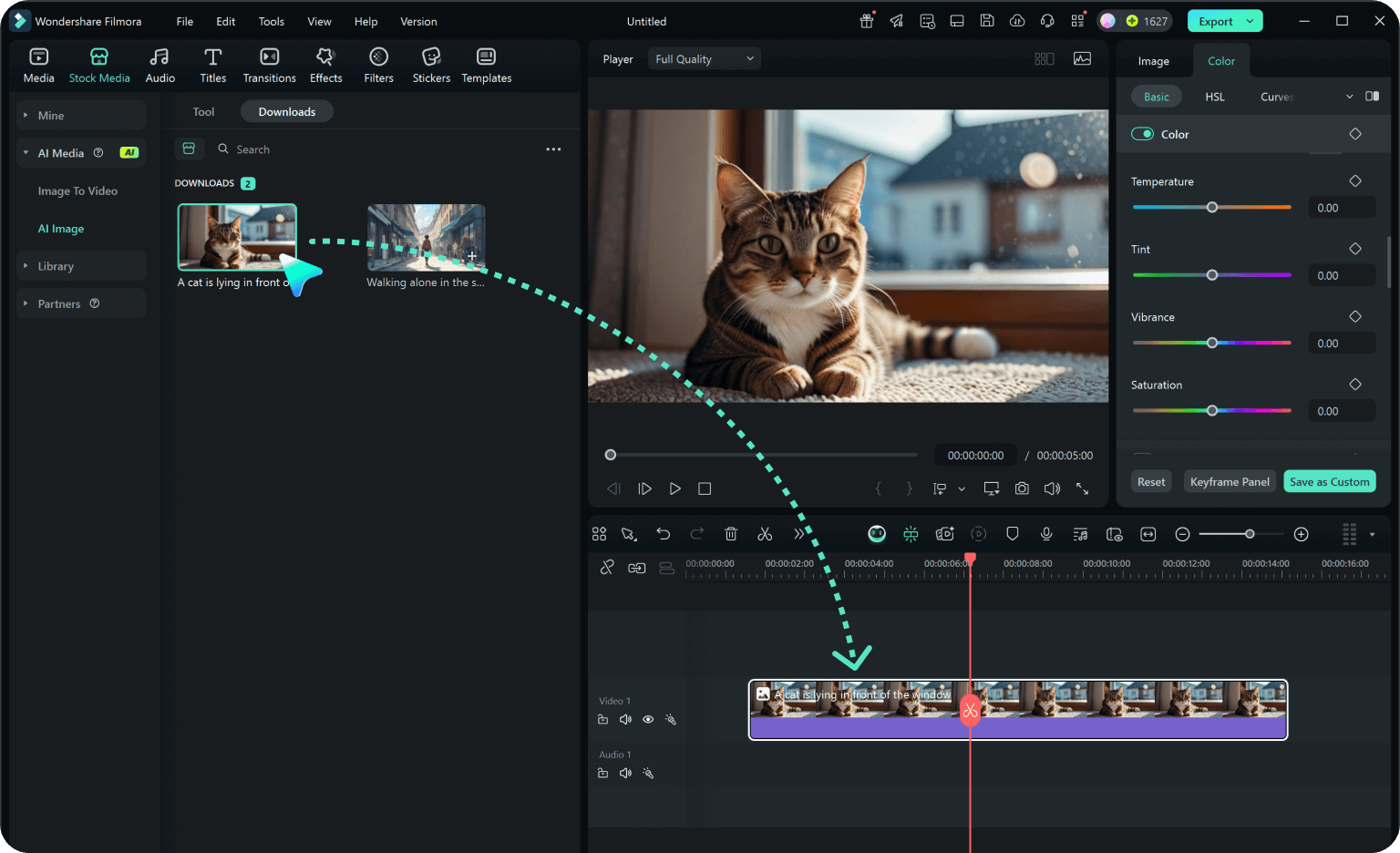
-
1: Choose an Analog Photo Mood
Pick a look such as 35mm portrait, disposable flash, 16mm still frame, Polaroid-style desk photo, or black-and-white street image. -
2: Set Grain, Light, and Ratio
Paste the prompt into Filmora's AI Image tool, choose 16:9, 9:16, or 1:1, and include film stock, halation, dust, soft focus, and no readable text details. -
3: Generate, Refine, and Export
Generate the image, adjust crop and color in Filmora, add subtle motion or titles if needed, then export it for posts, covers, or video edits.
Gemini AI Film Grain Prompts: Make Photos Feel Analog
Use Gemini AI film grain photo prompts to create vintage portraits, faded travel memories, direct-flash snapshots, cinematic stills, and nostalgic social visuals that are ready for Filmora editing.