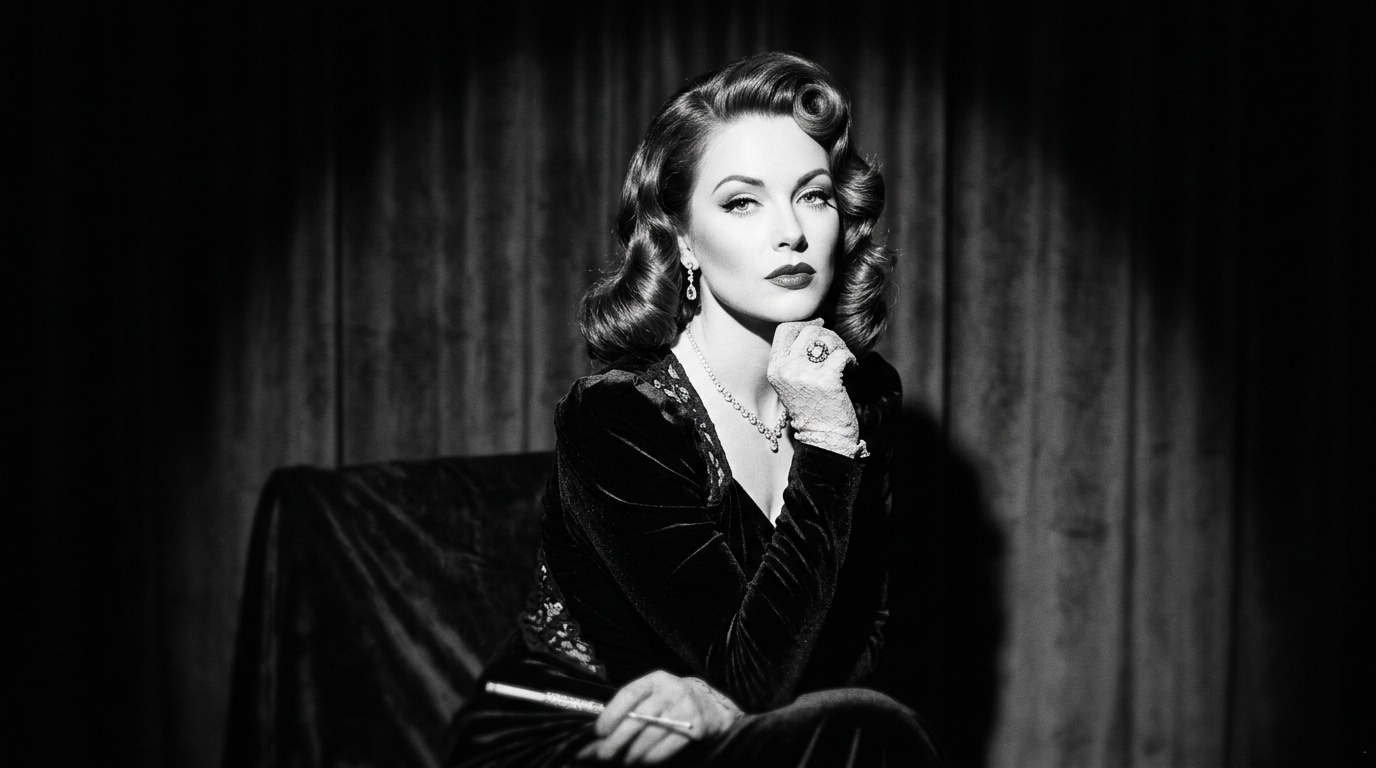
Explore Gemini AI Three-Piece Suit Prompts for Children
Browse Gemini AI children suit prompts for age-appropriate formal portraits, three-piece outfits, bow ties, vests, ring bearer scenes, family events, and studio lighting. Use each idea to create assets for video templates, keepsake edits, invitations, social posts, and family albums.
Loading more Gemini AI kids suit photo prompts...
 Category:
 Duration:
 Aspect Ratio:
Why Use Gemini AI Children Suit Prompts for Formal Photos?
Children formal portraits work best when the prompt keeps styling age-appropriate, comfortable, and natural. Clear clothing details, gentle posing, and soft light help the image feel polished without looking overdone.
Create Age-Appropriate Formal Portraits
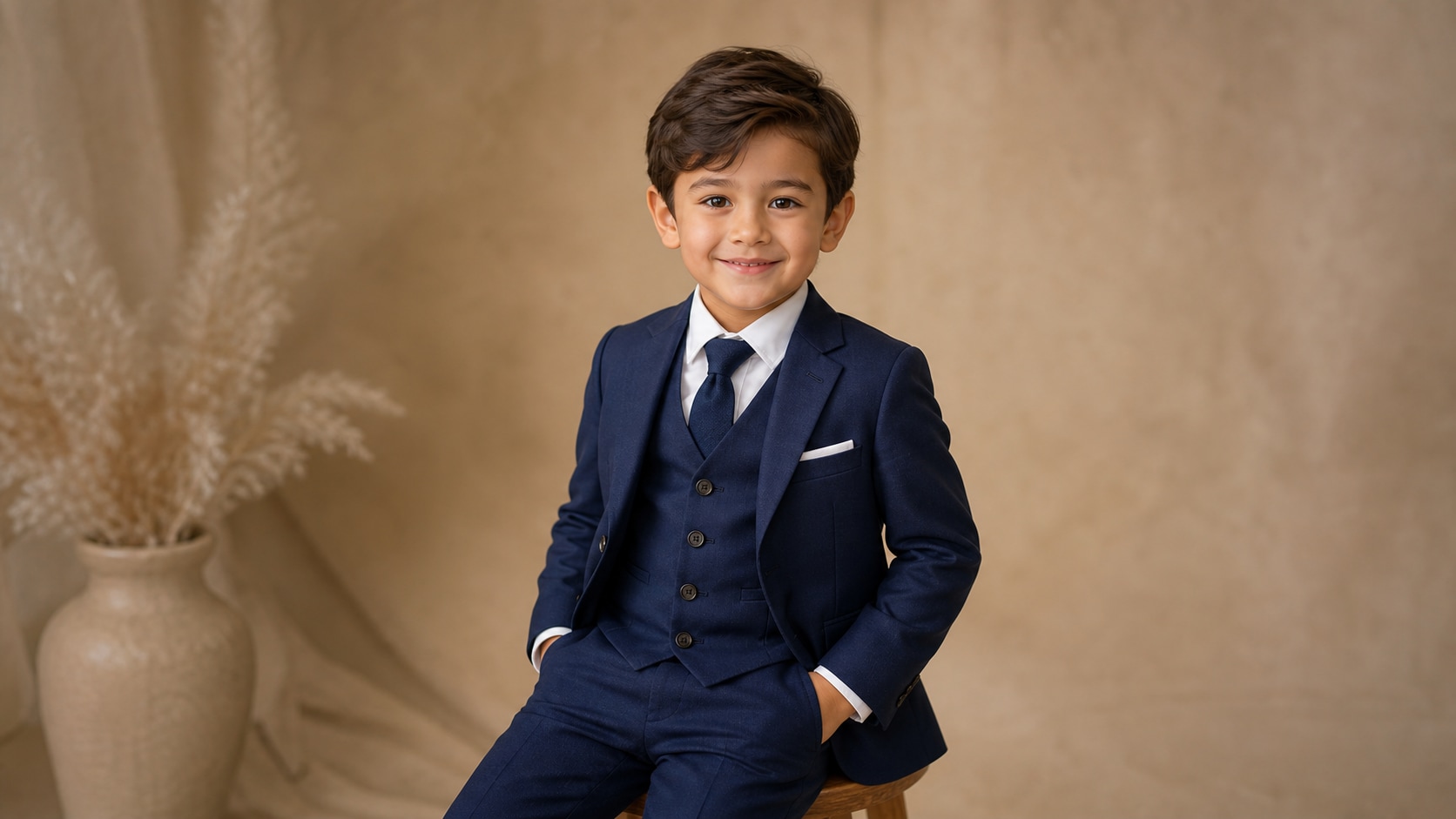
Create Age-Appropriate Formal Portraits
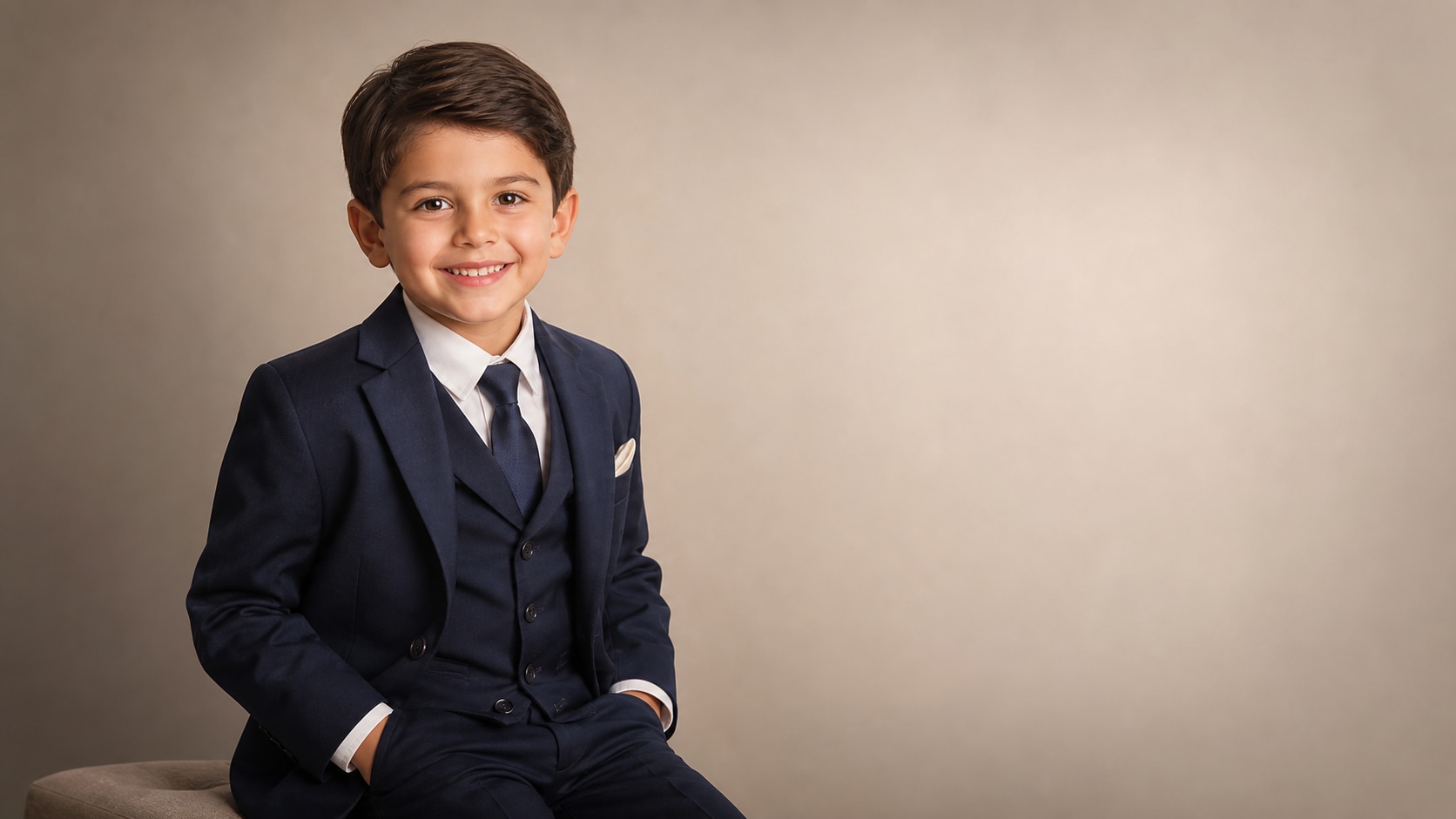
A careful children suit photo prompt describes a neat outfit, natural smile, comfortable pose, and family-friendly setting. Keep the tone wholesome, polished, and respectful.
- Pose - Use seated portrait, standing with hands relaxed, walking with family, or gentle candid smile.
- Mood - Ask for wholesome, cheerful, calm, confident, or classic family portrait styling.
- Setting - Choose studio backdrop, garden path, wedding venue, home hallway, or school photo mood.
Show Suit Fit, Fabric, and Accessories
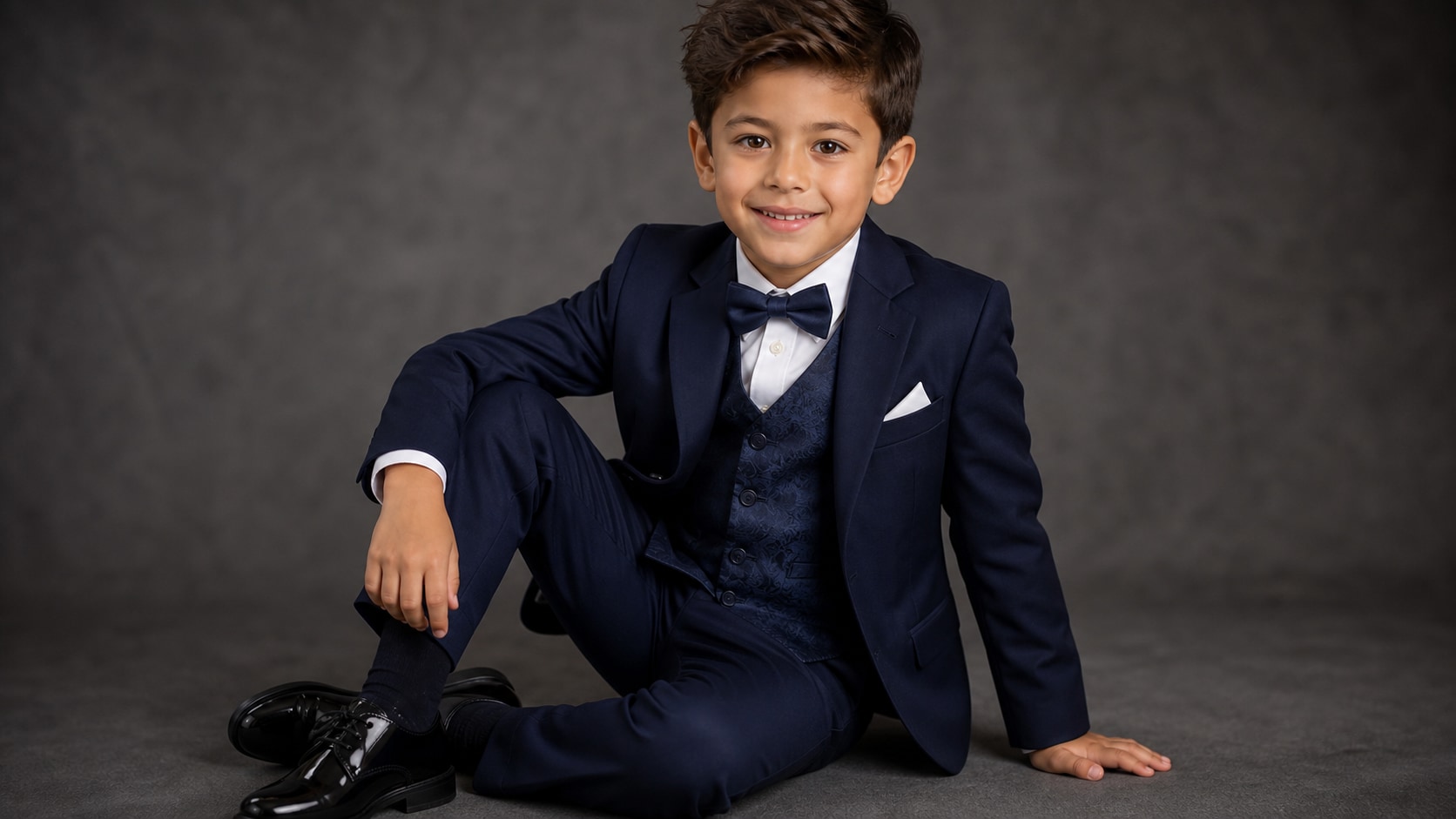
Show Suit Fit, Fabric, and Accessories
For kids three-piece suit prompts, include jacket, vest, trousers, shirt, tie or bow tie, polished shoes, and comfortable fit. Fabric details make the portrait feel realistic.
- Outfit Details - Mention vest, lapels, pocket square, bow tie, buttons, and polished shoes.
- Comfort - Use well-fitted but not stiff, relaxed shoulders, and natural movement.
- Texture - Add wool blend, linen, subtle pinstripe, velvet bow tie, or satin pocket square.
Build Event, Wedding, and Studio Scenes
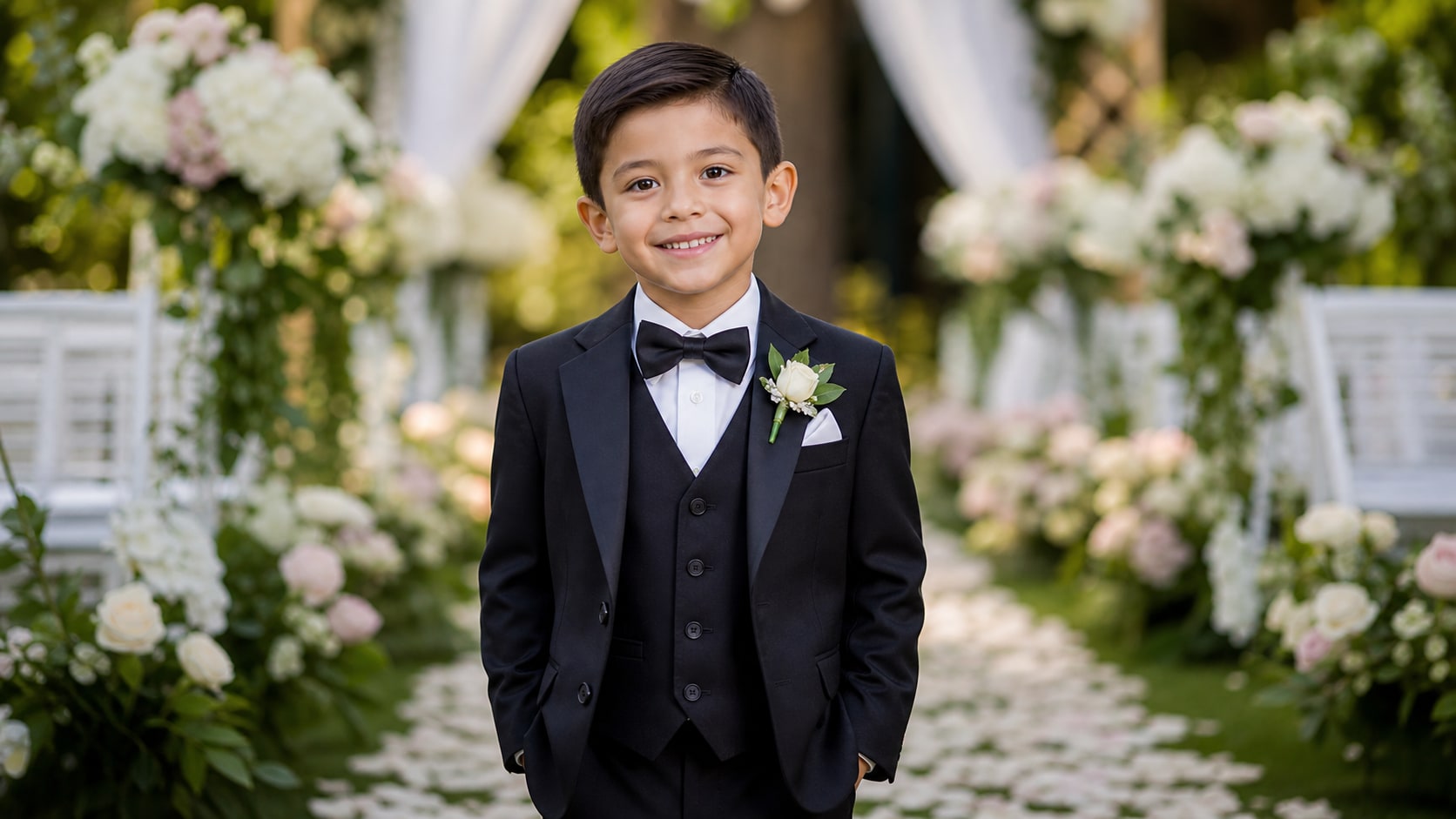
Build Event, Wedding, and Studio Scenes
Event prompts should describe the role and environment clearly: ring bearer, family celebration, formal school portrait, holiday card, or birthday scene. This gives the image a natural purpose.
- Event Context - Use ring bearer, family portrait, holiday card, graduation-style session, or birthday formal.
- Background - Add garden aisle, studio paper, elegant hallway, soft curtains, or warm home interior.
- Family-Friendly - Keep props simple and facial expressions natural.
Turn Children Suit Photos Into Keepsake Videos
Turn Children Suit Photos Into Keepsake Videos
After generating a still formal portrait, use Filmora to create a slideshow, invitation visual, family keepsake, or event recap. Generate without readable text so names and dates can be added cleanly later.
- Motion Ideas - Use slow zooms, gentle transitions, soft vignette, and light film grain.
- Edit Control - Leave clean space for names, dates, or event titles added in Filmora.
- Video Uses - Create invitations, family albums, holiday cards, and event highlight intros.
Frequently Asked Questions About Gemini AI Kids Suit Prompts
How to Generate Children Suit Photos With Gemini AI Prompts
Create a formal children portrait by choosing the event, outfit details, pose, light, and ratio before refining the image in Filmora.
Step 1 Choose a Formal Portrait Scene
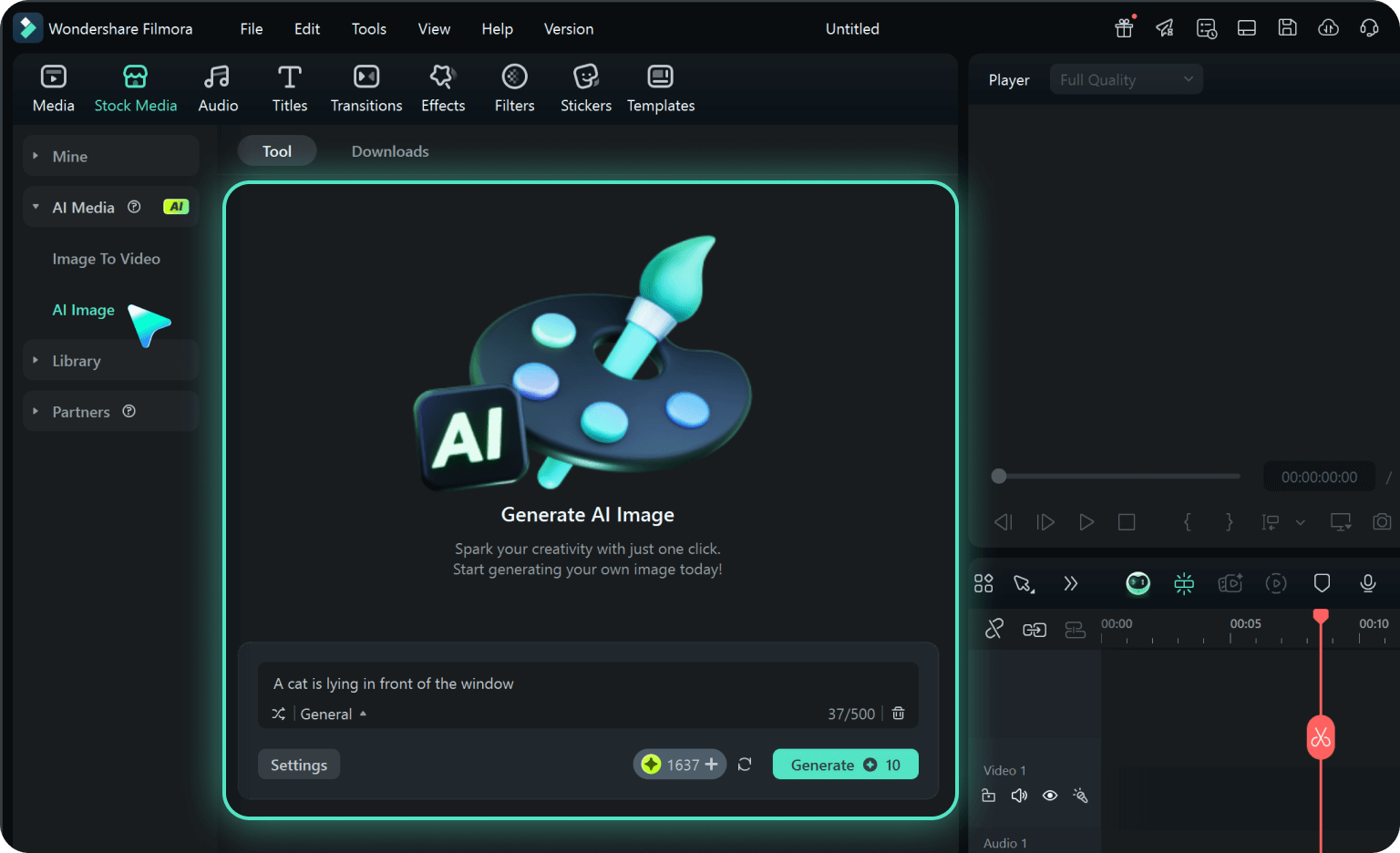
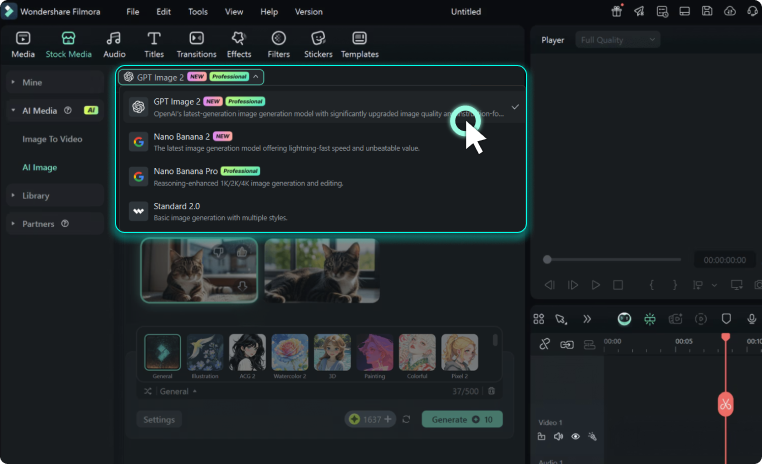
Step 2 Set Outfit, Pose, and Ratio
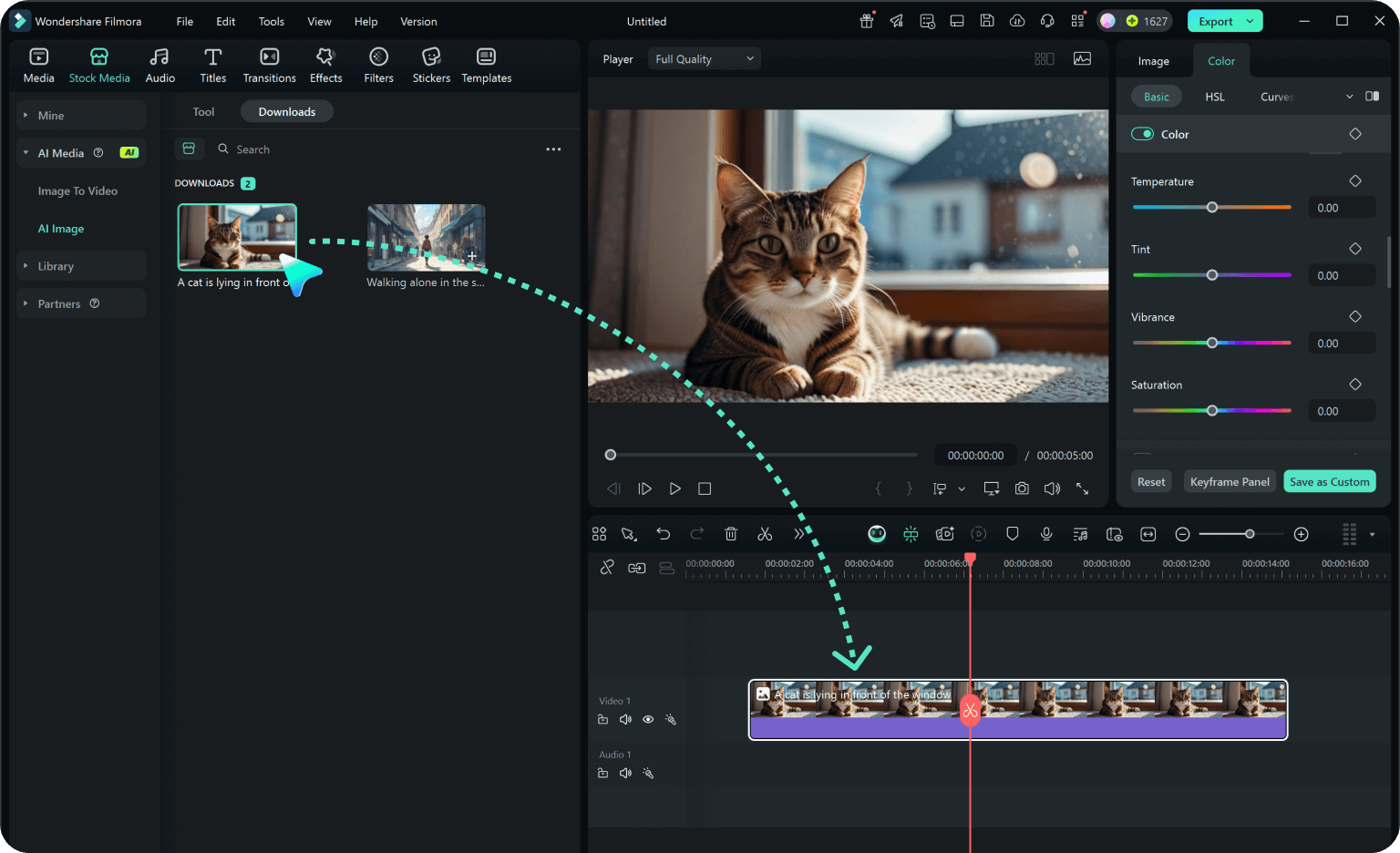
Step 3 Generate, Refine, and Export
-
1: Choose a Formal Portrait Scene
Pick a studio portrait, wedding ring bearer look, family event photo, holiday card, birthday formal, or graduation-style session. -
2: Set Outfit, Pose, and Ratio
Paste the prompt into Filmora's AI Image tool, choose a ratio, and describe suit pieces, fabric, pose, setting, lighting, and no readable text details. -
3: Generate, Refine, and Export
Generate the portrait, adjust crop and color in Filmora, add names or motion if needed, then export it for invitations, albums, or event videos.
Gemini AI Kids Suit Prompts: Create Formal Portraits
Use Gemini AI three-piece suit prompts for children to create age-appropriate formal portraits, toddler suit looks, ring bearer photos, family event images, and keepsake visuals ready for Filmora editing.