
M4V Editor: Edit M4V files with M4V Video Editor

Oct 22, 2026• Proven solutions
 TL;DR:
Wondershare Filmora functions as a dedicated M4V video editor for trimming, combining, and personalizing M4V files before exporting them to various formats, DVDs, Vimeo, or YouTube.
● Basic modifications like rotating, cropping, adjusting speed, and detaching audio tracks are executed by right-clicking the specific video clip within the timeline.
● Advanced video manipulation features, specifically mosaic, motion tracking, key framing, and face-off, require accessing the Power Tool option located above the timeline.
● Enhancements including AR stickers, Picture-in-Picture elements, text, and transitions are applied by dragging templates from the resource library tabs directly onto timeline segments.
Ask AI for a summary
 ChatGPT
 Perplexity
 Gemini
 Claude
 Grok
Grok
Do you want to edit M4V files to either cut off some unnecessary parts, join different segments, add video filters and more? Well, what you need is an M4V editor to customize M4V videos for you. Wondershare Filmora is a powerful video editing tool that allows you to edit M4V videos by trimming, rotating, cropping, merging, etc. and personalize your videos with rich subtitles, filters and transition effects to share anywhere.
Powerful M4V Video Editor - Wondershare Filmora


- You can easily trim, rotate, crop, merge and combine your M4V video files;
- Personalize your M4V videos with stunning text, filter and transition effects including AR stickers;
- Choose advanced effects like motion tracking, key framing, mosaic, jump cuts, face-off and more;
- Upload your M4V videos to Vimeo and YouTube, burn them to DVD or save them in different formats.
How to Edit M4V Videos Effortlessly:
1. Crop M4V video
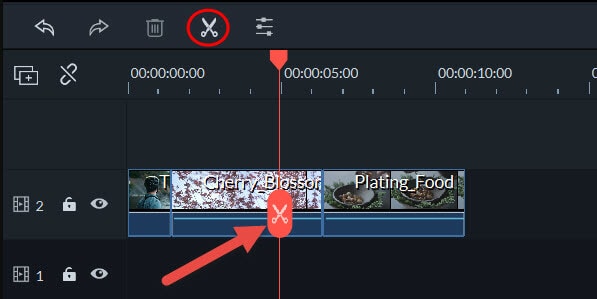
If you want to cut a video clip to the desired segment, select the video clip on the timeline, drag the top of the red time indicator to the desired position, and then click the "Scissors" button to cut it into multiple clips. Delete your unwanted clips and keep only the right ones.
2. Crop, rotate, change video and audio effect and speed up video
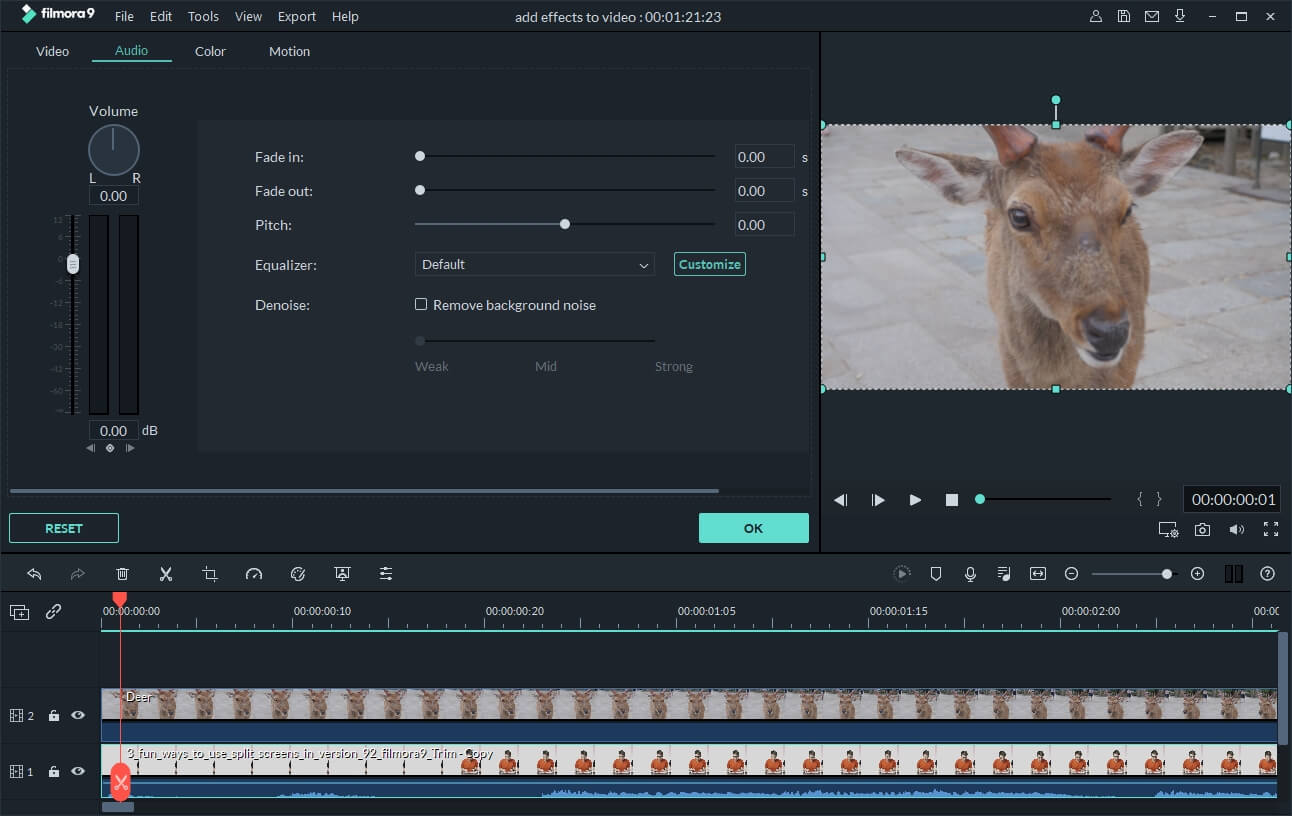
Right click on your desired video clip in the timeline and then select the Edit option. Also, you can use some common editing tools: rotate, crop, speed up video and change video effects. To delete or edit the audio track, just right-click the video clip and choose the "Detach Audio" option instead.
3. Add mosaic, motion tracking, key framing and face-off
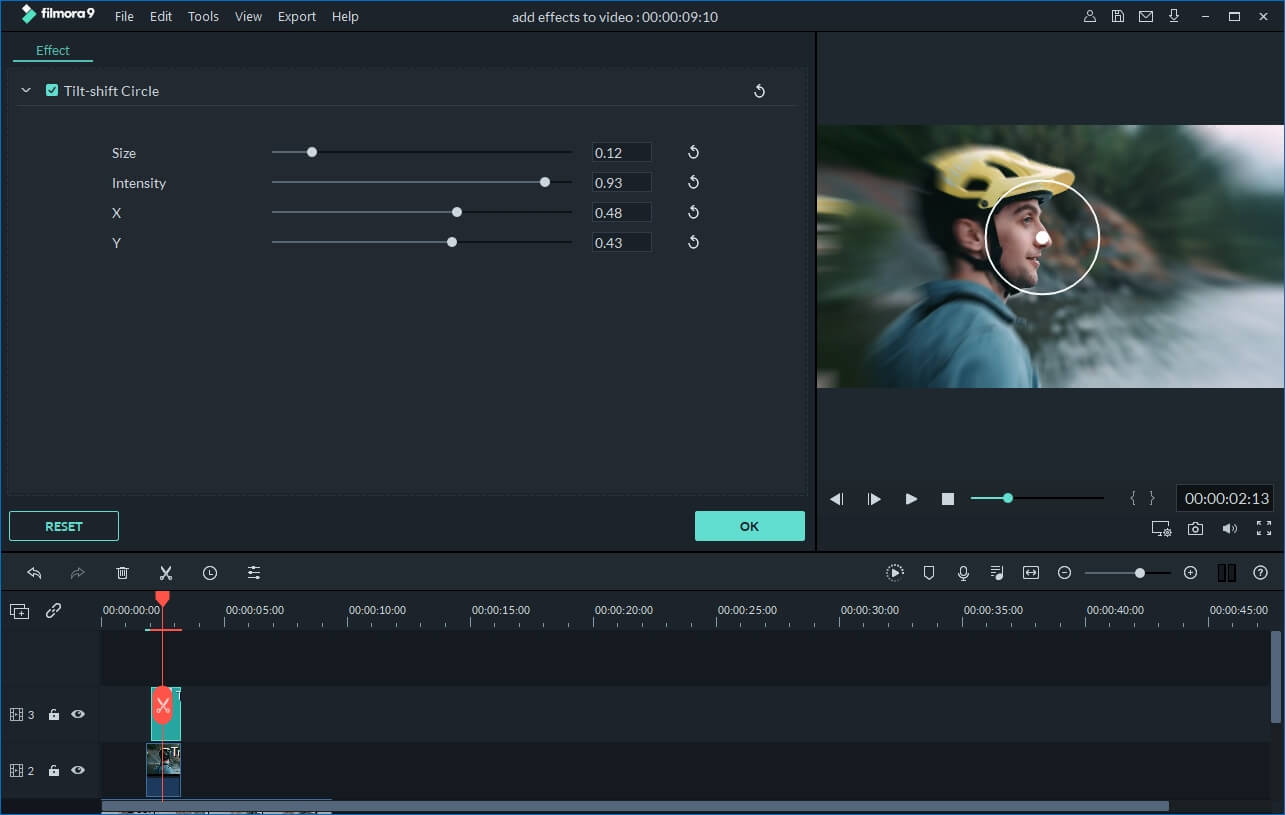
To apply effects like mosaic, motion tracking, key framing and face-off, you can right click on the video clip in the timeline and then choose "Power Tool" option or directly click on the "Power Tool" button above the timeline .
4. Apply text, PIP, transitions, audio and intro/credits, etc
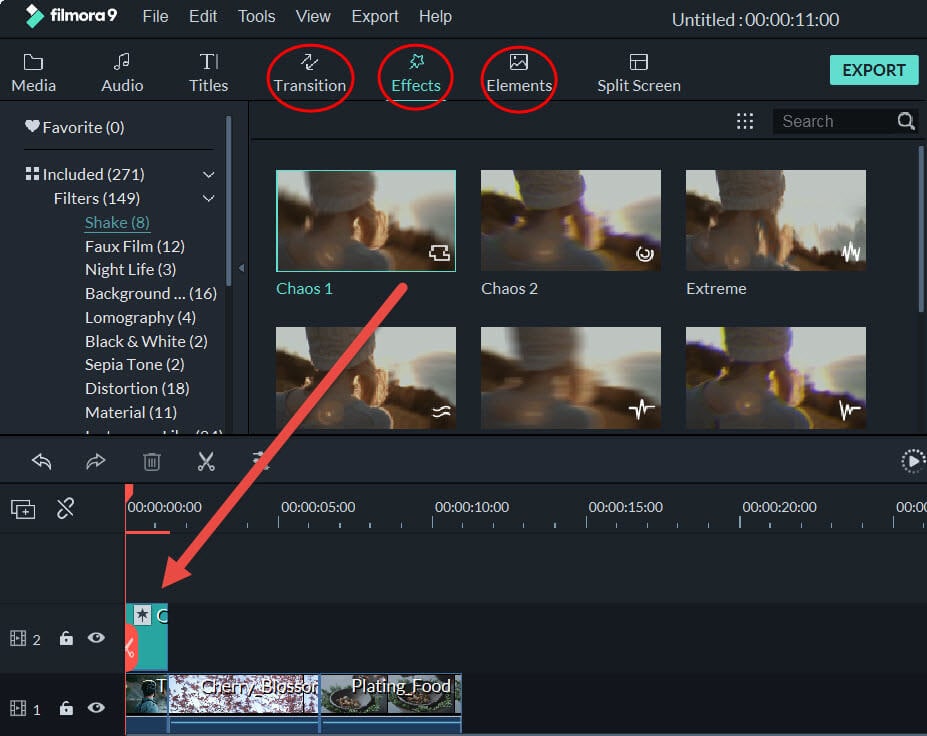
If you want to customize your video even more, you can also add elements like text, PIP, transitions, audio, intro/credit and more. To do this, click on the different effect tabs above the timeline to bring up the corresponding resource library. Then drag the desired template from the library directly onto the video clip in the timeline. And finally, you can customize the settings as you like.
Best Video Editing Software for Beginners to Edit M4V Files (Video Guide)
As you can see, editing M4V files with Filmora is easy. Also, you can personalize your video with a variety of video effects and advanced editing tools. Try Filmora for free now, you won't regret it.
In this article, I'll show you how to combine two or several M4V files into one easily, quickly and without any video quality loss.
by Liza Brown Oct 22, 2026 07:57 AM
Play M4V Videos with the best Android M4V players or convert M4V videos to Android compatible videos
by Liza Brown Oct 22, 2026 07:58 AM
Liza Brown
chief Editor
