
Motion Blur in Filmora — One Click for Sports, Gaming & Action Footage
Add cinematic motion blur to sports, gaming, and action camera footage in seconds. No keyframes, no plugins. Free on Windows and Mac.
 4.7
(15746 reviews)
4.7
(15746 reviews)
Win 11 /Win 10 / Win 8 / Win 7 (64 bit OS) | System Requirements
macOS 10.15 or later (Using macOS 10.14 or earlier? Click here) | Compatible with Apple silicon
Add cinematic motion blur to sports, gaming, and action camera footage in 3 seconds. No keyframes, no plugins. Free on Windows and Mac.
Where Motion Blur Makes the Biggest Difference
Sharp footage doesn't always read as cinematic. Wherever real motion appears on screen, Motion Blur turns flat, over-sharp shots into broadcast-grade movement—one click, no plugins, no keyframes.
Sports & Athletic Footage
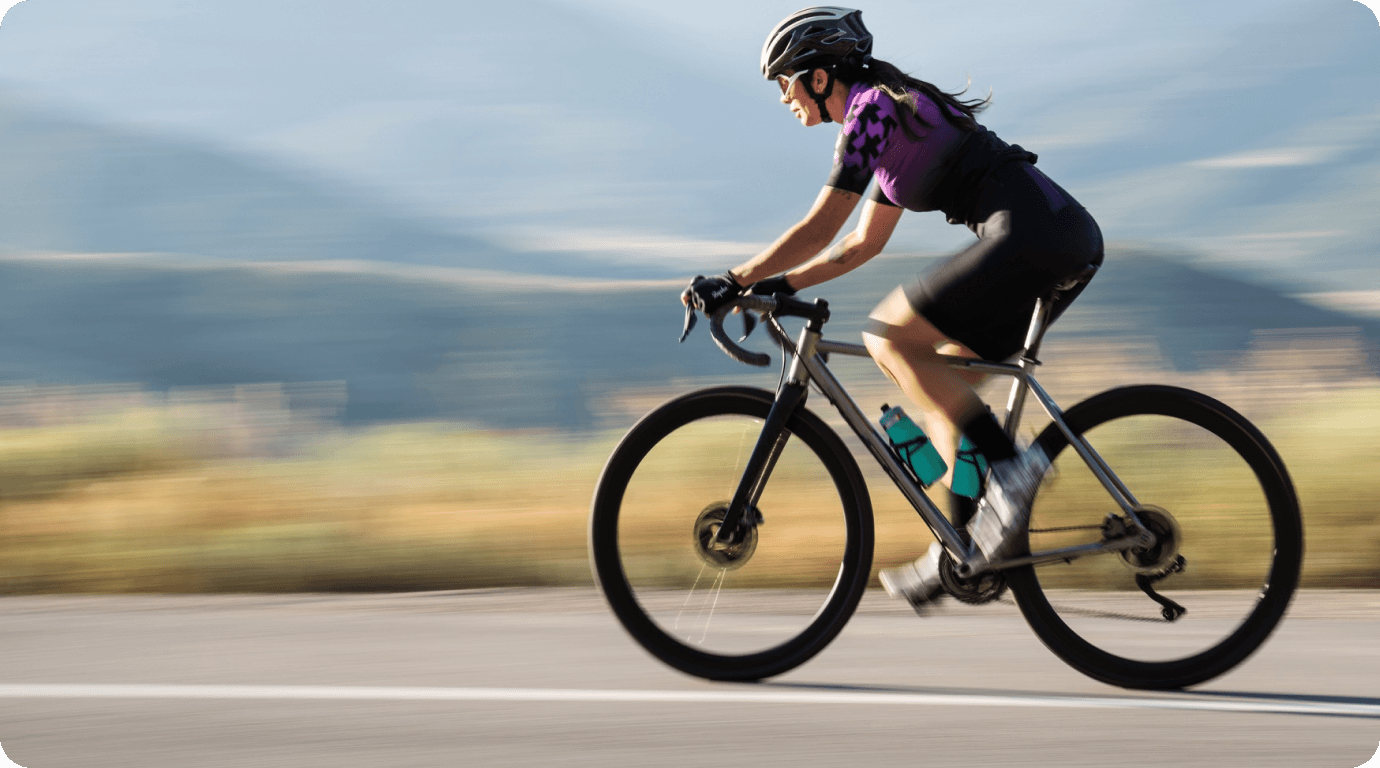
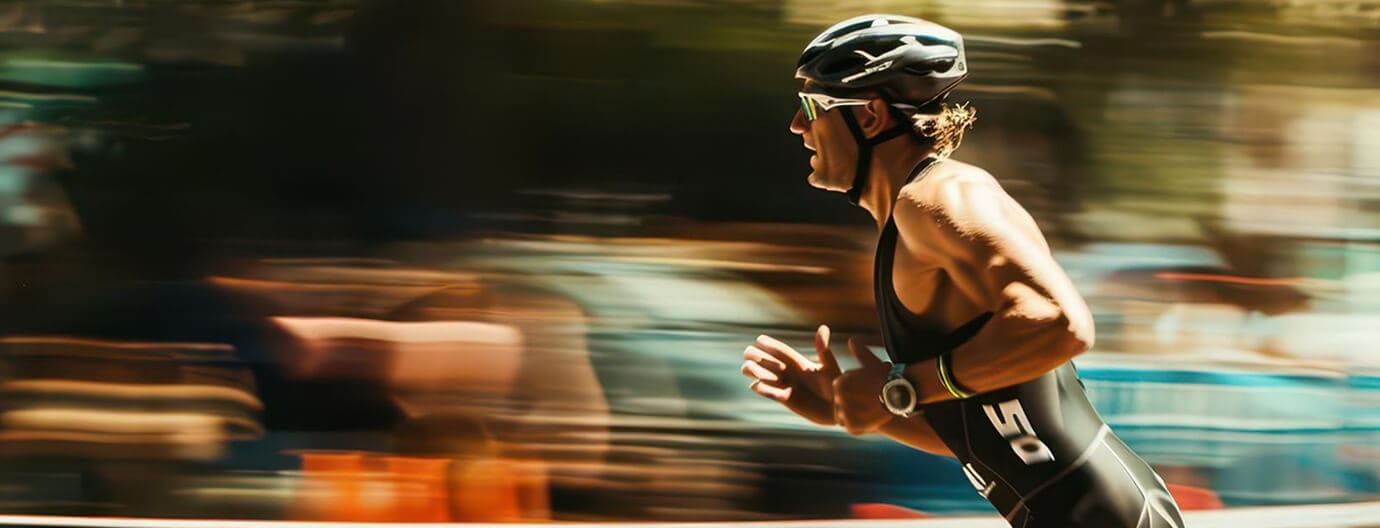
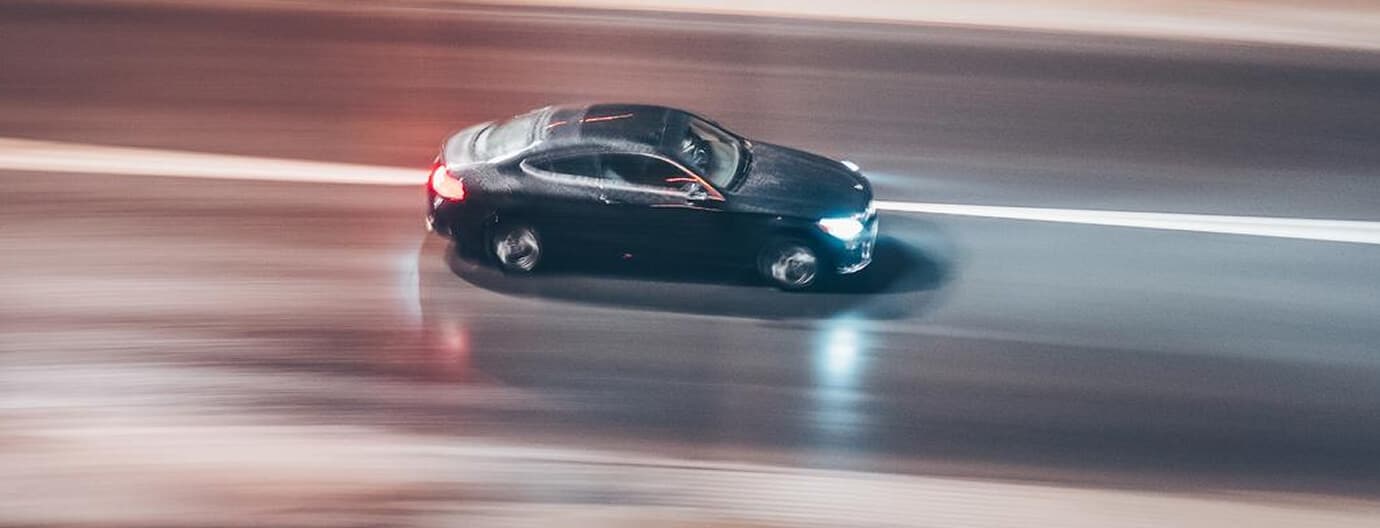
Cycling, running, dance, dunks—phones and DSLRs shoot every frame too sharp for athletic action to land. Motion blur restores the natural streak the eye expects, giving every move the speed and follow-through of broadcast sports.
Gaming & Esports Highlights
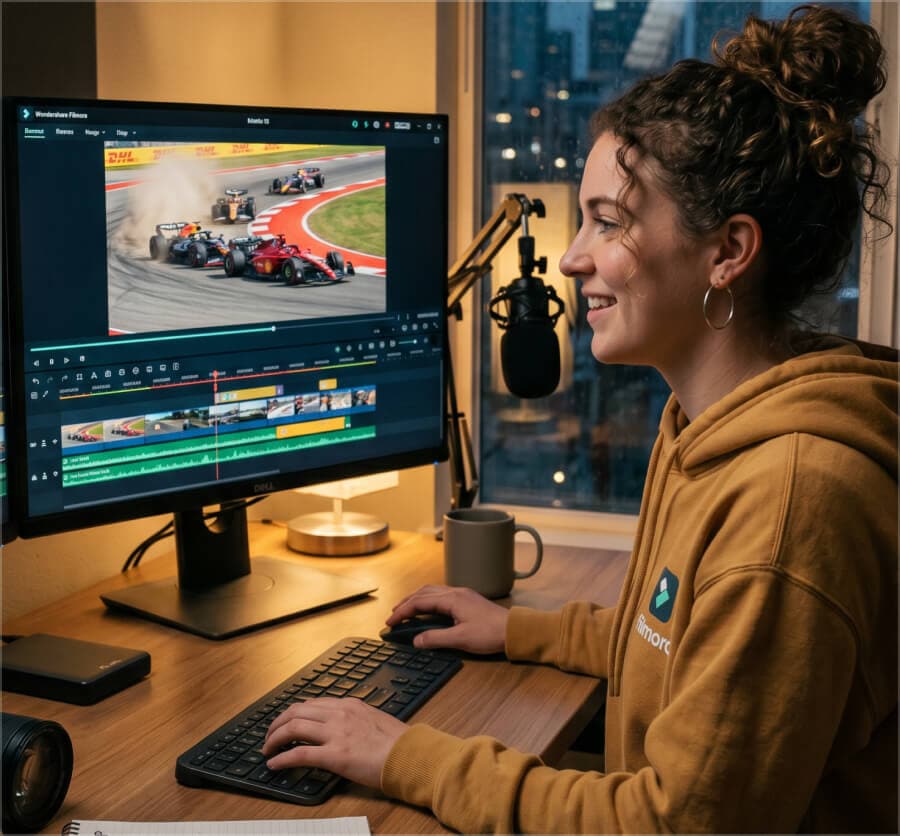
Game engines render every frame perfectly clean, so high-speed gameplay looks choppy—like a frame-rate drop. Add Motion Blur and your headshots, drift corners, and team plays read like a pro esports edit, not a screen recording.
Action Camera Footage
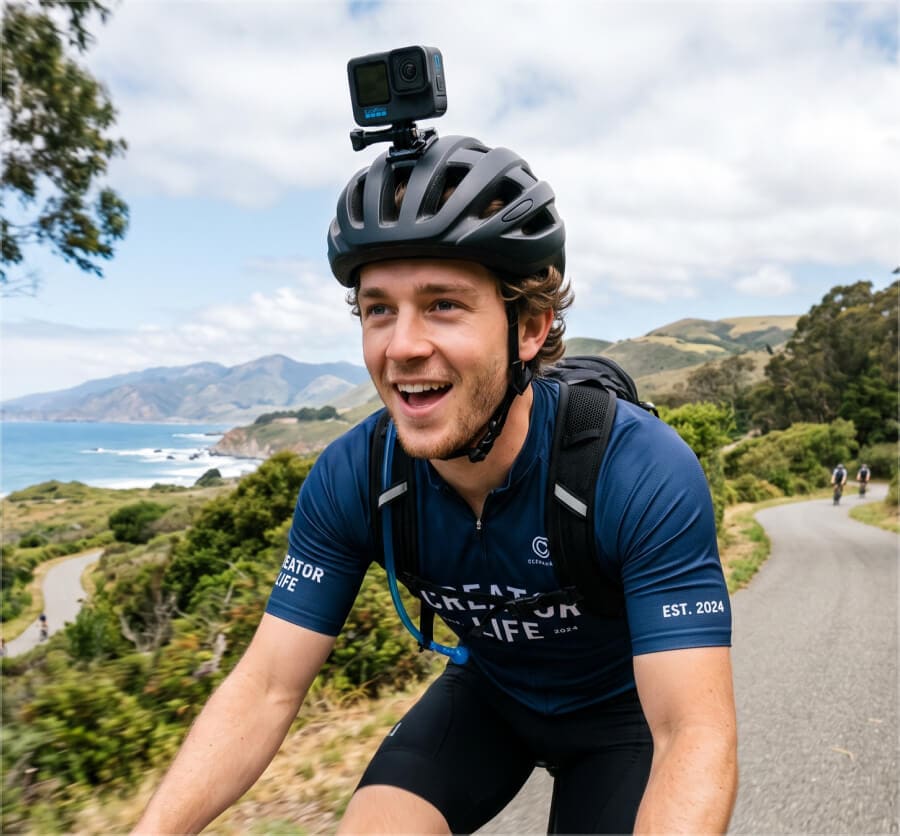
GoPro, DJI, Insta360, drone shots—action cameras shoot every frame too sharp for the speed they capture. First-person rides, drone passes, and chase shots end up reading as digital, not real. Motion Blur restores the streak of authentic, film-grade camera movement.
Motion Blur Built for Real Editing, Not Plugin Stacking
Apply with one toggle. Customize with each parameter. Reverse with one undo—Motion Blur fits the way you already edit in Filmora.
One Click. Cinematic Motion. Done.
Drop a clip on the timeline, toggle Motion Blur on, and Filmora does the rest. It reads the direction and speed of every movement in your footage and adds the right amount of blur automatically—tuned by editors who cut short-form content for a living.
- Reads motion direction and speed frame by frame
- Defaults tuned by editors who edit action daily
- Works on footage you've already shot—no re-record, no re-render
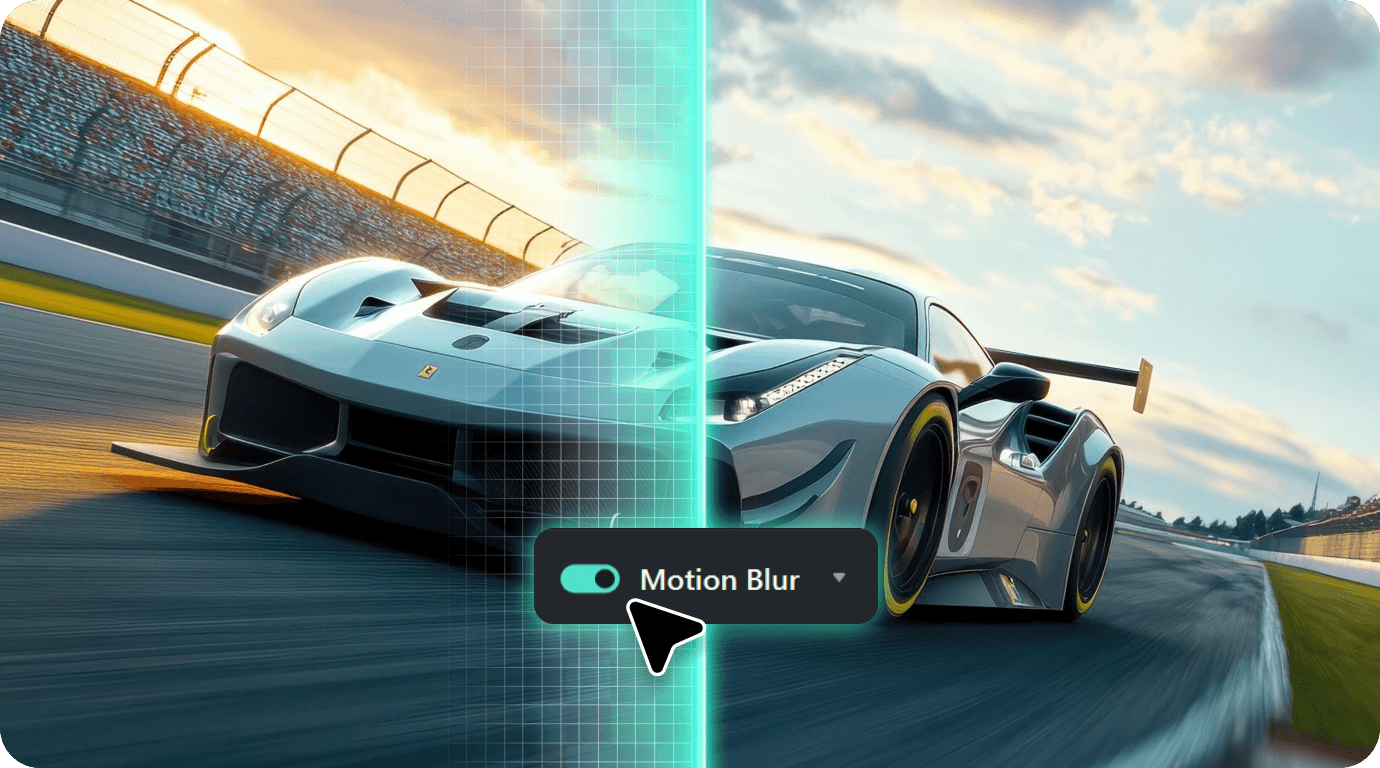
Dial In the Exact Look You Want
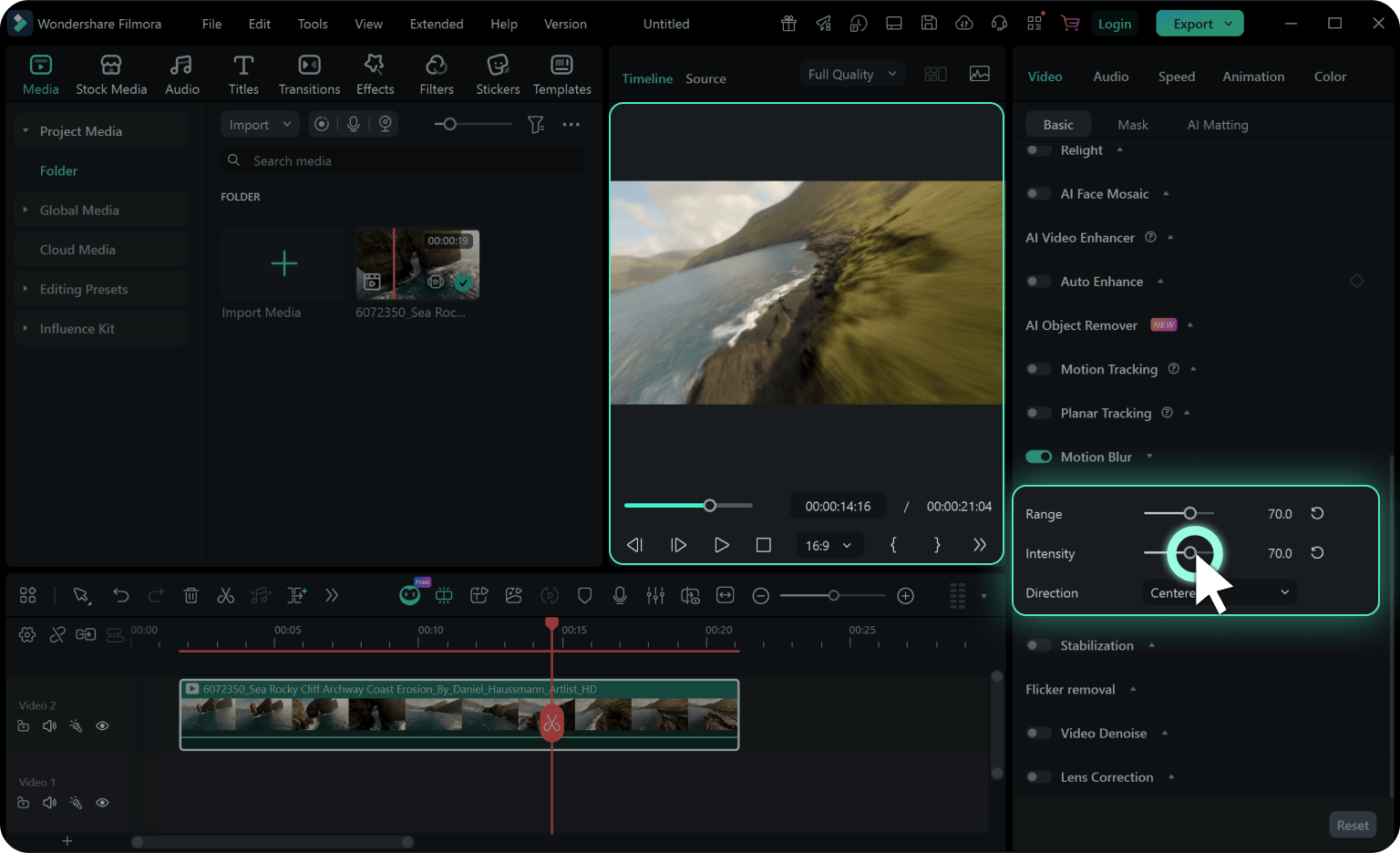
When the default isn't quite right, open the Motion Blur panel and adjust each parameter to taste. Push Intensity for aggressive action feel, pull Range back for subtle realism, lock Direction for stylized streaks.
- Intensity controls how strong the blur reads on screen
- Range controls how much of the motion gets blurred
- Direction follows the footage, or overrides it for style
Edit Freely. Always Reversible.
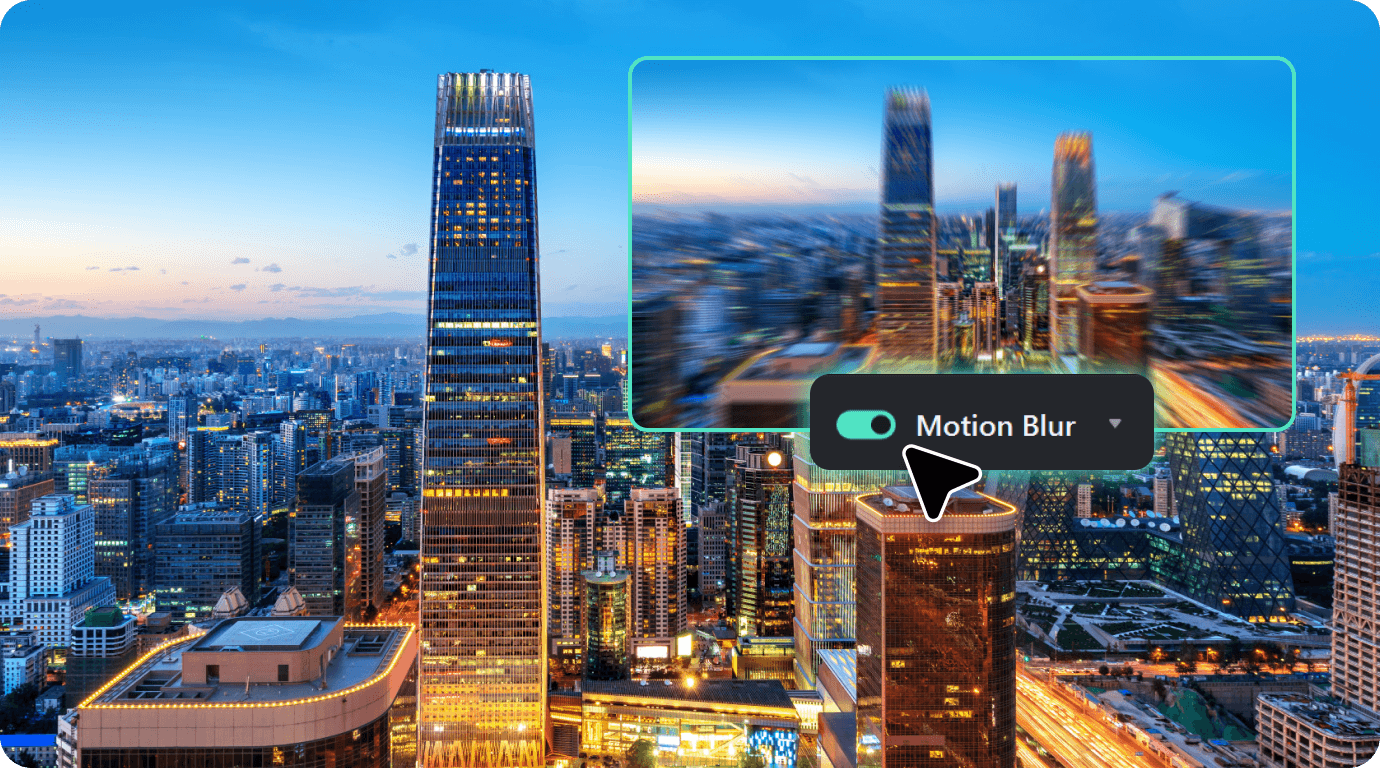
Motion Blur sits in the Properties panel, next to the adjustments you use every day. Apply it to one clip, copy settings to twenty more, undo the moment you change your mind. Your original footage stays untouched.
- Stays non-destructive—original media remains safe and editable
- Copies across clips for consistent looks in seconds
- Skips the round-trip—no plugins, no external apps needed
How to Add Motion Blur to Video in Filmora
From import to export, motion blur lives entirely inside Filmora. No plugin install, no preset pack. Three steps, under a minute.
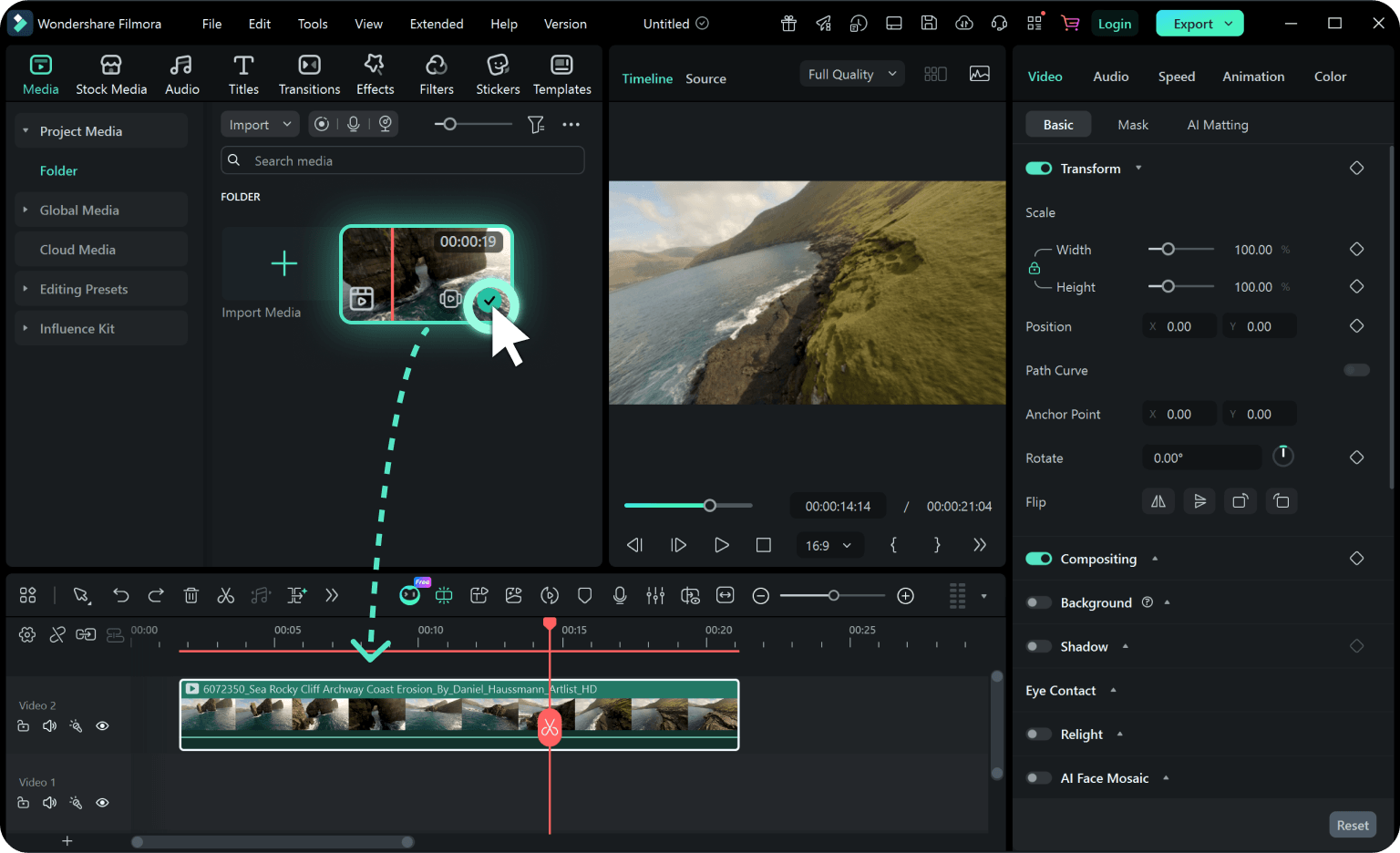
Step 1. Select Your Clip on the Timeline
Open your project in Filmora and click the clip you want to add motion blur to. Works on any video clip—shot footage, screen recordings, stock clips, even animated overlays.
Step 2. Apply Motion Blur from the Properties Panel
Go to Properties → Video → Motion Blur. Toggle it on, and Filmora applies the cinematic default instantly. Preview on the timeline—if it's already the look you want, you're done.
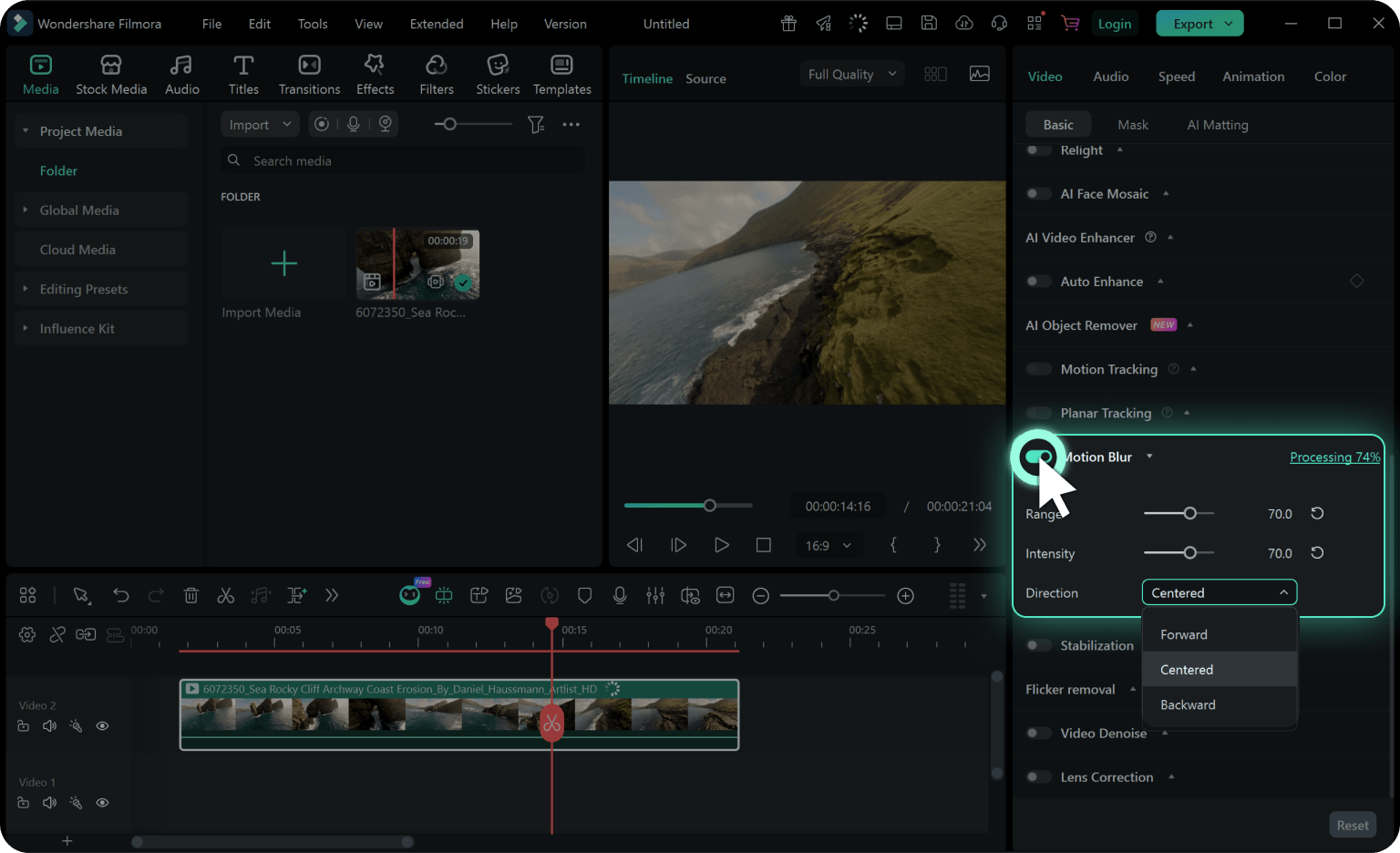
Step 3. Adjust Motion Blur Settings and Export
Want a specific feel? Adjust Intensity, Range, and Direction until the motion reads exactly the way you imagined. Then keep editing and export when you're ready.
-
Step 1: Select Your Clip on the Timeline
Open your project in Filmora and click the clip you want to add motion blur to. Works on any video clip—shot footage, screen recordings, stock clips, even animated overlays.
-
Step 2: Apply Motion Blur from the Properties Panel
Go to Properties → Video → Motion Blur. Toggle it on, and Filmora applies the cinematic default instantly. Preview on the timeline—if it's already the look you want, you're done.
-
Step 3: Adjust Motion Blur Settings and Export
Want a specific feel? Adjust Intensity, Range, and Direction until the motion reads exactly the way you imagined. Then keep editing and export when you're ready.
Who Uses
Motion Blur in Filmora ?
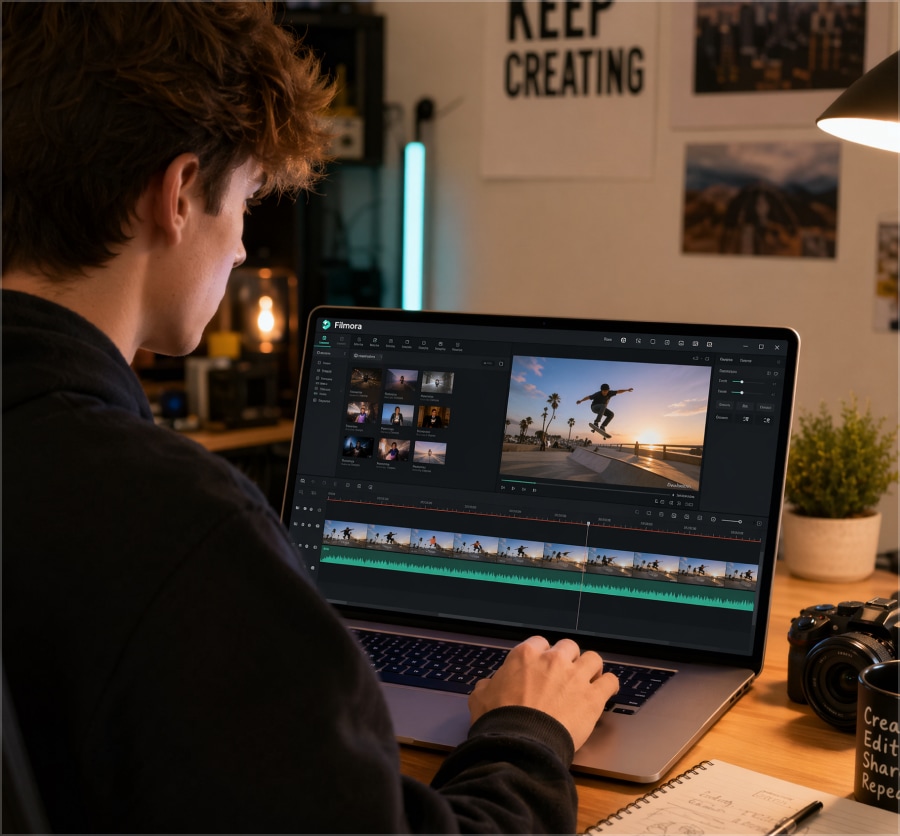
Short-Form & Social Editors
For TikTok, Reels, and Shorts creators filming action, motion blur is the polish layer that lifts your fast-paced clips above generic phone footage. The cinematic feel that turns one-take action captures into scroll-stopping content.
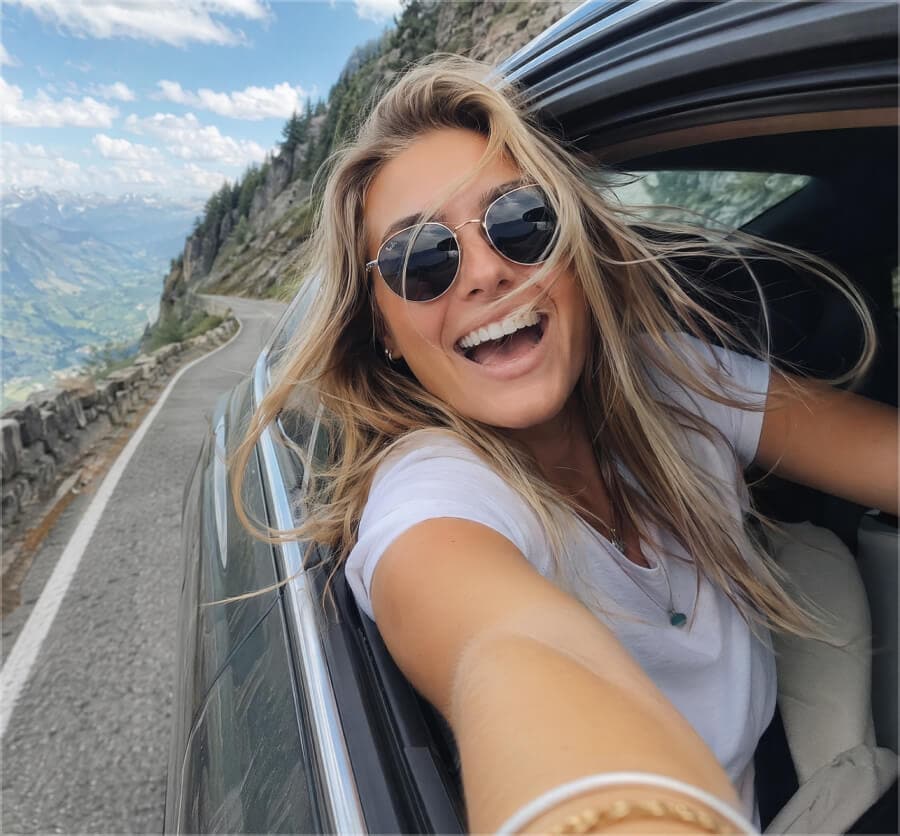
Action Camera Creators
For GoPro shooters, drone pilots, travel vloggers, and FPV operators, motion blur restores the real camera feel your fast moves are missing. The streak that separates pro action footage from a tech demo.
Sports & Athletic Creators
For fitness coaches, sports filmmakers, and dance creators, motion blur turns sharp athletic footage into broadcast-grade movement. The speed and flow your action deserve—without expensive gear.
Gaming & Esports Editors
For gameplay editors, Twitch clippers, and esports producers, motion blur is the difference between a screen recording and a pro highlight reel. The cinematic weight your gameplay needs—in one click.
Motion Blur in Filmora: Frequently Asked Questions
- 1. What is motion blur in video editing?
-
Motion blur is the natural streaking that appears when subjects move quickly past the camera—it's what makes high-speed footage feel cinematic instead of choppy. Filmora recreates this effect on any clip in one click, even on footage you've already shot.
- 2. When should I use motion blur in my videos?
-
Use motion blur whenever fast movement looks too clean or frozen mid-frame. When your action footage feels more like a screen recording than a broadcast edit, that's exactly the gap motion blur fills.
- 3. How do I add motion blur to a video in Filmora?
-
To add motion blur in Filmora, select your clip and toggle on Motion Blur from the Properties panel. Filmora applies the cinematic default immediately. To fine-tune, use the three controls—Intensity, Range, and Direction.
- 4. Why does motion blur look unnatural in my video?
-
Usually it's a settings issue. Lower Intensity if the blur looks exaggerated, narrow Range to keep static elements sharp, and set Direction to Centered for natural-looking footage (use Forward or Backward for stylized streaks).
- 5. Can I adjust the strength and direction of the effect?
-
Yes—Intensity, Range, and Direction each control a different aspect of the effect. Intensity sets blur strength, Range sets how much motion gets blurred, and Direction either follows the natural motion or locks to a fixed angle. All three update in real time on the timeline preview.
- 6. Does motion blur work on fast-motion or slow-motion clips?
-
Yes—Motion Blur works on both fast-motion and slow-motion clips. On speed-ramped footage it emphasizes the speed change, on slow-motion clips it preserves natural subject movement, and on full-speed action clips it adds the cinematic weight that high-shutter cameras strip away.
- 7. Will motion blur affect my video quality or export speed?
-
No—your original footage stays untouched and export speed impact is minimal. Motion Blur is applied non-destructively, so the source clip is never re-encoded. You may see a small increase in export time on long projects, but Filmora's engine keeps that overhead minimal on both Windows and Mac.
- 8. Is Motion Blur in Filmora free to use?
-
Yes—Motion Blur in Filmora is completely free, with no credits, paywall, or usage cap. Apply it to as many clips as you need on every project, on both Windows and Mac.
What Editors Are Saying About Motion Blur
Master Motion Blur, Beyond the Basics
Pair Motion Blur With These Filmora Features



Sports Content Creator, Chicago
Gaming Content Creator, Mumbai
Travel Vlogger, São Paulo
Small Studio Editor, Berlin