
For the Best Results, Use the Latest Version.
-
Preparations
-
Account
-
Get Started & Basic Settings
-
Compatibility & Tech Specs
-
Performance Settings
-
-
Creating Projects
-
Creating New Projects
-
-
Importing & Recording
-
Video Editing for Windows
-
Basic Video Editing
- Enable/Disable Clip in Windows
- Magnetic Timeline for Windows
- Dual Monitor Setup for Video Editing on Windows
- Select All Clips on Timeline for Windows
- Timeline and Track Management
- Auto Ripple for Windows
- Split & Trim Video
- Crop & Pan & Zoom Video in Filmora for Windows
- Compositing
- Change Video Speed on Windows
- Reverse Video for Windows
- Mark In and Mark Out for Windows
- Markers for Windows
- Group editing
- Customizable Backgrounds for Videos and Images in Windows
- Video Snapshot
- Using Freeze Frame in Filmora for Windows
- Logo Reveal For Windows
- Auto Enhance in Filmora for Windows
- Applying drop shadow
- Adjustment layer for Windows
- Apply Transforming for Windows
- Video Editing Ruler – Windows
-
Advanced Video Editing
- Keyframe Motion Blur for Windows
- Drawing Tools for Windows | Filmora Guide
- Camera Tracking for Windows
- Create Multi-Camera Clip in Filmora for Windows
- Compound Clip for Windows
- Multi-Clip Editing for Windows
- Filmora Motion Blur | Windows
- 360° Video Reframing for Windows
- Track Matte for Windows
- Video Chapters in Filmora on Windows
- Filmora Flicker Removal Guide | Windows
- Create Multi-Screen Videos in Filmora on Windows
- Masking in Filmora on Windows
- Creating a PIP Effect for Windows
- Keyframe Graph Editor for Windows
- Animation Keyframing for Windows
- Keyframe Path Curve
-
AI-Powered Video Editing
- Smart Scene Cut for Windows
- Smart Short Clips for Windows
- AI Face Mosaic for Windows
- Filmora AI Eye Contact- Windows
- AI Video Enhancer for Windows
- AI Text-to-Video for Windows
- Planar Tracking for Windows
- AI Idea to Video for Windows
- AI Media Analysis for Windows
- Filmora Image to Video for Windows
- Filmora Image to Prompt for Windows
- Instant Cutter Tool for Windows
- AI Extend
- Filmora AI Relight - Windows
- Filmora AI Image Enhancer Guide - Windows
- AI Script to Video Guide for Windows
- AI Text-Based Editing for Windows
- AI Mate Editing for Windows
- Instant Mode for Windows
- ChatGPT Plugin - AI Copywriting
- AI Smart Cutout for Windows
- Lens correction on Windows
- Auto Reframe Video for Windows
- AI Portrait Cutout
- Scene Detection for Windows
- AI Smart Masking for Windows
- Motion Tracking on Windows
- Video Stabilization for Windows
- AI Video/Photo Object Remover for Windows
- AI Smart Search for Windows
- AI Skin Tone Protection for Windows
- AI Image for Windows
- Chroma Key (Green Screen) for Windows
- Super Slow Motion with Optical Flow for Windows
- Video Denoise for Windows
-
-
Audio Editing for Windows
-
Basic Audio Editing
-
Advanced Audio Editing
-
AI-Powered Audio Editing
- Auto synchronization
- AI Sound Effects in Filmora for Windows
- Smart BGM Generation on Windows
- AI Voice Enhancer in Filmora
- AI Voice Cloning in Wondershare Filmora
- AI Music Generator for Windows
- Audio To Video
- AI Vocal Remover for Windows
- AI Auto Beat Sync for Windows
- AI Audio Stretch for Windows
- AI Audio Denoise for Windows
- Silence Detection on Windows
-
-
Text Editing for Windows
-
Basic Text Editing
-
Advanced Text Editing
-
AI-Powered Text Editing
-
-
Video Customizations
-
Video Effects
- Filmora VST3 Plugins for Windows
- Filmora OpenFX Plugins for Windows
- Retouch Guide for Windows
- Filmora Pen Tool Tutorial: Motion Paths & Animation Guide
- Animated Charts
- Mocha Filmora - For Windows
- Different Types of Video Effects
- NewBlue FX effects
- Boris FX effects | Filmora Windows Guide
- Body Effects for Windows
- Filmora -Filmstock Asset
-
Audio Effects
-
Transitions
-
Stickers
-
Filters
-
Color Editing
-
Animations
-
Templates
-
Asset Center
-
-
Exporting & Share & Cloud Backup
Motion Blur for Windows
Filmora’s Motion Blur feature helps add smooth and natural-looking motion effects to fast-moving footage with just a single click. Designed to make movement appear more cinematic and realistic, the tool automatically creates soft motion trails that reduce rigid or choppy visuals in action scenes, gameplay clips, sports videos, and dynamic camera movements.
Whether you are working with panning shots, zoom effects, rotations, or tracking scenes, Motion Blur improves viewing comfort while enhancing the overall visual quality.
Steps to Use Motion Blur in Filmora
This feature also provides flexible controls for adjusting Blur Intensity, Blur Range, and Motion Direction to match different creative styles and editing needs. To learn how to use this feature, read the steps mentioned below:
Index
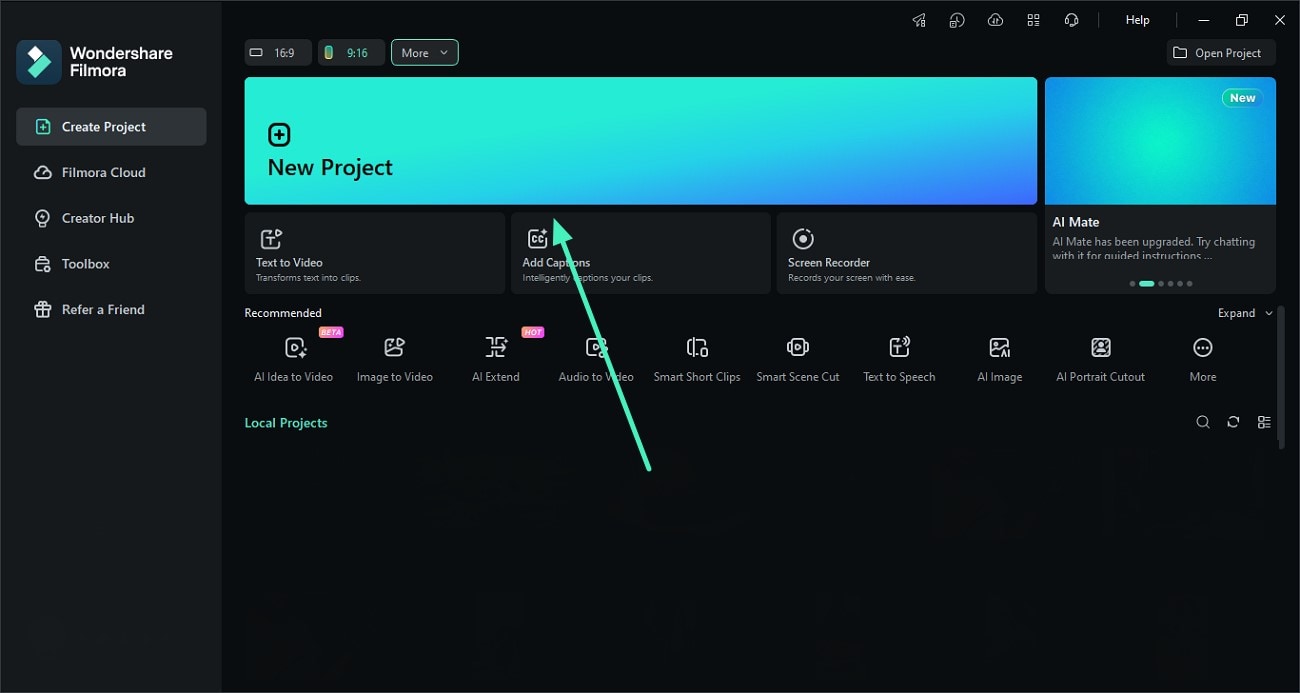
Step 1. Open New Project Import Video
Launch Filmora on your device and create a New Project. Import the video into the media library and drag it onto the editing timeline.
Step 2. Enable the Motion Blur Feature
Turn on the Motion Blur toggle to let Filmora automatically apply motion blur effects to fast-moving elements in the footage.
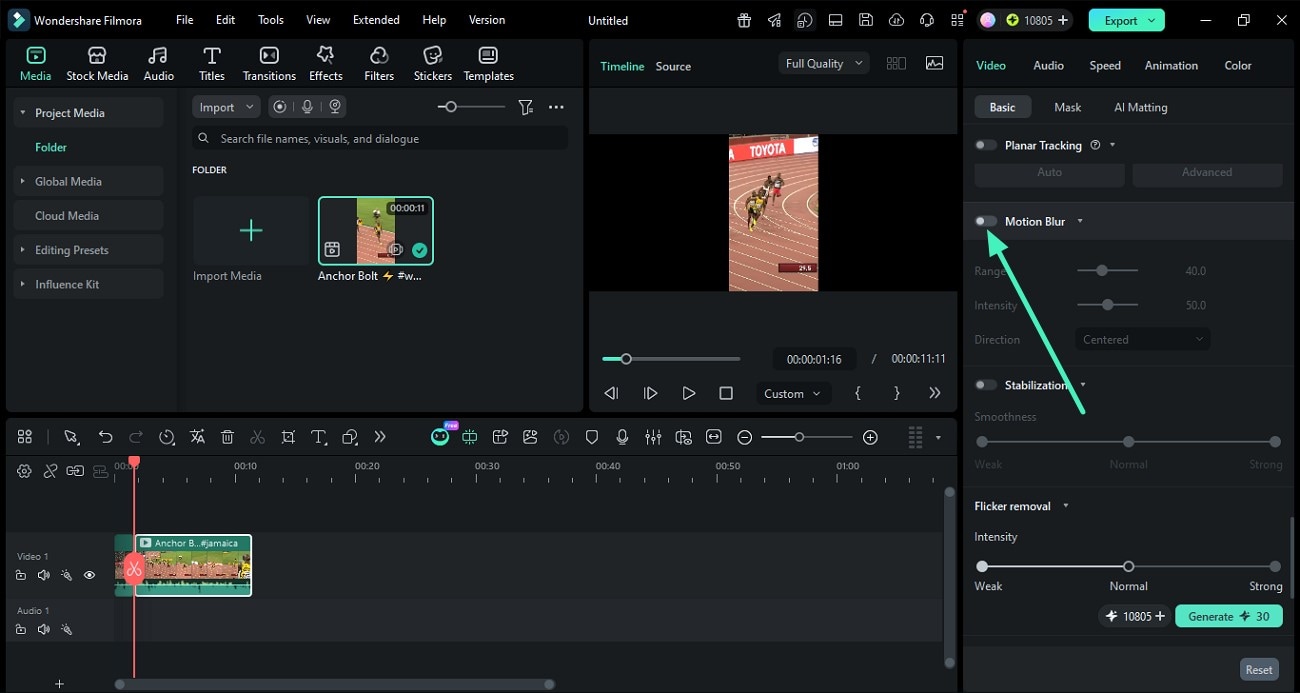
Step 3. Adjust Blur Range and Intensity
Use the Range slider to control the spread of the blur effect and adjust the Intensity slider to define how strong the motion blur appears in the video. Expand the Direction drop-down menu and select the preferred motion style. Once the adjustments are complete, preview the enhanced motion effect within the player window. If satisfied with the results, click the Export button to save the final video.

Related Posts
Featured Articles
Things You Should Know About the Stabilizer Tool in CapCut
Should you try CapCut to stabilize video content? Of course. Click here and read the guide to learn about the best techniques to make the most of its benefits.
How to Add Music to Animated GIFs - Most Effective Ways
Want to add music to your GIFs and make them even more engaging? This guide provides easy-to-follow tutorials on how to add music to GIFs using desktop software and online tools.
How To Add Captions to YouTube Shorts - Full Guide
Learn why captions are important in YouTube shorts and how to add captions. Discover an amazing tool to caption YouTube shorts effortlessly.
Recommended User Guide
Animation Keyframing for Windows
Learn how to use animation keyframing in Filmora for Windows to animate movement, scale, rotation, opacity, and other properties.
Masking in Filmora on Windows
Learn how to use Masks in Filmora.
Compound Clip for Windows
Users can try out one of the new functionalities in Filmora, navigating under the name of compound clip.
