
For the Best Results, Use the Latest Version.
Filmora User Guide for Mac
-
Preparations for Mac
-
Account (Mac)
-
Get Started & Basic Settings (Mac)
- Release Notes for Mac
- Latest Version and Features for Mac
- Get Started on Mac - Full Guide
- Download/register/uninstall on Mac
- Panel Layout on Mac
- Keyboard Shortcuts in Mac
- Touchbar on Mac
- Change playback quality on Mac
- Render preview files on Mac
- Manage Timeline in Mac
- Media for use on Mac
- Logo Reveal For Mac
- Marked Favorites for Mac
-
Compatibility & Tech Specs (Mac)
-
Performance Settings (Mac)
-
-
Creating Projects - Mac
-
Creating New Projects (Mac)
-
-
Importing & Recording - Mac
-
Importing (Mac)
-
Recording (Mac)
-
-
Video Editing for Mac
-
Basic Video Editing for Mac
- Edit Live Photos on Mac
- Enable/Disable Clip for Mac
- Magnetic Timeline For Mac
- Dual Monitor Setup for Video Editing on Mac
- Select All Clips on Timeline
- Auto Ripple for Mac
- Split & Cut Videos on Mac
- Compositing on Mac
- Crop and zoom on Mac
- Playback Zoom Level for Mac
- Change Speed on Mac
- Play Video in Reverse on Filmora for Mac
- Mark In and Mark Out for Mac
- Markers for Mac
- Group Clips in Filmora for Mac
- Customized Backgrounds for Videos and Images in Mac
- Video Snapshot for Mac
- Freeze Frame on Mac
- Auto enhance on Mac
- Applying Drop Shadow for Mac
- Adjustment Layer for Mac
- Mark Clips in Filmora for Mac
- Video Editing Ruler – Mac
- Apply Transforming for Mac
-
Advanced Video Editing for Mac
- Keyframe Motion Blur for Mac
- Camera Tracking for Mac
- Keyframe Path Curve for Mac
- Text Animation Path for Mac
- Create Multi-Camera Clip for Mac
- Filmora Motion Blur | Mac
- Drawing Tools for Mac | Filmora Guide
- Track Matte for Mac
- Compound Clips for Mac
- 360° Video Reframing for Mac
- AI Video Enhancer for Mac
- Video Chapters in Filmora for Mac
- Filmora Flicker Removal Guide | Mac
- Multi-Clip Editing for Mac
- Keyframe Graph Editor for Mac
- Create Multi-Screen Videos in Filmora on Mac
- Animation Keyframing for Mac
- Masking in Filmora on Mac
- PIP (Picture in Picture) in Filmora on Mac
-
AI-Powered Video Editing for Mac
- Smart Scene Cut for Mac
- Smart Short Clips for Mac
- Filmora AI Eye Contact - Mac
- Filmora Image to Video for Mac
- AI Idea to Video for Mac
- AI Text-to-Video for Mac
- AI Media Analysis for Mac
- Instant Cutter Tool on Mac
- AI Face Mosaic for Mac
- Filmora Image to Prompt for Mac
- Filmora AI Image Enhancer Guide – macOS
- Planar Tracking for Mac
- Filmora AI Relight - Mac
- AI Extend For Mac
- AI Script-to-Video for Mac
- AI Text-Based Editing in Mac
- Create With Instant Mode on Mac
- ChatGPT Plugin - AI Copywriting on Mac
- AI Smart Cutout in Filmora for Mac
- Auto reframe on Mac
- Lens Correction in Filmora for Mac
- AI Portrait Cutout on Mac
- Scene detection on Mac
- AI Smart Masking for Mac
- AI Mate Editing for Mac
- Motion Tracking on Mac
- Video Stabilization for Mac
- AI Video/Photo Object Remover for Mac
- AI Smart Search for Mac
- AI Skin Tone Protection for Mac
- Green screen on Mac
- Super Slow Motion with Optical Flow for Mac
- AI Stylizer for Mac
- Video Denoise for Mac
-
-
Audio Editing for Mac
-
Basic Audio Editing for Mac
-
Advanced Audio Editing for Mac
-
AI-Powered Audio Editing for Mac
- Audio To Video for Mac
- AI Sound Effect for Mac
- Smart BGM Generation on Mac
- AI Voice Enhancer for Mac
- Audio Stretch for Mac
- AI Audio Denoise for Mac
- Auto Synchronization on Mac
- AI Vocal Remover for Mac
- AI Auto Beat Sync for Mac
- AI Music Generator for Mac
- AI Voice Cloning on Mac
- Silence Detection on Mac
-
-
Text Editing for Mac
-
Basic Text Editing for Mac
-
Advanced Text Editing for Mac
-
AI-Powered Text Editing for Mac
-
-
Video Customizations for Mac
-
Video Effects (Mac)
-
Audio Effects (Mac)
-
Transitions (Mac)
-
Stickers (Mac)
-
Filters (Mac)
-
Color Editing (Mac)
-
Animations (Mac)
-
Templates (Mac)
-
Asset Center (Mac)
-
-
Exporting & Share & Cloud Backup - Mac
Filmora Tutorial Videos
Filmora 15 User Guide in PDF
Filmora 13 & 14 User Guide in PDF
Filmora 12 User Guide in PDF
Filmora 11 User Guide in PDF
Filmora 9 & 10 User Guide
Auto Normalization for Mac
The Auto Normalization feature for Mac analyzes the loudness of selected audio clips and adjusts them to meet different platform standards (LUFS/LKFS). This ensures your content complies with broadcasting requirements on macOS, whether you're publishing to YouTube, streaming services, or traditional broadcast platforms. You can choose from preset options or set custom loudness values to optimize your audio for any destination.
Index
Access Auto Normalization on Mac
1 Click on the audio clip in the timeline that you want to normalize.
2 In the upper-right audio settings panel, navigate to Audio > Basic.
3 Locate the Auto Normalization option in the Basic audio settings.
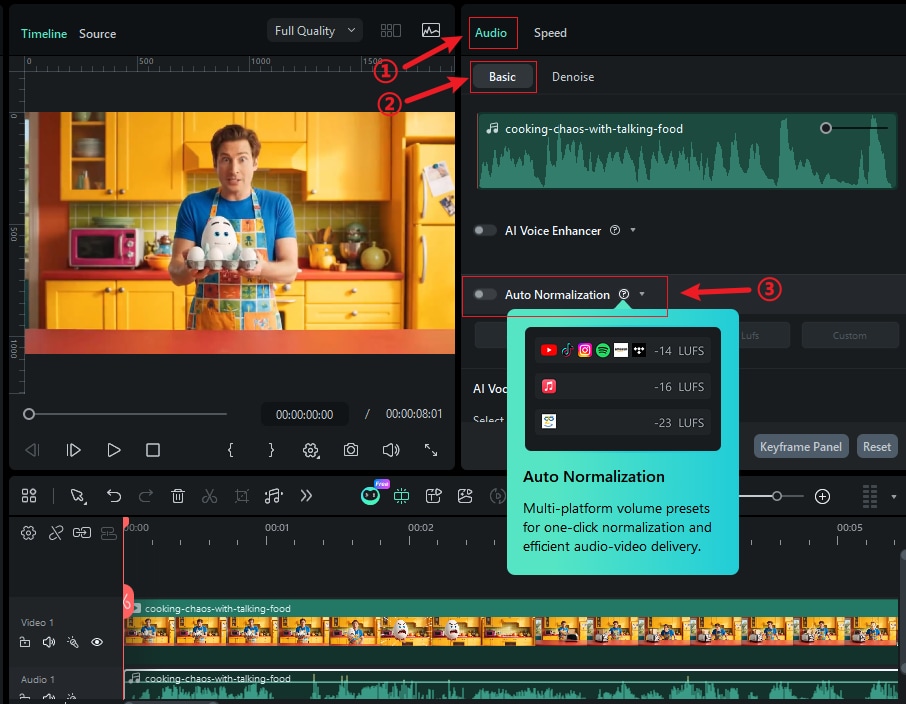
Choose Platform Presets
Once you enable Auto Normalization, you'll see preset options designed for different platforms and broadcasting standards:
1 -23 LUFS: European broadcasting standard (EBU R128), ideal for traditional TV and radio.
2 -16 LUFS: Streaming platforms standard, perfect for YouTube, Netflix, and online video content.
3 -14 LUFS: Music streaming services standard, suitable for Spotify, Apple Music, and similar platforms.

Set Custom Loudness Values
For specific requirements or unique broadcasting standards, you can set custom LUFS values:
1 Click the Custom button to enable manual adjustment.
2 Use the LUFS slider to adjust the loudness level, or input a specific value.
3 The range typically allows adjustments from -23 LUFS to -10 LUFS for maximum flexibility.

Apply and Reset Settings
After selecting your desired loudness standard:
1 Click the Apply button to process the audio normalization.
2 Filmora will analyze and adjust the selected audio clip(s) automatically.
3 To reset the normalization, toggle the Auto Normalization switch off, or click the reset icon.

Note:
- Auto Normalization works on both audio and video clips with audio tracks on macOS.
- The feature analyzes the entire duration of the selected clip to determine optimal loudness adjustment.
- Clicking the RESET button in the Audio editing panel will reset all audio editing settings.
Related Posts
Featured Articles
Learn more popular articles from Wondershare.
Beginner's Guide to Before and After Video Transitions
If you want to know how to make a before-and-after transition video, this guide covers everything from editing steps to useful tips
3 Ways to Apply Angry Face Filter to Photos
Easily turn a neutral face into an angry one with AI or apply the angry effect to photos.
How Can You Apply Color Theory in Video Editing?
In case you're unaware, color theory and video editing go hand in hand when producing outputs. Do you want to know how? Read this article to learn more.
Recommended User Guide
Learn how to use more features.
Use the Audio Mixer on Windows
Use the audio mixer in Filmora to create a creative video!
Auto Normalization for Windows
Learn to set auto normalization in Filmora.
