
For the Best Results, Use the Latest Version.
Filmora User Guide for Mac
-
Preparations for Mac
-
Account (Mac)
-
Get Started & Basic Settings (Mac)
- Release Notes for Mac
- Latest Version and Features for Mac
- Get Started on Mac - Full Guide
- Download/register/uninstall on Mac
- Panel Layout on Mac
- Keyboard Shortcuts in Mac
- Touchbar on Mac
- Change playback quality on Mac
- Render preview files on Mac
- Manage Timeline in Mac
- Media for use on Mac
- Logo Reveal For Mac
- Marked Favorites for Mac
-
Compatibility & Tech Specs (Mac)
-
Performance Settings (Mac)
-
-
Creating Projects - Mac
-
Creating New Projects (Mac)
-
-
Importing & Recording - Mac
-
Importing (Mac)
-
Recording (Mac)
-
-
Video Editing for Mac
-
Basic Video Editing for Mac
- Edit Live Photos on Mac
- Enable/Disable Clip for Mac
- Magnetic Timeline For Mac
- Dual Monitor Setup for Video Editing on Mac
- Select All Clips on Timeline
- Auto Ripple for Mac
- Split & Cut Videos on Mac
- Compositing on Mac
- Crop and zoom on Mac
- Playback Zoom Level for Mac
- Change Speed on Mac
- Play Video in Reverse on Filmora for Mac
- Mark In and Mark Out for Mac
- Markers for Mac
- Group Clips in Filmora for Mac
- Customized Backgrounds for Videos and Images in Mac
- Video Snapshot for Mac
- Freeze Frame on Mac
- Auto enhance on Mac
- Applying Drop Shadow for Mac
- Adjustment Layer for Mac
- Mark Clips in Filmora for Mac
- Video Editing Ruler – Mac
- Apply Transforming for Mac
-
Advanced Video Editing for Mac
- Keyframe Motion Blur for Mac
- Camera Tracking for Mac
- Keyframe Path Curve for Mac
- Text Animation Path for Mac
- Create Multi-Camera Clip for Mac
- Filmora Motion Blur | Mac
- Drawing Tools for Mac | Filmora Guide
- Track Matte for Mac
- Compound Clips for Mac
- 360° Video Reframing for Mac
- AI Video Enhancer for Mac
- Video Chapters in Filmora for Mac
- Filmora Flicker Removal Guide | Mac
- Multi-Clip Editing for Mac
- Keyframe Graph Editor for Mac
- Create Multi-Screen Videos in Filmora on Mac
- Animation Keyframing for Mac
- Masking in Filmora on Mac
- PIP (Picture in Picture) in Filmora on Mac
-
AI-Powered Video Editing for Mac
- Smart Scene Cut for Mac
- Smart Short Clips for Mac
- Filmora AI Eye Contact - Mac
- Filmora Image to Video for Mac
- AI Idea to Video for Mac
- AI Text-to-Video for Mac
- AI Media Analysis for Mac
- Instant Cutter Tool on Mac
- AI Face Mosaic for Mac
- Filmora Image to Prompt for Mac
- Filmora AI Image Enhancer Guide – macOS
- Planar Tracking for Mac
- Filmora AI Relight - Mac
- AI Extend For Mac
- AI Script-to-Video for Mac
- AI Text-Based Editing in Mac
- Create With Instant Mode on Mac
- ChatGPT Plugin - AI Copywriting on Mac
- AI Smart Cutout in Filmora for Mac
- Auto reframe on Mac
- Lens Correction in Filmora for Mac
- AI Portrait Cutout on Mac
- Scene detection on Mac
- AI Smart Masking for Mac
- AI Mate Editing for Mac
- Motion Tracking on Mac
- Video Stabilization for Mac
- AI Video/Photo Object Remover for Mac
- AI Smart Search for Mac
- AI Skin Tone Protection for Mac
- Green screen on Mac
- Super Slow Motion with Optical Flow for Mac
- AI Stylizer for Mac
- Video Denoise for Mac
-
-
Audio Editing for Mac
-
Basic Audio Editing for Mac
-
Advanced Audio Editing for Mac
-
AI-Powered Audio Editing for Mac
- Audio To Video for Mac
- AI Sound Effect for Mac
- Smart BGM Generation on Mac
- AI Voice Enhancer for Mac
- Audio Stretch for Mac
- AI Audio Denoise for Mac
- Auto Synchronization on Mac
- AI Vocal Remover for Mac
- AI Auto Beat Sync for Mac
- AI Music Generator for Mac
- AI Voice Cloning on Mac
- Silence Detection on Mac
-
-
Text Editing for Mac
-
Basic Text Editing for Mac
-
Advanced Text Editing for Mac
-
AI-Powered Text Editing for Mac
-
-
Video Customizations for Mac
-
Video Effects (Mac)
-
Audio Effects (Mac)
-
Transitions (Mac)
-
Stickers (Mac)
-
Filters (Mac)
-
Color Editing (Mac)
-
Animations (Mac)
-
Templates (Mac)
-
Asset Center (Mac)
-
-
Exporting & Share & Cloud Backup - Mac
Filmora 15 User Guide in PDF
Filmora 13 & 14 User Guide in PDF
Filmora 12 User Guide in PDF
Filmora 11 User Guide in PDF
Filmora 9 & 10 User Guide
Filmora OpenFX Plugins - Mac
Filmora's OpenFX Plugins elevate your editing setup by bringing high-end visual-effects capabilities straight into the Filmora workspace. With this integration, creators can seamlessly use professional OpenFX-based tools, such as Boris FX, NewBlue, and similar effect suites, directly on the timeline. These plugins add dramatic visual styles, cinematic color enhancements, particle simulations, custom transitions, and advanced compositing options typically used in industry-level workflows.
Smooth performance and real-time previews make it incredibly easy to experiment while staying within Filmora's familiar interface. Below is how you can start using these OpenFX plugins to refine your content with precision:
Mode 1. Use Boris BCC Plugin
Step 1. Visit the Plugin Page and Download
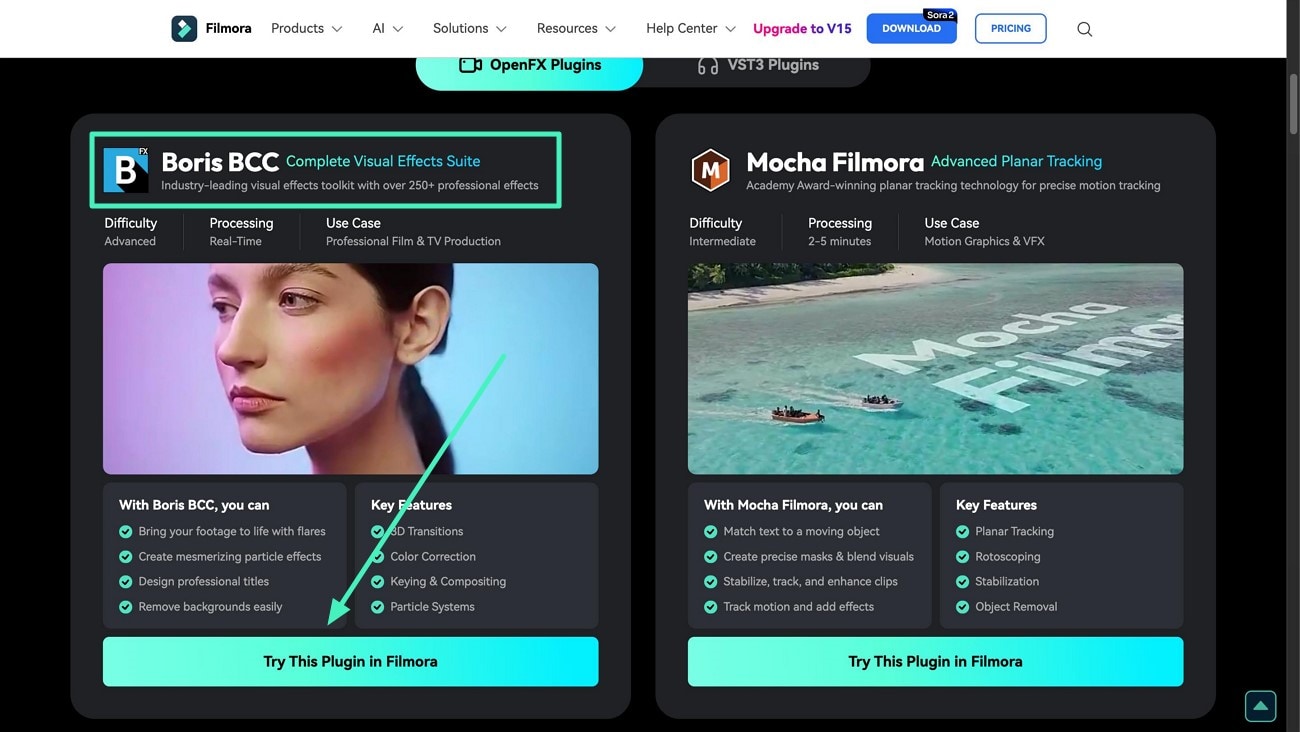
Start by heading to Filmora's official plugin hub and looking for the Boris CC package. Once you find it, click the Try This Plugin in Filmora button to download it safely onto your device.
Step 2. Acquire the Plugin in Filmora
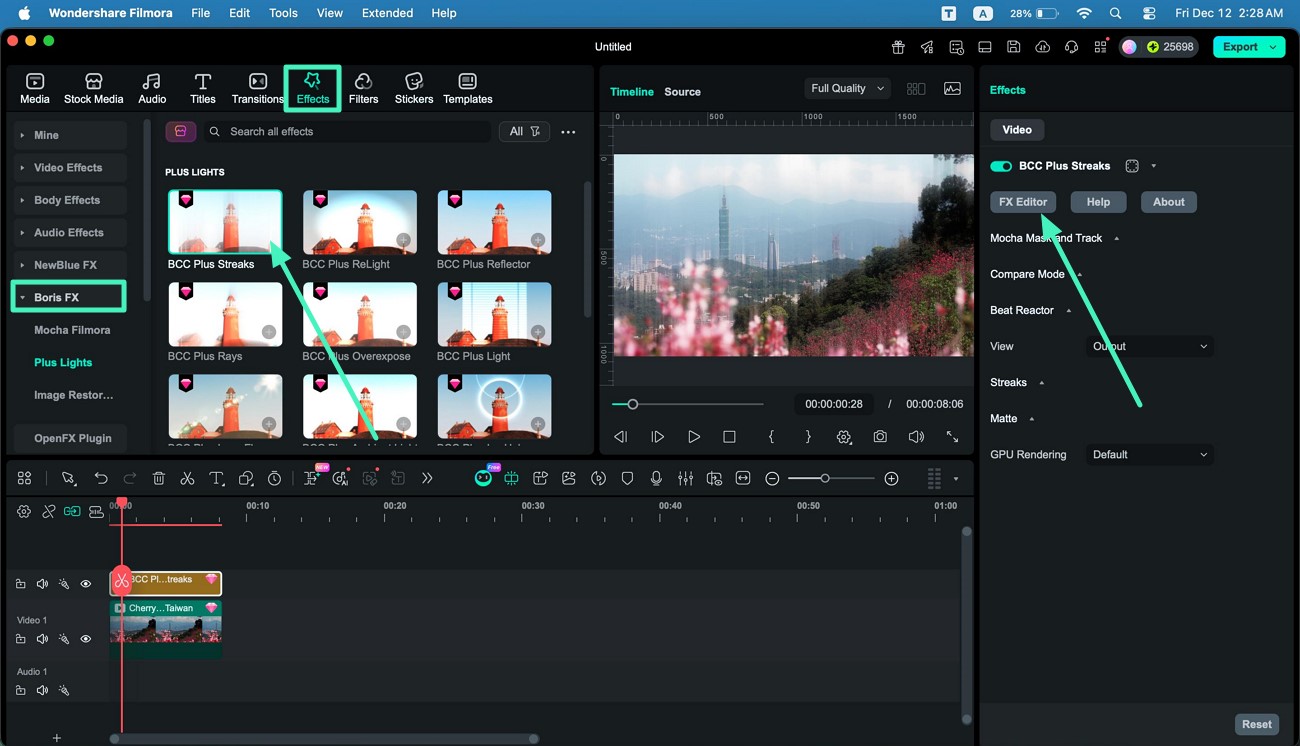
Open Filmora on your device and bring in the video you want to enhance. From the top toolbar, head to the Effects tab. On the left-side list, find and select BorisFX. Pick any CC effect you want and apply it to your clip using the + icon. After that, move to the right-hand panel and click FX Editor to open the plugin's dedicated editing interface.
Step 3. Select Effect and Apply
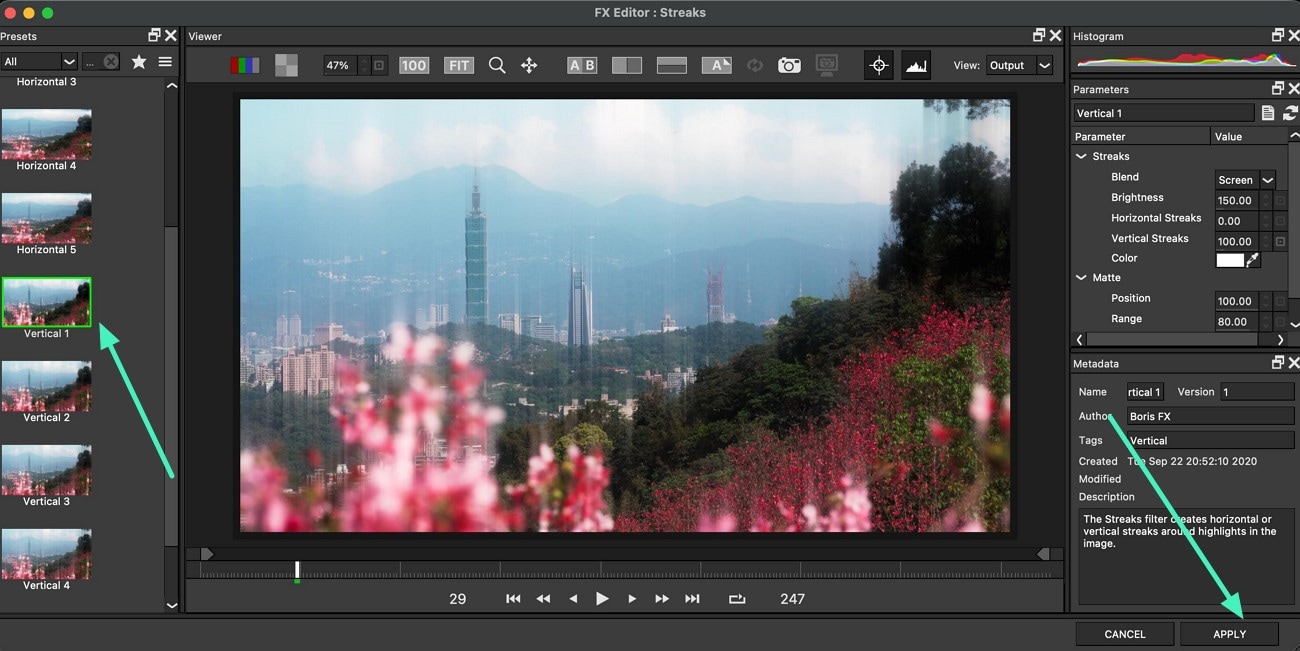
Inside the BCC Effects window, browse the collection displayed on the left. Choose the effect you want to use and press the Apply button to add it to your video.
Step 4. Save Results to Your Computer
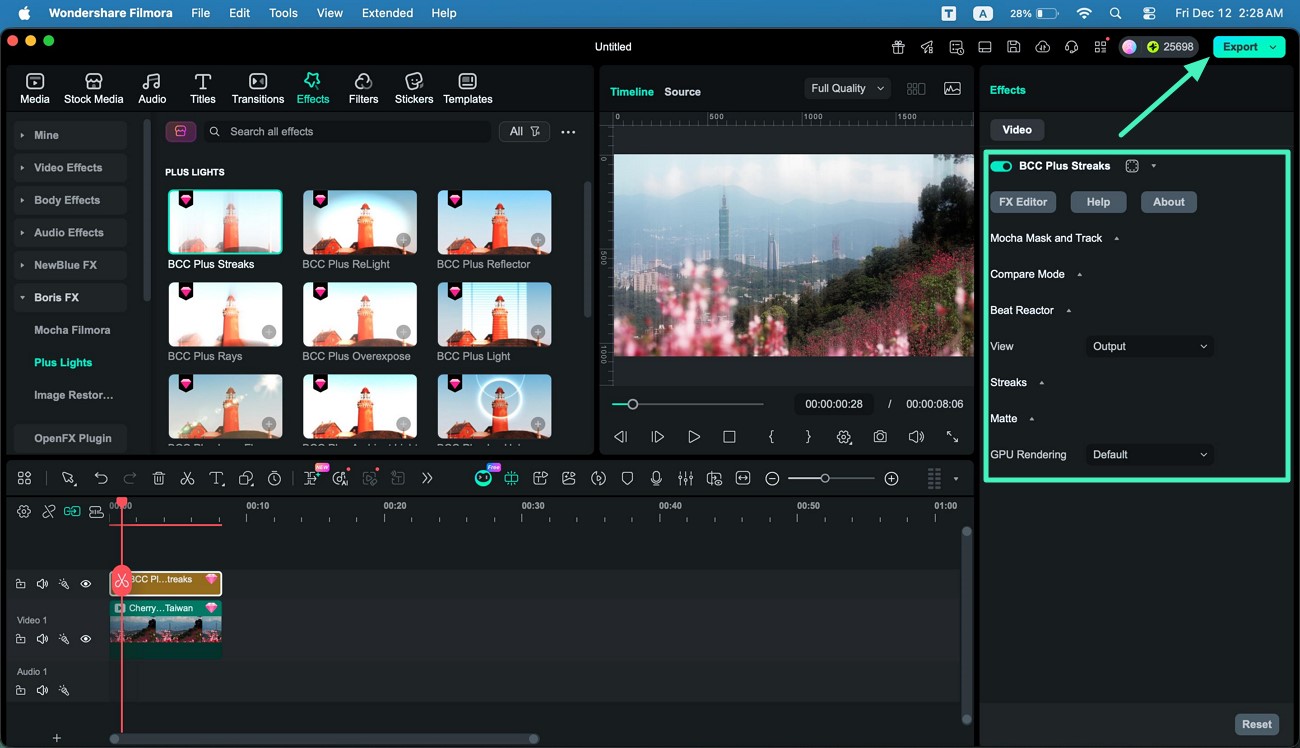
Use the adjustment options in the right panel to fine-tune the effect until it matches your vision. Once everything looks perfect, head to the top-right corner and hit Export to save your final video.
Mode 2. Use Mocha Filmora Plugin
Step 1. Download The Plugin
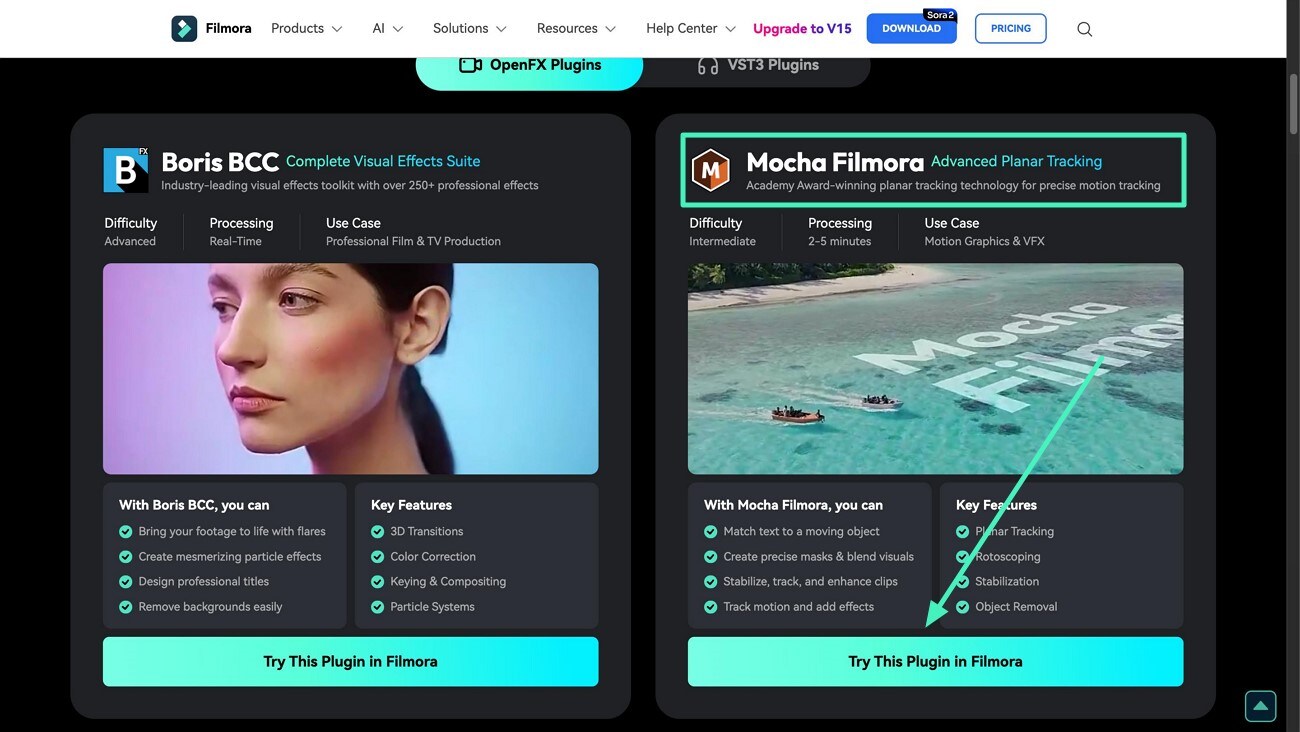
Visit the Filmora website and head to the section where Mocha is listed. From there, download the plugin to your computer by clicking the Try This Plugin in Filmora.
Step 2. Import Video and Access Mocha
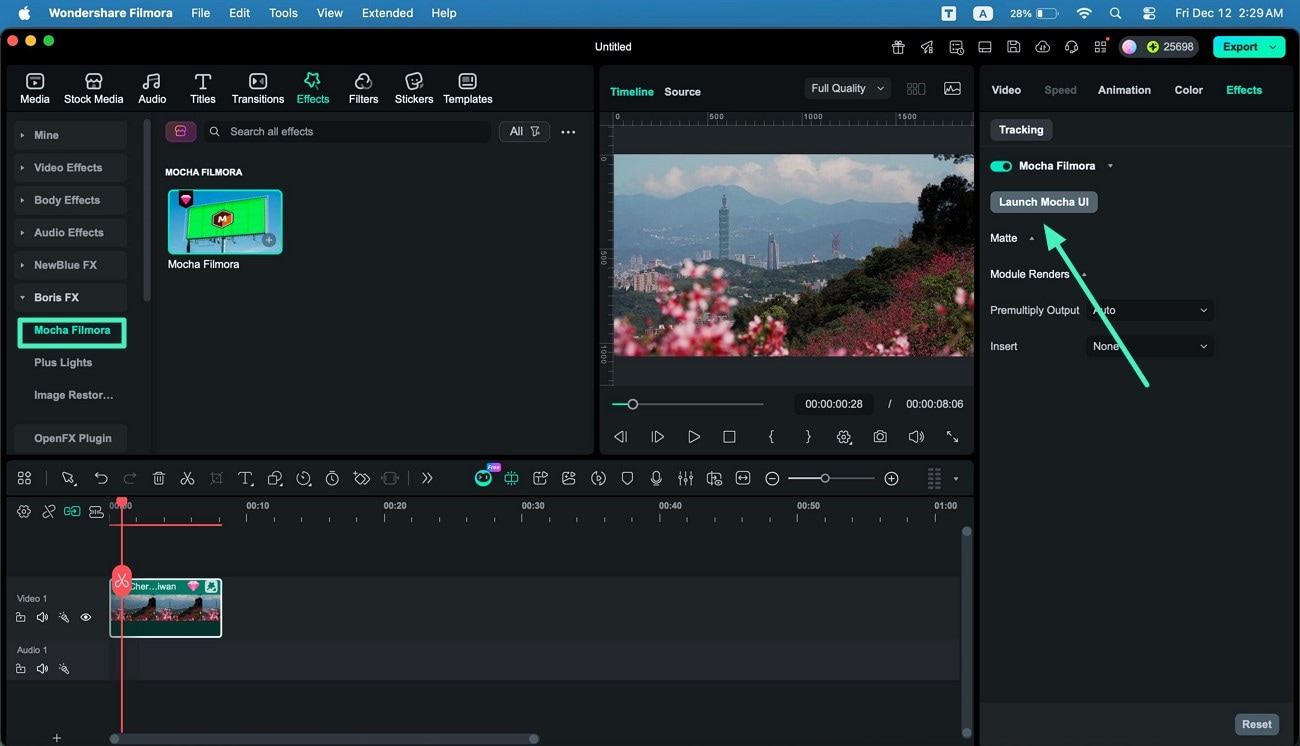
After opening Filmora, load your video file and navigate to the Effects panel through the top toolbar. In the left-side menu, locate Filmora Mocha, tap the + icon, and then select Launch Mocha to enter its tracking workspace.
Step 3. Perform Your Required Task
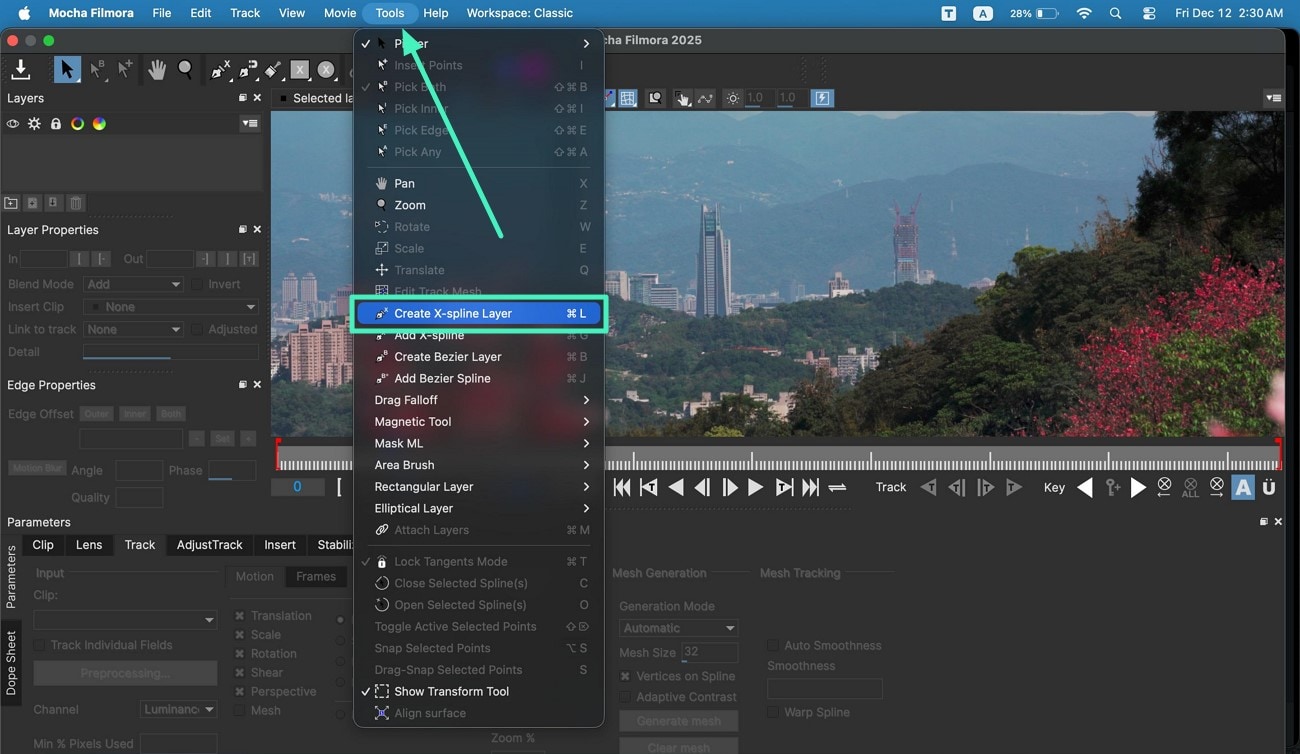
Inside Mocha's interface, a variety of functions are available, such as planar tracking, logo insertion, text warping, and more. To add a logo, open the Tools menu at the top and click the Create X-Spline Layer tool.
Step 4. Insert the Logo
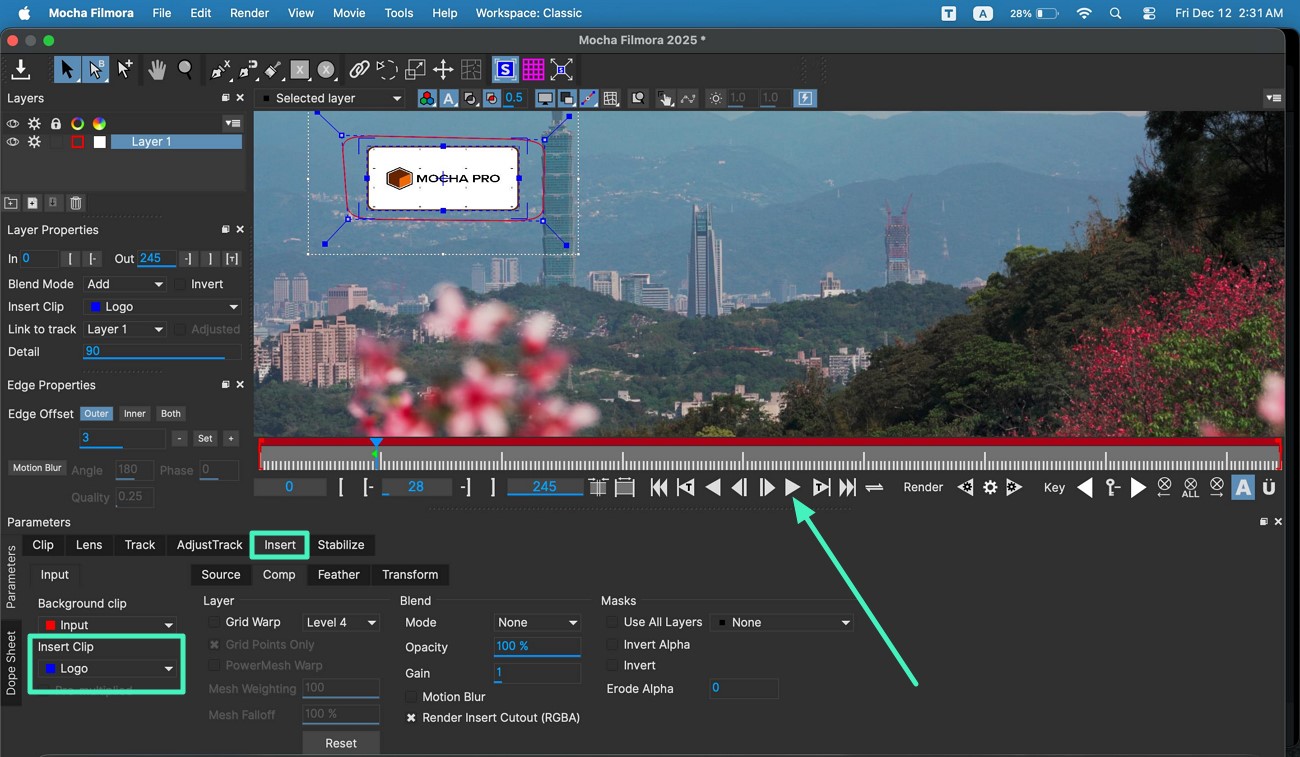
Click and drag on the preview screen to outline the region where the logo should appear, ending the selection with a right-click. Then, move to the Insert tab at the bottom, open the Insert Clip dropdown, and choose Logo. Finally, press the Play button under the preview window to process and apply the effect.
Mode 3. Use NewBlue Plugin
Step 1. Embed Plugin From Website
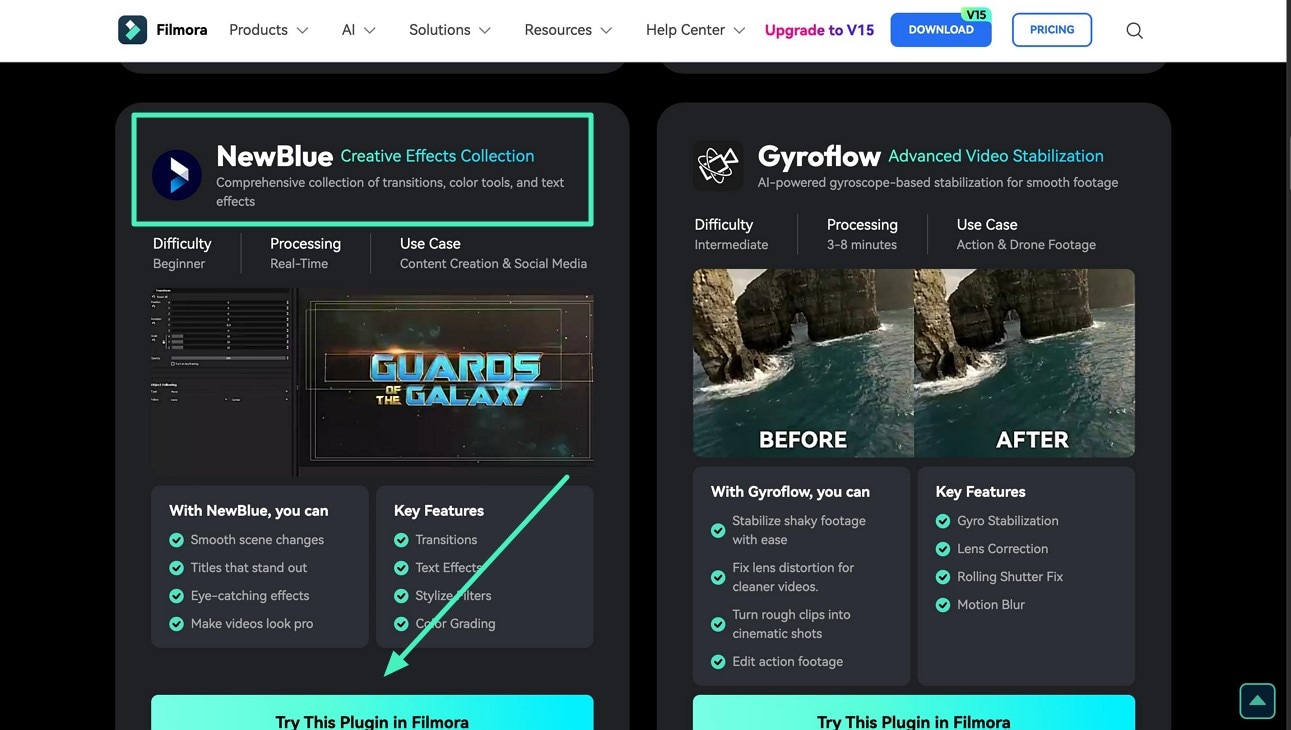
Start by visiting Filmora's official Plugin page. Locate the NewBlue plugin and download it to your system by clicking the Try This Plugin in Filmora button.
Step 2. Access Plugin From the Right
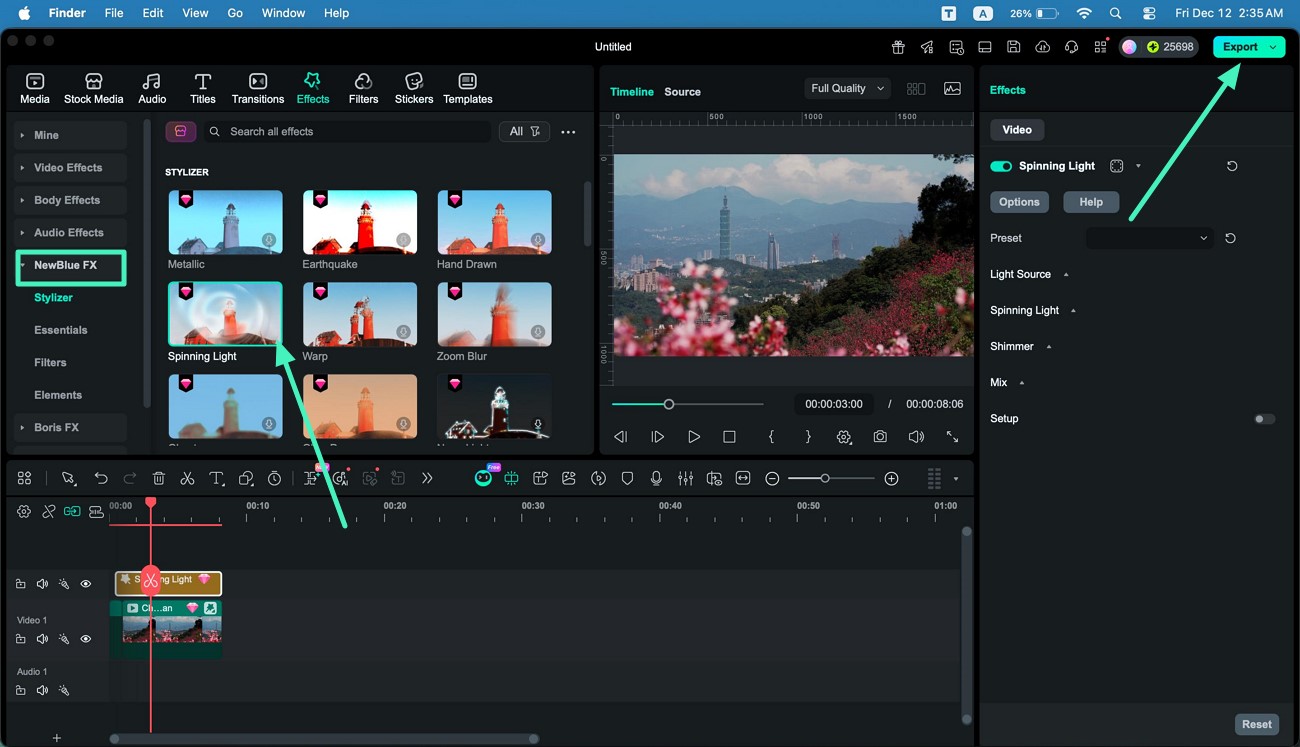
Once you're in Filmora's editing window, open the Effects section from the top menu. Find the NewBlue plugin in the list on the right, explore its collection of effects, and add any effect to your video using the + icon. When your adjustments are complete, go to the top-right corner and click Export to save your final output.
Related Posts
Featured Articles
Learn more popular articles from Wondershare.
Easy Video Poster Maker: How to Make a Poster on Your Phone
We will show you how to make a poster on your phone easily using the best video poster maker. Pick a ready-made template or get creative and start from scratch!
How to Easily Extract Audio from Videos on iPhone: Step-by-Step Guide
Extract high-quality audio from iPhone videos without a computer! Compare Filmora, iOS Shortcuts, and online tools. Supports MP3/WAV exports. Learn now →
Full Guide on How To Remove People From Video
Remove people from video offline on desktop, online, iOS, and Android. Follow the steps here and easily remove moving and static objects without losing quality.
Recommended User Guide
Learn how to use more features.
Retouch for Mac
Are you not satisfied with the outlook of your face for the new video? Learn how Filmora helps you in beautifying the face with its Retouch feature.
Filmora VST3 Plugins for Mac
A complete guide to installing, scanning, and managing VST3 plugins in Filmora on Mac, with clear steps and troubleshooting tips.
Cinematic Mode for Mac
Learn how to use Cinematic Mode in Filmora for Mac to edit iPhone cinematic videos and adjust depth of field and blur.
