
For the Best Results, Use the Latest Version.
Filmora User Guide for Mac
-
Preparations for Mac
-
Account (Mac)
-
Get Started & Basic Settings (Mac)
- Release Notes for Mac
- Latest Version and Features for Mac
- Get Started on Mac - Full Guide
- Download/register/uninstall on Mac
- Panel Layout on Mac
- Keyboard Shortcuts in Mac
- Touchbar on Mac
- Change playback quality on Mac
- Render preview files on Mac
- Manage Timeline in Mac
- Media for use on Mac
- Logo Reveal For Mac
- Marked Favorites for Mac
-
Compatibility & Tech Specs (Mac)
-
Performance Settings (Mac)
-
-
Creating Projects - Mac
-
Creating New Projects (Mac)
-
-
Importing & Recording - Mac
-
Importing (Mac)
-
Recording (Mac)
-
-
Video Editing for Mac
-
Basic Video Editing for Mac
- Edit Live Photos on Mac
- Enable/Disable Clip for Mac
- Magnetic Timeline For Mac
- Dual Monitor Setup for Video Editing on Mac
- Select All Clips on Timeline
- Auto Ripple for Mac
- Split & Cut Videos on Mac
- Compositing on Mac
- Crop and zoom on Mac
- Playback Zoom Level for Mac
- Change Speed on Mac
- Play Video in Reverse on Filmora for Mac
- Mark In and Mark Out for Mac
- Markers for Mac
- Group Clips in Filmora for Mac
- Customized Backgrounds for Videos and Images in Mac
- Video snapshot on Mac
- Freeze Frame on Mac
- Auto enhance on Mac
- Applying Drop Shadow for Mac
- Adjustment Layer for Mac
- Mark Clips in Filmora for Mac
- Video Editing Ruler – Mac
- Apply Transforming for Mac
-
Advanced Video Editing for Mac
- Keyframe Motion Blur for Mac
- Camera Tracking for Mac
- Keyframe Path Curve for Mac
- Text Animation Path for Mac
- Create Multi-Camera Clip for Mac
- Filmora Motion Blur | Mac
- Drawing Tools for Mac | Filmora Guide
- Track Matte for Mac
- Compound Clips for Mac
- 360° Video Reframing for Mac
- AI Video Enhancer for Mac
- Video Chapters in Filmora for Mac
- Filmora Flicker Removal Guide | Mac
- Multi-Clip Editing for Mac
- Keyframe Graph Editor for Mac
- Create Multi-Screen Videos in Filmora on Mac
- Animation Keyframing for Mac
- Masking in Filmora on Mac
- PIP (Picture in Picture) in Filmora on Mac
-
AI-Powered Video Editing for Mac
- Smart Scene Cut for Mac
- Smart Short Clips for Mac
- Filmora AI Eye Contact - Mac
- Filmora Image to Video for Mac
- AI Idea to Video for Mac
- AI Text-to-Video for Mac
- AI Media Analysis for Mac
- Instant Cutter Tool on Mac
- AI Face Mosaic for Mac
- Filmora Image to Prompt for Mac
- Filmora AI Image Enhancer Guide – macOS
- Planar Tracking for Mac
- Filmora AI Relight - Mac
- AI Extend For Mac
- AI Script-to-Video for Mac
- AI Text-Based Editing in Mac
- Create With Instant Mode on Mac
- ChatGPT Plugin - AI Copywriting on Mac
- AI Smart Cutout in Filmora for Mac
- Auto reframe on Mac
- Lens Correction in Filmora for Mac
- AI Portrait Cutout on Mac
- Scene detection on Mac
- AI Smart Masking for Mac
- AI Mate Editing for Mac
- Motion Tracking on Mac
- Video Stabilization for Mac
- AI Video/Photo Object Remover for Mac
- AI Smart Search for Mac
- AI Skin Tone Protection for Mac
- Green screen on Mac
- Super Slow Motion with Optical Flow for Mac
- AI Stylizer for Mac
- Video Denoise for Mac
-
-
Audio Editing for Mac
-
Basic Audio Editing for Mac
-
Advanced Audio Editing for Mac
-
AI-Powered Audio Editing for Mac
- Audio To Video for Mac
- AI Sound Effect for Mac
- Smart BGM Generation on Mac
- AI Voice Enhancer for Mac
- Audio Stretch for Mac
- AI Audio Denoise for Mac
- Auto Synchronization on Mac
- AI Vocal Remover for Mac
- AI Auto Beat Sync for Mac
- AI Music Generator for Mac
- AI Voice Cloning on Mac
- Silence Detection on Mac
-
-
Text Editing for Mac
-
Basic Text Editing for Mac
-
Advanced Text Editing for Mac
-
AI-Powered Text Editing for Mac
-
-
Video Customizations for Mac
-
Video Effects (Mac)
-
Audio Effects (Mac)
-
Transitions (Mac)
-
Stickers (Mac)
-
Filters (Mac)
-
Color Editing (Mac)
-
Animations (Mac)
-
Templates (Mac)
-
Asset Center (Mac)
-
-
Exporting & Share & Cloud Backup - Mac
Filmora Tutorial Videos
Filmora 15 User Guide in PDF
Filmora 13 & 14 User Guide in PDF
Filmora 12 User Guide in PDF
Filmora 11 User Guide in PDF
Filmora 9 & 10 User Guide
Filmora VST3 Plugins for Mac
Filmora's VST3 plugin support on Mac brings a refreshing level of freedom to audio editing, giving creators the power to elevate their sound without switching between multiple apps. With VST3 compatibility built right into Filmora, you can seamlessly load high-quality third-party audio tools and refine everything from background music to environmental effects with far more accuracy.
This makes it incredibly easy to work with advanced EQs, compressors, reverbs, filters, noise tools, and creative processors directly inside your editing space. Whether you're repairing dialogue or shaping richer sound textures, Filmora's VST3 support helps Mac users produce cleaner, more dynamic audio. This turns everyday edits into polished, professional-grade results with less complexity and a smoother workflow overall.
Step Overview
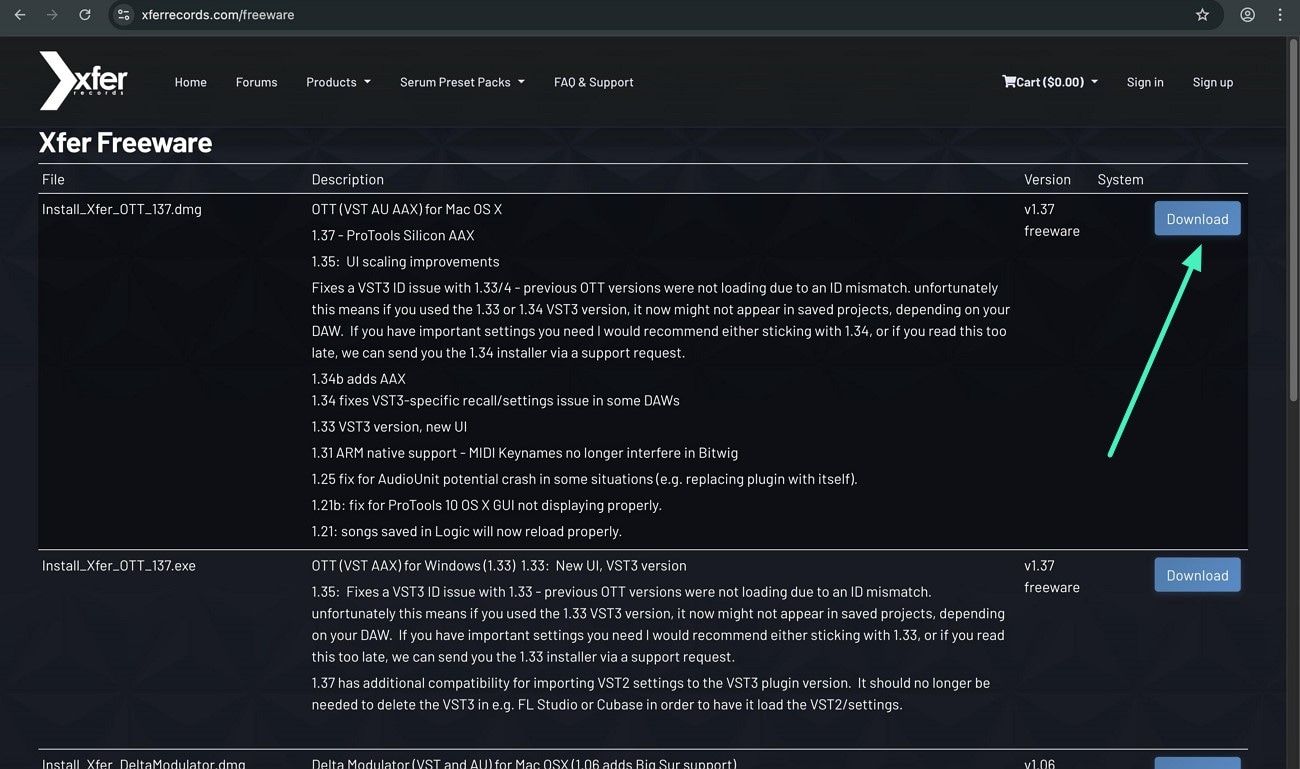
Step 1. Download the VST3 Plugin
To begin, visit the official website of the audio plugin and click the Download option to save it to your Mac device.
Step 2. Create New Filmora Project
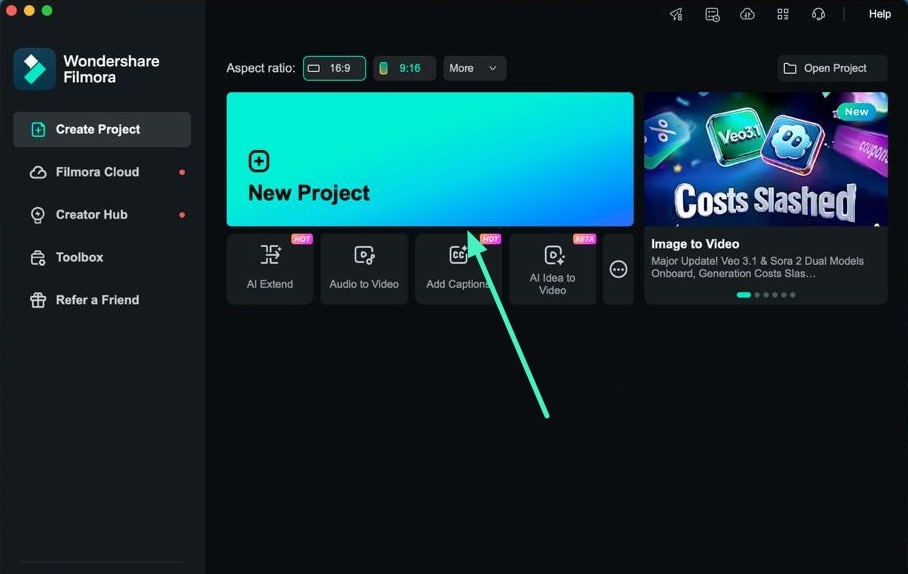
Open Filmora on your Mac and create a project through the New Project button. Next, import your audio track and move it onto the editing timeline.
Step 3. Choose Effects Add Plugin
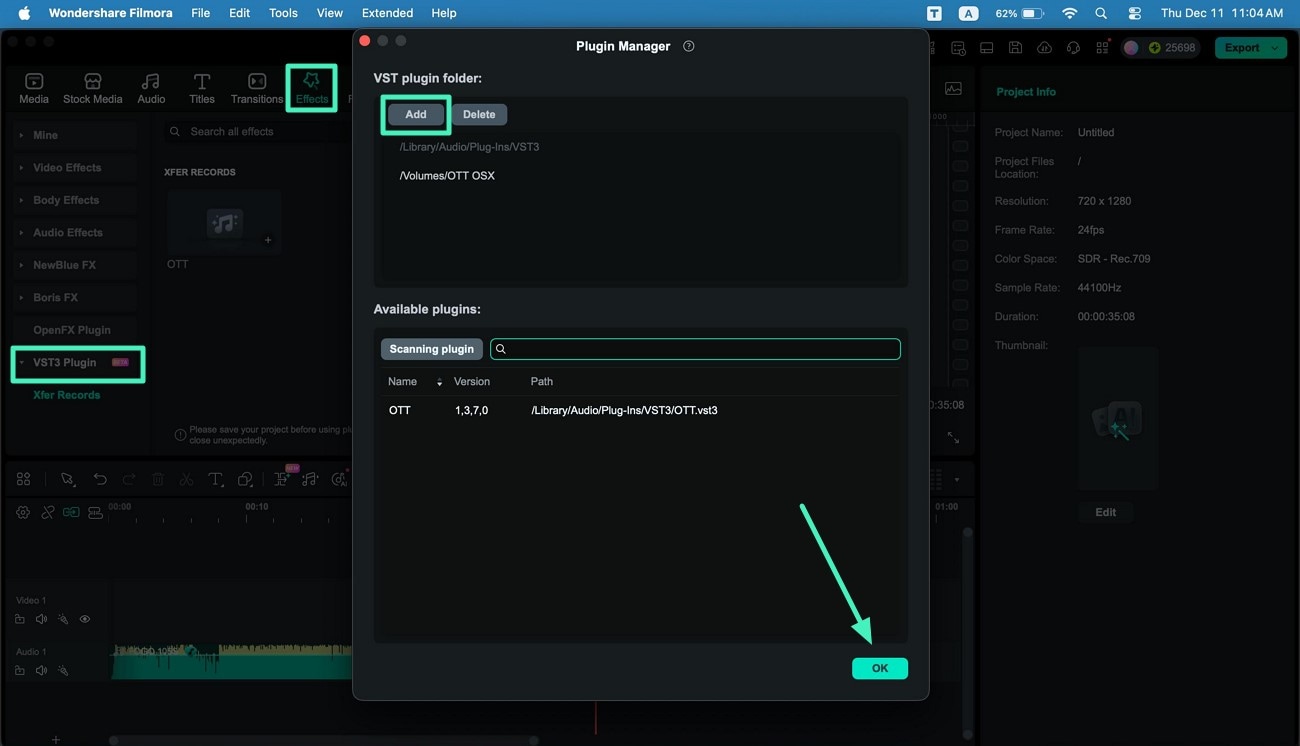
Go to the top toolbar in Filmora and choose the Effects option from there. Navigate to the panel on the left and scroll until you find the VST3 Plugin category. Select it and press Add to include the downloaded plugin in Filmora's interface. Complete the action by pressing the OK button located on the bottom right.
Step 4. Access Effects Panel From Left
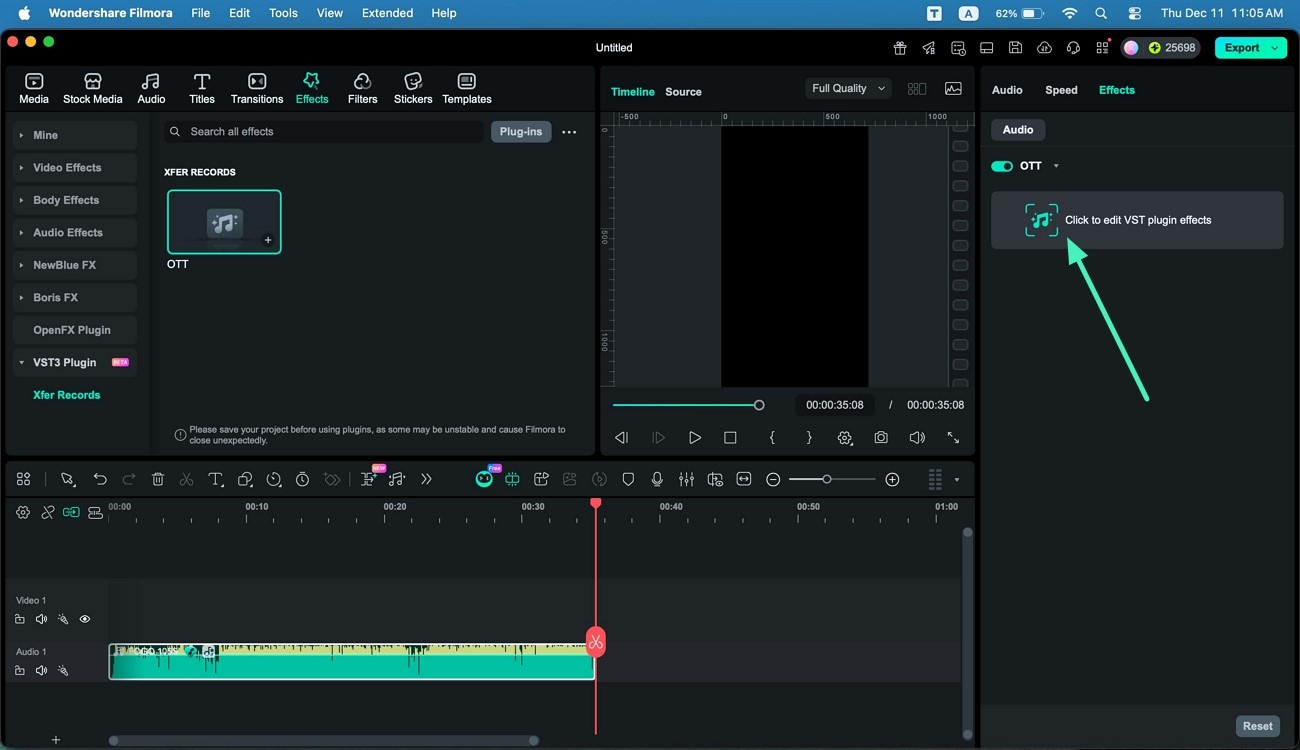
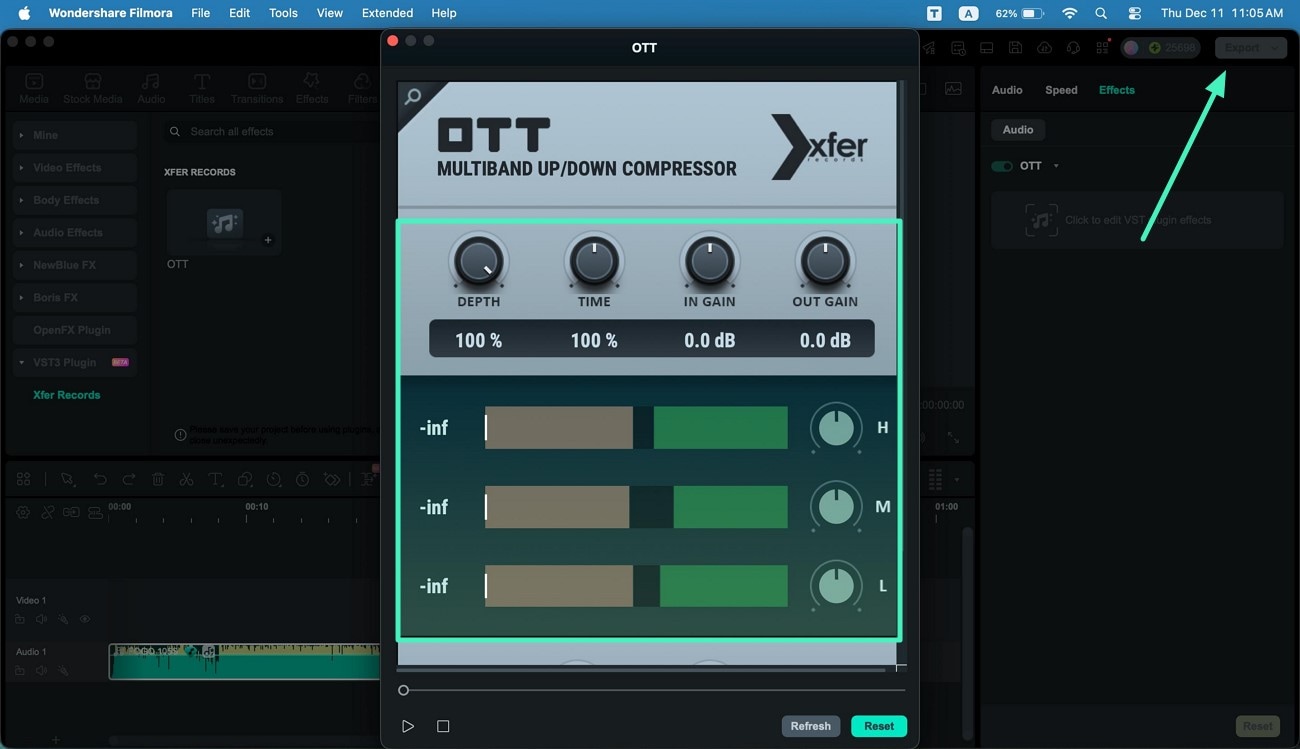
Once the plugin is installed, open the panel on the left and activate the Effects section. After that, click on the Click to Edit VST Plugin Effects option.
Step 5. Modify the Audio and Export
In the plugin window that appears, adjust the sound by moving the knobs and sliders of each control according to your liking. When finished, preview the audio in the preview panel and save the file using the Export button found at the top-right corner.
Step 6. Save Results as Audio File
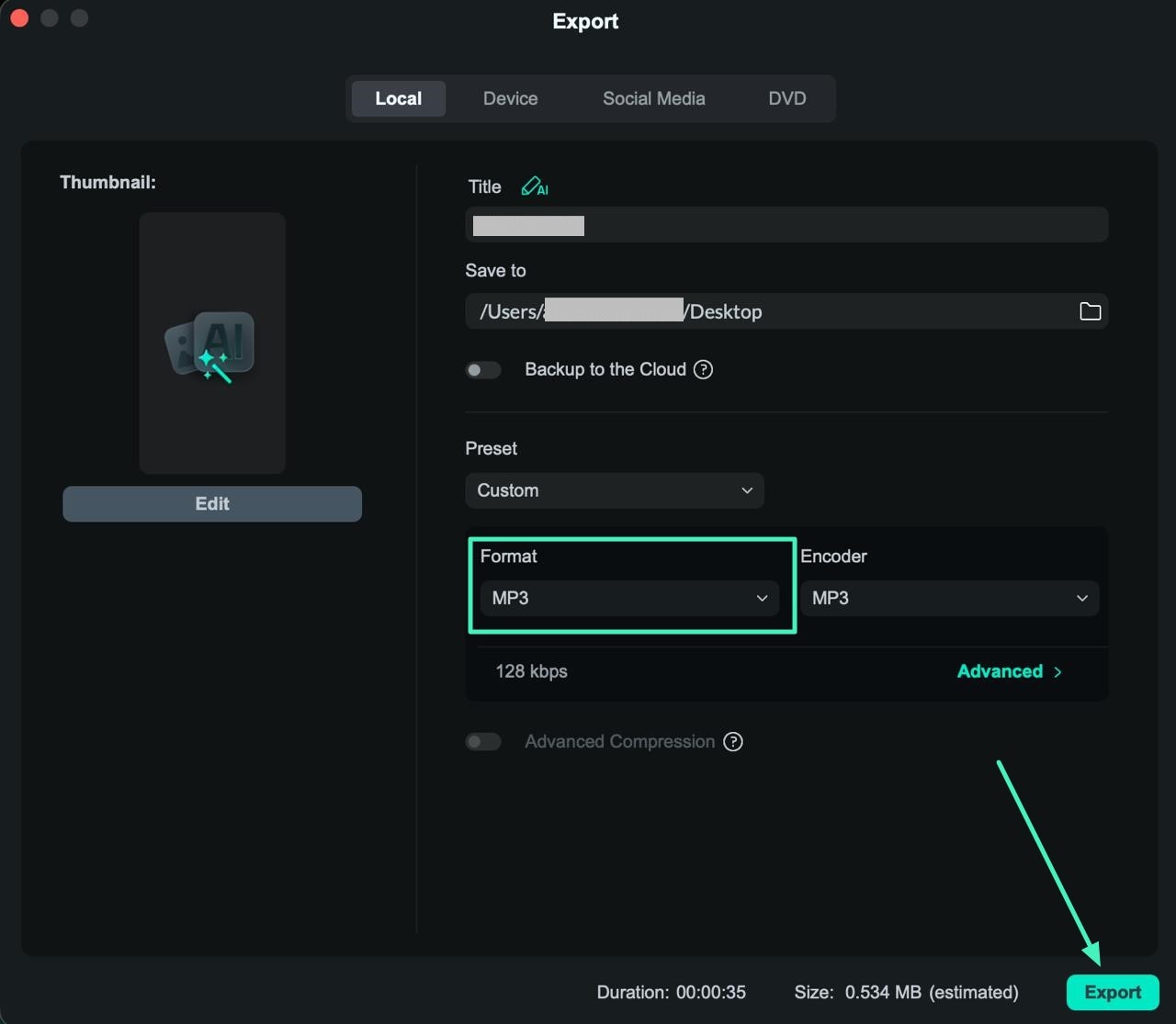
In the next interface, set the output type to MP3 or any other audio format and press the Export button to successfully save the results to your Mac.
Related Posts
Featured Articles
Learn more popular articles from Wondershare.
What is Pika AI: How Do I Use It?
Learn how to generate videos from text prompts using Pika AI. Then, learn how to improve the shortcomings of this AI method with Filmora.
How to Change Video Quality on iPhone After Recording?
Have you been looking for options to improve the video quality of your clips? Find ways how to change video quality on iPhone and Android after recording.
How to Use Gimp to Remove Green Screen
Master the skills of using gimp for green screen removal in photos. Learn different green screen techniques to set your content editing apart from competition.
Recommended User Guide
Learn how to use more features.
Retouch for Mac
Are you not satisfied with the outlook of your face for the new video? Learn how Filmora helps you in beautifying the face with its Retouch feature.
Animated Charts for Mac
Want to display dedicated content in charts within a video? Find out how Filmora makes it easy with its Animated Charts feature across a Mac.
Cinematic Mode for Mac
Learn how to use Cinematic Mode in Filmora for Mac to edit iPhone cinematic videos and adjust depth of field and blur.
