
For the Best Results, Use the Latest Version.
Filmora User Guide for Mac
-
Preparations for Mac
-
Account (Mac)
-
Get Started & Basic Settings (Mac)
- Release Notes for Mac
- Latest Version and Features for Mac
- Get Started on Mac - Full Guide
- Download/register/uninstall on Mac
- Panel Layout on Mac
- Keyboard Shortcuts in Mac
- Touchbar on Mac
- Change playback quality on Mac
- Render preview files on Mac
- Manage Timeline in Mac
- Media for use on Mac
- Logo Reveal For Mac
- Marked Favorites for Mac
-
Compatibility & Tech Specs (Mac)
-
Performance Settings (Mac)
-
-
Creating Projects - Mac
-
Creating New Projects (Mac)
-
-
Importing & Recording - Mac
-
Importing (Mac)
-
Recording (Mac)
-
-
Video Editing for Mac
-
Basic Video Editing for Mac
- Edit Live Photos on Mac
- Enable/Disable Clip for Mac
- Magnetic Timeline For Mac
- Dual Monitor Setup for Video Editing on Mac
- Select All Clips on Timeline
- Auto Ripple for Mac
- Split & Cut Videos on Mac
- Compositing on Mac
- Crop and zoom on Mac
- Playback Zoom Level for Mac
- Change Speed on Mac
- Play Video in Reverse on Filmora for Mac
- Mark In and Mark Out for Mac
- Markers for Mac
- Group Clips in Filmora for Mac
- Customized Backgrounds for Videos and Images in Mac
- Video Snapshot for Mac
- Freeze Frame on Mac
- Auto enhance on Mac
- Applying Drop Shadow for Mac
- Adjustment Layer for Mac
- Mark Clips in Filmora for Mac
- Video Editing Ruler – Mac
- Apply Transforming for Mac
-
Advanced Video Editing for Mac
- Keyframe Motion Blur for Mac
- Camera Tracking for Mac
- Keyframe Path Curve for Mac
- Text Animation Path for Mac
- Create Multi-Camera Clip for Mac
- Filmora Motion Blur | Mac
- Drawing Tools for Mac | Filmora Guide
- Track Matte for Mac
- Compound Clips for Mac
- 360° Video Reframing for Mac
- AI Video Enhancer for Mac
- Video Chapters in Filmora for Mac
- Filmora Flicker Removal Guide | Mac
- Multi-Clip Editing for Mac
- Keyframe Graph Editor for Mac
- Create Multi-Screen Videos in Filmora on Mac
- Animation Keyframing for Mac
- Masking in Filmora on Mac
- PIP (Picture in Picture) in Filmora on Mac
-
AI-Powered Video Editing for Mac
- Smart Scene Cut for Mac
- Smart Short Clips for Mac
- Filmora AI Eye Contact - Mac
- Filmora Image to Video for Mac
- AI Idea to Video for Mac
- AI Text-to-Video for Mac
- AI Media Analysis for Mac
- Instant Cutter Tool on Mac
- AI Face Mosaic for Mac
- Filmora Image to Prompt for Mac
- Filmora AI Image Enhancer Guide – macOS
- Planar Tracking for Mac
- Filmora AI Relight - Mac
- AI Extend For Mac
- AI Script-to-Video for Mac
- AI Text-Based Editing in Mac
- Create With Instant Mode on Mac
- ChatGPT Plugin - AI Copywriting on Mac
- AI Smart Cutout in Filmora for Mac
- Auto reframe on Mac
- Lens Correction in Filmora for Mac
- AI Portrait Cutout on Mac
- Scene detection on Mac
- AI Smart Masking for Mac
- AI Mate Editing for Mac
- Motion Tracking on Mac
- Video Stabilization for Mac
- AI Video/Photo Object Remover for Mac
- AI Smart Search for Mac
- AI Skin Tone Protection for Mac
- Green screen on Mac
- Super Slow Motion with Optical Flow for Mac
- AI Stylizer for Mac
- Video Denoise for Mac
-
-
Audio Editing for Mac
-
Basic Audio Editing for Mac
-
Advanced Audio Editing for Mac
-
AI-Powered Audio Editing for Mac
- Audio To Video for Mac
- AI Sound Effect for Mac
- Smart BGM Generation on Mac
- AI Voice Enhancer for Mac
- Audio Stretch for Mac
- AI Audio Denoise for Mac
- Auto Synchronization on Mac
- AI Vocal Remover for Mac
- AI Auto Beat Sync for Mac
- AI Music Generator for Mac
- AI Voice Cloning on Mac
- Silence Detection on Mac
-
-
Text Editing for Mac
-
Basic Text Editing for Mac
-
Advanced Text Editing for Mac
-
AI-Powered Text Editing for Mac
-
-
Video Customizations for Mac
-
Video Effects (Mac)
-
Audio Effects (Mac)
-
Transitions (Mac)
-
Stickers (Mac)
-
Filters (Mac)
-
Color Editing (Mac)
-
Animations (Mac)
-
Templates (Mac)
-
Asset Center (Mac)
-
-
Exporting & Share & Cloud Backup - Mac
Filmora 15 User Guide in PDF
Filmora 13 & 14 User Guide in PDF
Filmora 12 User Guide in PDF
Filmora 11 User Guide in PDF
Filmora 9 & 10 User Guide
Filmora AI Relight for Mac
Designed for Mac users who want refined lighting without diving into advanced color correction, Filmora AI Relight streamlines the entire relighting process. Powered by intelligent AI analysis, the feature detects existing lighting in your footage and enhances it with natural, well-balanced results. It includes a variety of presets tailored to facial details and surrounding environments, making lighting adjustments quick and effective.
With a mix of ready-made effects and flexible manual controls, creators can easily correct dull lighting, set a specific mood, or add cinematic depth directly within Filmora. Whether you’re editing interviews, lifestyle vlogs, or creative storytelling videos, AI Relight on Mac offers both speed and precision.
Key Feature Highlights
- One-Click AI Relighting: AI automatically evaluates the lighting in your video and applies optimized presets instantly, helping achieve professional-looking results with minimal effort.
- Customizable Multi-Light Setup: Supports up to eight adjustable light sources, giving users control over light placement, color temperature, and intensity for different visual styles.
- Real-Time Visual Editing: Light effects can be dragged and adjusted directly inside the preview window, with changes appearing instantly for a smooth and intuitive editing experience.
Index
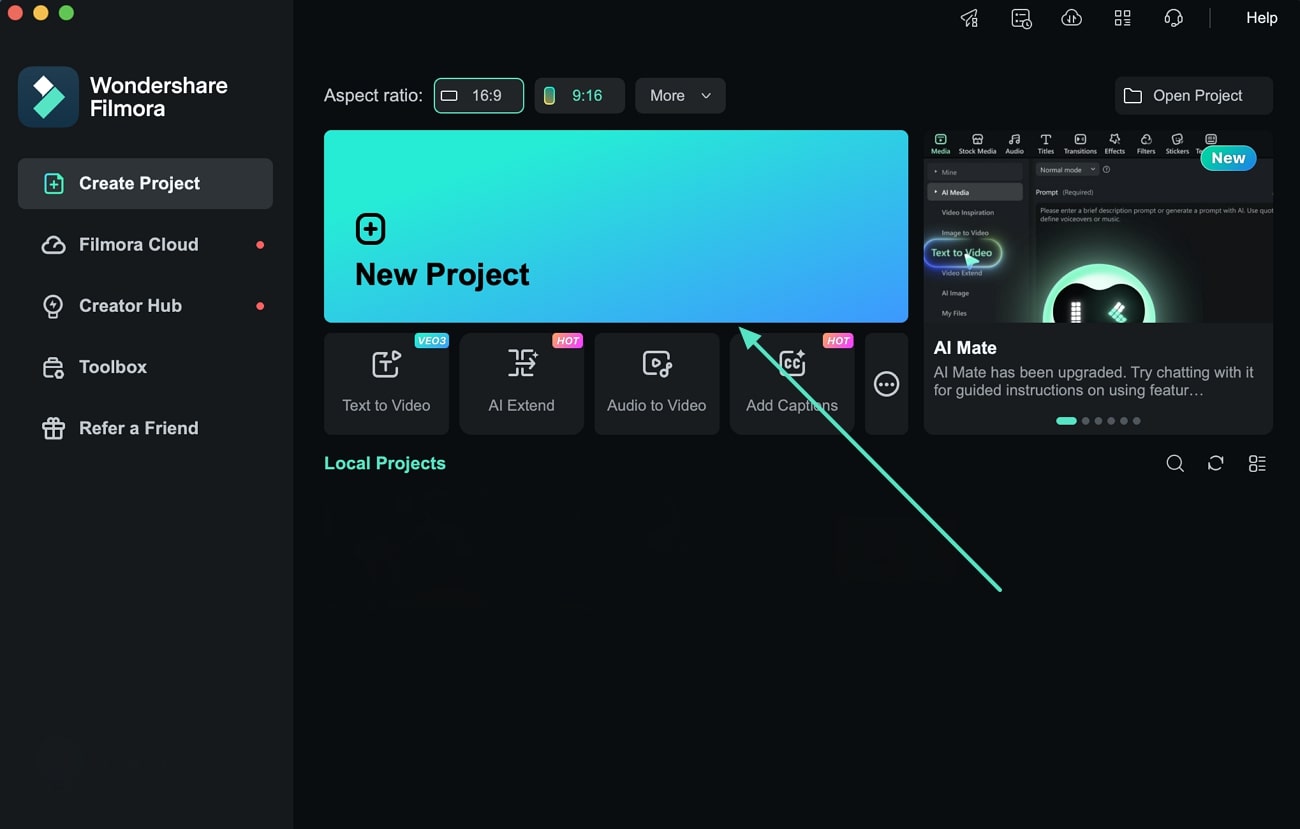
Mode 1. Create a New Project
Launch Filmora on your Mac and click New Project. Import the video you want to enhance and drag it onto the timeline.
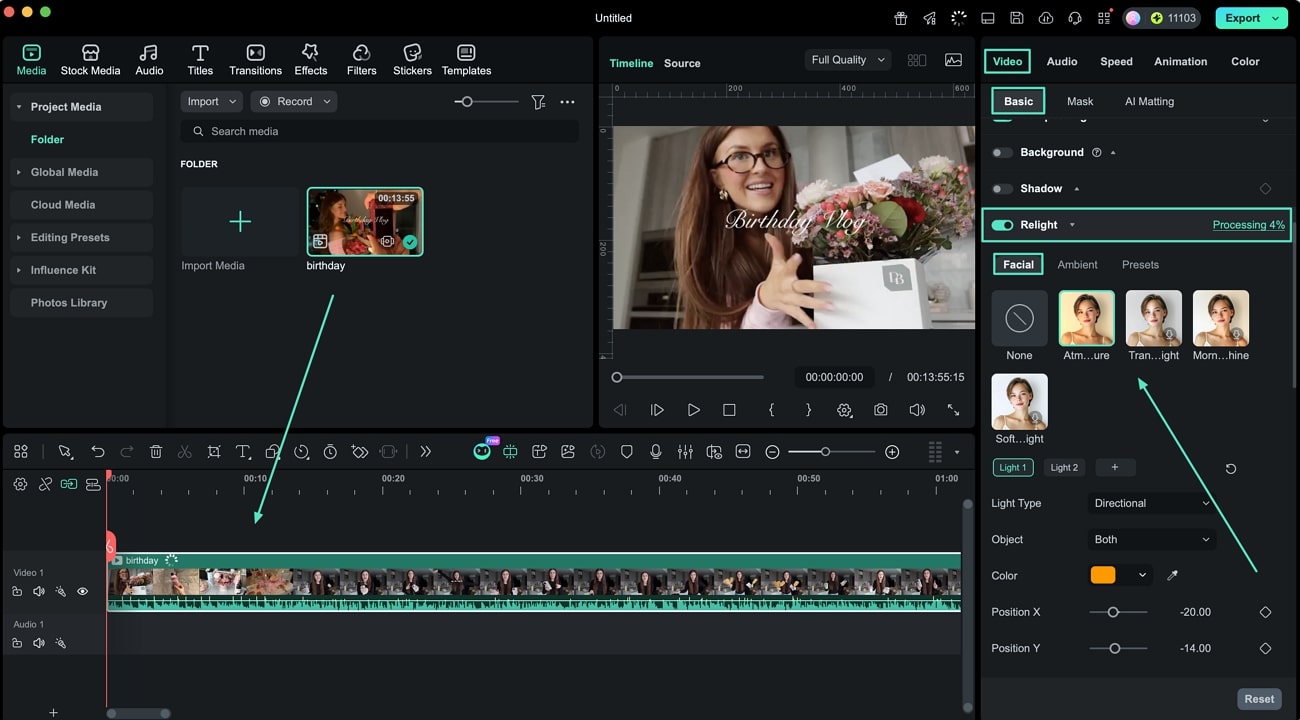
Mode 2. Turn On AI Relight
Select the clip on the timeline, then open the Video settings panel on the right. Under the Basic tab, enable Relight. Switch to the Facial section and choose a lighting preset. You can further refine the look by repositioning light points and adjusting colors.
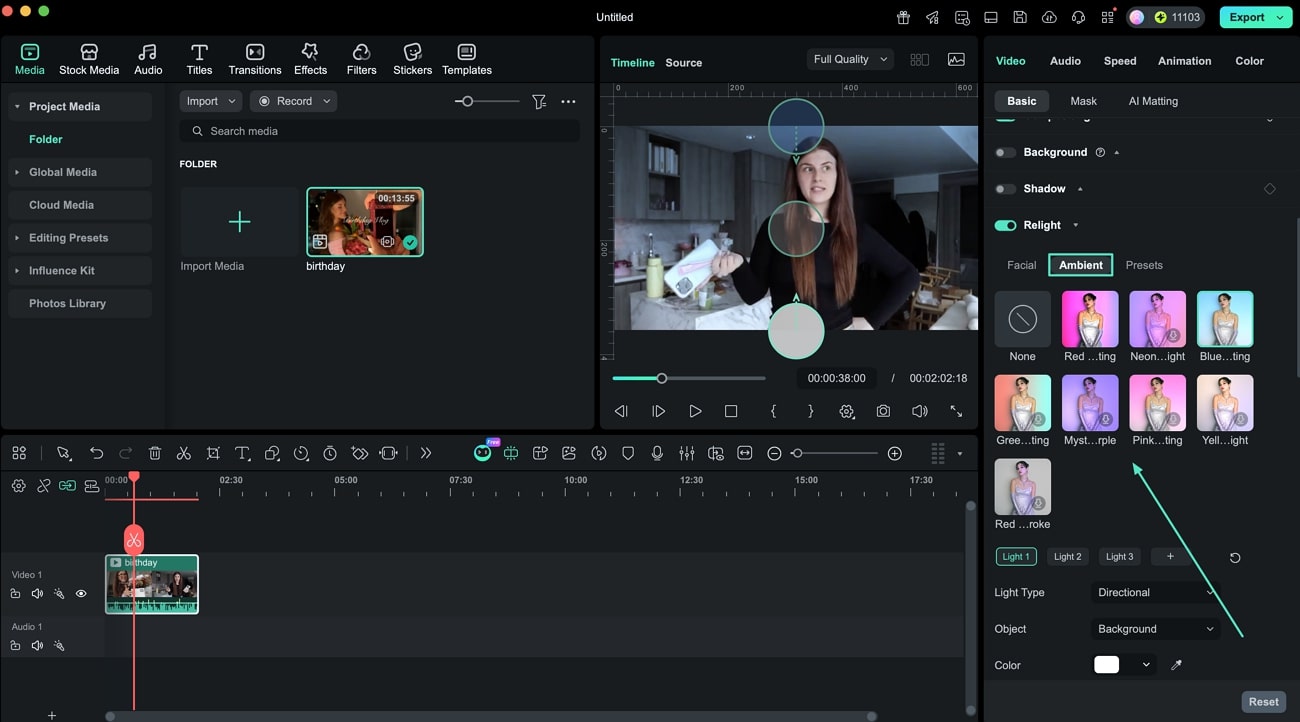
Mode 3. Adjust Ambient Lighting
Next, open the Ambient tab and select an environmental lighting effect. Apply the preset and preview the changes instantly in the viewer.
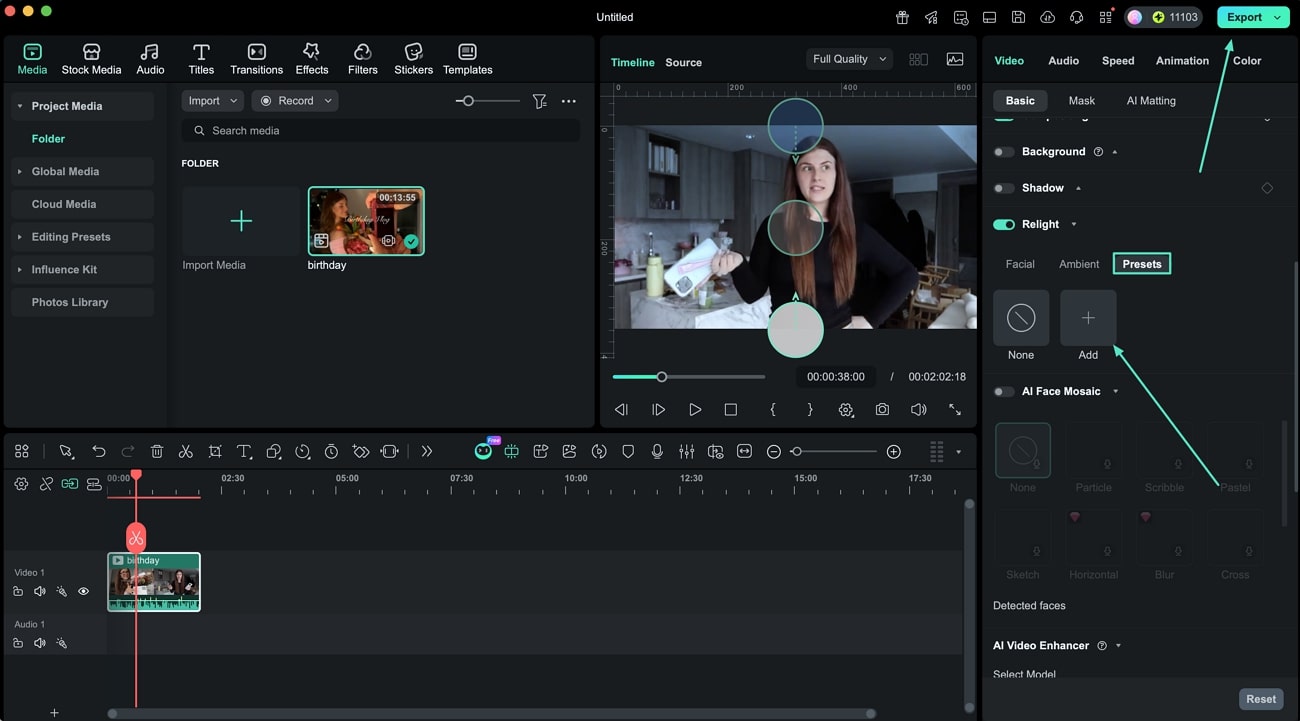
Mode 4. Save Presets and Export
If you want to reuse your custom lighting setup, click Preset, then select Add to save it. Once satisfied with the final look, click Export to save the edited video to your Mac.
Related Posts
Featured Articles
Learn more popular articles from Wondershare.
How to Activate the YouTube Auto Caption Feature
This article will teach you to activate the YouTube auto-captions feature on all devices. Additionally, you’ll learn to create subtitles on your own.
When Is The Best Time To Post On Facebook (Tips & How To)
Are you trying to achieve maximum reach on your videos? Read this article and learn about the best time to post Reels on Facebook for maximum engagement.
How to Add Audio Recording and Voiceover on iMovie
To record audio or voiceover on iMovie, you can follow the steps outlined in this article. Open iMovie on your device and select the voiceover button.
Recommended User Guide
Learn how to use more features.
Scene detection on Mac
Overview of scene detection.
Video Stabilization for Mac
Learn how to stabilize your video with Filmora for Mac.
Smart Scene Cut for Mac
Learn how to use Smart Scene Cut in Filmora for Mac to automatically identify highlights, characters, and custom objects, select key scenes, and quickly create engaging videos.
