
For the Best Results, Use the Latest Version.
Filmora User Guide for Mac
-
Preparations for Mac
-
Account (Mac)
-
Get Started & Basic Settings (Mac)
- Release Notes for Mac
- Latest Version and Features for Mac
- Get Started on Mac - Full Guide
- Download/register/uninstall on Mac
- Panel Layout on Mac
- Keyboard Shortcuts in Mac
- Touchbar on Mac
- Change playback quality on Mac
- Render preview files on Mac
- Manage Timeline in Mac
- Media for use on Mac
- Logo Reveal For Mac
- Marked Favorites for Mac
-
Compatibility & Tech Specs (Mac)
-
Performance Settings (Mac)
-
-
Creating Projects - Mac
-
Creating New Projects (Mac)
-
-
Importing & Recording - Mac
-
Importing (Mac)
-
Recording (Mac)
-
-
Video Editing for Mac
-
Basic Video Editing for Mac
- Edit Live Photos on Mac
- Enable/Disable Clip for Mac
- Magnetic Timeline For Mac
- Dual Monitor Setup for Video Editing on Mac
- Select All Clips on Timeline
- Auto Ripple for Mac
- Split & Cut Videos on Mac
- Compositing on Mac
- Crop and zoom on Mac
- Playback Zoom Level for Mac
- Change Speed on Mac
- Play Video in Reverse on Filmora for Mac
- Mark In and Mark Out for Mac
- Markers for Mac
- Group Clips in Filmora for Mac
- Customized Backgrounds for Videos and Images in Mac
- Video Snapshot for Mac
- Freeze Frame on Mac
- Auto enhance on Mac
- Applying Drop Shadow for Mac
- Adjustment Layer for Mac
- Mark Clips in Filmora for Mac
- Video Editing Ruler – Mac
- Apply Transforming for Mac
-
Advanced Video Editing for Mac
- Keyframe Motion Blur for Mac
- Camera Tracking for Mac
- Keyframe Path Curve for Mac
- Text Animation Path for Mac
- Create Multi-Camera Clip for Mac
- Filmora Motion Blur | Mac
- Drawing Tools for Mac | Filmora Guide
- Track Matte for Mac
- Compound Clips for Mac
- 360° Video Reframing for Mac
- AI Video Enhancer for Mac
- Video Chapters in Filmora for Mac
- Filmora Flicker Removal Guide | Mac
- Multi-Clip Editing for Mac
- Keyframe Graph Editor for Mac
- Create Multi-Screen Videos in Filmora on Mac
- Animation Keyframing for Mac
- Masking in Filmora on Mac
- PIP (Picture in Picture) in Filmora on Mac
-
AI-Powered Video Editing for Mac
- Smart Scene Cut for Mac
- Smart Short Clips for Mac
- Filmora AI Eye Contact - Mac
- Filmora Image to Video for Mac
- AI Idea to Video for Mac
- AI Text-to-Video for Mac
- AI Media Analysis for Mac
- Instant Cutter Tool on Mac
- AI Face Mosaic for Mac
- Filmora Image to Prompt for Mac
- Filmora AI Image Enhancer Guide – macOS
- Planar Tracking for Mac
- Filmora AI Relight - Mac
- AI Extend For Mac
- AI Script-to-Video for Mac
- AI Text-Based Editing in Mac
- Create With Instant Mode on Mac
- ChatGPT Plugin - AI Copywriting on Mac
- AI Smart Cutout in Filmora for Mac
- Auto reframe on Mac
- Lens Correction in Filmora for Mac
- AI Portrait Cutout on Mac
- Scene detection on Mac
- AI Smart Masking for Mac
- AI Mate Editing for Mac
- Motion Tracking on Mac
- Video Stabilization for Mac
- AI Video/Photo Object Remover for Mac
- AI Smart Search for Mac
- AI Skin Tone Protection for Mac
- Green screen on Mac
- Super Slow Motion with Optical Flow for Mac
- AI Stylizer for Mac
- Video Denoise for Mac
-
-
Audio Editing for Mac
-
Basic Audio Editing for Mac
-
Advanced Audio Editing for Mac
-
AI-Powered Audio Editing for Mac
- Audio To Video for Mac
- AI Sound Effect for Mac
- Smart BGM Generation on Mac
- AI Voice Enhancer for Mac
- Audio Stretch for Mac
- AI Audio Denoise for Mac
- Auto Synchronization on Mac
- AI Vocal Remover for Mac
- AI Auto Beat Sync for Mac
- AI Music Generator for Mac
- AI Voice Cloning on Mac
- Silence Detection on Mac
-
-
Text Editing for Mac
-
Basic Text Editing for Mac
-
Advanced Text Editing for Mac
-
AI-Powered Text Editing for Mac
-
-
Video Customizations for Mac
-
Video Effects (Mac)
-
Audio Effects (Mac)
-
Transitions (Mac)
-
Stickers (Mac)
-
Filters (Mac)
-
Color Editing (Mac)
-
Animations (Mac)
-
Templates (Mac)
-
Asset Center (Mac)
-
-
Exporting & Share & Cloud Backup - Mac
Filmora Tutorial Videos
Filmora 15 User Guide in PDF
Filmora 13 & 14 User Guide in PDF
Filmora 12 User Guide in PDF
Filmora 11 User Guide in PDF
Filmora 9 & 10 User Guide
Audio Gain in Filmora for Mac
The Audio Gain feature in Filmora for Mac allows you to adjust the overall gain value of audio clips, enabling batch processing and standardization to maintain consistency across different audio sources. With three distinct gain adjustment methods - fixed gain value, relative gain adjustment, and peak normalization - you can achieve professional audio levels quickly and efficiently.
Index
Access Audio Gain in Filmora for Mac
There are three ways to access the Audio Gain feature in Filmora for Mac:
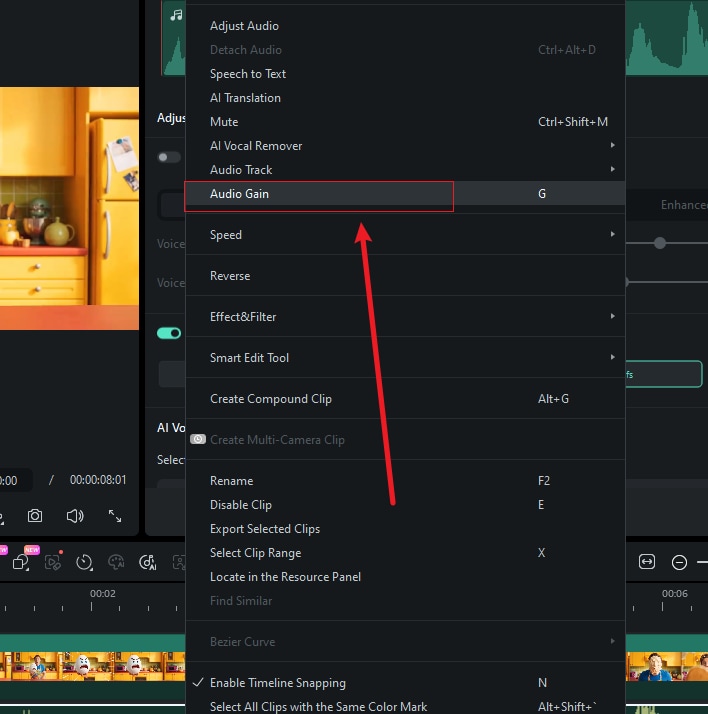
1 Right-click Method: Select your audio clip in the timeline, right-click, and choose Audio Gain.
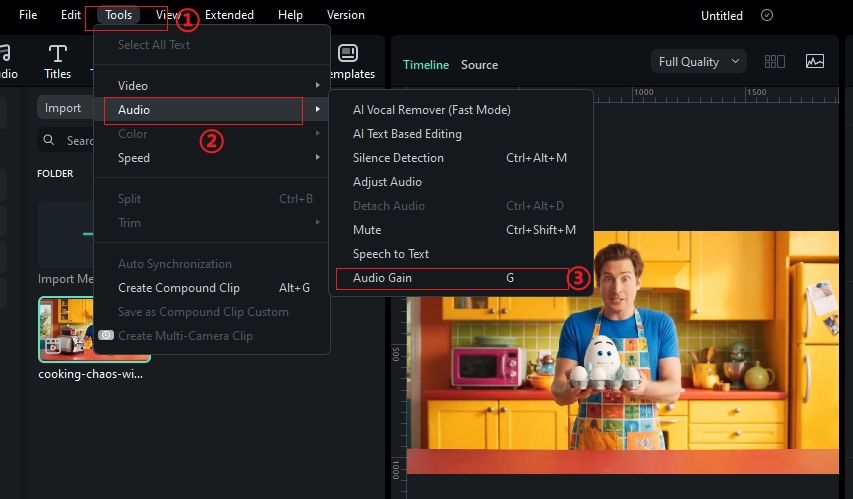
2 Menu Method: Go to the top navigation bar, select Tools > Audio > Audio Gain (note: this option is grayed out when no audio clip is selected).
3 Keyboard Shortcut: Select an audio clip and press A + G for quick access.
Adjust Gain Value
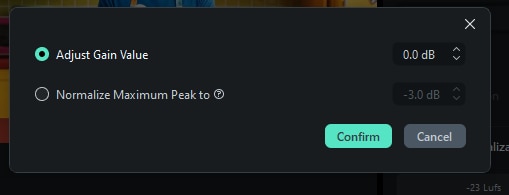
The Adjust Gain Value option allows you to set a fixed gain value for your audio clip(s). This method is perfect for applying consistent gain adjustments across multiple clips.
1 In the Audio Gain dialog, select Adjust Gain Value.
2 Enter your desired gain value in dB (can be positive or negative).
3 Click Confirm to apply the gain adjustment.
Normalize Maximum Peak
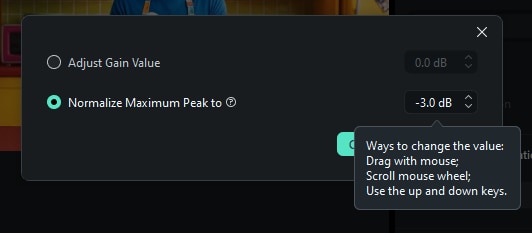
The Normalize Maximum Peak function analyzes your audio and adjusts the gain so that the highest peak reaches a specified level, ensuring optimal volume without clipping.
1 Select Normalize Maximum Peak to in the Audio Gain dialog.
2 Set your target peak level (typically -3.0 dB to prevent clipping).
3 Click Confirm to normalize the audio to the specified peak level.
Batch Processing Multiple Clips
Audio Gain supports efficient batch processing, allowing you to apply the same gain adjustments to multiple audio clips simultaneously, saving time and ensuring consistency across your project.
1 Select multiple audio clips in the timeline by holding Cmd while clicking.
2 Access Audio Gain using any of the three methods mentioned above.
3 When multiple clips are selected, you'll see additional options in the Audio Gain dialog.
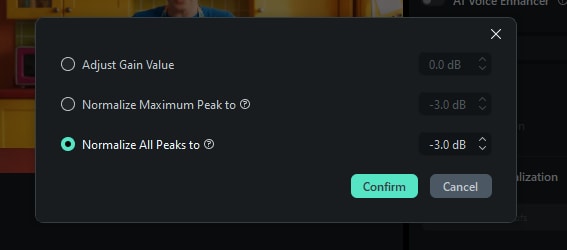
Normalize All Peaks (Multiple Clips Only)
The Normalize All Peaks option appears only when multiple audio clips are selected. This feature ensures that all peak levels across different clips are adjusted uniformly, maintaining each clip's dynamic range while achieving consistent levels throughout your project.
1 Select multiple audio clips in the timeline.
2 Open the Audio Gain dialog - you'll now see the Normalize All Peaks to option.
3 Specify your target level for all peaks across the selected clips.
4 Click Confirm to apply consistent normalization to all selected clips.
Related Posts
Featured Articles
Learn more popular articles from Wondershare.
How to Use Sora 2 Cameo: Add Yourself Into AI Videos
Learn how to use Sora 2 cameo to place yourself into realistic AI videos with clean results and smooth likeness. Check our guide to learn the right way to use them.
[2026 Updated] How to Upload a Video on Twitter?
Looking for different methods on how to post videos on Twitter? Learn about different ways to post the video on your social account.
10 of the Best Happy New Year GIF Video Websites
Do you want to create a Happy New Year GIF video for your loved ones? Here are 10 of the best Happy New Year GIF video websites to help you out.
Recommended User Guide
Learn how to use more features.
Equalizer on Mac
How to adjust equalizer to improve the audio effects in your video? Follow this guide to see how to make it.
Audio Ducking on Mac
Discover the art of audio ducking on your Mac with our comprehensive guide. This official guide provides step-by-step instructions on how to effectively lower background music levels while keeping vocal clarity at the forefront.
