
For the Best Results, Use the Latest Version.
-
Preparations
-
Account
-
Get Started & Basic Settings
-
Compatibility & Tech Specs
-
Performance Settings
-
-
Creating Projects
-
Creating New Projects
-
-
Importing & Recording
-
Video Editing for Windows
-
Basic Video Editing
- Enable/Disable Clip in Windows
- Magnetic Timeline for Windows
- Dual Monitor Setup for Video Editing on Windows
- Select All Clips on Timeline for Windows
- Timeline and Track Management
- Auto Ripple for Windows
- Split & Trim Video
- Crop & Pan & Zoom Video in Filmora for Windows
- Compositing
- Change Video Speed on Windows
- Reverse Video for Windows
- Mark In and Mark Out for Windows
- Markers for Windows
- Group editing
- Customizable Backgrounds for Videos and Images in Windows
- Video Snapshot
- Using Freeze Frame in Filmora for Windows
- Logo Reveal For Windows
- Auto Enhance in Filmora for Windows
- Applying drop shadow
- Adjustment layer for Windows
- Apply Transforming for Windows
- Video Editing Ruler – Windows
-
Advanced Video Editing
- Keyframe Motion Blur for Windows
- Drawing Tools for Windows | Filmora Guide
- Camera Tracking for Windows
- Create Multi-Camera Clip in Filmora for Windows
- Compound Clip for Windows
- Multi-Clip Editing for Windows
- Filmora Motion Blur | Windows
- 360° Video Reframing for Windows
- Track Matte for Windows
- Video Chapters in Filmora on Windows
- Filmora Flicker Removal Guide | Windows
- Create Multi-Screen Videos in Filmora on Windows
- Masking in Filmora on Windows
- Creating a PIP Effect for Windows
- Keyframe Graph Editor for Windows
- Animation Keyframing for Windows
- Keyframe Path Curve
-
AI-Powered Video Editing
- Smart Scene Cut for Windows
- Smart Short Clips for Windows
- AI Face Mosaic for Windows
- Filmora AI Eye Contact- Windows
- AI Video Enhancer for Windows
- AI Text-to-Video for Windows
- Planar Tracking for Windows
- AI Idea to Video for Windows
- AI Media Analysis for Windows
- Filmora Image to Video for Windows
- Filmora Image to Prompt for Windows
- Instant Cutter Tool for Windows
- AI Extend
- Filmora AI Relight - Windows
- Filmora AI Image Enhancer Guide - Windows
- AI Script to Video Guide for Windows
- AI Text-Based Editing for Windows
- AI Mate Editing for Windows
- Instant Mode for Windows
- ChatGPT Plugin - AI Copywriting
- AI Smart Cutout for Windows
- Lens correction on Windows
- Auto Reframe Video for Windows
- AI Portrait Cutout
- Scene Detection for Windows
- AI Smart Masking for Windows
- Motion Tracking on Windows
- Video Stabilization for Windows
- AI Video/Photo Object Remover for Windows
- AI Smart Search for Windows
- AI Skin Tone Protection for Windows
- AI Image for Windows
- Chroma Key (Green Screen) for Windows
- Super Slow Motion with Optical Flow for Windows
- Video Denoise for Windows
-
-
Audio Editing for Windows
-
Basic Audio Editing
-
Advanced Audio Editing
-
AI-Powered Audio Editing
- Auto synchronization
- AI Sound Effects in Filmora for Windows
- Smart BGM Generation on Windows
- AI Voice Enhancer in Filmora
- AI Voice Cloning in Wondershare Filmora
- AI Music Generator for Windows
- Audio To Video
- AI Vocal Remover for Windows
- AI Auto Beat Sync for Windows
- AI Audio Stretch for Windows
- AI Audio Denoise for Windows
- Silence Detection on Windows
-
-
Text Editing for Windows
-
Basic Text Editing
-
Advanced Text Editing
-
AI-Powered Text Editing
-
-
Video Customizations
-
Video Effects
- Filmora VST3 Plugins for Windows
- Filmora OpenFX Plugins for Windows
- Retouch Guide for Windows
- Filmora Pen Tool Tutorial: Motion Paths & Animation Guide
- Animated Charts
- Mocha Filmora - For Windows
- Different Types of Video Effects
- NewBlue FX effects
- Boris FX effects | Filmora Windows Guide
- Body Effects for Windows
- Filmora -Filmstock Asset
-
Audio Effects
-
Transitions
-
Stickers
-
Filters
-
Color Editing
-
Animations
-
Templates
-
Asset Center
-
-
Exporting & Share & Cloud Backup
Filmora AI Relight - Windows
Filmora AI Relight is designed to simplify professional-looking lighting adjustments without requiring complex color-grading skills. The feature uses AI to intelligently analyze the lighting conditions in a video and enhance them with natural, balanced results. It offers different presets according to the facial and environmental settings.
With multiple customization options and ready-made relighting effects, creators can fix poor lighting, add mood, or create cinematic depth directly inside the editor. Whether you’re editing vlogs, interviews, or creative videos, Filmora AI Relight for Windows offers both speed and creative control.
Highlights of This Feature
- One-Click AI Relighting: Automatically analyzes the video’s lighting and applies optimized relighting effects using ready-to-use presets, saving time while delivering professional results.
- Flexible Custom Lighting: Supports up to 8 adjustable light sources, allowing precise control over light position, color temperature, and intensity to match different scenes and styles.
- Visual & Real-Time Editing: Enables users to drag and adjust light orbs directly in the preview window, with changes reflected instantly for a smooth, intuitive editing experience.
Index
Mode 1. Begin By Creating a New Project
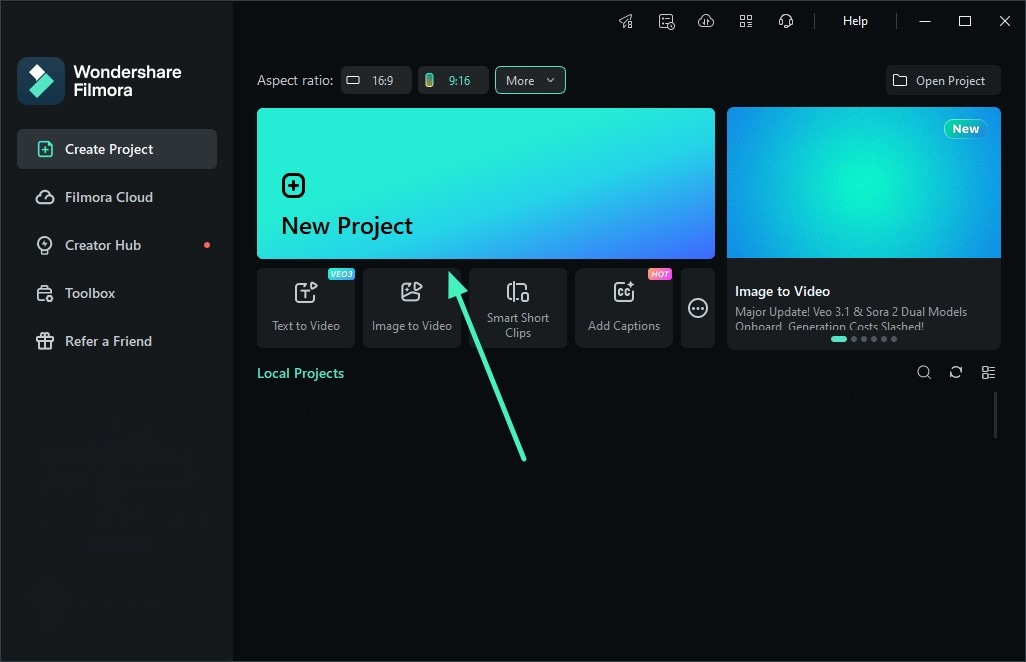
To initiate the process, launch Filmora on your Windows and press the New Project tab. Now, import the video for which you want to adjust the lighting and drag it to the editing timeline.
Mode 2. Access AI Relight Feature
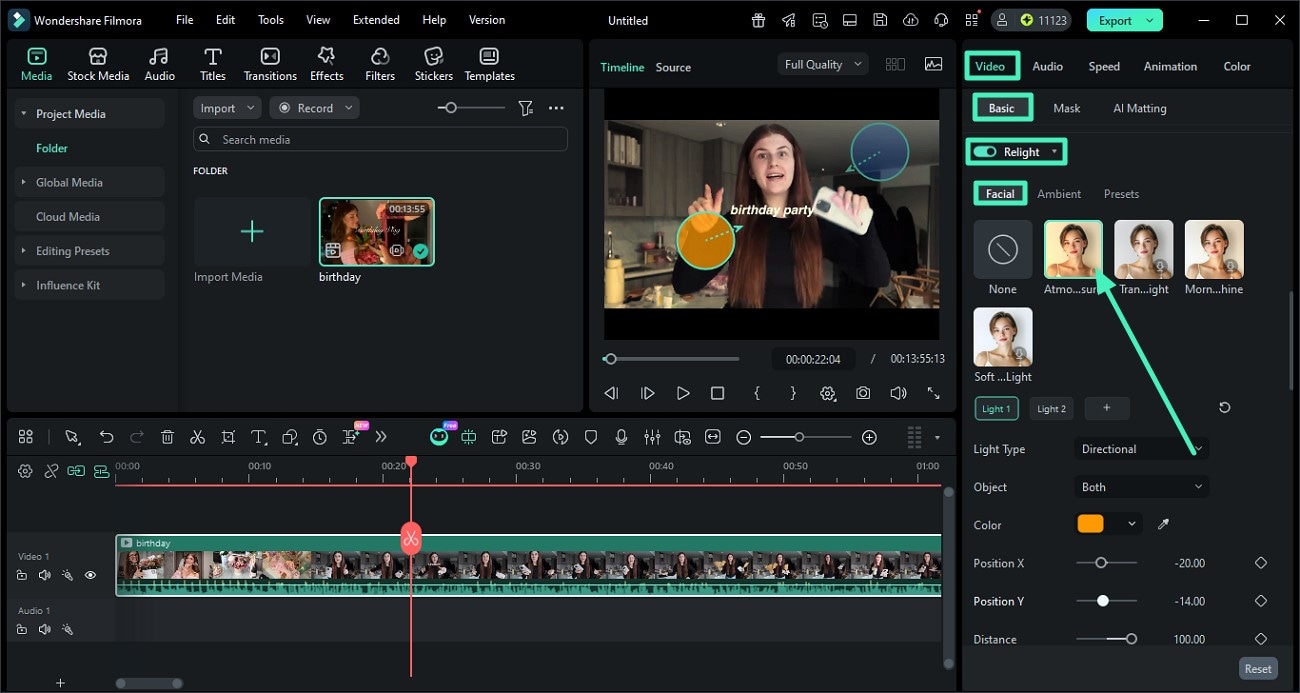
In the main editing interface of Filmora, access the Video properties panel on the right. Now, open the Basic tab and turn the toggle on for Relight. Within the Relight feature, access the Facial tab. Select the lighting effect of your choice from the options. Adjust the lighting by dragging the cursor within the preview window. You can make changes to the visuals by dragging positions and choosing a color.
Mode 3. Adjust Lighting for Ambience
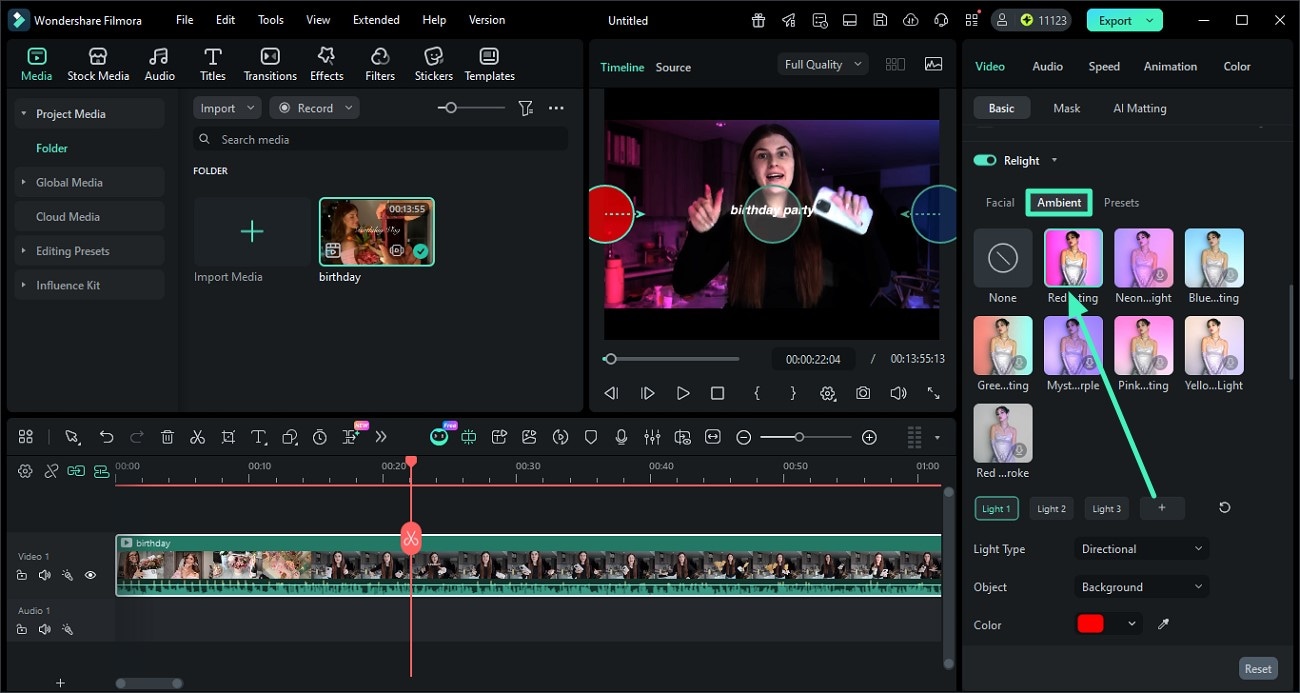
Moving forward, access the Ambient tab and choose the lighting effect from the options. Apply the effect by clicking on it and preview it within the preview window. Adjust all the lights according to your preferences within the preview window.
Mode 4. Save as Preset and Export Video
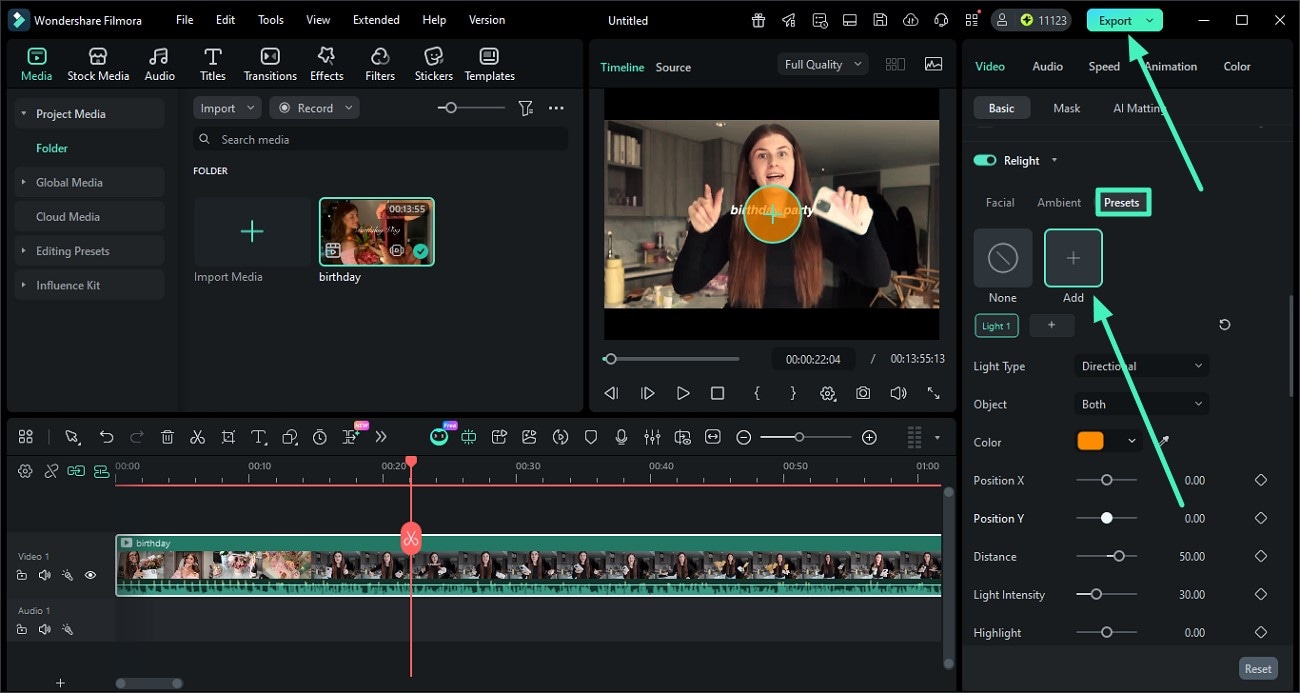
You can also save the customized lighting effect using the Preset option and then clicking the Add icon. Once the settings are configured, press the Save as Preset option to save the effects as presets. When you have the final results, press the Export button to save the results successfully to your device.
Related Posts
Featured Articles
From Selfie to Bollywood Star: How to Create Stunning AI Saree Photos with Google Gemini Nano Banana
Explore the viral Nano Banana AI Saree filter. Step-by-step guide, prompt examples, and pro tips to craft your perfect 90s Bollywood look.
AVS Video Editor Review: Comprehensive Features & Unique Alternative
Installed AVS Video Editor, but do not know how to use it? Read this article to learn everything about this tool and how to use it.
Top 8 Ways to Extract Audio From Videos
Want to extract audio from a video? Explore the steps for the eight best desktop, mobile, and online apps and weigh their pros and cons.
Recommended User Guide
AI Image for Windows
To meet more creative needs of creators, Filmora has added ai content generator technology to the product. You can directly experience the function of generating images from text through AIGC.
AI Portrait Cutout
Learn how to add AI portrait effects.
Filmora Image to Video for Windows
This guide explains how to use Image to Video feature on Windows.
