
AI Relight Video – Instantly Fix Video Lighting with AI
With intelligent relight video AI, you can instantly correct dark scenes, harsh shadows, and backlighting in videos and photos. Try relight video AI free and achieve professional lighting results — no studio setup needed.
 4.7
(15746 reviews)
4.7
(15746 reviews)
Win 11 /Win 10 / Win 8 / Win7 (64 bit OS) | System Requirements
macOS 10.15 or later (Using macOS 10.14 or earlier? Click here) | Compatible with Apple silicon
With intelligent relight video AI, you can instantly correct dark scenes, harsh shadows, and backlighting in videos and photos. Try relight video AI free and achieve professional lighting results — no studio setup needed.
Solve Common Lighting Problems with AI Relight
Whether you're filming indoors, outdoors, or in challenging lighting conditions, Filmora's AI relight video tool helps you fix lighting issues instantly. It's a powerful, easy-to-use AI relighting tool — and a smart alternative to complex workflows like AI relight After Effects.
Dark & Underexposed Videos
Automatically brighten dark scenes with advanced relight video AI technology, preserving fine details while minimizing noise and overexposure.
Harsh Shadows in Footage
Soften harsh shadows on faces and objects using intelligent AI video relighting, delivering a more natural, balanced, and professional look.
Backlit Subjects
Fix silhouette effects by enhancing subject brightness without washing out the background, powered by our precision relight AI tool.
Poor Color Temperature
Correct unnatural color casts and restore realistic skin tones and scene colors with smart AI relighting algorithms.
Why Choose AI Relight Video in Filmora?
Unlike traditional lighting correction tools, Filmora's AI relight video is built for real-world creators. With intelligent automation and precise controls, you can fix lighting issues quickly — or fine-tune every detail when you need more control.
One-Click AI Relighting for Instant Results
Apply ready-to-use Face Light or Ambient Light with a single click. Powered by relight AI, Filmora instantly improves facial visibility, softens shadows, and balances overall lighting — perfect for fast-paced video creation.
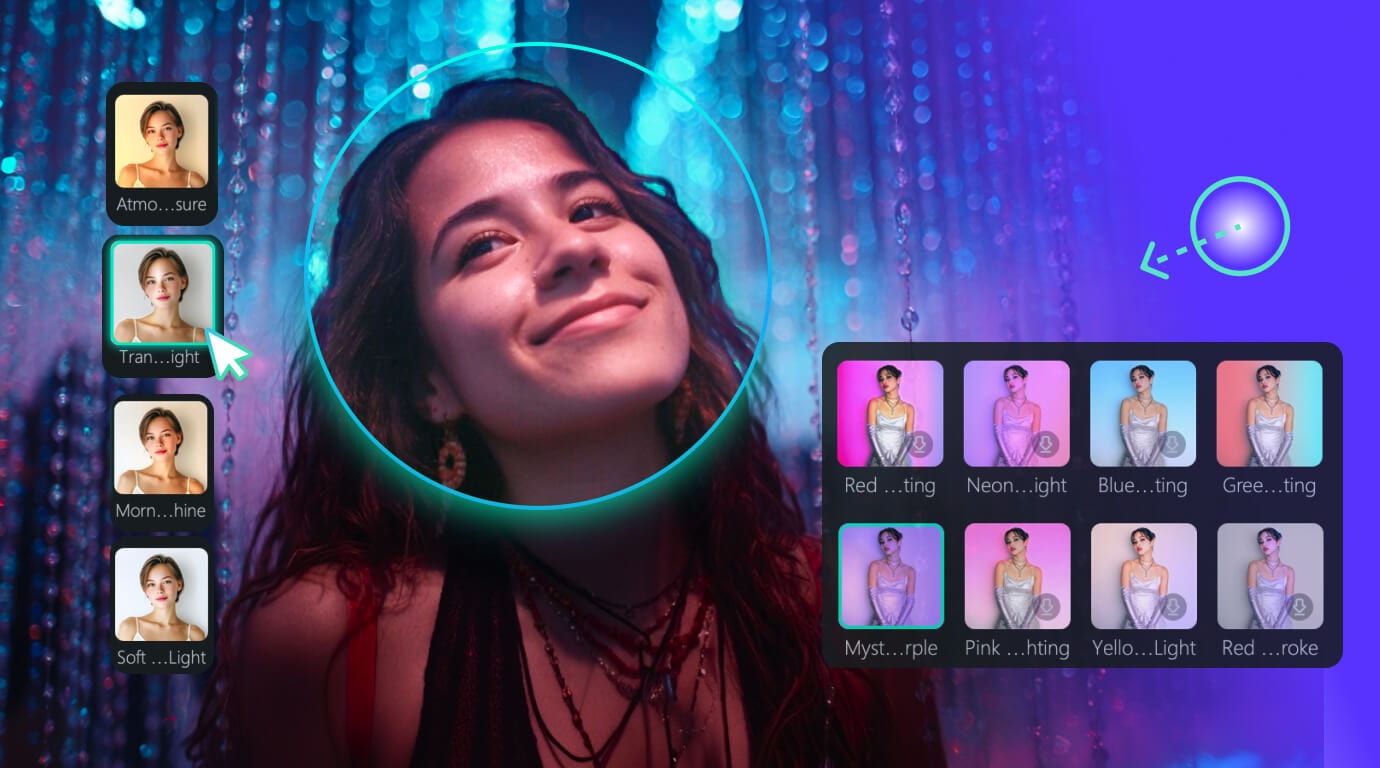
Advanced Color Picker Technology
Remove any solid color background — not just green screens! Use the color picker to erase blue, red, black, or any uniform background color from your videos. Great for green screen editor needs and versatile video background removal.
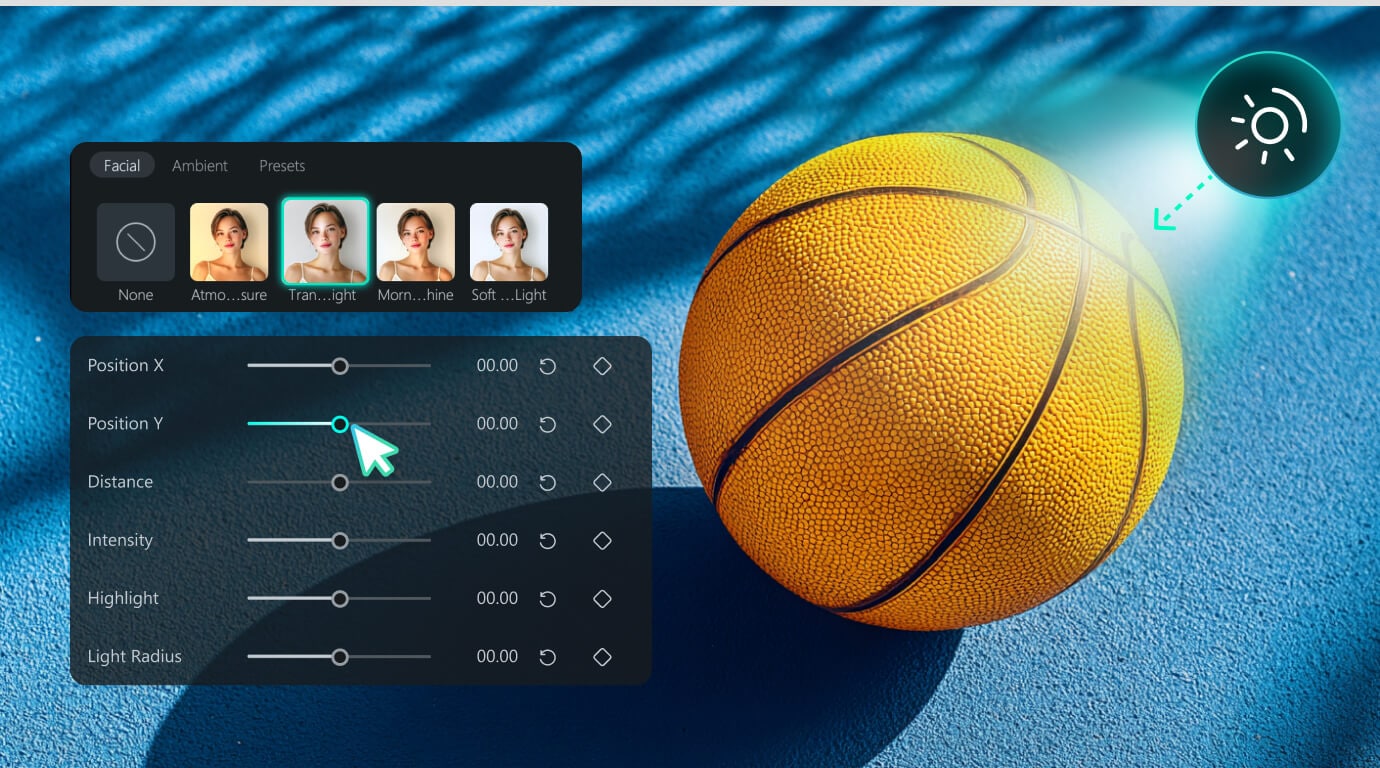
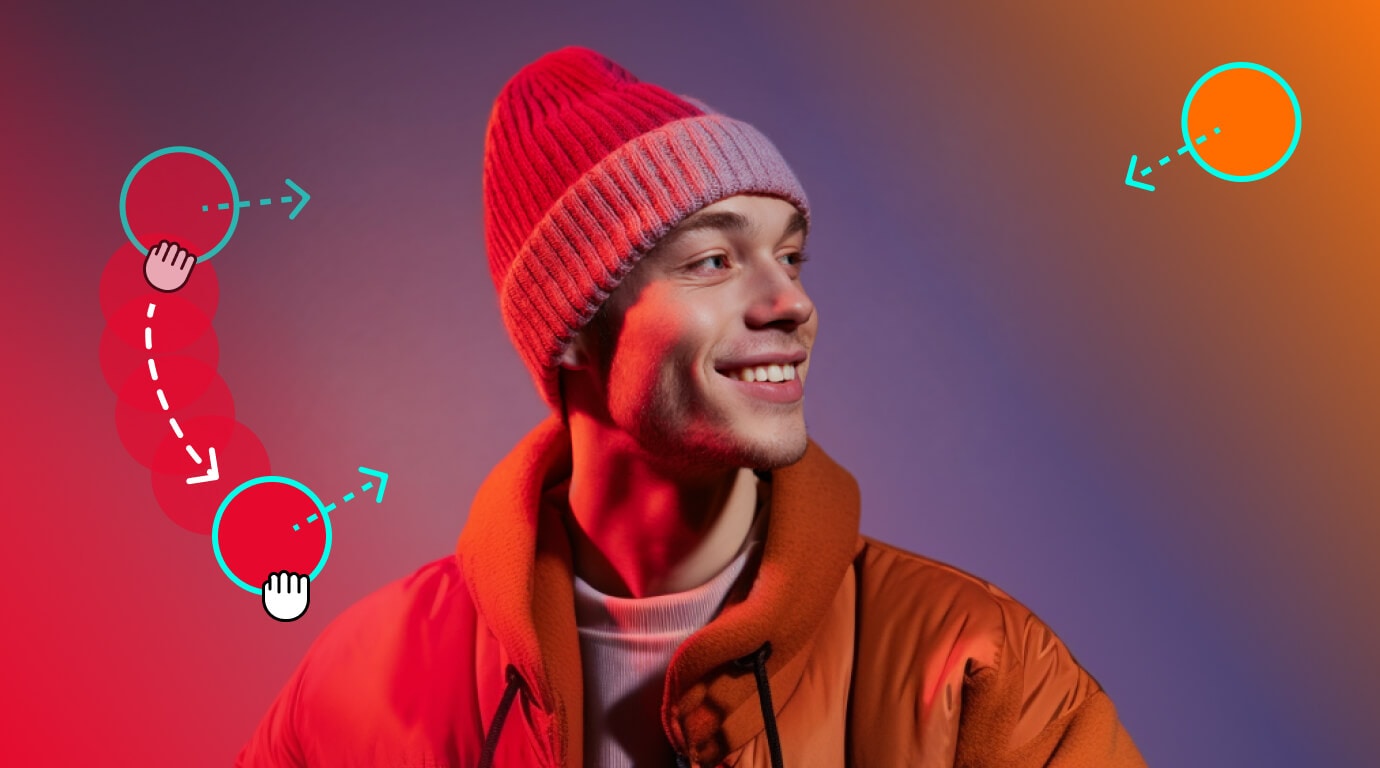
Visual, Drag-and-Drop Editing
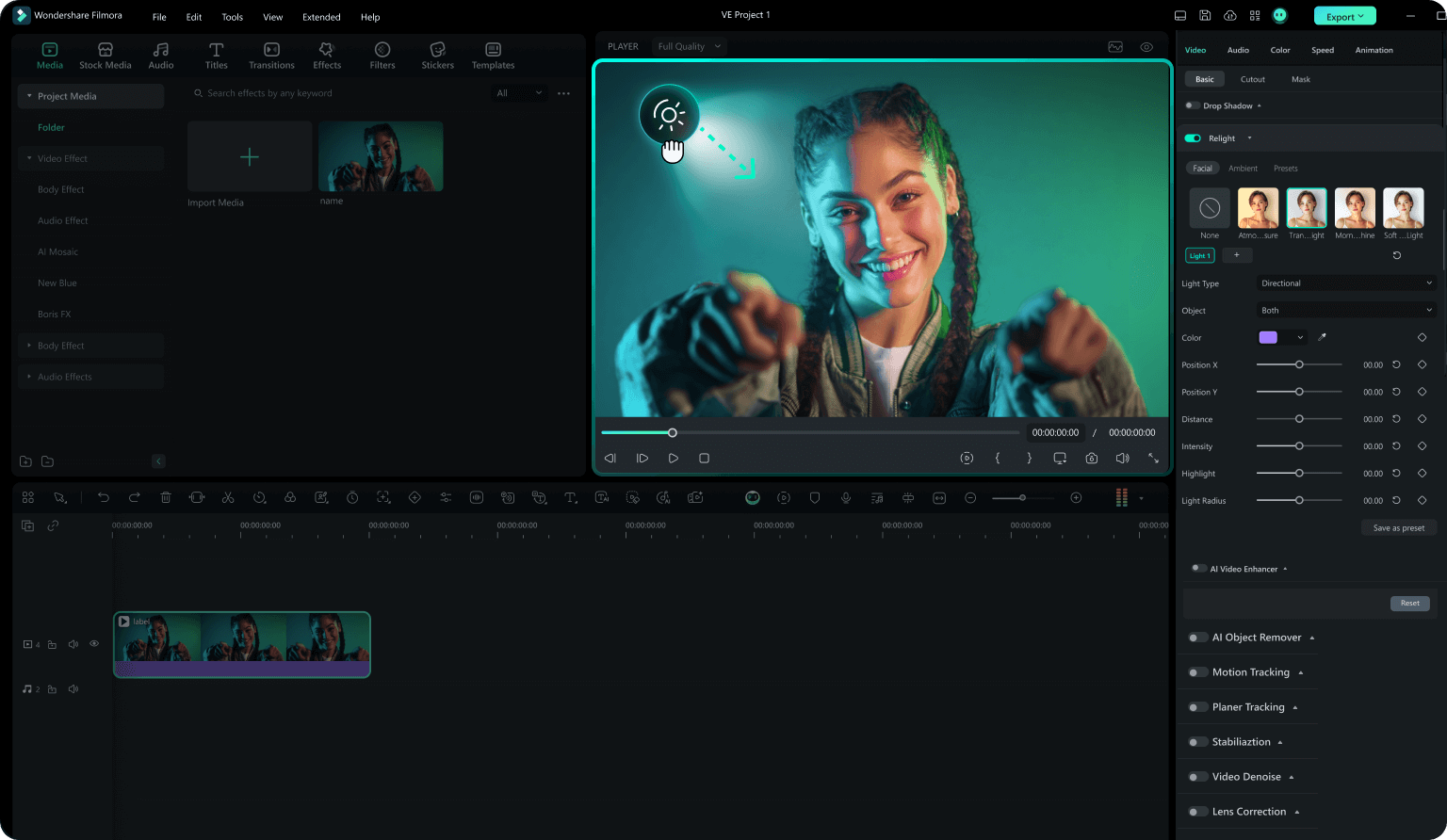
Adjust lighting directly in the preview window using intuitive light orbs. Simply drag to reposition lights and see changes in real time — making AI video relighting powerful yet easy to use, even for beginners.
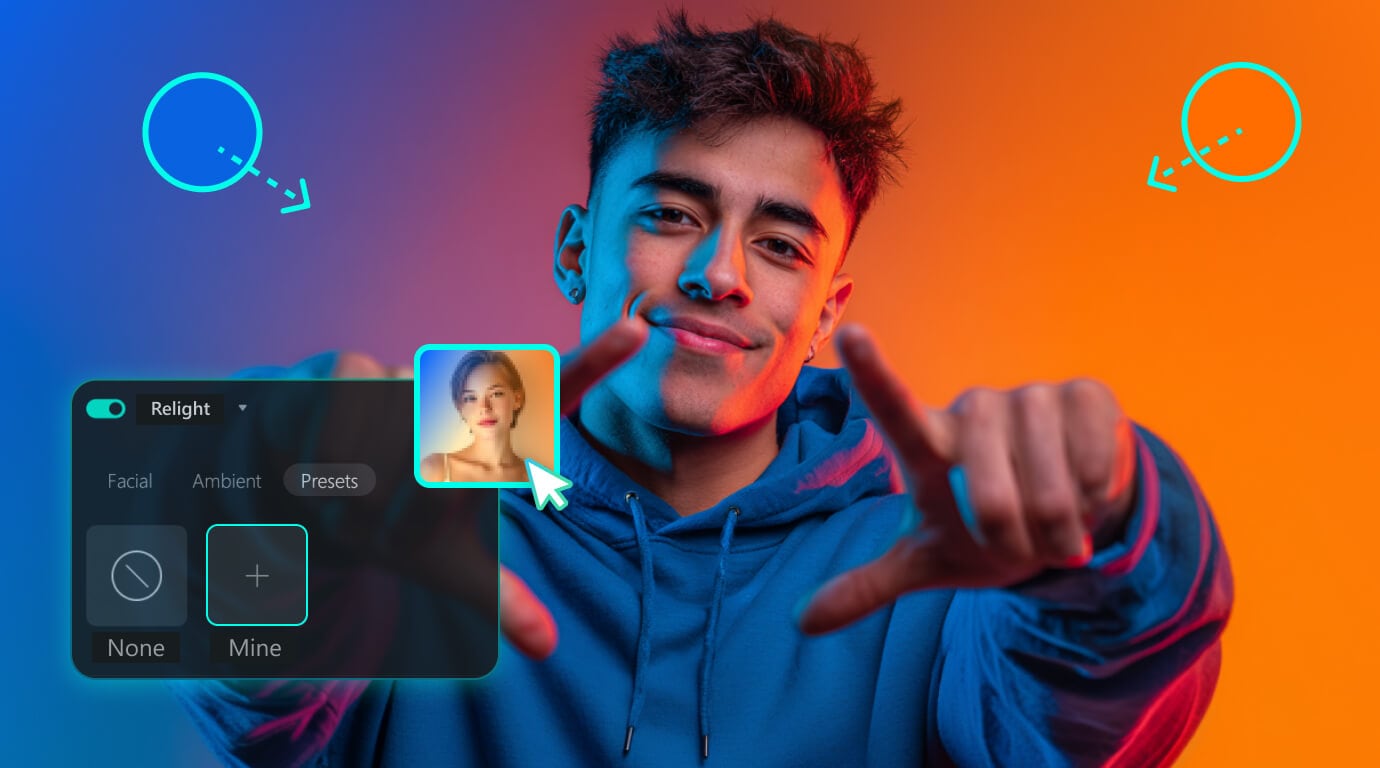
Save & Reuse Custom AI Relight Presets
After adjusting light sources and parameters, save your setup as a custom preset. Your personalized lighting styles are stored in the Presets category, allowing you to apply consistent lighting across multiple clips with just one click.
How To Relight Video with AI
Get perfect lighting in your videos with just 4 simple steps using our relight video ai free tool. No lighting knowledge or complex setup required.
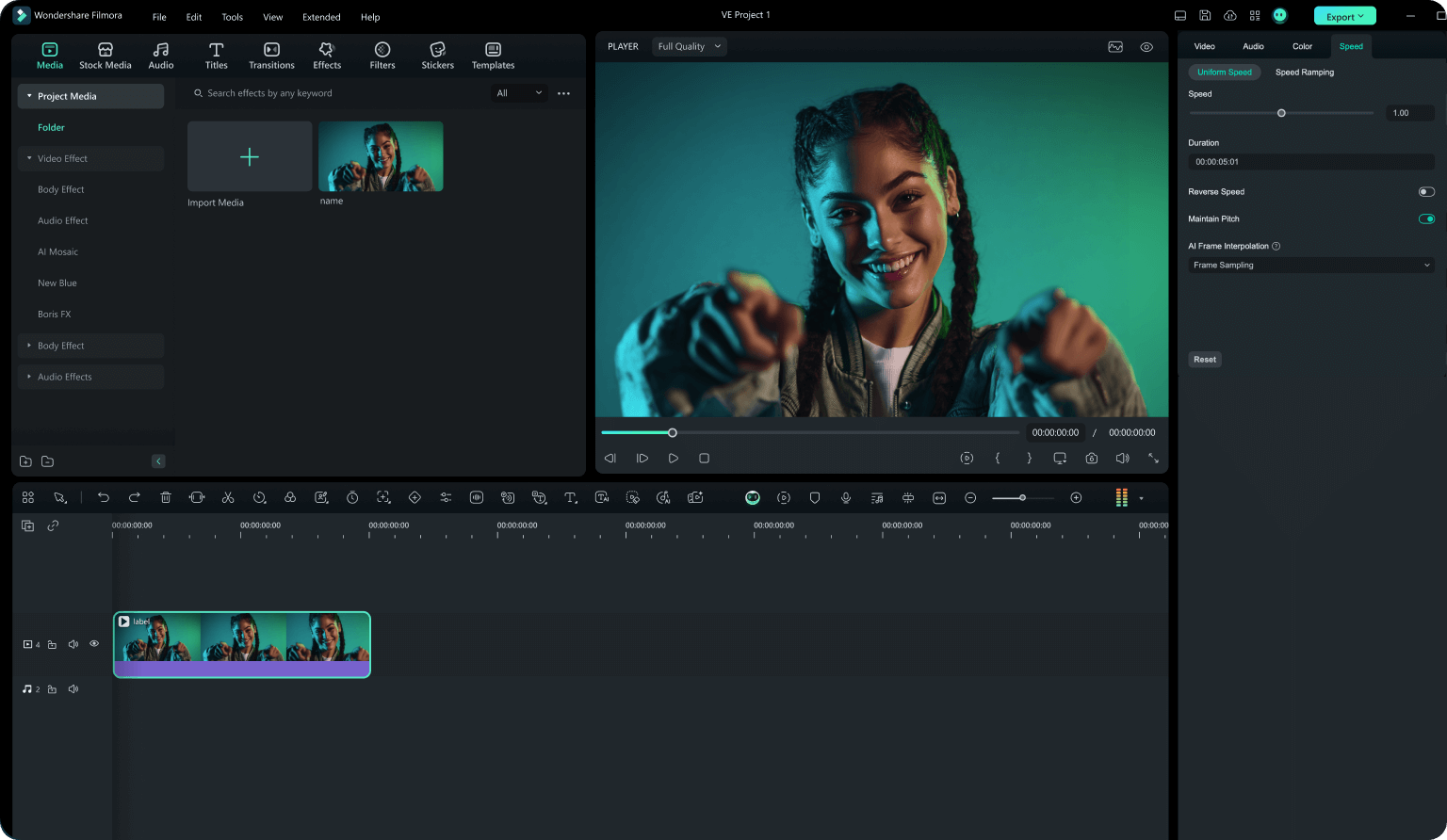
Step 1. Import Your Video or Clip
Add any video or clip to Filmora. AI relight video works seamlessly with footage shot in dark, backlit, or uneven lighting conditions.
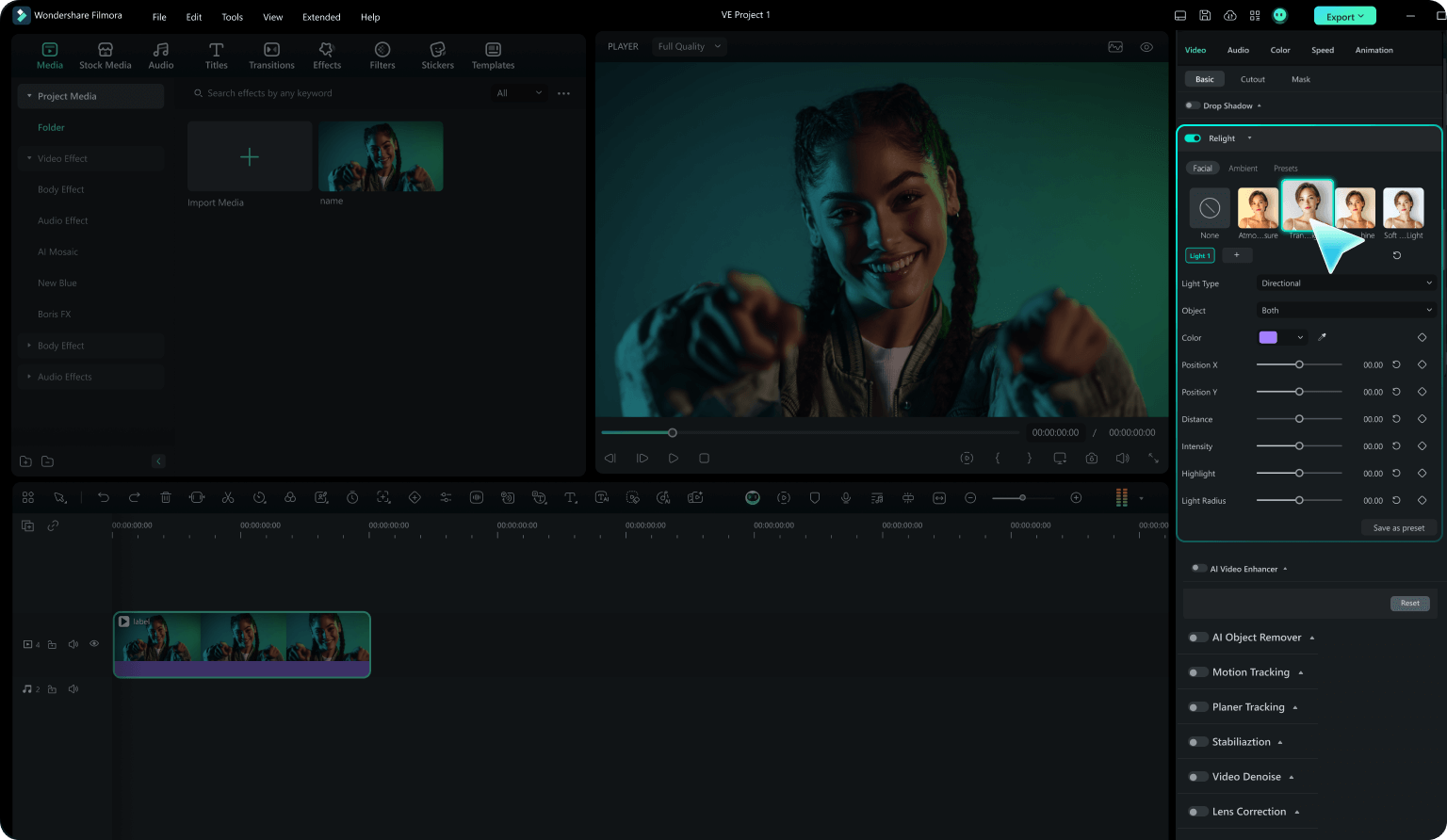
Step 2. Choose a Relight AI Mode
Select a one-click option like Face Light or Ambient Light, or switch to the custom AI relighting tool for more precise control. Filmora automatically analyzes your clip and prepares the optimal lighting setup.
Step 3. Adjust AI Relight Settings
Fine-tune lighting by adjusting light sources and parameters such as position, intensity, color, distance, and range. Relight AI updates the result in real time, with optional keyframe support for dynamic lighting changes across your clip.
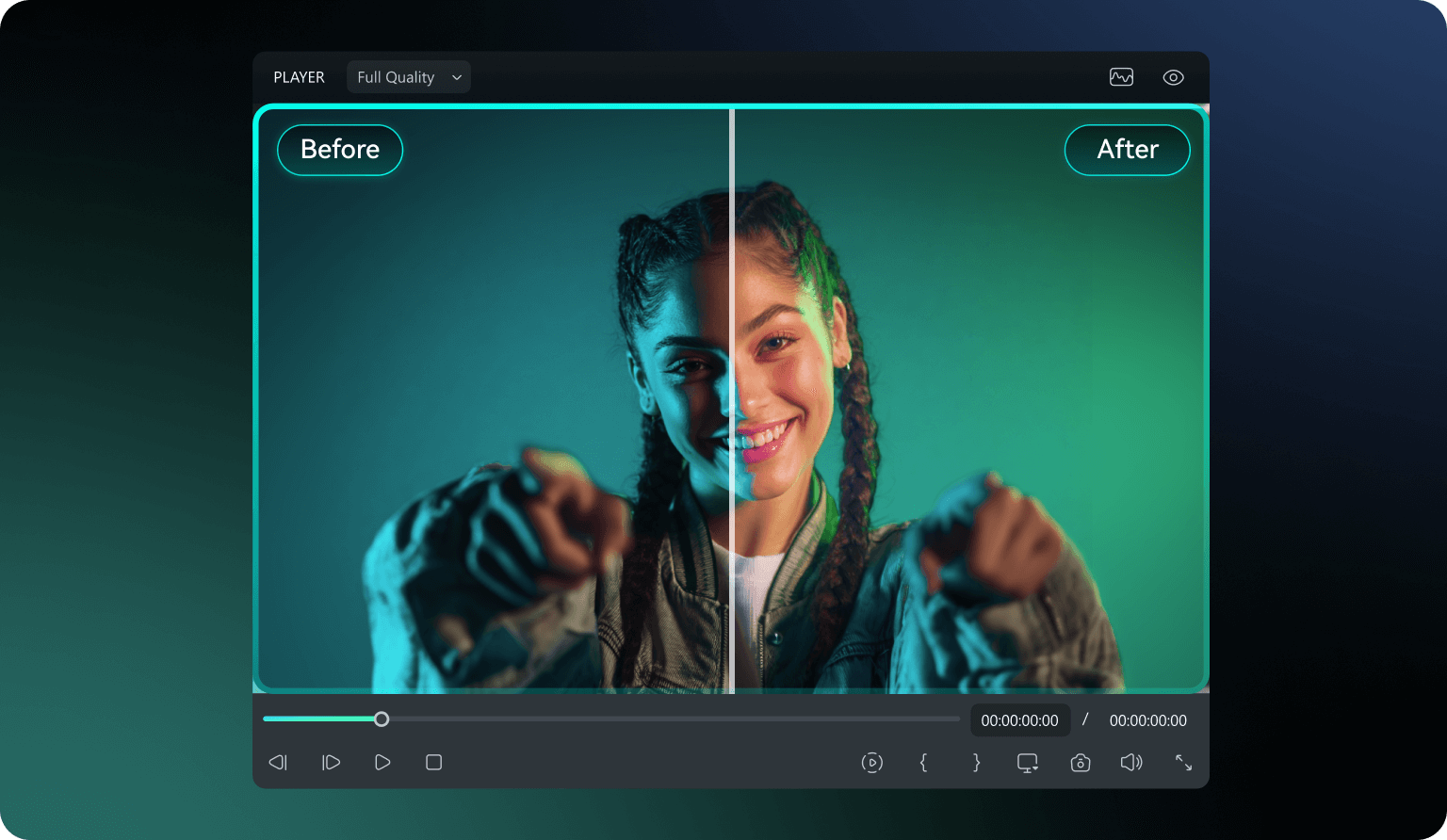
Step 4. Export with AI Relighting Applied
Preview the final result and export your video or clip in high quality. Your AI video relighting enhancements are preserved in HD, ready to share or publish.
-
Step 1: Import Your Video or Clip
Add any video or clip to Filmora. AI relight video works seamlessly with footage shot in dark, backlit, or uneven lighting conditions. -
Step 2: Choose a Relight AI Mode
Select a one-click option like Face Light or Ambient Light, or switch to the custom AI relighting tool for more precise control. Filmora automatically analyzes your clip and prepares the optimal lighting setup. -
Step 3: Adjust AI Relight Settings
Fine-tune lighting by adjusting light sources and parameters such as position, intensity, color, distance, and range. Relight AI updates the result in real time, with optional keyframe support for dynamic lighting changes across your clip. -
Step 4: Export with AI Relighting Applied
Preview the final result and export your video or clip in high quality. Your AI video relighting enhancements are preserved in HD, ready to share or publish.
Perfect Relight AI Tool for Every Creator
From daily content to professional productions, AI relight video helps creators fix lighting issues quickly and achieve consistent, high-quality results in any scenario.
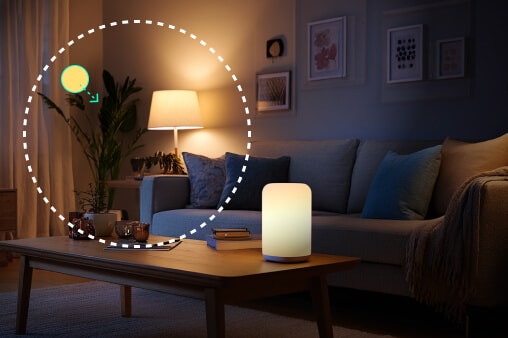
Vloggers & Content Creators
Indoor or low-light vlogs can instantly look clearer and more polished. With relight video AI, creators can enhance facial lighting, soften shadows, and maintain a consistent visual style across clips — even when filming in challenging environments.
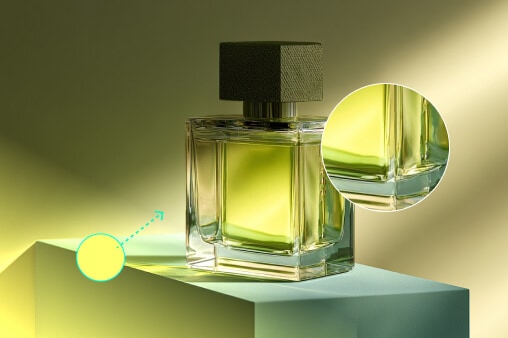
E-commerce & Product Videos
Make products stand out with professional-looking lighting. Relight AI enhances textures, highlights key details, and adds depth to product shots, helping create clean, eye-catching visuals without studio lighting setups.
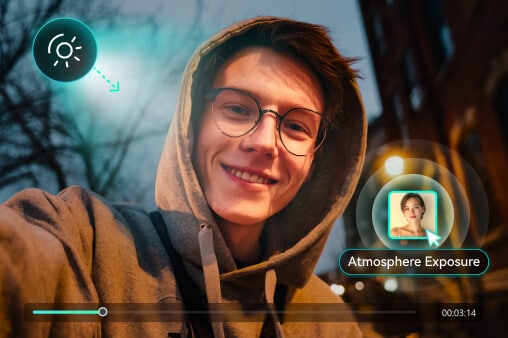
Social Media Creators
When speed matters, AI relight video keeps production fast and simple. Apply one-click lighting effects and quickly improve multiple clips to maintain visual consistency across platforms like TikTok, Instagram, and YouTube Shorts.
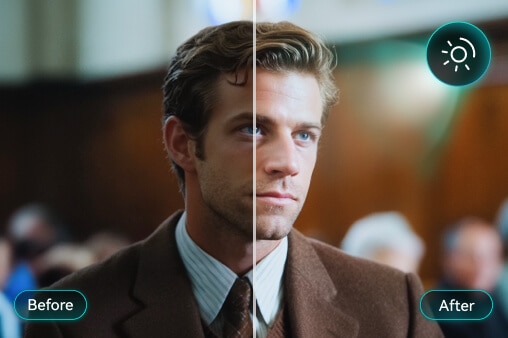
Filmmakers & Advanced Editors
Get powerful lighting control without complex workflows. Filmora's AI relighting tool offers multi-light setups and precise adjustments, delivering results comparable to advanced tools — without the steep learning curve of traditional software.
Frequently Asked Questions
1. What is Relight AI and how does it work?
Relight AI is an AI relighting tool that analyzes videos and images and adds intelligent virtual light sources. Unlike basic color correction or AI relight in After Effects, it adjusts lighting based on scene depth and subject position.
2. Is Relight AI free to try?
Yes. You can try relight video AI free with Filmora's trial version. The trial includes basic AI relight modes for both videos and photos, with no credit card required.
3. How is Filmora Relight AI different from AI relight After Effects?
AI relight After Effects relies on complex workflows and manual setup. Filmora's AI video relighting offers a simpler, drag-and-drop experience with real-time preview.
4. Can I use Relight AI for photos and images?
Yes. Relight AI supports both videos and photos. You can use relight photo AI or relight image AI to improve lighting in portraits and product images.
5. What makes Filmora one of the best AI relighting tools?
Filmora supports up to 8 adjustable light sources, real-time preview, and visual controls. It balances powerful AI relighting with an easy-to-use interface for creators at any level.
6. Can I batch process with AI video relighting?
Yes. You can apply the same relight AI settings to multiple clips or images. This helps maintain consistent lighting across large batches of content.
7. Can I brighten dark videos?
Absolutely! AI Relight brightens dark areas and shadows, revealing hidden details. Your video will look clearer and more balanced without changing its original colors.
8. How to relight a video in DaVinci Resolve?
In DaVinci Resolve, relighting is usually done manually using masks, color wheels, and power windows. It requires color grading experience and more time compared to Filmora's automated AI relight video.
What Creators Say About Relight AI
Discover More Powerful Editing Features in Filmora


Sarah Martinez
Alex Chen
David Thompson
Emily Rogers