
Filmora
Filmora - AI Video Editor
Edit Faster, Smarter and Easier!
OPEN

AI Eye Contact: Boost On-Camera Connection in One Click

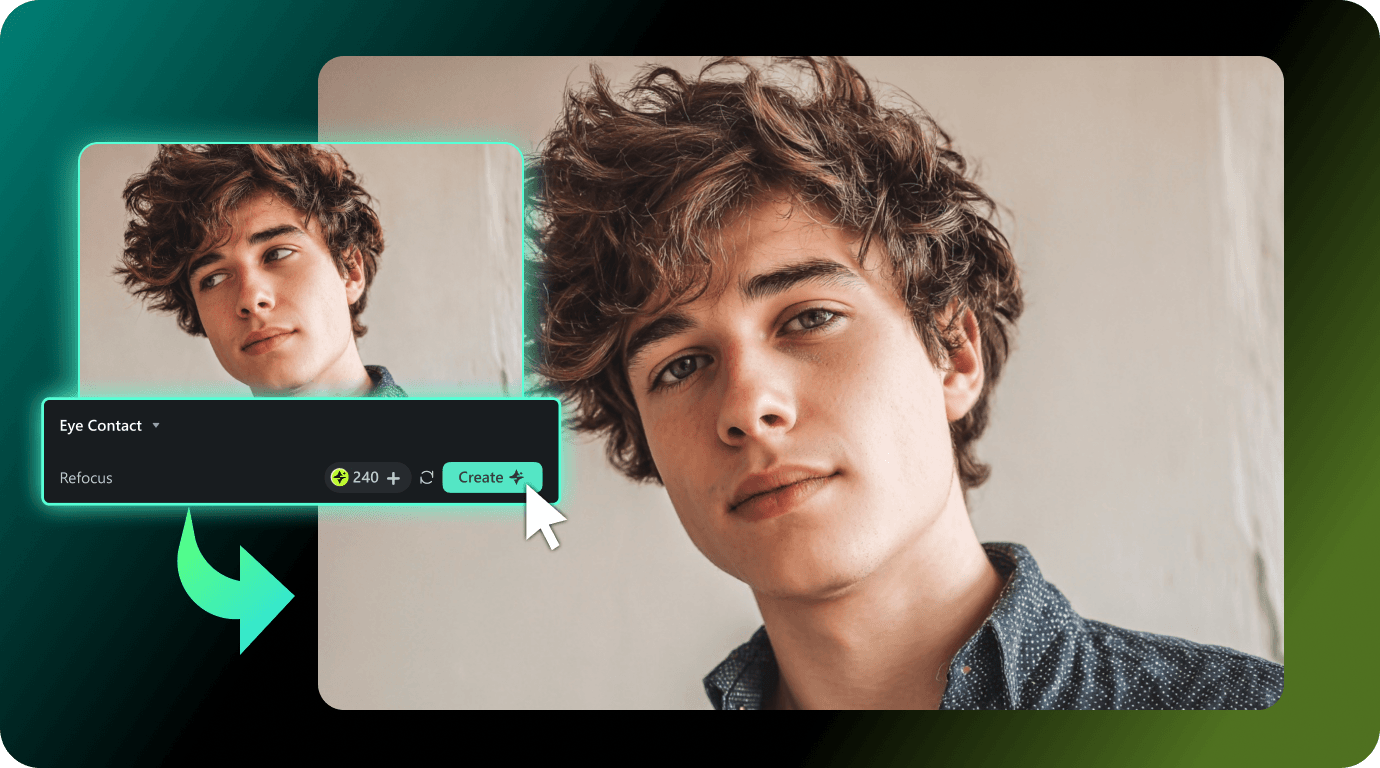
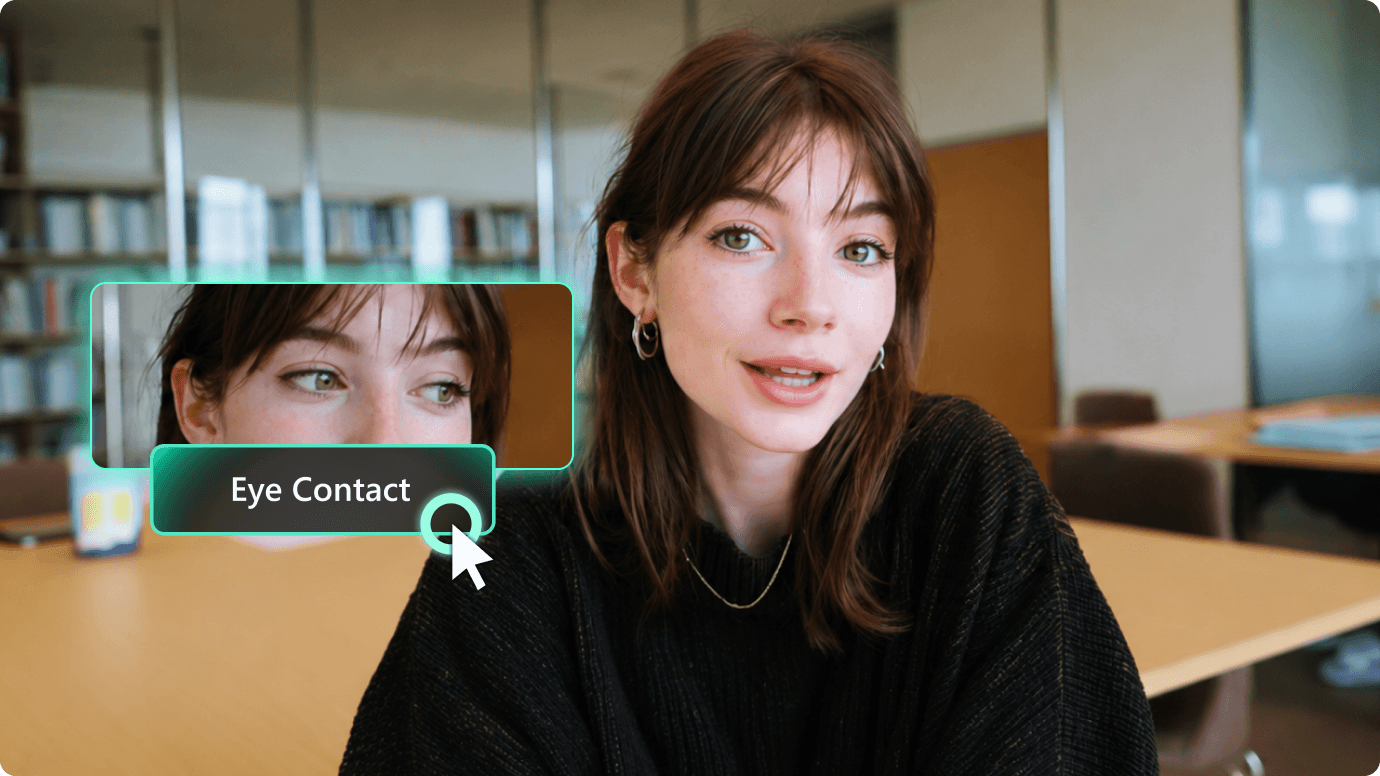
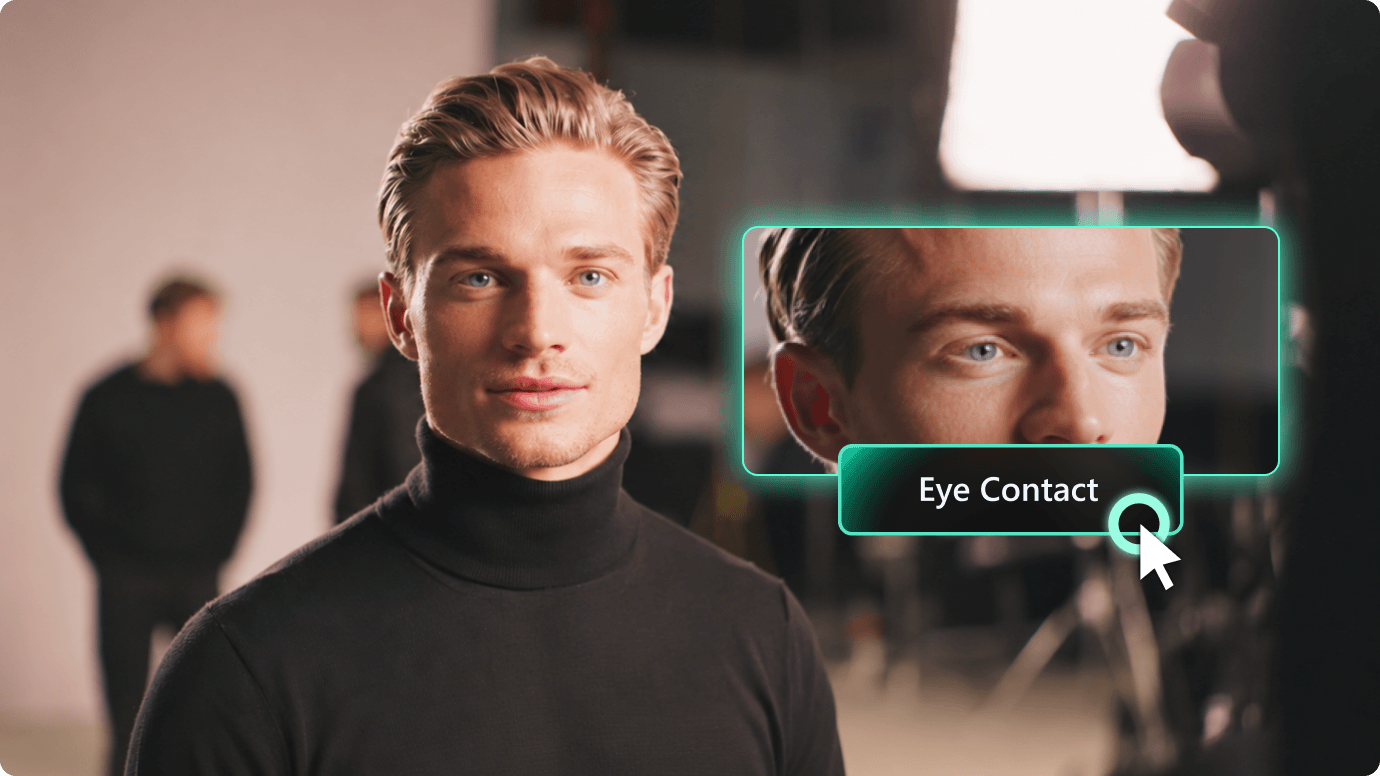
Correct off-camera gaze instantly. Filmora AI Eye Contact helps speakers look naturally focused on the camera in talking head, teleprompter, and marketing videos—without re-recording or complex setup.
Win 11 /Win 10 / Win 8 / Win7 (64 bit OS) | System Requirements
macOS 10.15 - macOS 15 (10.14 or earlier? Click here) | Apple M1, M2, M3 & M4 compatible
Correct off-camera gaze instantly. Filmora AI Eye Contact helps speakers look naturally focused on the camera in talking head, teleprompter, and marketing videos—without re-recording or complex setup.

Fix Eye Contact Where Your Audience Needs
Connection Most

Whether you are reading from a script, teaching a class, presenting a product, or recording an ad, Filmora AI Eye Contact helps bring the speaker's gaze closer to the camera for a more direct and trustworthy viewing experience.

Original
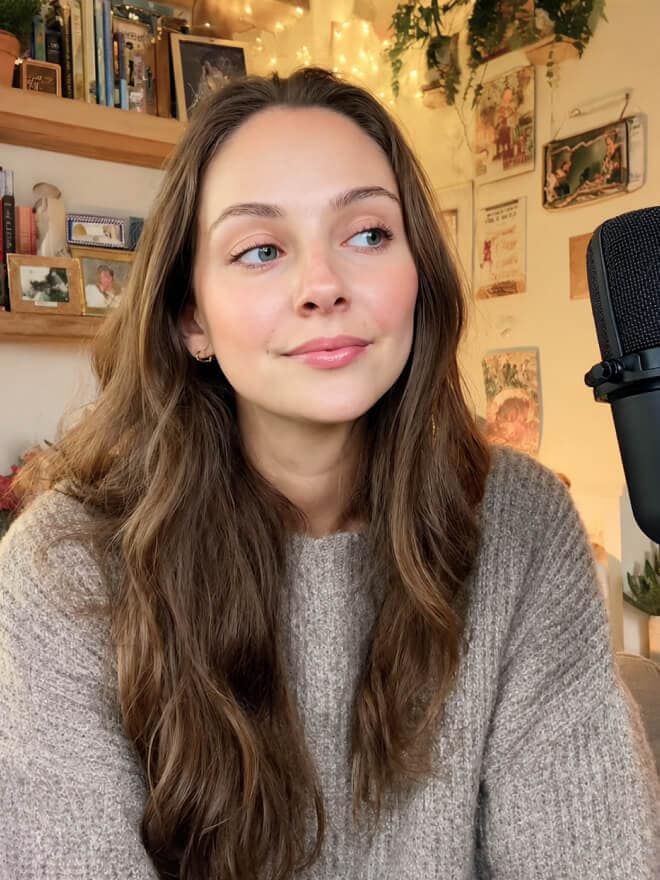
Talking Head & Scripted Videos
AI Corrected
slider-btn

Talking Head & Scripted Videos

Fix wandering eyes instantly. Maintain a strong on-camera presence that builds viewer trust and boosts retention rates, even when reading from a prompter.
Original
Online Courses & Training Videos
AI Corrected
slider-btn

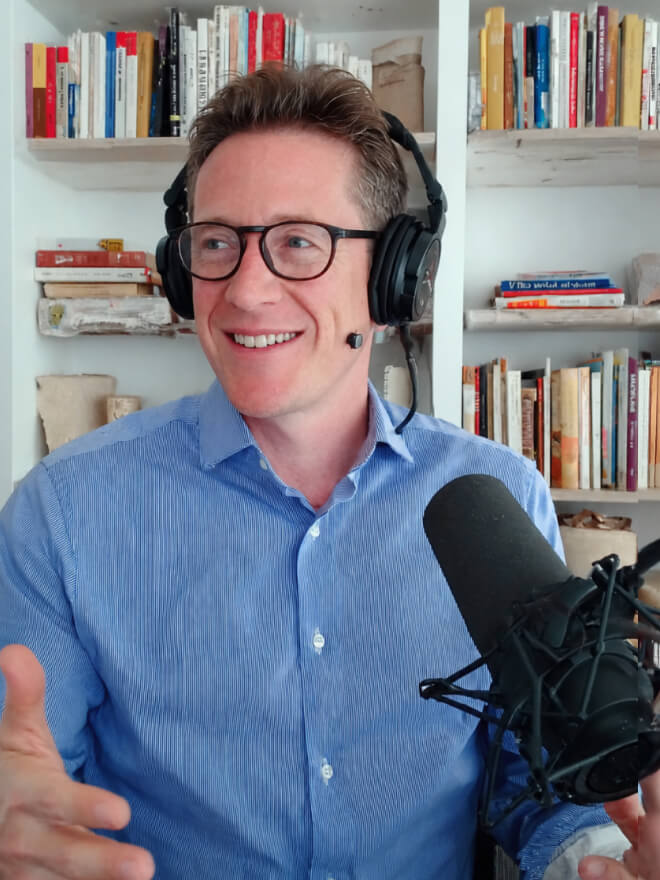
Online Courses & Training Videos

Keep lessons feeling direct and professional. Instructors can safely glance at slides or notes while maintaining a unified, focused gaze with students.
Original
Product Demos & E-commerce
AI Corrected
slider-btn

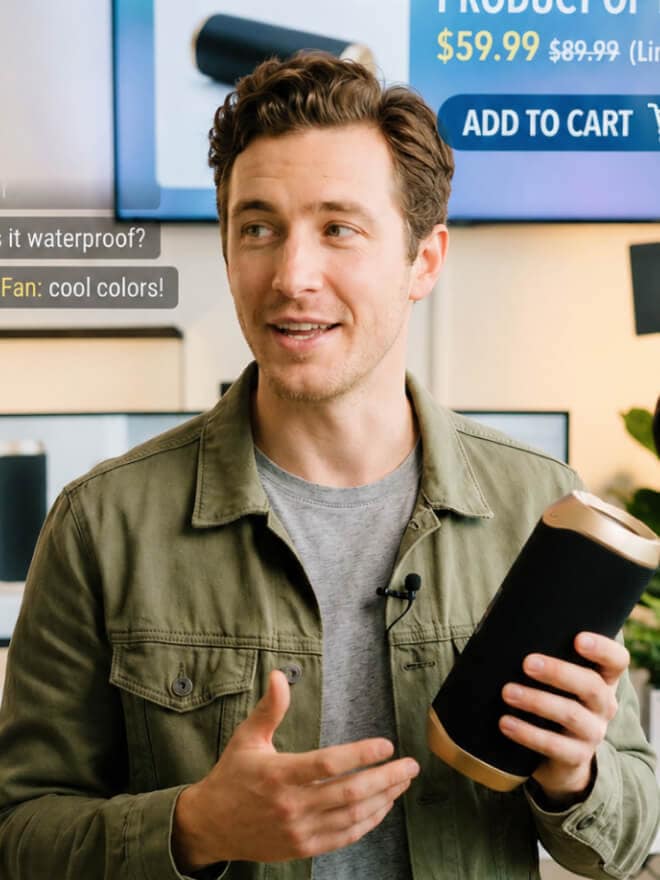
Product Demos & E-commerce

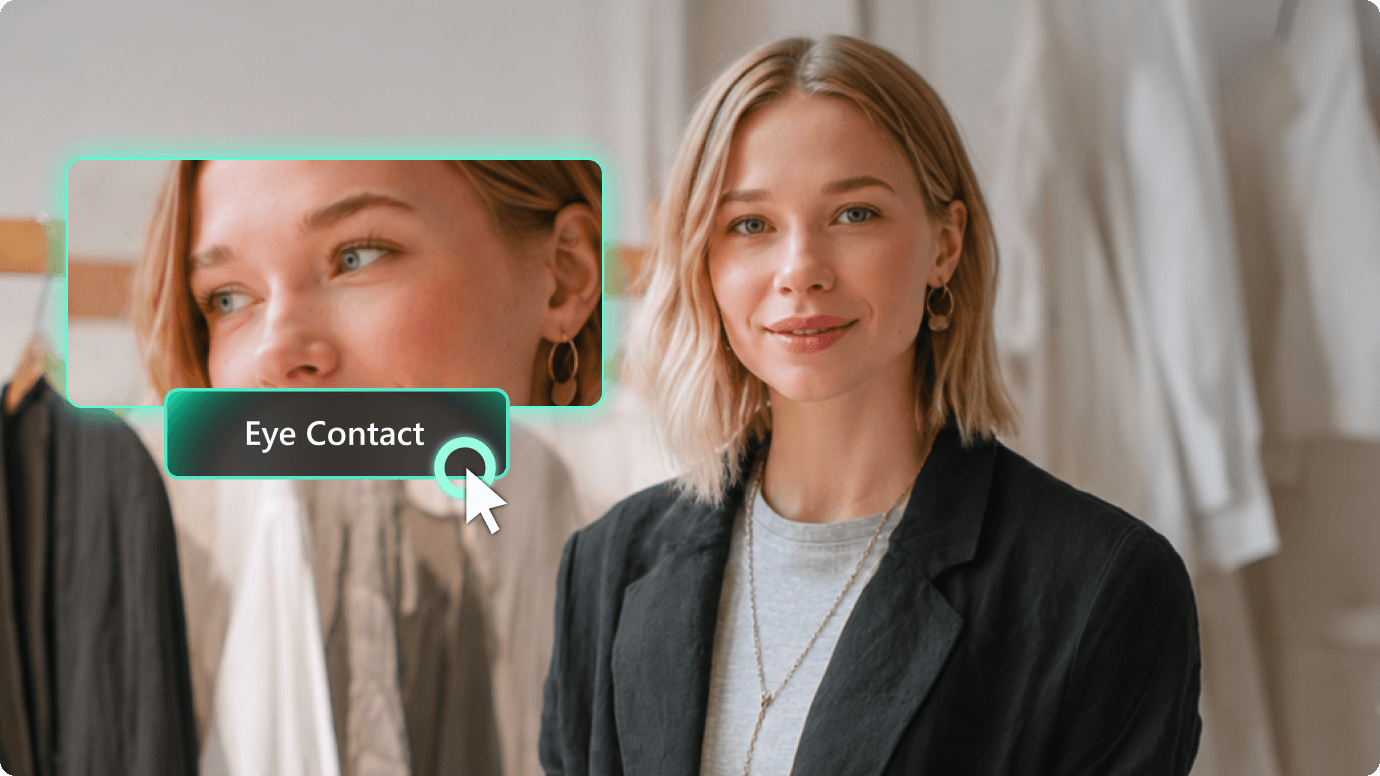
Deliver a convincing, "face-to-face" recommendation experience. Keep your gaze steady on the audience while referencing product details off-screen.
Original
Interviews & Marketing Videos
AI Corrected
slider-btn

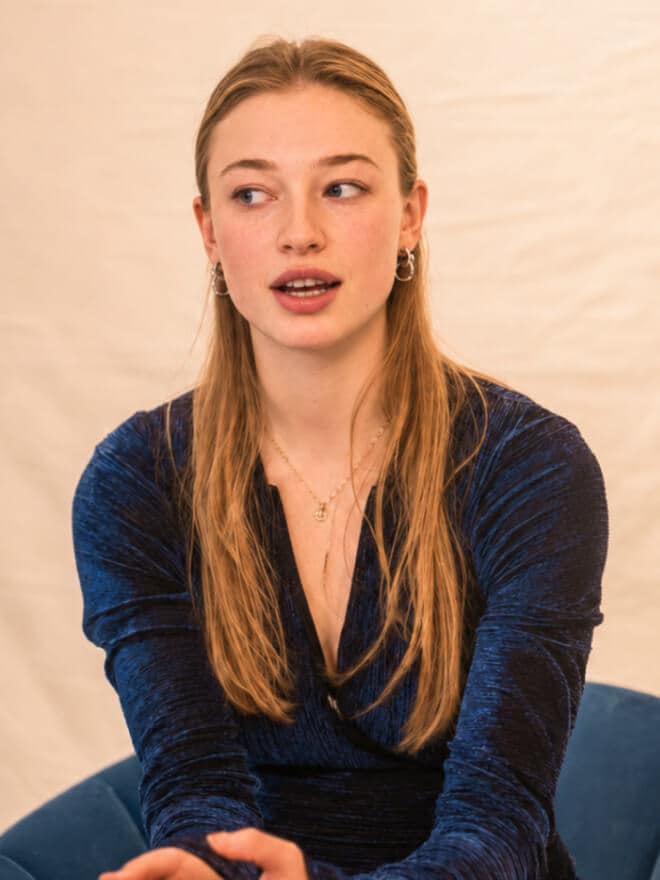
Interviews & Marketing Videos

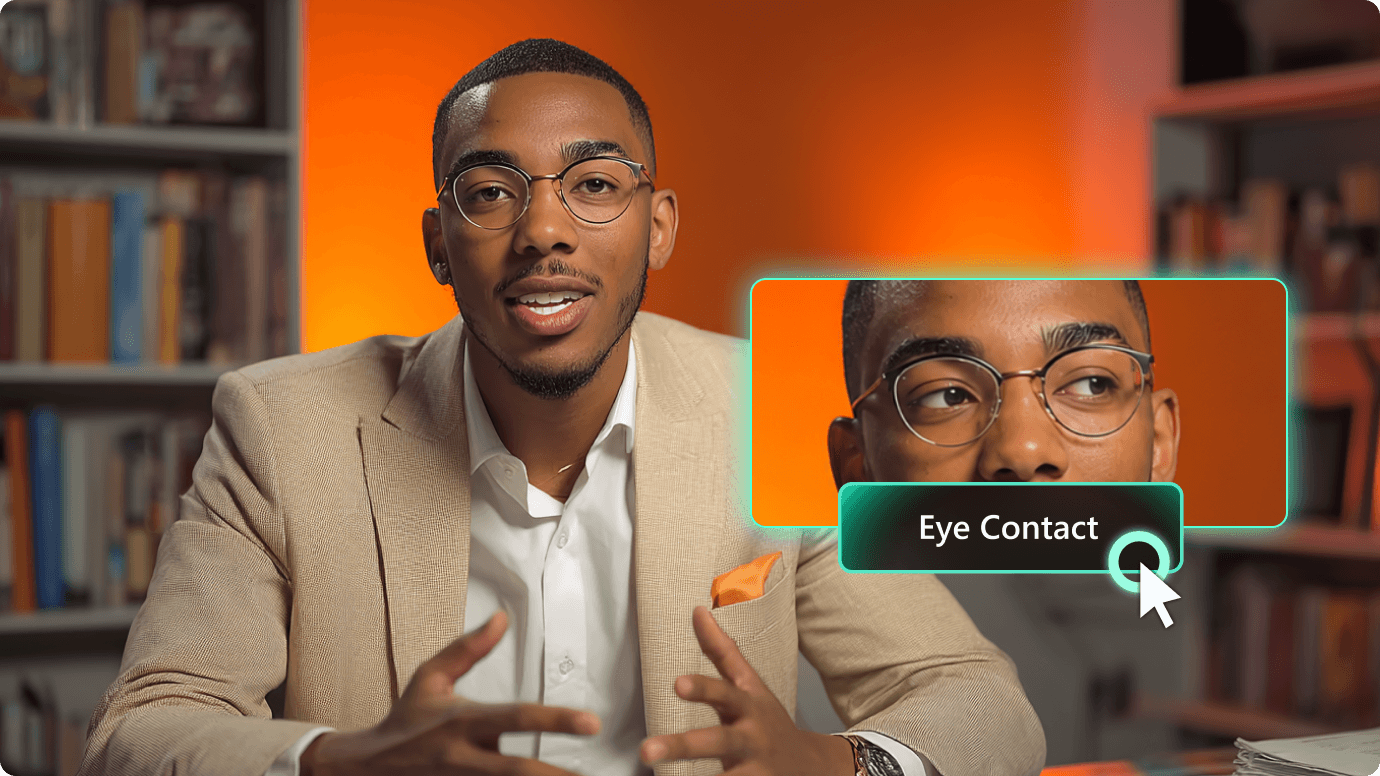
Enhance the sense of direct communication in interviews, podcasts, and ad reads. Keep the speaker's expression highly focused and engaging without re-recording.

AI Eye Contact Correction Made for Real Video Editing

Filmora Eye Contact feature helps creators look directly at the camera, even when reading notes or scripts. Filmora automatically corrects off‑camera gaze while keeping facial expressions natural. No re-recording or complex setup—just more confident, professional videos that feel truly engaging.

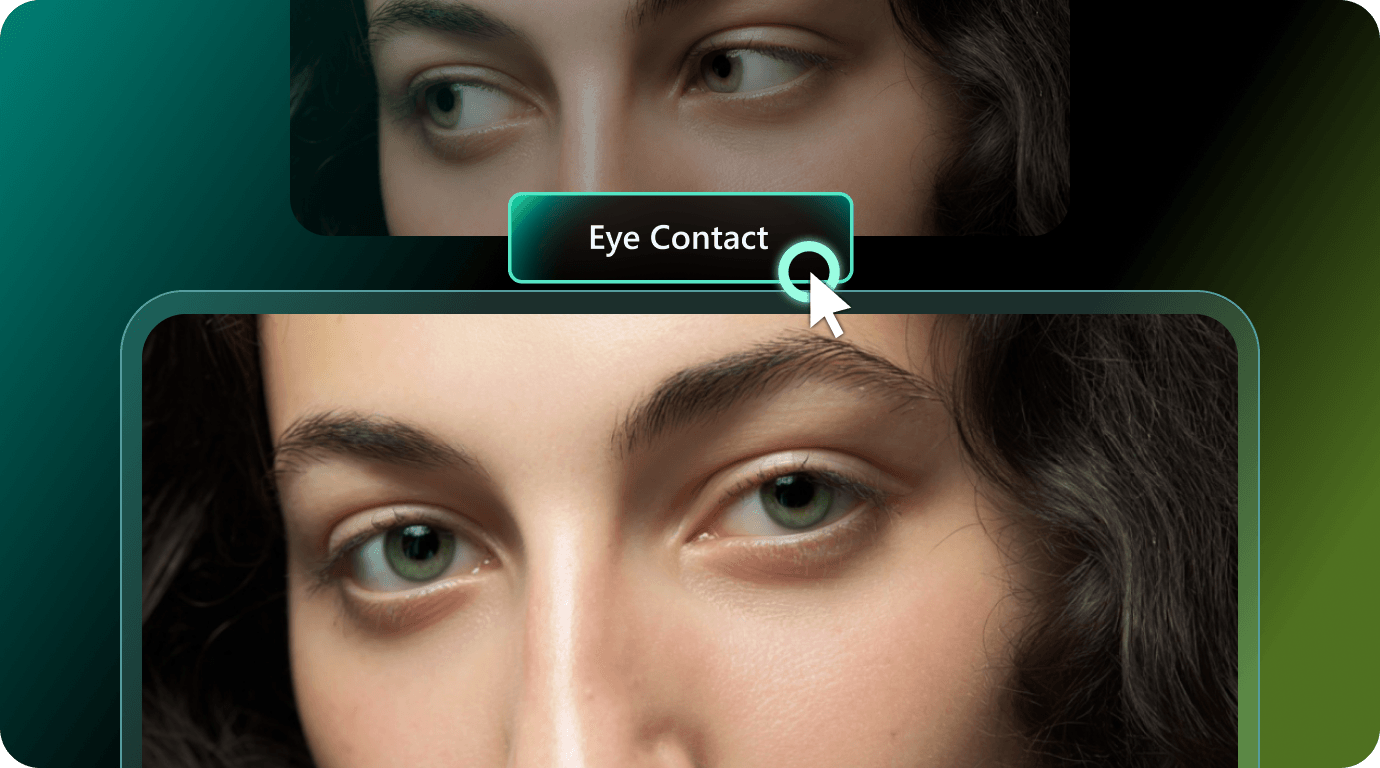
Natural Eye Contact That Looks Real

Filmora AI Eye Contact gently corrects off-camera gaze while keeping facial expressions natural—so the speaker looks attentive without appearing artificial.

  • Fix wandering eyes: Perfect for script-reading, teleprompters, or looking at a second screen
  • Zero "AI stiffness": Keeps natural blinking and micro-expressions intact
  • Instant connection: Make your talking videos feel direct, confident, and trustworthy
Natural Eye Contact That Looks Real

Fix Eye Contact in One Click

You don't need to adjust settings or track eyes manually. Select a clip, click Generate, and let Filmora handle the correction automatically.

  • No manual tracking: Skip the keyframes, masking, and complex parameters
  • Zero learning curve: Built for everyday creators, not just video editing pros
  • Save ruined takes: Instantly turn footage with bad eye contact into usable clips
Fix Eye Contact in One Click

Works Directly on Your Timeline

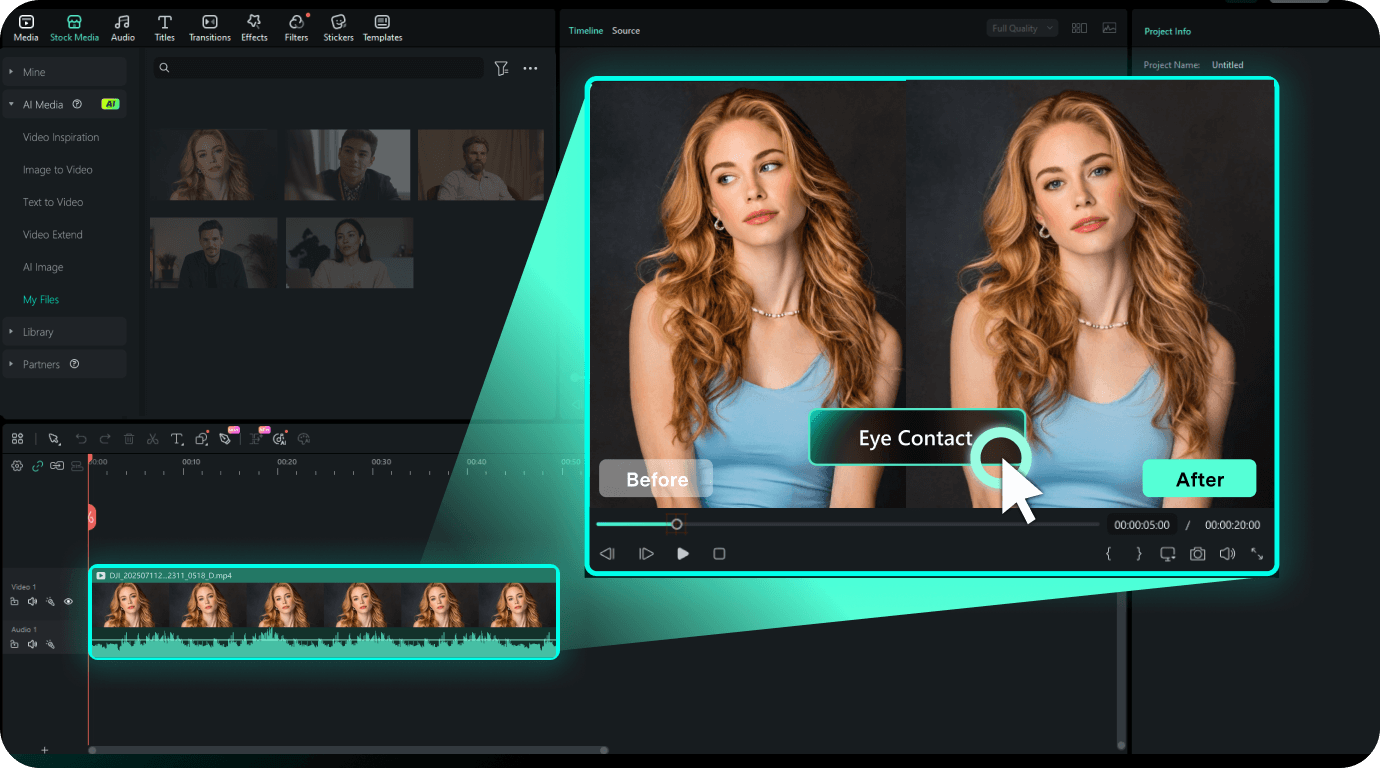
Unlike web tools that force you to upload and download files, AI Eye Contact runs right inside Filmora. Correct your gaze and keep editing in the same project.

  • Stay in one app: No exporting, uploading, or switching to browser tools
  • Auto-replacement: The corrected clip snaps right into your timeline seamlessly
  • Keep full control: Your original media stays safe for comparison or re-editing
Works Directly on Your Timeline

Who Can Create Better Talking Videos with AI Eye Contact?

From daily uploads to courses, internal training, and ad creatives, Filmora Eye Contact helps creators and teams turn more recordings into confident, camera-facing talking videos.

Content Creators

Content Creators

For solo creators who record fast and post often, AI Eye Contact helps the speaker feel more present to the audience—even when glancing at notes or a second screen—so viewers stay tuned in those critical opening seconds.

Educators and Trainers

Educators & Trainers

For instructors who often reference slides, scripts, or screen feedback while recording, AI Eye Contact keeps the "talking to the student" feeling natural across long lessons—helping learners stay engaged and finish more of the course.
Business Presenters

Business Presenters

For presenters delivering scripted training, onboarding, or executive messages, AI Eye Contact helps reduce the "reading from a script" feel—so internal content looks more polished, confident, and consistent across teams.
Marketing Teams

Marketing Teams

For teams producing ad reads, product walkthroughs, and sales pitches, AI Eye Contact turns more recorded takes into usable creative—so teams move faster from recording to testing variations and publishing.

How to Fix Eye Contact in Video with Filmora?

From selecting a clip to exporting the final video, AI Eye Contact works inside the same Filmora desktop editor—no extra tools, no extra export steps.

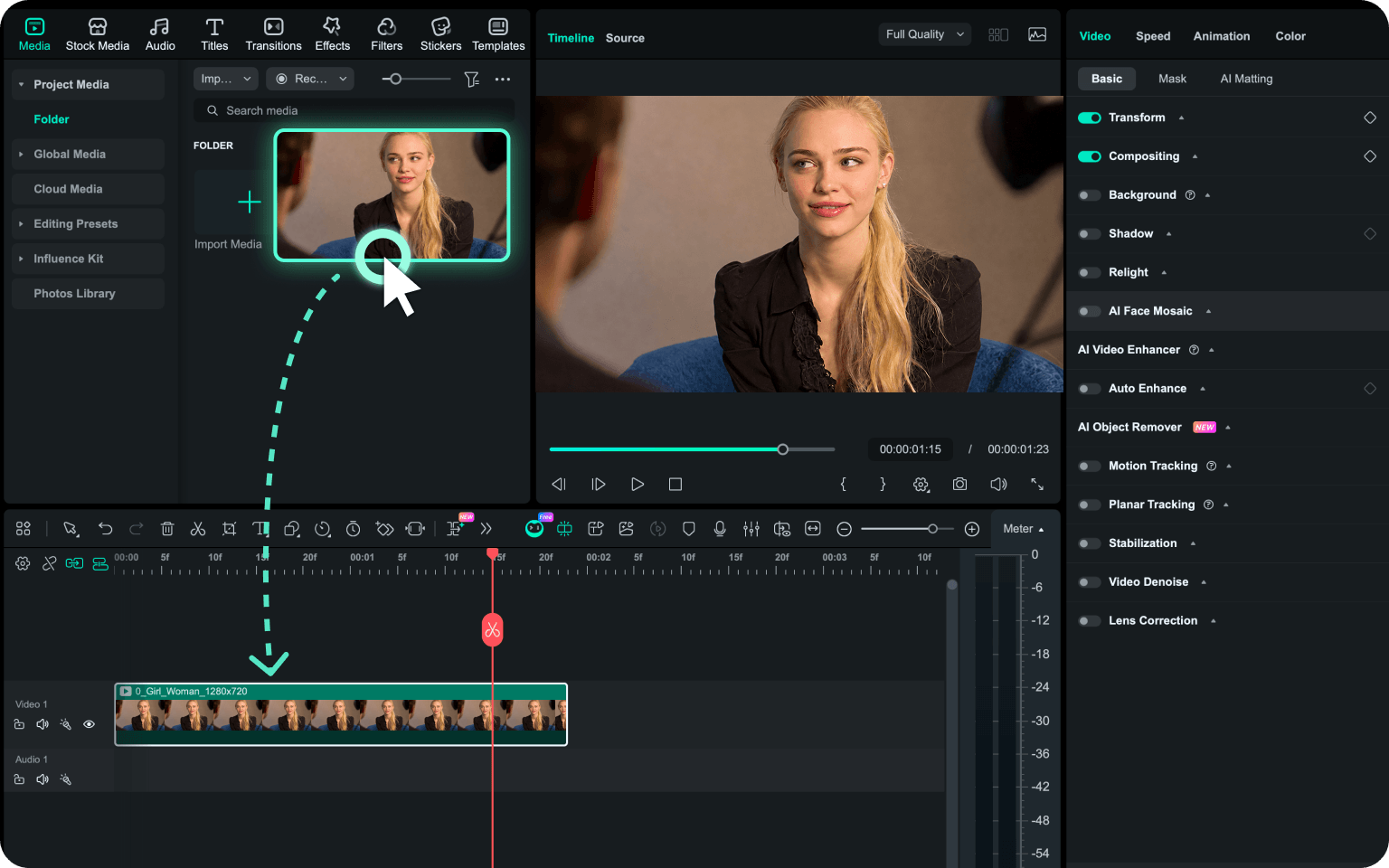
Step 1. Select a Video Clip on the Timeline

Open your project in Filmora and select a single video clip on the timeline. Eye Contact appears only when the selected item is a video clip and the clip duration is 3 minutes or shorter.

Select a Video Clip on the Timeline
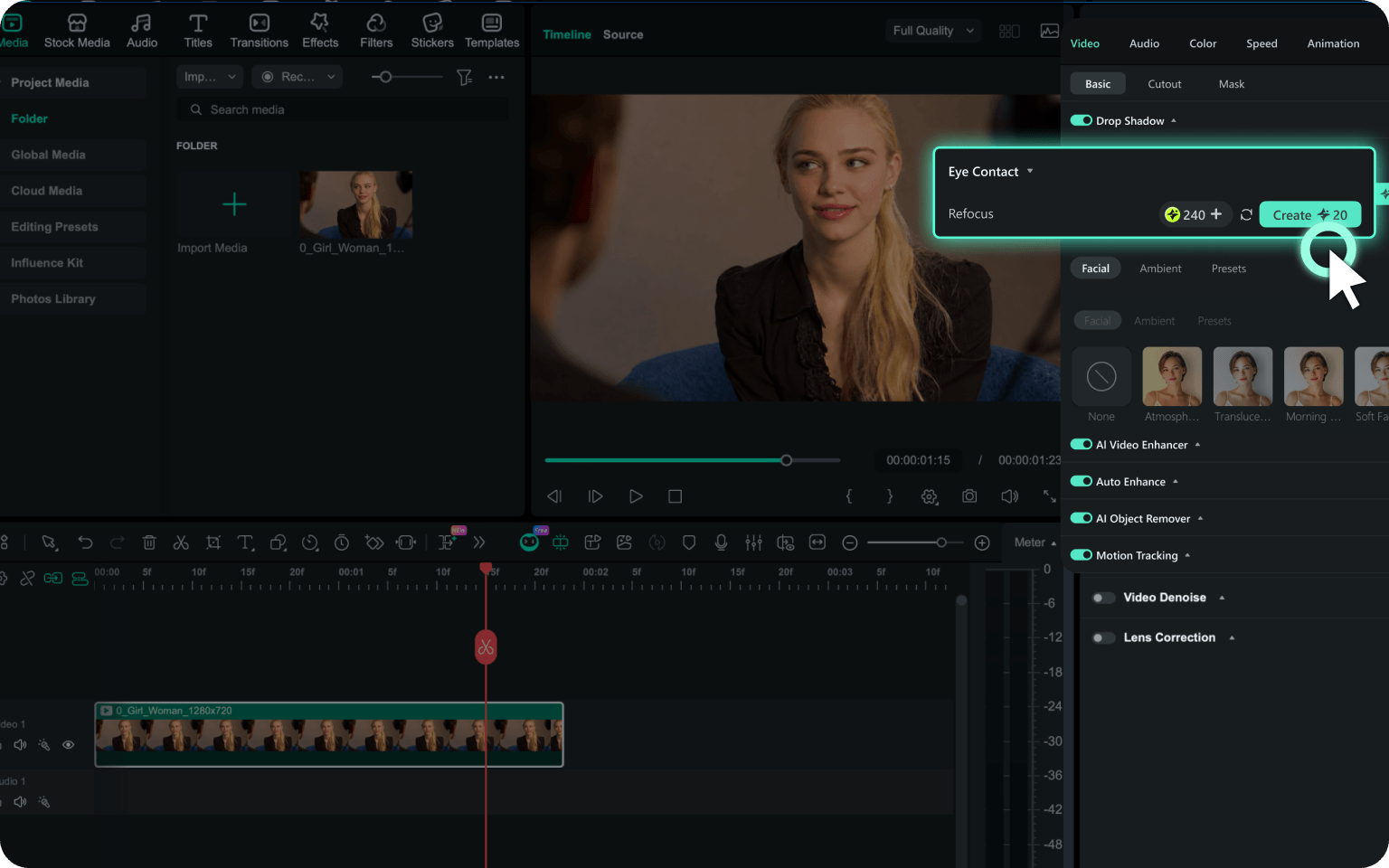
Step 2. Open Eye Contact in the Properties Panel

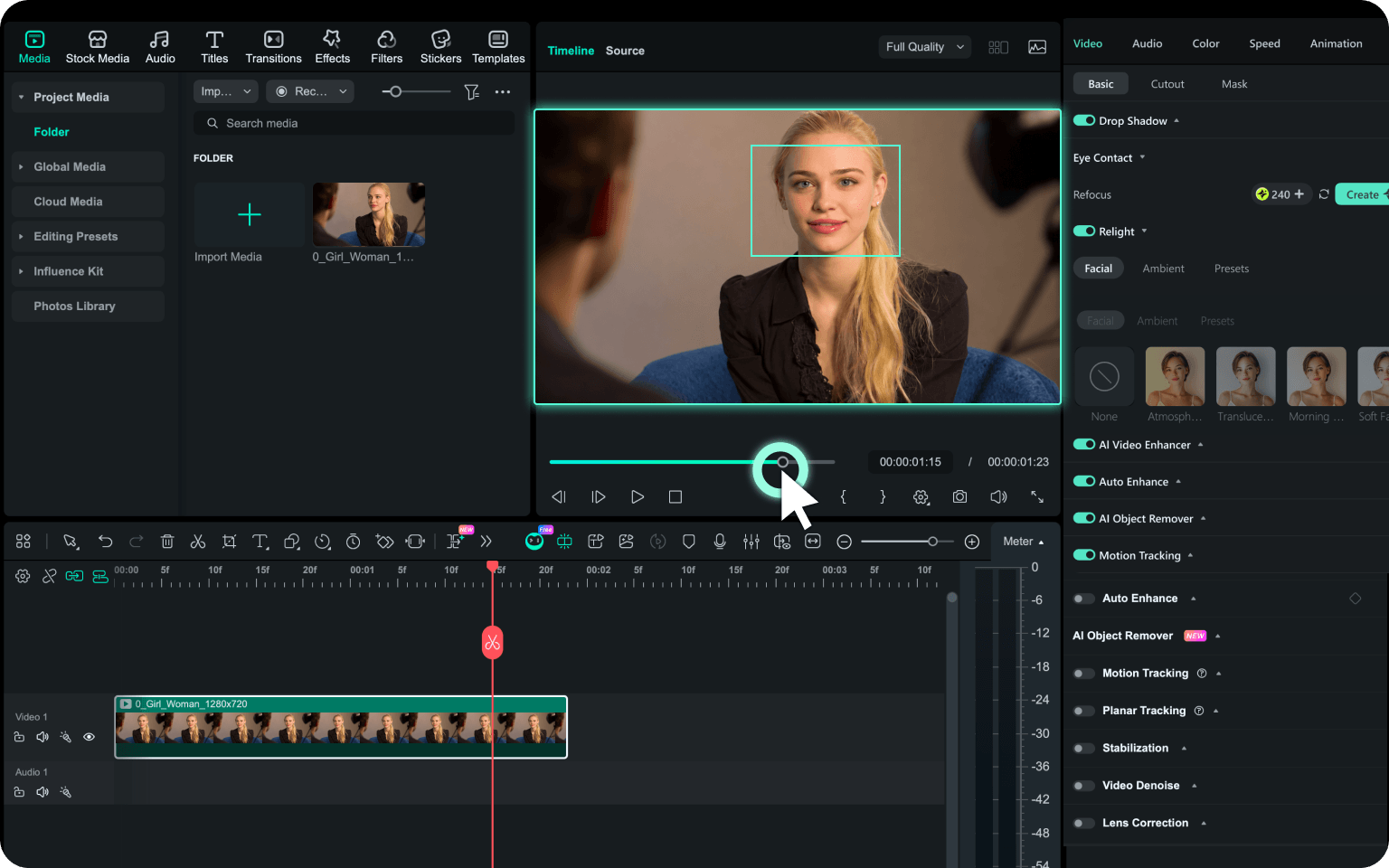
Go to Properties Panel → Video → Basic → Eye Contact, then click Create. Filmora will start processing the selected clip. If you are not signed in or your credits are insufficient, Filmora will guide you through the next step before processing continues.

Open Eye Contact in the Properties Panel
Step 3. Preview the Corrected Clip and Continue Editing

Once processing is complete, Filmora automatically replaces the current Clip with the corrected version while keeping the original media available. You can preview the result on the timeline, compare it with the original if needed, then continue trimming, adding subtitles, enhancing audio, applying transitions, or exporting your video.

Preview the Corrected Clip and Continue Editing
  1. Step 1: Select a Video Clip on the Timeline

    Open your project in Filmora and select a single video clip on the timeline. Eye Contact appears only when the selected item is a video clip and the clip duration is 3 minutes or shorter.

  2. Step 2: Open Eye Contact in the Properties Panel

    Go to Properties Panel → Video → Basic → Eye Contact, then click Create. Filmora will start processing the selected clip. If you are not signed in or your credits are insufficient, Filmora will guide you through the next step before processing continues.

  3. Step 3: Preview the Corrected Clip and Continue Editing

    Once processing is complete, Filmora automatically replaces the current Clip with the corrected version while keeping the original media available. You can preview the result on the timeline, compare it with the original if needed, then continue trimming, adding subtitles, enhancing audio, applying transitions, or exporting your video.

Additional Note : Filmora Eye Contact supports selected single video clips up to 3 minutes. It does not appear when no clip is selected, multiple clips are selected, or the selected item is an image, audio-only asset, or unsupported material. If processing fails, credits will not be deducted.

Frequently Asked Questions

AI Eye Contact is an AI-powered feature that helps correct off-camera gaze in talking head videos. It makes the speaker appear more focused on the camera, so scripted videos, online courses, product demos, and marketing clips feel more direct and natural without re-recording.

Yes. AI eye contact correction can help adjust wandering or off-camera gaze, making the speaker appear closer to looking at the camera. It works best when the speaker's face is clearly visible, the eyes are not heavily blocked, and the video is centered around talking, teaching, presenting, or explaining.

In Filmora, select a supported video clip on the timeline, then go to Properties Panel > Video > Basic > AI Eye Contact and click Generate. Filmora will process the selected clip automatically, with no manual eye tracking, keyframing, or complex setup required.

AI eye contact correction works best for front-facing talking videos, including teleprompter videos, online courses, training videos, product demos, interviews, and marketing clips. Results may vary if the face is heavily angled, partially covered, has strong reflections from glasses, or if multiple people are in the frame.

Yes, users on the latest version of Filmora can try AI Eye Contact once for free. After the free trial, each successful generation uses 400 Filmora credits. If processing fails, credits will not be deducted.

After processing, Filmora replaces the current clip on the timeline with the corrected version so you can preview the result immediately. Your original media remains available, giving you full control to compare, adjust, or reuse it if needed.

What Creators Say About AI Eye Contact

customer Emily
Emily Carter

YouTube Educator

“I record most of my lessons with notes beside the camera, so my eyes sometimes drift off. AI Eye Contact helped the final video feel more like I was speaking directly to my students. It saved me from re-recording several sections, which usually takes me more time than the actual edit.”

customer Michael
Michael Grant

Corporate Trainer

“Our training videos used to take extra time because presenters had to redo sections whenever they looked at scripts too much. Filmora AI Eye Contact gives us a more usable first cut and helps reduce the amount of rework across onboarding and policy videos.”

customer Sophie
Sophie Reynolds

Video Editor

“What I like most is that the corrected clip goes straight back into my Filmora timeline. I can layer captions, run AI audio cleanup, and export the final cut without switching apps—my whole post workflow stays in one project.”

customer Daniel
Daniel Brooks

Performance Marketing Manager

“For product explainers and ad reads, small gaze issues can make a take feel less confident. AI Eye Contact helps us save more usable footage and move faster from recording to testing ad creatives across social platforms.”