

 100% Security Verified | No Subscription Required | No Malware


 ChatGPT
 Perplexity
 Gemini
 Claude
 Grok
Grok
Whether you’re presenting a large contract or giving an online course, the most important element of your video is eye contact.
While native platforms usually lack the tools to fix this live, zoom eye contact ai helps you to redirect your gaze in post-production for a more authoritative look. This guide explores the best gaze correction ai solutions and provides a simple tutorial to help you bridge the digital gap, improve remote meeting professionalism, and keep your audience focused on your message.
In this article
- The “Zoom Eye Contact Problem”
- The Science Behind the Gaze
- Can Zoom Fix Eye Contact Natively?
- Why Built-in Solutions Fall Short
- Types of AI Eye Contact Solutions
- Best AI Eye Contact Tools for Zoom
- When to Use AI Eye Contact for Zoom
- Step-by-Step: Fix Zoom Eye Contact with Filmora
- Troubleshooting Your Digital Eye Contact
The “Zoom Eye Contact Problem”
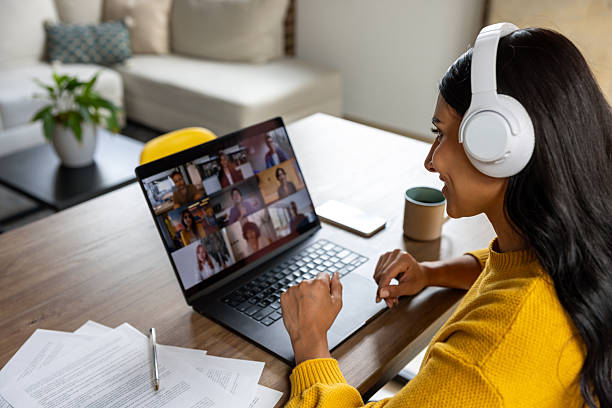
The struggle is real: when you are in a meeting, you are looking at the person or the presentation on the screen. But because your camera is above your screen, you're not looking at your audience when you look at the screen.
This can come across as unprofessional in high-stakes situations. It can make you look shifty or even bored, even when you’re putting in your best effort. This is the “Zoom Eye Contact Problem,” and it affects the perception of your remote meeting professionalism. Using tools to fix eye contact in video ensures your message isn’t lost because of a mechanical misalignment.
The Science Behind the Gaze
You might be asking, why does this even matter? In human psychology, eye contact is the “conversational infrastructure” that builds trust. When you look someone in the eye, you are signaling honesty, confidence, and attention.
In the digital world, the connection is usually broken. When you stare at your notes on a Zoom call, the viewer feels like you are ignoring them. With the use of AI to restore this non-verbal channel, you aren’t simply “fixing a video,” you are enhancing your professional video presence and restoring the human connection that technology often breaks.
Can Zoom Fix Eye Contact Natively?
It is easy to assume that Zoom has a built-in fix for wandering eyes, but that isn’t exactly the case. Although Zoom has AI features for lighting and background noise, it currently lacks a native, high-fidelity gaze correction ai tool.
Most native platform features focus on wide improvements instead of the precision needed for natural eye redirection. One example is Zoom’s “Touch up my appearance” feature, which simply applies a soft-focus filter to your skin without affecting your eye position at all.
Why Built-in Solutions Fall Short
Understanding why live situations often lag behind comes down to three main factors:
- Immense Processing Power: True gaze redirection requires real-time GPU power.
- The “Uncanny Valley” Effect: Your eyes can look robotic or unnatural if the AI glitches even for a second during a live call.
- Gaze Range Limitations: Many OS-level solutions only handle subtle vertical shifts. If you look too far from the border of the screen, the effect often fails entirely.
This is why professionals prefer to fix eye contact in the video during post-production. It gives the AI more time to process frames accurately, resulting in a much smoother, more natural finish.
Types of AI Eye Contact Solutions
There are two main ways to approach eye contact ai for zoom. Understanding the difference between the two can help you decide the best workflow for your project.
- Real-time Tools
Tools like NVIDIA Broadcast help you redirect your gaze while the meeting is happening. They require high-end hardware and can be risky if your computer starts to lag mid-meeting. - Post-edit Tools
These tools are used once the meeting is over. The video editor allows the AI to work with the video file. This results in a more natural correction, while preserving your facial expressions and improving your professional look on video.
Best AI Eye Contact Tools for Zoom
If you are keen to connect the digital divide and reclaim your voice in conversations, try out zoom eye contact ai. This is relatively new technology, but some powerful tools have been released in 2026 to help us maintain eye contact without a teleprompter. Here are a few great tools to help with real-time tracking or post-production enhancement for your next video.
NVIDIA Broadcast
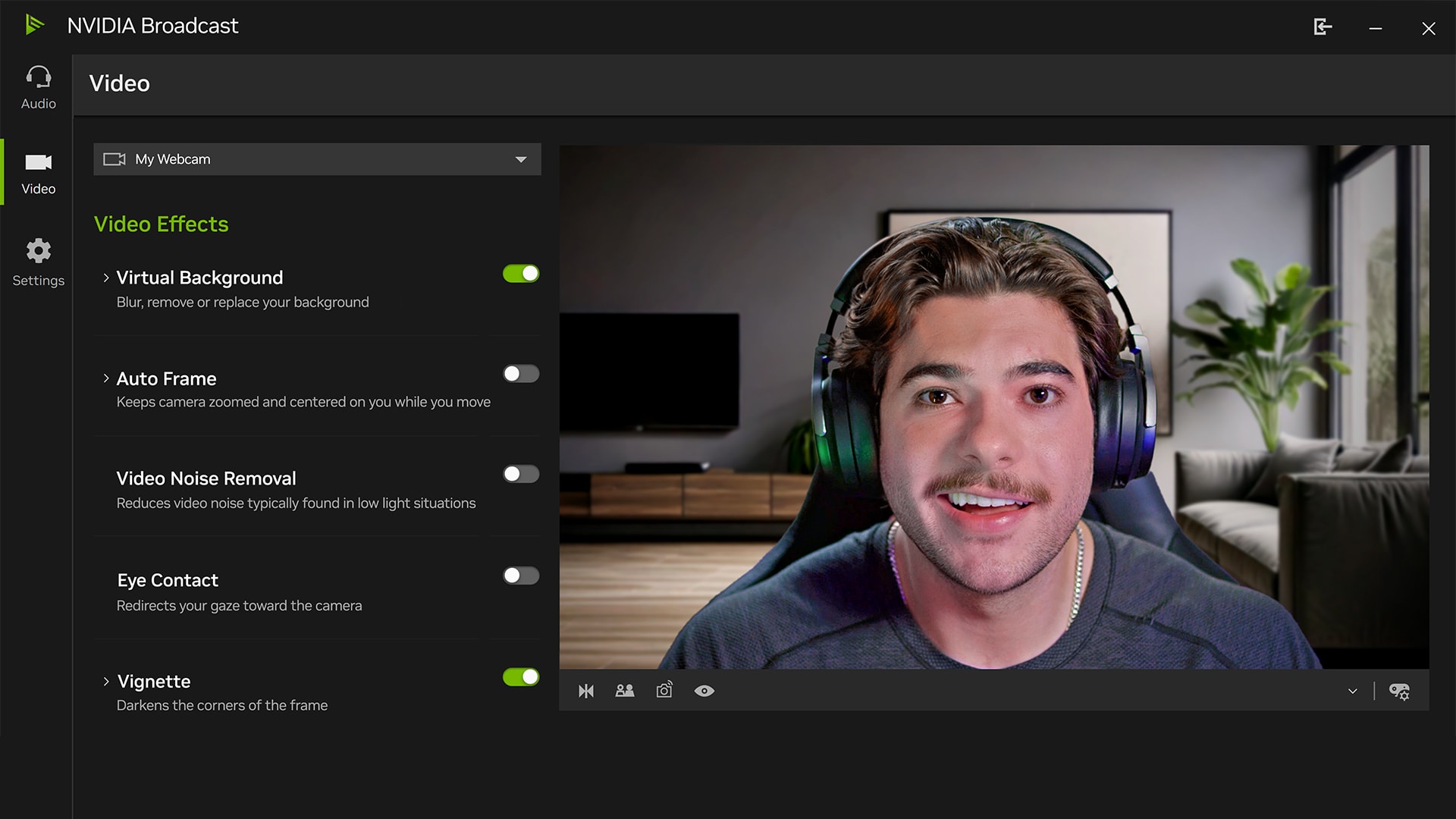
This is a formidable choice specifically tailored for users with an NVIDIA RTX GPU. It leverages proprietary “NVIDIA Maxine” technology to offer real-time gaze correction that stays locked on the camera even as you move your head. While it is highly effective for live streaming, its primary drawback is the steep hardware requirement. NVIDIA Broadcast requires high-end graphics cards that simply aren’t found in a standard office laptop or thin-and-light ultrabook.
Kapwing
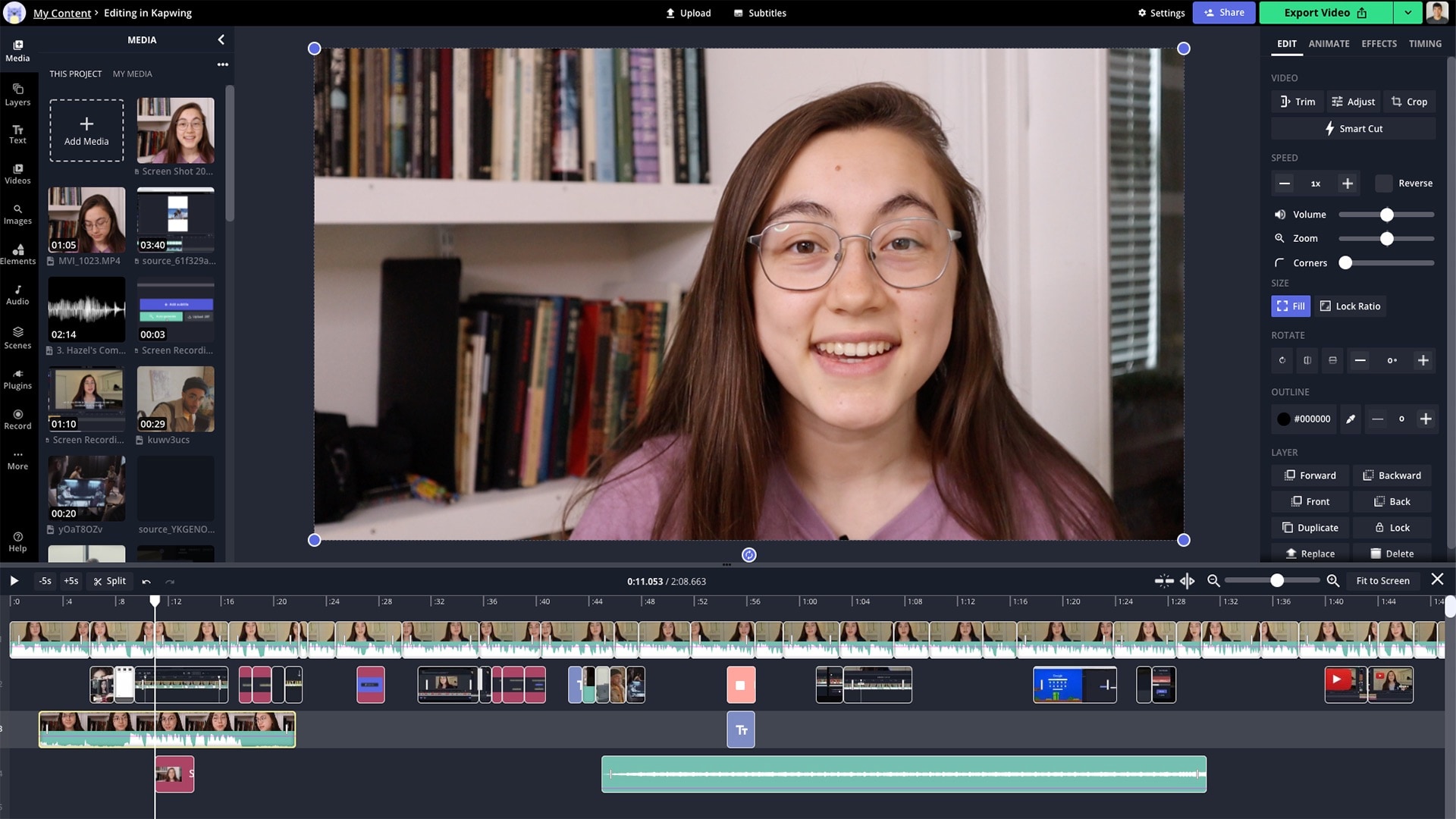
If you prefer a browser-based workflow, Kapwing is a web-based editor that is incredibly handy for quick social media clips or short presentations. The process is a straightforward “upload and wait” system where you let the cloud-based AI handle the gaze processing for you. But remember that it depends on the speed of your upload, and typically requires a subscription to handle long videos or to remove watermarks.
Wondershare Filmora: The Best All-in-One Solution
If you are looking for professional-looking results with no technical complications of live plugins, Filmora AI Eye Contact tool is the best option. It is a great option for Zoom meetings because it corrects the problem after the recording, enabling the AI to accurately assess your facial geometry.
Key Features
The Wondershare Filmora eye contact tool is more than a simple filter. It is a specialized AI effect that is designed to solve the specific geometry of a wandering gaze. Here are the key features that make it a standout choice for maintaining professional video presence:
- Smart Detection System: For smooth results and to avoid unintentional mistakes, this feature uses a conditional display system. It only appears when a single video clip (under 3 minutes) is selected, ensuring the AI has the ideal environment to map your pupils accurately.
- One-Click Gaze Redirection: There is no need for manual keyframing or complex tracking. The AI automatically identifies the subject’s eyes and redirects them toward the lens, instantly fixing issues where a speaker might be reading from a script or looking at their own video feed.
- Intelligent Blink Preservation: One of the biggest complaints with gaze correction ai is the robotic, unblinking look. Filmora's system automatically recognizes when you blink or move your eyelids and keeps those natural human movements to make the result look natural.
- Post-Production Stability: Because it processes the footage after the recording is finished, it isn’t limited by your internet speed or live GPU lag. This leads to a much more stable and realistic look compared to real-time eye contact ai for zoom plugins.

 secure download

When to Use AI Eye Contact for Zoom
In the world of remote work, your webcam is the primary window through which your professional reputation is built. Unlike usual video calls, where we must choose between reading from notes and connecting with our audience, AI eye contact software fills in the gap. These tools digitally align our eyes to keep us fully engaged and persuasive, so that our virtual language reflects the quality of our thought.
Take a look below to see how it helps in different professional settings:
- Recorded Meetings: When you share meeting recordings with stakeholders or clients who missed the meeting, eye contact allows you to look like you are paying attention, rather than making notes.
- Client Presentation: Building trust is difficult through a lens. During a high-stakes sales pitch, eye contact makes you appear assured and trustworthy, which can help seal the deal by building rapport.
- Training Videos & Onboarding: Learning videos can only be effective if the audience is engaged. Eyes on your “audience” helps to keep them engaged and makes your teaching more relatable and less robotic.
- Webinars and Digital Ads: For content to be high-converting, "eye contact" is key. With the help of AI, even when you look at your stats or timer, your audience feels engaged as though you are talking to them.
- YouTube & Social Media Content: If you use a teleprompter or read from a script, these video engagement tools remove the "shifty-eyed" look, allowing you to sound natural, prepared and professional.
Whether you are working with an international team or creating a personal brand, eye contact means “pay attention to me.” AI tools enable you to pay attention to your data and notes while still maintaining that human connection.
Step-by-Step: Fix Zoom Eye Contact with Filmora
Wondershare Filmora’s AI Eye Contact is incredibly user-friendly, and it is designed to be a "one-click" solution that allows busy professionals to get quick and effective results. To increase viewer engagement with your videos, check out the short tutorial below.
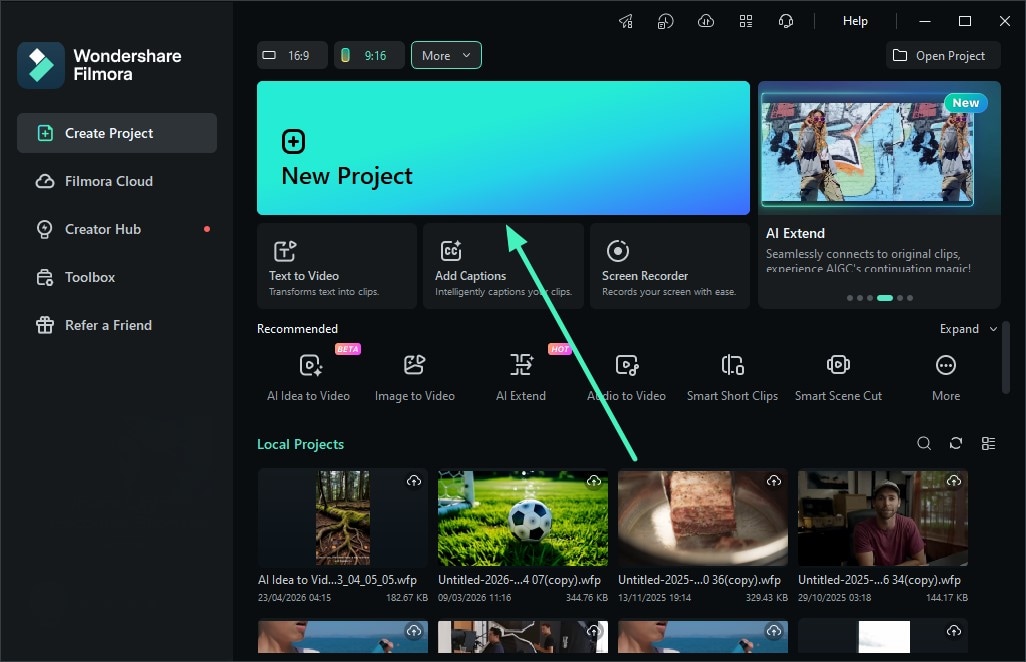
1. Create a New Project and Import Your Video
Launch Filmora and click New Project. Then import the video clip you want to improve and add it to the timeline. For best results, use a single talking-head clip where the subject's face is clearly visible.
2. Enable the Eye Contact Feature
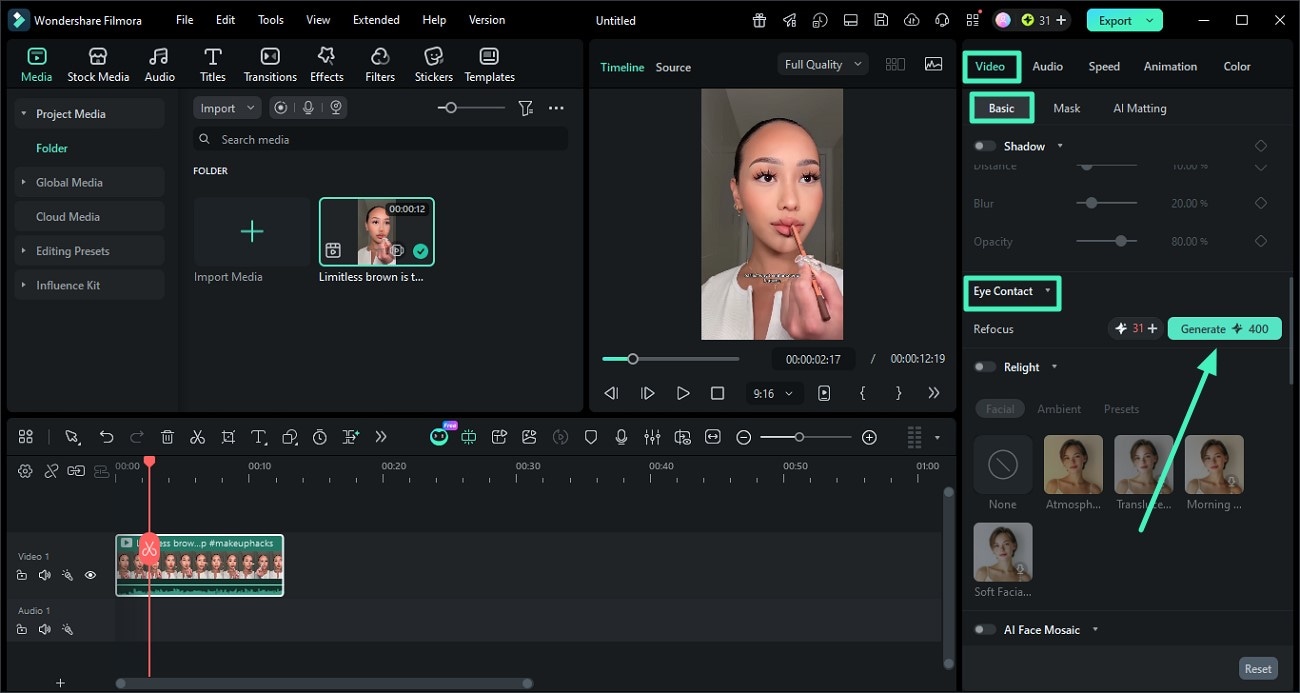
Select the video on the timeline, then go to the Properties panel on the right. Open the Basic section, find Eye Contact, turn it on, and click Generate. Filmora will automatically adjust the speaker's gaze toward the camera.
3. Preview and Export the Final Video
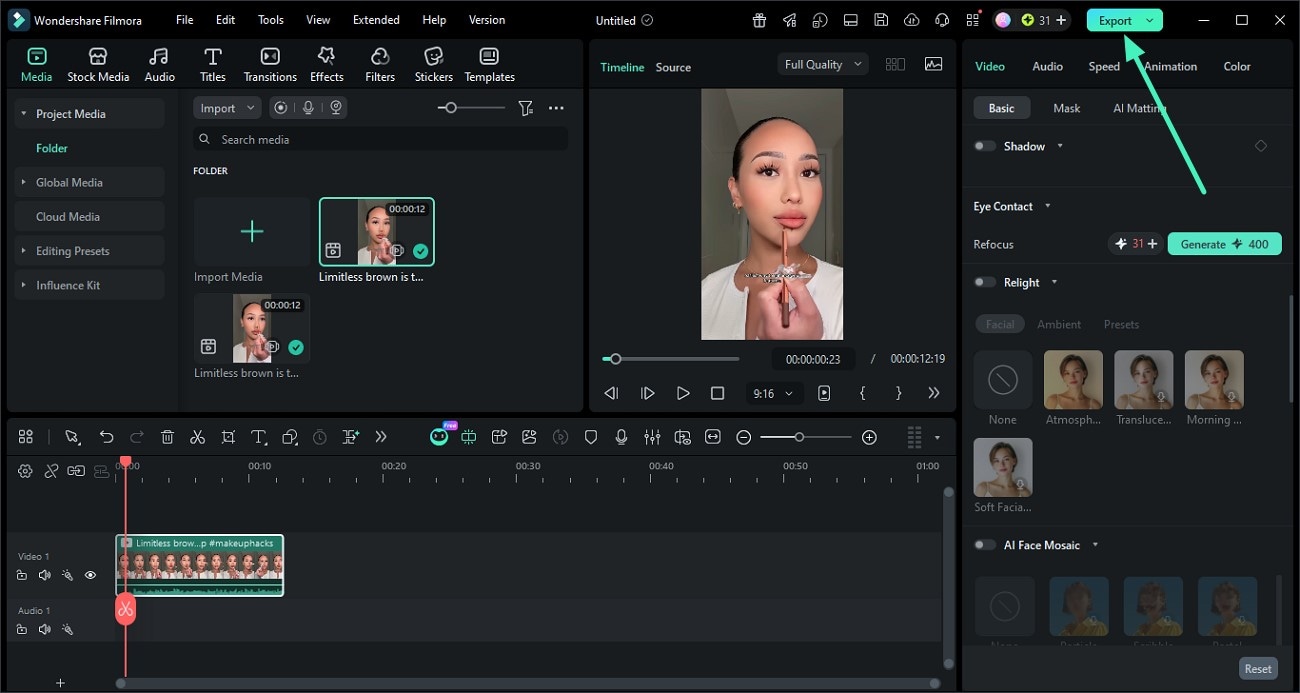
After the AI processing is complete, preview the result in Filmora to check whether the subject's gaze looks natural. Once you are satisfied, click Export to save the final video.
Troubleshooting Your Digital Eye Contact
Sometimes you may not achieve the results you want with the AI. If this happens, it may be helpful to check:
- Check the Clip Duration: If this option is not showing, keep in mind it is hidden for videos longer than 3 minutes. Simply split the video into smaller parts.
- Avoid Multiple Subjects: The AI Eye Contact feature works best when there is only one person in the frame. If multiple people are on screen, the AI may not activate.
- Check the File Format: Ensure you are selecting the video file. This feature will not appear if you have selected an image, audio track, or grouped items.
Final Verdict
For most of us, there’s a clear winner when it comes to real-time and post-edit tools. Real-time solutions are a novelty, but may be too risky to use in the workplace. Any technical issue or lag in a real-time presentation can destroy rapport.
The best option is to use the post-edit approach. You can correct your gaze using tools like Wondershare Filmora. This allows you to focus entirely on your meeting or presentation at the moment. You can safely look at your notes, engage with your data, and read your screen, knowing you can fix eye contact in the video later. It ensures your final recording looks polished, authoritative, and that you always look your audience in the eye.
secure download 