
For the Best Results, Use the Latest Version.
-
Preparations
-
Account
-
Get Started & Basic Settings
-
Compatibility & Tech Specs
-
Performance Settings
-
-
Creating Projects
-
Creating New Projects
-
-
Importing & Recording
-
Video Editing for Windows
-
Basic Video Editing
- Enable/Disable Clip in Windows
- Magnetic Timeline for Windows
- Dual Monitor Setup for Video Editing on Windows
- Select All Clips on Timeline for Windows
- Timeline and Track Management
- Auto Ripple for Windows
- Split & Trim Video
- Crop & Pan & Zoom Video in Filmora for Windows
- Compositing
- Change Video Speed on Windows
- Reverse Video for Windows
- Mark In and Mark Out for Windows
- Markers for Windows
- Group editing
- Customizable Backgrounds for Videos and Images in Windows
- Video Snapshot
- Using Freeze Frame in Filmora for Windows
- Logo Reveal For Windows
- Auto Enhance in Filmora for Windows
- Applying drop shadow
- Adjustment layer for Windows
- Apply Transforming for Windows
- Video Editing Ruler – Windows
-
Advanced Video Editing
- Keyframe Motion Blur for Windows
- Drawing Tools for Windows | Filmora Guide
- Camera Tracking for Windows
- Create Multi-Camera Clip in Filmora for Windows
- Compound Clip for Windows
- Multi-Clip Editing for Windows
- Filmora Motion Blur | Windows
- 360° Video Reframing for Windows
- Track Matte for Windows
- Video Chapters in Filmora on Windows
- Filmora Flicker Removal Guide | Windows
- Create Multi-Screen Videos in Filmora on Windows
- Masking in Filmora on Windows
- Creating a PIP Effect for Windows
- Keyframe Graph Editor for Windows
- Animation Keyframing for Windows
- Keyframe Path Curve
-
AI-Powered Video Editing
- Smart Scene Cut for Windows
- Smart Short Clips for Windows
- AI Face Mosaic for Windows
- Filmora AI Eye Contact- Windows
- AI Video Enhancer for Windows
- AI Text-to-Video for Windows
- Planar Tracking for Windows
- AI Idea to Video for Windows
- AI Media Analysis for Windows
- Filmora Image to Video for Windows
- Filmora Image to Prompt for Windows
- Instant Cutter Tool for Windows
- AI Extend
- Filmora AI Relight - Windows
- Filmora AI Image Enhancer Guide - Windows
- AI Script to Video Guide for Windows
- AI Text-Based Editing for Windows
- AI Mate Editing for Windows
- Instant Mode for Windows
- ChatGPT Plugin - AI Copywriting
- AI Smart Cutout for Windows
- Lens correction on Windows
- Auto Reframe Video for Windows
- AI Portrait Cutout
- Scene Detection for Windows
- AI Smart Masking for Windows
- Motion Tracking on Windows
- Video Stabilization for Windows
- AI Video/Photo Object Remover for Windows
- AI Smart Search for Windows
- AI Skin Tone Protection for Windows
- AI Image for Windows
- Chroma Key (Green Screen) for Windows
- Super Slow Motion with Optical Flow for Windows
- Video Denoise for Windows
-
-
Audio Editing for Windows
-
Basic Audio Editing
-
Advanced Audio Editing
-
AI-Powered Audio Editing
- Auto synchronization
- AI Sound Effects in Filmora for Windows
- Smart BGM Generation on Windows
- AI Voice Enhancer in Filmora
- AI Voice Cloning in Wondershare Filmora
- AI Music Generator for Windows
- Audio To Video
- AI Vocal Remover for Windows
- AI Auto Beat Sync for Windows
- AI Audio Stretch for Windows
- AI Audio Denoise for Windows
- Silence Detection on Windows
-
-
Text Editing for Windows
-
Basic Text Editing
-
Advanced Text Editing
-
AI-Powered Text Editing
-
-
Video Customizations
-
Video Effects
- Filmora VST3 Plugins for Windows
- Filmora OpenFX Plugins for Windows
- Retouch Guide for Windows
- Filmora Pen Tool Tutorial: Motion Paths & Animation Guide
- Animated Charts
- Mocha Filmora - For Windows
- Different Types of Video Effects
- NewBlue FX effects
- Boris FX effects | Filmora Windows Guide
- Body Effects for Windows
- Filmora -Filmstock Asset
-
Audio Effects
-
Transitions
-
Stickers
-
Filters
-
Color Editing
-
Animations
-
Templates
-
Asset Center
-
-
Exporting & Share & Cloud Backup
Filmora Flicker Remover for Windows
Filmora's Flicker Remover is built for creators who want to clean their footage and make it usable. Powered by cloud AI, it automatically detects and reduces common flicker issues caused by indoor lighting, LED panels, screen refresh rates, and time-lapse capture. Subtle banding and striped flicker are smoothed out while preserving natural motion and color.
The feature is especially useful for night scenes, LED-lit interiors, and venues filled with screens or stage lights, where flicker can ruin an otherwise great shot. Time-lapse clips also benefit, as exposure shifts are balanced frame by frame for a steadier look. Results can be previewed instantly and remain intact after export.
Designed with beginners and fast-turnaround creators in mind, Flicker Remover offers a one-click quality boost. Vloggers, event editors, and small business marketers can fix distracting artifacts quickly and deliver polished videos on tight timelines.
Steps for Removing Flicker with Filmora
As discussed, Filmora allows users to make their videos clean and flicker-free. To learn how to use the Flicker Remover feature, read the steps provided next:
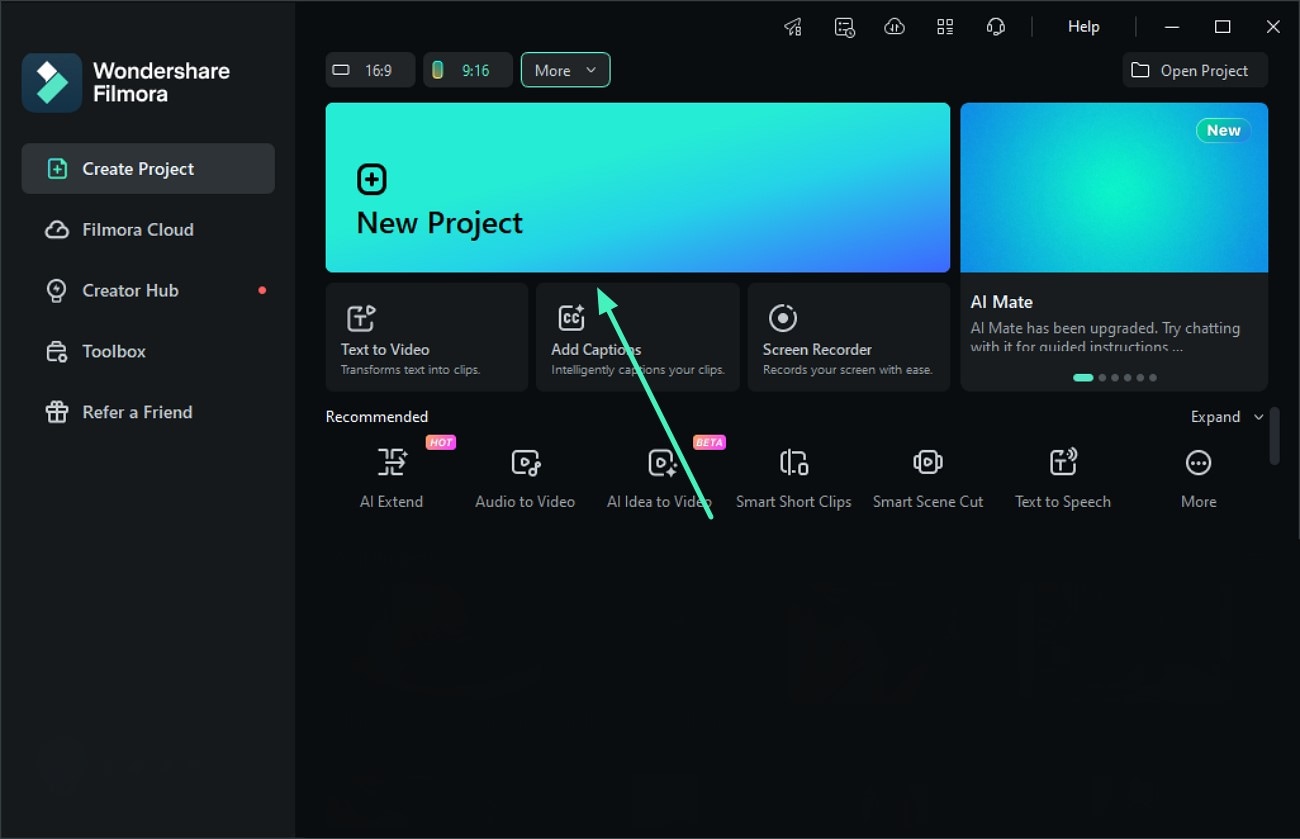
Step 1. Create New Filmora Project
To begin, launch Filmora on your device and press the New Project tab to create a new project. Next, import the video to the tool's interface and drag it to the editing timeline.
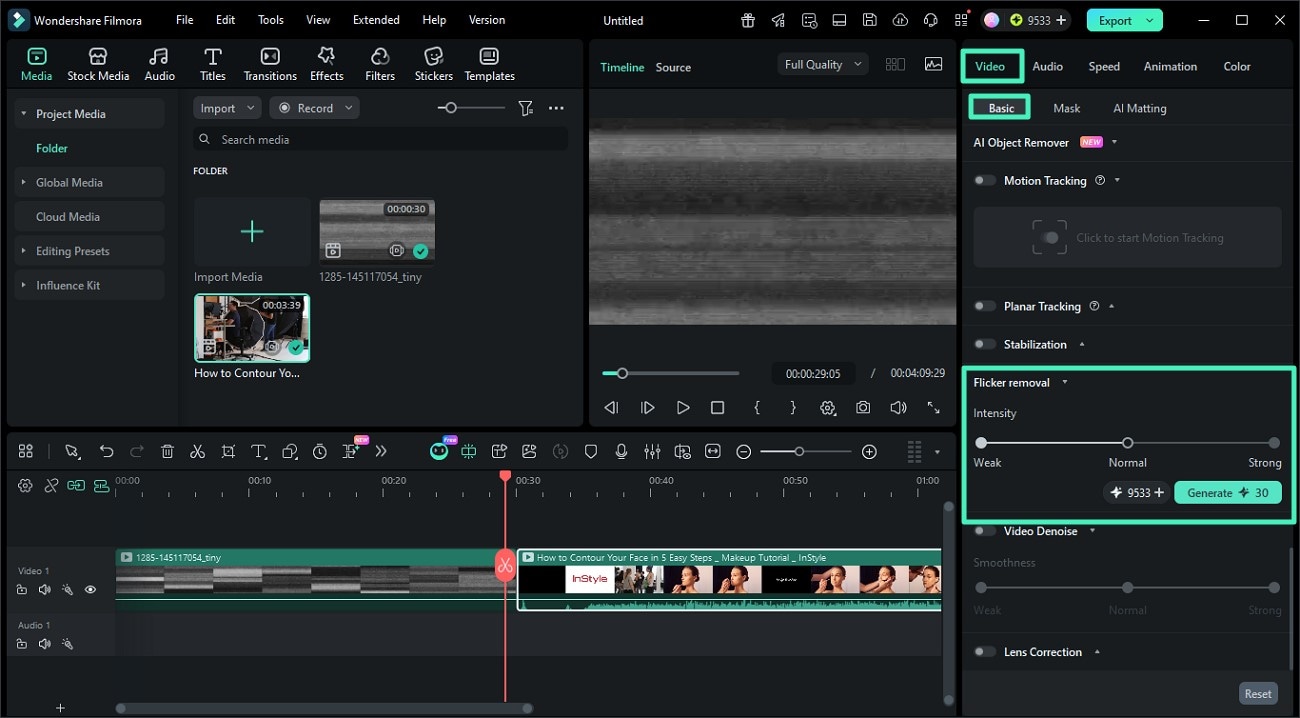
Step 2. Enable Flicker Remover
Once the video is imported, head to the properties panel on the right and access the Video section. Next, enable the Basic section and scroll through the options to opt for Flicker Removal. Now, select the intensity for the removal between Weak, Normal, and Strong. Once selected, press the Generate button to start removing the flicker.
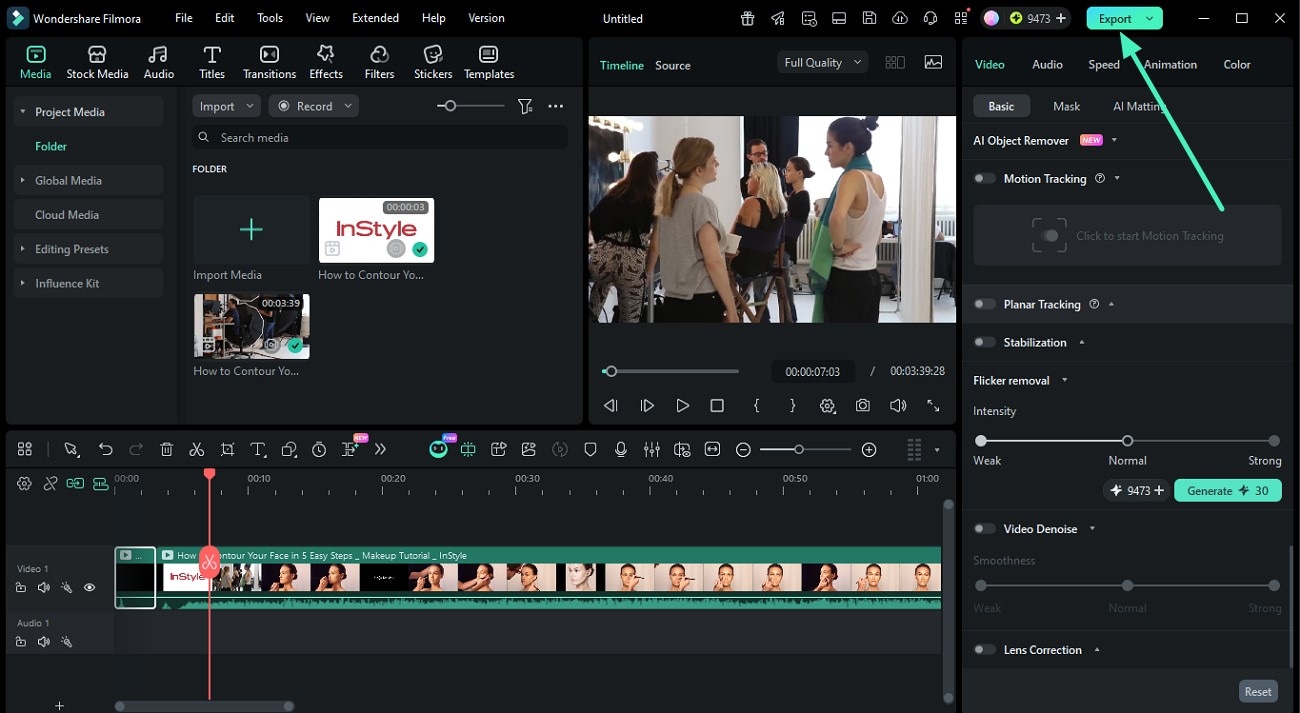
Step 3. Export Final Video
When the flicker is removed from the video and clear results are generated, head to the top-right corner of the interface and press the Export button to save the video.
Related Posts
Featured Articles
How to Add Vintage Filter to Photos?
Add a nostalgic touch to your photos with vintage filters! Learn how to apply vintage photo effects on mobile and desktop using Filmora. Explore retro styles, sepia tones, and classic film looks to make your images timeless.
Where to Find Button Sound Effects for Your Videos
Need the perfect button sound effect for your videos? Check out our guide to find the best places to download or create your own button sounds that stand out.
6 Steps to Remove Snapchat Watermark From Video Easily
Wondershare Filmora’s advanced AI object remover allows you to remove Snapchat watermarks from videos. Try this amazing Snapchat watermark remover!
Recommended User Guide
Create Multi-Screen Videos in Filmora on Windows
Learn how to create Split-Screen videos in FIlmora.
Video Chapters in Filmora on Windows
Here is the guide on how to use the video chapters feature in Filmora on Windows.
360° Video Reframing for Windows
Learn how to reframe 360° videos in Filmora for Windows by adjusting the viewing direction, scale, position, and rotation to create the desired frame.
