
For the Best Results, Use the Latest Version.
-
Preparations
-
Account
-
Get Started & Basic Settings
-
Compatibility & Tech Specs
-
Performance Settings
-
-
Creating Projects
-
Creating New Projects
-
-
Importing & Recording
-
Video Editing for Windows
-
Basic Video Editing
- Enable/Disable Clip in Windows
- Magnetic Timeline for Windows
- Dual Monitor Setup for Video Editing on Windows
- Select All Clips on Timeline for Windows
- Timeline and Track Management
- Auto Ripple for Windows
- Split & Trim Video
- Crop & Pan & Zoom Video in Filmora for Windows
- Compositing
- Change Video Speed on Windows
- Reverse Video for Windows
- Mark In and Mark Out for Windows
- Markers for Windows
- Group editing
- Customizable Backgrounds for Videos and Images in Windows
- Video Snapshot
- Using Freeze Frame in Filmora for Windows
- Logo Reveal For Windows
- Auto Enhance in Filmora for Windows
- Applying drop shadow
- Adjustment layer for Windows
- Apply Transforming for Windows
- Video Editing Ruler – Windows
-
Advanced Video Editing
- Keyframe Motion Blur for Windows
- Drawing Tools for Windows | Filmora Guide
- Camera Tracking for Windows
- Create Multi-Camera Clip in Filmora for Windows
- Compound Clip for Windows
- Multi-Clip Editing for Windows
- Filmora Motion Blur | Windows
- 360° Video Reframing for Windows
- Track Matte for Windows
- Video Chapters in Filmora on Windows
- Filmora Flicker Removal Guide | Windows
- Create Multi-Screen Videos in Filmora on Windows
- Masking in Filmora on Windows
- Creating a PIP Effect for Windows
- Keyframe Graph Editor for Windows
- Animation Keyframing for Windows
- Keyframe Path Curve
-
AI-Powered Video Editing
- Smart Scene Cut for Windows
- Smart Short Clips for Windows
- AI Face Mosaic for Windows
- Filmora AI Eye Contact- Windows
- AI Video Enhancer for Windows
- AI Text-to-Video for Windows
- Planar Tracking for Windows
- AI Idea to Video for Windows
- AI Media Analysis for Windows
- Filmora Image to Video for Windows
- Filmora Image to Prompt for Windows
- Instant Cutter Tool for Windows
- AI Extend
- Filmora AI Relight - Windows
- Filmora AI Image Enhancer Guide - Windows
- AI Script to Video Guide for Windows
- AI Text-Based Editing for Windows
- AI Mate Editing for Windows
- Instant Mode for Windows
- ChatGPT Plugin - AI Copywriting
- AI Smart Cutout for Windows
- Lens correction on Windows
- Auto Reframe Video for Windows
- AI Portrait Cutout
- Scene Detection for Windows
- AI Smart Masking for Windows
- Motion Tracking on Windows
- Video Stabilization for Windows
- AI Video/Photo Object Remover for Windows
- AI Smart Search for Windows
- AI Skin Tone Protection for Windows
- AI Image for Windows
- Chroma Key (Green Screen) for Windows
- Super Slow Motion with Optical Flow for Windows
- Video Denoise for Windows
-
-
Audio Editing for Windows
-
Basic Audio Editing
-
Advanced Audio Editing
-
AI-Powered Audio Editing
- Auto synchronization
- AI Sound Effects in Filmora for Windows
- Smart BGM Generation on Windows
- AI Voice Enhancer in Filmora
- AI Voice Cloning in Wondershare Filmora
- AI Music Generator for Windows
- Audio To Video
- AI Vocal Remover for Windows
- AI Auto Beat Sync for Windows
- AI Audio Stretch for Windows
- AI Audio Denoise for Windows
- Silence Detection on Windows
-
-
Text Editing for Windows
-
Basic Text Editing
-
Advanced Text Editing
-
AI-Powered Text Editing
-
-
Video Customizations
-
Video Effects
- Filmora VST3 Plugins for Windows
- Filmora OpenFX Plugins for Windows
- Retouch Guide for Windows
- Filmora Pen Tool Tutorial: Motion Paths & Animation Guide
- Animated Charts
- Mocha Filmora - For Windows
- Different Types of Video Effects
- NewBlue FX effects
- Boris FX effects | Filmora Windows Guide
- Body Effects for Windows
- Filmora -Filmstock Asset
-
Audio Effects
-
Transitions
-
Stickers
-
Filters
-
Color Editing
-
Animations
-
Templates
-
Asset Center
-
-
Exporting & Share & Cloud Backup
Video Chapter in Filmora on Windows
The Video Chapters feature in Filmora automatically creates a chapter-based progress bar that visually divides your video into meaningful sections based on timestamps and titles. Instead of manually designing segmented progress bars you can simply define your chapters and let Filmora generate the navigation bar for you.
Whether you're creating tutorials, online courses, product reviews, or corporate training videos, Video Chapters provide viewers with a clearer understanding of your video's structure.
Key Highlights of This Feature
- Chapter Setup: You can add, remove, or reorder chapters as needed. You get the ability to add chapter text up to 50 characters with emojis. Filmora automatically validates each timestamp to ensure every chapter appears in chronological order.
- Chapter Text Customization: Once your chapters are created, you can customize how every chapter title appears on the progress bar, including font family, font size, font color, bold/italic, alignment, uppercase/lowercase, letter spacing, outline, shadow, and opacity.
- Progress Bar Customization: Personalize the chapter progress bar appearance (height, corner radius, border thickness, played/un-played colors, opacity, and shadow effects). The bar divides automatically based on timestamps.
- Playhead Customization: Choose a built-in rectangular playhead or upload your own PNG/animated GIF to match branding or style.
Steps to Use Video Chapter Feature in Filmora
As discussed, this feature allows users to add video chapters to their exported content automatically. Follow the steps mentioned below to learn how to use this feature:
Step 1. Create New Filmora Project
Start the process by creating a new Filmora project using the Create Project tab. Next, import the video to the tool’s interface for which you want to create chapters.
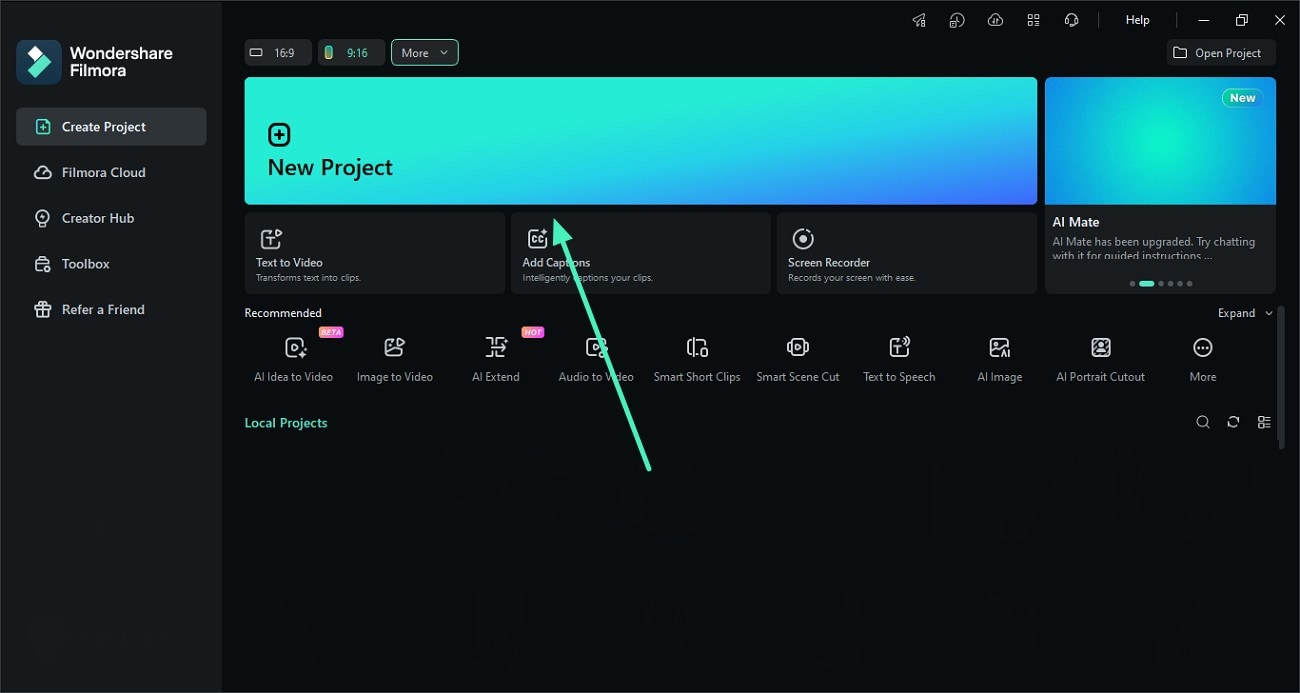
Step 2. Click Export Select Video Chapter
Next, edit the video using the features offered by Filmora and click on the Export button located at the top right corner. In the Export window, turn the toggle on for Include Chapters on Export and click on Chapter Settings.
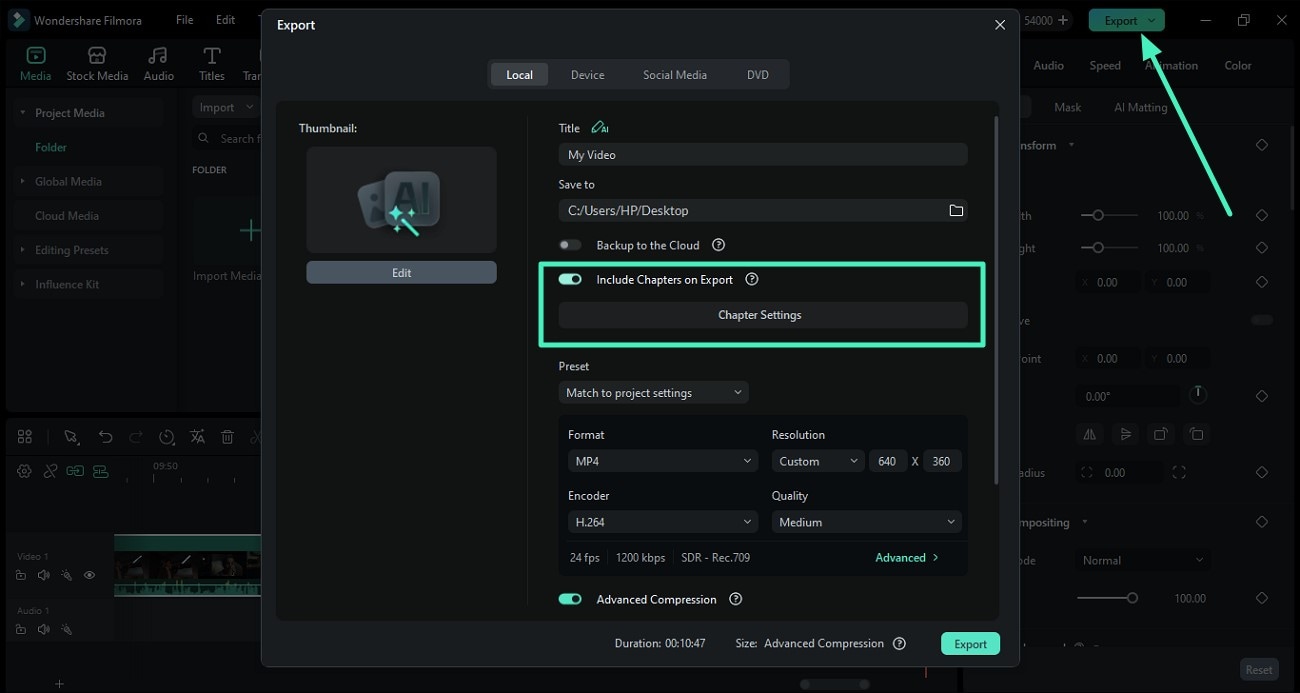
Step 3. Add Chapters
In the following interface, place the playhead where you want to add a chapter and click on Add Chapter. Name the chapter according to your preferences in the text field on the right. Add multiple chapters by changing the position of the playhead.
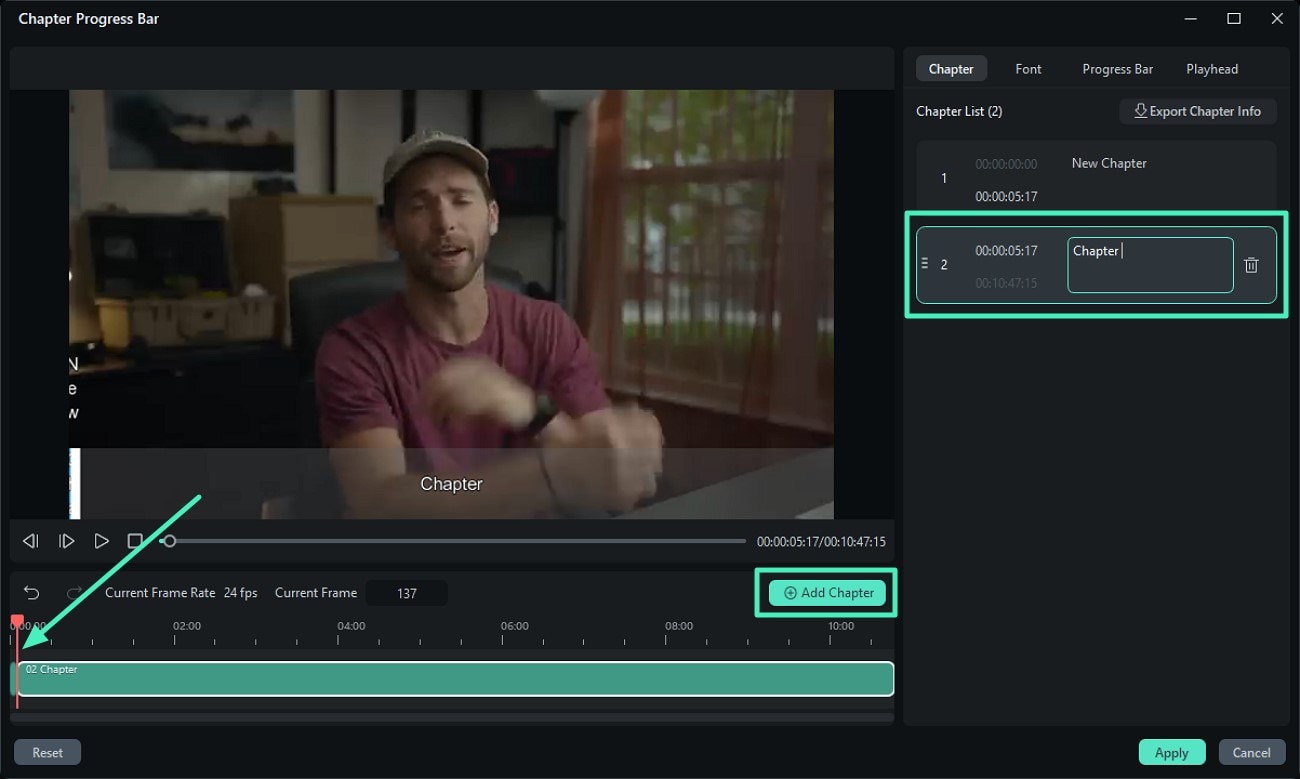
Step 4. Customize Fonts for Chapter
Access the Font section and customize the font for the chapter as per your choice. You can modify different attributes and can even add background to the text.
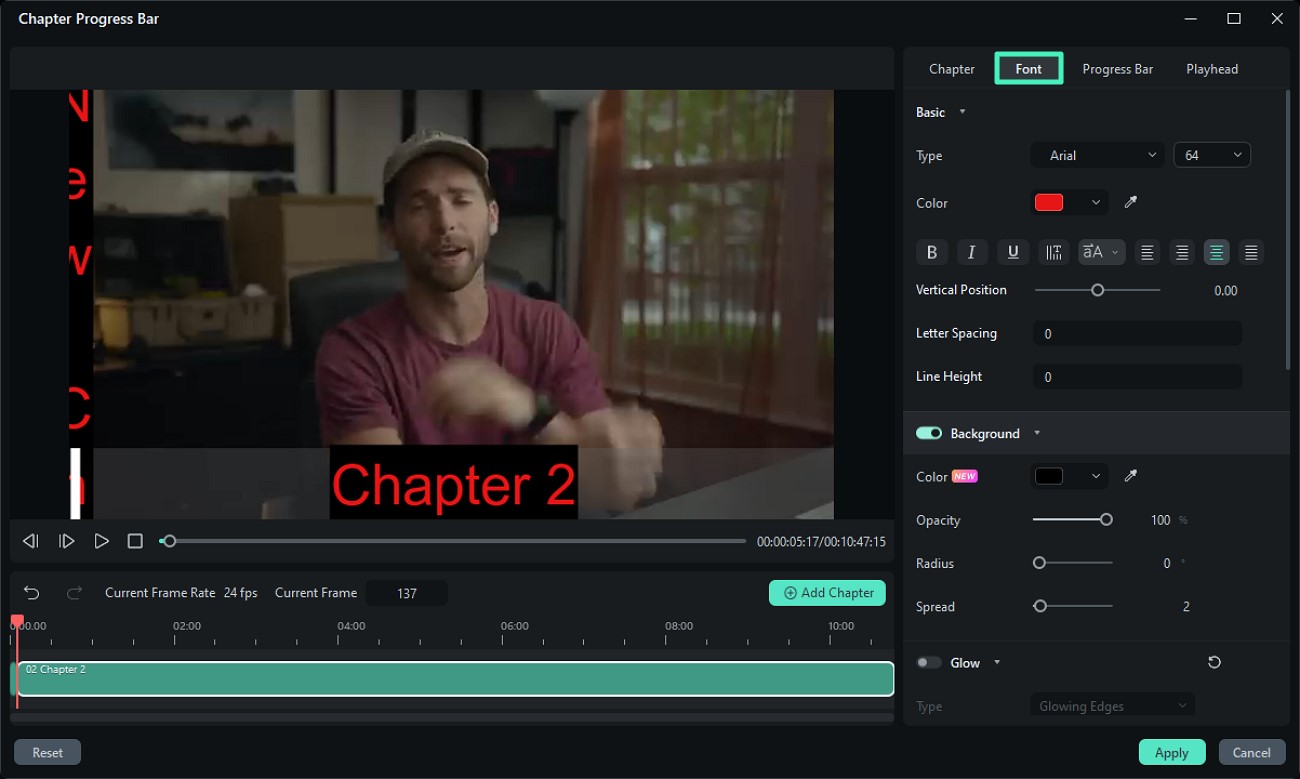
Step 5. Edit Progress Bar
Enable the Progress Bar section and customize the Background, Played Progress, and Divider according to your choice. Add Strokes and Fills to the progress bar and customize different attributes.
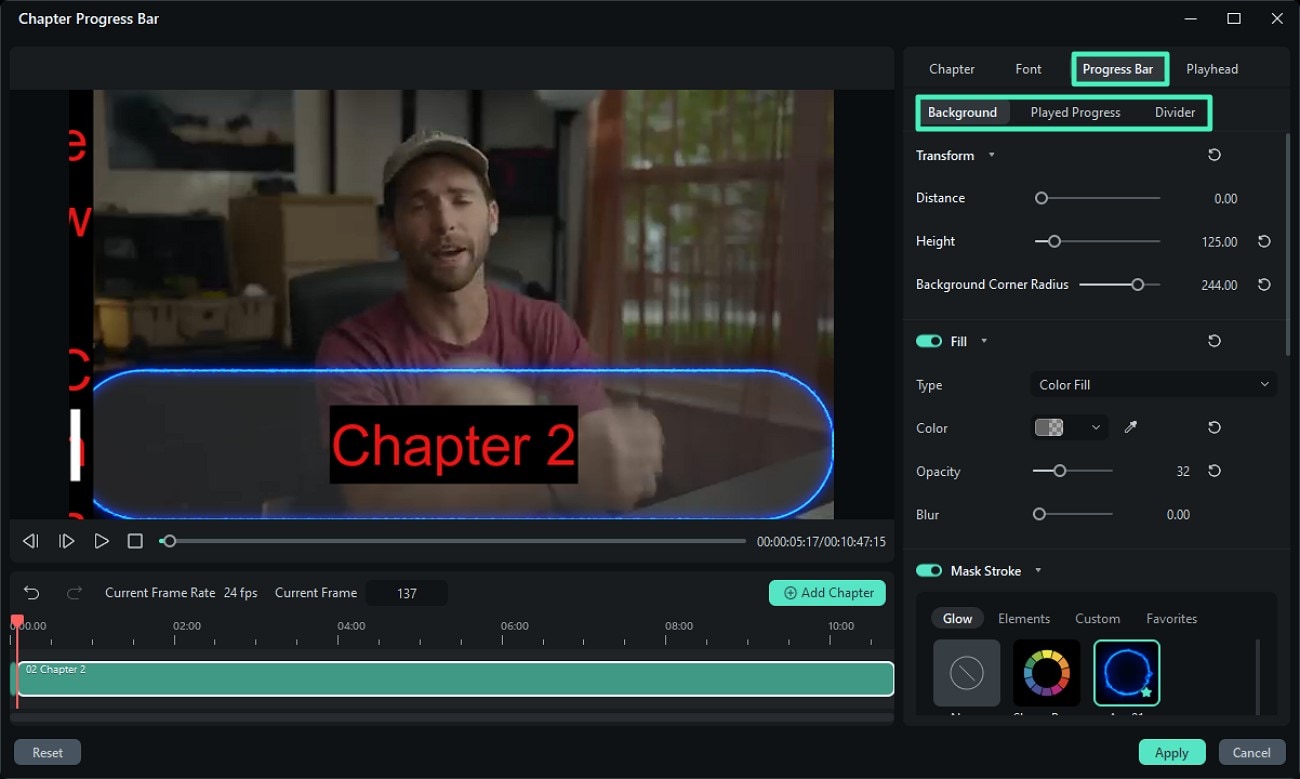
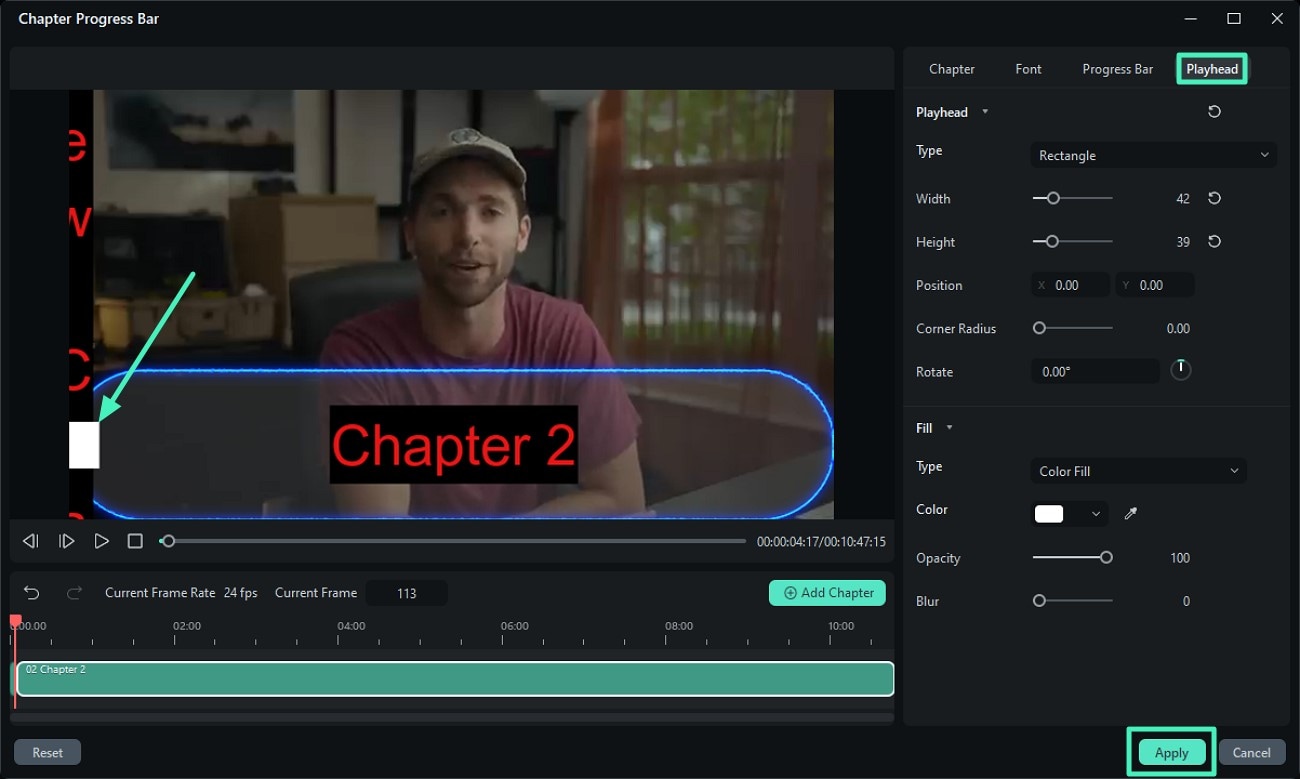
Step 6. Modify the Playhead
Next, modify the playhead by enabling the Playhead section from the top. You can change position, color, opacity, and other elements of the playhead using the functions provided. Once all the settings are done, press the Apply button to apply the changes.
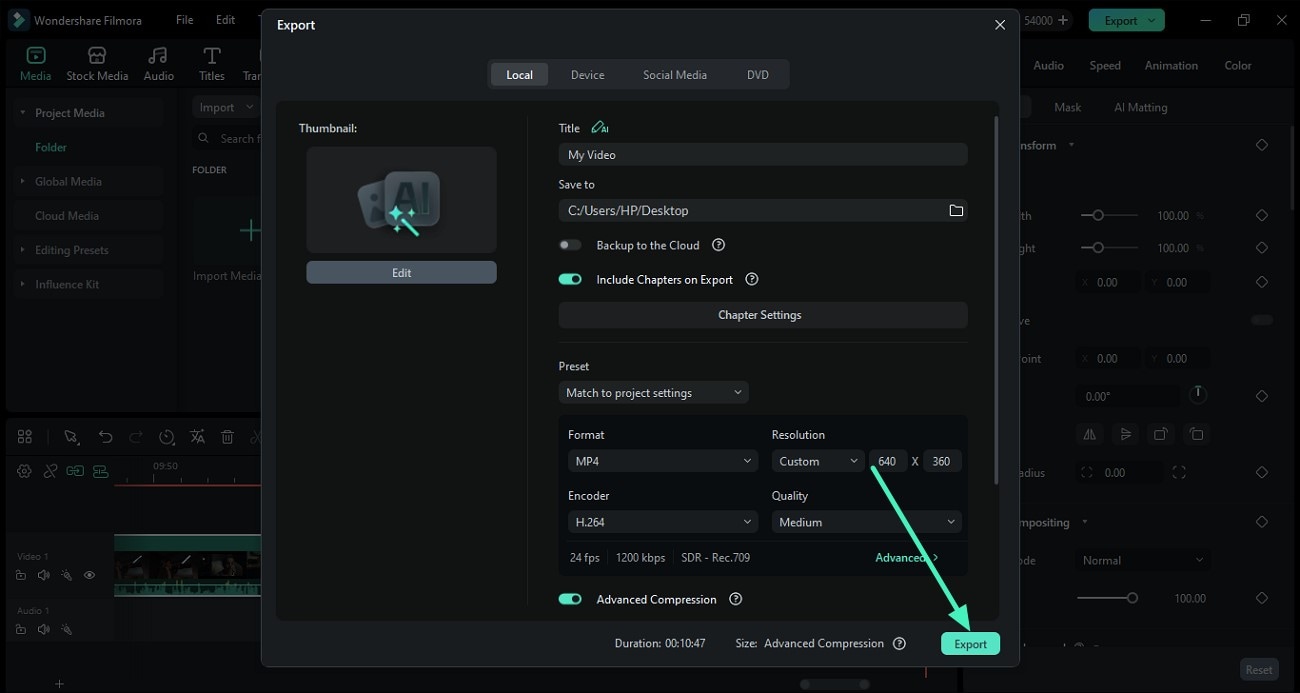
Step 7. Export the Video With Chapters
Once the video chapters are added, press the Export button in the export window to successfully save video with chapters to your device.
Related Posts
Featured Articles
How to Add Captions in InShot: Your Full Guide & Better Alternatives
Add auto captions in InShot for free with our 2026 step-by-step guide. Discover InShot's limitations + 2 powerful alternatives with AI features, 20+ languages, and animated styles for TikTok & Reels. Start creating accessible videos today.
Learn How to Blur a Part of Videos in 5 Easy Ways
Are you looking for ways to hide a certain part of your visual content by blurring? Read this article and learn how to blur a part in videos using Filmora.
Cutout.Pro Video Enhancer: A Comprehensive Review & Alternative
Is Cutout.Pro free to use? Check our in-depth review for Cutout.Pro to know its price, features, and everything!
Recommended User Guide
Compound Clip for Windows
Users can try out one of the new functionalities in Filmora, navigating under the name of compound clip.
Keyframe Path Curve
Filmora has recently introduced the keyframe path curve feature. When you adjust the transition effects between keyframes, you can change keyframe type to control the speed and pacing of the animation, making it look smoother and more natural, and helping you create high-quality video clips. Now Let us know how to use it.
Filmora Motion Blur | Windows
Here is the guide on how to use the Motion Blur feature in Filmora.
