
 Video Chapters:
Add a Chapter Progress Bar to Your Video
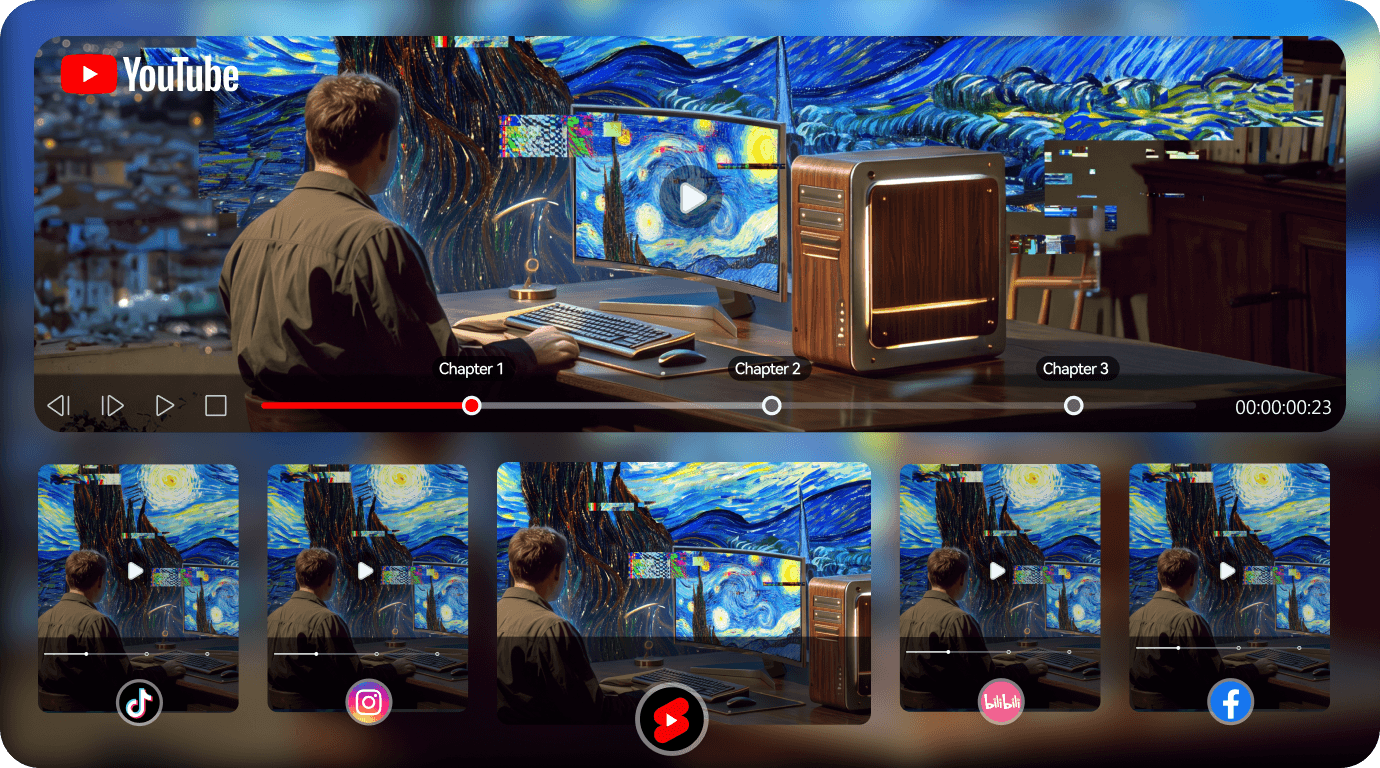
Don't let viewers skip around and drop off. Filmora's Chapter Progress Bar burns your chapters — titles, timestamps, and a styled bar — right into the video. It shows on any platform, even TikTok. Free, and ready in about a minute.
 4.7
(15746 reviews)
4.7
(15746 reviews)
Win 11 /Win 10 / Win 8 / Win7 (64 bit OS) | System Requirements
macOS 10.15 or later (Using macOS 10.14 or earlier? Click here) | Compatible with Apple silicon
Don't let viewers skip around and drop off. Filmora's Chapter Progress Bar burns your chapters — titles, timestamps, and a styled bar — right into the video. It shows on any platform, even TikTok. Free, and ready in about a minute.
Built for the Videos People Actually Skip
Wherever long videos lose viewers, a visible chapter bar keeps them watching
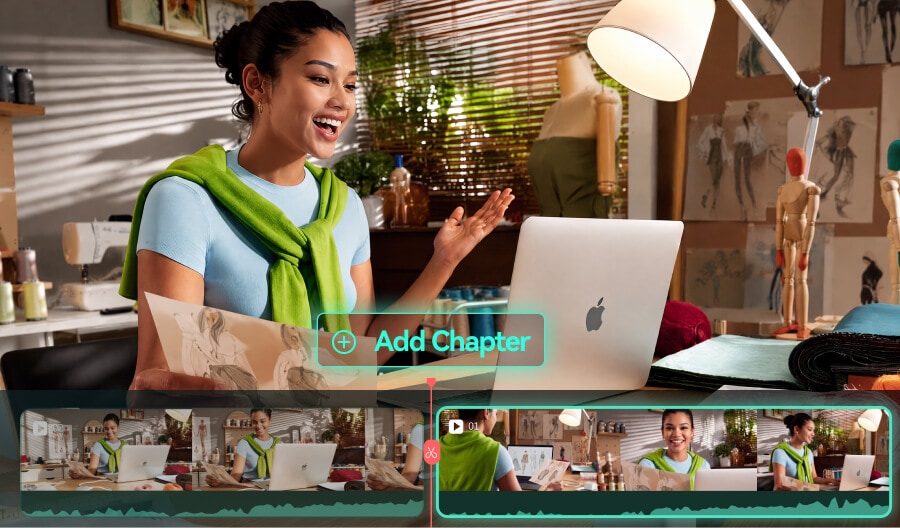
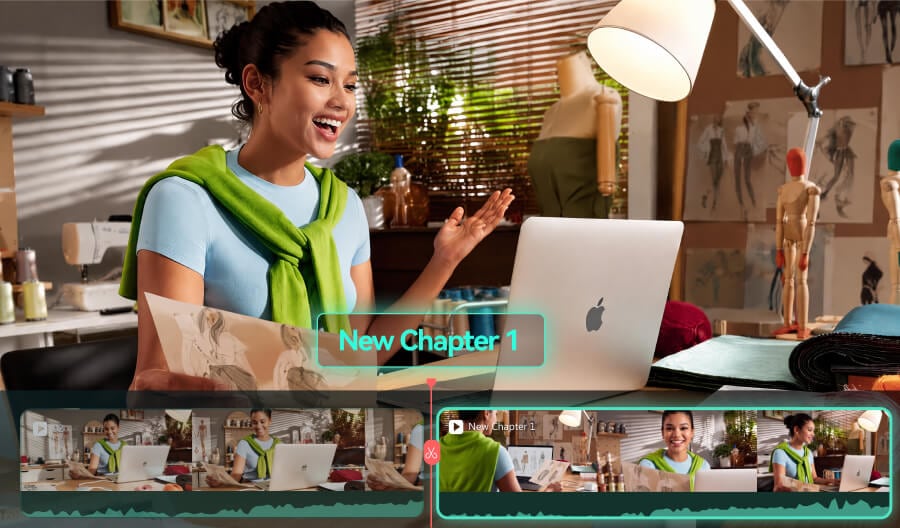 Tutorials & Courses

"They skip ahead twice, find nothing, and leave."
You spent hours editing — viewers gave it two skips. Your 20-minute tutorial is solid, but they can’t see that. A chapter bar shows every step upfront, so they jump to what they need instead of jumping away.
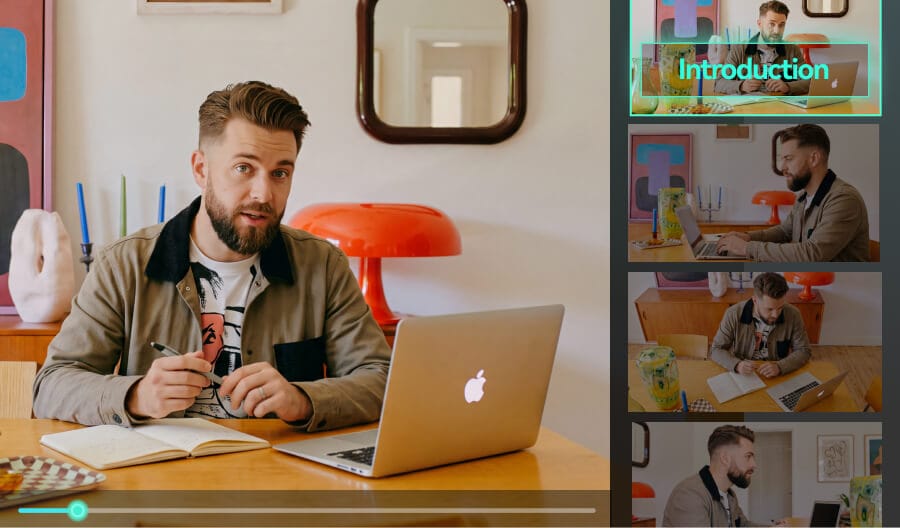
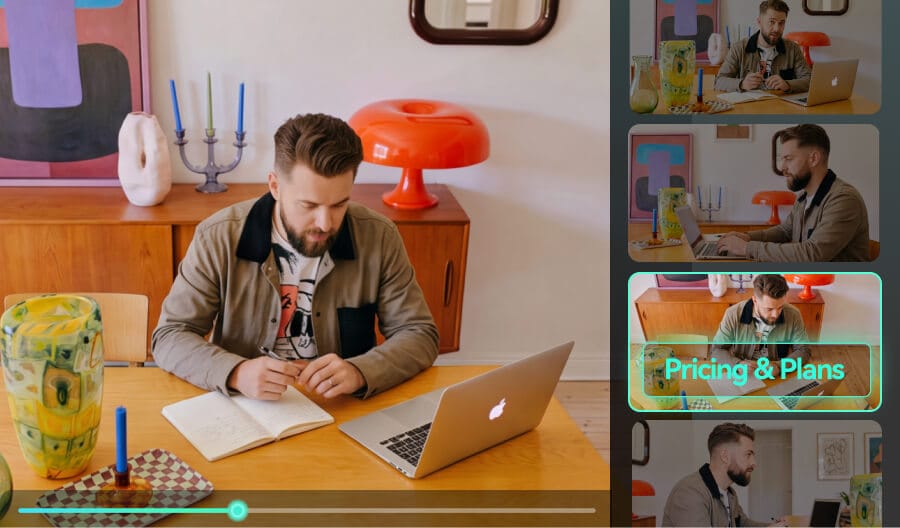 Webinars & Replays

"Which minute covers the pricing part?"
You pinned a timestamp list once — nobody read it. Stop answering the same questions in the comments. On-brand chapters turn every replay into a session viewers follow on their own.
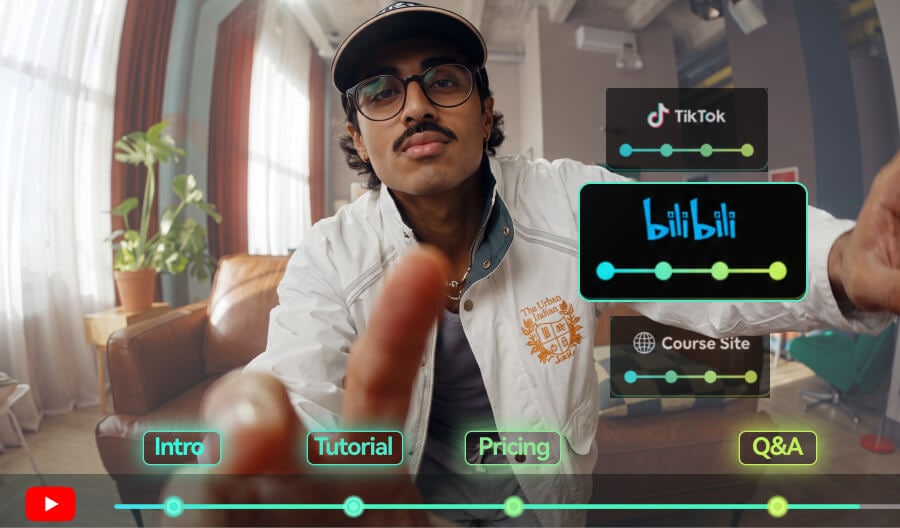
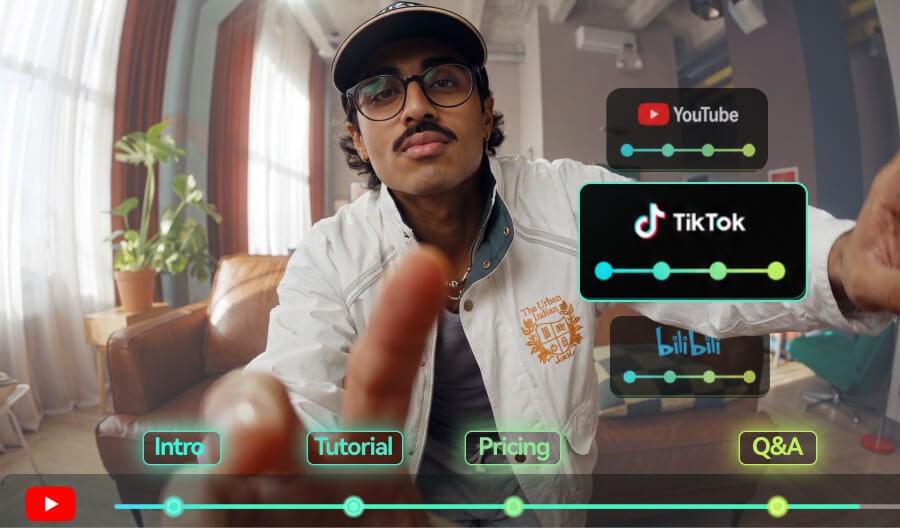 Cross-Platform Publishing

"My YouTube chapters vanish everywhere else."
You typed every timestamp into YouTube by hand. Then you posted to TikTok, Bilibili, your course site — and they all vanished. Burned-in chapters live in the video file. They show up everywhere.
Give Long Videos a Built-In Table of Contents
Stop losing viewers in shapeless timelines. Filmora turns your timestamps and titles into a visual chapter progress bar — played/unplayed colors, current-chapter highlight, clean section breaks — rendered straight into the exported video.
Add Chapters to Your Video in One Minute, Not Thirty
Stop hand-building color blocks and keyframes. Define your chapters once, and Filmora draws the whole navigation bar for you — perfectly aligned to your video's length and easy to restyle any time your cut changes.
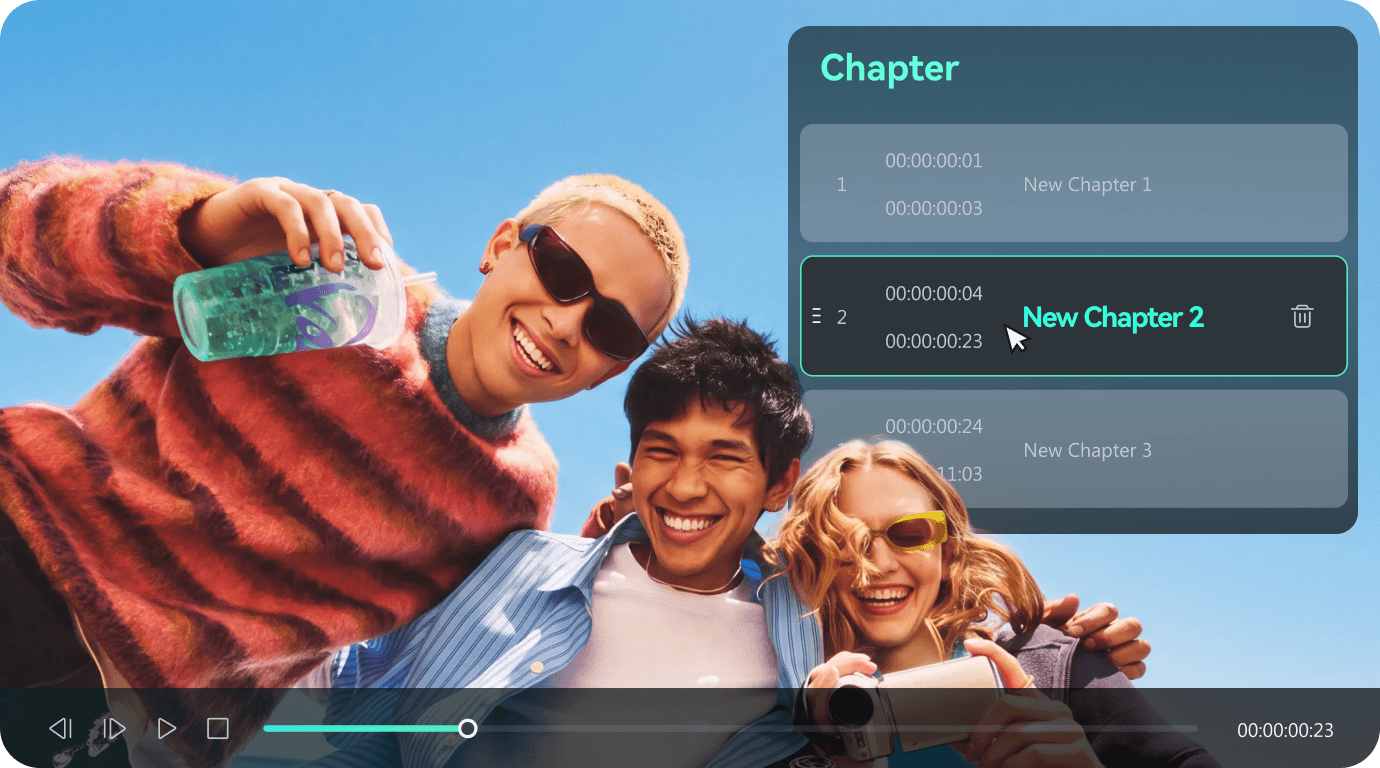
- Chapter Markers Made Simple: Add, edit, and delete video chapter markers with hh:mm:ss timestamps — sequence checks run automatically.
- Auto-Built Segments: The bar divides itself by your chapters. No manual measuring, no keyframes.
- Instant Preview: See the finished chapter bar on your footage before you export.
Customize Every Detail of Your Video Chapters
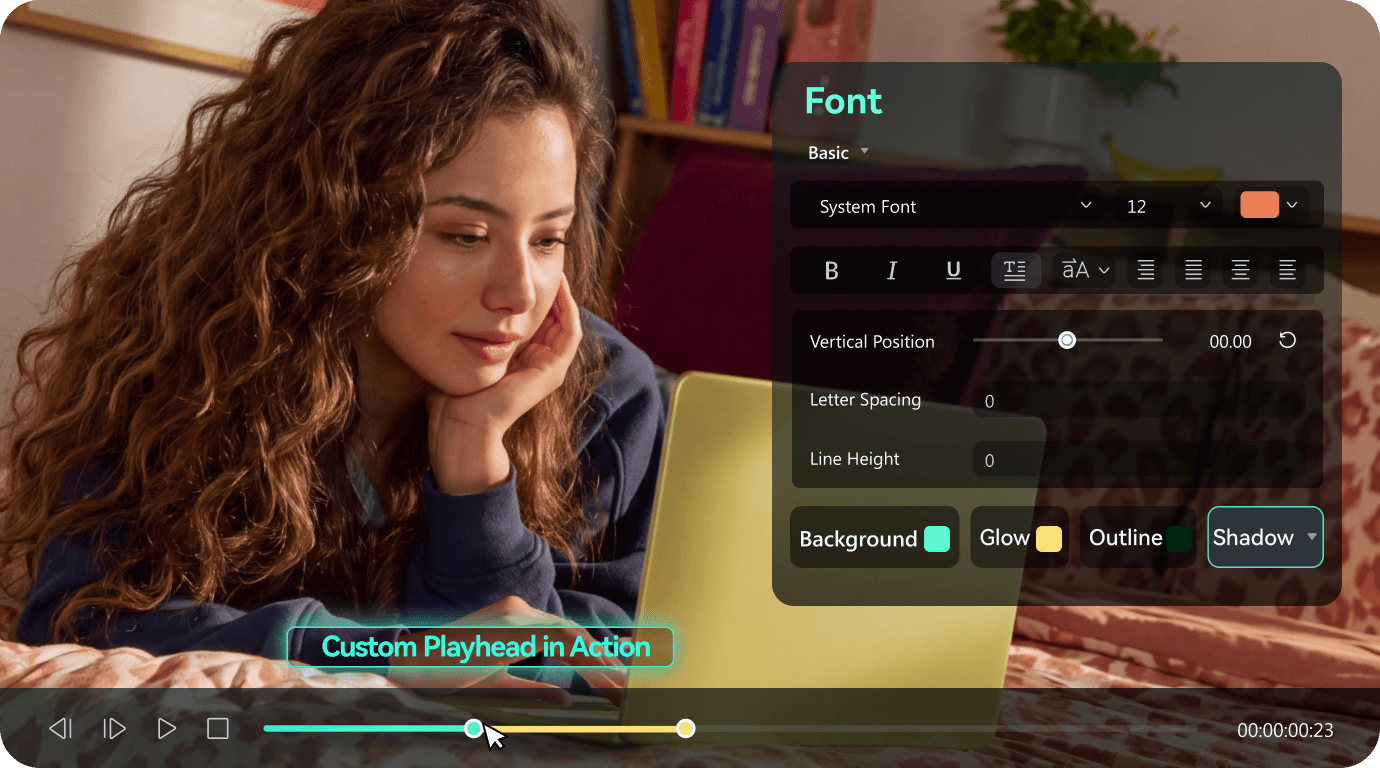
From minimal lines to playful stickers, match the chapter bar to your brand or mood. Every element is adjustable — and everything stays editable until you hit Export.
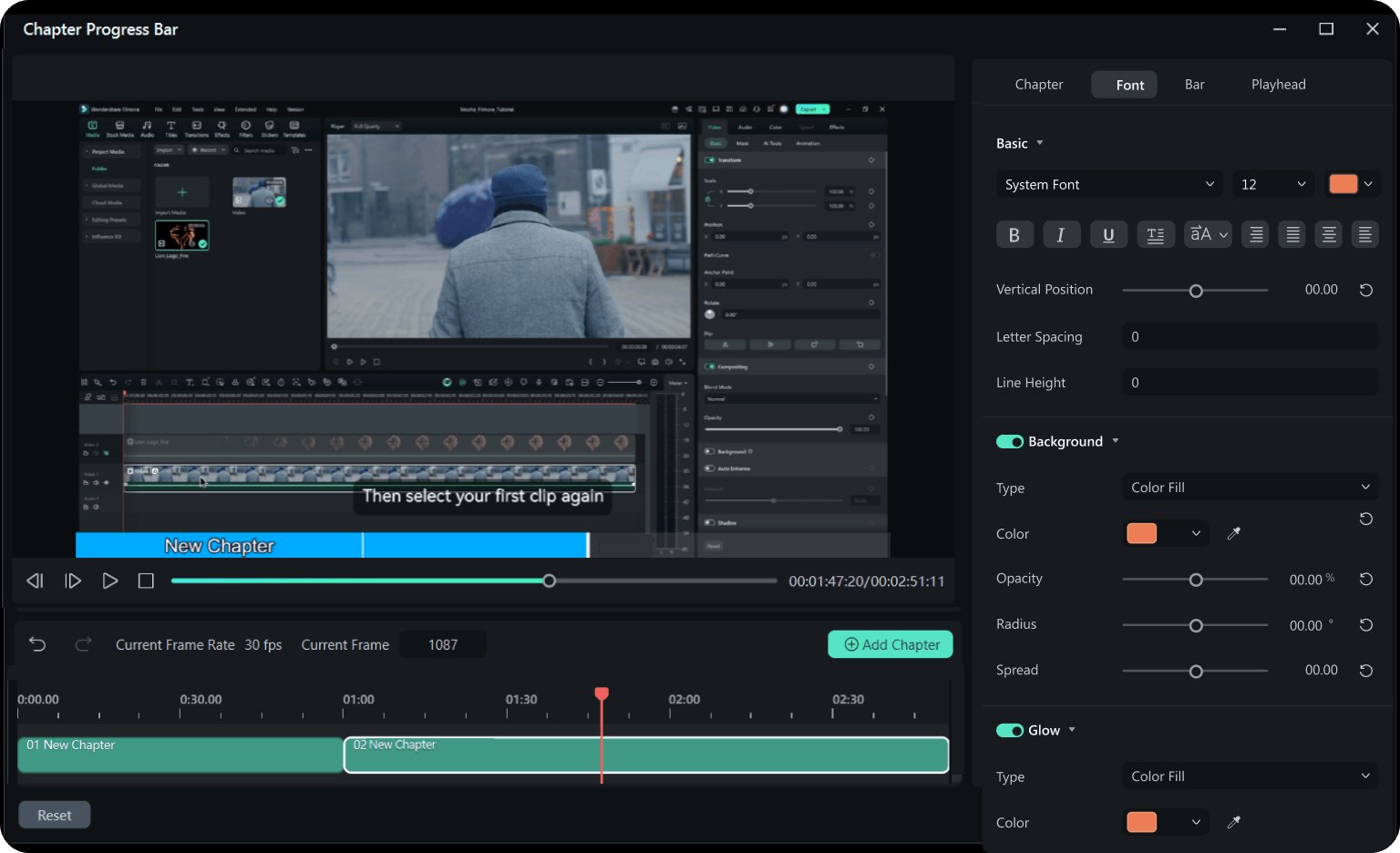
- Full Font Control: Family, size, color, stroke, shadow, bold, italic, alignment, case, spacing, and opacity.
- Flexible Bar Styles: Height, rounded corners, borders, played/unplayed colors, opacity, and shadow angle, distance, and blur.
- Custom Playheads: Pick preset shapes or upload your own PNG/GIF, then scale it and offset its position freely.
One Export. Chapters on Every Platform.
Unlike YouTube chapters that only live inside YouTube's player — and disappear on TikTok, Instagram, or embeds — Filmora burns the chapter bar into the video itself. Your structure travels with the file, on every platform and every device.
- Burned-In Rendering: Add chapters to MP4, MOV, or any format — the bar is part of your video frames, no platform support required.
- Works Everywhere: TikTok, Instagram, Bilibili, embedded players, offline files — even on mobile.
- TXT Chapter Export: Save timestamps and titles as a TXT file to paste into YouTube descriptions.
Note: Chapter titles support up to 50 characters (emoji included). Timestamps must be in ascending order within the video length.
How to Add a Chapter Progress Bar in Filmora?
The chapter editor lives right inside Filmora's Export panel. No plugins, no separate apps — set chapters, style them, and ship your video in one flow.
Step 1. Enable Chapter Progress Bar
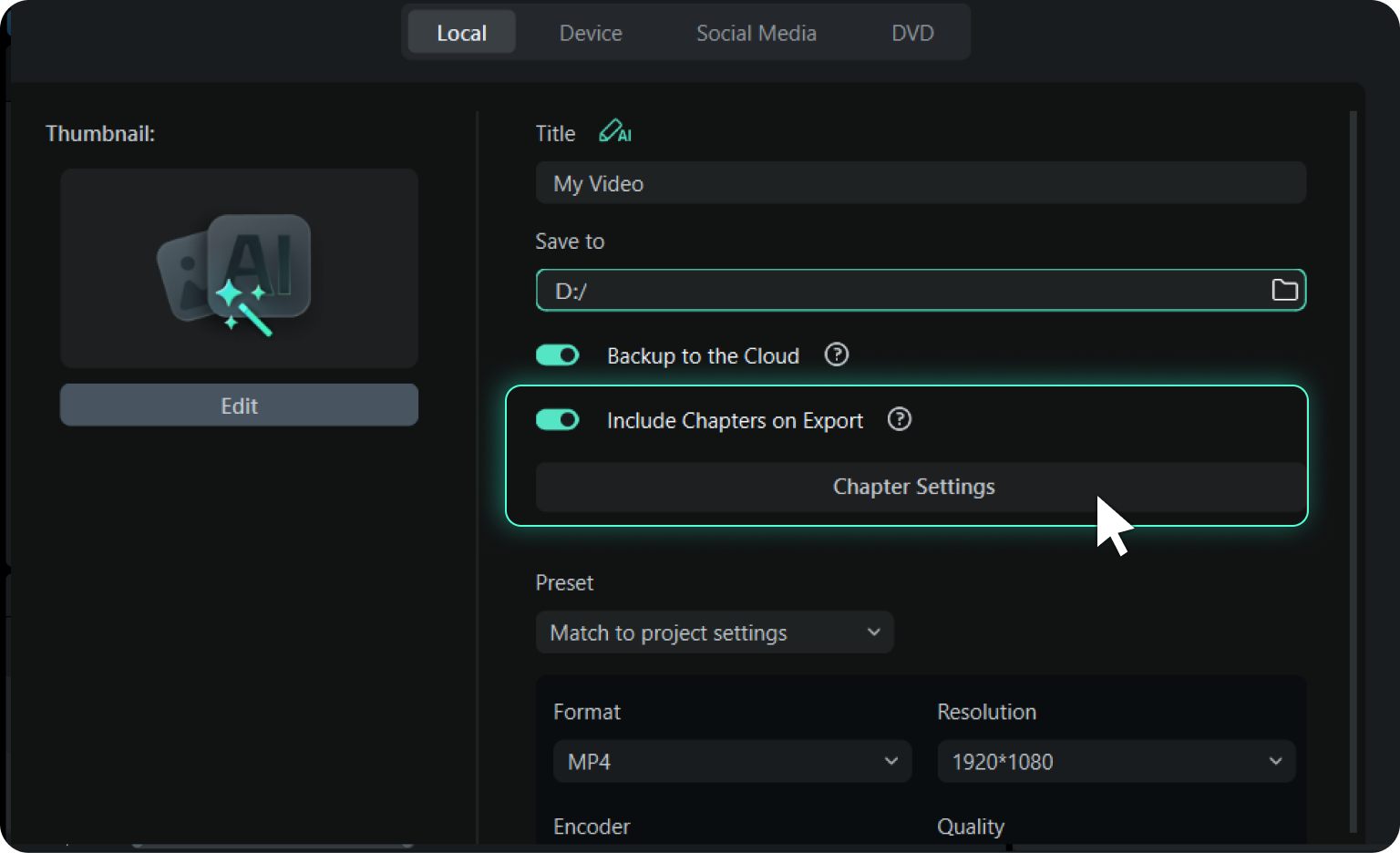
Finish your edit and open the Export panel. Enable 'Include Chapters on Export' to launch the chapter editor right inside Filmora.
Step 2. Add Chapters & Customize
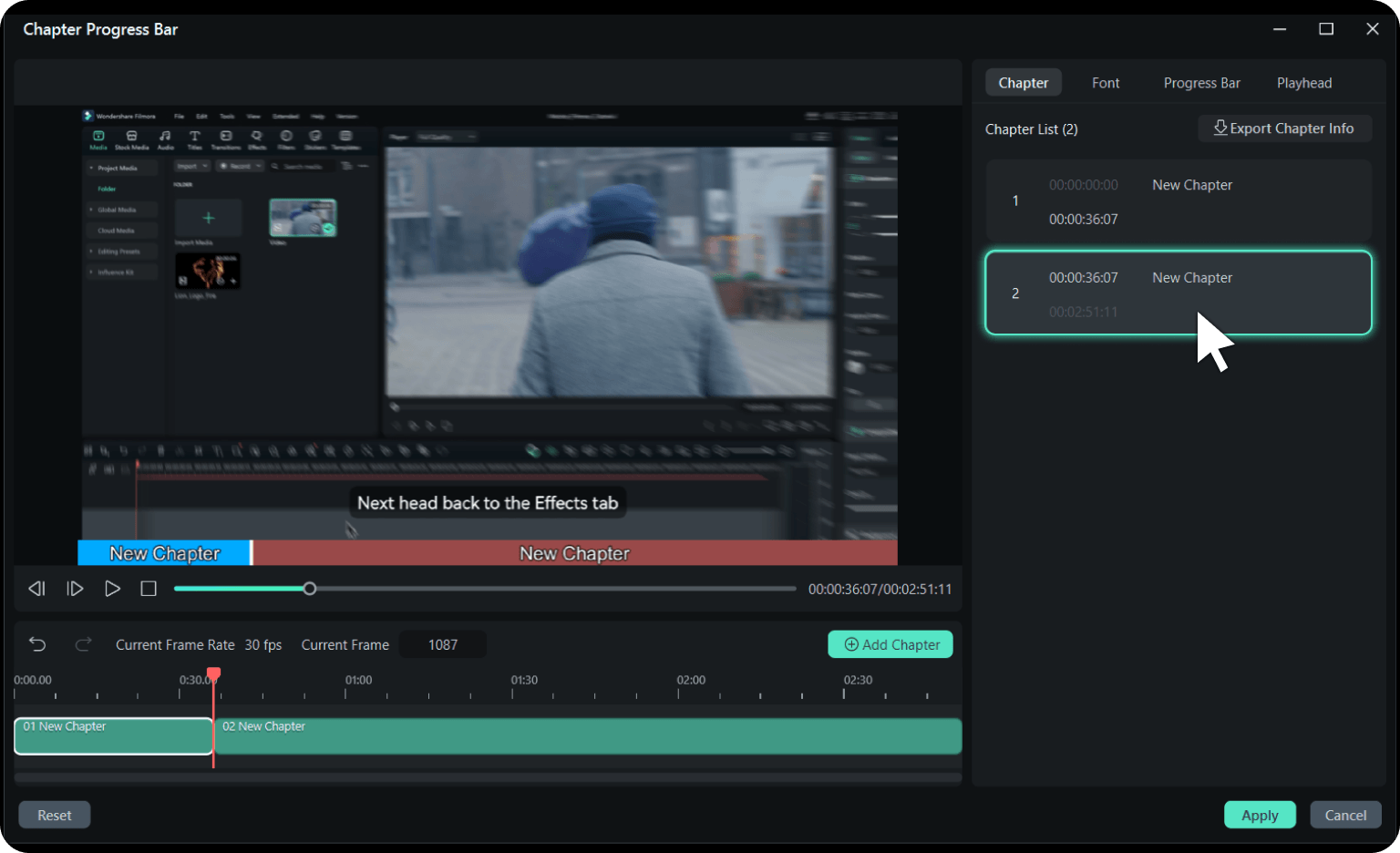
Add each chapter with a timestamp (hh:mm:ss) and a title — up to 50 characters, emoji supported. Sequence checks run automatically. Then style the bar, fonts, and playhead to match your brand.
Step 3. Apply & Export
Click Apply, then export your video — the chapter bar is rendered into every frame. You can also save the chapter list as a TXT file for your YouTube description.
-
Step 1: Enable Chapter Progress Bar
Finish your edit and open the Export panel. Enable 'Include Chapters on Export' to launch the chapter editor right inside Filmora.
-
Step 2: Add Chapters & Customize
Add each chapter with a timestamp (hh:mm:ss) and a title — up to 50 characters, emoji supported. Sequence checks run automatically. Then style the bar, fonts, and playhead to match your brand.
-
Step 3: Apply & Export
Click Apply, then export your video — the chapter bar is rendered into every frame. You can also save the chapter list as a TXT file for your YouTube description.
A Built-In Chapter Progress Bar. No Keyframes, No Workarounds.
Premiere Pro, DaVinci Resolve, CapCut, and PowerDirector have no native on-video chapter progress bar. Here’s how the workflows compare.
| Feature |
Filmora

|
Premiere Pro | DaVinci Resolve | CapCut | PowerDirector |
|---|---|---|---|---|---|
| Burned-In Chapter Progress Bar | Built-in (Export panel) | Not available | Not available | Not available | Not available |
| Setup Time | About 1 minute | 30 min of keyframing | 30 min in Fusion | 30 min of keyframing | 30 min of keyframing |
| Skill Required | Beginner-friendly | Advanced | Advanced | — | — |
| Shows on TikTok / IG / Any Player | Yes — part of the video image | ||||
| Style Customization | Fonts, bar styles, playheads | Manual design & keyframing | Manual design & keyframing | Not available | Not available |
| After You Re-Edit the Video | Update chapters in panel | Redo all keyframes | Redo all keyframes | — | — |
| Chapter List Export | One-click TXT | CSV via markers | CSV/EDL via markers | — | — |
Frequently Asked Questions
- 1. What are video chapters?
-
Video chapters divide a longer video into labeled sections, each with a timestamp and a title, so viewers can see the structure at a glance. Unlike plain timestamp lists in a description, Filmora renders chapters as a visual progress bar burned directly into your video.
- 2. Can MP4 files have chapters?
-
Yes — in two ways. Some desktop players read embedded chapter metadata, but most social platforms strip or ignore it. Filmora takes the reliable route: the chapter bar is rendered into the MP4's frames, so it displays in any player, on any platform.
- 3. Will the chapter bar show on TikTok, Instagram, or mobile?
-
Yes. The bar is part of the video image itself, so it shows wherever the video plays — TikTok, Instagram, Bilibili, embedded players, and every mobile device. Even Vimeo's own chapters don't appear on its mobile playback bar; a burned-in bar always does.
- 4. Are burned-in chapters clickable?
-
No — a burned-in bar is visual, not interactive, so viewers see the structure but can't tap to jump. For clickable navigation on YouTube, export your chapter list as a TXT file and paste it into the description. You get both: the visual bar everywhere, plus clickable chapters on YouTube.
- 5. How many chapters can I add, and how long can titles be?
-
Add as many chapters as your video needs — each title supports up to 50 characters, emoji included. Timestamps just need to be in ascending order, and Filmora checks the sequence automatically. There are no minimum rules like YouTube's three-chapter, 10-second, start-at-0:00 requirements.
- 6. Can I export chapter timestamps for YouTube descriptions?
-
Yes. One click exports every timestamp and title as a TXT file, formatted for YouTube descriptions. Paste it in, and YouTube generates its own clickable chapters — on top of the burned-in bar viewers see everywhere else.
- 7. Is the Chapter Progress Bar free to use?
-
Yes. The Chapter Progress Bar is a free feature in Filmora on both Windows and Mac. Download Filmora, open the Export panel, and start adding chapters.
What Creators Say About Our Silence Detection
Level Up Your Long-Form Videos Further


Online Instructor
Gaming Content Creator, Mumbai
Podcaster
Product Demo Creator