
For the Best Results, Use the Latest Version.
-
Preparations
-
Account
-
Get Started & Basic Settings
-
Compatibility & Tech Specs
-
Performance Settings
-
-
Creating Projects
-
Creating New Projects
-
-
Importing & Recording
-
Video Editing for Windows
-
Basic Video Editing
- Enable/Disable Clip in Windows
- Magnetic Timeline for Windows
- Dual Monitor Setup for Video Editing on Windows
- Select All Clips on Timeline for Windows
- Timeline and Track Management
- Auto Ripple for Windows
- Split & Trim Video
- Crop & Pan & Zoom Video in Filmora for Windows
- Compositing
- Change Video Speed on Windows
- Reverse Video for Windows
- Mark In and Mark Out for Windows
- Markers for Windows
- Group editing
- Customizable Backgrounds for Videos and Images in Windows
- Video Snapshot
- Using Freeze Frame in Filmora for Windows
- Logo Reveal For Windows
- Auto Enhance in Filmora for Windows
- Applying drop shadow
- Adjustment layer for Windows
- Apply Transforming for Windows
- Video Editing Ruler – Windows
-
Advanced Video Editing
- Keyframe Motion Blur for Windows
- Drawing Tools for Windows | Filmora Guide
- Camera Tracking for Windows
- Create Multi-Camera Clip in Filmora for Windows
- Compound Clip for Windows
- Multi-Clip Editing for Windows
- Filmora Motion Blur | Windows
- 360° Video Reframing for Windows
- Track Matte for Windows
- Video Chapters in Filmora on Windows
- Filmora Flicker Removal Guide | Windows
- Create Multi-Screen Videos in Filmora on Windows
- Masking in Filmora on Windows
- Creating a PIP Effect for Windows
- Keyframe Graph Editor for Windows
- Animation Keyframing for Windows
- Keyframe Path Curve
-
AI-Powered Video Editing
- Smart Scene Cut for Windows
- Smart Short Clips for Windows
- AI Face Mosaic for Windows
- Filmora AI Eye Contact- Windows
- AI Video Enhancer for Windows
- AI Text-to-Video for Windows
- Planar Tracking for Windows
- AI Idea to Video for Windows
- AI Media Analysis for Windows
- Filmora Image to Video for Windows
- Filmora Image to Prompt for Windows
- Instant Cutter Tool for Windows
- AI Extend
- Filmora AI Relight - Windows
- Filmora AI Image Enhancer Guide - Windows
- AI Script to Video Guide for Windows
- AI Text-Based Editing for Windows
- AI Mate Editing for Windows
- Instant Mode for Windows
- ChatGPT Plugin - AI Copywriting
- AI Smart Cutout for Windows
- Lens correction on Windows
- Auto Reframe Video for Windows
- AI Portrait Cutout
- Scene Detection for Windows
- AI Smart Masking for Windows
- Motion Tracking on Windows
- Video Stabilization for Windows
- AI Video/Photo Object Remover for Windows
- AI Smart Search for Windows
- AI Skin Tone Protection for Windows
- AI Image for Windows
- Chroma Key (Green Screen) for Windows
- Super Slow Motion with Optical Flow for Windows
- Video Denoise for Windows
-
-
Audio Editing for Windows
-
Basic Audio Editing
-
Advanced Audio Editing
-
AI-Powered Audio Editing
- Auto synchronization
- AI Sound Effects in Filmora for Windows
- Smart BGM Generation on Windows
- AI Voice Enhancer in Filmora
- AI Voice Cloning in Wondershare Filmora
- AI Music Generator for Windows
- Audio To Video
- AI Vocal Remover for Windows
- AI Auto Beat Sync for Windows
- AI Audio Stretch for Windows
- AI Audio Denoise for Windows
- Silence Detection on Windows
-
-
Text Editing for Windows
-
Basic Text Editing
-
Advanced Text Editing
-
AI-Powered Text Editing
-
-
Video Customizations
-
Video Effects
- Filmora VST3 Plugins for Windows
- Filmora OpenFX Plugins for Windows
- Retouch Guide for Windows
- Filmora Pen Tool Tutorial: Motion Paths & Animation Guide
- Animated Charts
- Mocha Filmora - For Windows
- Different Types of Video Effects
- NewBlue FX effects
- Boris FX effects | Filmora Windows Guide
- Body Effects for Windows
- Filmora -Filmstock Asset
-
Audio Effects
-
Transitions
-
Stickers
-
Filters
-
Color Editing
-
Animations
-
Templates
-
Asset Center
-
-
Exporting & Share & Cloud Backup
Exploring and Using Filmora's Asset Center
Filmora's Asset Center is your gateway to a vast collection of creative assets designed to enhance your video projects. It acts as a curated marketplace within Filmora, offering themed packs, trending elements, effects, titles, stickers, and more. This feature helps you discover new, popular, and specific resources easily, complementing the standard library categories.
Index
Accessing the Asset Center
-
Launch Filmora:Open your Wondershare Filmora application.
-
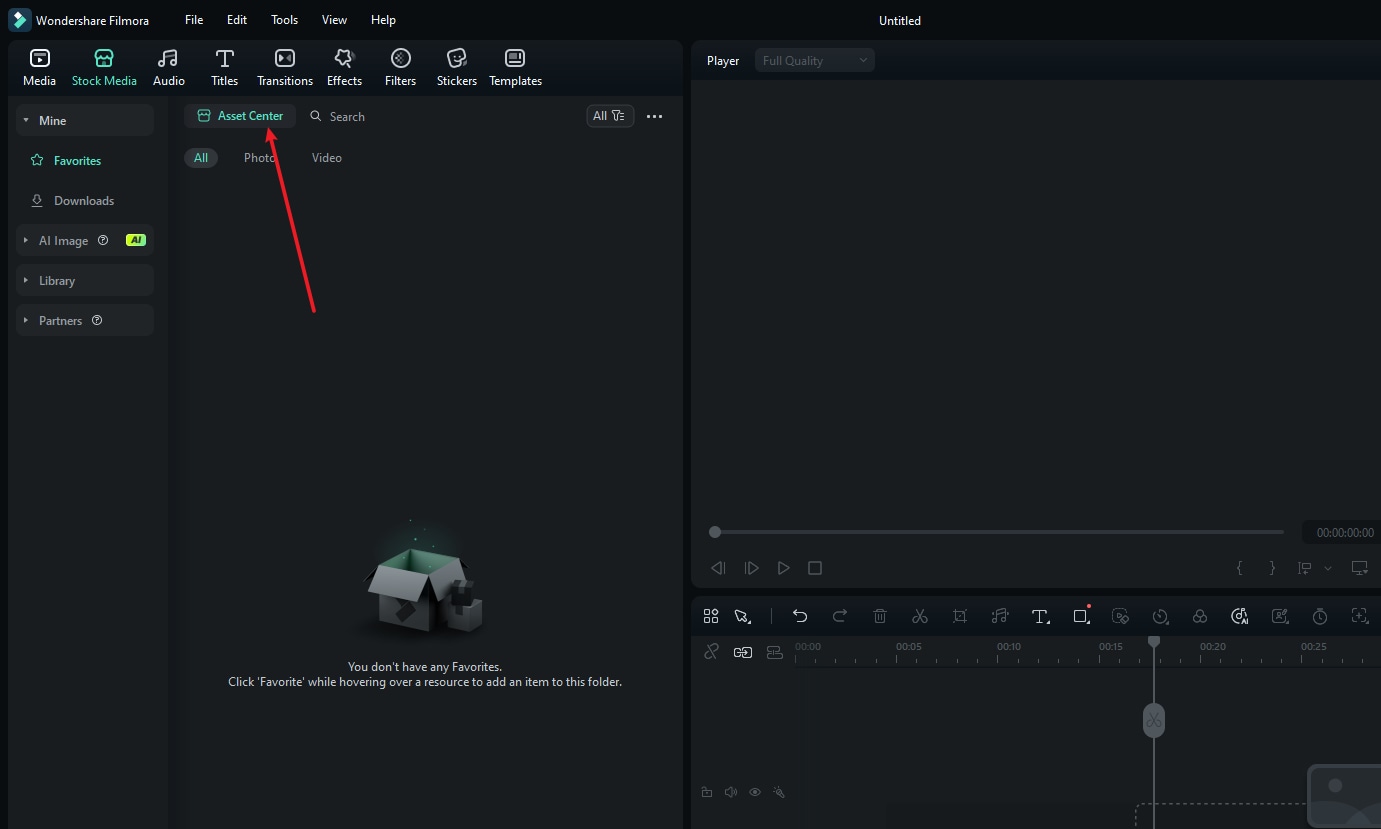
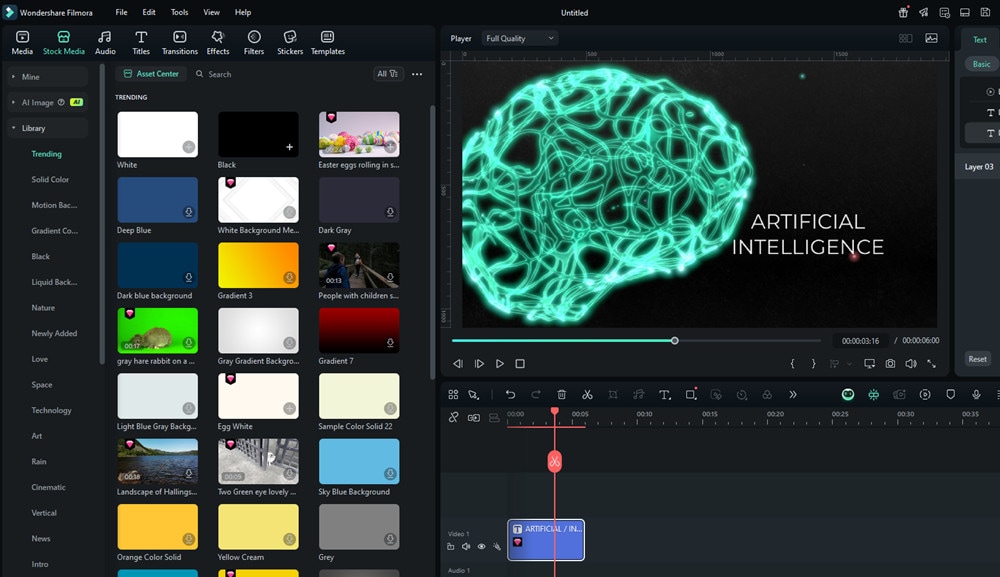
Locate the Asset Center Button:Look at the top section of the main interface. You'll see the primary asset category tabs (Media, Stock Media, Audio, Titles, Transitions, Effects, Filters, Stickers, Templates). Directly below these tabs, you will find the Asset Centerbutton, typically positioned next to the search bar for the selected category.
- Open Asset Center: Click the Asset Center button. It is accessible regardless of which main asset category tab (like Effects, Titles, or Stock Media) is currently active.
Navigating the Asset Center
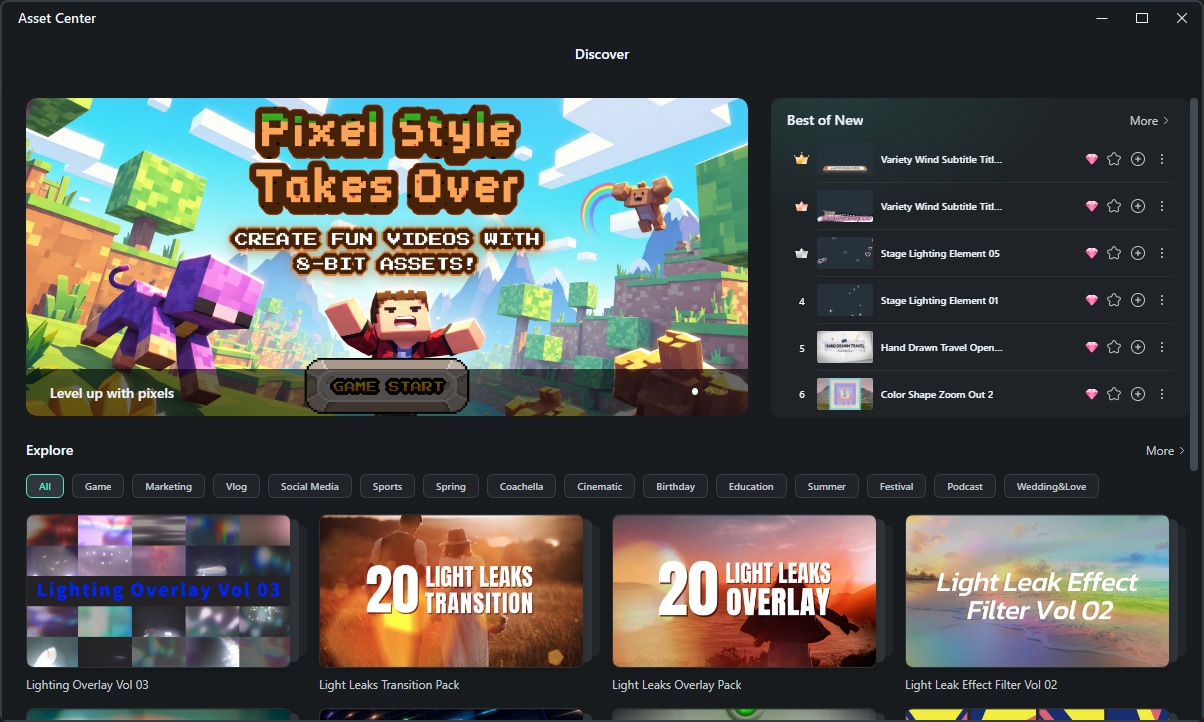
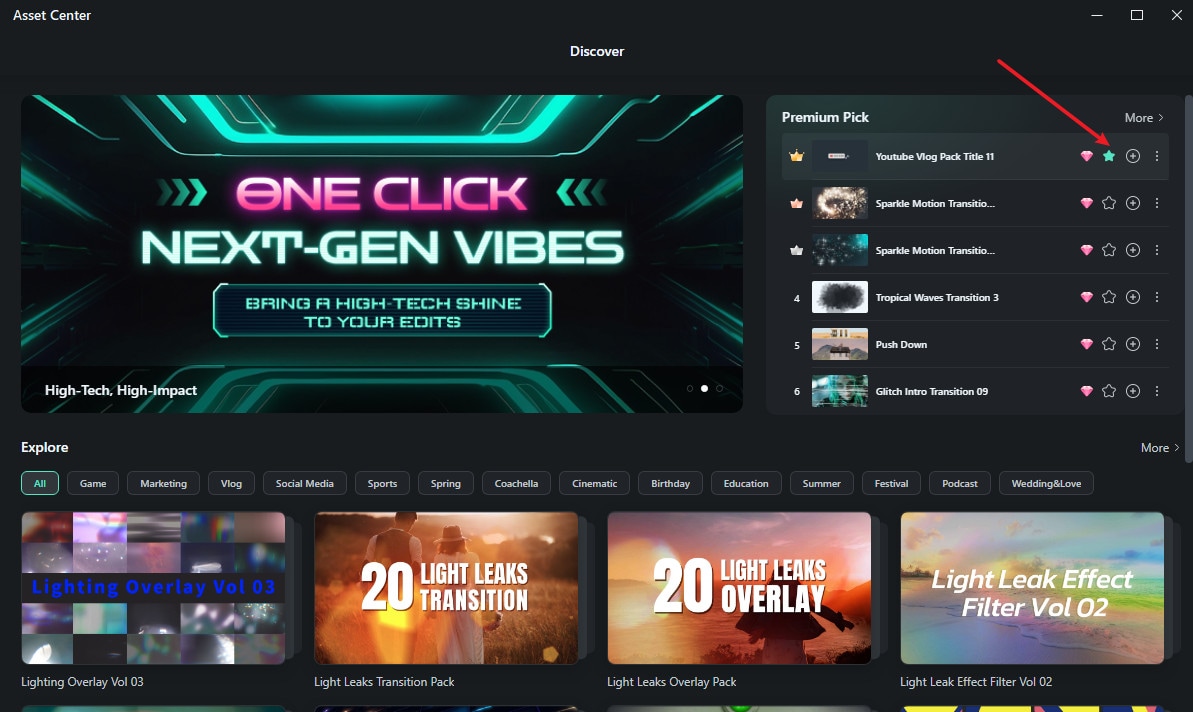
Once clicked, the Asset Center window will open, typically showing the Discover tab. Here you can find:
-
Promotional Banners: Large banners showcasing featured themes or collections (e.g., "Pixel Style Takes Over"). Clicking these takes you to dedicated pages for that theme.
-
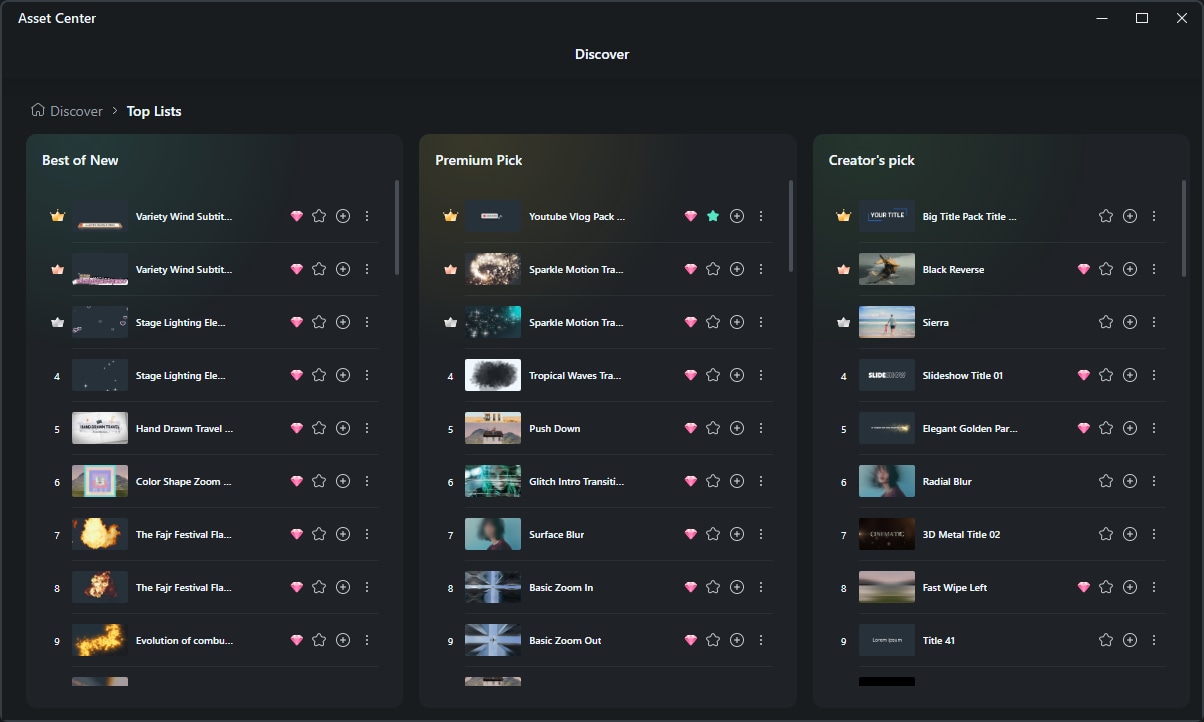
Top Lists: Sections like "Best of New," "Premium Pick," and "Creator's Pick" highlight popular, high-quality, or curated assets.
-
Explore Categories: Browse assets by specific themes or types like "Game," "Vlog," "Spring," "Birthday," etc. Clicking a category filters the displayed resources.
Finding, Downloading, and Using Assets
Whether you're browsing through Promotional Banners, Top Lists (like "Best of New," "Premium Pick"), or Explore Categories, the way to use assets is similar:
1. Locate an Asset: Browse the Asset Center to find an individual asset or a pack that interests you.
2. Add to Timeline:
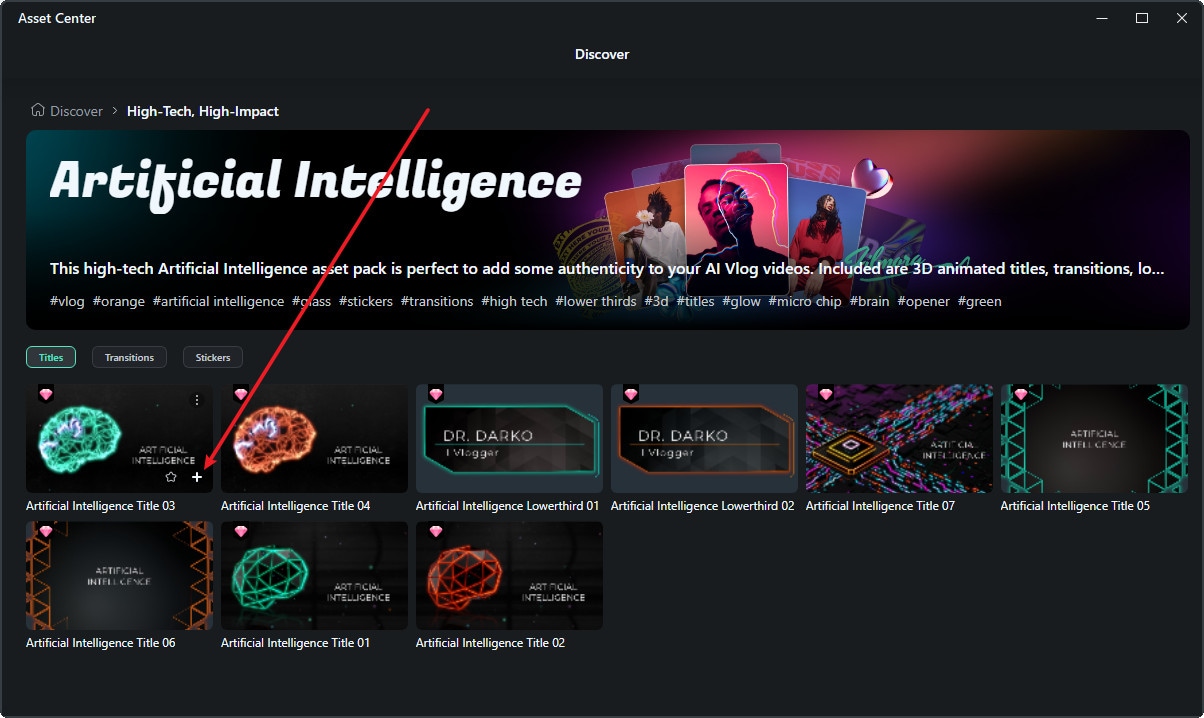
- Hover over the asset or element you want to use.
- Click the '+' (Add) icon.
- If the asset isn't already downloaded, Filmora will automatically start downloading it. A progress indicator will appear.
- Once downloaded (or if already downloaded), the asset will be added directly to your timeline at the playhead's current position, ready for customization.
3. Add to Favorites (Optional):
- To save an asset for quick access later, hover over it and click the star icon.
- This will add the asset to your "Favorites" section, accessible from the main Filmora library panel.
Related Posts
Featured Articles
How to Convert Excel Data to Charts?
Step-by-step to turn Excel spreadsheets into charts. Use Filmora to transform Excel data into animated charts—skip switching tools, keep your video workflow smooth.
Best Cinematic Subtitles/Fonts & How to Add
Trying to keep your audience hooked through translation and visuals? Read this article and learn how you can add cinematic subtitles to your videos.
How to Motion Blur on CapCut Desktop | Online | Mobile?
If you are curious about how to motion blur on the CapCut desktop, online, and in the app, here are the details.
Recommended User Guide
Filmora - Creative Asstets
Here is the guide on how to use Filmora' creative assets.
