
For the Best Results, Use the Latest Version.
-
Preparations
-
Account
-
Get Started & Basic Settings
-
Compatibility & Tech Specs
-
Performance Settings
-
-
Creating Projects
-
Creating New Projects
-
-
Importing & Recording
-
Video Editing for Windows
-
Basic Video Editing
- Enable/Disable Clip in Windows
- Magnetic Timeline for Windows
- Dual Monitor Setup for Video Editing on Windows
- Select All Clips on Timeline for Windows
- Timeline and Track Management
- Auto Ripple for Windows
- Split & Trim Video
- Crop & Pan & Zoom Video in Filmora for Windows
- Compositing
- Change Video Speed on Windows
- Reverse Video for Windows
- Mark In and Mark Out for Windows
- Markers for Windows
- Group editing
- Customizable Backgrounds for Videos and Images in Windows
- Video Snapshot
- Using Freeze Frame in Filmora for Windows
- Logo Reveal For Windows
- Auto Enhance in Filmora for Windows
- Applying drop shadow
- Adjustment layer for Windows
- Apply Transforming for Windows
- Video Editing Ruler – Windows
-
Advanced Video Editing
- Keyframe Motion Blur for Windows
- Drawing Tools for Windows | Filmora Guide
- Camera Tracking for Windows
- Create Multi-Camera Clip in Filmora for Windows
- Compound Clip for Windows
- Multi-Clip Editing for Windows
- Filmora Motion Blur | Windows
- 360° Video Reframing for Windows
- Track Matte for Windows
- Video Chapters in Filmora on Windows
- Filmora Flicker Removal Guide | Windows
- Create Multi-Screen Videos in Filmora on Windows
- Masking in Filmora on Windows
- Creating a PIP Effect for Windows
- Keyframe Graph Editor for Windows
- Animation Keyframing for Windows
- Keyframe Path Curve
-
AI-Powered Video Editing
- Smart Scene Cut for Windows
- Smart Short Clips for Windows
- AI Face Mosaic for Windows
- Filmora AI Eye Contact- Windows
- AI Video Enhancer for Windows
- AI Text-to-Video for Windows
- Planar Tracking for Windows
- AI Idea to Video for Windows
- AI Media Analysis for Windows
- Filmora Image to Video for Windows
- Filmora Image to Prompt for Windows
- Instant Cutter Tool for Windows
- AI Extend
- Filmora AI Relight - Windows
- Filmora AI Image Enhancer Guide - Windows
- AI Script to Video Guide for Windows
- AI Text-Based Editing for Windows
- AI Mate Editing for Windows
- Instant Mode for Windows
- ChatGPT Plugin - AI Copywriting
- AI Smart Cutout for Windows
- Lens correction on Windows
- Auto Reframe Video for Windows
- AI Portrait Cutout
- Scene Detection for Windows
- AI Smart Masking for Windows
- Motion Tracking on Windows
- Video Stabilization for Windows
- AI Video/Photo Object Remover for Windows
- AI Smart Search for Windows
- AI Skin Tone Protection for Windows
- AI Image for Windows
- Chroma Key (Green Screen) for Windows
- Super Slow Motion with Optical Flow for Windows
- Video Denoise for Windows
-
-
Audio Editing for Windows
-
Basic Audio Editing
-
Advanced Audio Editing
-
AI-Powered Audio Editing
- Auto synchronization
- AI Sound Effects in Filmora for Windows
- Smart BGM Generation on Windows
- AI Voice Enhancer in Filmora
- AI Voice Cloning in Wondershare Filmora
- AI Music Generator for Windows
- Audio To Video
- AI Vocal Remover for Windows
- AI Auto Beat Sync for Windows
- AI Audio Stretch for Windows
- AI Audio Denoise for Windows
- Silence Detection on Windows
-
-
Text Editing for Windows
-
Basic Text Editing
-
Advanced Text Editing
-
AI-Powered Text Editing
-
-
Video Customizations
-
Video Effects
- Filmora VST3 Plugins for Windows
- Filmora OpenFX Plugins for Windows
- Retouch Guide for Windows
- Filmora Pen Tool Tutorial: Motion Paths & Animation Guide
- Animated Charts
- Mocha Filmora - For Windows
- Different Types of Video Effects
- NewBlue FX effects
- Boris FX effects | Filmora Windows Guide
- Body Effects for Windows
- Filmora -Filmstock Asset
-
Audio Effects
-
Transitions
-
Stickers
-
Filters
-
Color Editing
-
Animations
-
Templates
-
Asset Center
-
-
Exporting & Share & Cloud Backup
Filmora VST3 Plugins for Windows
Filmora's VST3 plugin support is an exciting upgrade that gives creators far more control over their audio design. With VST3 compatibility, you can bring in professional third-party audio plugins directly into Filmora and enhance everything from vocals and music to ambient effects. This feature makes it easy to apply advanced EQs, compressors, reverbs, noise reducers, and creative sound effects without leaving the editor.
Whether you're polishing dialogue or crafting cinematic soundscapes, Filmora's VST3 integration lets you achieve richer, cleaner, and more precise audio results. This turns your video projects into polished, studio-quality productions with far less effort.
Step Overview
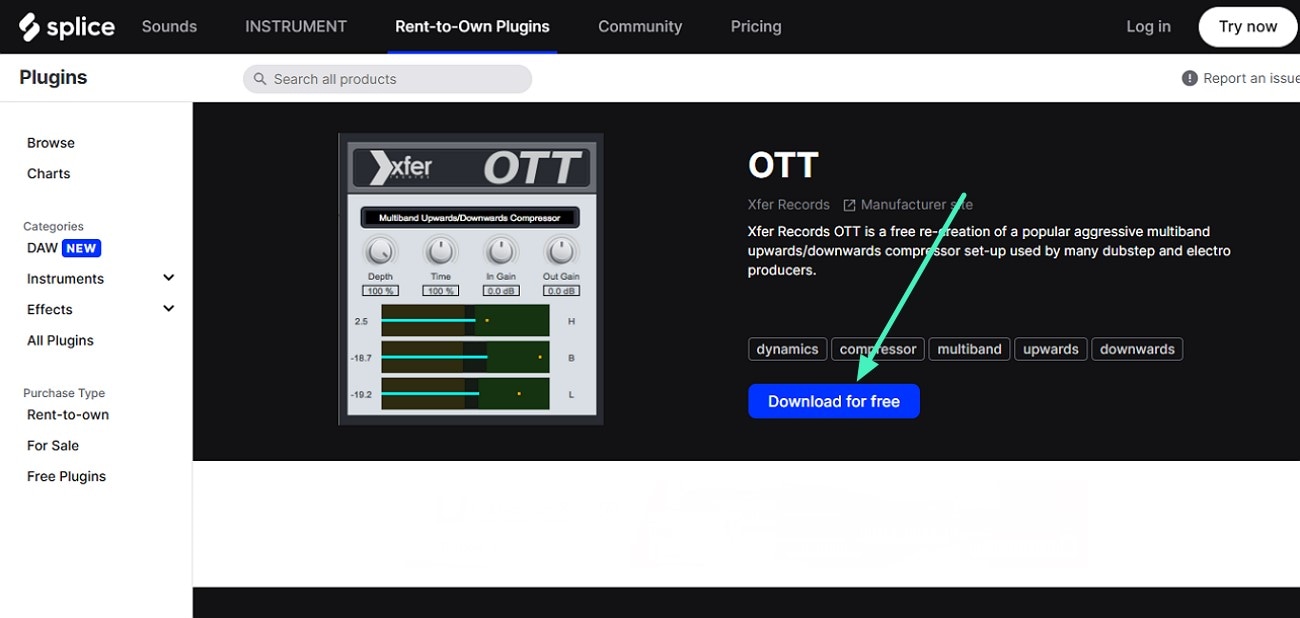
Step 1. Download the VST3 Plugin
To begin, head to the official website of the audio plugin and press the Download button to save it to your Windows device.
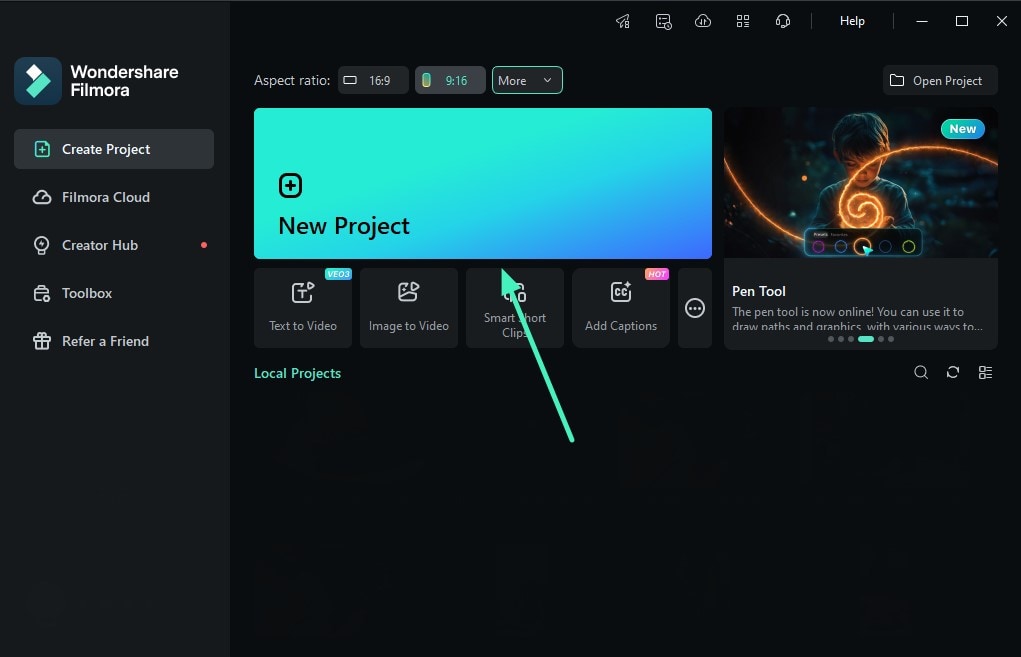
Step 2. Create New Filmora Project
Launch Filmora on your Windows device and create a project using the New Project tab. Now import your audio file and drag it to the editing timeline.
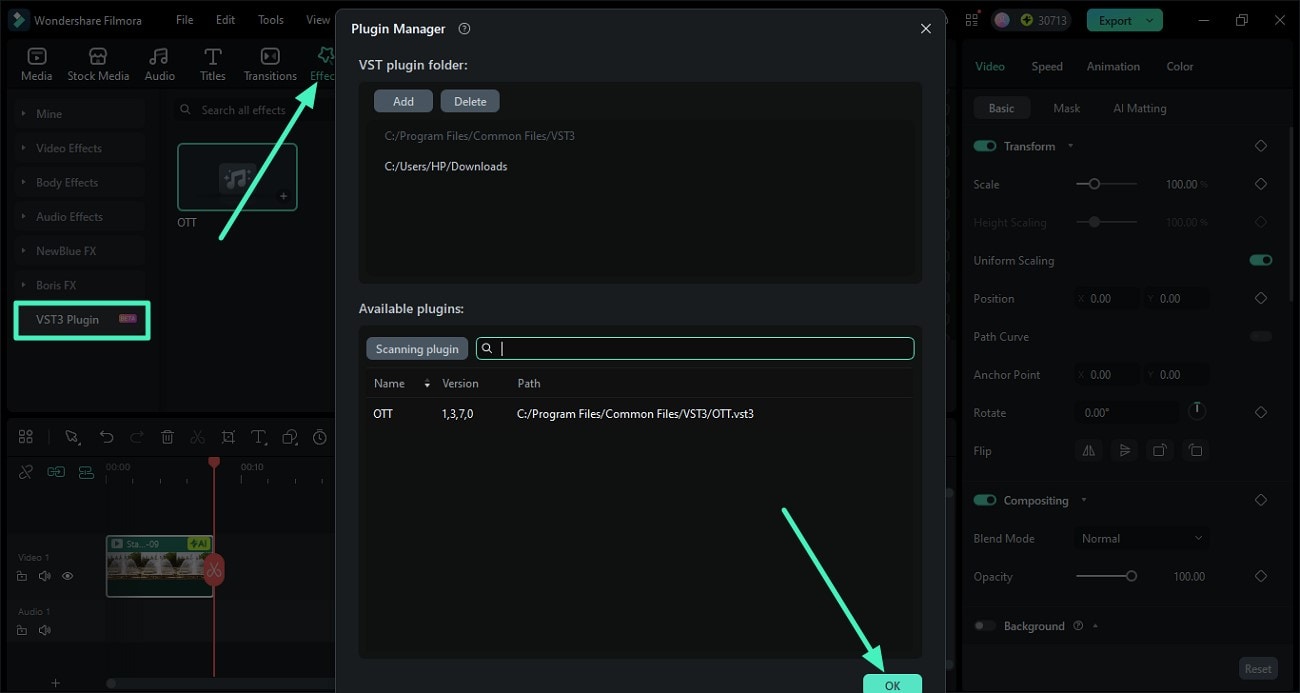
Step 3. Choose Effects Add Plugin
Head to the top toolbar of Filmora and select the Effects option from there. Navigate to the section on the left and scroll through it to locate the VST3 Plugin option. Click on it and press the Add button to add the downloaded plugin to Filmora's interface. Complete the process by pressing the OK button.
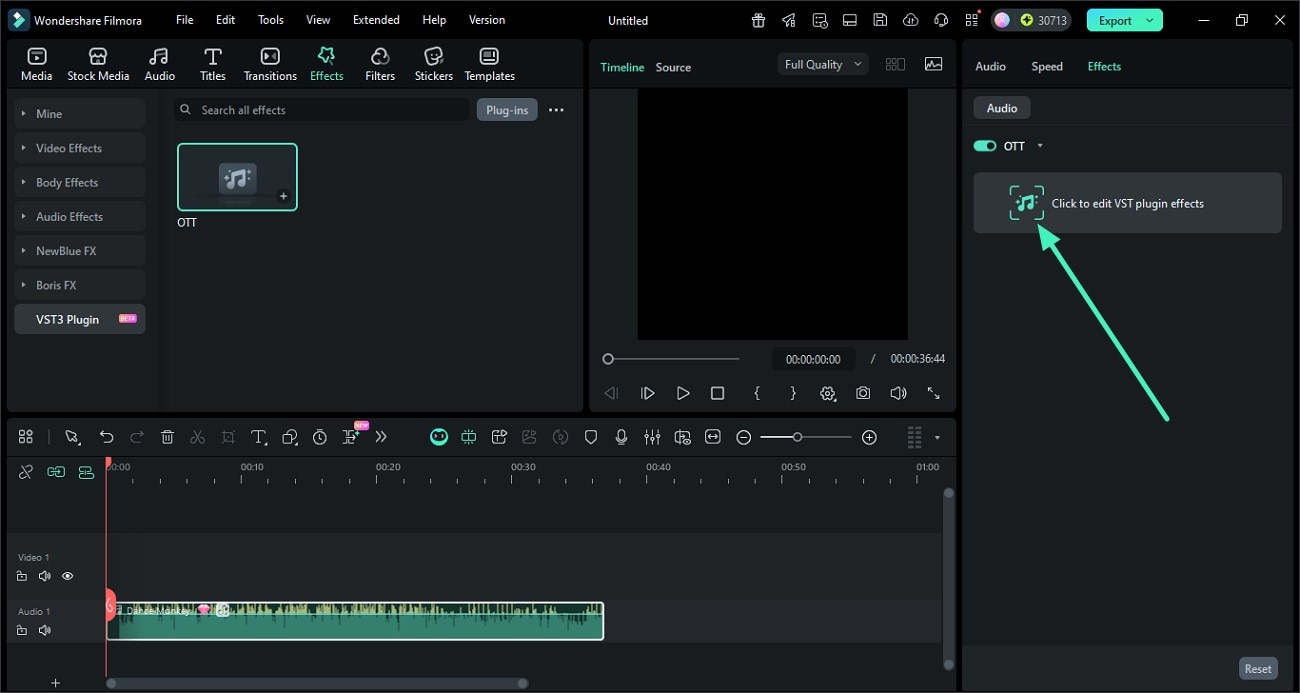
Step 4. Access Effects Panel From Left
Once the plugin is installed, head to the panel on the left and enable the Effects section. Now, click on the Click to Edit VST Plugin Effects.
Step 5. Modify the Audio and Export
In the following plugin window, adjust the audio by adjusting the knobs and sliders of the elements according to your preferences. Once done, preview the audio in the window and save the file using the Export button located at the top-right corner.

Step 6. Save Results as Audio File
In the following interface, select the output as MP3 or any audio format and hit the Export button to successfully export the results to your device.

Related Posts
Featured Articles
Make Fun: How to Make Yourself Look Old in Minutes
See your past and future self instantly using the three top old-face filter apps. Our AI age filter guide will show you how to watch yourself age from baby to adult in seconds.
7 Free Apps to Get Emojis on Android and iPhone | Updated
The ultimate guide to the coolest and most accessible apps to get emojis. Attractive themes, cute emojis, and emoji prediction, all in one! Spice up your videos and add emojis to your videos with Filmora Type fast and accurately with a hint of smileys.
Finding the Finest Way To Add Subtitles to Videos | Filmora
Do you want to make your content accessible to a wider audience? Learn how to add Filmora auto-captions to videos using its different subtitling features.
Recommended User Guide
Filmora -Filmstock Asset
you may see some effects and resources from Filmstock. And you will feel confused about that.Read this guide and you will find the answers.
Different Types of Video Effects
This is a guide explaining different types of effects in Filmora.
