
For the Best Results, Use the Latest Version.
Filmora User Guide for Mac
-
Preparations for Mac
-
Account (Mac)
-
Get Started & Basic Settings (Mac)
- Release Notes for Mac
- Latest Version and Features for Mac
- Get Started on Mac - Full Guide
- Download/register/uninstall on Mac
- Panel Layout on Mac
- Keyboard Shortcuts in Mac
- Touchbar on Mac
- Change playback quality on Mac
- Render preview files on Mac
- Manage Timeline in Mac
- Media for use on Mac
- Logo Reveal For Mac
- Marked Favorites for Mac
-
Compatibility & Tech Specs (Mac)
-
Performance Settings (Mac)
-
-
Creating Projects - Mac
-
Creating New Projects (Mac)
-
-
Importing & Recording - Mac
-
Importing (Mac)
-
Recording (Mac)
-
-
Video Editing for Mac
-
Basic Video Editing for Mac
- Edit Live Photos on Mac
- Enable/Disable Clip for Mac
- Magnetic Timeline For Mac
- Dual Monitor Setup for Video Editing on Mac
- Select All Clips on Timeline
- Auto Ripple for Mac
- Split & Trim Video on Mac
- Compositing on Mac
- Crop and zoom on Mac
- Playback Zoom Level for Mac
- Change Speed on Mac
- Play Video in Reverse on Filmora for Mac
- Mark In and Mark Out for Mac
- Markers for Mac
- Group Clips in Filmora for Mac
- Customized Backgrounds for Videos and Images in Mac
- Video Snapshot for Mac
- Freeze Frame on Mac
- Auto enhance on Mac
- Applying Drop Shadow for Mac
- Adjustment Layer for Mac
- Mark Clips in Filmora for Mac
- Video Editing Ruler – Mac
- Apply Transforming for Mac
-
Advanced Video Editing for Mac
- Keyframe Motion Blur for Mac
- Camera Tracking for Mac
- Keyframe Path Curve for Mac
- Text Animation Path for Mac
- Create Multi-Camera Clip for Mac
- Filmora Motion Blur | Mac
- Drawing Tools for Mac | Filmora Guide
- Track Matte for Mac
- Compound Clips for Mac
- 360° Video Reframing for Mac
- AI Video Enhancer for Mac
- Video Chapters in Filmora for Mac
- Filmora Flicker Removal Guide | Mac
- Multi-Clip Editing for Mac
- Keyframe Graph Editor for Mac
- Create Multi-Screen Videos in Filmora on Mac
- Animation Keyframing for Mac
- Masking in Filmora on Mac
- PIP (Picture in Picture) in Filmora on Mac
-
AI-Powered Video Editing for Mac
- Smart Scene Cut for Mac
- Smart Short Clips for Mac
- Filmora AI Eye Contact - Mac
- Filmora Image to Video for Mac
- AI Idea to Video for Mac
- AI Text to Video for Mac
- AI Media Analysis for Mac
- Instant Cutter Tool on Mac
- AI Face Mosaic for Mac
- Filmora Image to Prompt for Mac
- Filmora AI Image Enhancer Guide – macOS
- Planar Tracking for Mac
- Filmora AI Relight - Mac
- AI Extend For Mac
- AI Script-to-Video for Mac
- AI Text-Based Editing in Mac
- Create With Instant Mode on Mac
- ChatGPT Plugin - AI Copywriting on Mac
- AI Smart Cutout in Filmora for Mac
- Auto reframe on Mac
- Lens Correction in Filmora for Mac
- AI Portrait Cutout for Mac
- Scene detection on Mac
- AI Smart Masking for Mac
- AI Mate Editing for Mac
- Motion Tracking on Mac
- Video Stabilization for Mac
- AI Video/Photo Object Remover for Mac
- AI Smart Search for Mac
- AI Skin Tone Protection for Mac
- Green screen on Mac
- Super Slow Motion with Optical Flow for Mac
- AI Stylizer for Mac
- Video Denoise for Mac
-
-
Audio Editing for Mac
-
Basic Audio Editing for Mac
-
Advanced Audio Editing for Mac
-
AI-Powered Audio Editing for Mac
- Audio To Video for Mac
- AI Sound Effect for Mac
- Smart BGM Generation on Mac
- AI Voice Enhancer for Mac
- Audio Stretch for Mac
- AI Audio Denoise for Mac
- Auto Synchronization on Mac
- AI Vocal Remover for Mac
- AI Auto Beat Sync for Mac
- AI Music Generator for Mac
- AI Voice Cloning on Mac
- Silence Detection on Mac
-
-
Text Editing for Mac
-
Basic Text Editing for Mac
-
Advanced Text Editing for Mac
-
AI-Powered Text Editing for Mac
-
-
Video Customizations for Mac
-
Video Effects (Mac)
-
Audio Effects (Mac)
-
Transitions (Mac)
-
Stickers (Mac)
-
Filters (Mac)
-
Color Editing (Mac)
-
Animations (Mac)
-
Templates (Mac)
-
Asset Center (Mac)
-
-
Exporting & Share & Cloud Backup - Mac
Filmora 15 User Guide in PDF
Filmora 13 & 14 User Guide in PDF
Filmora 12 User Guide in PDF
Filmora 11 User Guide in PDF
Filmora 9 & 10 User Guide
Filmora Flicker Remover for Mac
Filmora for macOS includes a smart Flicker Remover feature that helps creators fix unstable lighting issues without diving into advanced settings. Using cloud-based AI processing, it analyzes footage to identify flicker caused by artificial lighting, LED sources, display screens, and time-lapse recording. Visual disturbances such as light pulsing, banding, and striped patterns are reduced while the clip’s original colors and motion remain natural.
This tool is particularly valuable when editing low-light scenes, indoor videos recorded under LED lights, or footage captured in environments with large screens or stage lighting. Time-lapse videos also see noticeable improvement, as inconsistent exposure is evened out across frames for smoother playback. Editors can preview the enhancement before finalizing, and the applied correction stays intact in the exported video.
Designed for macOS users who value speed and simplicity, Flicker Remover is ideal for vloggers, content creators, event editors, and small teams working under tight deadlines. It delivers a fast visual upgrade, helping videos look more professional with minimal effort.
How to Remove Flicker in Filmora on Mac
Filmora on Mac makes flicker correction straightforward, even for first-time users. The process below explains how to apply the Flicker Remover to your footage.
Step 1. Start a New Project
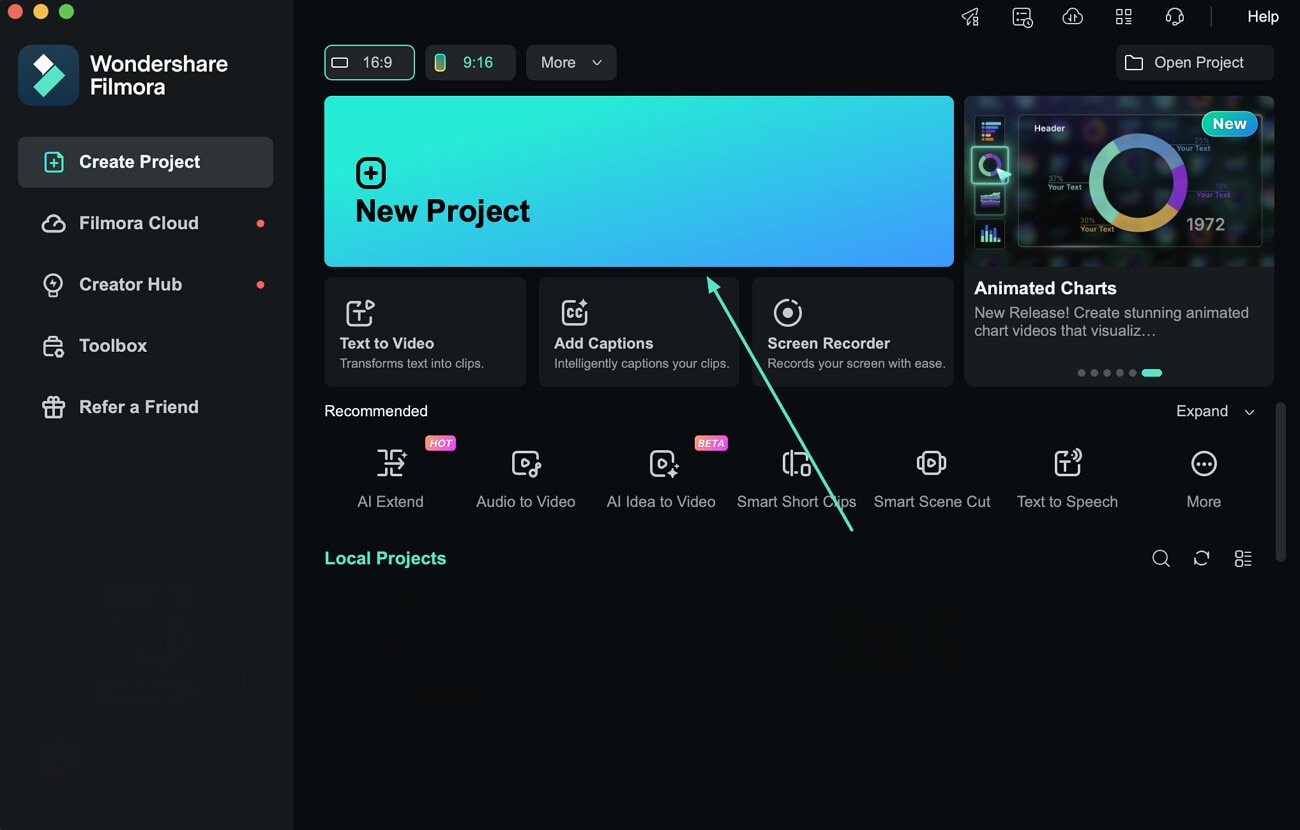
Open Filmora on your Mac and choose New Project from the home screen. Import the video you want to edit, then place it onto the timeline.
Step 2. Apply the Flicker Remover
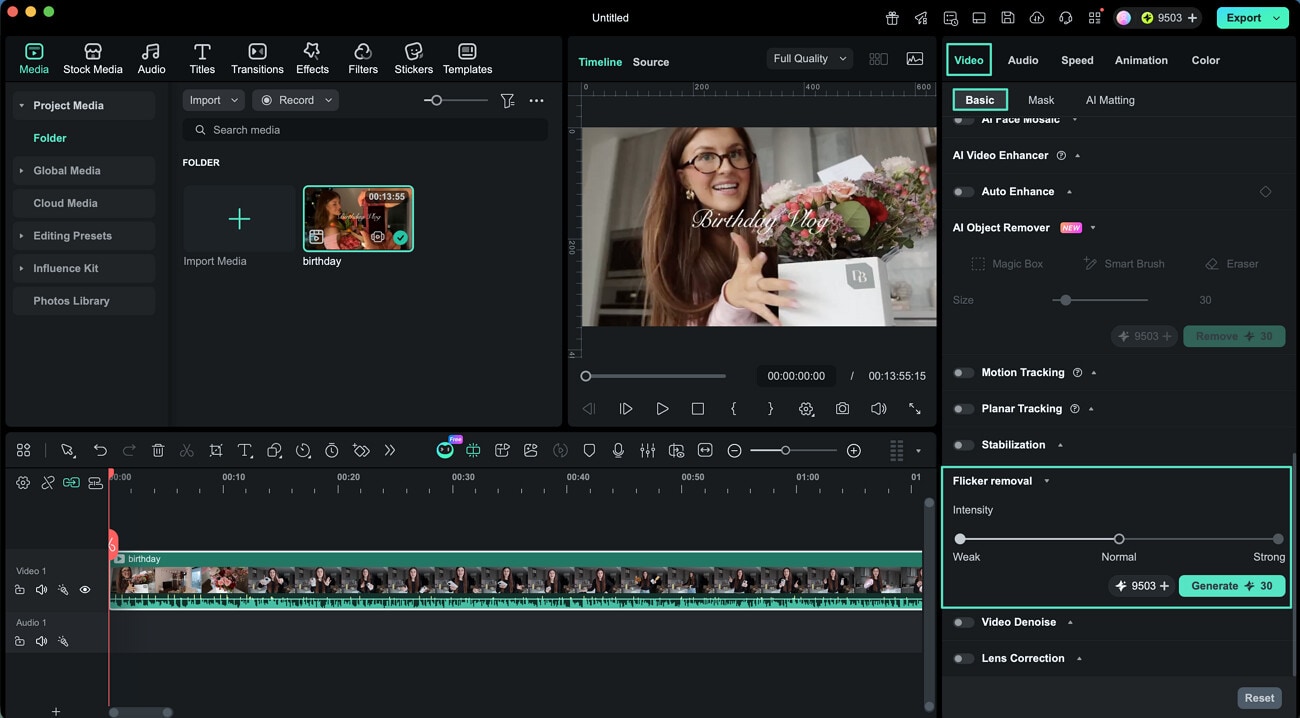
Click the clip in the timeline to open its settings in the Properties panel. Navigate to the Video options and expand the Basic section. Locate Flicker Removal, select the desired strength level, and apply the effect to begin processing by pressing Generate.
Step 3. Export the Enhanced Video
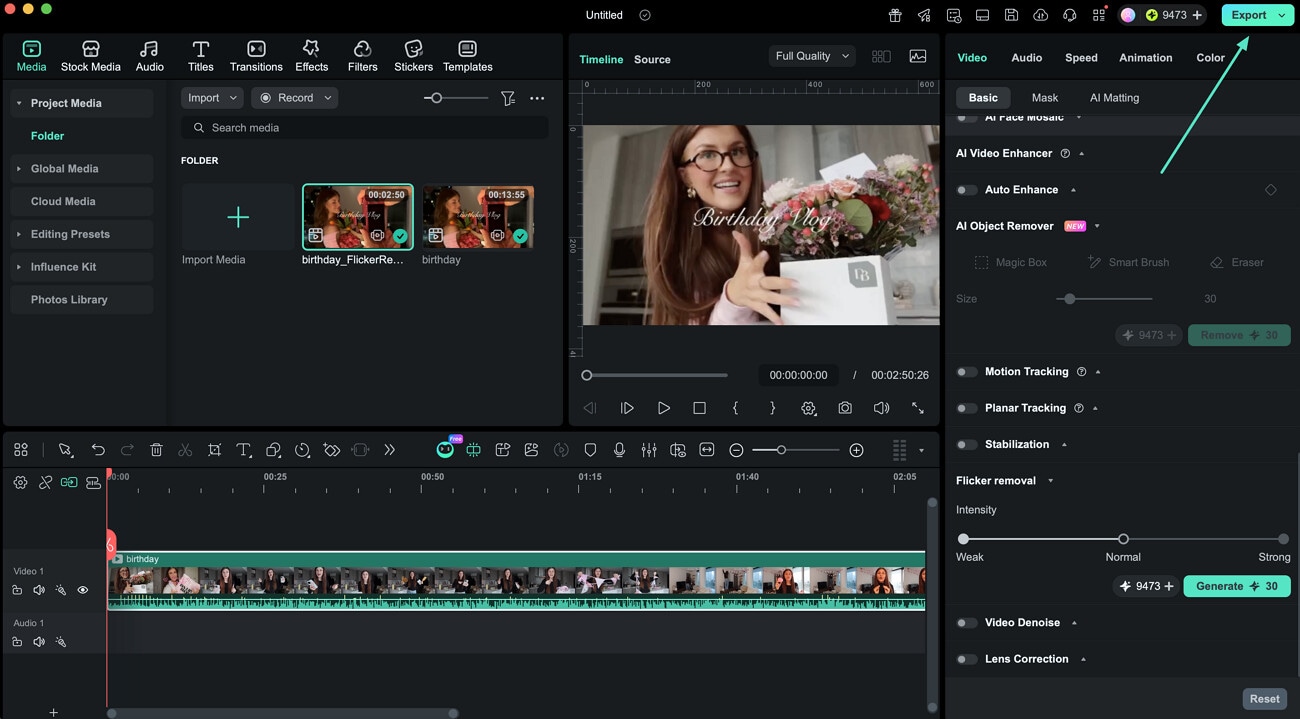
After the flicker reduction is complete and the preview looks clean, Export the video to save the final, flicker-free version.
Related Posts
Featured Articles
Learn more popular articles from Wondershare.
Best Methods To Resize Videos for Instagram: Crop and Fit Your Videos Easily
If you want to resize videos for Instagram, Filmora can help you ensure your video content fits for Instagram Stories, Feed, and Reels and make every post look great on any screen.
Video Color Correction For YouTube-An Ultimate Guide
Video color correction is the most crucial step in creating a professional YouTube Video. Read this detailed guide to know all about it and more.
10 Best Accent Changers | How to Easily Change an Accent in Videos With AI?
Are you a content creator looking for the best accent changers for your videos? Look into the top 10 tools for accent voice changers to generate exciting content.
Recommended User Guide
Learn how to use more features.
Masking in Filmora on Mac
If you want to blur any part of a video, use mask. This guide will show to how to add mask to video with Filmora.
Create Multi-Camera Clip for Mac
Use the multi-camera clip feature to seamlessly combine footage from different camera angles into a cohesive, dynamic view, enhancing the overall visual impact and storytelling of your video.
Camera Tracking for Mac
Learn how to use Camera Tracking in Filmora for Mac to automatically track a head, body, or custom area and keep your subject properly framed as it moves.
