
For the Best Results, Use the Latest Version.
Filmora User Guide for Mac
-
Preparations for Mac
-
Account (Mac)
-
Get Started & Basic Settings (Mac)
- Release Notes for Mac
- Latest Version and Features for Mac
- Get Started on Mac - Full Guide
- Download/register/uninstall on Mac
- Panel Layout on Mac
- Keyboard Shortcuts in Mac
- Touchbar on Mac
- Change playback quality on Mac
- Render preview files on Mac
- Manage Timeline in Mac
- Media for use on Mac
- Logo Reveal For Mac
- Marked Favorites for Mac
-
Compatibility & Tech Specs (Mac)
-
Performance Settings (Mac)
-
-
Creating Projects - Mac
-
Creating New Projects (Mac)
-
-
Importing & Recording - Mac
-
Importing (Mac)
-
Recording (Mac)
-
-
Video Editing for Mac
-
Basic Video Editing for Mac
- Edit Live Photos on Mac
- Enable/Disable Clip for Mac
- Magnetic Timeline For Mac
- Dual Monitor Setup for Video Editing on Mac
- Select All Clips on Timeline
- Auto Ripple for Mac
- Split & Cut Videos on Mac
- Compositing on Mac
- Crop and zoom on Mac
- Playback Zoom Level for Mac
- Change Speed on Mac
- Play Video in Reverse on Filmora for Mac
- Mark In and Mark Out for Mac
- Markers for Mac
- Group Clips in Filmora for Mac
- Customized Backgrounds for Videos and Images in Mac
- Video Snapshot for Mac
- Freeze Frame on Mac
- Auto enhance on Mac
- Applying Drop Shadow for Mac
- Adjustment Layer for Mac
- Mark Clips in Filmora for Mac
- Video Editing Ruler – Mac
- Apply Transforming for Mac
-
Advanced Video Editing for Mac
- Keyframe Motion Blur for Mac
- Camera Tracking for Mac
- Keyframe Path Curve for Mac
- Text Animation Path for Mac
- Create Multi-Camera Clip for Mac
- Filmora Motion Blur | Mac
- Drawing Tools for Mac | Filmora Guide
- Track Matte for Mac
- Compound Clips for Mac
- 360° Video Reframing for Mac
- AI Video Enhancer for Mac
- Video Chapters in Filmora for Mac
- Filmora Flicker Removal Guide | Mac
- Multi-Clip Editing for Mac
- Keyframe Graph Editor for Mac
- Create Multi-Screen Videos in Filmora on Mac
- Animation Keyframing for Mac
- Masking in Filmora on Mac
- PIP (Picture in Picture) in Filmora on Mac
-
AI-Powered Video Editing for Mac
- Smart Scene Cut for Mac
- Smart Short Clips for Mac
- Filmora AI Eye Contact - Mac
- Filmora Image to Video for Mac
- AI Idea to Video for Mac
- AI Text-to-Video for Mac
- AI Media Analysis for Mac
- Instant Cutter Tool on Mac
- AI Face Mosaic for Mac
- Filmora Image to Prompt for Mac
- Filmora AI Image Enhancer Guide – macOS
- Planar Tracking for Mac
- Filmora AI Relight - Mac
- AI Extend For Mac
- AI Script-to-Video for Mac
- AI Text-Based Editing in Mac
- Create With Instant Mode on Mac
- ChatGPT Plugin - AI Copywriting on Mac
- AI Smart Cutout in Filmora for Mac
- Auto reframe on Mac
- Lens Correction in Filmora for Mac
- AI Portrait Cutout on Mac
- Scene detection on Mac
- AI Smart Masking for Mac
- AI Mate Editing for Mac
- Motion Tracking on Mac
- Video Stabilization for Mac
- AI Video/Photo Object Remover for Mac
- AI Smart Search for Mac
- AI Skin Tone Protection for Mac
- Green screen on Mac
- Super Slow Motion with Optical Flow for Mac
- AI Stylizer for Mac
- Video Denoise for Mac
-
-
Audio Editing for Mac
-
Basic Audio Editing for Mac
-
Advanced Audio Editing for Mac
-
AI-Powered Audio Editing for Mac
- Audio To Video for Mac
- AI Sound Effect for Mac
- Smart BGM Generation on Mac
- AI Voice Enhancer for Mac
- Audio Stretch for Mac
- AI Audio Denoise for Mac
- Auto Synchronization on Mac
- AI Vocal Remover for Mac
- AI Auto Beat Sync for Mac
- AI Music Generator for Mac
- AI Voice Cloning on Mac
- Silence Detection on Mac
-
-
Text Editing for Mac
-
Basic Text Editing for Mac
-
Advanced Text Editing for Mac
-
AI-Powered Text Editing for Mac
-
-
Video Customizations for Mac
-
Video Effects (Mac)
-
Audio Effects (Mac)
-
Transitions (Mac)
-
Stickers (Mac)
-
Filters (Mac)
-
Color Editing (Mac)
-
Animations (Mac)
-
Templates (Mac)
-
Asset Center (Mac)
-
-
Exporting & Share & Cloud Backup - Mac
Filmora 15 User Guide in PDF
Filmora 13 & 14 User Guide in PDF
Filmora 12 User Guide in PDF
Filmora 11 User Guide in PDF
Filmora 9 & 10 User Guide
Motion Blur for Mac
Filmora for Mac includes the Motion Blur feature to help creators produce smoother and more immersive motion effects in high-speed footage. Instead of showing abrupt or stiff movement, the feature intelligently adds realistic motion trails that create a more fluid and cinematic appearance. It is especially useful for gaming clips, sports recordings, action sequences, and videos with rapid camera movement.
With customizable controls for blur strength, motion range, and directional flow, users can easily fine-tune the effect to match different editing styles and visual moods.
Steps to Use Motion Blur in Filmora
Filmora offers an intuitive workflow for applying motion blur effects on Mac devices. Follow the instructions below to learn how to improve fast-moving footage using Motion Blur:
Index
Step 1. Create a Project and Add Footage
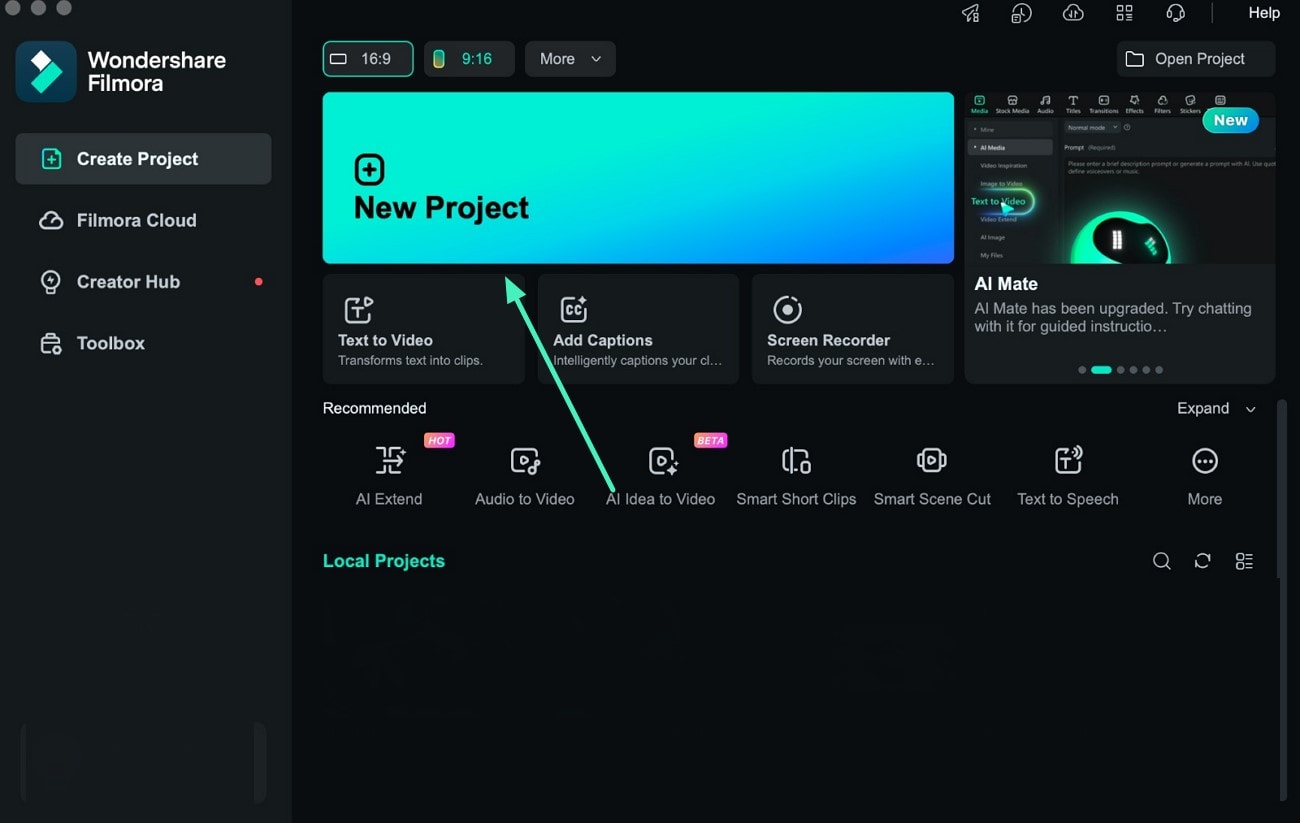
Open Filmora on your Mac and click the New Project option from the home screen. Import the preferred video into the media library and place it on the editing timeline to begin editing.
Step 2. Activate Motion Blur
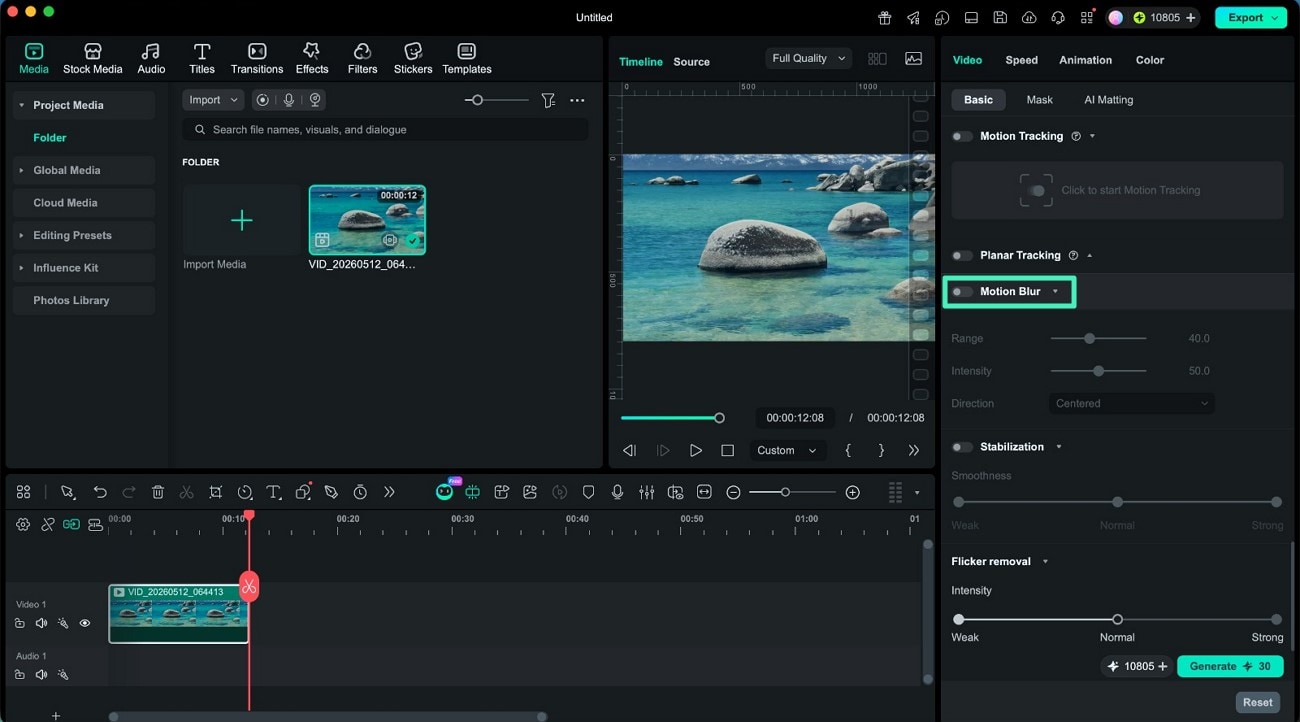
Navigate to the video editing panel and locate the Motion Blur feature. Enable the toggle to allow Filmora to automatically detect and smooth motion within the selected clip.
Step 3. Customize Blur Settings and Export
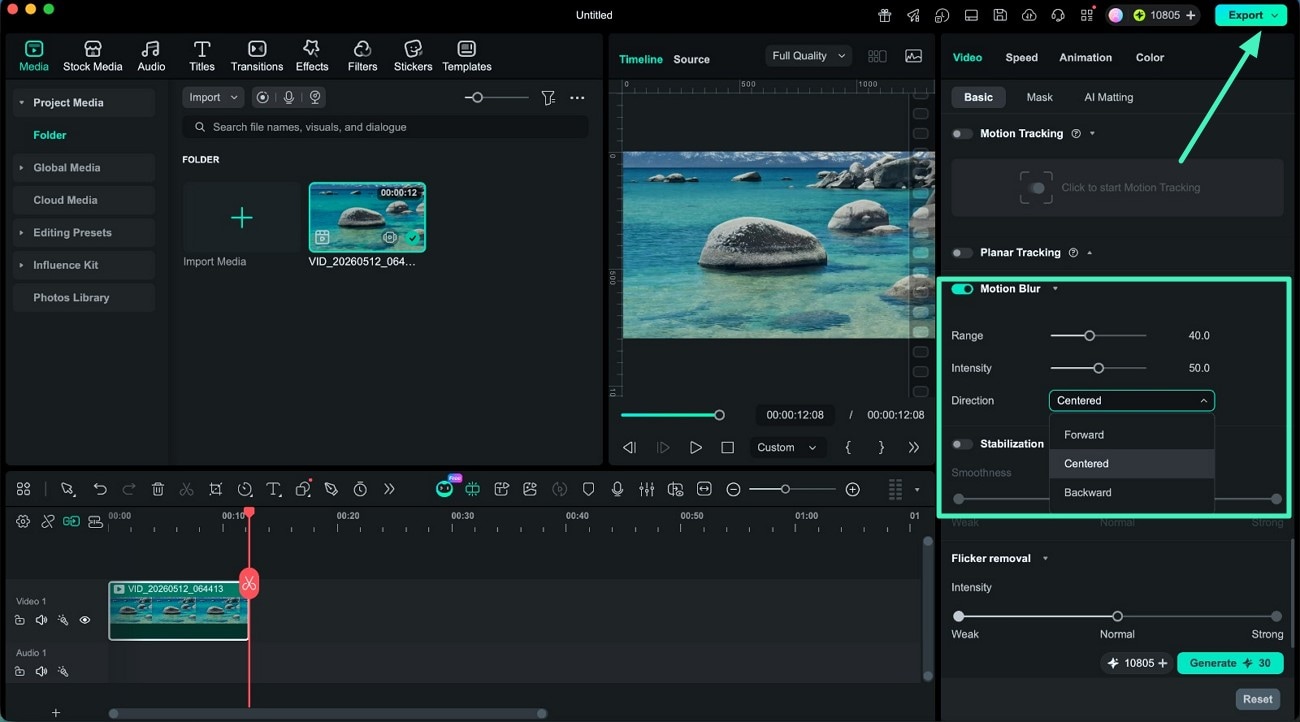
Adjust the Range and Intensity sliders to control the spread and strength of the motion blur effect. Next, choose the preferred motion direction from the available options to achieve the desired visual style. After reviewing the preview results, click the Export button to save the enhanced video to your device.
Related Posts
Featured Articles
Learn more popular articles from Wondershare.
20 Cooking Sound Effects for Your Food Video Content + Websites to Download
Check out these realistic cooking sound effects for your food video. Find reliable websites for downloading kitchen sounds and editing tools for easy video creation.
Top 10 UFC Fighters in 2026 You Should Follow
The ultimate list of the top 10 UFC fighters is finally here. Read this full guide to gain insights into the full list!
How To Curve Text in Microsoft Word: A Step-by-Step Guide
Discover how to curve text in Microsoft Word using these simple methods. Both novice and experienced users will find this article to be ideal. Use fashionable text effects to improve your documents.
Recommended User Guide
Learn how to use more features.
PIP (Picture in Picture) in Filmora on Mac
How to make a picture in picture video? Many people may want to know. This guide will tell you an easy way to create a PIP video with Filmora video editor.
Create Multi-Screen Videos in Filmora on Mac
Split screen is a useful feature to play videos in different angels. Follow the guide to know how to use split screen feature in Filmora.
Filmora Flicker Removal Guide | Mac
Learn how to use Filmora Flicker Remover on Mac to remove video flicker and fix lighting issues quickly and easily.
