
For the Best Results, Use the Latest Version.
Filmora User Guide for Mac
-
Preparations for Mac
-
Account (Mac)
-
Get Started & Basic Settings (Mac)
- Release Notes for Mac
- Latest Version and Features for Mac
- Get Started on Mac - Full Guide
- Download/register/uninstall on Mac
- Panel Layout on Mac
- Keyboard Shortcuts in Mac
- Touchbar on Mac
- Change playback quality on Mac
- Render preview files on Mac
- Manage Timeline in Mac
- Media for use on Mac
- Logo Reveal For Mac
- Marked Favorites for Mac
-
Compatibility & Tech Specs (Mac)
-
Performance Settings (Mac)
-
-
Creating Projects - Mac
-
Creating New Projects (Mac)
-
-
Importing & Recording - Mac
-
Importing (Mac)
-
Recording (Mac)
-
-
Video Editing for Mac
-
Basic Video Editing for Mac
- Edit Live Photos on Mac
- Enable/Disable Clip for Mac
- Magnetic Timeline For Mac
- Dual Monitor Setup for Video Editing on Mac
- Select All Clips on Timeline for Mac
- Auto Ripple for Mac
- Split & Cut Videos on Mac
- Compositing on Mac
- Crop and zoom on Mac
- Playback Zoom Level for Mac
- Change Speed on Mac
- Play Video in Reverse on Filmora for Mac
- Mark In and Mark Out for Mac
- Markers for Mac
- Group Clips in Filmora for Mac
- Customized Backgrounds for Videos and Images in Mac
- Video snapshot on Mac
- Freeze Frame on Mac
- Auto enhance on Mac
- Applying Drop Shadow for Mac
- Adjustment Layer for Mac
- Mark Clips in Filmora for Mac
- Video Editing Ruler – Mac
- Apply Transforming for Mac
-
Advanced Video Editing for Mac
- Keyframe Motion Blur for Mac
- Camera Tracking for Mac
- Keyframe Path Curve for Mac
- Text Animation Path for Mac
- Create Multi-Camera Clip for Mac
- Filmora Motion Blur | Mac
- Drawing Tools for Mac | Filmora Guide
- Track Matte for Mac
- Compound Clips for Mac
- 360° Video Reframing for Mac
- AI Video Enhancer for Mac
- Video Chapters in Filmora for Mac
- Filmora Flicker Removal Guide | Mac
- Multi-Clip Editing for Mac
- Keyframe Graph Editor for Mac
- Create Multi-Screen Videos in Filmora on Mac
- Animation Keyframing for Mac
- Masking in Filmora on Mac
- PIP (Picture in Picture) in Filmora on Mac
-
AI-Powered Video Editing for Mac
- Smart Scene Cut for Mac
- Smart Short Clips for Mac
- Filmora AI Eye Contact - Mac
- Filmora Image to Video for Mac
- AI Idea to Video for Mac
- AI Text-to-Video for Mac
- AI Media Analysis for Mac
- Instant Cutter Tool on Mac
- AI Face Mosaic for Mac
- Filmora Image to Prompt for Mac
- Filmora AI Image Enhancer Guide – macOS
- Planar Tracking for Mac
- Filmora AI Relight - Mac
- AI Extend For Mac
- AI Script-to-Video for Mac
- AI Text-Based Editing in Mac
- Create With Instant Mode on Mac
- ChatGPT Plugin - AI Copywriting on Mac
- AI Smart Cutout in Filmora for Mac
- Auto reframe on Mac
- Lens Correction in Filmora for Mac
- AI Portrait Cutout on Mac
- Scene detection on Mac
- AI Smart Masking for Mac
- AI Mate Editing for Mac
- Motion Tracking on Mac
- Video Stabilization for Mac
- AI Video/Photo Object Remover for Mac
- AI Smart Search for Mac
- AI Skin Tone Protection for Mac
- Green screen on Mac
- Super Slow Motion with Optical Flow for Mac
- AI Stylizer for Mac
- Video Denoise for Mac
-
-
Audio Editing for Mac
-
Basic Audio Editing for Mac
-
Advanced Audio Editing for Mac
-
AI-Powered Audio Editing for Mac
- Audio To Video for Mac
- AI Sound Effect for Mac
- Smart BGM Generation on Mac
- AI Voice Enhancer for Mac
- Audio Stretch for Mac
- AI Audio Denoise for Mac
- Auto Synchronization on Mac
- AI Vocal Remover for Mac
- AI Auto Beat Sync for Mac
- AI Music Generator for Mac
- AI Voice Cloning on Mac
- Silence Detection on Mac
-
-
Text Editing for Mac
-
Basic Text Editing for Mac
-
Advanced Text Editing for Mac
-
AI-Powered Text Editing for Mac
-
-
Video Customizations for Mac
-
Video Effects (Mac)
-
Audio Effects (Mac)
-
Transitions (Mac)
-
Stickers (Mac)
-
Filters (Mac)
-
Color Editing (Mac)
-
Animations (Mac)
-
Templates (Mac)
-
Asset Center (Mac)
-
-
Exporting & Share & Cloud Backup - Mac
Filmora Tutorial Videos
Filmora 15 User Guide in PDF
Filmora 13 & 14 User Guide in PDF
Filmora 12 User Guide in PDF
Filmora 11 User Guide in PDF
Filmora 9 & 10 User Guide
Filmora AI Image Enhancer – macOS
Transform ordinary photos into crisp, professional-quality images on your Mac with Filmora’s AI Image Enhancer. This tool uses intelligent AI algorithms to automatically refine details, sharpen textures, and enhance colors without any complicated editing steps. Whether you’re touching up old photos, improving low-resolution shots, or perfecting portraits, Filmora makes it fast and effortless.
Key Features
- 4K Image Compatibility: Supports images with resolutions up to 3840 × 2160, allowing high-resolution visuals to be enhanced without quality loss.
- Preserves Original Dimensions: The enhancement process keeps the image’s original pixel size unchanged.
- Ideal for Portraits and Older Images: Performs particularly well when improving portraits, aged photos, and low-resolution images.
- AI-Driven Upscaling: Automatically sharpens and refines images using advanced super-resolution technology without altering their dimensions.
- Smart Facial Enhancement: Detects faces and subtly enhances facial features, blending them seamlessly with the rest of the photo.
- Effortless One-Click Improvement: No technical knowledge needed; just select your image and let the AI do the work.
How to Enhance Images in Filmora on Mac
Index
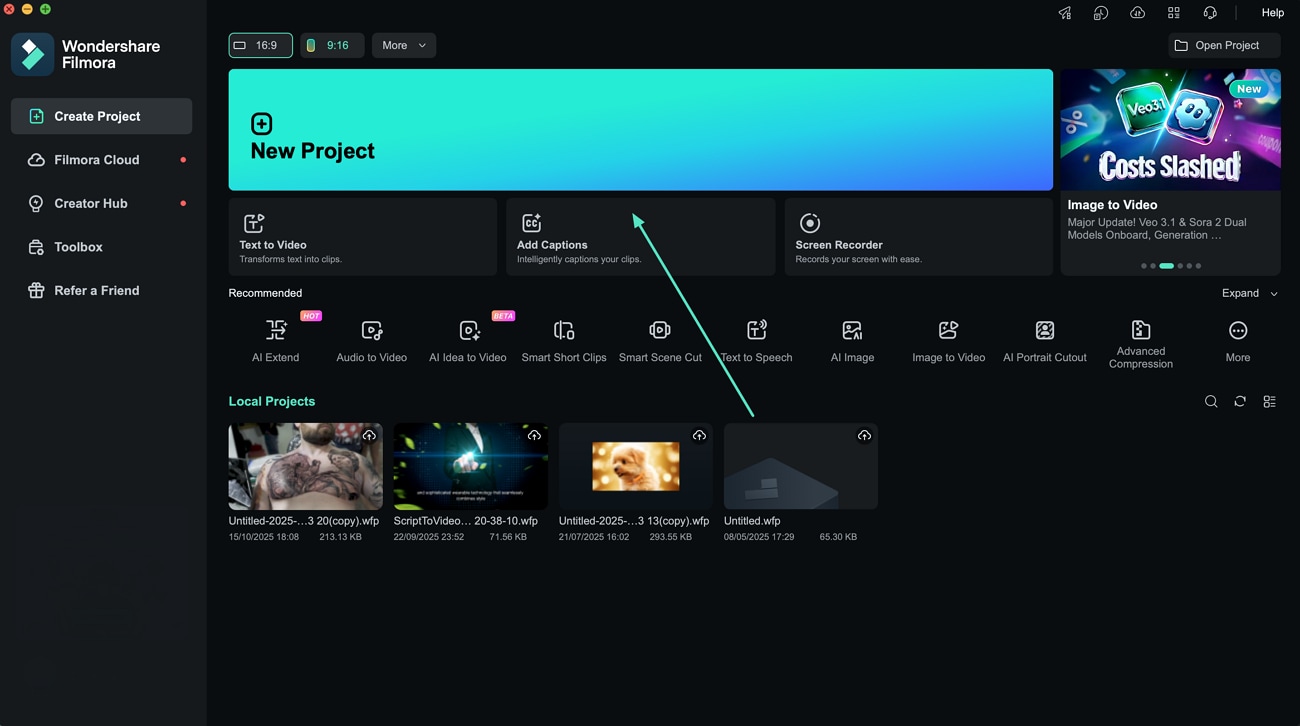
Step 1. Launch Filmora and Import Your Image
Open Filmora on your Mac and create a new project. Drag the image you want to enhance into the timeline to prepare it for processing.
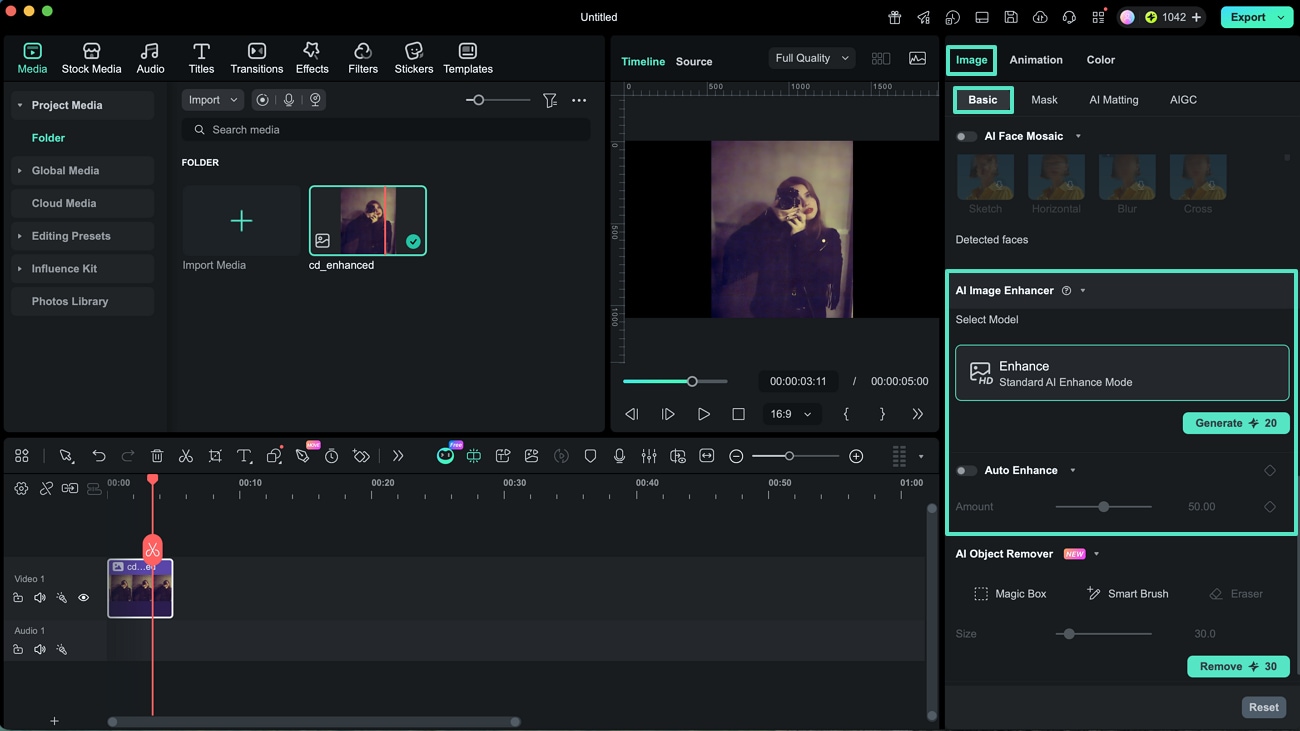
Step 2. Use the AI Image Enhancer Tool
Select the image in your timeline, then go to the Properties Panel on the right. Under the Basic tab, find the Enhance option. Pick your preferred enhancement model and toggle the Auto Enhance feature. Click Generate to let Filmora process the image.
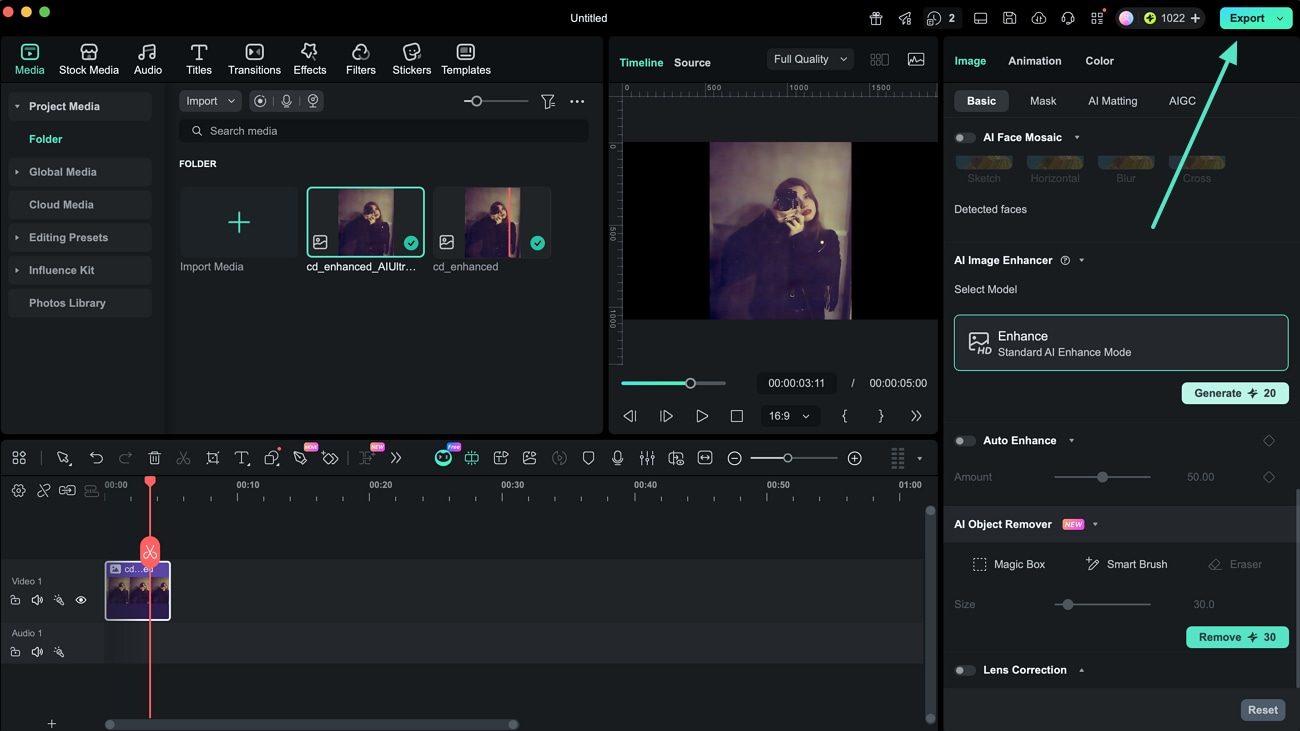
Step 3. Review and Save the Enhanced Photo
The AI will automatically improve the image resolution and, if faces are present, enhance them naturally. Preview the results in the preview window, and when satisfied, click Export to save the enhanced image to your Mac.
Related Posts
Featured Articles
Learn more popular articles from Wondershare.
Lyric Templates | Create Visually Engaging Lyrics Video
Lyric video templates are good to use for us in After Effects. In this article, you will learn 8 best lyric video templates. They are easy to use. Check it out!
Need MP3s? Best MP4 to MP3 Converters | 2026
Converting MP4 video file to an MP3 file format is a simple process. Read on if you would like to learn more about the best MP4 to MP3 converters you can use online or on PC and Mac computers.
How to Create WAV Files From Text-To-Speech Tools?
Looking for a reliable text-to-speech app? Want to create WAV files from text? Check out our detailed guide on the best text-to-speech tools with WAV support.
Recommended User Guide
Learn how to use more features.
Video Stabilization for Mac
Learn how to stabilize your video with Filmora for Mac.
Green screen on Mac
Learn how to use Chroma Key in Filmora for Mac.
Filmora AI Eye Contact - Mac
Here is the guide on how to use the AI eye contact feature in Filmora on the Mac.
