


 TL;DR:
Wondershare Filmora provides the most precise desktop control for long-form video text editing and motion tracking, CapCut is the fastest option for short-form social auto-captions, and Canva is best for maintaining consistent brand typography through web templates.
● Most free plans enforce strict limitations, as Filmora requires a paid plan starting at $49.99 to remove export watermarks, Canva watermarks premium template elements on its free tier, and FlexClip adds watermarks if project limits are exceeded.
● Browser-based editors like Kapwing, VEED, and Flixier are specifically built for transcript-centric workflows, allowing you to generate, manually edit, and export standalone subtitle files in SRT, VTT, or TXT formats for cross-platform reuse.
● Vont stands out as a dedicated mobile iOS and Android app offering over 400 installable fonts and detailed readability controls, but it lacks an automatic speech-to-text generator, meaning all captions must be typed and timed manually.
Ask AI for a summary
 ChatGPT
 Perplexity
 Gemini
 Claude
 Grok
Grok
Adding text to a video sounds simple, until you try to make it look clean. You drop in a title, then the font looks cheap. You add captions, then timing gets messy, or the editor makes you rebuild every line. In many video text editor tools, the best text effects are locked, and “free” exports may come with a watermark.
This list covers the best video text editor options across desktop, mobile, and browser. You will find tools for captions, titles, and lower-thirds, plus free and no-watermark picks where possible. We also share how we test each editor, so you can choose a video and text editor that fits your workflow fast.
To keep this toplist fair, we test every video text editor using the same 30-second social clip. We recreate a realistic text workflow, not just “add one title and export.”
Our test includes:
- Add a title with animation, a lower-third name tag, and a callout label
- Generate captions (if available) or add subtitles manually
- Edit text timing and layout: split lines, adjust font, add background boxes, and reposition for safe zones
- Export at 1080p and check readability, motion smoothness, and watermark behavior on the free plan
- The tools that rank highest make it easy to add text to video online or on a desktop, and still keep text looking polished at export.
Our Top 3 Picks



Video Text Editor Comparison Chart
| Tools | Platform | Key Features | Pricing | Best For |
| Wondershare Filmora | Windows, macOS, iOS, Android | Title and lower-third presets; keyframe text animation; built-in captions workflow | Free plan, paid starts from $49.99, and perpetual license | Creators who want strong text control and a reliable desktop workflow |
| CapCut | Windows, macOS, iOS, Android, Web | Fast auto captions; trendy text effects; social templates | Free plan, paid starts from $19.99 | Quick captions and social-first text styles |
| Canva | Windows, macOS, iOS, Android, Web | Templates; brand-ready typography; Brand Kit for consistent fonts/colors | Free plan, paid starts from $20 | Template-driven videos with clean, on-brand text |
| Clipchamp | Web, Windows (Microsoft) | Simple timeline; text overlays; built-in stock and quick exports | Free plan; Premium included with certain Microsoft 365 plans | Straightforward browser editing with clean exports |
| Adobe Express | Web, iOS, Android | Text effects, templates, and quick captioning tools | Free plan; paid starts from $9.99/month (pricing varies by region) | Polished typography and fast promo-style edits |
| VEED | Web | Auto subtitles; text overlays; brand tools | Free plan, paid starts from $12 | Teams and creators who want browser captions plus brand styling |
| Kapwing | Web | Strong subtitle editor; multi-layer text; team workspace | Free plan, paid starts from $24 | Caption-heavy content and collaborative editing |
| InVideo | Web | Template-first workflow; quick text overlays; social formats | Free plan, paid starts from $15 | Fast marketing-style videos with lots of templates |
| FlexClip | Web | Text styles and simple animations; easy “add text to video” flow | Free plan, paid starts from $11.99 | Simple projects and quick text videos in a browser |
| Flixier | Web | Cloud editor, auto captions, timeline text layering | Free plan, paid starts from $23 | Faster cloud editing with captions and team features |
| Vont - Text on Videos | iOS, Android | Mobile text overlays; font styles; quick title cards | Free, in-app purchases start from $2.99 | Adding text to videos on iPhone with a lightweight app |
|
Show More
Show Less
|
||||
 Secure Download
Part 1: Top 11 Video Text Editors for Captions and Titles
For this list, we focus on text-specific workflows that affect speed and quality: how each editor builds titles and lower-thirds, how it creates and edits captions, and how well it handles text that needs to move (like callouts pinned to a subject).
Tools rank higher when they make text styling repeatable and caption editing less painful on real projects.
1. Wondershare Filmora
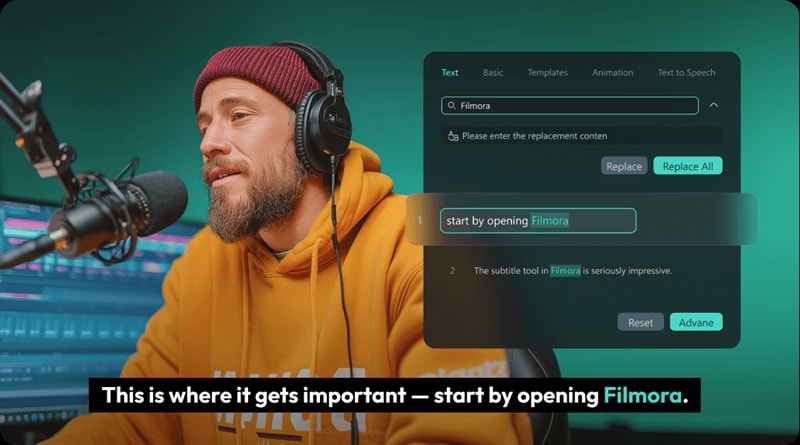
Filmora is a cross-platform video and text editor built around a dedicated Titles workflow (captions, lower 3rds, subtitles, openers, end credits), plus tools to save and reuse custom text styles. It also supports Speech-to-Text subtitle generation and detailed subtitle-strip editing, so it fits both short social clips and longer videos with lots of on-screen text.
- AI Captions and Speech-to-Text: Generate subtitles from your clip via Titles with an optional translation setting.
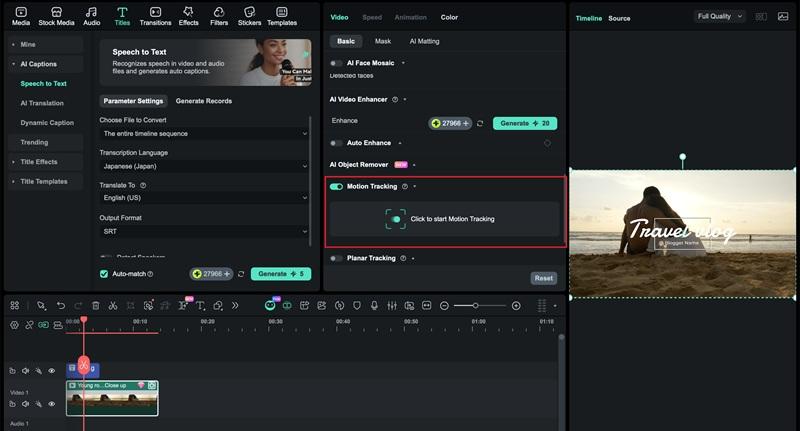
- Motion Tracking for text: Track a subject and make text follow the tracked motion so callouts or name tags stay locked to a moving person or object.
- Built-in text types, not just “one text box”: Captions, lower 3rds, subtitles, openers, and end credits are available inside the Titles workflow.
- Save customized text effects as presets: So you can reuse the same lower-third style across episodes without rebuilding it.
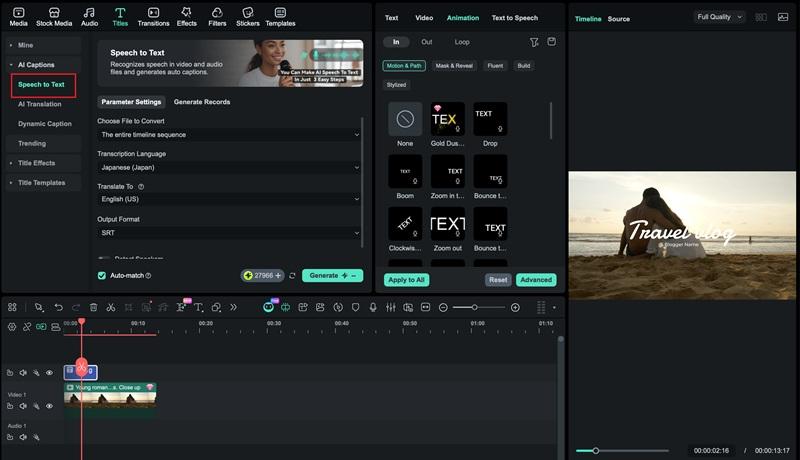
- Captions workflow is fast because you can start Speech-to-Text from multiple entry points (Titles, Tools menu, toolbar icon, right-click), so it fits different editing habits.
- Motion Tracking is practical for “label this thing” videos, since you can pin text to movement instead of keyframing it manually.
- Great for consistent branding in videos because text presets let you standardize titles, lower-thirds, and callouts fast.
- Strong “text on video” toolkit for creators who need tracked callouts and detailed subtitle timing edits.
- Trial exports are watermarked, and you need a paid version for watermark-free exports.
- Pricing can feel fragmented if you also want add-ons like Creative Assets, since those are presented as separate trials or subscriptions on checkout pages
Windows, macOS, Android, iOS
Free version available. You can upgrade via subscription or a one-time perpetual license. See the pricing page for the latest plan details.
YouTube creators, tutorial makers, and social editors who want better control over titles and captions, plus repeatable text styles that stay consistent across many videos.
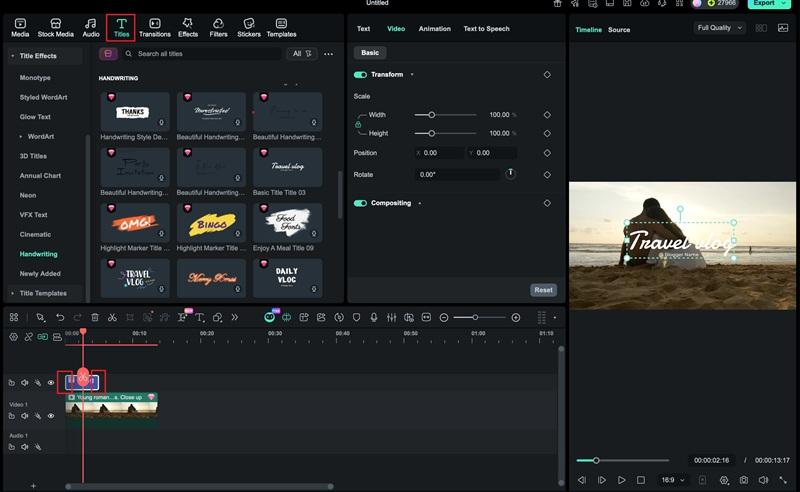
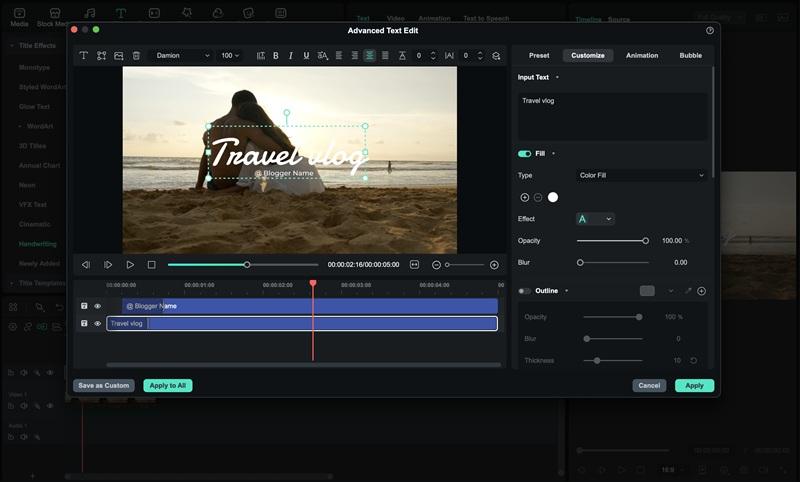
- Open Titles, choose a preset, then drag it onto the timeline and type your text in the preview.
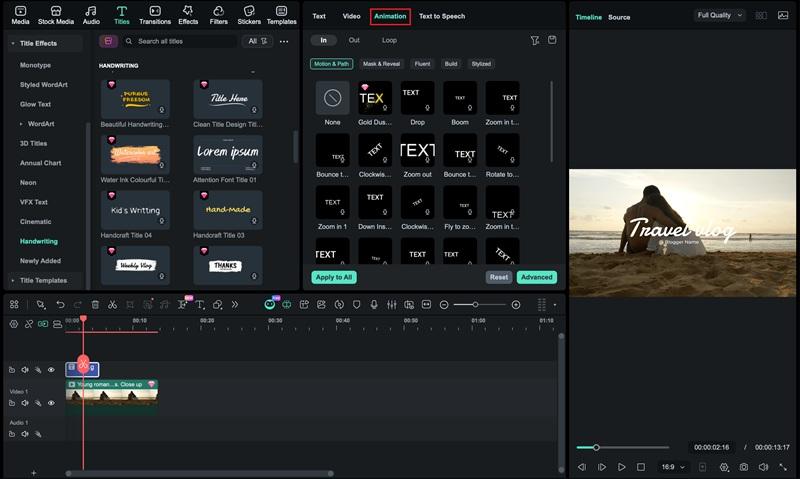
- Select the text layer, open Advanced Edit Text, then adjust font, outline, shadow, and background box, and apply an animation preset to make it move on screen.
- Generate captions with AI Captions. Go to Titles > AI Captions > Speech-to-Text to create subtitles, then edit the caption lines and apply consistent styling for readability.
Check out the full tutorial on Part 3.
Secure Download2. CapCut
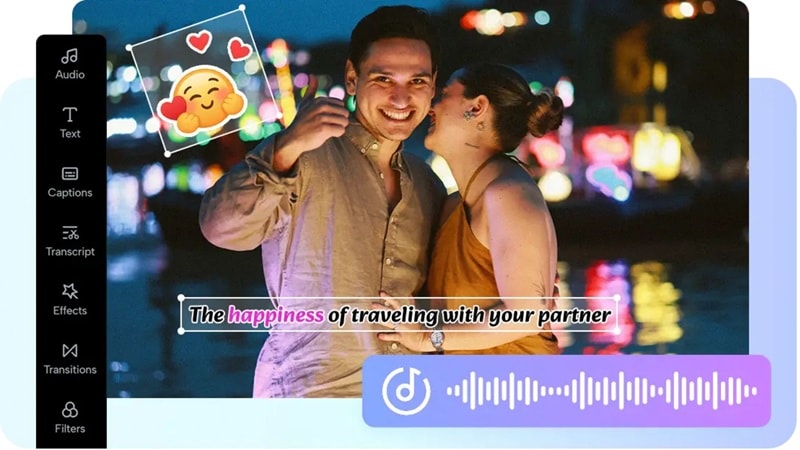
A social-first video and text editor built for speed, especially for captions, punchy title effects, and template-style text animations. Best when you want “done in minutes” text animations and punchy subtitles.
- Auto captions: Generate synced captions from your audio, then edit lines and timing. CapCut also suggests you can translate captions after generating them.
- Motion Tracking for text: Pin a name tag or callout to a moving subject so the label follows the motion instead of drifting.
- Keyframe animation & text effects/templates: Add custom motion with keyframes, and use ready-made text animation templates for fast, trendy typography.
- Fastest workflow here for auto captions plus trendy text effects in one place.
- Motion tracking and text-to-speech make it practical for creator formats like labels, explainers, and reaction clips.
- Text styling is often template-first, so ultra-precise typography control can feel limited compared to desktop editors focused on design.
iOS, Android, Windows, macOS, Web.
Free plan available, Pro from $19.99/month.
Fast captions, social templates, and eye-catching text effects for short-form video.
- Tap Text, choose Add text, then type your title or callout and position it in the preview.
- Select the text layer, then use Style and Animation to set the font, outline/background, and apply an intro or loop text effect.
- Generate captions with Auto captions. Go to Text > Auto captions to create subtitles, then edit the lines and adjust timing by trimming the caption segments on the timeline.
3. Canva
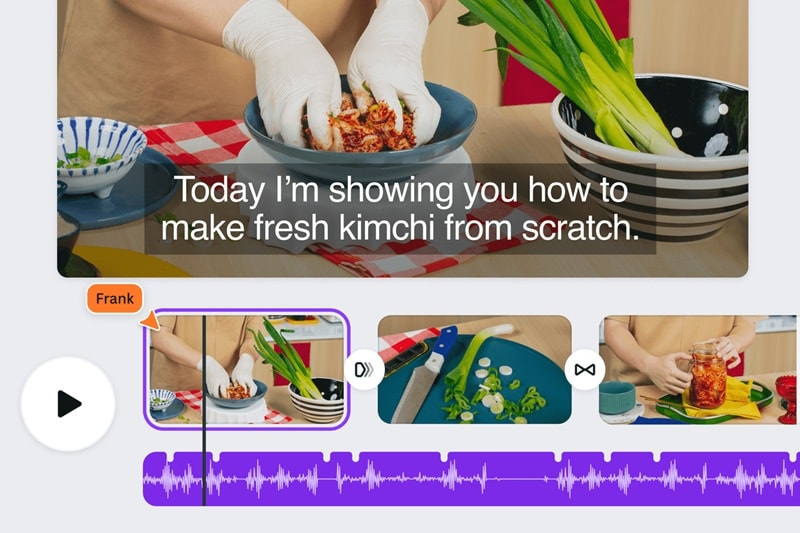
This template-driven online text video editor shines for brand typography, clean layouts, and marketing-style text design. Best for creators who care about fonts, spacing, and a consistent brand look more than timeline precision.
- Captions (auto captions): Generate captions from your video in one click, then edit and style them directly in the editor.
- Text animations and effects: Add moving text with built-in animations and customize fonts, colors, and sizes for titles and callouts.
- Brand Kit fonts: Apply brand fonts consistently, and upload your own fonts via Brand Kit (premium feature).
- Very fast for social videos because templates plus captions reduce setup time.
- Great typography consistency with Brand Kit fonts.
- Advanced video-style controls can feel limited compared to full desktop editors for complex timing.
- Pro elements can show watermarks on Canva Free unless you buy a license or upgrade.
Web and apps on iOS, Android, and desktop.
Free plan available, paid starts from $20.
Creators who want templates plus clean typography, plus quick captions for social and marketing videos.
- Click Text, choose a heading or preset style, then type your title and place it on the canvas.
- Select the text, then use the top toolbar to adjust font, color, spacing, and add effects or a background highlight for readability.
- Generate captions with Captions. Open Captions/Subtitles to auto-create subtitles, then edit each line and restyle captions to match your video.
4. Clipchamp
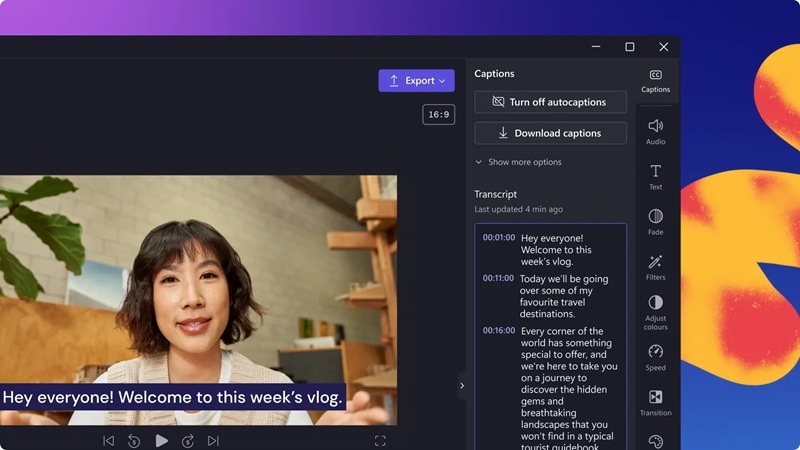
A browser-based video and text editor from Microsoft that is built for quick titles, lower-thirds, and captions in a clean, template-first workflow. It is a solid pick if you want an online video editor with text that looks polished fast, without spending time designing everything from scratch.
- Auto captions: Turn on auto captions to generate subtitles in one click, then download your video and the .SRT transcript file if you need the captions separately.
- Customizable lower-thirds templates: Including styles like lower third split title, which is useful for name tags and speaker labels.
- Autocaptions are simple to turn on, and you can keep the .SRT for reuse on other platforms.
- No watermark on exports for standard edits, as long as you avoid premium stock on the free plan.
- Some fonts, Brand Kit options, and stock elements depend on your plan, so exact features can vary.
- Text controls are streamlined, so advanced typography controls can feel limited compared to full desktop editors.
Web and Windows app.
Free plan available. The Premium plan is included with certain Microsoft 365 plans.
Clean titles, lower-thirds, and quick captions for social clips, presentations, and work updates.
- Open Text, hover to preview a title style like glitch or bouncing title, then add it to the timeline and type your words.
- Choose a lower-third template (including split styles), then edit the name and details to create a clean speaker label.
- Generate captions with autocaptions, then edit the transcript and download the .SRT if you want the subtitles as a separate file.
5. Adobe Express
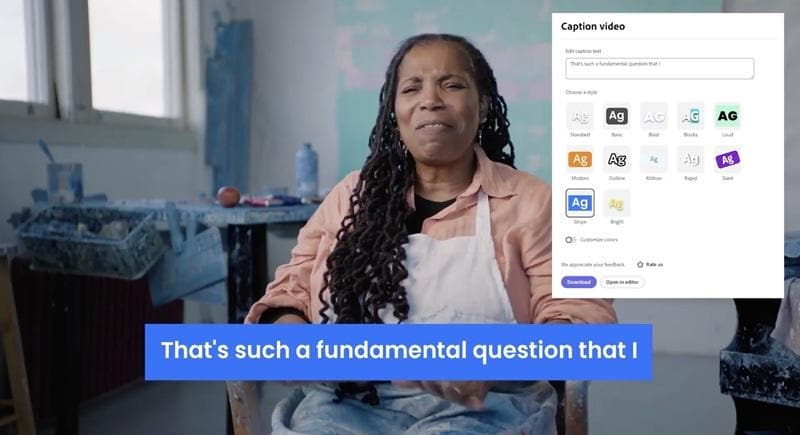
Adobe Express is a video text editor online that focuses on fast, polished overlays, animated text, and auto captions in a browser-first workflow. It is reliable if you want to edit text in video online fast, then publish social-ready versions without overthinking the design side.
- Captions and subtitle generator: Its Add Captions and Caption Video tools can transcribe your video audio and generate subtitles automatically. You can also type captions manually for full control.
- Fonts depth by plan: Free includes access to 4,000+ fonts, Premium expands to 30,000+ fonts, helpful for brand typography.
- Fast way to edit text in video online because captions and animated titles are designed as quick actions.
- Caption Video makes subtitles easier for mute-friendly content, and you can still manually correct lines.
- Premium templates, assets, and the full font library are plan-gated, so your text style options can feel limited on Free.
- Template-first workflow is great for speed, but less ideal for complex, frame-perfect text timing compared to full editors.
Web, iOS, Android.
Free plan; paid starts from $9.99/month (pricing varies by region).
Social creators and marketers who want fast titles, captions, and brand-friendly typography in a browser.
- Click Text, hit + to add a text box, then type your title and place it where it stays readable.
- Open Animate, then apply an In, Out, or Loop animation to make the text move like a real title card.
- Generate captions with Add Captions, transcribe audio into subtitles, then edit the lines to tighten wording and timing.
6. VEED

This tool is built around captions and fast text overlays in a browser. It makes it simple to add text to video online with drag-and-drop overlays, then turn that into engaging captions using its dynamic subtitle styles.
- Generate and download subtitles: Generate subtitles using Subtitles > Auto Subtitle, then burn them into the video or download the subtitle file as SRT, VTT, or TXT.
- Animated subtitles: Turn basic captions into animated subtitle styles, with control over font, color, and animation look for short-form content.
- Translate tab: After generating subtitles, VEED includes a Translate option for turning captions into another language (premium feature).
- Dynamic captions with word highlighting stand out for Reels/TikTok-style edits.
- Subtitle files (SRT/VTT/TXT) are built into the workflow, useful for repurposing.
- Text-based editing is not available on the free plan.
- Subtitle translation and some download options are premium-gated.
Web.
Free plan available, and paid plan starts from $12.
Creators who want an online video editor with text for dynamic captions, quick titles, and browser editing.
- Click Text, type your overlay, then drag it on the canvas to position your title or callout.
- Select the text, then adjust font and color, and apply an animation preset to make it move on screen.
- Generate captions with Auto Subtitle. Go to Subtitles > Auto Subtitle, then edit the lines and enable dynamic styles like word highlighting.
7. Kapwing
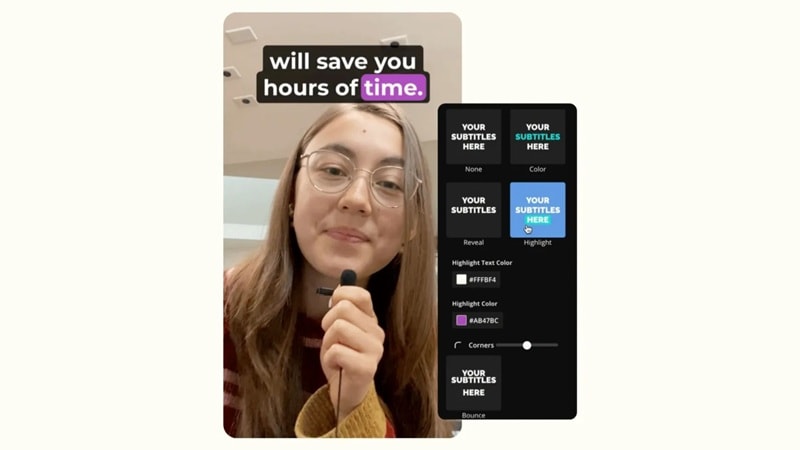
A transcript-centered editor that makes caption editing and repurposing easy, especially if you want to edit subtitles like a document and export them for other platforms. You can rely on it if you iterate on wording and timing a lot.
- Subtitle file workflows (SRT, VTT, TXT): Download subtitles as SRT, VTT, or TXT, and Kapwing also supports converting between subtitle formats.
- Subtitle Editor doubles as SRT/VTT editor: You can upload an SRT/VTT file and edit it directly in the Subtitle Editor.
- Great for caption-heavy content because the transcript is editable and built around word-by-word subtitles.
- Easy to reuse subtitles elsewhere since you can export SRT/VTT/TXT, plus convert formats when needed.
- Free plan limits are tighter (for example, upload size and export duration), which can block longer edits.
Web.
Free plan, Pro from $24/month.
Creators who need fast subtitles, transcript-style editing, and a solid online video editor text workflow.
- Click Text on the left toolbar, add a text layer, then type your title or callout and position it on the canvas.
- Select the text layer, then adjust font, color, background, and animation, and save it as a reusable Text Style if you want consistent titles across projects.
- Generate captions with Subtitles. Open Subtitles > Auto subtitles, edit the transcript, then download subtitles as SRT/VTT/TXT from the subtitle editor.
8. InVideo
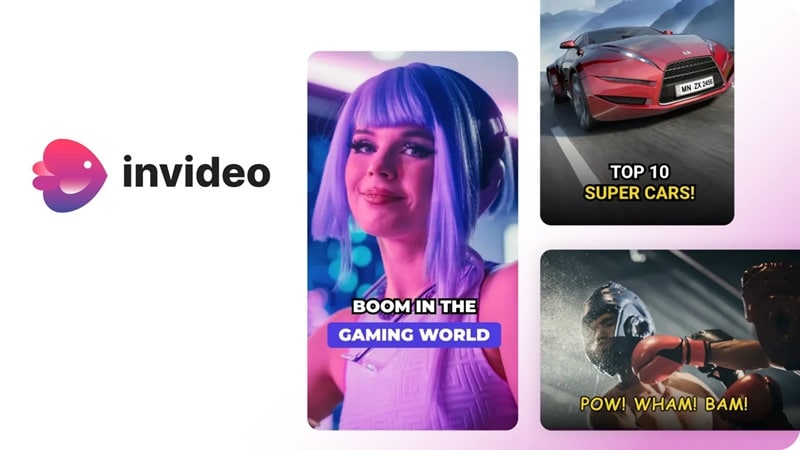
InVideo works well when your goal is to add text to a video online using templates, then fine-tune titles, lower thirds, and CTAs without wrestling with a heavy UI. It also has a separate inVideo AI flow that can generate videos from prompts and apply stylized subtitles, so it can cover both online video editor text needs and faster caption-first edits.
- Brand Presets (fonts, colors, logos): Set up Brand Presets from your profile menu to keep typography consistent across multiple projects, handy for brand-safe video and text editor workflows.
- Subtitle styling via invideo AI: In invideo AI, subtitles can be generated and styled with preset looks like Karaoke Style and other subtitle styles, useful when you want captions that feel designed, not generic.
- Text reuse is straightforward because you can duplicate existing text boxes or pull consistent styles from the Text panel.
- Strong template library for quick add text to video online free drafts.
- InVideo splits “Studio” and “AI” into separate products and flows, so jumping between timeline editing and AI subtitle styling can feel fragmented.
Web.
Free plan available, paid plans start from $15/month.
Social marketers and creators who want an online text video editor for templates, brand-consistent typography, and fast overlay builds (titles, CTAs, lower-thirds).
- Open Text on the left panel, choose a standard or themed text style, then place it on your scene and double-click to type.
- Select the text box, open the text editing panel (Edit), then adjust font and colors, and highlight key words for readability on busy footage.
- Duplicate text boxes to reuse formatting, or apply Brand Presets (fonts, colors, logos) so your on-screen text stays consistent across the whole video.
9. FlexClip
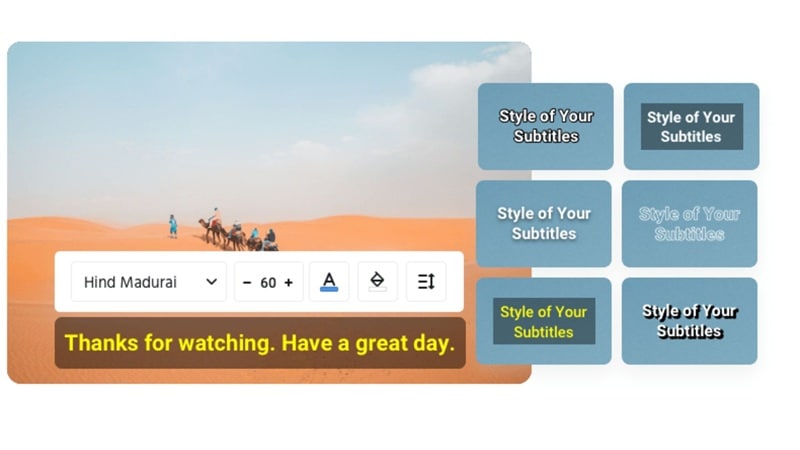
FlexClip’s text workflow is built around “pick a ready-made text theme, then swap the words.” Text is organized into categories like Basic Text, Modern Titles, Text Styles, Text Masks, Social Media, and Lower Thirds, which makes it quick to find the right layout for a title card or name tag.
- Motion effects for text animation: FlexClip lets you adjust font, color, opacity, alignment, and apply motion effects to animate text.
- Per-text timing control: Add multiple text boxes and set each one’s duration separately for different moments in the clip.
- AI Auto Subtitle tool: FlexClip has a dedicated Auto Subtitle page to generate subtitles online.
- Text looks polished fast because the editor pushes you toward ready-made themes.
- Easy to time multiple overlays since each text box can have its own duration.
- Auto Subtitle is useful for quick caption drafts when you need subtitles fast.
- A watermark can also appear if you exceed plan limits in a project, even on paid plans.
Web.
Free plan, paid starts from $11.99/month.
Fast titles, lower-thirds, and animated text overlays in a browser, plus quick subtitle drafts.
- Click Text, pick a theme like Lower Thirds or Modern Titles, then double-click the preset to rewrite the text.
- Select the text layer, then adjust font, color, opacity, alignment, and apply a motion effect to animate it.
- Add multiple text boxes and set each one’s duration separately to match different parts of your video.
10. Flixier
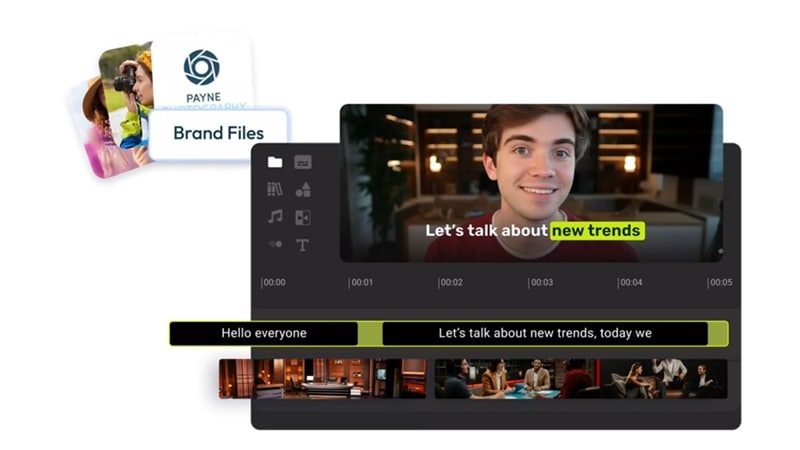
If captions and subtitle files are the main reason you open an editor, Flixier is one of the more practical picks. It is a video text editor online that combines timeline text overlays with a strong subtitle workflow, so you can add text to video online, then export subtitles as separate files for reuse.
- Captions (Auto Subtitle + translation): Generate subtitles with Auto Subtitle, then edit the text manually and translate subtitles in higher plans.
- Subtitle exports (SRT, VTT, hardcoded): Export subtitles as SRT or VTT, or hardcode them into the video, which is useful if you repurpose the same captions elsewhere.
- Online Subtitle Editor (file-based): Edit existing subtitle files online, including VTT, SRT, SUB, and convert between formats.
- Strong for editing text in video online when the text is mostly captions, because subtitle editing and exporting are first-class features.
- Easy to keep typography consistent using Brand Kit fonts and colors.
- Free limits are tight for subtitles and export minutes each month.
Web.
Free plan available, and paid starts from $23/month.
Caption-heavy shorts, training clips, and teams who need subtitle files (SRT/VTT) plus a simple online text workflow.
- Open Text, add a text box or title style, then type your title and place it on the canvas.
- Select the text layer, then adjust font and colors, and apply Brand Kit styles if you want consistent lower-thirds.
- Generate captions with Auto Subtitle, then edit the lines and export subtitles as SRT/VTT or hardcode them into the video.
11. Vont - Text on Videos
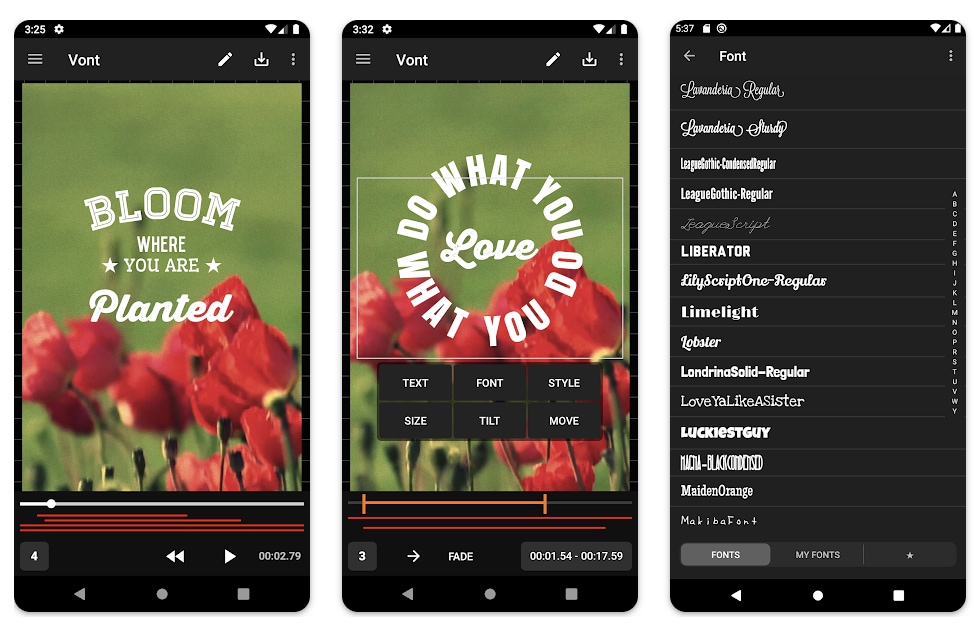
Vont is basically a typography-first video text editor for mobile. It’s the kind of text video software you open when the main job is making on-screen text look intentional, like lyric edits, quote reels, or clean lower-thirds, not doing heavy cutting or effects.
- 400+ fonts plus custom font installs: Vont comes with a huge built-in font library and lets you install your own .ttf/.otf fonts.
- Typography controls: Adjust kerning, letter spacing, and line spacing so captions and titles don’t look cramped.
- Readable text styling toolkit: Add gradient text, tweak stroke and shadow colors, and use a background color box so your text stays readable over busy footage.
- Massive font variety and custom font support, great for creators who care about typography.
- Strong “make it readable” controls (stroke, shadow, background box, spacing).
- Curved text helps you build more styled titles than a basic text box look.
- No built-in Speech-to-Text style caption generator is listed on the store page, so captions are typically manual.
- Some features are monetized via in-app purchases (Pro Kit, extra fonts, remove ads).
iOS, Android
Free, in-app purchases start from $2.99.
Typography-heavy edits where you want to edit text in a video with lots of font and spacing control.
- Add a text layer, type your title or caption, then place it where it won’t cover key visuals.
- Style the text using font, gradient, stroke, shadow, background color, and spacing controls for clean readability.
- Adjust timing and motion for the text layer so it appears at the right moment, then refine line breaks for mobile-friendly reading.
Part 2: How to Choose the Right Video Editor for Text (By Use Case)
Text can make a video instantly clearer, but the wrong editor can turn a simple title or caption into a time sink. This section helps you pick the right video text editor based on how you actually edit.
Pick Filmora if you want a stronger long-form text workflow
Filmora is a good match if you care about:
- Cleaner text design control, like outline, shadow, background boxes, and consistent styling across scenes
- A reliable captions workflow using AI Captions, Speech-to-Text, then editing and styling captions so they stay readable
- Text that needs to follow motion (callouts, labels), plus repeatable text presets for series content
Secure DownloadPick an online video editor with text if speed matters most
- Fast captions + social effects: CapCut
- Templates + brand typography: Canva, Adobe Express
- Captions-first editing + subtitle files: VEED, Kapwing, Flixier
- Simple, clean overlays in a browser: Clipchamp
Part 3: How to Add Text to Video
Filmora is a great fit when you want your text to look clean, stay readable, and stay consistent across a whole project. Use the steps below to feel closer to a “real” video and text editor than a basic online text tool.
 Secure Download
Conclusion
The best video text editor is the one that helps your text stay readable, on time, and clean at export. If you want the most control for titles, lower-thirds, and captions, Filmora is a reliable pick for longer projects. You can adjust fonts, colors, timing, animations, and placement in one timeline, and preview everything in real time before exporting.
Before you commit, always check watermark rules, caption editing speed, and mobile readability so your text looks good everywhere.
