


 TL;DR:
Wondershare Filmora provides the best overall balance of intuitive watermarking and advanced editing, while VN Video Editor and Shotcut stand out as the top choices for users needing completely free, watermark-free exports on mobile and desktop platforms.
● Most freemium tools, including Filmora, VEED.io, Kapwing, and KineMaster, force their own branded watermark onto your exported videos unless you upgrade to a paid subscription.
● Professionals managing complex workflows should choose Adobe Premiere Pro for its AI object masking and generative extensions on a high-spec PC, whereas Apple users can rely on iMovie for a completely free alternative limited exclusively to iOS and macOS.
● For high-volume workflows, Wondershare UniConverter is optimized for fast batch processing and compression of 4K and 8K video files, while Watermarkly specifically handles bulk-watermarking for up to 50,000 images on desktop.
Ask AI for a summary
 ChatGPT
 Perplexity
 Gemini
 Claude
 Grok
Grok
A video watermark maker is a tool that enables you to put a logo, text, or custom mark on your videos in order to protect your content and develop your brand. Watermarks are very important in the fast digital world of today, where videos can be easily copied, reshared, or stolen. They serve as a deterrent to unauthorized use, facilitate brand recognition, and, furthermore, add a layer of professionalism which, without delay, elevates your credibility. Hence, whether you are a creator, marketer, or business, a transparent and consistent watermark is not only a trace but also a means of protection.
Thanks to the wave of online editors, it is still possible to watermark videos in a very simple way, directly from your browser, and quite a few platforms even grant free means for you to add watermarks to the video. Here, you will find a variety of online tools, software for desktops, and apps for smartphones.

Types of Video Watermark Tools
- Online tools: They are fast, simple, and do not require installation. They are a great tool for a quick edit, a casual user, or anyone who simply wants to add a watermark without downloading software.
- Desktop software: Desktop programs are equipped with more advanced features, have faster processing, and better performance for large video files.
- Mobile apps: If you want to put a watermark while on a trip, mobile apps give you the most flexibility. With their help, you can easily add text or logo watermarks directly from your phone; hence they are a comfortable device for vloggers, influencers, and anyone who edits on their device.
What to Look for in a Good Video Watermark Maker
- Logo upload support: An efficient video watermarking tool should enable a user to upload a high-quality, transparent area PNG logo. The reason is that your watermark visually merges with your video content, thus helping your watermark not to hide the most camera parts or not visually contrast them too much.
- Text watermarking: Besides logos, text watermarking is also a must for the placement of copyright notices, website links, brand names, or promotional messages. A proper device will provide a font, color, style, and effect, such as shadow or outline, for the text to be seen from different types of backgrounds.
- Position control: Most importantly, the main thing that the flexibility in placement is. The place of a watermark should be very easily changed, like from one of the corners, the center, or custom positions.
- Customization settings: The size, opacity, and rotation of a watermark along with any animation effect can be used to either make the watermark very subtle or very obvious depending on your needs.
- Batch processing (optional): The capability to batch process is very much needed for those content creators who have a large amount of work to look through. It permits you to put the same watermark on several videos at the same time, which is both a time-saving method and a way of ensuring brand consistency.
- Export quality and format support: In addition to the support of the most common formats like MP4, MOV, and AVI, the software should also allow export in HD or 4K with no quality drop of the video.
- Pricing: Generally, watermark makers are accompanied by a free tier that allows basic features to be used as well as low-quality video exports to be done, whereas premium plans provide additional features like batch processing, watermark animation, or higher-resolution output.
Our Top 3 Picks
If you do not have much time, only the three video watermark tools will be enough to choose from. These three tools are the most simple, flexible, and perform well overall.
Top Video Watermark Creators: A Comparative Table
| # | Tool | Type | Standout Feature | Pros | Cons | Best For |
| 1 | Kapwing | Online | Real-time cloud editing + easy watermark (logo/text) placement | No install needed; quick edits; works on any device | Paid plan needed for advanced tools; may slow with large files | Social media creators, marketers & teams |
| 2 | VEED.io | Online | AI-powered editing + subtitle generation + watermark control | Browser-based, AI tools, good for collaborative or quick work | Free plan adds watermark/limits; performance dips on large files | Creators needing online editing with AI features |
| 3 | Watermarkly | Online / Desktop (cross) | Batch watermarking & flexible watermark customization | Fast, works for many images/videos, customizable watermarking | Free version leaves watermark/logo; primarily for simple watermarking | Photographers, designers, bulk-content creators |
| 4 | Canva | Online | Drag-and-drop watermarking with design/template library | Very user-friendly, large asset/text library, cross device | Requires internet; some assets locked behind Pro | Beginners, small businesses, quick branded videos |
| 5 | Wondershare Filmora (Desktop) | Desktop | Layered video editing + watermark + AI tools & effects | Balanced power and ease, good for editing + watermark | Free version exports with watermark; heavy projects need strong PC | YouTubers, marketers, teachers needing simple-to-advanced editing |
| 6 | Adobe Premiere Pro | Desktop | Professional-grade editing + advanced AI tools (Object Mask, generative) | Industry-standard control, best for complex projects | Expensive, steep learning curve, needs powerful PC | Professional editors, studios, filmmakers |
| 7 | Shotcut | Desktop (free & open-source) | Native timeline editing, wide-format support, no watermark | Completely free, powerful editing, 4K/8K support | UI complexity, steeper learning curve for beginners | Intermediate to advanced editors with tight budgets |
| 8 | Wondershare UniConverter | Desktop | Fast AI-powered conversion/ enhancement + watermark removal tools | Great for batch conversions, upscaling, compressing — all-in-one | Some advanced AI enhancements require premium | Editors working with large/bulk videos, conversion-heavy workflows |
| 9 | Filmora (Mobile) | Mobile (iOS & Android) | On-the-go watermark + editing + templates | Handy for quick edits on phone, easy interface, watermark support | Free version exports with watermark | Vloggers, social media users, mobile content creators |
| 10 | iMovie | Mobile / Mac | Simple editing & watermark with ready-made templates (Storyboards, Magic Movie) | Free for Apple users, intuitive, good for quick videos | Only on Apple devices; limited advanced tools | Beginners on iOS/Mac, casual video editors |
| 11 | VN Video Editor | Mobile (iOS & Android) | Free export without watermark + multi-track editing on mobile | Powerful editing tools, watermark-free exports, suitable for social media | Some advanced features need IAPs, mobile hardware limits | Mobile creators, TikTok/Reels/YouTube Shorts editors |
| 12 | KineMaster | Mobile (iOS & Android) | Layer-based editing + watermark overlays, real-time preview | Strong mobile editing, 4K export support, flexible layers | Free version adds its own watermark; subscription required for full access | Mobile video creators wanting more control than basic apps |
|
Show More
Show Less
|
||||||
Best Online Video Watermark Makers (No Download Needed)
Here are the top 4 best online video watermark makers to add watermark to video free online:
1. Kapwing
Kapwing is an online video editor that allows users to quickly add text or logo watermarks to their videos without the need for software installation. Creators, marketers, and teams are the primary users of this tool that can be used to make their videos look professionally branded with the least amount of time and effort.
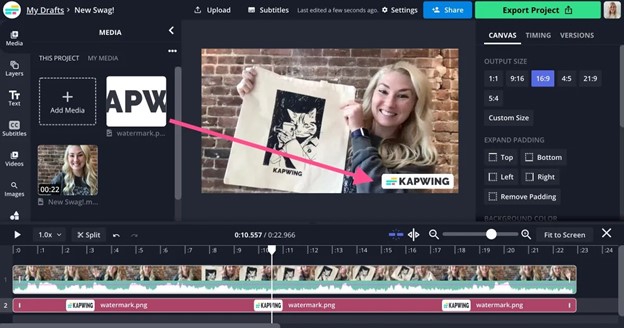
- Upload your logo (PNG) or make a custom text watermark and adjust the location, size, opacity, and angle of the text freely.
- Utilize templates and save brand components for a consistent look.
- Collaborative editing in real-time for the team.
- Machine learning-powered features like Smart Cut, auto-subtitles, and auto-resizing.
- Allows different video formats (MP4, MOV, etc.) and exports in high quality.
- User-friendly interface that the newbies will find intuitive
- Editing in the cloud, which means that it can be done from anywhere
- Collaboration features for teams
- Quick processing for videos that are not too large
- The most advanced features are only available in the paid plan
- It may slow down when dealing with very large files
- Limited batch processing
- It can be used on any device that has a modern web browser (Windows, Mac, Chromebook, mobile devices)
Free, $16/month
Social media creators, marketers, and teams who need a quick, online solution for branding videos
Kapwing offers professional features with user-friendliness. Without installing software, creators can add logos and text watermarks, so the software is perfect for quick, collaborative projects.
2. VEED.io
VEED.io is an intuitive web video editor using smart and traditional editing tools for creators and teams to produce professional-quality videos right in their browser. In addition, it employs next-generation AI-powered features such as auto-subtitles, avatars, and text-to-video conversion.
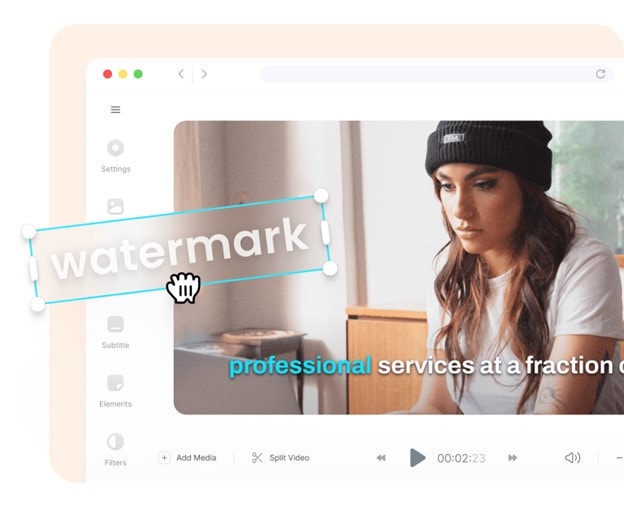
- Logos or your own text can be put as a watermark on your video, and you can have control over the position, size, opacity, and rotation.
- With the help of AI-powered technology for linguistic precision, subtitles and captions can be automatically produced in various languages.
- Additionally, the editor supports various video formats (MP4, MOV, etc.) and has the provision of HD and 4K export options.
- Comprehensive all-in-one online video editor
- Advanced AI features for fast content creation
- Collaboration tools and brand kit for teams
- Mobile app support for on-the-go editing
- Some AI features require a Pro or Enterprise subscription
- Performance may lag with extremely large files
- The free plan has a watermark and export limits
- The tool is web-based and can work on Windows, Mac, Chromebook, or mobile devices.
- Free plan, $9 per month per editor (if paid yearly).
- Pro: It costs $24 per month per editor (if paid yearly).
Professionals who require AI-powered video editing using a browser, such as social media content creators, marketing teams, educators, and enterprises
VEED.io is the perfect example of a product that not only has standard video editing capabilities but also has a long list of AI-empowered features. It offers a perfect platform for users to generate brandable videos of professional-level quality effortlessly.
3. Watermarkly
Watermarkly is a clever web and desktop app designed to let creators put their own watermarks on photos fast. By a host of features it offers, like batch watermarking, logo or text addition, and full customization, it is the right use-instance for photographers, designers, and businesses to both secure their images and increase brand awareness.
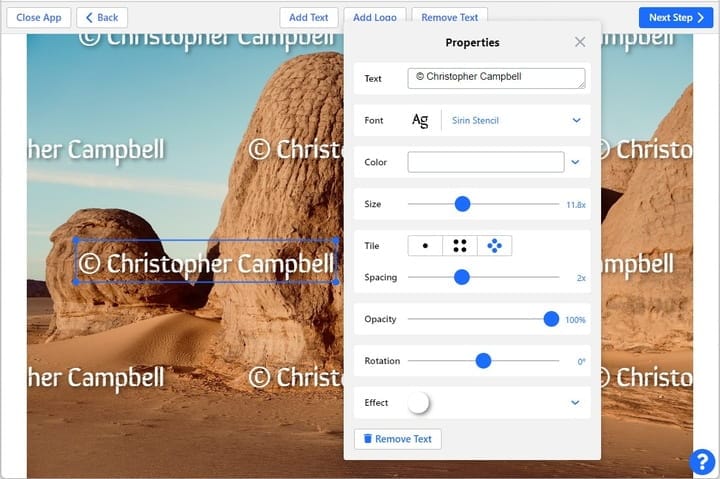
- Introduce text, logos, copyright symbols, repeated watermarks, or image numbers into photographs.
- Complete customization of watermark: dimension, transparency, spin, color, and available features with more than 900 fonts.
- Batch processing for up to 50,000 images is available only for desktop apps.
- Watermark positions can be set automatically or manually for each image.
- Some additional editing tools available are resize, crop, compress, convert images, and blur faces or license plates.
- It is compatible with Windows, Mac, iOS, Android and can also be done in the browser.
- Fast and secure watermarking for single or bulk photos
- Full creative control over watermark design
- Templates sync across devices for consistent branding
- No installation required for browser use
- Free version adds "Protected with Watermarkly" logo
- The tool is web-based and can work on Windows, Mac, Chromebook, or mobile devices.
- A free plan that puts the Watermarkly logo on images.
- 1-Year Access: $19.95 (full tools, up to 10 devices, no Watermarkly logo)
Photographers, designers, and brands who want to protect images
Watermarkly is an easy-to-use, safe, and extremely customizable means of both protecting and branding images.
4. Canva
Canva is an adaptable online design platform that enables a user to generate and add a watermark to photos, illustrations, and digital projects in a quick manner. The simple drag-and-drop interface, vast font library, and storage on the cloud make Canva perfect for artists, the business world, and the teaching profession who want to guard their output and still be able to design as they please.
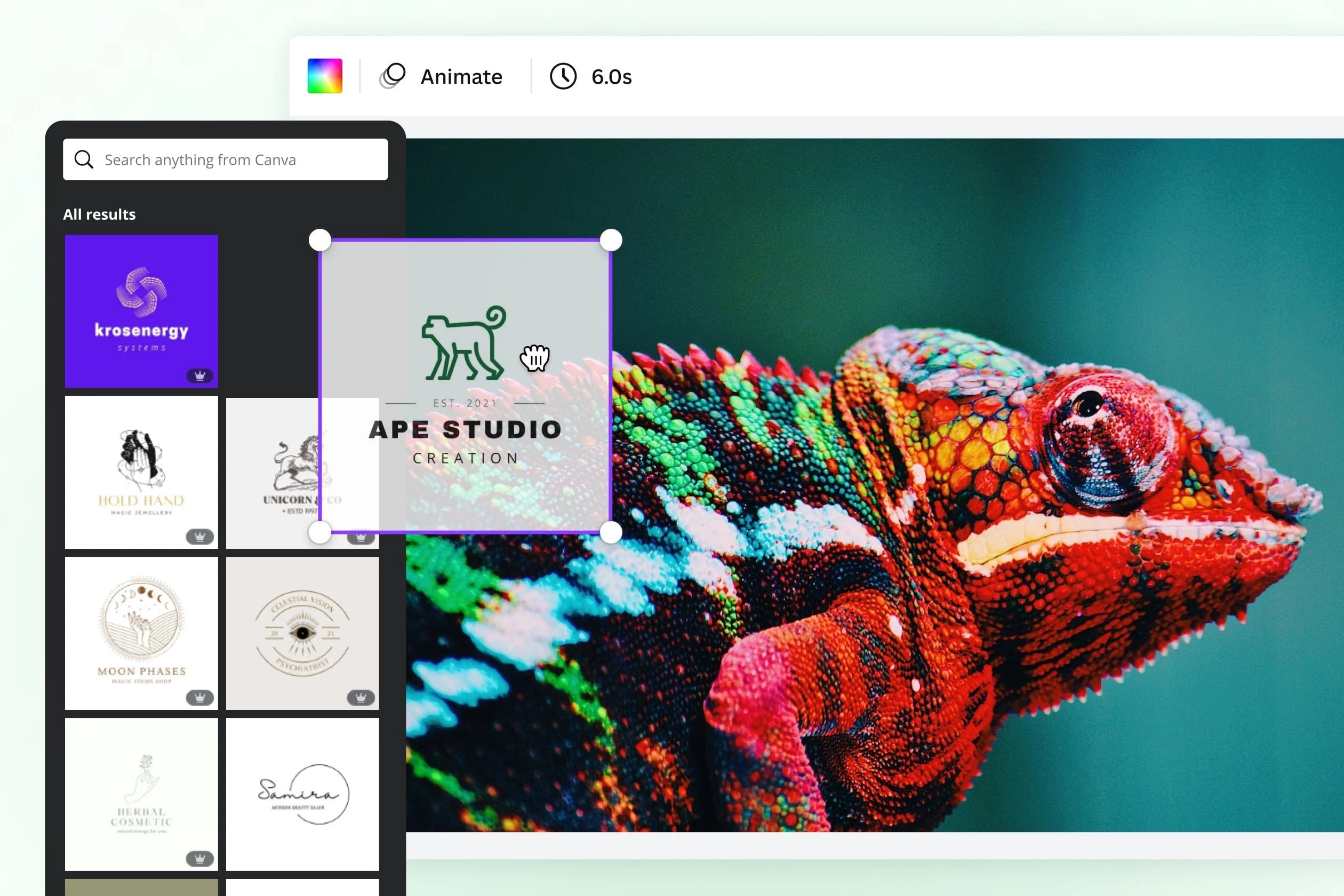
- Using a brand, text, or signature, make unique watermarks.
- Drag-and-drop watermark insertion with the size, color, rotation, and angle alterable.
- If you have a Canva account, store the watermarks online and utilize them again for various projects.
- Compatible with Windows, Mac, and mobile devices (iOS and Android apps).
- Intuitive interface that is friendly to both beginners and professionals
- The platform is cloud-based and allows for easy access from different devices
- Large font library and design elements to provide a completely customizable watermark solution
- A free plan with a full range of watermarking and creative tools is available
- A Pro subscription is needed for some advanced features
- Free version may impose certain restrictions on premium assets and export options
- Requires an internet connection for saving on the cloud and editing
- The web-based platform can be used on devices running Windows, Mac, or Chrome OS, and mobile devices
- Pro: $12.99 per month (when billed annually)
Photographers, designers, content creators, and businesses who want to protect their digital work while designing visually appealing projects with ease
Incorporating a full suite of design tools with simple, quick photo watermarking, Canva is the best of both worlds in terms of creative freedom and security.
Best Desktop Video Watermark Software (Windows & Mac)
Here are the top 4 best desktop video watermark creators:
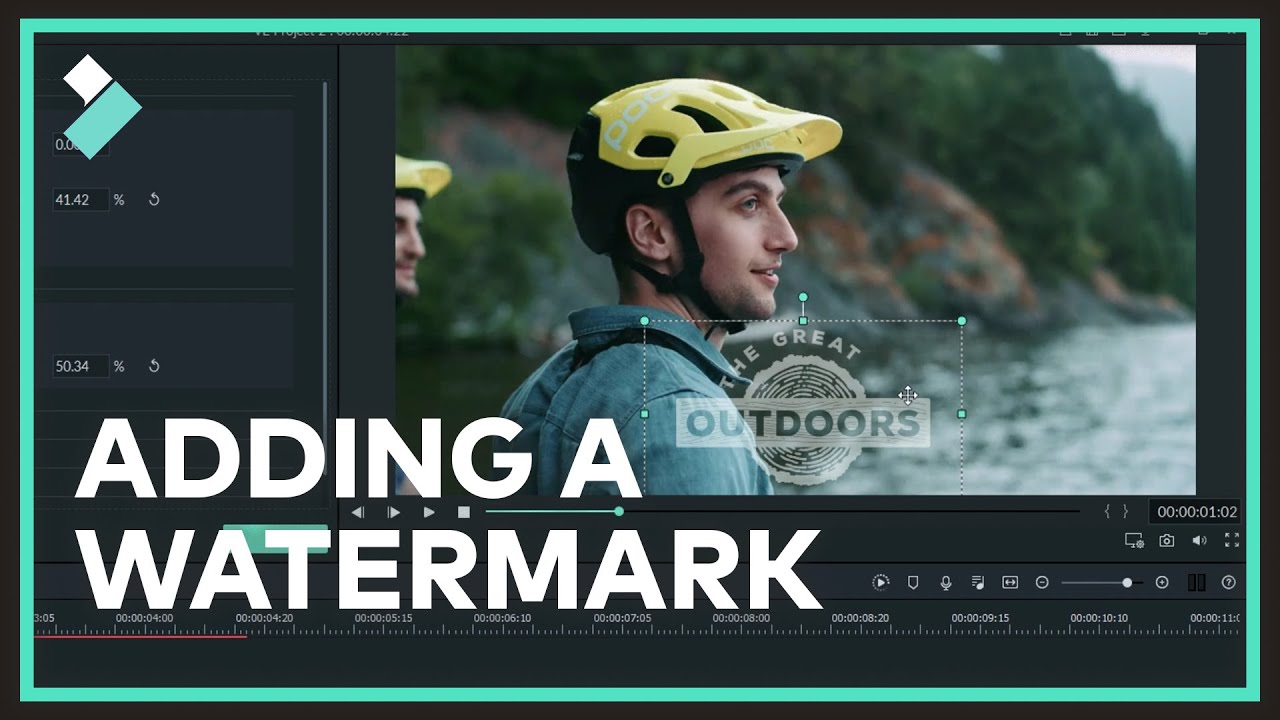
5. Wondershare Filmora
Wondershare Filmora is a simple video editing software for both Windows and Mac that still has a lot of power under the hood. This product is an ideal blend of advanced features and easy-to-use controls. Making a video with this program, users are allowed to add watermarks, use AI-powered effects, and even mix up complicated edits, without being obliged to know the software deeply.
 Secure Download
- Drag-and-drop video editing with support for multiple layers and two-timeline editing.
- AI-powered features like background removal, video enhancement, AI Extend, and Beautify Face.
- Watermarks, titles, dynamic captions, transitions, and filters, as well as animated elements, can be added.
- The Pen Tool, along with keyframes, can be used to create exact motion paths, timing, and storytelling.
- An interface that's easy to use and fits well with both newbies and pros
- Quite a large internal library of media, templates, and effects to choose from
- AI features that could ease and speed up sophisticated tasks like video enhancement and background removal
- Has a GPU that supports high-res projects and uses Metal rendering for great results
- A few advanced effects and AI-related tools can only be accessed via a subscription
- System requirements could be high if the project is big and complex
- The free trial may leave a watermark on the exports
- Windows and Mac desktop versions available
Basic editing with watermark on exports, $9.99/month, $34.99/year, & $49.99 one-time payment
- Those who make content, YouTubers, marketers, and teachers that require professional-quality video editing yet with easy-to-use tools
Filmora is a great mixture of straightforwardness and cleverness, where professionals use the latter, but the resulting work may be accessible to everyone. The highest number of effects and templates exists in this software with easy-to-use AI tools.
6. Adobe Premiere Pro
Adobe Premiere Pro is a world-class professional video editor that is the choice of Hollywood, YouTube, marketing, and broadcasting. At the core are the advanced editing controls; however, the powerful Adobe Sensei and Firefly AI features help the creators to do the work faster, e.g., editing quickly, masking subjects in a flash, audio enhancing, and color grading.
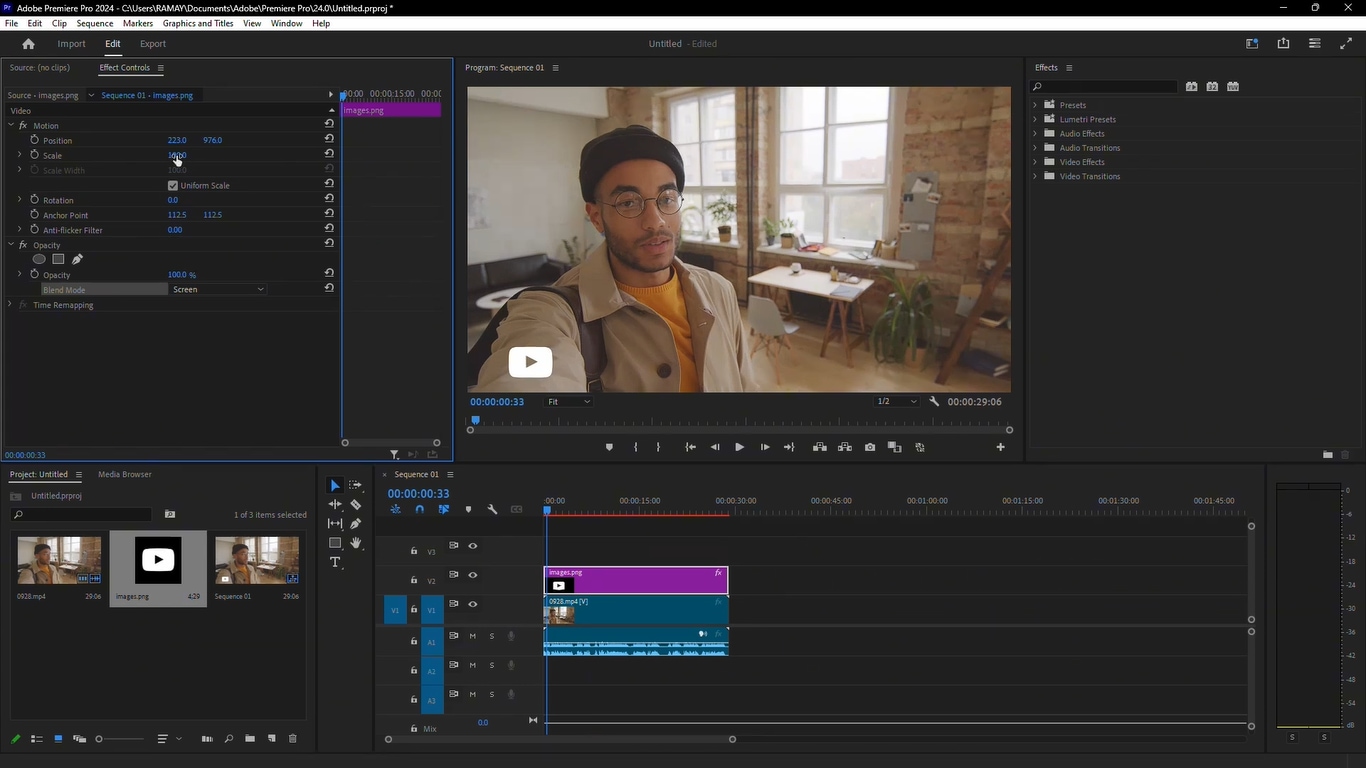
- Industry-standard editing with multi-cam support, precise trimming, and advanced timeline tools.
- AI-powered Object Mask (beta) to mask and track subjects automatically across frames.
- Text-Based Editing to create rough cuts by editing text transcripts.
- Media Intelligence search to locate clips by describing objects, scenes, or dialogue.
- Professional color correction with AI auto-balance, wheels, curves, and HDR/LOG tools.
- Enhance Speech AI to remove noise and improve dialogue clarity.
- Generative Extend (Firefly AI) to extend clips and generate missing frames.
- Best-in-class professional editing environment
- Extremely powerful AI and automation features
- Advanced color grading and audio tools
- Integrates seamlessly with Adobe Creative Cloud apps
- Requires a powerful PC for high-resolution workflows
Windows and Mac desktop versions available
US$22.99/mo
Professional editors, filmmakers, agencies, studios, and YouTubers require exact editing, color control, and sophisticated AI automation.
With Premiere Pro, users get no less than professional-grade editing of the highest standard, combined with futuristic AI tools such as Object Mask, Text-Based Editing, and Firefly-powered clip extension.
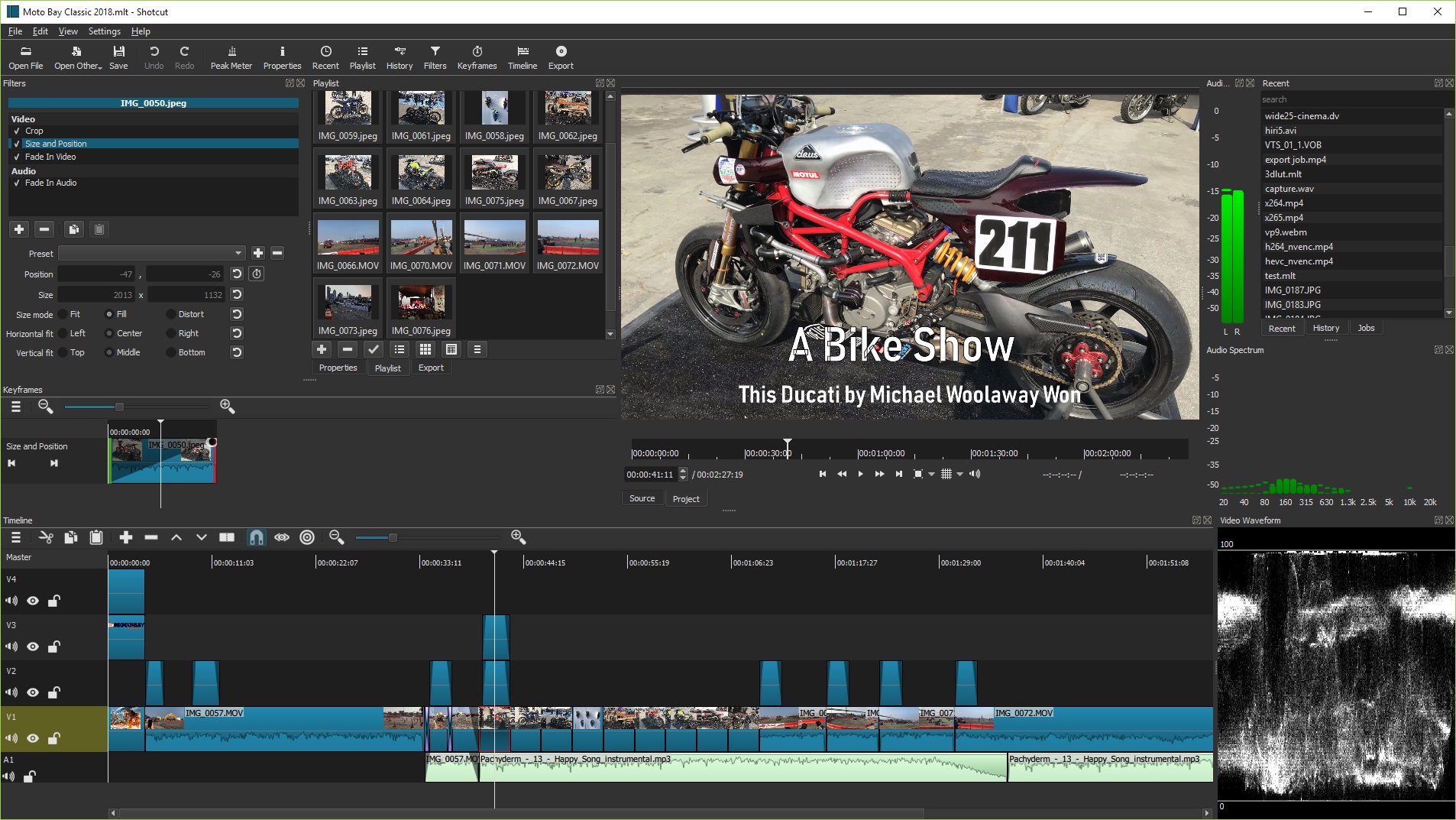
7. Shotcut
Shotcut is a free, open-source, cross-platform video editor that can be used on Windows, Mac, and Linux. It provides professional-grade editing experience with its wide format support, native timeline editing, and advanced video and audio tools without the need for system codecs. Creators looking for maximum flexibility, complete control of their editing, and top-notch export quality will find Shotcut perfect.
- Support for the latest audio, video, and image formats, including 4K & 8K resolutions.
- Native timeline editing with no import needed; frame-accurate seeking.
- Webcam and audio capture, as well as batch conversion, are possible.
- Powerful audio tools: filters, mixing across tracks, volume control, noise reduction, and pitch compensation.
- Advanced video effects: color correction, deinterlacing, chroma keying, stabilization, object motion tracking, and video compositing.
- 360° video editing and speed ramping, reverse clips, freeze frames, and subtitle embedding.
- Free and open source with no watermark.
- Professional-level features comparable to premium editors.
- Flexible workflow with native timeline and batch processing.
- Supports 4K/8K and wide variety of formats.
- Steeper learning curve for beginners.
Windows, Mac, and Linux
Free
Intermediate to professional editors seeking full control, cross-platform flexibility, and advanced video/audio tools without subscription costs.
Shotcut provides a highly versatile, professional editing environment at no cost, making it an excellent choice for creators who want advanced tools, high-quality exports, and full format support without being locked into proprietary software.
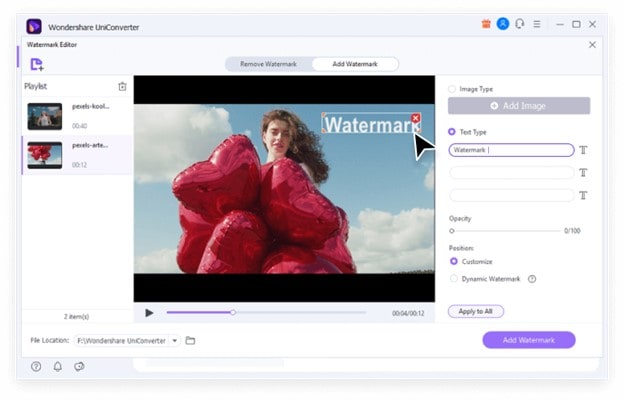
8. Wondershare UniConverter
Wondershare UniConverter is a one-stop AI-powered video converter, compressor, recorder, and enhancer made for creators who require fast, high-quality processing. By leveraging advanced AI capabilities, it not only upgrades 4K/8K videos but also increases the frame rate, compresses files in an intelligent way, removes noise, restores old photos, and even generates summaries or translations of videos—thus, it is a perfect multimedia companion.
- Convert 1,000+ video formats with up to 130× faster AI-boosted speed.
- AI Video Enhancer to upscale videos to 4K/8K, refine face/anime details, and boost FPS up to 240 FPS.
- AI Compressor that reduces file size by up to 90% while preserving quality.
- 4K screen recorder supporting 120 FPS and 320 kbps audio capture.
- AI Subtitle & Translation tool with 145+ languages and editable captions.
- Video summarizer for automatic short recaps of long videos.
- Watermark remover to erase logos, objects, and text in bulk.
- Extremely versatile conversion, editing, enhancement, and recording in one app
- Powerful AI tools for subtitles, upscaling, denoising, and translations
- Ideal for batch processing and large 4K/8K files
- Beginner-friendly interface with fast, stable performance
- Some advanced AI features require premium plans
Monthly Plan: US$9.99 /mo
Fast video conversion, compression, wearable, AI subtitles, and recording are the features creators can take full advantage of - a perfect-creation-of a YouTuber, educator, marketer, agency, or an everyday video editor.
UniConverter is essentially a great combination of quickness, ease, and AI automation bringing to your disposal a complete media toolkit from which you can do 4K/8K enhancement, subtitles, compression, recording, and metadata fixing, thus spending less time but achieving better quality.
Best Mobile Apps to Add Watermark to Video (iPhone & Android)
Here are top 4 best mobile apps for video watermark makers:
9. Filmora
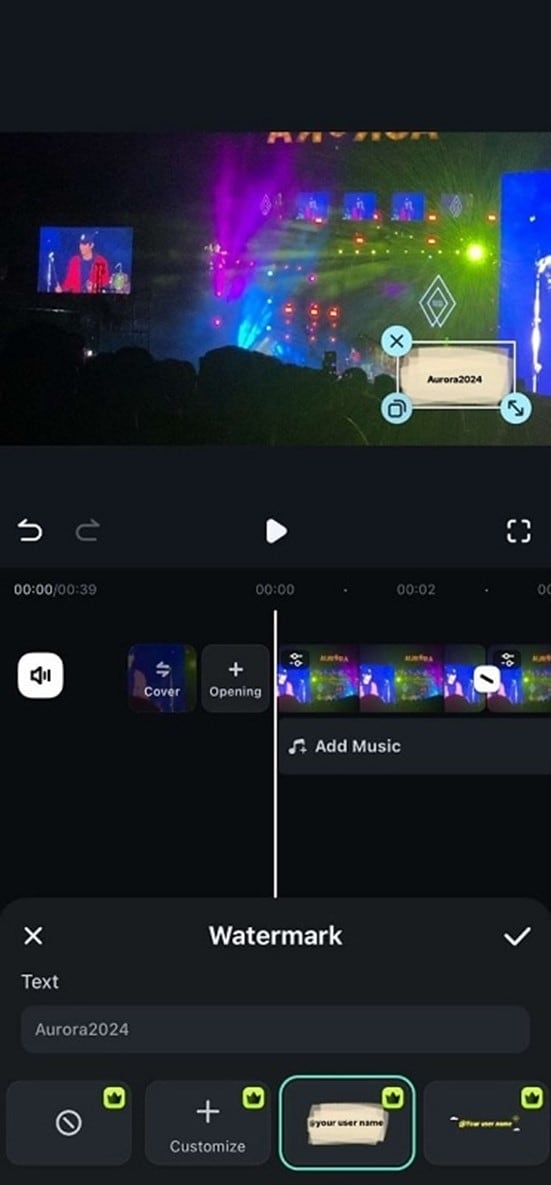
Filmora is an extremely popular mobile app that is available for iPhone and Android users. It delivers a powerful video editing experience to your phone, which includes watermarking. This product is just what the desktop software users will be looking for if they want to quickly edit, watermark, and export videos without the need for a separate software installation.
 Secure Download
- Easily create watermarks (logo or text) using your phone's gallery pictures.
- Completely watermark custom usage of the user - the user can change the watermark size, its opacity, location, and even its angle.
- Basic video editing tools: cut, crop, resize, join, apply, stickers, and write text.
- Some AI-powered features include smart cuts, auto improvements, and effects.
- Beginner-friendly and intuitive interface.
- Watermarking + full editing in one mobile app.
- Great for quick edits and social media videos.
- Offers creative effects and templates.
- Free version exports include Filmora's own watermark.
Available on iPhone/iPad and Android smartphones/tablets.
Starting from US$9.99 /mo
Essentially, this is the kind of product that would be immensely valuable to influencers, vloggers, social media creators, or any other person who requires quick and easy watermarking and editing while being out of their usual environment.
With a single app, Filmora mobile brings together watermark tools, editing features, and AI enhancements that are convenient to use, thus, it can be considered a versatile and dependable tool for making brief, refined video edits on a smartphone.
10. iMovie
iMovie is a video editing app that is free and easy for a beginner to use. It is available for iPhone, iPad, and Mac. The primary goal of the app is to create videos in a way that looks like it was done by a professional cinematographer without putting much effort from your side, be it simply adding a watermark, making a vlog, or creating a whole short film.
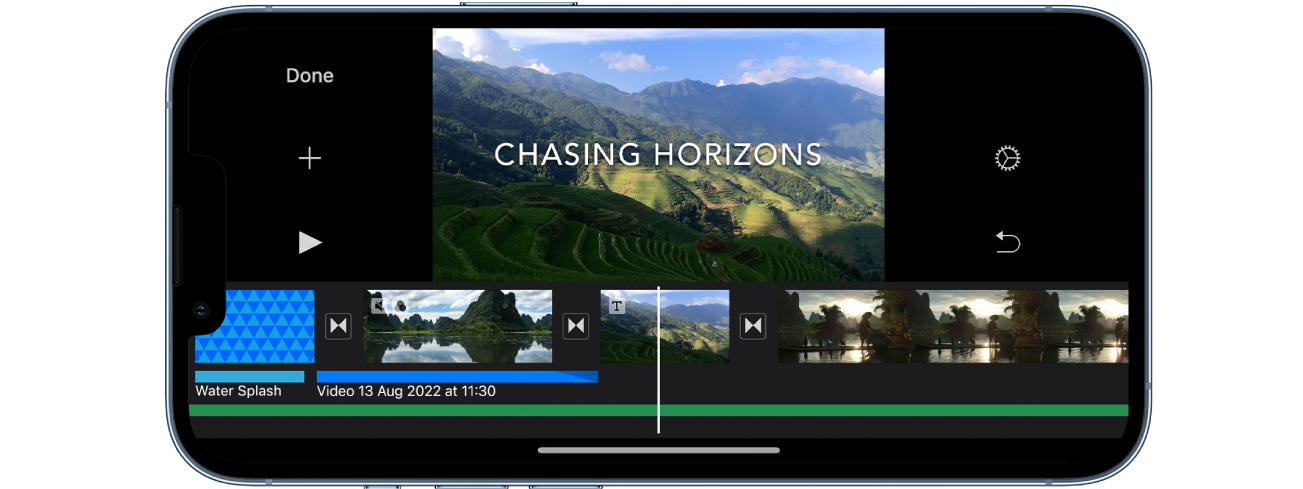
- Easily add text or logo watermarks on iPhone, iPad, or Mac.
- Magic Movie automatically creates a styled, music-synced video from your selected clips.
- Storyboards provide genre-based templates such as product reviews, cooking, and tutorials.
- Edit depth-of-field and focus tracking on iPhone Cinematic mode videos.
- The main editing tools: trim, split, transitions, filters, titles, sound effects, and voiceovers are available.
- 4K video support for cinema-quality output.
- Completely free for all Apple users.
- Extremely easy to use with a clean interface.
- Great for beginners and quick edits.
- Strong templates (Storyboards, Trailers) for guided video creation.
- Smooth performance and reliable output.
- Not available for Android or Windows.
- iPhone, iPad (iOS/iPadOS 16 or later)
- Mac (macOS 11.5.1 or later)
Free on all Apple devices.
It is perfect for beginners, pupils, iPhone vloggers, educators, and those making videos casually who need a fast way to add watermarks and do simple, clean video edits.
Video editing becomes very easy with iMovie which is why the app is very friendly to newcomers in the field. Users can freely add watermarks, edit clips, and publish videos of high quality without spending a dime - a flawless pick for users of Apple at the launch level.
11. VN Video Editor
To add or remove a watermark on a mobile, VN AI Video Editor is a great tool to turn to. It makes use of AI-powered editing tools alongside a user-friendly interface, thus allowing users to make their videos look like professionals in no time and with very little effort.
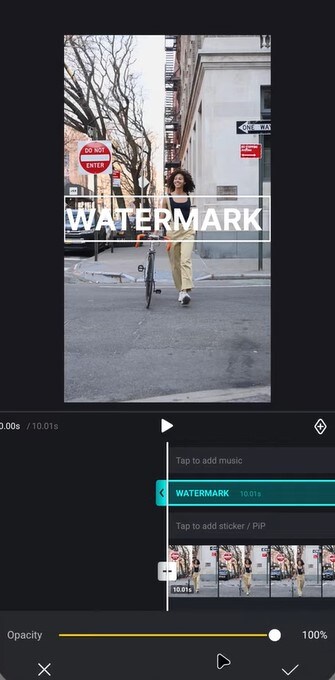
- Multi-track timeline for videos, audio, images, stickers, and text.
- AI-assisted trimming, cutting, and splitting for highly accurate edits.
- Get your work done with the help of filters, transitions, effects, and music without any interruption.
- Save your videos in the highest quality without watermarks.
- The app has a simple interface that a beginner as well as a professional can use without any problem.
- Powerful AI editing tools.
- Free to use with watermark-free exports.
- Easy sharing to social media platforms.
- Some advanced features require in-app purchases.
iOS and Android devices.
Starting from $7.99
Content creators, social media lovers, teachers, and basically any people who are looking forward to getting professional-quality videos free of watermarks.
VN AI Video Editor offers a full mobile editing experience with AI-powered features, high-quality exports, and no watermark limitations, which is why it is perfect for creators who are constantly moving.
12. Kinemaster
Kinemaster is a comprehensive mobile video editing app that enables users to have nearly professional control over their videos. Some of the features include the facility for users to add watermarks, overlays, effects, and music to the videos. Its simple and easy-to-understand interface and the availability of multi-layer editing have made it a tool of choice for content creators both on iPhone and Android.
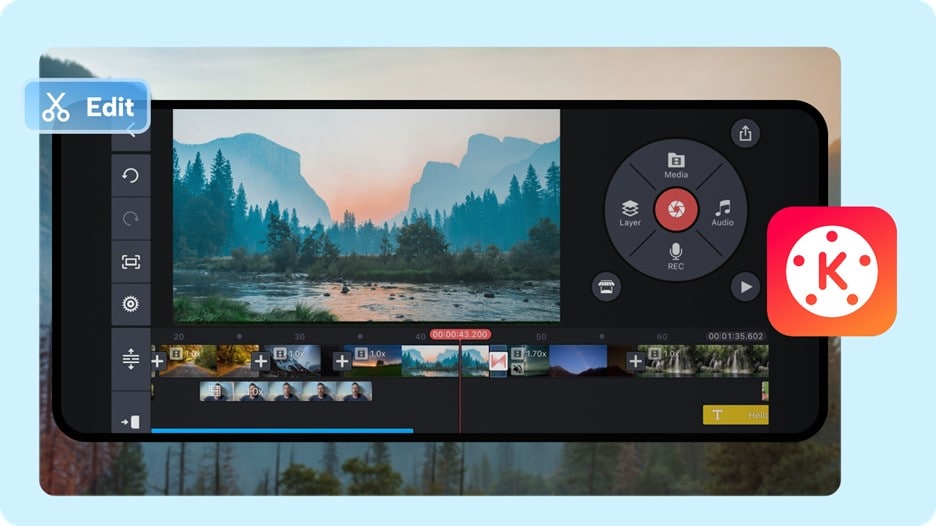
- Editing of video, audio, text, and effects in multi-layers.
- Accurate trimming, cutting, and splitting operations.
- On-demand transitions, filters, and visual effects.
- Easily add or remove watermarks.
- Real-time recording and instant preview.
- Powerful layer-based editing on mobile devices.
- Wide selection of effects and transitions.
- Supports high-resolution exports up to 4K.
- Free version adds KineMaster watermark on exports.
- Some premium features require subscription.
iOS and Android devices.
Starting from $9.99.
YouTubers, social media creators, educators, and anyone needing professional video editing on mobile.
KineMaster delivers a professional editing experience on mobile with multi-layer control, real-time previews, and robust export options, making it ideal for creators who want both power and flexibility.
Which Video Watermark Maker Should You Choose?
Here's a breakdown of the best watermark/video‑editing tools depending on your needs:
- Best for beginners: iMovie — Intuitive, free (on Apple devices), and easy: a great start for anyone new to video editing.
- For speed and batch processing: Wondershare UniConverter — Excellent for fast format conversion, bulk compressions or conversions, especially when handling many files at once.
- Best for professionals: Adobe Premiere Pro — Offers full control, advanced editing, AI‑powered tools, and top-tier output quality — ideal for serious creators, filmmakers, and editors.
- For all-in-one video editing (desktop): Wondershare Filmora — Balances ease of use with powerful editing features, effects, and watermarking capabilities.
- Best free online: VEED.io — Browser-based, instant access, and suitable for quick watermarking or edits without installing software.
- Best free desktop: VN Video Editor (mobile/desktop-capable) — Great editing toolkit even at free tier, and good for users editing on desktop via compatible setup.
- Best mobile: Filmora Go (mobile version of Filmora) — Offers on-the-go watermarking and editing, ideal for creators working directly from a phone or tablet.
Secure DownloadConclusion
Watermarking your videos should be a priority if you want to safeguard your content and build your brand identity. Although there are several apps to choose from, Filmora is the one that offers the most functionalities and is the easiest to use. With it, you can simply place your brand watermark, logo, or text on your videos from your computer or handheld gadget, and at the same time, you can enjoy advanced editing features like effects, transitions, and AI-powered tools. No matter if you are a novice, a content creator, or a professional, Filmora makes sure that your videos are visually attractive, and you can also rest assured that your videos are safe without any quality loss.
FAQ
-
Q1: What is a video watermark — and why is it done?
A watermark is essentially a visible overlay of a logo, text, or graphic that helps the video owner to show and prove that the video is theirs. Apart from discouraging unauthorized utilization, it also enhances brand visibility as the video gets shared. -
Q2: Does adding a watermark prevent video theft completely?
Not quite. With a watermark, it is still possible for users to extract, crop, or even remove the watermark if they are very determined to do so. Thus, placing a watermark should be considered as a copyright lock that is not fully secure, a deterrent though.
