

 TL;DR:
Tested in January 2026, Krikey AI is a web-based video-to-3D animation tool that serves as a practical shortcut for creators to quickly generate character movements without manual rigging.
● The platform's motion tracking accuracy relies entirely on clean source inputs, meaning shaky framing, motion blur, crossed arms, or hidden hands will directly result in floaty animations and awkward joint placements.
● While the free plan allows for basic workflow testing, regular publishers require the $15 per month Pro plan to bypass strict credit limits and unlock FBX exports for integration into Unity, Unreal Engine, or external 3D pipelines.
● Krikey AI is strictly for generating raw character performances, requiring users on Windows 11 or macOS Sonoma to pair it with a timeline editor like Wondershare Filmora to apply AI Smart Cutout, audio denoising, or Google Veo 3.1 generative video assets for a finished project.
Ask AI for a summary
 ChatGPT
 Perplexity
 Gemini
 Claude
 Grok
Grok
Review by Filmora Creative Lab: Tested in January 2026 on Windows 11 and macOS Sonoma.
Animation used to take weeks; now it can take minutes thanks to the Krikey AI animation maker. This powerful video-to-3D animation tool helps you turn real video clips into 3D character performances without complex rigging. In this Krikey AI review, we'll explore if it's the right choice for your 2026 projects.
In this review, you will learn how Krikey AI performs in real projects, what the free plan can do, and when the Pro plan makes sense. You will also see how an AI-powered desktop editor can polish the final result with 3D generation, cleaner audio, captions, and better pacing.
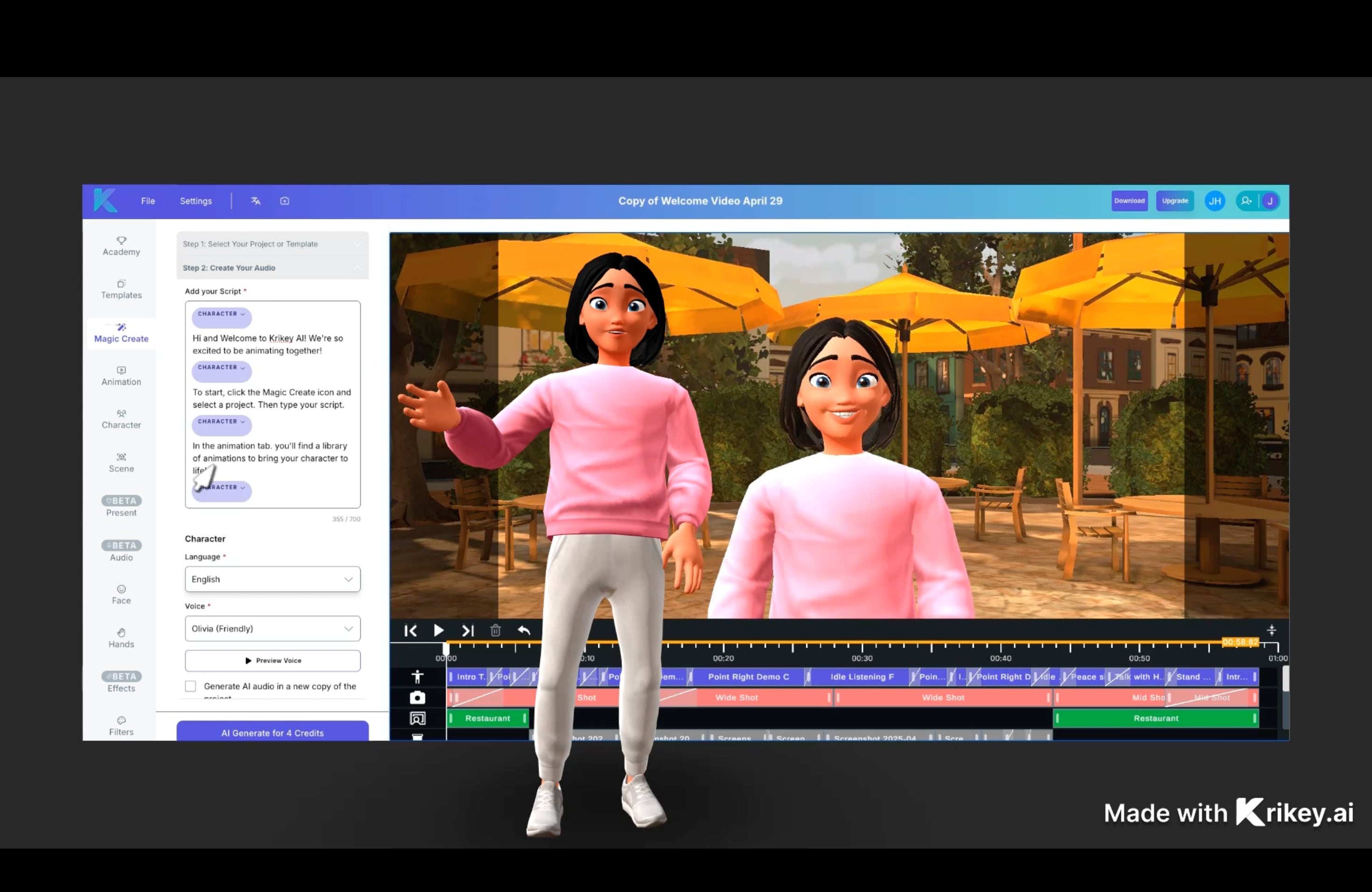
Krikey AI is an AI-powered 3D animation platform that streamlines the creation of 3D avatars through video-to-motion and text-to-animation technology, making professional-grade character movement accessible for 2026 creators.
Key Takeaways:
- Krikey AI excels at converting real-life video clips into 3D character movements in 2026.
- The Free plan is suitable for testing, while the Pro plan unlocks FBX exports for professional pipelines.
- For high-quality final results, combining Krikey AI's motion with Filmora's AI video editing tools is recommended.
Part 1. What is Krikey AI Animation Maker? (2026 Overview)
Krikey AI is built for one job: turning ideas and real-world motion into quick 3D animation. Instead of starting from a blank timeline, you start with either a video clip or a prompt, then let the system generate movement for a character. That focus is why many creators see Krikey AI as a practical shortcut, not a full animation suite.
Krikey AI Animation Maker, What It Does Best
At its core, the Krikey AI animation maker helps you create a 3D avatar, apply motion, and export a usable animation in minutes. You do not need to rig a character or animate frame by frame. The workflow is designed around speed and repeatability, which matters if you publish often.
What are the Top Krikey AI 3D Animation Features for 2026?
- Video-to-Animation
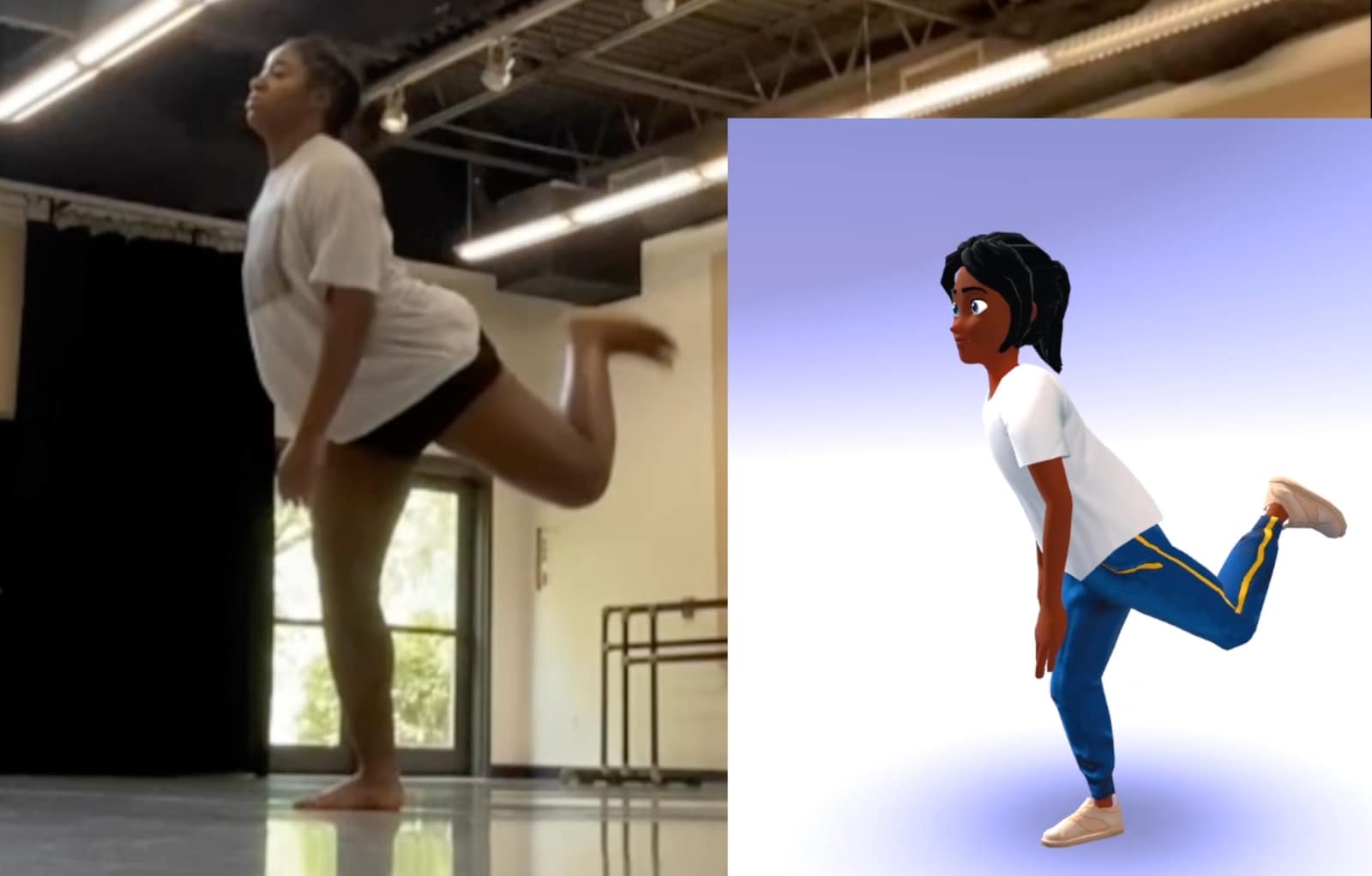
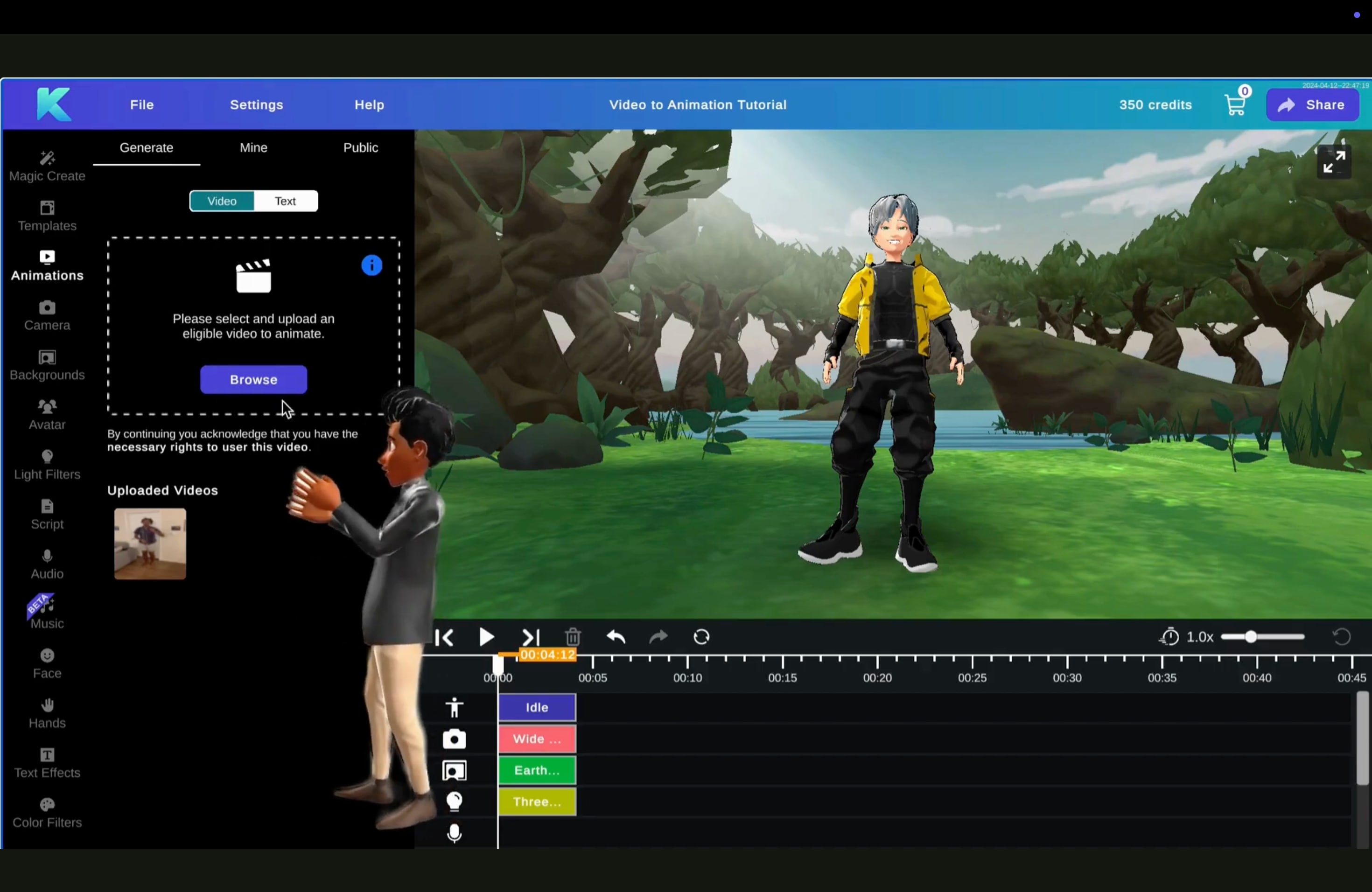
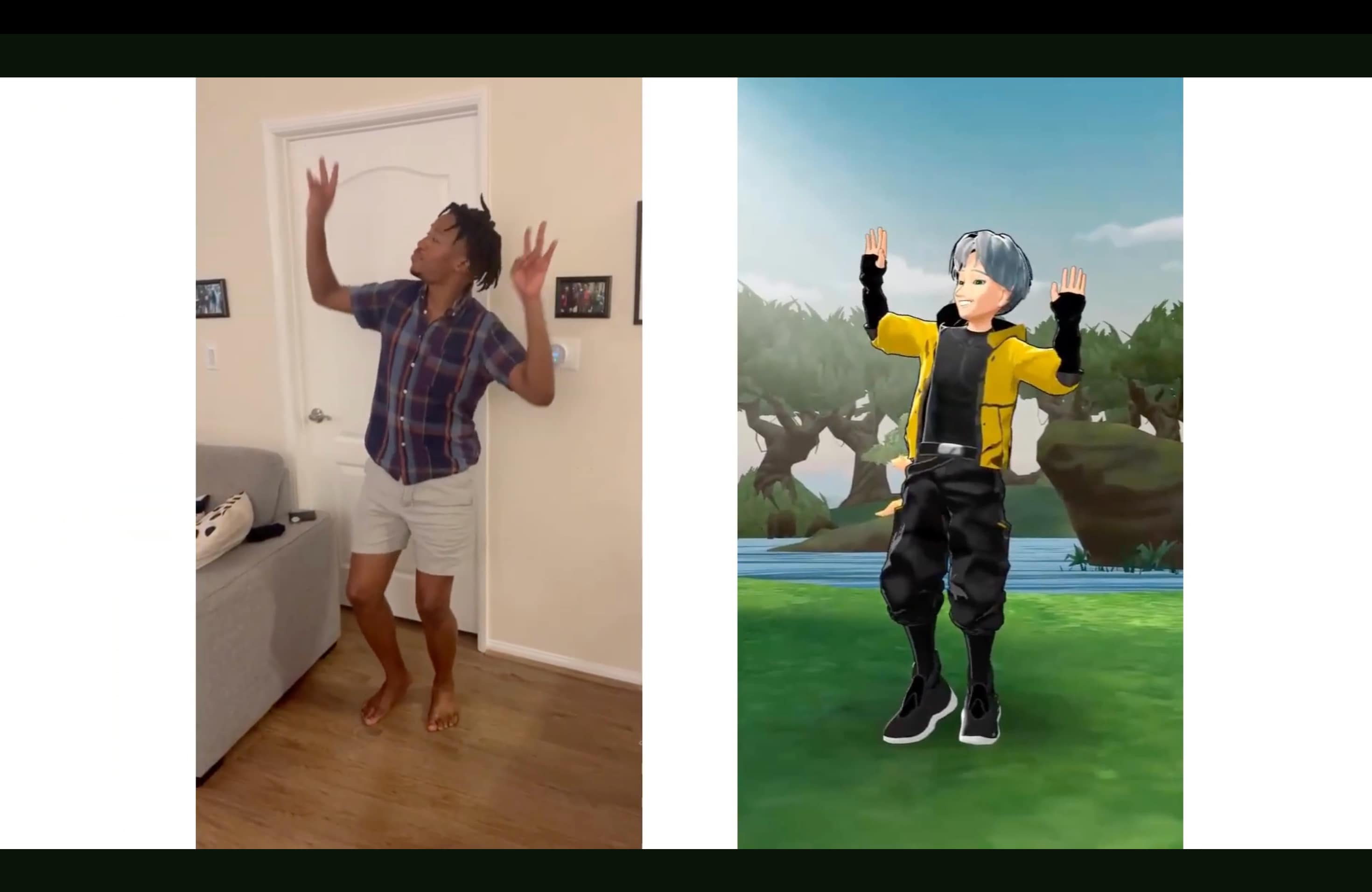
This is the headline feature. You upload a real-life clip, then Krikey maps the body movement onto a 3D character. It works best with clear motion, stable framing, and minimal obstructions. For creators, this is the fastest route to get a dance, gesture, or acting beat into a 3D avatar without manual animation.
- Text-to-Animation
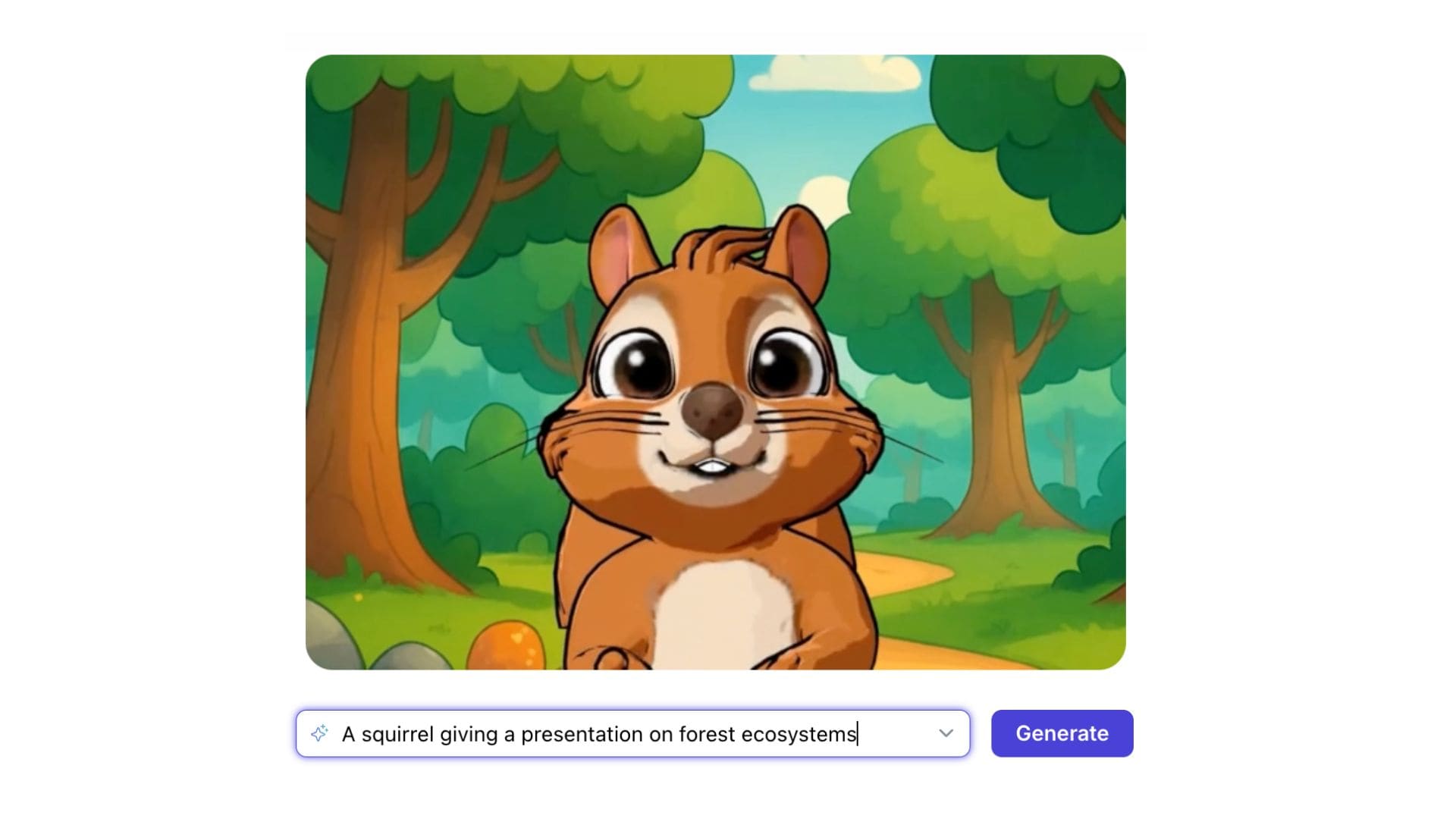
If you do not have a clip ready, you can use prompts to generate movement. This is useful for quick actions, filler motions, and testing concepts before you record anything. It also helps when you need a consistent loop, like a character waving, pointing, or reacting.
- Krikey AI cartoon maker, character customization
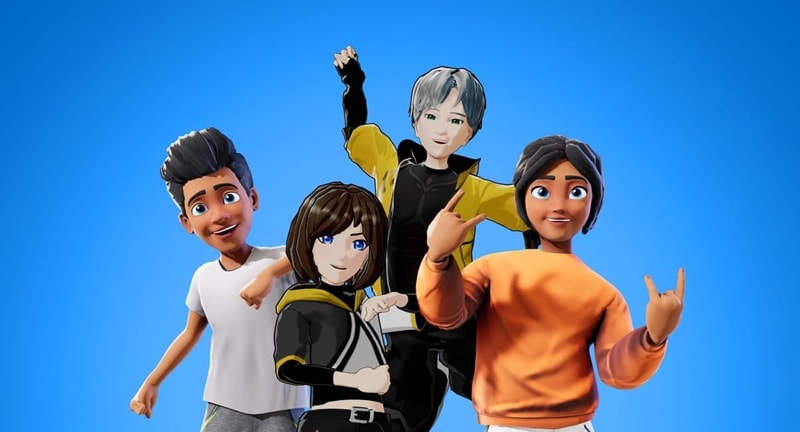
If you are looking for a Krikey AI cartoon maker, the platform offers extensive character customization. You can refine 3D avatars with facial expressions to ensure your AI-generated cartoons look professional. You can customize avatars, then refine the result with facial expressions and hand gestures so the animation feels less stiff.
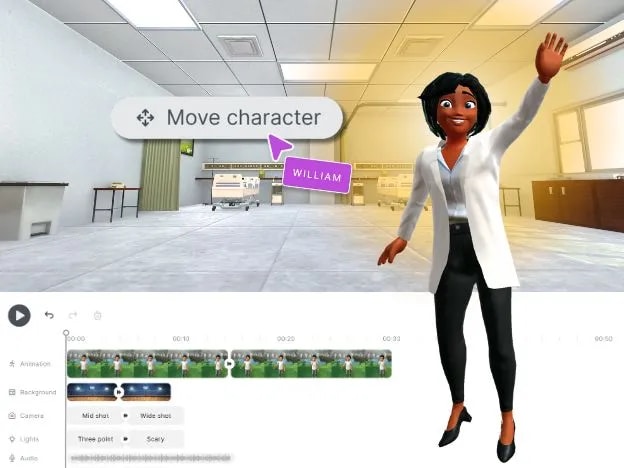
Krikey also supports Ready Player Me integration for building avatars that match your style, which can speed up character creation when you want a consistent on-screen identity across multiple videos.
Part 2. Pricing and Value (Free vs. Pro)
Krikey AI keeps the entry barrier low, but the best features sit behind its paid plan. To decide if it is worth paying for, you need to look at two things: plan limits and the credit system.
Krikey AI: Free plan vs. Pro
- The free plan is best for testing the workflow. You can explore the Krikey AI animation maker, try basic video-to-animation, and see how the 3D avatar style fits your content. The main limitation is output quality and how quickly you run out of credits once you start generating multiple versions.
- The Pro plan (priced at $15 per month) is designed for creators who publish regularly. It typically unlocks higher-resolution output and more export options, including FBX, which matters if you want to reuse your animation outside the Krikey ecosystem.
The credit system, what it means in real use
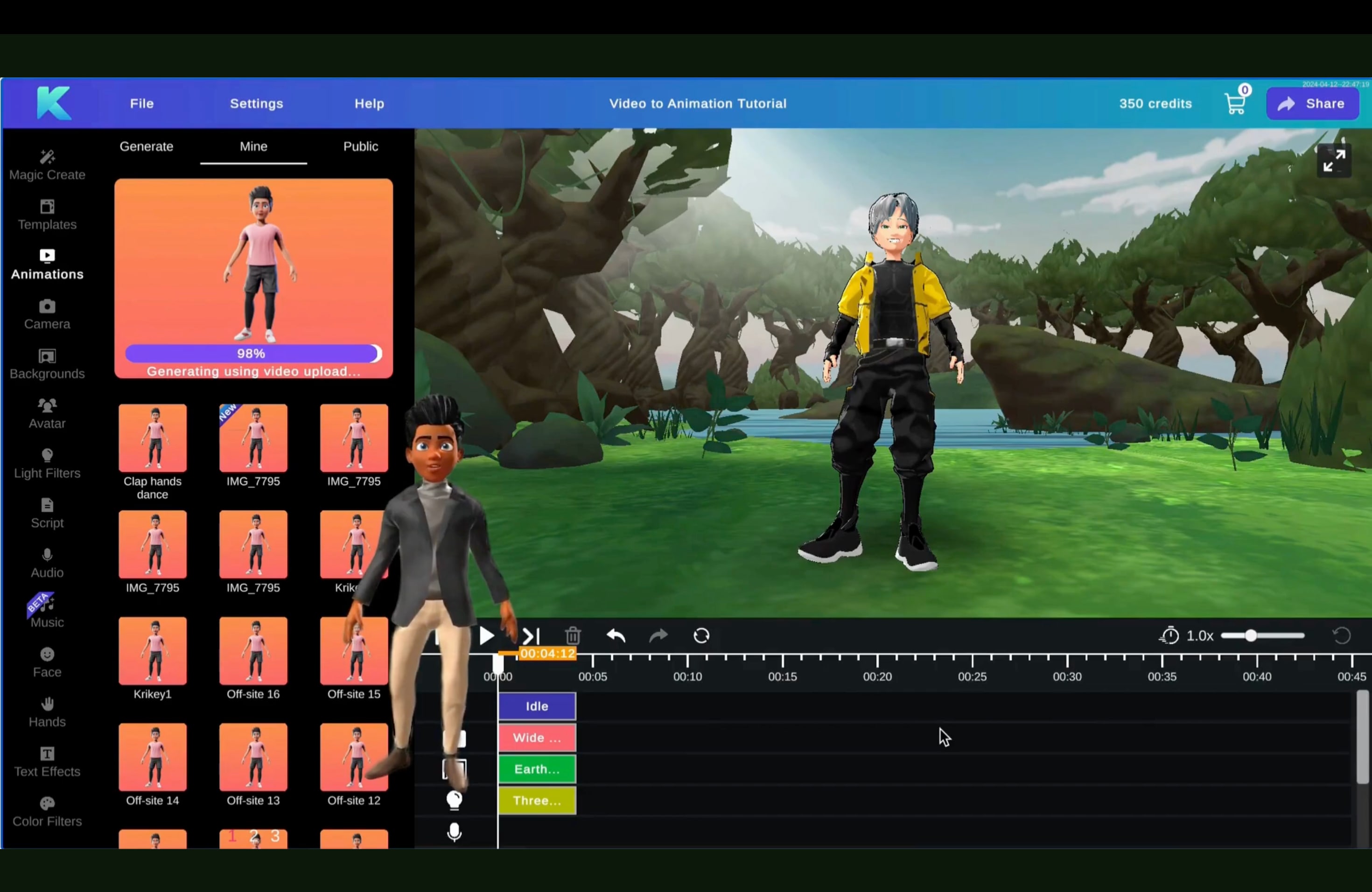
Credits are what you spend when you generate results. In practice, this changes how you work. Instead of endlessly regenerating, you plan your attempts. A smart approach is to generate two or three variations, pick the cleanest motion, then move on.
If you only make occasional clips, the free plan may be enough. If you create weekly content, credits and export limits can start to feel restrictive, and Pro becomes easier to justify.
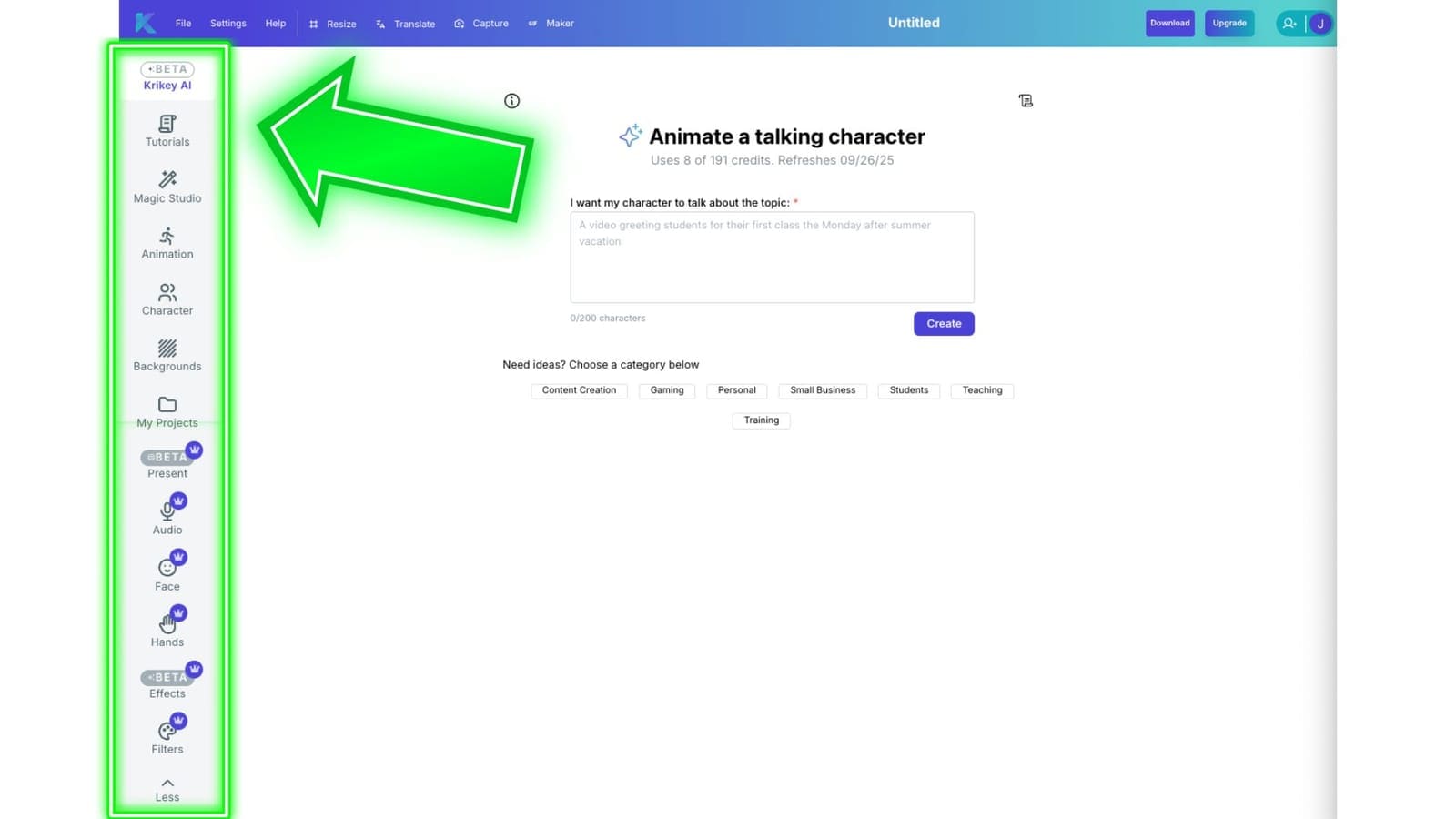
Why FBX exports are a game-changer
For many users, FBX is the real reason to upgrade. MP4 is great for posting, but FBX is what you choose when you want the motion as an asset, not just a finished video. It enables you to integrate character animation into other 3D tools or pipelines, making Krikey AI more than just a quick Krikey AI cartoon maker for social clips. FBX allows you to bring animations into Unity, Unreal Engine, or refine them in Filmora with 3D overlays.
Part 3. Hands-on Guide: From Real Video to 3D Cartoon
The platform can quickly convert a real clip into a 3D character animation, but the output quality depends heavily on the quality of your input. The good news is you can improve results with a few simple habits.
Step-by-step for Creating an Animation with Krikey AI
💡 Tip: Keep the clip short and focused. Aim for one clear action per clip, such as a short dance loop, a wave, or a single gesture. Short clips are easier to convert and re-record if needed.
Performance and Quality Analysis (Real-world Testing)
In real projects, Krikey AI performs best with clear, readable movement. Simple gestures usually convert well. The results can look less stable when the source clip has motion blur, shaky camera work, or lots of overlap between arms and torso.
Part 4. User Experience and Animation Quality of Krikey AI
In hands-on use, Krikey AI feels built for speed. The interface keeps you focused on a few core actions: upload motion, pick a character, generate, and export. You do not need to understand rigging or animation timelines to get a usable result. That makes the Krikey AI animation maker workflow approachable, especially for creators who want quick output for social posts.
For performance testing, the most consistent results came from clean, readable clips. Simple motions like waving, pointing, walking, and short dance loops convert well. The character usually matches the overall rhythm and pose changes, which is what viewers notice first.
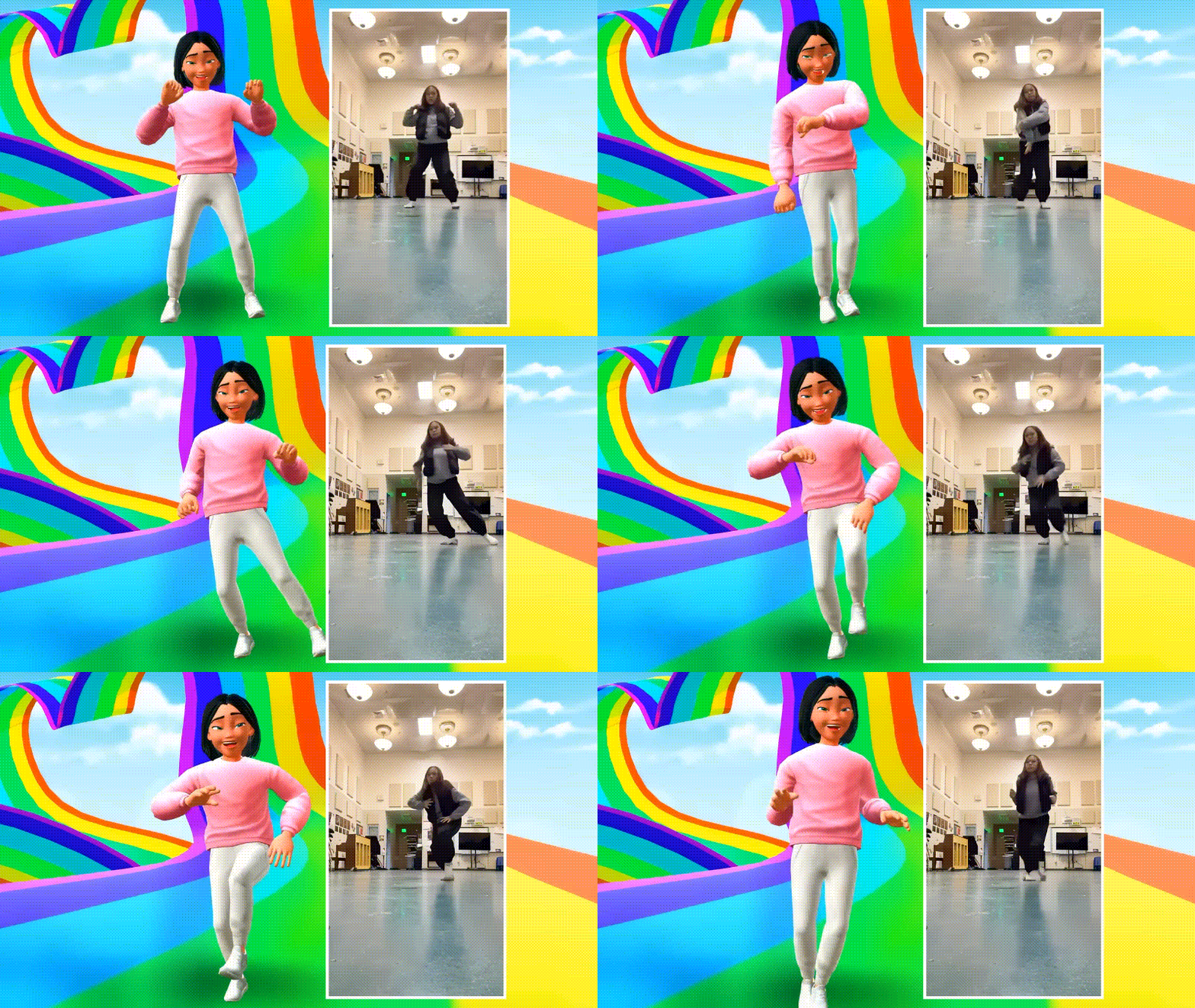
Quality drops when the source video has motion blur, shaky framing, or heavy occlusion, like crossed arms, hands hidden behind the body, or fast spins. In these cases, the animation can look floaty, with occasional foot sliding or odd hand placement. The Krikey AI cartoon maker style can help hide minor imperfections, but it will not fully fix messy input.
Pros and Cons of Krikey AI
Based on the review, we can summarize the pros and cons of Krikey AI as follows:
- You can turn a real clip into a 3D avatar performance in minutes, as it works as a fast video-to-3D character animation.
- The steps are straightforward, and you can get results without learning complex animation software.
- Output quality depends heavily on the source video. Poor lighting, motion blur, and blocked body parts quickly reduce motion accuracy and realism.
- Credits can limit experimentation. Since generating variations costs credits, heavy trial-and-error can feel restrictive if you are trying to perfect one scene.
"AI-driven motion capture is democratizing 3D animation, allowing individual creators to bypass thousands of dollars in hardware costs." - 2026 Industry Report on Multimedia Trends.
Part 5. Bringing Animations to Life: Wondershare Filmora as the Perfect Partner
While Krikey AI excels at motion capture, the best way to polish your work is using a professional AI video editor. Pairing Krikey with Wondershare Filmora allows you to use AI Smart Cutout and AI Music Generator to turn raw 3D clips into cinematic masterpieces.
 Secure Download
Think of it like: Krikey gives you the actor; Filmora gives you the set, lighting, pacing, and final cut. Import your Krikey export into Filmora, and then build a more cinematic story without a complicated workflow.
AI Video Generator
If you want more than just a single character clip, Filmora lets you generate full animation videos or extra shots using either text prompts or images. The AI video generation in Filmora is powered by advanced models like Google Veo 3.1, so you can direct the movement, camera angles, and visual styles without manually animating everything yourself.
AI Smart Cutout and Background Remover
This is the fastest way to place your 3D character into a new environment. You can remove the background and composite the character onto real footage, a stylized digital scene, or a simple color backdrop with Filmora. It is especially helpful when you want a clean background look without manual masking.
AI Music Generator and Audio Denoise
Music sells the mood. And Filmora's AI Music Generator helps you create a fitting track quickly, then you can fine-tune volume to keep speech clear. If your clip has messy voice audio, AI Audio Denoise can reduce unwanted noise and make narration easier to understand.
Auto Captions (Speech-to-Text)
Captions are a must for short-form platforms where many people watch on mute. With auto captions, you can generate subtitles fast, then adjust the style to match your brand. It also makes your 3D animation easier to follow.
Text-to-Speech
If you do not want to record narration, text-to-speech gives you a clean voice track in minutes. It is also useful when you want a consistent voice style across multiple videos, like a series of short animated explainers.
Part 6. Krikey AI or Filmora? Choosing the Right Tool for Your Workflow
Krikey AI and Filmora solve different problems. Krikey is best when you want to convert real movement into a 3D character performance. Filmora is best when you want to build a complete video, add scenes, and polish everything for publishing.
Many creators end up using both, Krikey for the animation and Filmora for the final edit.
| Tools | Krikey AI | Filmora |
| Primary Purpose | Turn a video into 3D character motion | Edit, polish, and publish the final video |
| Core Strength | Video-to-animation, 3D avatars | AI video generation, cinematic editing tools |
| Editing Timeline | Simple scene edits | Full timeline for complete edits |
| Audio Tools | Basic voice features | Music, denoise, captions, TTS |
| Best For | Fast 3D avatar cartoons from real clips | Finished videos with better pacing and audio |
|
Show More
Show Less
|
||
Conclusion
Krikey AI is a strong pick if your goal is simple: convert a real video into a 3D character animation fast. The workflow is beginner-friendly, and the results can look impressive when your source clip is clean. Filmora becomes the better choice when you want to turn that animation into a complete video that people enjoy watching.
With AI Video Generator, smart cutout, cleaner audio, captions, and text-to-speech, it helps you build a more cinematic final cut without extra tools. Use Krikey to create the performance, then use Filmora to finish the story.

Frequently Asked Questions about Krikey AI Animation Maker
-
How does the Krikey AI "Text-to-Animation" feature work?
Krikey AI uses advanced generative algorithms to turn text prompts into 3D character movements. You simply describe an action, such as "performing a dance" or "waving hello," and the AI generates a corresponding animation rig for your 3D avatar in seconds, eliminating the need for manual keyframing. -
Can I create custom 3D avatars in Krikey AI?
Yes, Krikey AI is integrated with Ready Player Me, allowing you to create highly personalized 3D avatars. You can customize facial features, outfits, and accessories, or even upload a photo to generate an avatar that looks just like you, which can then be animated using AI. -
In what formats can I export animations from Krikey AI?
Krikey AI supports various export options, including MP4 video files for social media and FBX files for professional use. The FBX export is particularly useful if you want to bring your AI-generated animations into 3D software like Blender, Maya, or game engines like Unity and Unreal Engine. -
Does Krikey AI support AI-powered video-to-animation (MoCap)?
Yes, Krikey AI offers AI Motion Capture features. You can upload a video of a person performing a real-life movement, and the AI will track the motion and apply it to your 3D character. This is a game-changer for creators who want realistic animations without expensive MoCap suits. -
Is Krikey AI free, or do I need a subscription?
Krikey AI offers a free tier with basic credits to test the AI animation tools. However, for high-quality exports, advanced character assets, and commercial usage rights, you will need to purchase credits or subscribe to a premium plan. For editing your final animations with professional effects, Wondershare Filmora is an excellent companion tool.
