


 TL;DR:
Nero Video remains a practical choice in 2026 for beginners needing a one-time purchase tool to create basic family slideshows and author physical DVDs or Blu-rays.
● The software requires an approximate $55.95 one-time payment with no permanently free version available, and it is strictly limited to Windows PCs with no macOS compatibility.
● Workflow limitations include an older interface design, slower rendering speeds on complex projects, and a requirement to manually upload videos due to the absence of direct social media export options.
● When compared to modern alternatives like Wondershare Filmora, Nero relies on traditional manual editing suited for occasional home videos, whereas Filmora is recommended for creators prioritizing AI automation and fast social media content production.
Ask AI for a summary
 ChatGPT
 Perplexity
 Gemini
 Claude
 Grok
Grok
Not every video project needs complex tools or a steep learning curve. Nero Video is built for a simpler approach, offering an easy way to turn clips into finished videos without getting lost in advanced settings. It’s often seen as a beginner-friendly option for basic editing, slideshows, and home projects on PC.
At the same time, newer video editors have shifted toward faster, more automated workflows, which raises a fair question: Does Nero Video Editor still keep up? In this review, we’ll look at its key features, how it performs in real use, and how it compares to modern video editing software to help you decide if it’s the right fit.
What Is Nero Video? Quick Overview
Nero Video is a Windows-based video editing software developed by Nero AG. Nero Video software has been around for years and was originally released under the name Nero Vision, which focused heavily on disc creation alongside basic video editing.
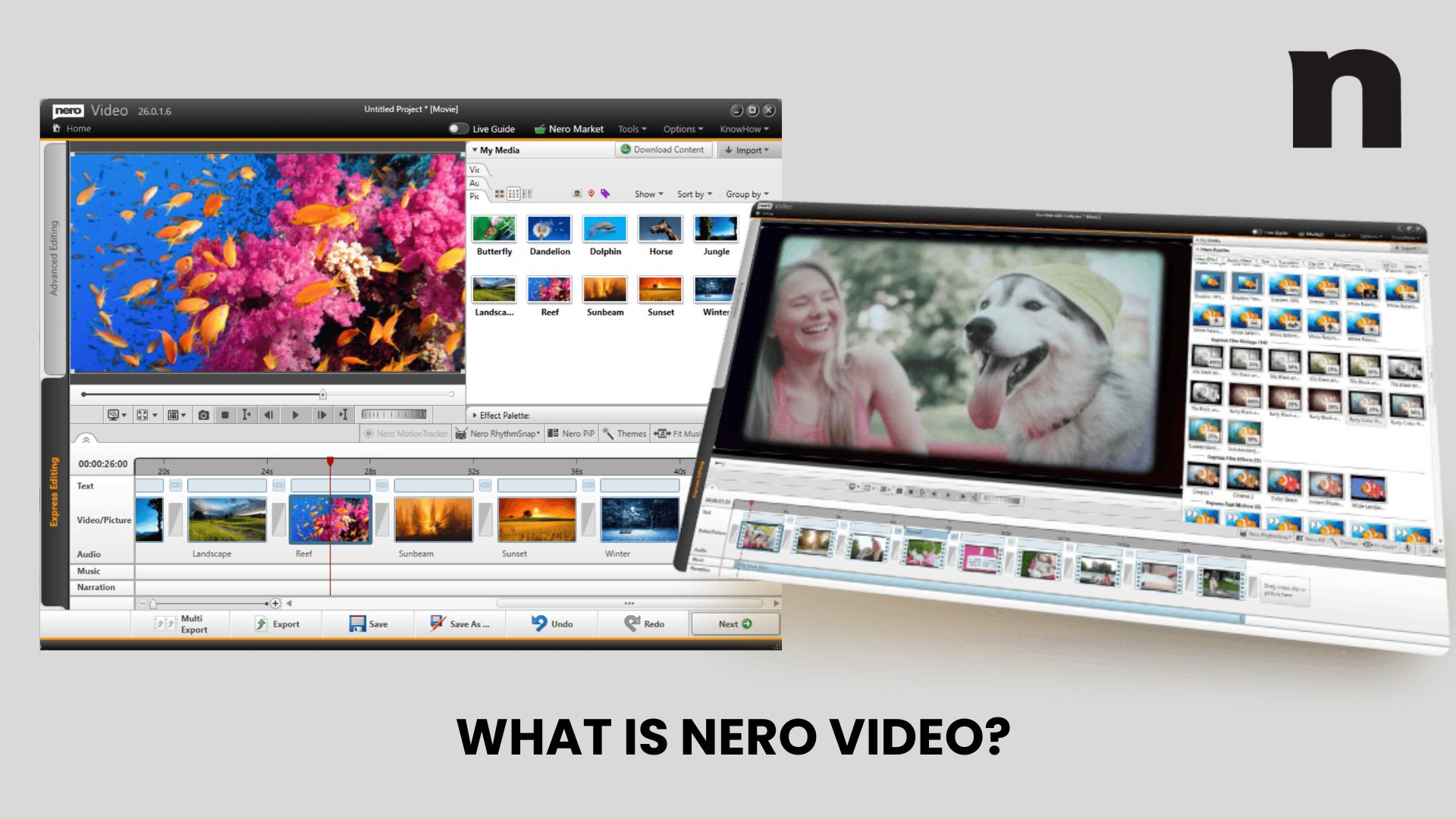
Today, Nero Video still retains that core functionality, combining editing tools with media handling features in one place. Its main purpose includes:
- Video editing for trimming, arranging clips, and adding effects
- Media management to organize videos, photos, and audio files
- DVD and Blu-ray creation, including menu design and disc burning
This combination of editing and disc authoring is less common in newer tools, which makes Nero Video editing software stand out, especially for users who still work with physical media.
Nero Video Key Features
Nero Video focuses on practical editing tools that combine guided features and manual control. It covers the basics well, while adding a few modern features such as motion tracking and support for high-resolution formats.
Dual Editing Modes (Express vs Advanced)
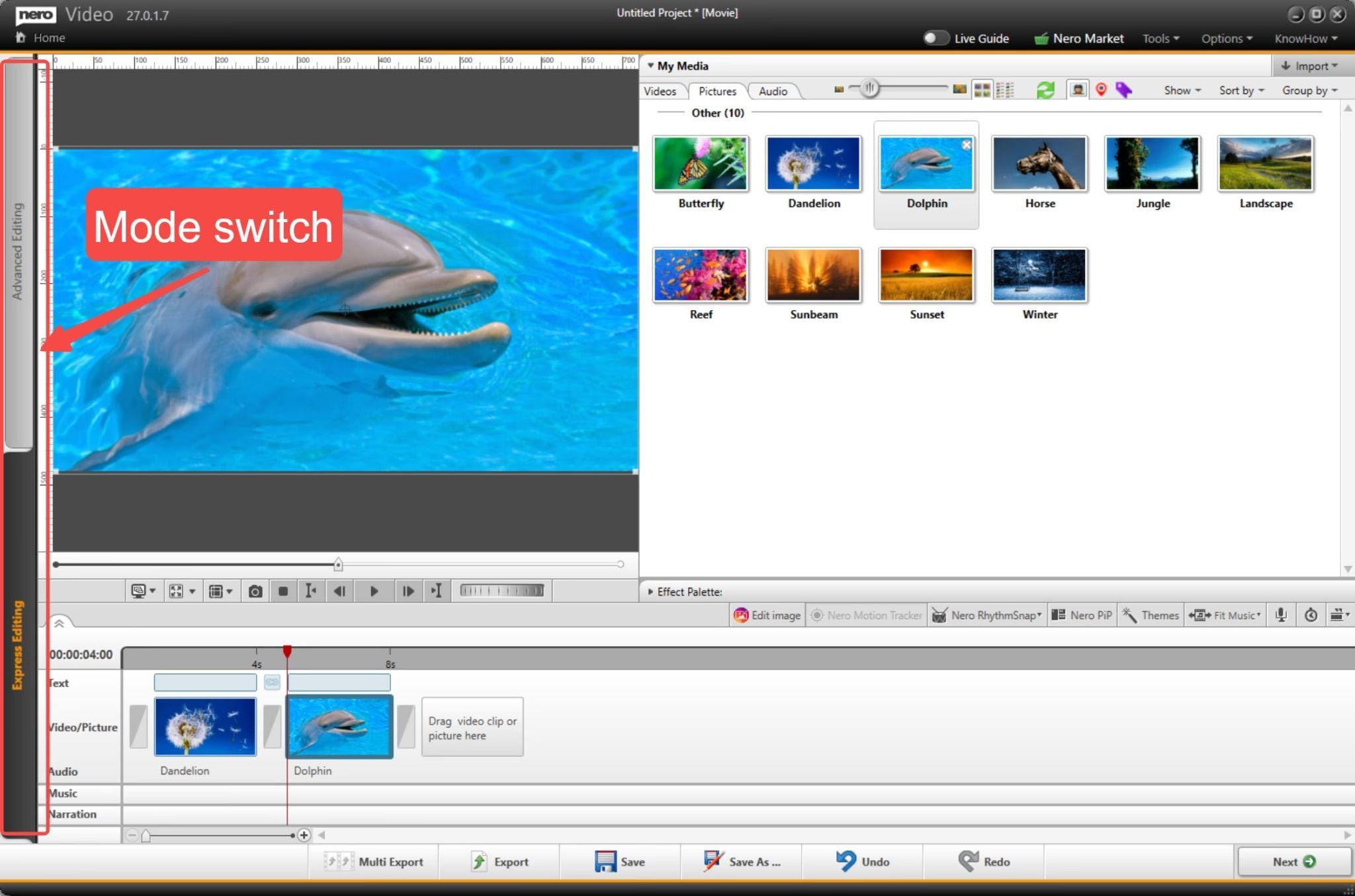
Nero Video offers two editing modes, depending on how much control you need.
- Express mode: template-based editing with guided steps for quick results
- Advanced mode: a full timeline for manual editing and detailed adjustments
- Option to switch modes within the same project
Timeline Editing & Multi-Track Support
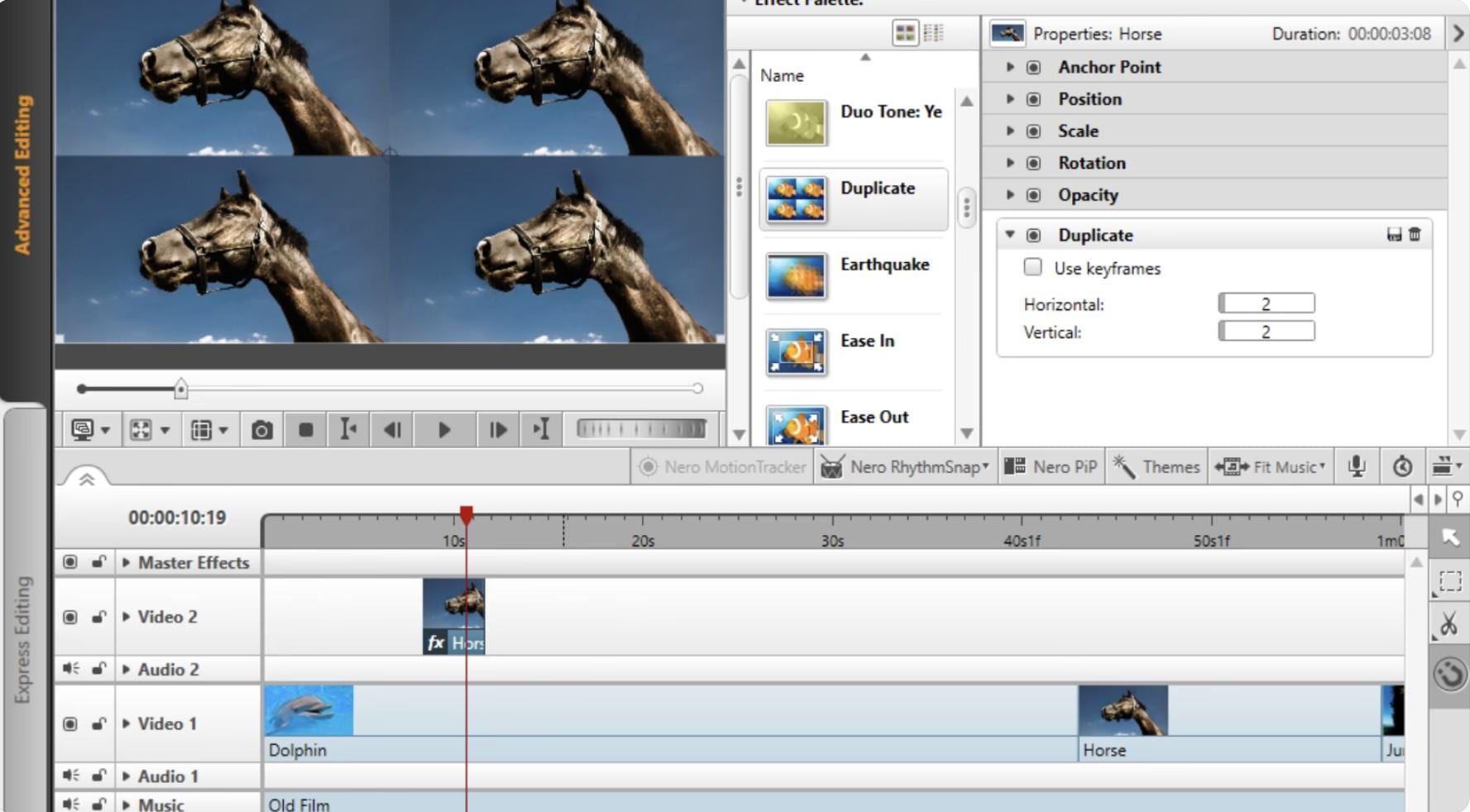
The software uses a traditional timeline layout that supports multi-track editing.
- Multi-track timeline for video, audio, text, and overlays
- Drag-and-drop editing with trimming, splitting, and positioning
- Supports HD, 4K, and 8K video editing
- Includes tools such as motion tracking and picture-in-picture (PiP)
Effects, Transitions & Templates
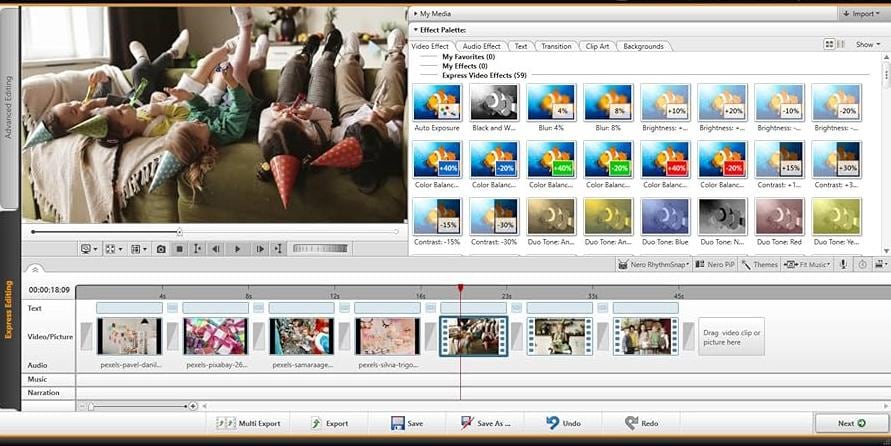
Nero Video includes a large library of visual elements to speed up editing.
- Over 1000 templates and themes for slideshows and quick projects
- Built-in transitions, filters, and video effects
- Green screen (chroma key) support for background replacement
- Customization options for timing, color, and layout
Smart Audio Tools
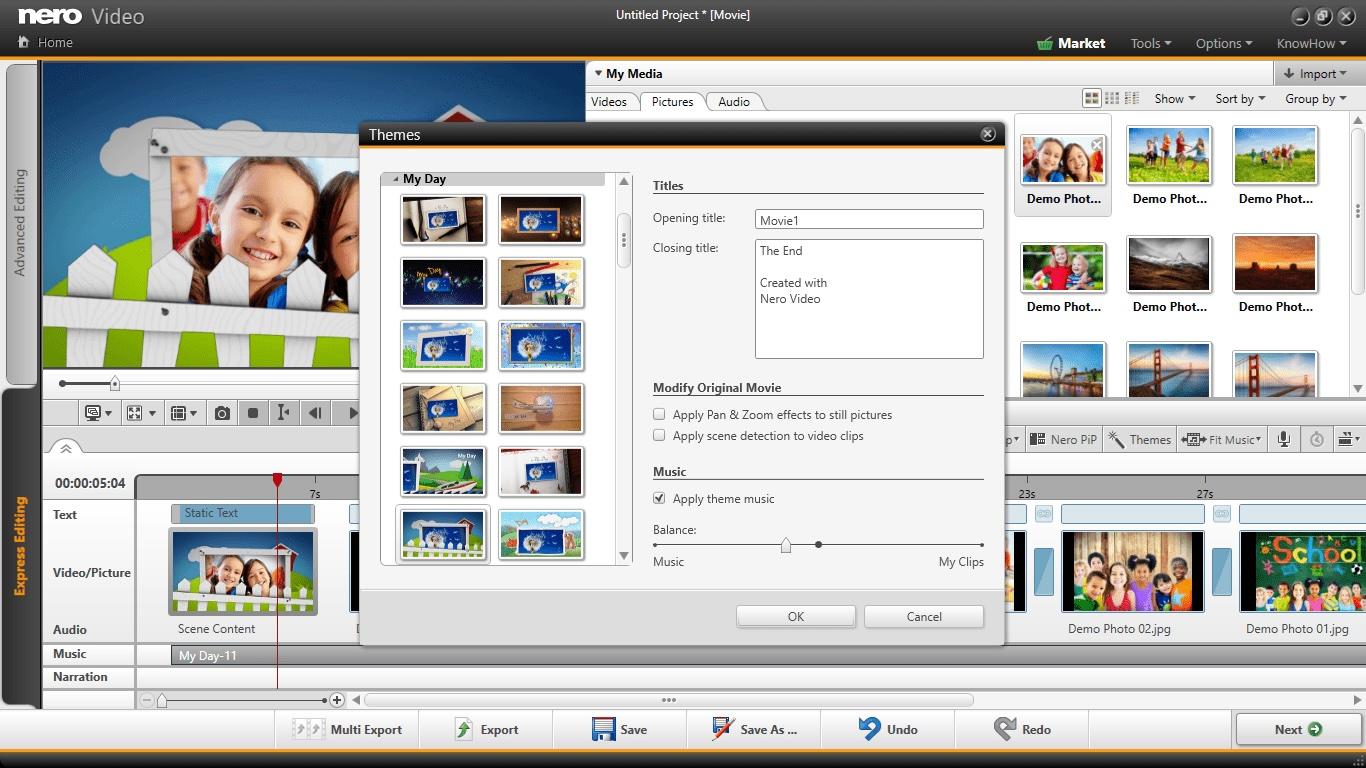
Audio features are combined with simple automation tools to speed up editing.
- Basic audio editing: trim, adjust volume, apply filters
- Music synchronization to match the audio duration with the video duration
- One-click video story creation using templates and background music
- Designed for quick results without manual syncing
DVD & Blu-ray Authoring
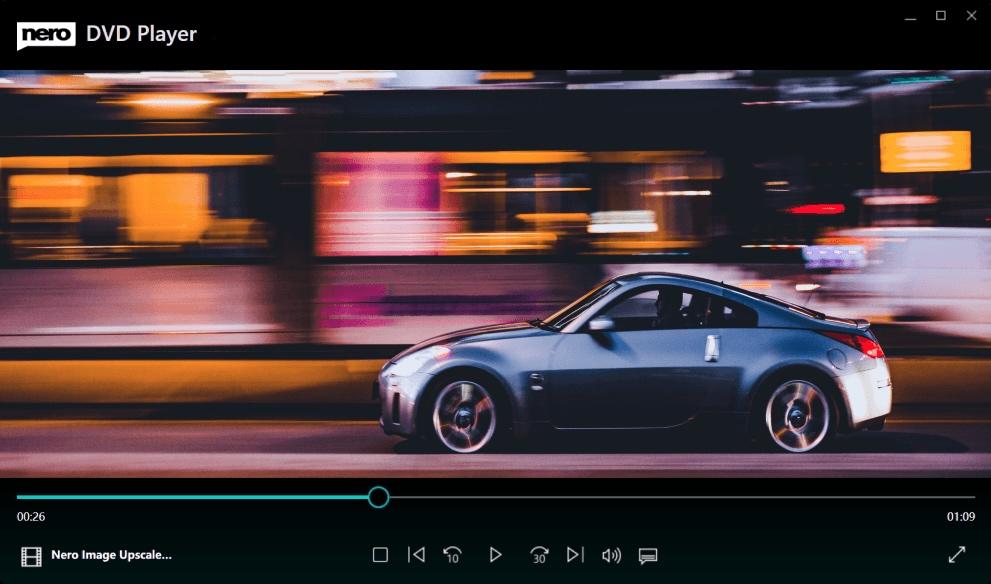
This remains one of Nero Video’s most popular features.
- Create and burn DVDs and Blu-ray discs
- Custom menu templates for navigation
- Export projects directly to physical media
Media Management Integration
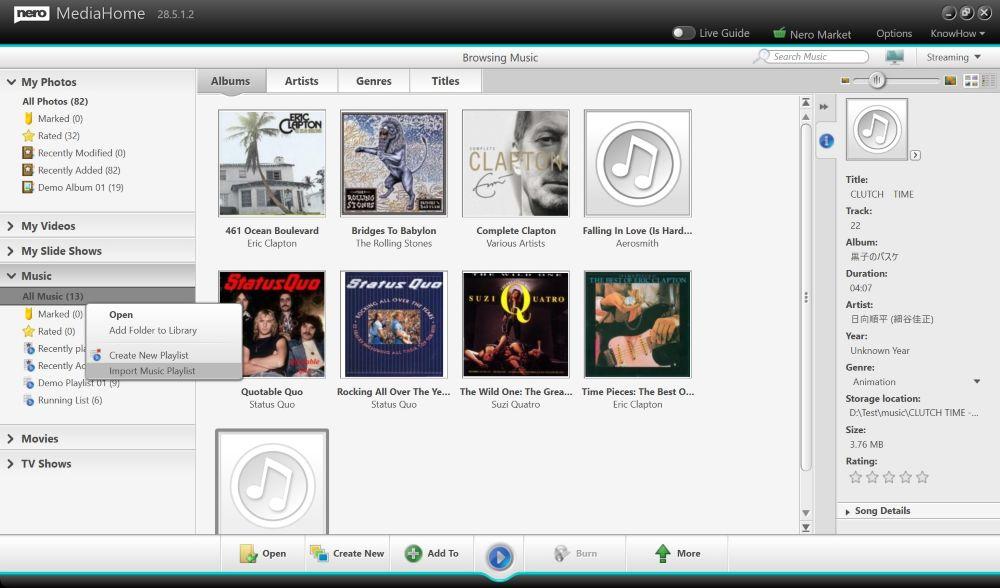
Nero Video integrates with the built-in media system to organize files.
- Access and organize files through Nero MediaHome
- Manage videos, photos, and audio in one place
- Helps streamline importing and project setup
Pros and Cons of Nero Video
Now that we've looked at its features, it becomes easier to see where Nero Video performs well and where it falls short. The strengths are mostly around simplicity, while the limitations show up when you expect more modern workflows.
- Easy to use: a simple layout and guided editing make it accessible for new users
- Beginner-friendly workflow: Express mode helps create videos quickly with minimal setup
- Good media import and organization: supports various file types and keeps media sorted
- Useful templates and PiP effects: built-in themes and picture-in-picture options speed up editing
- Automatic music fitting: adjusts audio length to match your video
- Strong DVD & Blu-ray tools: one of the few editors that still supports disc creation well
- Outdated interface: overall design feels older compared to modern tools
- Basic editing capabilities: lacks advanced tools for more complex projects
- Limited workflow efficiency: more manual steps compared to AI-driven editors
- No direct social media export: requires manual upload after exporting
- Some features lack a preview: effects may need to be applied first before the results are visible
Nero Video Pricing Breakdown (Updated 2026)
Before downloading Nero Video, pricing is one of the most searched concerns, especially when you want to download Nero Video. The software uses a one-time purchase model, rather than a subscription. Here are the details based on the latest information from the official website:
Nero Video Pricing Table (2026)
| Plan | Price | What you get | Notes |
| (Standard License) | ~$55.95 (often discounted to ~$44.76) | Full video editing software, multi-track editing, templates, effects, DVD/Blu-ray authoring | One-time payment |
| Free Trial | Free | Limited-time access to core features | Trial duration may vary (often around 14 days) |
| Bundle (Optional) | Varies | Nero Video + extra tools (e.g., AI Motion Tracker) | Usually offered during promotions |
What to Know About “Free Download”
There is no fully free version of Nero Video. A “free download Nero Video” usually means:
- A trial version
- Or unofficial sources (not recommended)
Official downloads are available on their website: Nero Video download
Pricing Insight
Nero Video stays in the budget-friendly range compared to many video editing tools. The one-time payment can be appealing if you want to avoid subscriptions, especially for occasional editing. However, updates and new features are tied to newer versions, so upgrading later may require another purchase.
How to Download and Install Nero Video
After checking the price, the next step is to install the software. The process is quite simple and only takes a few minutes if you download it from an official source.
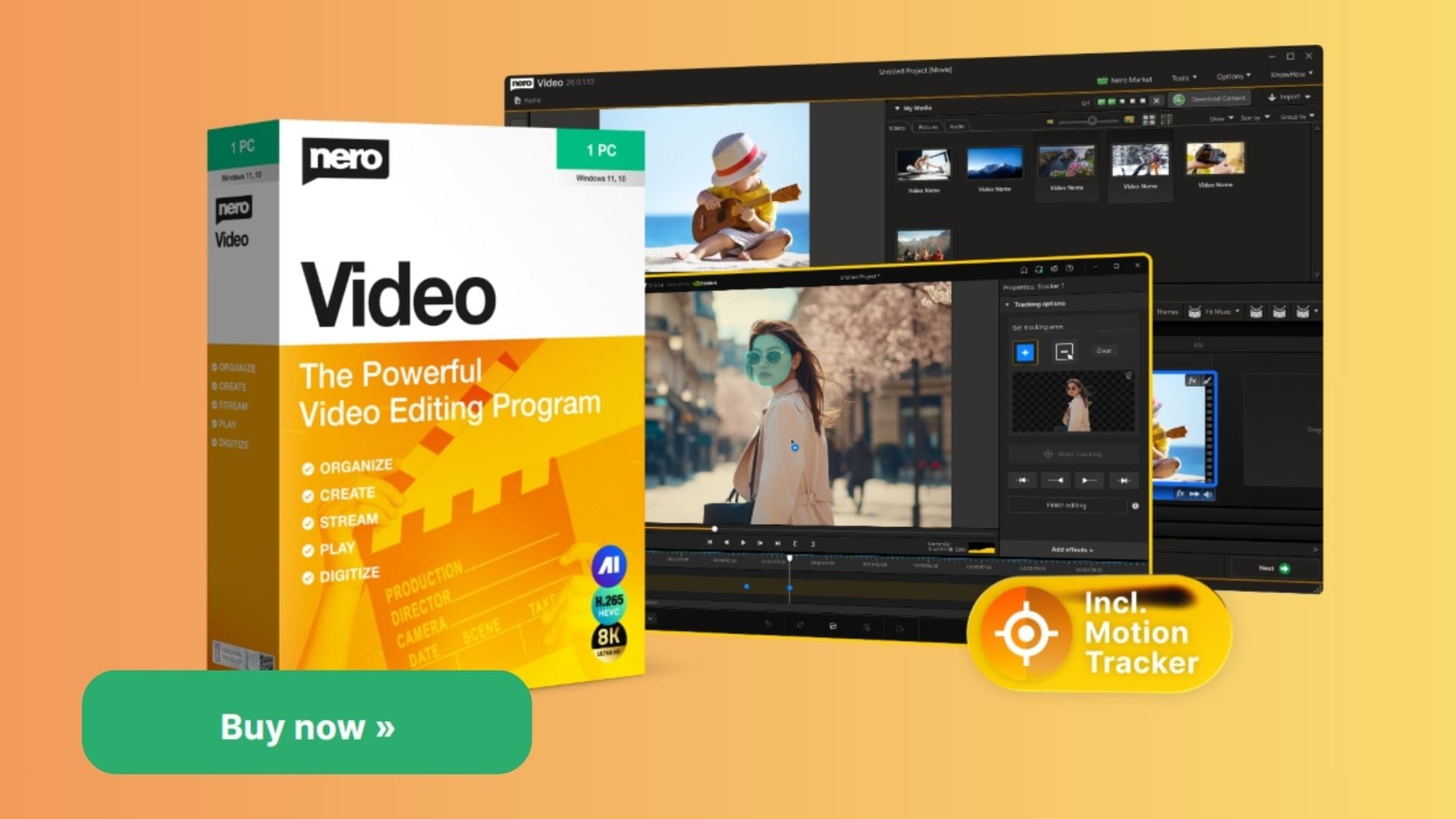
Steps to Download and Install
- Visit the official product page for Nero Video
- Click Download or Buy Now to get the installer file
- Open the downloaded file to launch the setup
- Follow the on-screen instructions to install the software
- Sign in or enter your license key if you’ve purchased it
- Launch Nero Video and start a new project
For safety, it’s best to avoid third-party sites offering Nero Video free download, as they may include modified or unsafe files.
User Experience – What It’s Like to Use Nero Video
Once installed, Nero Video software feels straightforward to use, especially if you’ve worked with basic video editors before. The user experience prioritizes simplicity, with a familiar layout and step-by-step guides that help you get started quickly.
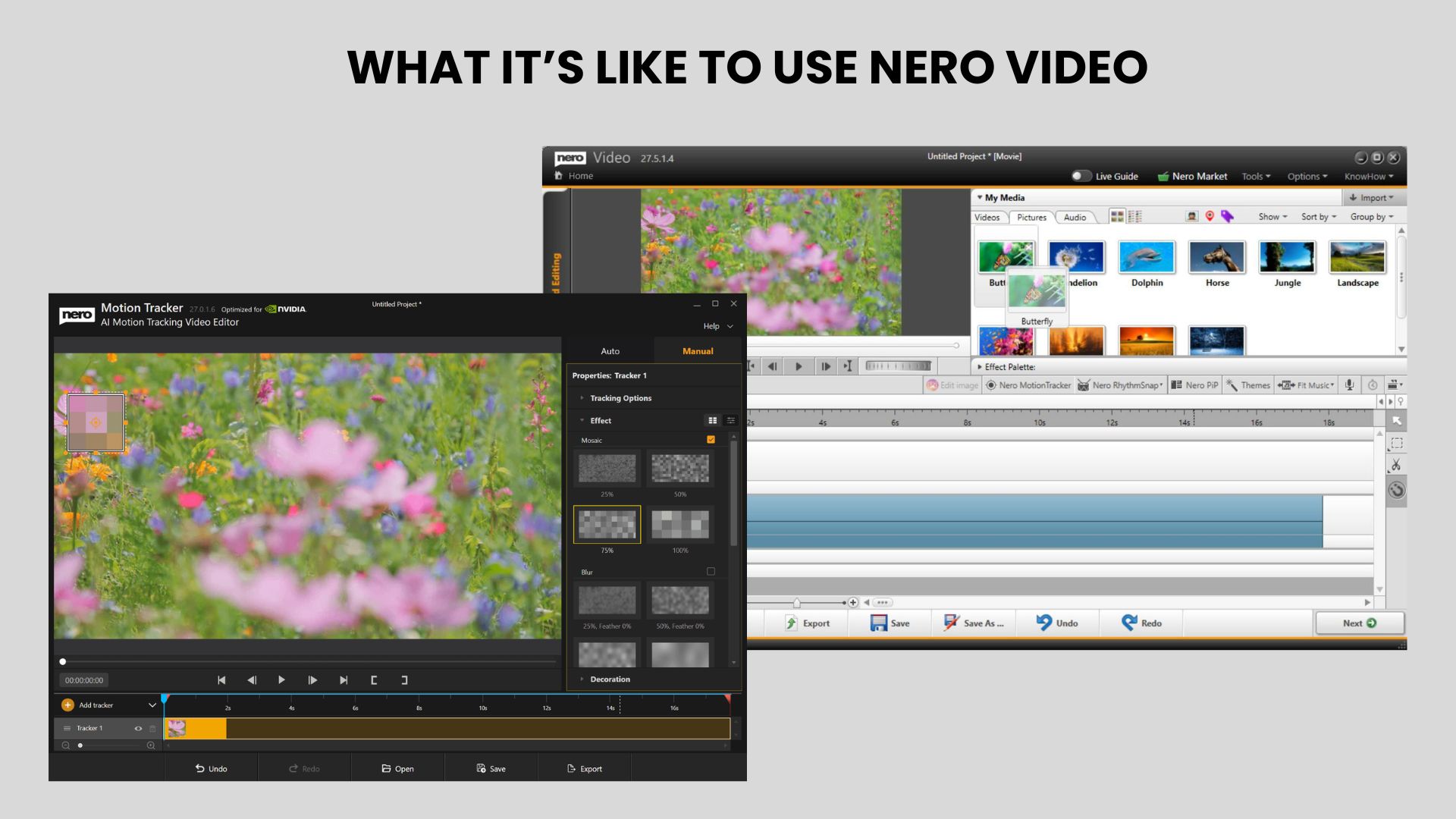
Interface & Workflow
The interface uses a familiar layout with a preview window, control panel, and timeline, so it’s easy to navigate from the start.
- ✅A clean and straightforward layout, suitable for beginners
- ✅A drag-and-drop workflow for adding and arranging clips
- ✅Express mode simplifies editing, while Advanced mode adds more control
- ❌The interface feels dated compared to newer editors
Overall, the workflow is easy to follow, especially for basic projects, but it doesn’t feel as smooth as more modern tools.
Performance
Performance is generally stable for simple edits, but it depends on how heavy your project is.
- ✅Handles basic editing smoothly, even on lower-end PCs
- ✅Supports high-resolution formats like 4K and 8K
- ❌Rendering speed can be slower compared to newer editors
- ❌Occasional lag or slower processing in more complex projects
For casual editing, performance is usually fine. For larger or frequent projects, the limitations become more noticeable.
Learning Curve
Nero Video is designed to be easy to learn, even for first-time users.
- ✅Beginner-friendly setup with guided editing options
- ✅Minimal learning curve for basic editing tasks
- ❌Advanced features are available, but they remain relatively simple compared to professional software
- ❌Limited depth means users may outgrow it over time
Most users can start editing quickly without tutorials, which is one of its main strengths.
Nero Video vs Modern Video Editors
Nero Video editor still has a traditional editing approach, while newer editing software has shifted to faster workflows and AI-powered features. This shift is especially noticeable in beginner-friendly editors.
If you’re considering Nero Video, it’s worth looking at other beginner-friendly editors as well. One of the most common comparisons is Wondershare Filmora, known for its more modern editing workflow.
 Secure Download
Compared to Beginner Video Editors
At the beginner level, Nero Video remains simple and accessible, especially for basic projects like family videos or slideshows. The interface is easy to follow, and guided editing helps reduce the learning curve.
Newer tools like Wondershare Filmora take a different approach, focusing on speed and efficiency.
Beginner Editor Comparison
| Feature | Nero Video | Wondershare Filmora |
| Ease of Use | Beginner-friendly with guided modes | Beginner-friendly with cleaner, modern UI |
| Workflow | Manual, step-by-step editing | Faster workflow with automation |
| AI Features | Limited | Built-in AI tools (auto captions, smart editing) |
| Templates | Large library for basic projects | Large library with more modern styles |
| Best For | Family videos, slideshows, DVD projects | Social media, YouTube, frequent content |
Nero Video focuses on simplicity, while Wondershare Filmora prioritizes speed and modern editing workflows.
Secure DownloadCompared to Professional Video Editors
When compared to more advanced editing software, Nero Video is clearly positioned as an entry-level tool.
Professional-Level Comparison
| Feature | Nero Video | Professional Video Editors |
| Editing Depth | Basic to intermediate tools | Advanced control (color grading, effects) |
| Timeline Complexity | Limited multi-track support | Complex timelines with detailed layering |
| Workflow Efficiency | Manual editing process | Optimized for high-volume production |
| Use Case | Casual or occasional editing | Professional projects and content pipelines |
Nero Video works well for simple editing, but it doesn’t offer the depth or efficiency needed for more complex or high-volume projects.
Secure DownloadConclusion
Nero Video prioritizes convenience, which is where it works best. It handles basic editing, slideshows, and home projects without much setup, and the built-in DVD and Blu-ray tools still offer practical value for certain users.
The editing field has moved toward faster workflows and more streamlined tools, and editors like Wondershare Filmora reflect that shift with a more updated approach. Nero Video is well-suited for occasional editing and simple projects, especially if you prefer a traditional workflow. For more frequent editing or a smoother process, newer editors are generally easier to follow.
FAQs
-
Is Nero Video good for beginners?
Yes. Nero Video is specifically designed for beginners, offering guided editing modes and a simple timeline. It’s easy to start with basic tasks like trimming clips, adding transitions, or creating slideshows. -
Can Nero Video convert videos?
It can export videos in different formats, which covers basic conversion needs. For more advanced or batch video conversion, dedicated tools like Nero Recode are usually more suitable. -
Is Nero Video safe to download?
Yes, as long as you download it from the official Nero website. Avoid third-party sites offering “free downloads,” as they may include modified or unsafe files. -
Does Nero Video work on Mac?
No. Nero Video is built for Windows PCs only. There’s no official macOS version available.
