

 100% Security Verified | No Subscription Required | No Malware


 ChatGPT
 Perplexity
 Gemini
 Claude
 Grok
Grok
Want to save time when adding subtitles to your videos? With Clipchamp auto captions, you can generate subtitles automatically using speech recognition. This feature can make your videos more accessible and engaging, even when viewers watch without sound.
Besides automatic captions, Clipchamp subtitles can also be manually edited. This way, you can adjust the text, timing, and style to fit your content's needs. This feature gives you more control over how your message is presented to your audience.
In this guide, we'll walk you through how to use both options, from auto-generating captions to manually adding subtitles. We'll also introduce an AI-powered alternative to Clipchamp captions if you want more flexibility and control. Let's get started!

In this article
Part 1. How to Automatically Add Captions on Clipchamp Videos
The Clipchamp auto captions tool lets you generate subtitles automatically using speech-to-text technology. This feature is perfect for quickly adding captions to your videos, helping make your content more accessible without manual transcription.
Follow this step-by-step guide to add captions on Clipchamp with its auto captions feature:
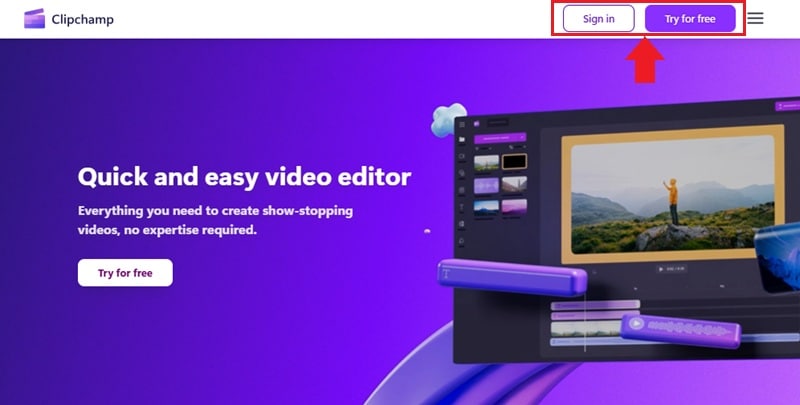
Go to Clipchamp's website and click Sign in if you already have an account. Or, select Try for Free to create a new one.
Step 1. Sign In to Clipchamp and Start the Project
Go to Clipchamp's website and click Sign in if you already have an account. Or, select Try for Free to create a new one.
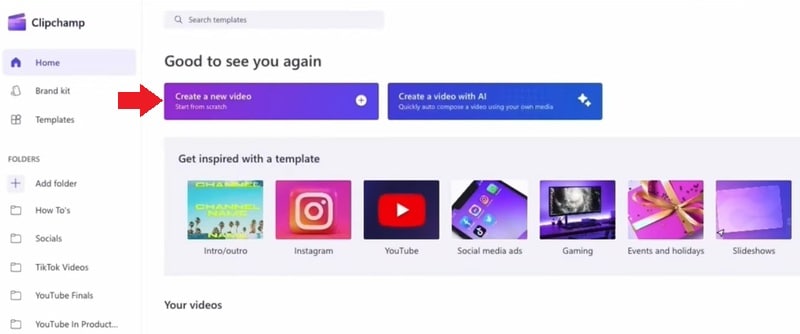
Once you're logged in, navigate to Home > Create a New Video to get started.
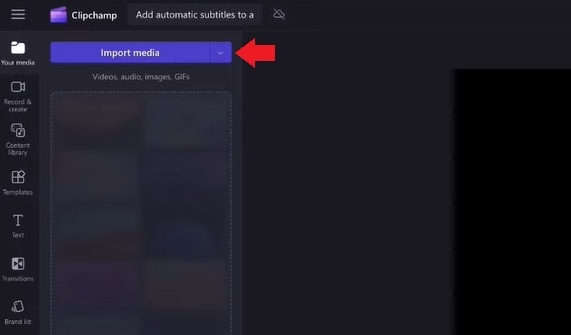
Step 2. Upload and Add Your Video to the Timeline
In the toolbar, go to the Your Media tab and click Import Media to upload your video from your device. Or, use the dropdown button to upload from cloud storage services.
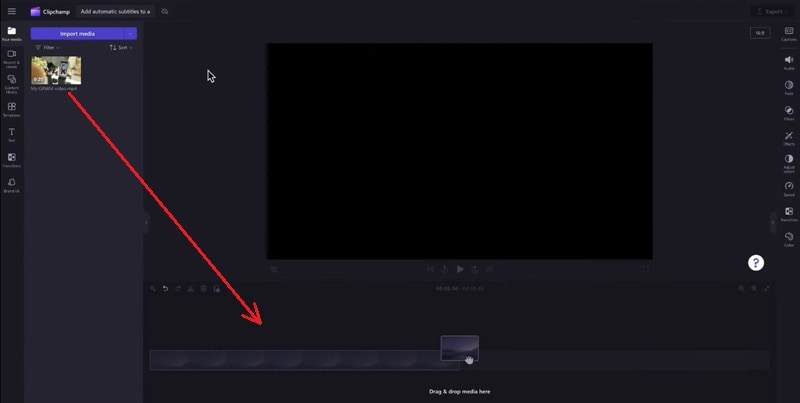
Once uploaded, drag your video onto the timeline to start editing.
Step 3. Turn on Clipchamp Auto Captions
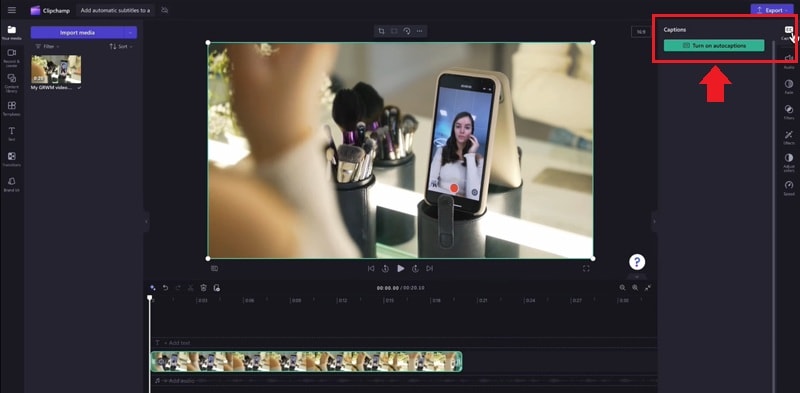
Select your video on the timeline. Then go to the right side of the screen, click the Captions tab, and press the Turn on Auto Captions button.
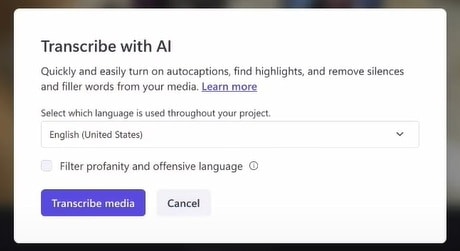
A pop-up window will appear. Choose your video’s language and optionally enable the profanity filter. Click Transcribe Media to start generating captions.

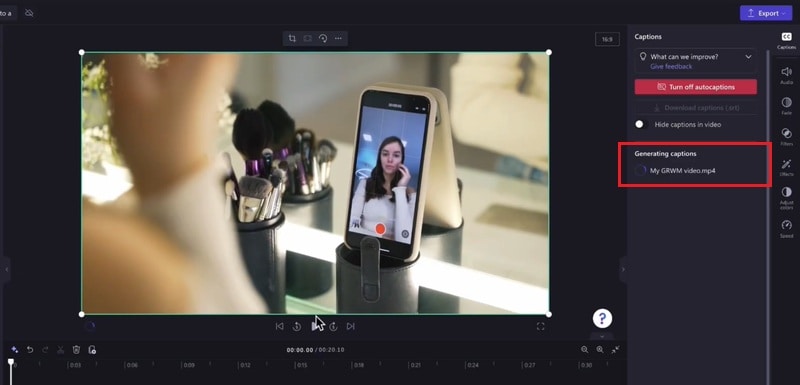
Step 4. Wait for Captions to Generate
Depending on your video length and internet speed, the captions may take a few moments. Once ready, you’ll see them in the Captions tab and directly in the video preview screen.
Part 2. How to Manually Customize Subtitles on Clipchamp
Once you add subtitles on Clipchamp with its auto captions tool, it's time to customize them. You can edit the text if there are any misspellings or grammatical errors, and change the style to fit your video's needs.
Follow the step-by-step below to customize the subtitles further:
Step 1. Edit the Clipchamp Captions Text
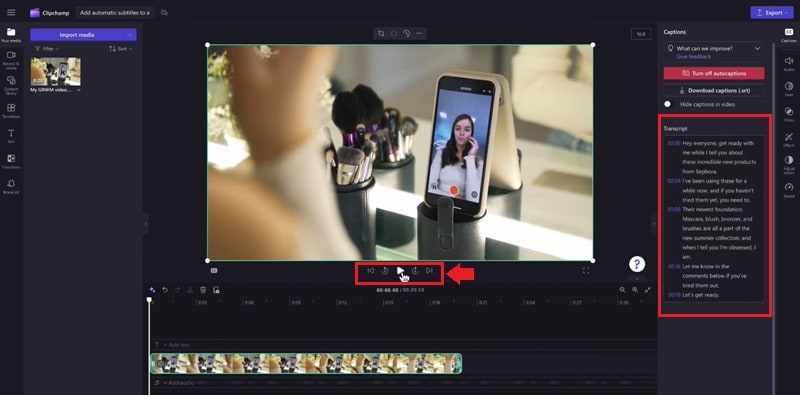
- Use the Play button to preview your video with captions.
- Go to the Captions tab on the right. Click on any word or sentence to correct spelling, fix typos, or rewrite phrases.
Step 2. Adjust Caption Timing
If subtitles appear too early or late, you can manually adjust their timing to match the spoken audio better.
Step 3. Customize Caption Style
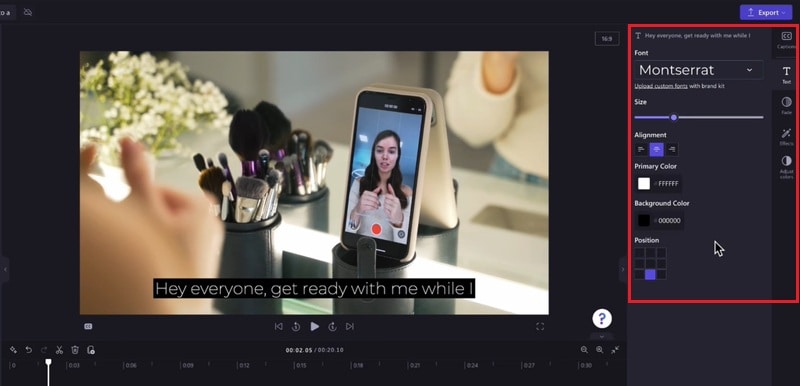
Go to the Text tab to change the appearance of the captions. Here, you can:
- Change the font and size.
- Adjust text color and background color.
- Modify alignment and position.
- Add effects like outlines, shadows, or fades.
Step 4. Preview Your Captions
Hit Play to watch the video and check how your customized subtitles look. Make any final edits as needed.
Step 5. Export Your Video with Subtitles
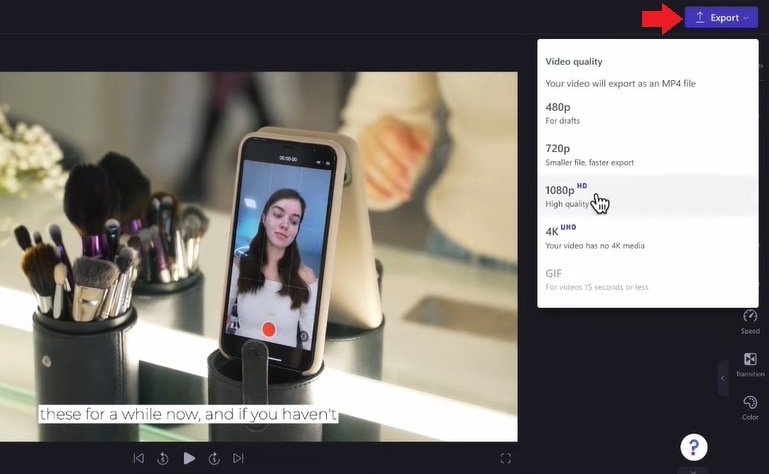
Once you're happy with your Clipchamp subtitles, click Export and choose your preferred video resolution to save your video with subtitles.
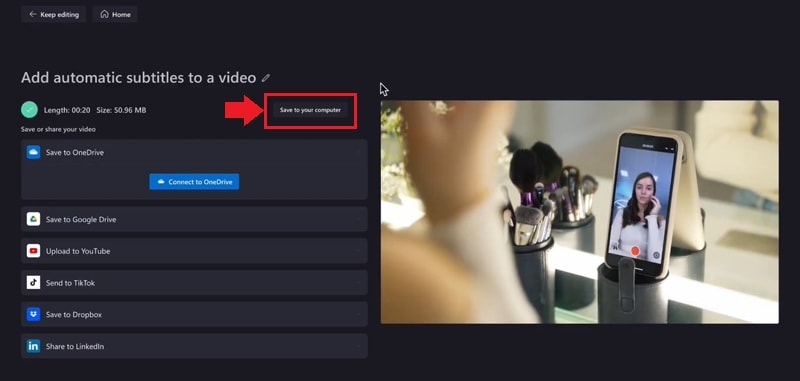
Wait for the loading process, then click Save to Your Computer to download the video with captions included.
Limitations of Clipchamp Auto Captions
Clipchamp auto captions are a convenient tool for generating subtitles. However, there are several limitations to be aware of:
- Single Language Support: Currently, Clipchamp supports only one language per video for auto-captioning. If your content includes multiple languages, you'll need to create separate projects for each language segment.
- Partial Transcription Issues: Some users have reported that auto-captioning may stop partway through longer videos, sometimes transcribing only a portion of the content. This issue has been noted across both free and premium accounts.
- Browser Compatibility: The auto-captioning feature functions optimally on Microsoft Edge. Users have experienced difficulties when using other browsers like Chrome or Safari, which may affect the transcription process.
Part 3. Want More Flexibility? Try Filmora's AI Subtitle Tools
Having read the details of generating captions on Clipchamp, let's look into a more versatile alternative. With its comprehensive Speech-to-Text feature, Wondershare Filmora generates accurate captions for your videos. Users can select the original video language and the targeted one to get better results. You can either generate captions for the entire timeline or just the selected sequence of the video.
To make the captions dynamic, the generated text can be converted to titles. These titles can be styled and animated individually to create a dynamic impact. Filmora offers a range of ready-to-use caption templates to stylize subtitles with minimal effort. From the font style to its color and alignment, anything can be changed in the subtitles.
If you want to learn how to use Wondershare Filmora for generating speech-to-text captions, follow this guide:
Exploring How to Generate Auto Captions Using Wondershare Filmora
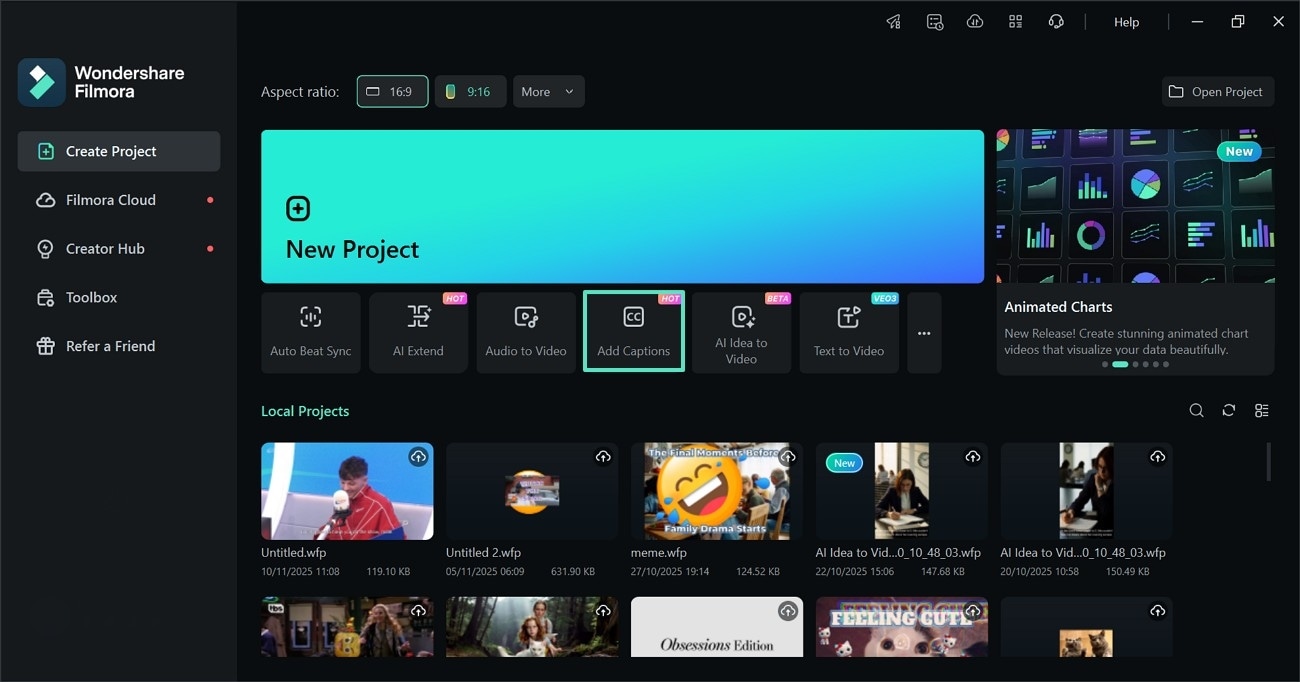
Step 1. Start at the Homepage. To begin with, select the “Add Captions” button and import a video on the following interface.
Step 2. Use the Preview Settings Window. Now, enter the transcription specifications from the “Parameter Settings” window and select the “Generate” button to start processing.
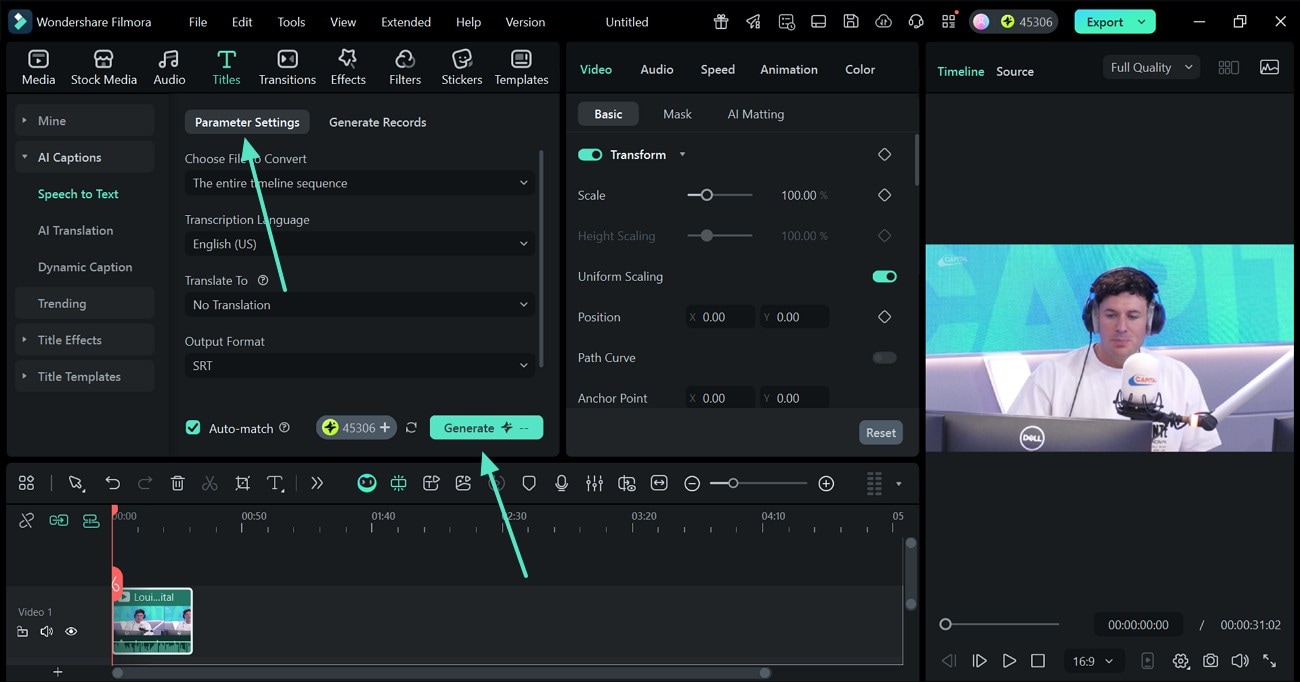
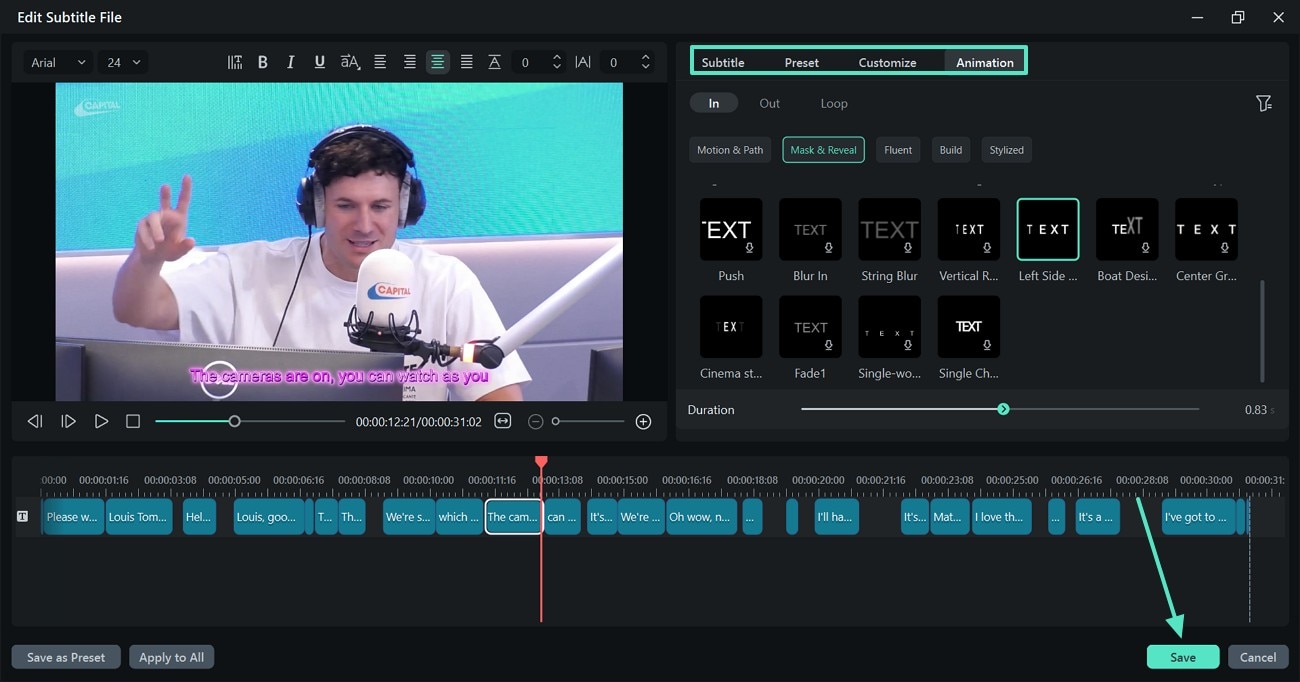
Step 3. Style the Captions. Once the captions are generated, double-click in the text track on the timeline to open a new window. Here, you can edit the text content, apply a “Preset”, “Customize” the preset, and add “Animation” to the text. When the captions have been edited, hit the “Save” button to apply the changes.
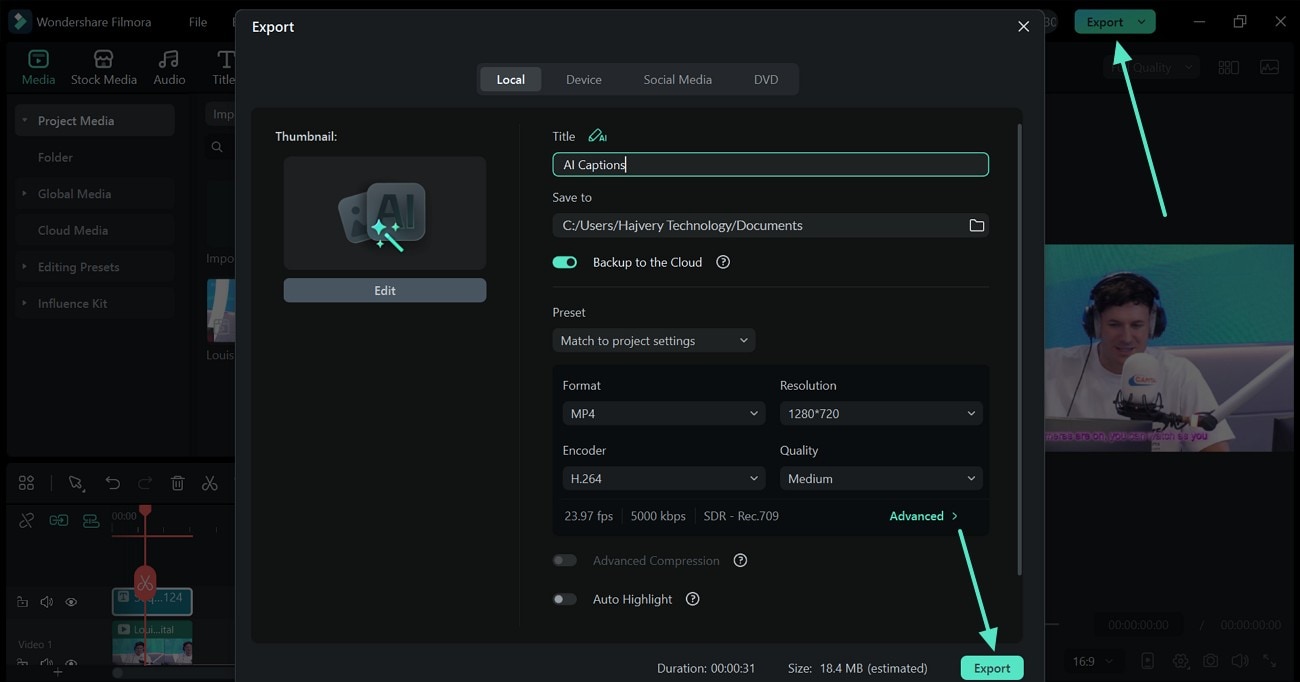
Step 4. Save the Captioned Project. As the video is ready, select the “Export” button at the top right to “Export” the video using the next window.
 secure download

Conclusion
With Clipchamp auto captions, adding subtitles to your videos is faster and more convenient. This feature makes it easy to generate captions without manual typing. It helps you to make your content more accessible, even when viewers watch without sound.
You can also manually adjust your Clipchamp subtitles to correct errors and change the style to match your video content. This way, your Clipchamp captions stay clear, accurate, and match your video's tone.
If you're looking for additional features, try Filmora's AI subtitle tools. It has multi-language support, dynamic templates, and smart captioning on both desktop and mobile. Ready to add captions to your next video? Start editing right now!
secure download 